> ## Documentation Index
> Fetch the complete documentation index at: https://help.hoopai.com/llms.txt
> Use this file to discover all available pages before exploring further.
# Social messaging
> Handle WhatsApp, Instagram, and Facebook Messenger conversations alongside your other channels in the Hoop inbox.
Hoop consolidates your social messaging channels — WhatsApp, Instagram Direct, and Facebook Messenger — into the same Conversations inbox as your SMS and email. All the standard tools (snippets, trigger links, custom values, payment requests) are available in every social channel.
***
## Instagram Direct Messaging
Once you connect your Instagram account (which must be linked to a Facebook Page and Meta Business Suite), incoming Instagram DMs appear in your Conversations tab with the Instagram channel indicator.
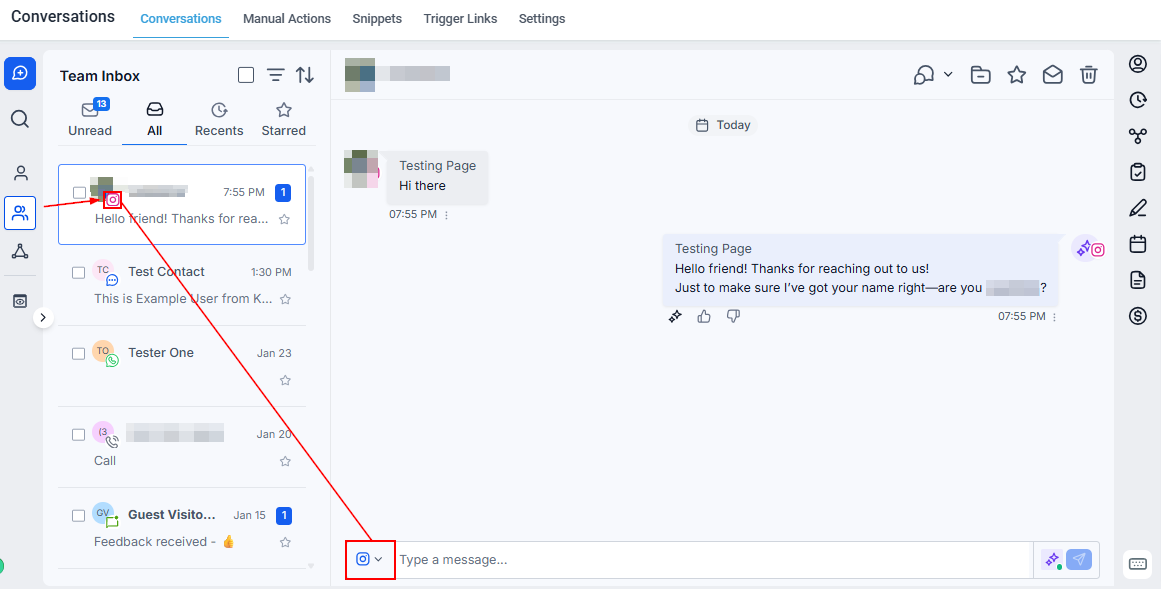 You can only reply via Instagram DM if the contact has sent your business a message through Instagram first. If they have not, the Instagram option will not appear.
### Composing Instagram messages
All the standard message tools are available:
| Tool | How to access |
| ----------------------------- | ------------------------------------------------------ |
| Emojis | Smiley face icon — search or browse categories |
| File attachments | Paperclip icon — select from your system |
| Snippets (SMS templates) | Paper icon — choose from saved templates |
| Trigger links | Lightning bolt icon |
| Custom values | Tag icon |
| Payment request | Dollar sign icon → fill in invoice details → Copy link |
| AI Bot | Toggle the bot icon to enable automated responses |
| Expand / collapse message box | Icons at the top right corner |
***
## Facebook Messenger
Connect your Facebook Page through Meta Business to receive Messenger conversations in Hoop.
You can only reply via Instagram DM if the contact has sent your business a message through Instagram first. If they have not, the Instagram option will not appear.
### Composing Instagram messages
All the standard message tools are available:
| Tool | How to access |
| ----------------------------- | ------------------------------------------------------ |
| Emojis | Smiley face icon — search or browse categories |
| File attachments | Paperclip icon — select from your system |
| Snippets (SMS templates) | Paper icon — choose from saved templates |
| Trigger links | Lightning bolt icon |
| Custom values | Tag icon |
| Payment request | Dollar sign icon → fill in invoice details → Copy link |
| AI Bot | Toggle the bot icon to enable automated responses |
| Expand / collapse message box | Icons at the top right corner |
***
## Facebook Messenger
Connect your Facebook Page through Meta Business to receive Messenger conversations in Hoop.
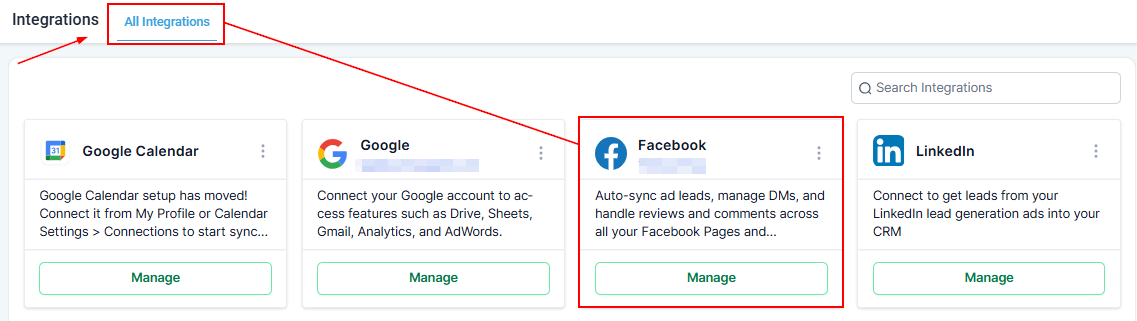 Facebook messaging settings are only available for Facebook Pages connected to Meta Business.
You can only reply via Messenger if the contact has messaged your business through Facebook first.
### Composing Facebook messages
The same toolbar as Instagram is available, plus:
* **Internal Comment** — switch to the Internal Comments channel to leave a private team note without the client seeing it.
* **Message box resize** — minimize or maximize the composer; your draft is preserved either way.
***
## WhatsApp
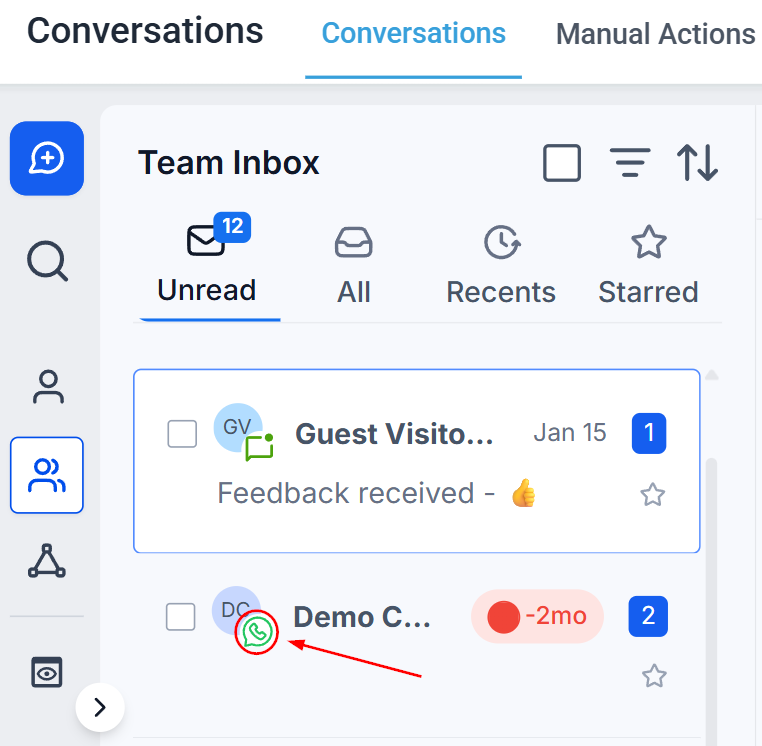
WhatsApp conversations are identifiable in your inbox by the green WhatsApp icon. The 24-hour messaging window applies — you can reply freely within 24 hours of receiving an inbound message; outside that window, you must use an approved WhatsApp template.
Facebook messaging settings are only available for Facebook Pages connected to Meta Business.
You can only reply via Messenger if the contact has messaged your business through Facebook first.
### Composing Facebook messages
The same toolbar as Instagram is available, plus:
* **Internal Comment** — switch to the Internal Comments channel to leave a private team note without the client seeing it.
* **Message box resize** — minimize or maximize the composer; your draft is preserved either way.
***
## WhatsApp
WhatsApp conversations are identifiable in your inbox by the green WhatsApp icon. The 24-hour messaging window applies — you can reply freely within 24 hours of receiving an inbound message; outside that window, you must use an approved WhatsApp template.
 ### Composing WhatsApp messages
Open the contact's conversation and click the **WhatsApp** tab.
Write your message. You can include links, images, and custom values just like any other channel.
Click the notebook icon to select from your approved WhatsApp templates.
Click the **\$** icon to send a payment link directly through WhatsApp.
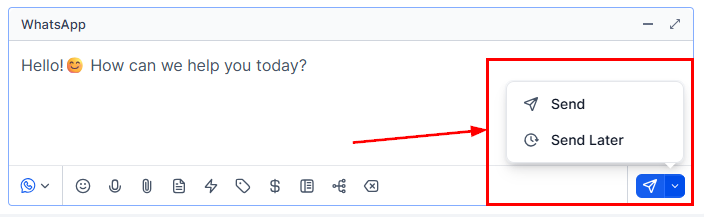
Click **Send** for immediate delivery, or click the down arrow to schedule. Scheduled messages can be set up to 24 hours from the last inbound message from the customer.
### Composing WhatsApp messages
Open the contact's conversation and click the **WhatsApp** tab.
Write your message. You can include links, images, and custom values just like any other channel.
Click the notebook icon to select from your approved WhatsApp templates.
Click the **\$** icon to send a payment link directly through WhatsApp.
Click **Send** for immediate delivery, or click the down arrow to schedule. Scheduled messages can be set up to 24 hours from the last inbound message from the customer.
 ### WhatsApp voice notes
Send audio voice notes directly in WhatsApp conversations.
The first time you record, Hoop will request microphone access. Grant it in your browser or device privacy settings.
Click the **microphone** icon to start recording. Speak clearly.
### WhatsApp voice notes
Send audio voice notes directly in WhatsApp conversations.
The first time you record, Hoop will request microphone access. Grant it in your browser or device privacy settings.
Click the **microphone** icon to start recording. Speak clearly.
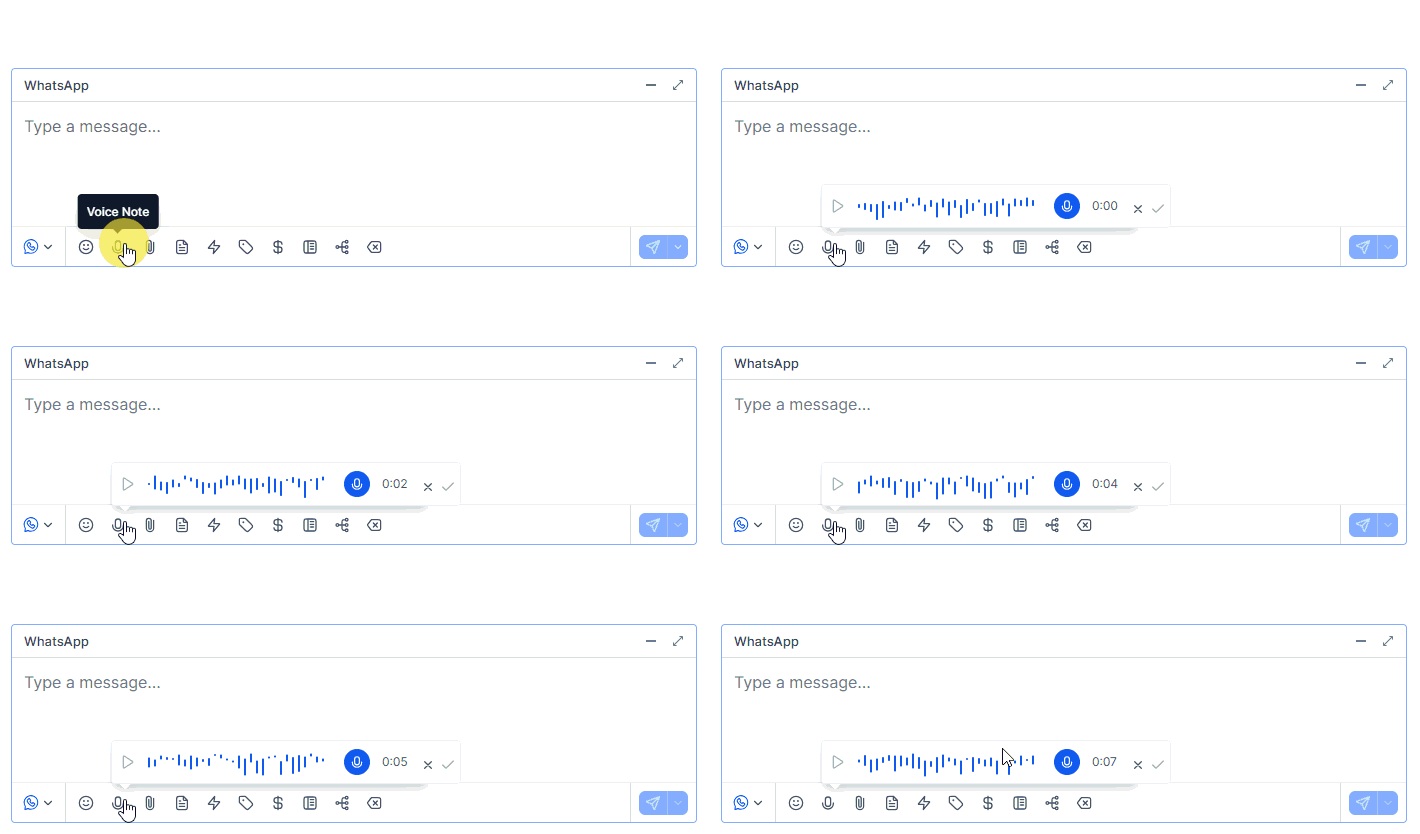 Maximum voice note duration is 10 minutes.
Click the send button to deliver the voice note in real time.
* **Customer support** — explain complex issues with a personal, human touch.
* **Special offers** — announce promotions enthusiastically to drive engagement.
* **Feedback requests** — personalized audio requests feel more genuine and get more responses.
* **Microphone not working** — check browser or OS permissions for microphone access.
* **Can't find the microphone icon** — ensure there is an active WhatsApp conversation (voice notes cannot be sent to contacts without an open conversation).
* **Audio quality issues** — minimize background noise and speak directly into the microphone.
* **Sending issues** — refresh the page or restart the browser.
### WhatsApp snippets
Use saved text snippets inside WhatsApp conversations:
Open the conversation and switch to the **WhatsApp** tab.
Click the **paper icon** in the message toolbar.
Choose the desired snippet — it populates into your message field automatically.
Maximum voice note duration is 10 minutes.
Click the send button to deliver the voice note in real time.
* **Customer support** — explain complex issues with a personal, human touch.
* **Special offers** — announce promotions enthusiastically to drive engagement.
* **Feedback requests** — personalized audio requests feel more genuine and get more responses.
* **Microphone not working** — check browser or OS permissions for microphone access.
* **Can't find the microphone icon** — ensure there is an active WhatsApp conversation (voice notes cannot be sent to contacts without an open conversation).
* **Audio quality issues** — minimize background noise and speak directly into the microphone.
* **Sending issues** — refresh the page or restart the browser.
### WhatsApp snippets
Use saved text snippets inside WhatsApp conversations:
Open the conversation and switch to the **WhatsApp** tab.
Click the **paper icon** in the message toolbar.
Choose the desired snippet — it populates into your message field automatically.
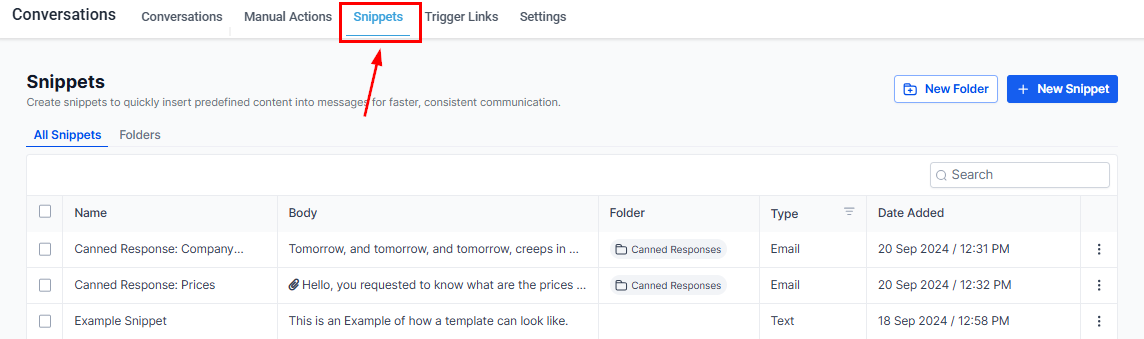 Optionally add more text, then click **Send**.
### Saving WhatsApp media to documents
WhatsApp media shared in conversations — images, videos, PDFs — is automatically retained in Hoop for up to one year (inbound files expire on WhatsApp after 7 days; outbound after 30 days). You can also save attachments permanently to a contact's Documents folder.
Open the WhatsApp conversation and click on the media attachment.
Select **Add to Documents** from the actions dropdown.
Optionally add more text, then click **Send**.
### Saving WhatsApp media to documents
WhatsApp media shared in conversations — images, videos, PDFs — is automatically retained in Hoop for up to one year (inbound files expire on WhatsApp after 7 days; outbound after 30 days). You can also save attachments permanently to a contact's Documents folder.
Open the WhatsApp conversation and click on the media attachment.
Select **Add to Documents** from the actions dropdown.
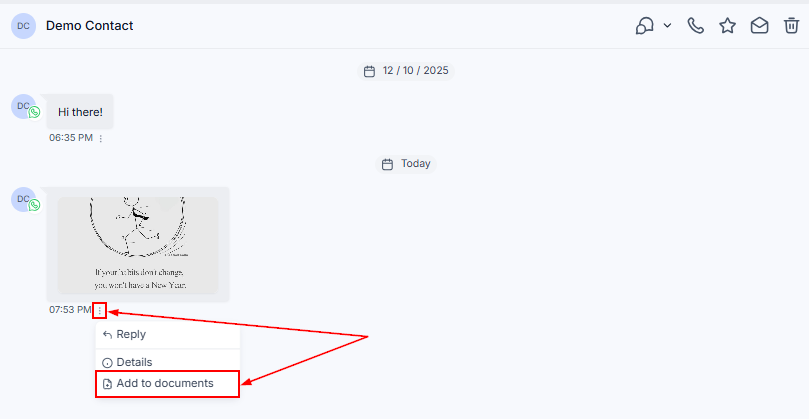 The file is saved in the contact's Documents section. Click the three dots next to the file to download or preview it.