> ## Documentation Index
> Fetch the complete documentation index at: https://help.hoopai.com/llms.txt
> Use this file to discover all available pages before exploring further.
# Scheduled messages
> Schedule SMS, email, and other messages to send at a future date and time from the HoopAI platform conversations inbox.
The HoopAI platform lets you compose a message now and schedule it to deliver at any future date and time. Scheduled messages work across all supported channels — SMS, email, WhatsApp, and social — and are queued per conversation so your team has full visibility into what is going out and when.
## Why schedule messages
* **Time zone alignment** — send messages when contacts are most likely to be active, even if that falls outside your working hours.
* **Campaign timing** — coordinate outreach around events, launches, or follow-up sequences without manual intervention.
* **Drafts for review** — compose messages in advance and schedule them for a final send at the appropriate moment.
* **Avoid instant send errors** — scheduling gives you a window to catch and cancel a message before it goes out.
## Scheduling an SMS
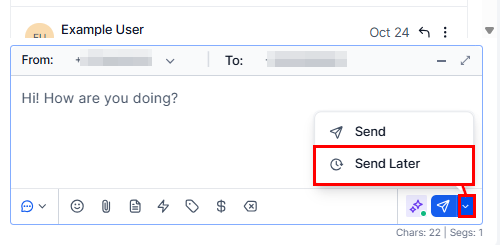 Navigate to **Conversations** and open the contact you want to message.
Click the **SMS** tab in the message composer.
Write the SMS text. Add emojis, snippets, trigger links, custom values, attachments, or payment links using the toolbar icons.
Click the **timer icon** or the dropdown arrow next to the Send button and choose **Send Later**.
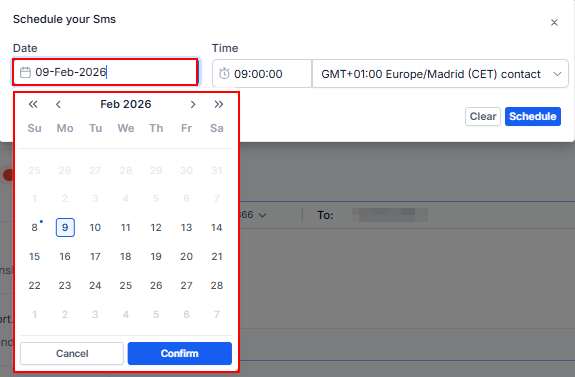
A date and time picker appears. Select:
* **Date** — the delivery date.
* **Time** — use 24-hour format. Enter the time the message should go out.
* **Timezone** — the contact's local timezone is pre-selected if available. Adjust if needed.
Click **Schedule**, then click **Send Later** to confirm. The message enters a queued state in the conversation thread with a scheduled indicator showing the delivery date and time.
Navigate to **Conversations** and open the contact you want to message.
Click the **SMS** tab in the message composer.
Write the SMS text. Add emojis, snippets, trigger links, custom values, attachments, or payment links using the toolbar icons.
Click the **timer icon** or the dropdown arrow next to the Send button and choose **Send Later**.
A date and time picker appears. Select:
* **Date** — the delivery date.
* **Time** — use 24-hour format. Enter the time the message should go out.
* **Timezone** — the contact's local timezone is pre-selected if available. Adjust if needed.
Click **Schedule**, then click **Send Later** to confirm. The message enters a queued state in the conversation thread with a scheduled indicator showing the delivery date and time.
 ## Scheduling an email
In the contact's conversation, click the **Email** tab in the composer.
Complete the From, To, Subject, and any CC or BCC fields.
Write and format the email body. Add attachments, merge fields, or templates as needed.
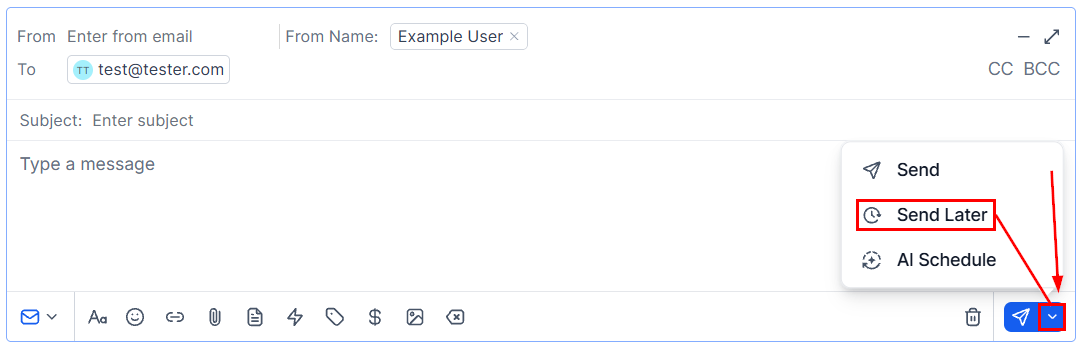
Click the **dropdown arrow** next to the Send button. Two scheduling options appear:
| Option | Description |
| ------------------------- | --------------------------------------------------------------------------------------------------------------------------- |
| Send Later | You choose the exact date, time, and timezone |
| Send with AI Optimization | The platform selects the optimal send time within a window you set, based on the recipient's historical engagement patterns |
Choose **Send Later**, set the date, time, and timezone, then click **Send Schedule**.
Choose **Send with AI Optimization**, select the time window (e.g., "next 24 hours" or "next 48 hours"), and click **Send with AI Optimization**. The system picks the best moment within that window to maximize open rates.
## Scheduling an email
In the contact's conversation, click the **Email** tab in the composer.
Complete the From, To, Subject, and any CC or BCC fields.
Write and format the email body. Add attachments, merge fields, or templates as needed.
Click the **dropdown arrow** next to the Send button. Two scheduling options appear:
| Option | Description |
| ------------------------- | --------------------------------------------------------------------------------------------------------------------------- |
| Send Later | You choose the exact date, time, and timezone |
| Send with AI Optimization | The platform selects the optimal send time within a window you set, based on the recipient's historical engagement patterns |
Choose **Send Later**, set the date, time, and timezone, then click **Send Schedule**.
Choose **Send with AI Optimization**, select the time window (e.g., "next 24 hours" or "next 48 hours"), and click **Send with AI Optimization**. The system picks the best moment within that window to maximize open rates.
 AI Scheduling is most effective for follow-up emails and campaigns where timing has a meaningful impact on open rates. For time-sensitive messages with a hard deadline, use Send Later instead.
## Scheduling WhatsApp messages
WhatsApp messages can also be scheduled, but are subject to the platform's 24-hour session window. Scheduled WhatsApp messages must be set to send within 24 hours of the contact's last inbound message.
In the conversation, click the **WhatsApp** tab.
Within a live session, write any message. Outside the session window, use an approved WhatsApp template.
Choose **Send Later**.
Pick the delivery time. Ensure it falls within the active session window if you are not using a template.
Click **Schedule**.
## Viewing scheduled messages
Scheduled messages appear in the conversation thread with a visual indicator — typically a clock icon or "Scheduled" label — showing the exact date and time of delivery. Anyone with access to the conversation can see pending scheduled messages.
You can also identify conversations with pending scheduled messages by checking the conversation list, where a schedule indicator may appear alongside the latest message preview.
## Canceling a scheduled message
Open the conversation containing the queued message.
Click the **Cancel** link or button next to the scheduled message entry in the thread.
Confirm the cancellation in the dialog that appears. The draft is permanently deleted.
Once a scheduled message's send time has passed, the Cancel option is no longer available. The message has been delivered and cannot be recalled.
## Editing a scheduled message
The HoopAI platform does not support inline editing of a scheduled message after it has been queued. To make changes:
1. Cancel the existing scheduled message.
2. Reopen the composer, make your edits.
3. Reschedule the updated message.
## Scheduling within workflows
For large-scale or automated scheduling — such as sending a follow-up SMS 2 hours after a form submission — use the **Wait** action in a workflow instead of manual scheduling. Workflows handle timing at scale without requiring per-contact manual scheduling.
Manual scheduling via the conversations inbox is best suited for one-off messages where you want direct control over a specific conversation.
## Best practices
* Always verify the timezone before scheduling. A message scheduled for 9:00 AM in your timezone arrives at 3:00 AM for a contact on the opposite coast.
* Schedule follow-up messages immediately after an interaction while the context is fresh, then let the platform deliver them at the right moment.
* Use descriptive subject lines for scheduled emails so it is clear what is going out when reviewing the queue.
* Review your scheduled messages queue at the start of each day to ensure nothing needs to be updated or canceled before it sends.
AI Scheduling is most effective for follow-up emails and campaigns where timing has a meaningful impact on open rates. For time-sensitive messages with a hard deadline, use Send Later instead.
## Scheduling WhatsApp messages
WhatsApp messages can also be scheduled, but are subject to the platform's 24-hour session window. Scheduled WhatsApp messages must be set to send within 24 hours of the contact's last inbound message.
In the conversation, click the **WhatsApp** tab.
Within a live session, write any message. Outside the session window, use an approved WhatsApp template.
Choose **Send Later**.
Pick the delivery time. Ensure it falls within the active session window if you are not using a template.
Click **Schedule**.
## Viewing scheduled messages
Scheduled messages appear in the conversation thread with a visual indicator — typically a clock icon or "Scheduled" label — showing the exact date and time of delivery. Anyone with access to the conversation can see pending scheduled messages.
You can also identify conversations with pending scheduled messages by checking the conversation list, where a schedule indicator may appear alongside the latest message preview.
## Canceling a scheduled message
Open the conversation containing the queued message.
Click the **Cancel** link or button next to the scheduled message entry in the thread.
Confirm the cancellation in the dialog that appears. The draft is permanently deleted.
Once a scheduled message's send time has passed, the Cancel option is no longer available. The message has been delivered and cannot be recalled.
## Editing a scheduled message
The HoopAI platform does not support inline editing of a scheduled message after it has been queued. To make changes:
1. Cancel the existing scheduled message.
2. Reopen the composer, make your edits.
3. Reschedule the updated message.
## Scheduling within workflows
For large-scale or automated scheduling — such as sending a follow-up SMS 2 hours after a form submission — use the **Wait** action in a workflow instead of manual scheduling. Workflows handle timing at scale without requiring per-contact manual scheduling.
Manual scheduling via the conversations inbox is best suited for one-off messages where you want direct control over a specific conversation.
## Best practices
* Always verify the timezone before scheduling. A message scheduled for 9:00 AM in your timezone arrives at 3:00 AM for a contact on the opposite coast.
* Schedule follow-up messages immediately after an interaction while the context is fresh, then let the platform deliver them at the right moment.
* Use descriptive subject lines for scheduled emails so it is clear what is going out when reviewing the queue.
* Review your scheduled messages queue at the start of each day to ensure nothing needs to be updated or canceled before it sends.