> ## Documentation Index
> Fetch the complete documentation index at: https://help.hoopai.com/llms.txt
> Use this file to discover all available pages before exploring further.
# Requesting payment in conversations
> Send payment request links directly inside any conversation channel — SMS, email, WhatsApp, Instagram, or Facebook Messenger — in HoopAI.
You can request payment from a contact without leaving the conversation. HoopAI lets you send a payment link directly through any connected channel — SMS, email, WhatsApp, Instagram DM, or Facebook Messenger — so collecting payment becomes part of the natural conversation flow.
***
## How to send a payment request
Navigate to **Conversations** and open the contact you want to charge.
Choose the channel you want to send the payment request through (SMS, email, WhatsApp, Instagram, or Facebook).
Click the **\$** (dollar sign) icon in the message toolbar to open the payment request panel.
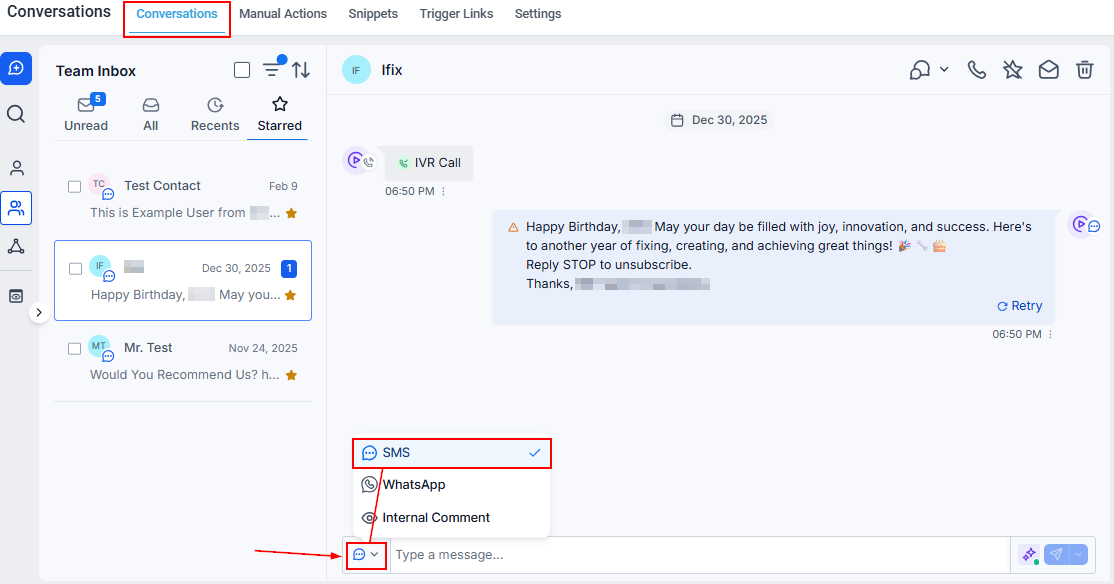 Complete the fields in the payment request dialog:
* **Product or service name** — what you are charging for
* **Amount** — the dollar amount to collect
* **Currency** — defaults to your account currency
* **Description** (optional) — additional context for the contact
* Click **Copy Link** to paste the payment link into your message manually.
* Or click **Send** to insert the payment link directly into the message box.
Add any accompanying message text and click **Send**. The contact receives a clickable payment link that takes them to a hosted checkout page.
***
## Supported channels
Payment requests can be sent through any channel where the dollar sign icon appears:
| Channel | Payment request supported |
| ------------------ | ------------------------- |
| SMS | Yes |
| Email | Yes |
| WhatsApp | Yes |
| Instagram DM | Yes |
| Facebook Messenger | Yes |
| Web Chat Widget | Yes |
***
## How it works for the contact
When your contact receives the message, they see a payment link. Clicking it opens a secure hosted checkout page where they can enter their card details and complete the payment. You receive a notification when payment is completed, and the contact's record is updated automatically.
Complete the fields in the payment request dialog:
* **Product or service name** — what you are charging for
* **Amount** — the dollar amount to collect
* **Currency** — defaults to your account currency
* **Description** (optional) — additional context for the contact
* Click **Copy Link** to paste the payment link into your message manually.
* Or click **Send** to insert the payment link directly into the message box.
Add any accompanying message text and click **Send**. The contact receives a clickable payment link that takes them to a hosted checkout page.
***
## Supported channels
Payment requests can be sent through any channel where the dollar sign icon appears:
| Channel | Payment request supported |
| ------------------ | ------------------------- |
| SMS | Yes |
| Email | Yes |
| WhatsApp | Yes |
| Instagram DM | Yes |
| Facebook Messenger | Yes |
| Web Chat Widget | Yes |
***
## How it works for the contact
When your contact receives the message, they see a payment link. Clicking it opens a secure hosted checkout page where they can enter their card details and complete the payment. You receive a notification when payment is completed, and the contact's record is updated automatically.
 ***
## Tracking payment status
After sending a payment request:
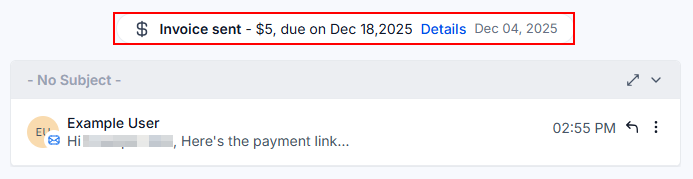
* An **Activity Card** appears in the conversation thread showing the invoice status.
* When the contact pays, the status updates to **Paid** and a new Activity Card is logged.
* You can also view all payment activity in the **Payments** tab of the contact record.
Yes. Each payment request generates its own unique link. You can send as many as needed in a single conversation, and each is tracked separately.
Payment collection relies on your connected payment processor (Stripe, PayPal, or another supported integration). Configure your payment integration in **Settings → Payments** before sending payment requests.
Yes. The payment link stays active until the invoice is paid or manually voided. Contacts can open it at any time from any device.
Standard payment processor fees apply. HoopAI does not charge an additional fee for sending payment requests through conversations.
***
## Tracking payment status
After sending a payment request:
* An **Activity Card** appears in the conversation thread showing the invoice status.
* When the contact pays, the status updates to **Paid** and a new Activity Card is logged.
* You can also view all payment activity in the **Payments** tab of the contact record.
Yes. Each payment request generates its own unique link. You can send as many as needed in a single conversation, and each is tracked separately.
Payment collection relies on your connected payment processor (Stripe, PayPal, or another supported integration). Configure your payment integration in **Settings → Payments** before sending payment requests.
Yes. The payment link stays active until the invoice is paid or manually voided. Contacts can open it at any time from any device.
Standard payment processor fees apply. HoopAI does not charge an additional fee for sending payment requests through conversations.