> ## Documentation Index
> Fetch the complete documentation index at: https://help.hoopai.com/llms.txt
> Use this file to discover all available pages before exploring further.
# Conversations overview — unified inbox in HoopAI
> Manage every inbound and outbound interaction — SMS, email, calls, live chat, WhatsApp, and social messages — from a unified inbox, with tools for assignment, labeling, scheduling, templates, bot control, payment requests, and conversation settings.
The Conversations section is your unified communications hub. Every interaction with leads, clients, and prospects — SMS, email, calls, live chat, WhatsApp, Instagram, Facebook Messenger, Google My Business, and TikTok DMs — is consolidated into one organized inbox. You can send, receive, assign, label, and automate responses across all channels without switching tools.
 ## Inbox
Compose and send SMS, email, and social messages from a single message box within any conversation.
Organize your inbox with quick filters, sorting options, and bulk operations across multiple conversations.
View and edit contact info, tags, tasks, and notes without leaving the conversation thread.
See appointment, invoice, and opportunity updates displayed inline within conversation threads.
Respond to website visitors in real time through the web chat widget connected to your inbox.
Handle Instagram DMs, Facebook Messenger, and Google My Business messages in one place.
Manage full email threads, including CC and BCC, directly from the conversations inbox.
Send and receive WhatsApp messages using your connected WhatsApp Business account.
Track delivery rates, click-through rates, and opt-out data for SMS messages sent from conversations.
Set quiet hours so automated messages are not sent to contacts outside of defined time windows.
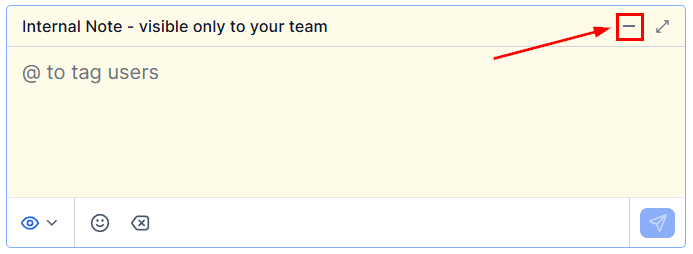
Leave private notes visible only to your team inside a conversation thread, without the contact seeing them.
Send and receive files, images, and documents across supported messaging channels.
Monitor and troubleshoot call audio quality for inbound and outbound calls made from the inbox.
Enable call recording for inbound and outbound calls and review recordings from the conversation thread.
Enable or disable the AI conversation bot per contact to control when automation handles replies.
Send a secure payment link inside any conversation channel so contacts can pay without leaving the thread.
Configure voicemail greetings and access voicemail recordings left by contacts.
Assign conversations to specific team members or queues and track assignment history.
Apply custom labels to conversations for categorization, filtering, and reporting.
Mark conversations as read or unread to track follow-up status across your team.
Send and receive SMS messages with full two-way conversation support.
Schedule a message to be sent at a specific date and time from any conversation.
Use pre-built message templates for SMS and WhatsApp to send compliant and consistent replies.
Configure SLAs, notification preferences, default views, and other inbox-level defaults.
## Tools
Save reusable text and email content as snippets for fast, consistent replies across channels.
Create trackable links that fire automation workflows when a contact clicks them.
Work through pending call and task queues assigned to you by workflow manual action steps.
See how actively a contact is engaging so you can prioritize who to follow up with first.
## Inbox
Compose and send SMS, email, and social messages from a single message box within any conversation.
Organize your inbox with quick filters, sorting options, and bulk operations across multiple conversations.
View and edit contact info, tags, tasks, and notes without leaving the conversation thread.
See appointment, invoice, and opportunity updates displayed inline within conversation threads.
Respond to website visitors in real time through the web chat widget connected to your inbox.
Handle Instagram DMs, Facebook Messenger, and Google My Business messages in one place.
Manage full email threads, including CC and BCC, directly from the conversations inbox.
Send and receive WhatsApp messages using your connected WhatsApp Business account.
Track delivery rates, click-through rates, and opt-out data for SMS messages sent from conversations.
Set quiet hours so automated messages are not sent to contacts outside of defined time windows.
Leave private notes visible only to your team inside a conversation thread, without the contact seeing them.
Send and receive files, images, and documents across supported messaging channels.
Monitor and troubleshoot call audio quality for inbound and outbound calls made from the inbox.
Enable call recording for inbound and outbound calls and review recordings from the conversation thread.
Enable or disable the AI conversation bot per contact to control when automation handles replies.
Send a secure payment link inside any conversation channel so contacts can pay without leaving the thread.
Configure voicemail greetings and access voicemail recordings left by contacts.
Assign conversations to specific team members or queues and track assignment history.
Apply custom labels to conversations for categorization, filtering, and reporting.
Mark conversations as read or unread to track follow-up status across your team.
Send and receive SMS messages with full two-way conversation support.
Schedule a message to be sent at a specific date and time from any conversation.
Use pre-built message templates for SMS and WhatsApp to send compliant and consistent replies.
Configure SLAs, notification preferences, default views, and other inbox-level defaults.
## Tools
Save reusable text and email content as snippets for fast, consistent replies across channels.
Create trackable links that fire automation workflows when a contact clicks them.
Work through pending call and task queues assigned to you by workflow manual action steps.
See how actively a contact is engaging so you can prioritize who to follow up with first.

 ## Getting started
Go to **Settings → Phone System** to set up a phone number for SMS and calling. Connect social channels (Instagram, Facebook, Google My Business) under **Settings → Integrations**. Connect WhatsApp under **Settings → WhatsApp**.
Under **Conversations Settings**, create labels for the types of conversations your team handles — for example, "Support," "Sales," or "Billing." Set up assignment rules so incoming conversations are routed to the right team member automatically.
Go to **Conversations → Snippets** and add the messages your team sends repeatedly — FAQs, booking confirmations, pricing details. Snippets are inserted with a single click during a conversation.
Under **Conversations → Do Not Disturb**, set quiet hours for your account so automated follow-up messages are not sent in the middle of the night or outside business hours.
Go to **Conversations → Call Recording** and enable recording for inbound and/or outbound calls. Make sure you understand and comply with the disclosure requirements in your jurisdiction before enabling.
Access to certain conversation features — such as social messaging and WhatsApp — depends on which channels you have connected in Settings and your plan level. Some features may require additional setup before they appear in the inbox.
## Frequently asked questions
Snippets are free-form reusable text blocks your team uses as shortcuts during a conversation — any channel, any content. Templates are structured message formats required for certain regulated channels (specifically SMS and WhatsApp Business), where carriers or platforms require pre-approved message content for outbound marketing or transactional messages. Use snippets for everyday quick replies; use templates when the channel requires it.
Regular messages are sent to the contact and appear in the conversation thread they can see. Internal comments are private notes visible only to your team — they appear in the same thread but are clearly marked as internal and are never sent to the contact. Use internal comments to leave context for teammates, escalate a conversation, or add notes without the contact seeing them.
Each contact has a bot status toggle that controls whether the AI conversation bot (if you have one configured) will automatically reply to incoming messages from that contact. When bot status is ON, the bot handles replies. When it is OFF, the conversation is handled manually by your team. You can toggle bot status directly from any conversation thread without going to the contact record.
Tags are applied to contact records and persist on the contact — they describe attributes of the person. Conversation labels are applied to individual conversation threads and describe the nature or status of that specific interaction. The same contact can have multiple conversations with different labels. Tags are for contact segmentation; labels are for conversation management.
Yes. When composing any message in a conversation, use the scheduled message option to set a specific date and time for delivery. Scheduled messages can be reviewed and cancelled before they send. This is separate from drip sequences or workflow-based automation — it is a one-off scheduled send from within a single conversation.
Manual actions are tasks created by workflow automation that require a human to take action — typically making a phone call or sending a personalized message. When a workflow reaches a manual action step, the task appears in the manual actions queue for the assigned team member. The team member works through the queue, marking each action complete before moving to the next.
## Getting started
Go to **Settings → Phone System** to set up a phone number for SMS and calling. Connect social channels (Instagram, Facebook, Google My Business) under **Settings → Integrations**. Connect WhatsApp under **Settings → WhatsApp**.
Under **Conversations Settings**, create labels for the types of conversations your team handles — for example, "Support," "Sales," or "Billing." Set up assignment rules so incoming conversations are routed to the right team member automatically.
Go to **Conversations → Snippets** and add the messages your team sends repeatedly — FAQs, booking confirmations, pricing details. Snippets are inserted with a single click during a conversation.
Under **Conversations → Do Not Disturb**, set quiet hours for your account so automated follow-up messages are not sent in the middle of the night or outside business hours.
Go to **Conversations → Call Recording** and enable recording for inbound and/or outbound calls. Make sure you understand and comply with the disclosure requirements in your jurisdiction before enabling.
Access to certain conversation features — such as social messaging and WhatsApp — depends on which channels you have connected in Settings and your plan level. Some features may require additional setup before they appear in the inbox.
## Frequently asked questions
Snippets are free-form reusable text blocks your team uses as shortcuts during a conversation — any channel, any content. Templates are structured message formats required for certain regulated channels (specifically SMS and WhatsApp Business), where carriers or platforms require pre-approved message content for outbound marketing or transactional messages. Use snippets for everyday quick replies; use templates when the channel requires it.
Regular messages are sent to the contact and appear in the conversation thread they can see. Internal comments are private notes visible only to your team — they appear in the same thread but are clearly marked as internal and are never sent to the contact. Use internal comments to leave context for teammates, escalate a conversation, or add notes without the contact seeing them.
Each contact has a bot status toggle that controls whether the AI conversation bot (if you have one configured) will automatically reply to incoming messages from that contact. When bot status is ON, the bot handles replies. When it is OFF, the conversation is handled manually by your team. You can toggle bot status directly from any conversation thread without going to the contact record.
Tags are applied to contact records and persist on the contact — they describe attributes of the person. Conversation labels are applied to individual conversation threads and describe the nature or status of that specific interaction. The same contact can have multiple conversations with different labels. Tags are for contact segmentation; labels are for conversation management.
Yes. When composing any message in a conversation, use the scheduled message option to set a specific date and time for delivery. Scheduled messages can be reviewed and cancelled before they send. This is separate from drip sequences or workflow-based automation — it is a one-off scheduled send from within a single conversation.
Manual actions are tasks created by workflow automation that require a human to take action — typically making a phone call or sending a personalized message. When a workflow reaches a manual action step, the task appears in the manual actions queue for the assigned team member. The team member works through the queue, marking each action complete before moving to the next.