> ## Documentation Index
> Fetch the complete documentation index at: https://help.hoopai.com/llms.txt
> Use this file to discover all available pages before exploring further.
# Manual actions
> Manage pending manual call and SMS task queues in Hoop so your team never misses a follow-up.
Manual Actions keep all your team's pending phone calls and SMS messages organized in one place. Instead of automating these touchpoints, Manual Actions queue them so a person can complete them at the right time — ideal for personalized outreach that needs a human touch.
Access Manual Actions by going to **Conversations → Manual Actions** at the top of the page.
***
## Manual Actions overview
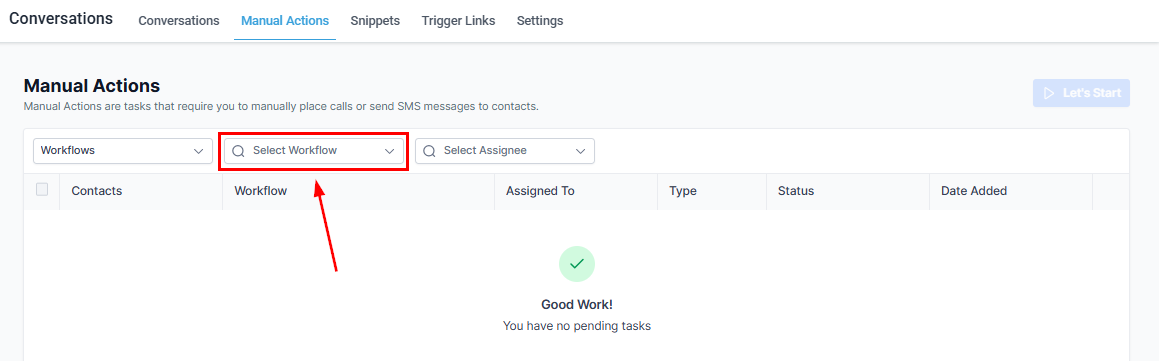
The list shows all queued actions with these columns:
| Column | Description |
| ----------- | ------------------------------------ |
| Contacts | The contact assigned to the action |
| Workflow | The workflow that created the action |
| Assigned To | The team member responsible |
| Type | Manual Call or Manual SMS |
| Status | Completed or Queued |
| Date Added | When the action was created |
 ### Filter by workflow
Click the **Search Workflow** dropdown to see actions from a specific workflow. Each workflow may require different types of actions.
### Filter by assignee
Click **Select Assignee** to view actions assigned to a specific team member — useful for managers reviewing their team's queue.
If you see "No Manual Actions" for a user, it means all their queued tasks are complete.
***
## Starting manual actions
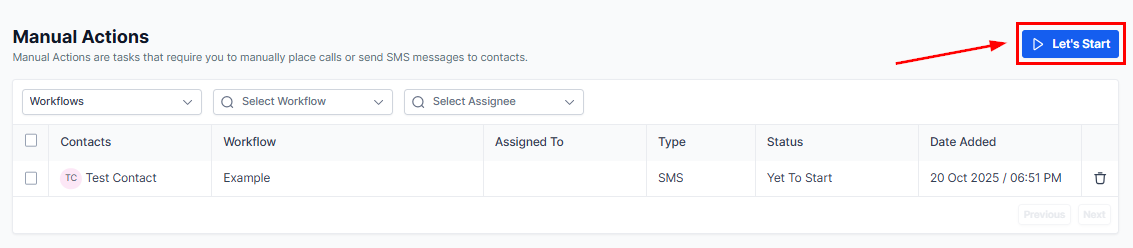
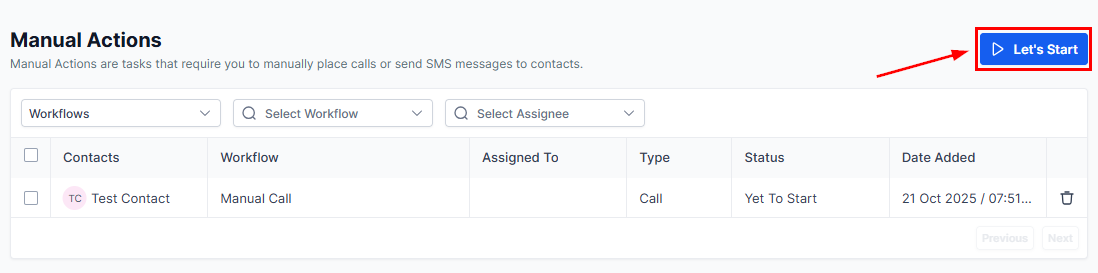
Click the **Let's Start** button to begin working through the queue. You are taken to the first contact's details page.
### Filter by workflow
Click the **Search Workflow** dropdown to see actions from a specific workflow. Each workflow may require different types of actions.
### Filter by assignee
Click **Select Assignee** to view actions assigned to a specific team member — useful for managers reviewing their team's queue.
If you see "No Manual Actions" for a user, it means all their queued tasks are complete.
***
## Starting manual actions
Click the **Let's Start** button to begin working through the queue. You are taken to the first contact's details page.
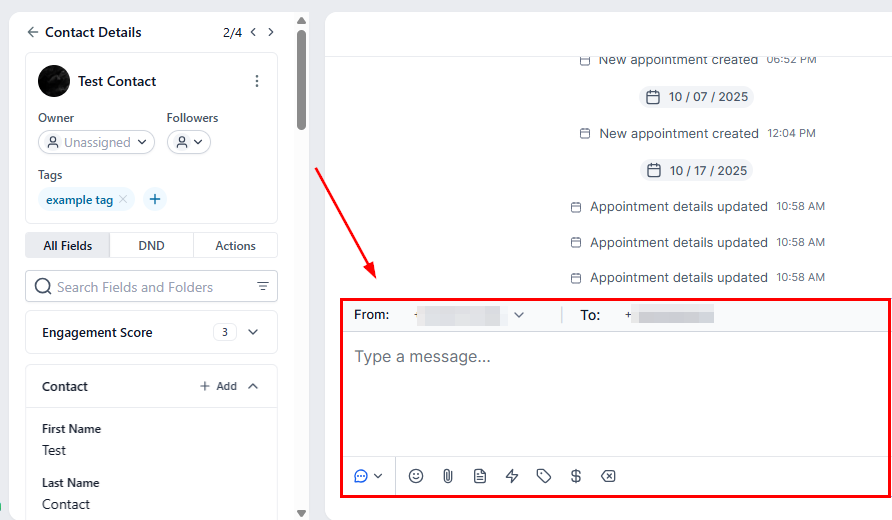
 Click the contact's name to go directly to their record and take action.
* **Manual SMS** — compose and send a text immediately or schedule it.
* **Manual Call** — click the dialer icon to call the contact directly.
After completing an action, the system automatically moves to the next contact in the queue.
Click the contact's name to go directly to their record and take action.
* **Manual SMS** — compose and send a text immediately or schedule it.
* **Manual Call** — click the dialer icon to call the contact directly.
After completing an action, the system automatically moves to the next contact in the queue.
 ### Deleting a manual action
If a manual action was created by mistake, click the **trash icon** next to it to remove it from the queue.
***
## Manual calls
Manual Call Actions let you queue contacts for personal phone outreach from a workflow.
### Setting up a manual call workflow
Go to **Automation → Workflows** and create a new workflow or open an existing one.
### Deleting a manual action
If a manual action was created by mistake, click the **trash icon** next to it to remove it from the queue.
***
## Manual calls
Manual Call Actions let you queue contacts for personal phone outreach from a workflow.
### Setting up a manual call workflow
Go to **Automation → Workflows** and create a new workflow or open an existing one.
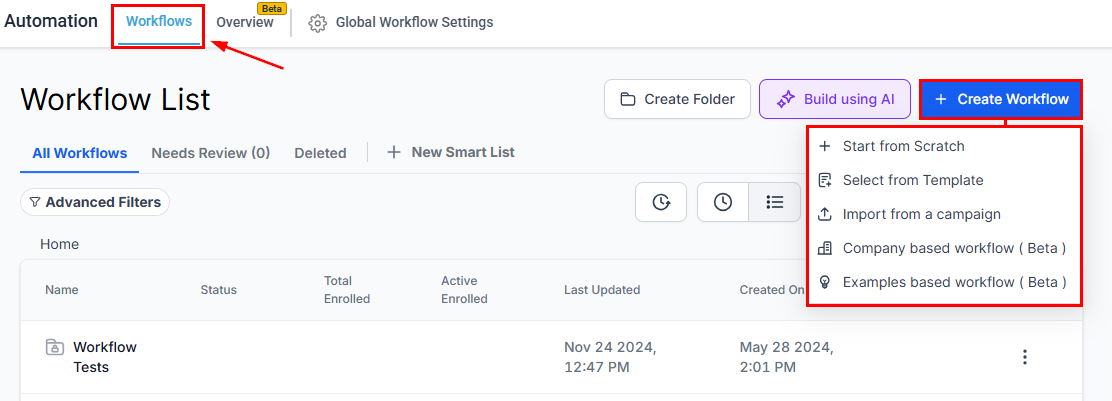 Click **+ Add Action**, search for **Manual Action**, then select **Manual Calls**.
Give the workflow a descriptive name, then publish and save it.
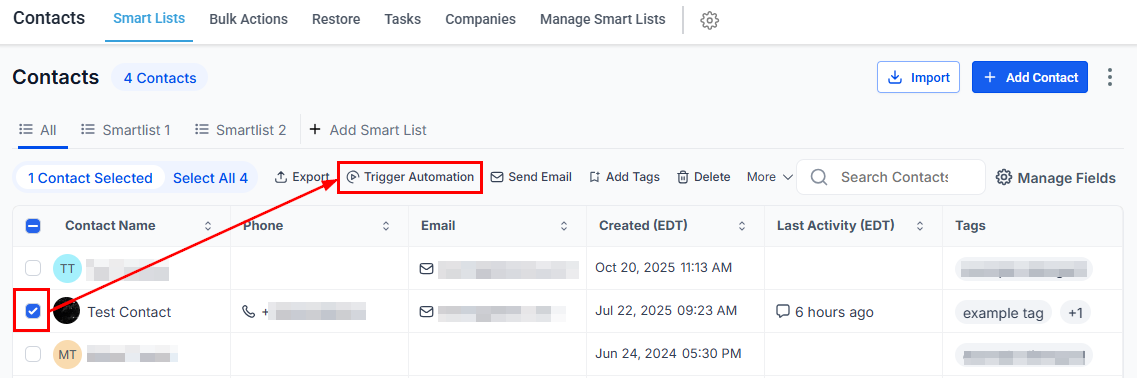
Go to **Contacts**, select one or more contacts, click **Trigger Automation**, choose the workflow, set the bulk delivery method, and click **Add to Automation**.
Click **+ Add Action**, search for **Manual Action**, then select **Manual Calls**.
Give the workflow a descriptive name, then publish and save it.
Go to **Contacts**, select one or more contacts, click **Trigger Automation**, choose the workflow, set the bulk delivery method, and click **Add to Automation**.
 Return to **Conversations → Manual Actions**. Your queued calls appear. Click **Let's Start** — the system dials the first contact automatically.
 After each call completes, the system automatically dials the next contact in the queue, keeping your workflow efficient.
***
## Viewing manual actions in the dashboard
The Hoop dashboard includes a manual actions widget showing:
* Total pending actions
* Breakdown of pending calls vs. pending SMS
Use this widget to stay on top of your team's outstanding tasks at a glance.
After each call completes, the system automatically dials the next contact in the queue, keeping your workflow efficient.
***
## Viewing manual actions in the dashboard
The Hoop dashboard includes a manual actions widget showing:
* Total pending actions
* Breakdown of pending calls vs. pending SMS
Use this widget to stay on top of your team's outstanding tasks at a glance.