> ## Documentation Index
> Fetch the complete documentation index at: https://help.hoopai.com/llms.txt
> Use this file to discover all available pages before exploring further.
# Live chat
> Respond to website visitors in real time through the Hoop web chat widget without leaving your conversations inbox.
Live Chat is a real-time communication tool that lets website visitors reach your team instantly through the web chat widget. Conversations appear directly in your Hoop inbox alongside all your other channels, so no separate platform is needed.
 ## Setup
Before you can receive live chat messages, you need a Chat Widget configured in your account.
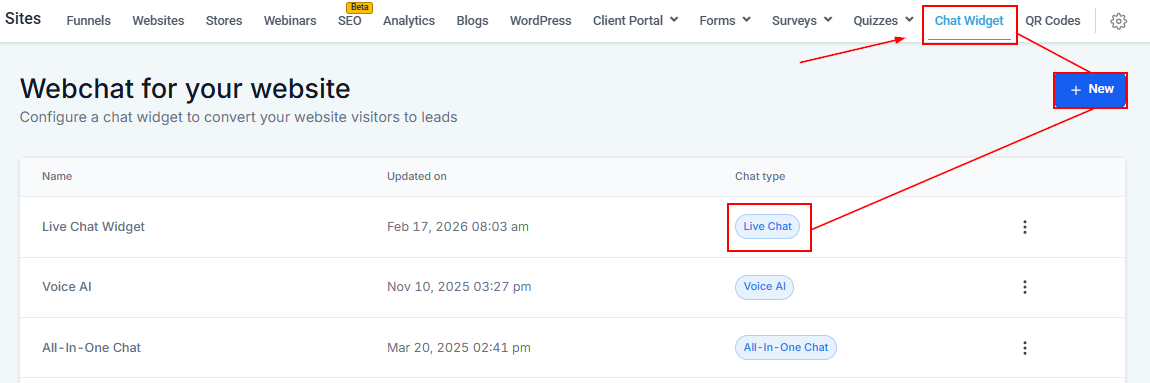
Go to **Sites → Chat Widget** and create a new widget. Customize its appearance and behavior, then embed it on your website or CRM pages. For full setup instructions, refer to the Chat Widget article.
Once a visitor sends a message through the widget, it appears in your Conversations inbox with the Live Chat channel indicator.
## Responding to live chat
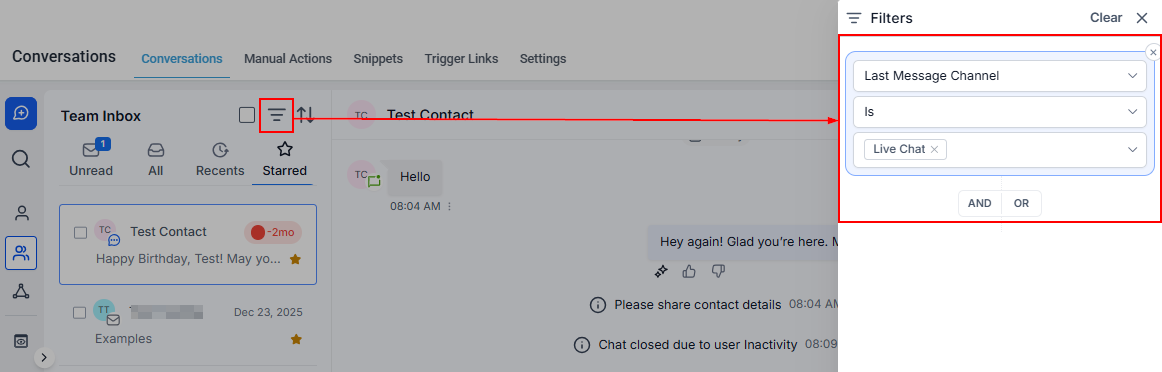
In Conversations, use the **Quick Filters** panel and filter by **Last Message Channel → Web Chat Widget** to isolate live chat conversations.
## Setup
Before you can receive live chat messages, you need a Chat Widget configured in your account.
Go to **Sites → Chat Widget** and create a new widget. Customize its appearance and behavior, then embed it on your website or CRM pages. For full setup instructions, refer to the Chat Widget article.
Once a visitor sends a message through the widget, it appears in your Conversations inbox with the Live Chat channel indicator.
## Responding to live chat
In Conversations, use the **Quick Filters** panel and filter by **Last Message Channel → Web Chat Widget** to isolate live chat conversations.
 Open the conversation and type your response in the message box. Live chat messages are delivered instantly to the visitor on your website.
## Manual actions for live chat
Two special actions are available within live chat conversations:
Click **End Live Chat** to close the session once the matter has been resolved. This signals to the visitor that the conversation is complete.
Click **Request Contact Details** to send a form to the visitor, inviting them to share their name, email, and phone number. This opens the door for extended follow-up communication.
## Web chat inside conversations
Web chat messages from your website's chat widget appear directly in your Conversations inbox, unified alongside SMS, email, and social messages. This section covers managing web chat from the conversations side.
### Setup
1. Configure a Chat Widget in **Sites > Chat Widget** (appearance, behavior, auto-messages)
2. Embed the widget on your website using the provided code snippet
3. Once live, visitor messages flow into your Conversations inbox with the **Web Chat** channel indicator
### Managing web chat messages
Web chat conversations are managed identically to other channels in your inbox:
* **Reply in real time** — type responses and they appear instantly in the visitor's chat window
* **Assign conversations** — route web chat conversations to specific team members
* **Apply labels** — categorize web chat conversations for organization
* **Use snippets** — insert pre-written responses for common questions
* **View contact details** — if the visitor has been identified (via form fill or previous interaction), their contact record appears in the side panel
### Bot integration
Connect a Conversation AI bot to your web chat channel to handle initial interactions automatically. The bot can qualify leads, answer FAQs, and book appointments before handing off to a human agent when needed.
Configure bot assignment in **AI Agents > Conversation AI > Channel Assignment** and toggle on **Web Chat**.
***
## Key benefits
* **Reduced response times** — visitors get answers immediately without waiting for email.
* **Higher engagement** — personal, conversational interactions increase satisfaction.
* **Seamless integration** — live chat messages appear in the same inbox as SMS, email, and social messages, keeping your team in one place.
* **Customizable widget** — match the widget's look and feel to your brand.
Open the conversation and type your response in the message box. Live chat messages are delivered instantly to the visitor on your website.
## Manual actions for live chat
Two special actions are available within live chat conversations:
Click **End Live Chat** to close the session once the matter has been resolved. This signals to the visitor that the conversation is complete.
Click **Request Contact Details** to send a form to the visitor, inviting them to share their name, email, and phone number. This opens the door for extended follow-up communication.
## Web chat inside conversations
Web chat messages from your website's chat widget appear directly in your Conversations inbox, unified alongside SMS, email, and social messages. This section covers managing web chat from the conversations side.
### Setup
1. Configure a Chat Widget in **Sites > Chat Widget** (appearance, behavior, auto-messages)
2. Embed the widget on your website using the provided code snippet
3. Once live, visitor messages flow into your Conversations inbox with the **Web Chat** channel indicator
### Managing web chat messages
Web chat conversations are managed identically to other channels in your inbox:
* **Reply in real time** — type responses and they appear instantly in the visitor's chat window
* **Assign conversations** — route web chat conversations to specific team members
* **Apply labels** — categorize web chat conversations for organization
* **Use snippets** — insert pre-written responses for common questions
* **View contact details** — if the visitor has been identified (via form fill or previous interaction), their contact record appears in the side panel
### Bot integration
Connect a Conversation AI bot to your web chat channel to handle initial interactions automatically. The bot can qualify leads, answer FAQs, and book appointments before handing off to a human agent when needed.
Configure bot assignment in **AI Agents > Conversation AI > Channel Assignment** and toggle on **Web Chat**.
***
## Key benefits
* **Reduced response times** — visitors get answers immediately without waiting for email.
* **Higher engagement** — personal, conversational interactions increase satisfaction.
* **Seamless integration** — live chat messages appear in the same inbox as SMS, email, and social messages, keeping your team in one place.
* **Customizable widget** — match the widget's look and feel to your brand.