> ## Documentation Index
> Fetch the complete documentation index at: https://help.hoopai.com/llms.txt
> Use this file to discover all available pages before exploring further.
# Internal comments
> Add private team notes and send internal chats in Hoop conversations without the contact seeing them.
Hoop provides two ways for your team to communicate privately within Conversations: **Internal Comments** (notes attached to a contact's conversation thread) and **Internal Chat** (a separate private messaging thread with team members). Neither is visible to contacts.
***
## Internal comments
Internal Comments appear inside a contact's conversation timeline as private notes. Use them to share context, request peer review, or document important updates for anyone who handles that contact.
 ### Adding an internal comment
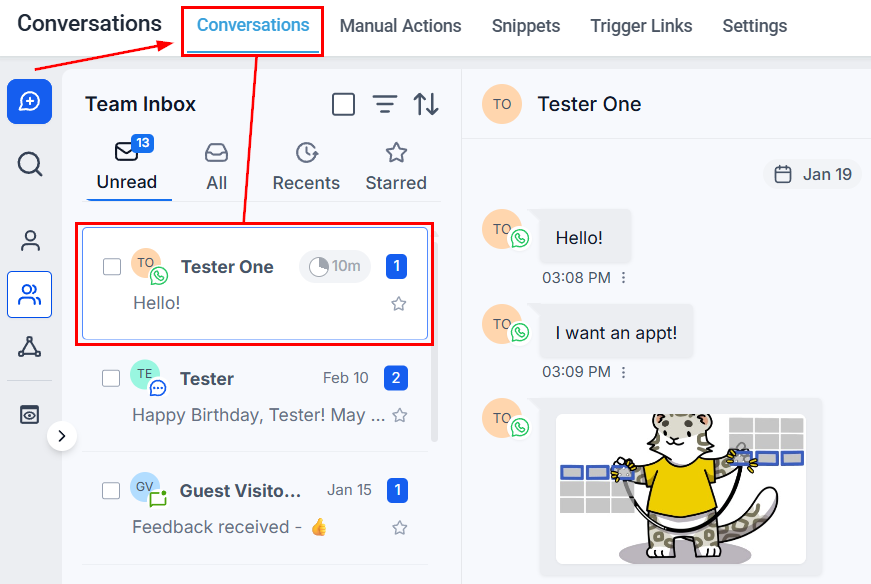
Navigate to **Conversations** and open the contact you want to comment on.
Click the **Internal Comments** tab in the message composer area.
### Adding an internal comment
Navigate to **Conversations** and open the contact you want to comment on.
Click the **Internal Comments** tab in the message composer area.
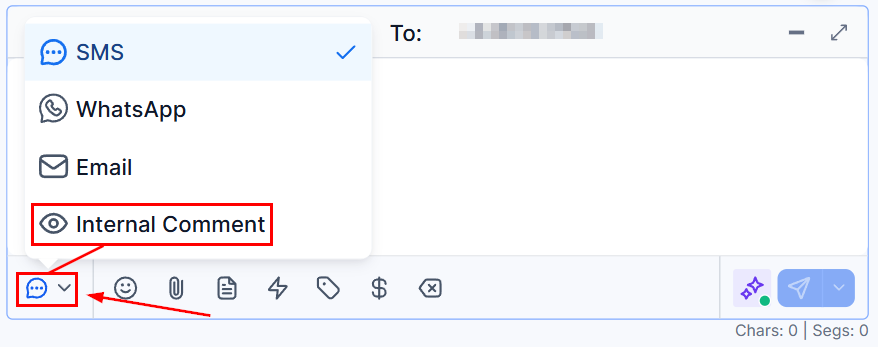 Type your note. To tag a team member, type **@** followed by their name. Mentioning someone:
* Adds them as a conversation follower.
* Grants them access to the contact and conversation, even if they have restricted data access rights.
Type your note. To tag a team member, type **@** followed by their name. Mentioning someone:
* Adds them as a conversation follower.
* Grants them access to the contact and conversation, even if they have restricted data access rights.
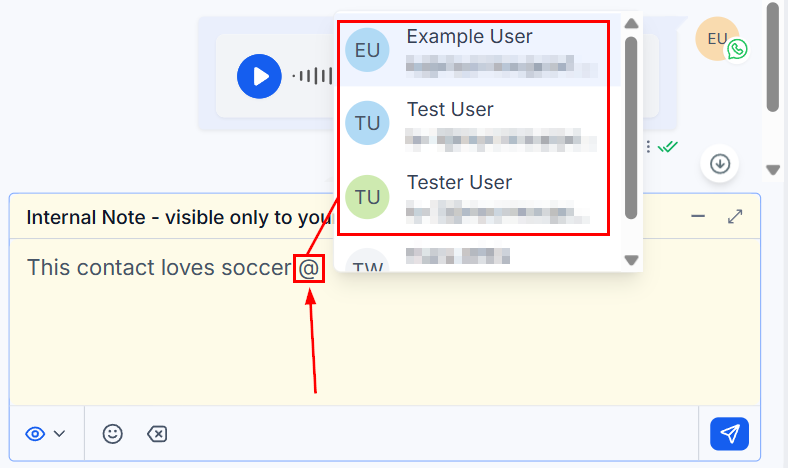 Click the **save icon** to post the comment, or the **clear icon** to discard it.
### Notifications
Tagged team members receive a notification when the comment is posted. You will also receive notifications for any conversation where you have been mentioned.
### Finding conversations with internal comments
* **Mentions filter** — use the Quick Filter for **Mentions** to find conversations where you or a specific team member was tagged.
* **Internal Comments filter** — inside a conversation, apply the **Internal Comments** filter to view only the private notes in the thread, making it easy to navigate internal history.
***
## Internal chat
Internal Chat is a private messaging thread between team members — entirely separate from any contact conversation. It is only visible to the participants you select.
### Starting an internal chat
In Conversations, click the **+** (bubble) icon.
Click the **save icon** to post the comment, or the **clear icon** to discard it.
### Notifications
Tagged team members receive a notification when the comment is posted. You will also receive notifications for any conversation where you have been mentioned.
### Finding conversations with internal comments
* **Mentions filter** — use the Quick Filter for **Mentions** to find conversations where you or a specific team member was tagged.
* **Internal Comments filter** — inside a conversation, apply the **Internal Comments** filter to view only the private notes in the thread, making it easy to navigate internal history.
***
## Internal chat
Internal Chat is a private messaging thread between team members — entirely separate from any contact conversation. It is only visible to the participants you select.
### Starting an internal chat
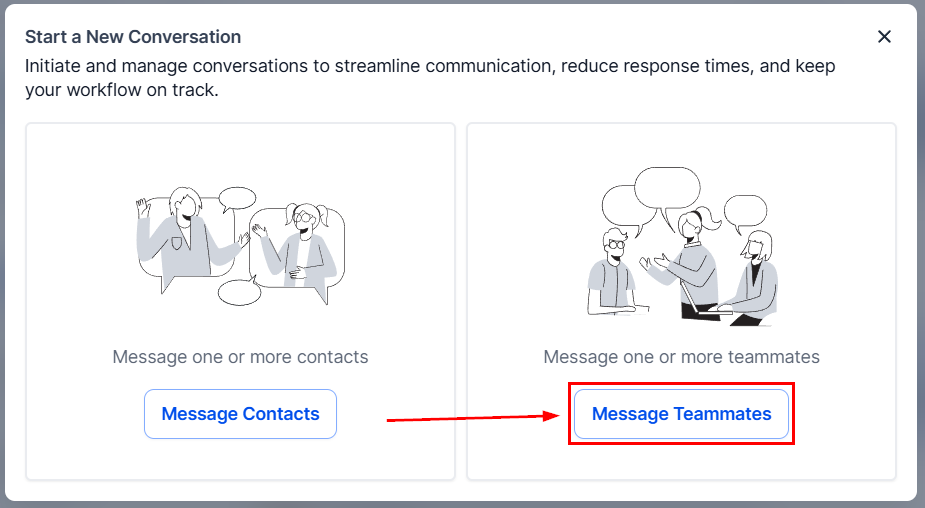
In Conversations, click the **+** (bubble) icon.
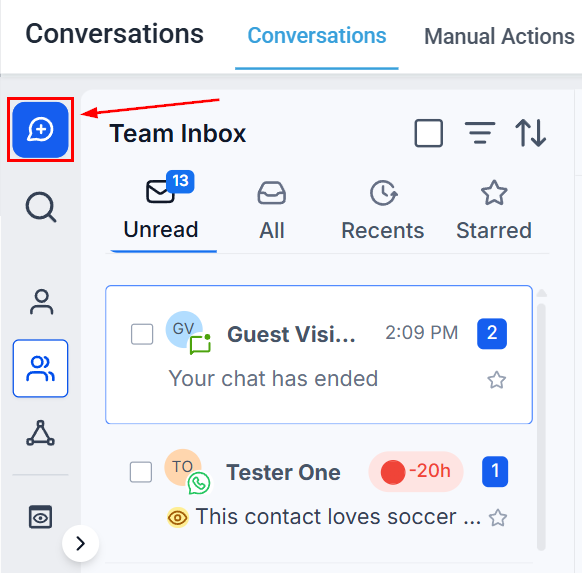 Choose **Message Teammates** from the options.
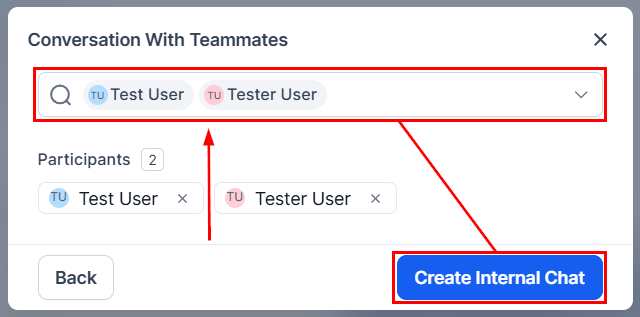
 Select one or more team members, then click **Create Internal Chat**.
 Type your message, add emojis or file attachments, then press **Send**. Internal chats support text, emojis, and file attachments.
### Organizing internal chats
**Adding a subject line:**
Click the **participants icon** to the left of the chat.
Click the pencil icon, enter a subject, then click **Save**. You can then search for the chat by subject, participant name, or last message.
**Adding users to an existing chat:**
Open the chat, click the participants icon, then click the **+ Add** button.
Choose the team members to add, then click **Next**.
Choose whether new participants get **full access** or **no access** to prior chat history, then click **Confirm**.
Once added, users cannot be removed from an internal chat.
### Notification preferences
Customize how you are notified about internal messages:
Go to **Settings → My Profile → Notifications** and choose:
* Notifications for every message in internal chats you participate in.
* Notifications only when you are added to a new internal chat.
Type your message, add emojis or file attachments, then press **Send**. Internal chats support text, emojis, and file attachments.
### Organizing internal chats
**Adding a subject line:**
Click the **participants icon** to the left of the chat.
Click the pencil icon, enter a subject, then click **Save**. You can then search for the chat by subject, participant name, or last message.
**Adding users to an existing chat:**
Open the chat, click the participants icon, then click the **+ Add** button.
Choose the team members to add, then click **Next**.
Choose whether new participants get **full access** or **no access** to prior chat history, then click **Confirm**.
Once added, users cannot be removed from an internal chat.
### Notification preferences
Customize how you are notified about internal messages:
Go to **Settings → My Profile → Notifications** and choose:
* Notifications for every message in internal chats you participate in.
* Notifications only when you are added to a new internal chat.