> ## Documentation Index
> Fetch the complete documentation index at: https://help.hoopai.com/llms.txt
> Use this file to discover all available pages before exploring further.
# Conversation filters, bulk actions, and saved views
> Apply quick filters, run bulk actions on up to 100 conversations, and save filter combinations as named views in HoopAI.
Two powerful tools keep your inbox organized: **Bulk Actions** let you apply operations to multiple conversations at once, and **Quick Filters** let you narrow your view by specific criteria.
## Bulk actions
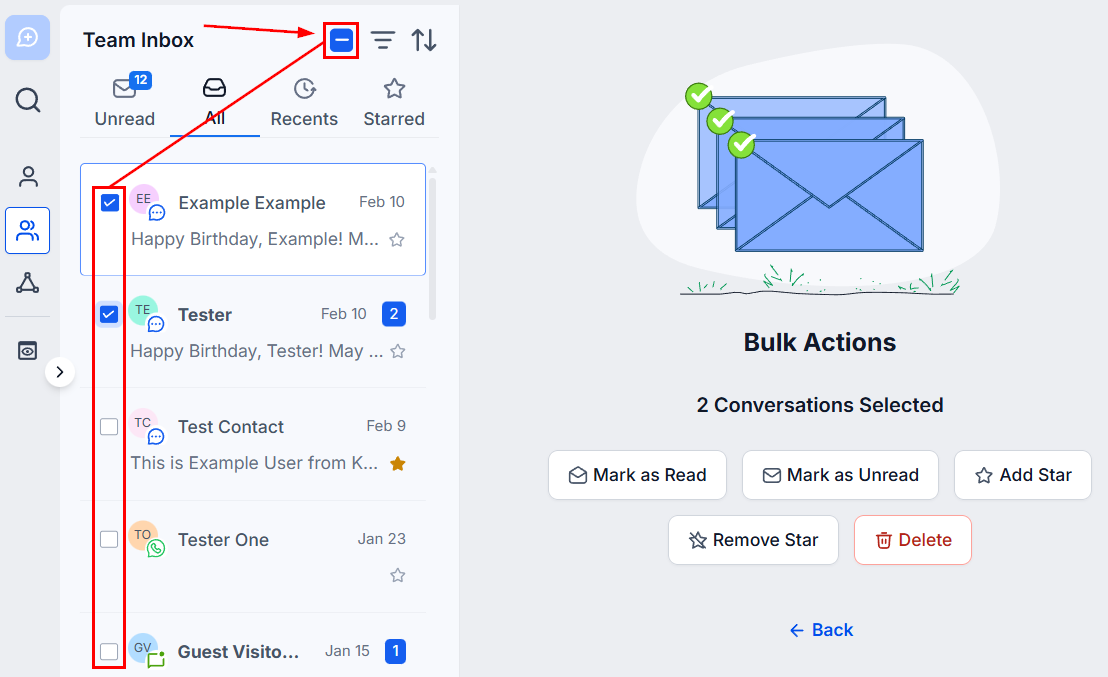
Select conversations by checking the box at the top to select all (up to 100 at a time), or click individual checkboxes. Then choose an action:
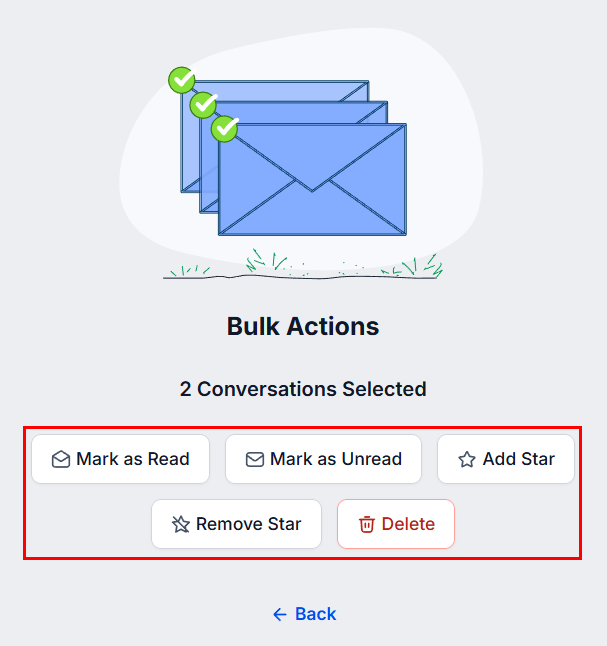 **Mark as Read** removes the unread notification badge. **Mark as Unread** re-adds it so you can track conversations for follow-up.
Star important conversations to move them into the **Starred** tab for quick access. Unstar to remove them from that tab.
Permanently removes all messages and related activities from Hoop. You will be prompted to confirm before deletion. This action cannot be undone.
Bulk actions apply to a maximum of 100 conversations at a time.
***
## Quick filters
Click the **three-line icon** to the right of the search bar to open the Quick Filters panel.
**Mark as Read** removes the unread notification badge. **Mark as Unread** re-adds it so you can track conversations for follow-up.
Star important conversations to move them into the **Starred** tab for quick access. Unstar to remove them from that tab.
Permanently removes all messages and related activities from Hoop. You will be prompted to confirm before deletion. This action cannot be undone.
Bulk actions apply to a maximum of 100 conversations at a time.
***
## Quick filters
Click the **three-line icon** to the right of the search bar to open the Quick Filters panel.
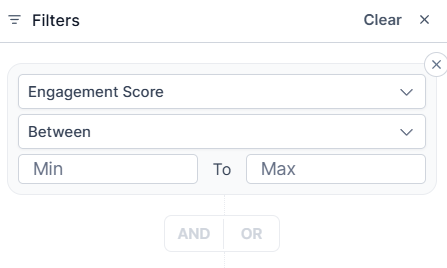
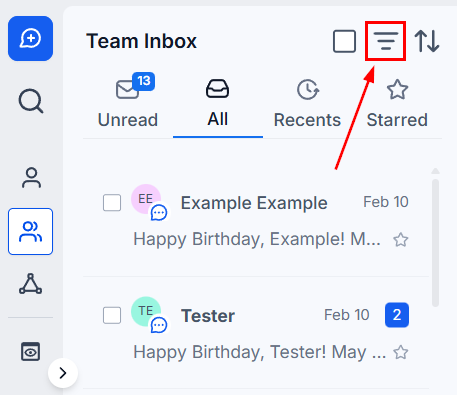 You can combine multiple filters using **And / Or** logic for more targeted results.
### Available filters
Prioritizes conversations based on contact interaction level. Higher scores indicate more active engagement.
Filters by the team member responsible for the contact.
* **None** — conversations with no assigned user
* **Assigned To** — conversations assigned to selected team members
* **Not To** — excludes conversations assigned to selected members
You can combine multiple filters using **And / Or** logic for more targeted results.
### Available filters
Prioritizes conversations based on contact interaction level. Higher scores indicate more active engagement.
Filters by the team member responsible for the contact.
* **None** — conversations with no assigned user
* **Assigned To** — conversations assigned to selected team members
* **Not To** — excludes conversations assigned to selected members
 Filters by who is following the contact.
* **Is** — conversations followed by a selected team member
* **Is not** — excludes those followed by a selected member
* **Is empty** — conversations not followed by anyone
* **Is not empty** — conversations that have at least one follower
Finds conversations where specific users are mentioned.
* **Is** — conversations mentioning a selected user
* **Is not** — excludes conversations mentioning a selected user
* **Inbound** — most recent message came from the contact
* **Outbound** — most recent message was sent by your team
* **Manual** — last outbound message was sent by a person
* **Automation** — last outbound message was sent by a workflow
Filter by the source of the most recent message (e.g., SMS, email, WhatsApp, Instagram). Select multiple channels from the dropdown.
Filter conversations by contact tags for targeted viewing.
Filter conversations by their Service Level Agreement status — overdue, due soon, or on track.
***
## Saved views
Create named views to save your most frequently used filter combinations for instant reuse.
Set up the Quick Filters you want to save.
Click **Create View** and give it a name.
Filters by who is following the contact.
* **Is** — conversations followed by a selected team member
* **Is not** — excludes those followed by a selected member
* **Is empty** — conversations not followed by anyone
* **Is not empty** — conversations that have at least one follower
Finds conversations where specific users are mentioned.
* **Is** — conversations mentioning a selected user
* **Is not** — excludes conversations mentioning a selected user
* **Inbound** — most recent message came from the contact
* **Outbound** — most recent message was sent by your team
* **Manual** — last outbound message was sent by a person
* **Automation** — last outbound message was sent by a workflow
Filter by the source of the most recent message (e.g., SMS, email, WhatsApp, Instagram). Select multiple channels from the dropdown.
Filter conversations by contact tags for targeted viewing.
Filter conversations by their Service Level Agreement status — overdue, due soon, or on track.
***
## Saved views
Create named views to save your most frequently used filter combinations for instant reuse.
Set up the Quick Filters you want to save.
Click **Create View** and give it a name.
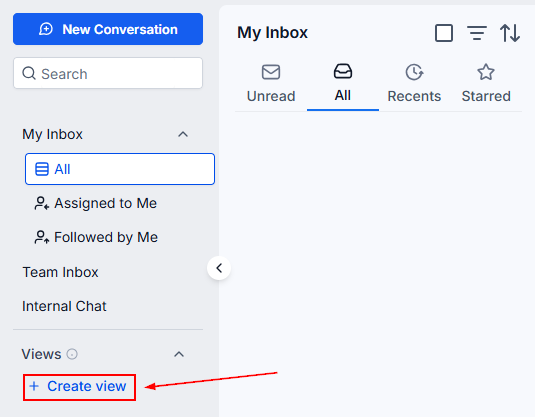 Your saved views appear in the left sidebar. Click any view to instantly apply it.
Views are private by default and visible only to the creator. Admins can share views with other users from the view menu.
Your saved views appear in the left sidebar. Click any view to instantly apply it.
Views are private by default and visible only to the creator. Admins can share views with other users from the view menu.