> ## Documentation Index
> Fetch the complete documentation index at: https://help.hoopai.com/llms.txt
> Use this file to discover all available pages before exploring further.
# Email threads
> Compose, reply to, and manage email conversations as threaded discussions inside the HoopAI platform inbox.
Email in the HoopAI platform works as a fully threaded conversation channel. Every reply from you or the contact is grouped into the same thread, making it easy to follow the complete history of an exchange without scrolling through dozens of separate messages.
## How email threading works
When you send an email to a contact and they reply, the reply appears as a new message inside the same conversation thread in your inbox. Subsequent replies from either side continue to nest under the original thread. Each message shows the sender, timestamp, and delivery status at a glance.
Thread subject lines carry through the entire exchange. If you need to start a new topic with the same contact, compose a fresh email with a different subject — this creates a separate thread within the same conversation record.
## Composing a new email
Navigate to **Conversations** and open the contact you want to email. If no conversation exists yet, click the **+** icon to start a new one and choose **Email** as the channel.
Click the **Email** tab in the message composer at the bottom of the conversation.
Complete the required fields before writing your message:
| Field | Description |
| ------- | ---------------------------------------------------------- |
| From | The sender name and email address shown to the recipient |
| To | The contact's email address (pre-filled from their record) |
| CC | Additional recipients who receive a visible copy |
| BCC | Recipients who receive a hidden copy |
| Subject | The subject line; the contact sees this in their inbox |
Type your message in the body area. Use the formatting toolbar to apply:
* **Bold**, *italic*, underline, and strikethrough
* Ordered and unordered lists
* Headings and block quotes
* Hyperlinks (choose whether they open in the same tab or a new tab)
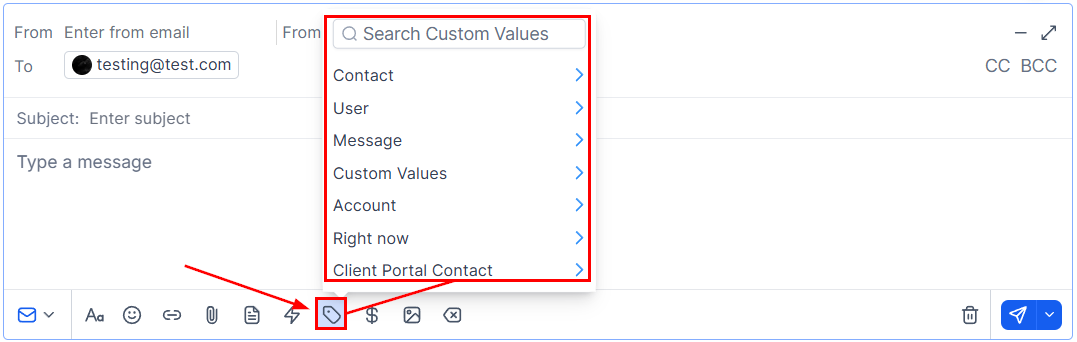
* Custom merge fields — click the **\{…}** icon and insert values like first name, company, or appointment time
* Saved email templates — click the **paper icon** to choose from your snippet library
* File attachments — click the **paperclip icon** to attach documents or images
* **Send now** — click the **Send** button.
* **Send later** — click the dropdown arrow next to Send, select **Send Later**, set the date, time, and timezone, then click **Send Schedule**.
* **AI Scheduling** — let the platform pick the highest-engagement moment within a window you define based on the recipient's historical open patterns.
## Replying to an email thread
When a contact's reply arrives in your inbox, open the conversation and click **Reply** inside the thread. The composer opens with the To and Subject fields pre-filled. Your reply is appended to the thread chronologically so neither party needs to scroll through forwarded message history.
To reply to all recipients (including anyone on CC), click **Reply All** instead of Reply.
To forward the thread to someone outside the conversation, click **Forward**, enter the new recipient's address, and optionally add a note at the top of the forwarded content.
## CC and BCC
Add CC or BCC recipients by clicking the respective labels next to the To field in the composer. Multiple addresses can be added to each field.
* **CC** recipients are visible to everyone in the thread.
* **BCC** recipients are hidden from other recipients. They receive the email but cannot see who else was BCC'd.
BCC recipients do not receive subsequent replies in the thread. BCC is intended for one-time copy purposes only.
## Email thread indicators
Inside the conversation list, email threads display the subject line and a preview of the most recent message. Unread threads are bolded. The channel icon confirms it is an email thread.
Inside an open thread, each message shows:
| Indicator | Meaning |
| ------------ | ---------------------------------------------------- |
| Sent | Message has left your account |
| Delivered | Message accepted by the recipient's mail server |
| Opened | Recipient opened the email (requires open tracking) |
| Clicked | Recipient clicked a link inside the email |
| Bounced | Email could not be delivered; address may be invalid |
| Unsubscribed | Recipient clicked the unsubscribe link |
## Email attachments in threads
Attachments sent or received in email threads are visible directly in the conversation timeline. Click any attachment to preview it in-browser or download it to your device. Attachments received from contacts are also accessible from the contact's **Documents** section.
Keep attachment sizes below 10 MB per message for reliable delivery. Very large files are better shared via a hosted link inserted into the email body.
## Email drafts
The HoopAI platform saves email drafts automatically as you compose. If you close a conversation before sending, your draft is waiting when you return. Click the **minimize** icon (line at the top right of the composer) to collapse the message box without losing your work.
 ## Filtering for email threads
Use Quick Filters in the conversation list to isolate email threads:
1. Click the **three-line icon** next to the search bar to open Quick Filters.
2. Under **Last message channel**, select **Email**.
3. The inbox updates to show only conversations where the most recent message was an email.
Save this filter as a named view (click **Create View**) for instant one-click access in future sessions.
## Managing email threads
From the conversation header toolbar, you can:
* **Archive** — move an email thread out of the active inbox without deleting it.
* **Star** — flag high-priority threads for the Starred tab.
* **Mark as Read / Unread** — control the notification badge for follow-up tracking.
* **Delete** — permanently remove the thread and all its messages. This action cannot be undone.
Deleting an email thread removes all message history permanently. Archive threads you may need to reference in the future.
## Filtering for email threads
Use Quick Filters in the conversation list to isolate email threads:
1. Click the **three-line icon** next to the search bar to open Quick Filters.
2. Under **Last message channel**, select **Email**.
3. The inbox updates to show only conversations where the most recent message was an email.
Save this filter as a named view (click **Create View**) for instant one-click access in future sessions.
## Managing email threads
From the conversation header toolbar, you can:
* **Archive** — move an email thread out of the active inbox without deleting it.
* **Star** — flag high-priority threads for the Starred tab.
* **Mark as Read / Unread** — control the notification badge for follow-up tracking.
* **Delete** — permanently remove the thread and all its messages. This action cannot be undone.
Deleting an email thread removes all message history permanently. Archive threads you may need to reference in the future.