> ## Documentation Index
> Fetch the complete documentation index at: https://help.hoopai.com/llms.txt
> Use this file to discover all available pages before exploring further.
# Conversations settings and SLA configuration
> Set up SLA timers, configure channel-specific response targets, and manage workflow message rules in HoopAI conversations settings.
Conversation settings let you establish structure and accountability around how quickly your team responds to contacts. The primary feature here is **Service Level Agreements (SLAs)**, which add visual timers to your inbox so nothing falls through the cracks.
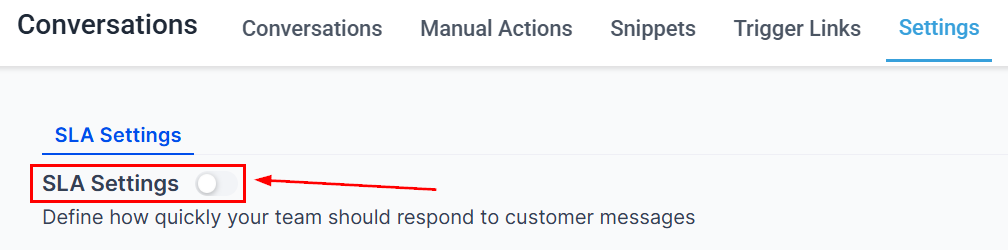
Navigate to **Conversations → Settings** to access these options.
***
## Conversation SLAs
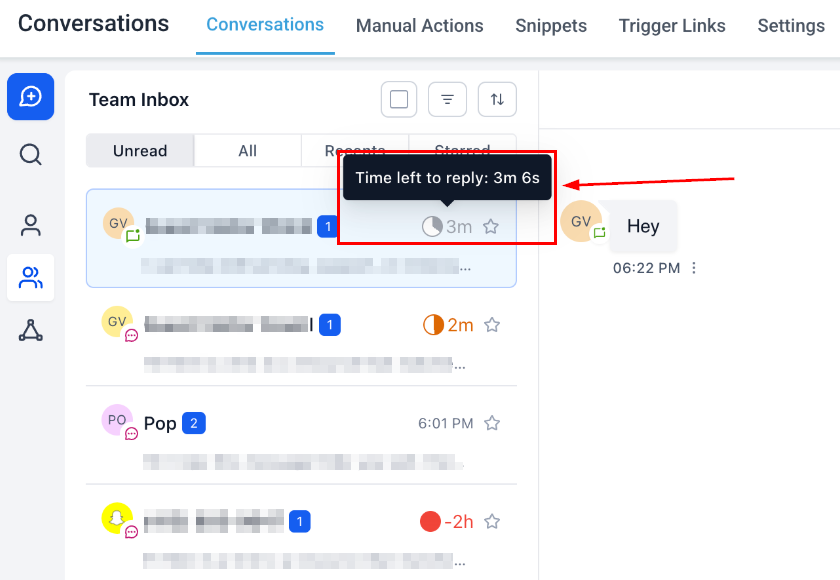
An SLA defines how quickly your team should respond to incoming conversations. Once enabled, SLA timers appear on every new conversation in your inbox — turning amber when "due soon" and red when overdue.
Navigate to **Conversations → Settings** and toggle **SLA Settings** on.
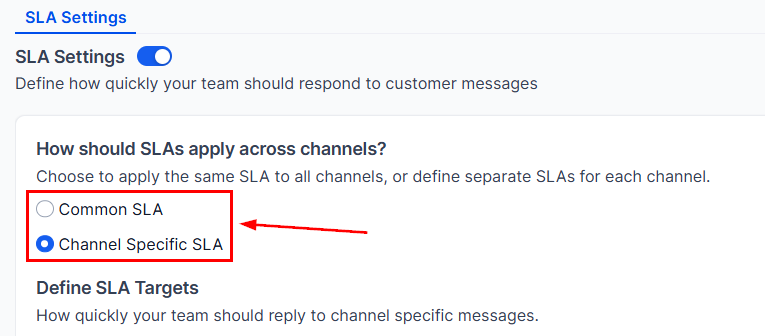
Select either a **Common SLA** (one response target for all channels) or **Channel-Specific SLAs** (different targets per channel).
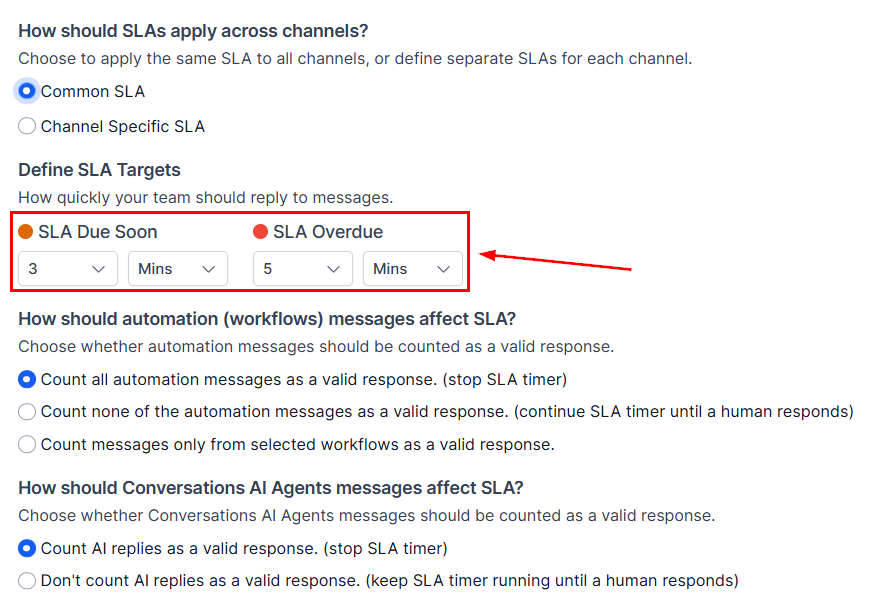
Define two thresholds for each SLA:
* **SLA Due Soon** — when the timer turns amber (a warning that time is running out)
* **SLA Overdue** — when the timer turns red (response time exceeded)
Enter values in minutes or hours.
Toggle on each channel you want to track (e.g., SMS, Email, WhatsApp) and set individual Due Soon and Overdue thresholds for each.
Choose how automated workflow messages affect the SLA timer:
* **Count as valid** — workflow messages reset or pause the timer.
* **Exclude** — only manual messages count toward SLA.
* **Limit to select workflows** — only messages from specific workflows count.
Choose whether AI-generated responses affect the SLA timer (count them or exclude them).
Click **Save** in the bottom right corner. New conversations will immediately display SLA timers in your inbox.
Use the **SLA quick filter** in your inbox to surface conversations that are overdue or due soon, so your team can prioritize their responses effectively.
***
## Benefits of SLAs
* **Accountability** — team members see exactly how much time is left to respond.
* **Visibility** — managers can filter by SLA status to identify bottlenecks.
* **Customer satisfaction** — consistent response times build trust and reduce churn.
* **Consistency** — SLA targets create a shared standard across your entire team.