> ## Documentation Index
> Fetch the complete documentation index at: https://help.hoopai.com/llms.txt
> Use this file to discover all available pages before exploring further.
# Conversation assignment
> Assign conversations to team members, manage workloads, and route contacts to the right person in the HoopAI platform inbox.
Assigning conversations to specific team members ensures accountability, prevents contacts from falling through the cracks, and makes it clear who is responsible for each relationship. Assignments in the HoopAI platform work at both the contact level and the conversation level.
## How assignment works
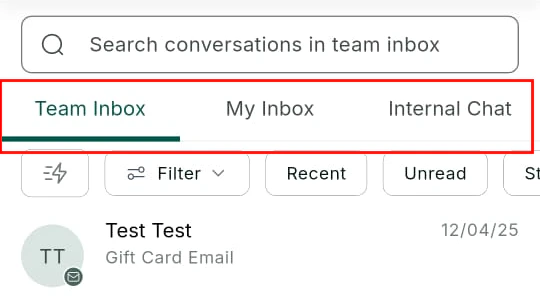
When a conversation is assigned to a team member, it appears in their **Personal Inbox** — a filtered view of conversations they are directly responsible for. Unassigned conversations appear in the **Team Inbox**, where any permitted user can see and claim them.
Assignment also interacts with:
* **Quick Filters** — filter by assigned user to segment the inbox by team member.
* **Workflows** — automatically assign conversations based on lead source, contact tags, time of day, round-robin rotation, or any other trigger.
* **Notifications** — assigned users receive a notification when a new conversation is assigned to them.
* **Saved views** — create views scoped to specific assignees for team lead oversight.
## Assigning a conversation manually
 Navigate to **Conversations** and click the contact whose conversation you want to assign.
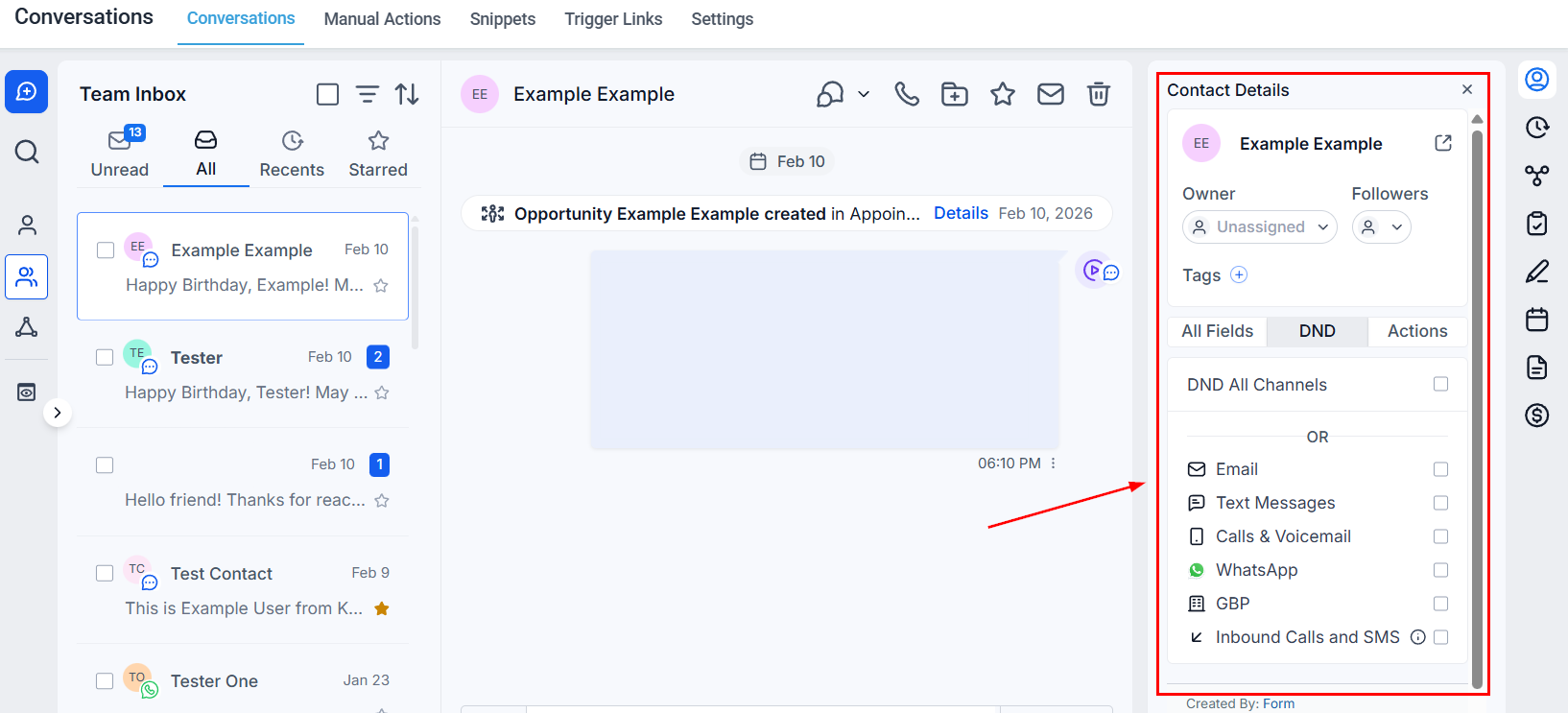
Look for the **Assigned To** field in the conversation header or in the **Contact Details** panel on the right side of the conversation. The field shows the current assignee or "Unassigned" if no one has been assigned.
Click the **Assigned To** field to open a dropdown list of your team members. Type to search by name. Click the team member you want to assign.
The conversation is immediately routed to that team member's Personal Inbox. An activity entry appears in the conversation timeline noting who assigned it and to whom.
You can assign a conversation to yourself by selecting your own name. This is useful when you pick up an unassigned conversation from the Team Inbox and want to claim ownership.
Navigate to **Conversations** and click the contact whose conversation you want to assign.
Look for the **Assigned To** field in the conversation header or in the **Contact Details** panel on the right side of the conversation. The field shows the current assignee or "Unassigned" if no one has been assigned.
Click the **Assigned To** field to open a dropdown list of your team members. Type to search by name. Click the team member you want to assign.
The conversation is immediately routed to that team member's Personal Inbox. An activity entry appears in the conversation timeline noting who assigned it and to whom.
You can assign a conversation to yourself by selecting your own name. This is useful when you pick up an unassigned conversation from the Team Inbox and want to claim ownership.
 ## Reassigning a conversation
To change the current assignee, follow the same steps as above and select a different team member. The new assignment replaces the previous one. Both the old and new assignees receive a notification (depending on notification settings).
To remove an assignment without assigning to someone else, click the **X** next to the current assignee's name or choose **Unassigned** from the dropdown. The conversation returns to the Team Inbox.
## Assigning via the contact record
Assignment can also be made from the contact record itself. Navigate to **Contacts**, open the contact, and locate the **Assigned To** field in the contact details. Assigning a contact here applies the assignment to all their conversations by default.
## Automated assignment with workflows
Manual assignment works well for small teams, but automating assignment ensures contacts are routed instantly based on predefined rules — no matter when they come in.
Common automated assignment methods:
| Method | How it works |
| --------------- | -------------------------------------------------------------------------------------------- |
| Round-robin | Distributes new conversations evenly across selected team members in rotation |
| Lead source | Routes contacts based on where they came from (e.g., a specific landing page or ad campaign) |
| Tag-based | Assigns based on a contact tag applied by a prior workflow step |
| Time of day | Routes to different team members based on working hours or shifts |
| Geographic area | Assigns contacts in specific regions to their local team member |
To set up automated assignment:
1. Go to **Automation → Workflows** and create or edit a workflow.
2. Add an **Assign User** action.
3. Choose the assignment method (specific user, round-robin, or a custom field).
4. Save and publish the workflow.
Automated assignment through workflows requires the contact to enter the workflow — typically triggered by a form submission, inbound message, or tag being applied.
## Viewing conversations by assignee
## Reassigning a conversation
To change the current assignee, follow the same steps as above and select a different team member. The new assignment replaces the previous one. Both the old and new assignees receive a notification (depending on notification settings).
To remove an assignment without assigning to someone else, click the **X** next to the current assignee's name or choose **Unassigned** from the dropdown. The conversation returns to the Team Inbox.
## Assigning via the contact record
Assignment can also be made from the contact record itself. Navigate to **Contacts**, open the contact, and locate the **Assigned To** field in the contact details. Assigning a contact here applies the assignment to all their conversations by default.
## Automated assignment with workflows
Manual assignment works well for small teams, but automating assignment ensures contacts are routed instantly based on predefined rules — no matter when they come in.
Common automated assignment methods:
| Method | How it works |
| --------------- | -------------------------------------------------------------------------------------------- |
| Round-robin | Distributes new conversations evenly across selected team members in rotation |
| Lead source | Routes contacts based on where they came from (e.g., a specific landing page or ad campaign) |
| Tag-based | Assigns based on a contact tag applied by a prior workflow step |
| Time of day | Routes to different team members based on working hours or shifts |
| Geographic area | Assigns contacts in specific regions to their local team member |
To set up automated assignment:
1. Go to **Automation → Workflows** and create or edit a workflow.
2. Add an **Assign User** action.
3. Choose the assignment method (specific user, round-robin, or a custom field).
4. Save and publish the workflow.
Automated assignment through workflows requires the contact to enter the workflow — typically triggered by a form submission, inbound message, or tag being applied.
## Viewing conversations by assignee
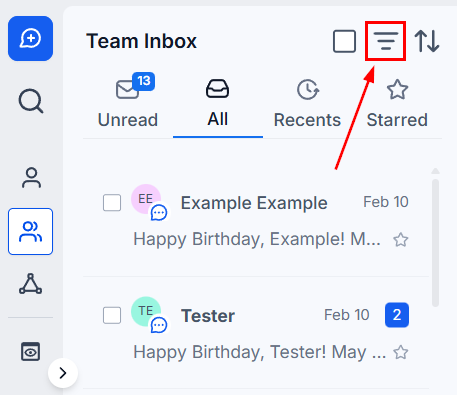 To see all conversations assigned to a specific team member:
Click the **three-line icon** next to the search bar in the Conversations inbox.
Select **Assigned**, then choose **Assigned To** and pick the team member from the dropdown.
Click **Create View** and name the view (e.g., "Sarah's conversations") for instant future access.
To see all conversations assigned to a specific team member:
Click the **three-line icon** next to the search bar in the Conversations inbox.
Select **Assigned**, then choose **Assigned To** and pick the team member from the dropdown.
Click **Create View** and name the view (e.g., "Sarah's conversations") for instant future access.
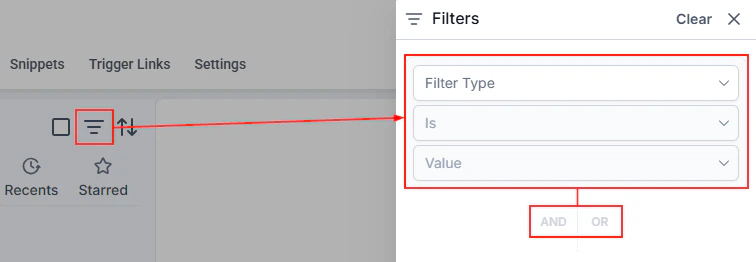 To find conversations with no assigned user, select **None** under the **Assigned** filter. This is useful for identifying gaps in coverage and picking up unattended contacts.
## Following a conversation
In addition to assignment, any team member can **follow** a conversation to receive updates without being the primary assignee. Following is useful for managers who want to monitor key accounts, or for team members who collaborated on a conversation and want to stay in the loop.
To follow a conversation, open it and click the **Follow** option in the conversation header or the right-side panel. Followers appear in the contact details and can be filtered using the **Follower** quick filter.
## Assignment notifications
Team members receive notifications when:
* A conversation is assigned to them.
* A conversation previously assigned to them is reassigned to someone else.
* A contact they follow receives a new inbound message.
Notification preferences are configured per user at **Settings → My Profile → Notifications**.
## Personal inbox vs. team inbox
To find conversations with no assigned user, select **None** under the **Assigned** filter. This is useful for identifying gaps in coverage and picking up unattended contacts.
## Following a conversation
In addition to assignment, any team member can **follow** a conversation to receive updates without being the primary assignee. Following is useful for managers who want to monitor key accounts, or for team members who collaborated on a conversation and want to stay in the loop.
To follow a conversation, open it and click the **Follow** option in the conversation header or the right-side panel. Followers appear in the contact details and can be filtered using the **Follower** quick filter.
## Assignment notifications
Team members receive notifications when:
* A conversation is assigned to them.
* A conversation previously assigned to them is reassigned to someone else.
* A contact they follow receives a new inbound message.
Notification preferences are configured per user at **Settings → My Profile → Notifications**.
## Personal inbox vs. team inbox
 | Inbox | Contents |
| -------------- | ---------------------------------------------------------- |
| Team inbox | All unassigned conversations and shared queue |
| Personal inbox | Only conversations assigned directly to the logged-in user |
Switch between views using the inbox selector at the top of the Conversations panel. If you are a team lead or admin, you can also view another team member's personal inbox via saved views or the Assigned filter.
| Inbox | Contents |
| -------------- | ---------------------------------------------------------- |
| Team inbox | All unassigned conversations and shared queue |
| Personal inbox | Only conversations assigned directly to the logged-in user |
Switch between views using the inbox selector at the top of the Conversations panel. If you are a team lead or admin, you can also view another team member's personal inbox via saved views or the Assigned filter.