> ## Documentation Index
> Fetch the complete documentation index at: https://help.hoopai.com/llms.txt
> Use this file to discover all available pages before exploring further.
# Contact details panel in conversations
> View and edit contact information, tags, tasks, and notes directly from the right-hand panel in HoopAI conversations without switching screens.
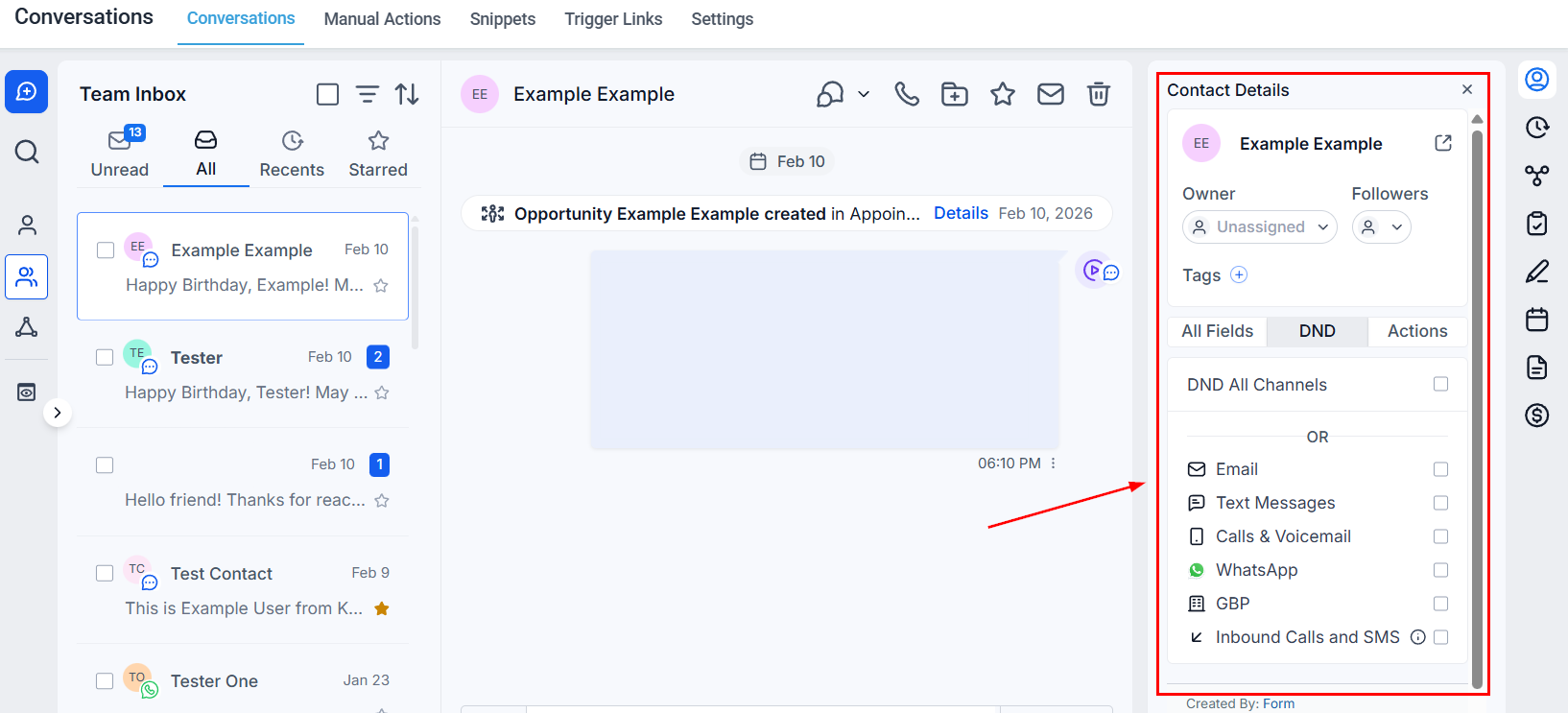
Every conversation in HoopAI has a collapsible **Contact Details Panel** on the right side. It gives your team instant access to the contact's profile, conversation history context, assigned tags, open tasks, and custom field data — all without navigating away from the conversation.
 ***
## Opening the contact details panel
Click the **contact name** or the **person icon** at the top right of any open conversation to expand the contact details panel. Click again to collapse it.
***
## What is in the panel
### Contact information
The top section shows the contact's core profile data:
| Field | Description |
| ------------- | -------------------------------- |
| Name | Full name — click to edit inline |
| Phone | Primary phone number |
| Email | Primary email address |
| Address | Physical address if on file |
| Date of birth | If captured |
| Company | Associated business |
Click the **pencil icon** next to any field to edit it directly without opening the full contact record.
### Tags
View and manage the contact's tags from the panel. Click **+ Add Tag** to assign a new tag, or click the **×** next to an existing tag to remove it.
### Custom fields
Any custom contact fields configured in your account appear here. This makes it easy to reference or update lead qualification data, intake form answers, or any other structured data while you are in a conversation.
### Activity timeline
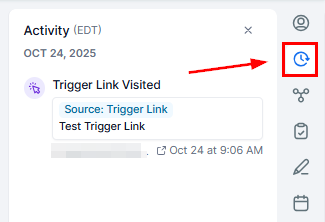
The **Activity** tab inside the panel shows a condensed timeline of recent interactions — appointments booked, emails opened, form submissions, and other tracked events — so you have full context before replying.
***
## Opening the contact details panel
Click the **contact name** or the **person icon** at the top right of any open conversation to expand the contact details panel. Click again to collapse it.
***
## What is in the panel
### Contact information
The top section shows the contact's core profile data:
| Field | Description |
| ------------- | -------------------------------- |
| Name | Full name — click to edit inline |
| Phone | Primary phone number |
| Email | Primary email address |
| Address | Physical address if on file |
| Date of birth | If captured |
| Company | Associated business |
Click the **pencil icon** next to any field to edit it directly without opening the full contact record.
### Tags
View and manage the contact's tags from the panel. Click **+ Add Tag** to assign a new tag, or click the **×** next to an existing tag to remove it.
### Custom fields
Any custom contact fields configured in your account appear here. This makes it easy to reference or update lead qualification data, intake form answers, or any other structured data while you are in a conversation.
### Activity timeline
The **Activity** tab inside the panel shows a condensed timeline of recent interactions — appointments booked, emails opened, form submissions, and other tracked events — so you have full context before replying.
 ### Tasks
The **Tasks** section shows all open tasks assigned to this contact. You can:
* View task name, due date, and assigned user
* Mark tasks as complete
* Add new tasks without leaving the conversation
### Notes
Add private notes to the contact record that are visible to your whole team but not to the contact. Notes are separate from Internal Comments (which appear in the conversation thread) — they live on the contact's profile.
***
## Navigating to the full contact record
At the top of the panel, click the **Open Contact** button (or the contact's name) to navigate to their full CRM record in a new view. This is useful when you need to access full pipeline history, all conversation threads, or advanced settings that are not shown in the panel.
***
## Why the panel matters
Your team can read, update, and act on contact data while actively messaging — no need to open a separate tab or navigate away.
Sales reps can check and update custom qualification fields in real time as information comes up naturally in a conversation.
When a conversation is reassigned, the incoming team member can immediately see tags, tasks, and recent activity without digging through the full record.
### Tasks
The **Tasks** section shows all open tasks assigned to this contact. You can:
* View task name, due date, and assigned user
* Mark tasks as complete
* Add new tasks without leaving the conversation
### Notes
Add private notes to the contact record that are visible to your whole team but not to the contact. Notes are separate from Internal Comments (which appear in the conversation thread) — they live on the contact's profile.
***
## Navigating to the full contact record
At the top of the panel, click the **Open Contact** button (or the contact's name) to navigate to their full CRM record in a new view. This is useful when you need to access full pipeline history, all conversation threads, or advanced settings that are not shown in the panel.
***
## Why the panel matters
Your team can read, update, and act on contact data while actively messaging — no need to open a separate tab or navigate away.
Sales reps can check and update custom qualification fields in real time as information comes up naturally in a conversation.
When a conversation is reassigned, the incoming team member can immediately see tags, tasks, and recent activity without digging through the full record.