> ## Documentation Index
> Fetch the complete documentation index at: https://help.hoopai.com/llms.txt
> Use this file to discover all available pages before exploring further.
# Call recordings
> Enable, access, play, download, and transcribe call recordings stored inside HoopAI platform conversations.
The HoopAI platform can automatically record inbound and outbound calls on any connected phone number. Recordings are stored directly in the contact's conversation thread and are accessible to your team for review, training, and compliance purposes.
Call recording laws vary by jurisdiction. Some locations require notifying all parties before recording begins. Consult legal counsel and ensure you comply with all applicable recording consent laws before enabling this feature.
## Enabling call recording
Call recording is configured per phone number. To enable it:
 Navigate to **Settings → Phone Numbers**.
Click the **three-dot icon** next to the number you want to configure, then select **Edit Configuration**.
Toggle **Call Recording** to the on position.
Click **Save**. Recording begins on the next call made or received on that number.
Navigate to **Settings → Phone Numbers**.
Click the **three-dot icon** next to the number you want to configure, then select **Edit Configuration**.
Toggle **Call Recording** to the on position.
Click **Save**. Recording begins on the next call made or received on that number.
 Once enabled, every call on that number — inbound and outbound — is automatically recorded and saved to the respective contact's conversation.
## Finding a call recording
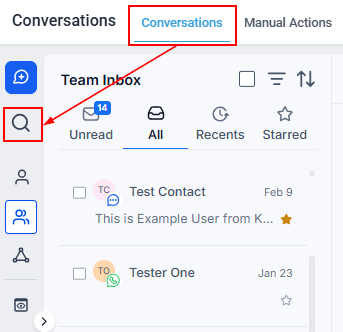
Open the **Conversations** section in the HoopAI platform.
Use the search bar at the top of the inbox to find the contact by name or phone number.
Click the **three-line icon** next to the search bar to open Quick Filters. Under **Last message channel**, select **Calls** to show only call-related conversations.
Click the conversation to open it. Scroll to the call entry in the timeline.
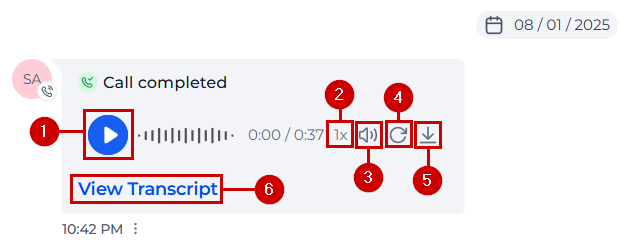
The recording appears as an inline audio player directly beneath the call log entry.
## Playback controls
The recording player provides full playback control without leaving the conversation:
| Control | Action |
| -------------- | --------------------------------------------------- |
| Play / Pause | Start or stop audio playback |
| Playback speed | Adjust replay speed (0.5x, 1x, 1.5x, 2x) |
| Mute / Unmute | Toggle audio on or off |
| Restart | Return to the beginning of the recording |
| Seek bar | Click or drag to jump to any point in the recording |
| Download | Save the audio file to your device |
| Transcript | Generate an automatic text transcript of the call |
## Downloading a recording
Click the **Download** button on the recording player to save the audio file to your computer. The file downloads in MP3 format. Downloaded recordings can be stored locally, shared with team members, or archived outside the platform.
## Call transcripts
The HoopAI platform can automatically transcribe call recordings into text. Transcripts make it easy to search for specific moments, document key points, or review calls without listening to the full audio.
Find the call recording in the contact's conversation thread.
Click the **Transcript** button on the recording player.
The transcript generates and appears below the player. Speaker turns are labeled to distinguish your team member's voice from the contact's.
Transcripts are especially useful for sales coaching, quality assurance reviews, and quickly extracting action items from long calls without replaying the entire recording.
## Call recording entry details
Once enabled, every call on that number — inbound and outbound — is automatically recorded and saved to the respective contact's conversation.
## Finding a call recording
Open the **Conversations** section in the HoopAI platform.
Use the search bar at the top of the inbox to find the contact by name or phone number.
Click the **three-line icon** next to the search bar to open Quick Filters. Under **Last message channel**, select **Calls** to show only call-related conversations.
Click the conversation to open it. Scroll to the call entry in the timeline.
The recording appears as an inline audio player directly beneath the call log entry.
## Playback controls
The recording player provides full playback control without leaving the conversation:
| Control | Action |
| -------------- | --------------------------------------------------- |
| Play / Pause | Start or stop audio playback |
| Playback speed | Adjust replay speed (0.5x, 1x, 1.5x, 2x) |
| Mute / Unmute | Toggle audio on or off |
| Restart | Return to the beginning of the recording |
| Seek bar | Click or drag to jump to any point in the recording |
| Download | Save the audio file to your device |
| Transcript | Generate an automatic text transcript of the call |
## Downloading a recording
Click the **Download** button on the recording player to save the audio file to your computer. The file downloads in MP3 format. Downloaded recordings can be stored locally, shared with team members, or archived outside the platform.
## Call transcripts
The HoopAI platform can automatically transcribe call recordings into text. Transcripts make it easy to search for specific moments, document key points, or review calls without listening to the full audio.
Find the call recording in the contact's conversation thread.
Click the **Transcript** button on the recording player.
The transcript generates and appears below the player. Speaker turns are labeled to distinguish your team member's voice from the contact's.
Transcripts are especially useful for sales coaching, quality assurance reviews, and quickly extracting action items from long calls without replaying the entire recording.
## Call recording entry details
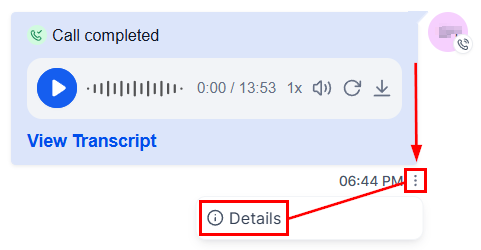 Each call entry in the conversation timeline displays:
| Detail | Description |
| ---------- | ----------------------------------------------- |
| Direction | Inbound or outbound |
| Duration | Total call length |
| Timestamp | Date and time the call occurred |
| Status | Answered, no-answer, busy, or failed |
| Handled by | The team member who answered or placed the call |
Click the **three-dot icon** next to a call entry to view full call details, including connection time and any forwarding steps that occurred.
## Sharing recordings with your team
To share a specific recording, download the file and distribute it through your internal channels, or copy the conversation link and send it to a team member who has access to the contact. Team members with the appropriate permissions can open the conversation and play the recording directly.
Access to recordings follows the same permission rules as the rest of the contact record. Users with restricted data access can only see recordings for contacts within their assigned scope.
## Recording retention and storage
Call recordings are stored in the HoopAI platform for as long as the contact's conversation is retained. There is no automatic expiration period for recordings within the platform. If a conversation is deleted, the associated recordings are deleted with it.
## Troubleshooting
Confirm that Call Recording is toggled on for the specific phone number used in the call. Recording must be enabled before the call takes place — it cannot be applied retroactively.
Try refreshing the page or using a different browser. Chrome is recommended for best compatibility. Also confirm your device's audio output is not muted.
Transcript accuracy depends on audio quality. Poor connections, background noise, or heavy accents may reduce accuracy. Use the audio playback alongside the transcript for verification.
Download availability may be restricted by your user permissions. Contact your account administrator if you need download access enabled for your role.
Each call entry in the conversation timeline displays:
| Detail | Description |
| ---------- | ----------------------------------------------- |
| Direction | Inbound or outbound |
| Duration | Total call length |
| Timestamp | Date and time the call occurred |
| Status | Answered, no-answer, busy, or failed |
| Handled by | The team member who answered or placed the call |
Click the **three-dot icon** next to a call entry to view full call details, including connection time and any forwarding steps that occurred.
## Sharing recordings with your team
To share a specific recording, download the file and distribute it through your internal channels, or copy the conversation link and send it to a team member who has access to the contact. Team members with the appropriate permissions can open the conversation and play the recording directly.
Access to recordings follows the same permission rules as the rest of the contact record. Users with restricted data access can only see recordings for contacts within their assigned scope.
## Recording retention and storage
Call recordings are stored in the HoopAI platform for as long as the contact's conversation is retained. There is no automatic expiration period for recordings within the platform. If a conversation is deleted, the associated recordings are deleted with it.
## Troubleshooting
Confirm that Call Recording is toggled on for the specific phone number used in the call. Recording must be enabled before the call takes place — it cannot be applied retroactively.
Try refreshing the page or using a different browser. Chrome is recommended for best compatibility. Also confirm your device's audio output is not muted.
Transcript accuracy depends on audio quality. Poor connections, background noise, or heavy accents may reduce accuracy. Use the audio playback alongside the transcript for verification.
Download availability may be restricted by your user permissions. Contact your account administrator if you need download access enabled for your role.