> ## Documentation Index
> Fetch the complete documentation index at: https://help.hoopai.com/llms.txt
> Use this file to discover all available pages before exploring further.
# Call quality, status codes, and recordings
> Troubleshoot poor call quality, read HoopAI call status codes, and locate call recordings inside your conversations inbox.
This page covers three call-related topics: troubleshooting bad call quality, reading call status details, and finding call recordings in Conversations.
***
## Fixing bad call quality
Poor call quality in Hoop is usually caused by internet instability, device interference, or network misconfiguration. When Hoop detects a network issue in real time, it displays an error code to help you identify the root cause.
### Call quality error codes
**Web app codes:**
| Code | Meaning |
| ------------------ | --------------------------------------------------------------------------- |
| `high-rtt` | High round-trip time — network latency causing delayed or out-of-sync audio |
| `high-jitter` | Inconsistent packet delivery — causes audio crackling or robotic voice |
| `high-packet-loss` | Voice data lost in transit — choppy audio or cut-outs |
**Mobile app notifications:**
| Notification | Meaning |
| ---------------- | -------------------------------------------------- |
| high-rtt | High round-trip time detected on this network |
| high-jitter | Choppy audio or crackling noises possible |
| high-packet-loss | Some audio may be missing or distorted |
| low-mos | Low Mean Opinion Score — overall poor call quality |
### Common fixes
Connect your device directly to the router via Ethernet. Wi-Fi is more prone to packet loss and instability.
Pause streaming services, file downloads, and cloud backups during calls. These compete for bandwidth with VoIP traffic.
Unplug the power cable from both devices, wait 30 seconds, then plug them back in and wait for full reconnection.
Outdated browsers can cause compatibility issues. Keep Chrome or your preferred browser up to date.
A headset reduces echo and improves microphone quality significantly over laptop speakers and mics.
Some browser extensions consume bandwidth or conflict with audio. Disable them to isolate the issue.
Go to [speedtest.net](https://www.speedtest.net/) and verify you have at least **5 Mbps upload and download** with minimal packet loss.
Ask your IT team to confirm that **UDP Ports 10000–20000** are open, as some firewalls block SIP traffic used for VoIP.
Yes, but a wired connection offers better stability and quality. Use Wi-Fi only when Ethernet is not available.
Google Chrome offers the best compatibility and performance for Hoop calls.
Check your microphone input settings and confirm Chrome has permission to access your microphone (browser settings → Privacy and security → Microphone).
If none of the above steps improve quality, contact Hoop support with specific examples and the error codes you saw.
***
## Viewing call status
Call status information helps you understand the outcome of power dialer calls and manual calls. It is also used as a trigger condition in workflow automations.
Navigate to **Conversations** and open the contact.
Locate the call entry in the conversation thread.
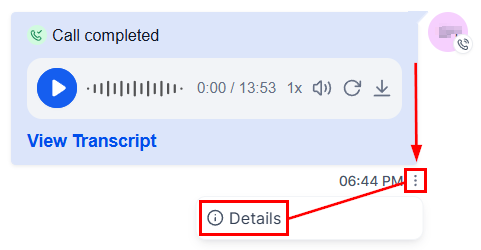 Click the **three dots** next to the call to open its details.
### Call status types
**Answered calls:**
| Status | Meaning |
| ---------------------- | --------------------------------------------------------- |
| Internal user name | The call was answered by a team member — shows their name |
| Forwarded phone number | The call was forwarded — shows the forwarding number |
Click the **three dots** next to the call to open its details.
### Call status types
**Answered calls:**
| Status | Meaning |
| ---------------------- | --------------------------------------------------------- |
| Internal user name | The call was answered by a team member — shows their name |
| Forwarded phone number | The call was forwarded — shows the forwarding number |
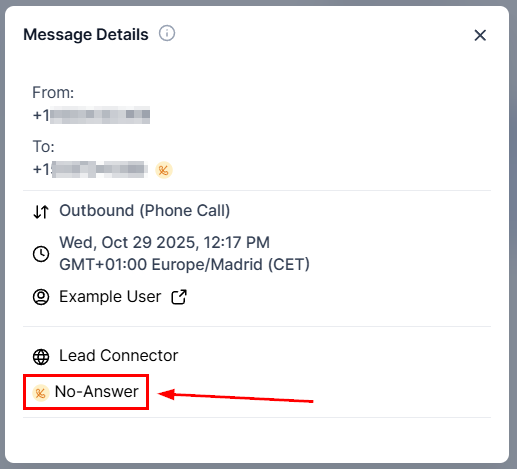 **Unanswered calls:**
| Status | Meaning |
| --------- | ---------------------------------- |
| No-Answer | Default state for unanswered calls |
| Busy | The line was busy |
| Failed | The call failed to connect |
***
## Finding call recordings
Call recordings are stored in your Conversations inbox when Call Recording is enabled on your phone number.
Check your local laws regarding call recording before enabling this feature.
### Enabling call recording
Go to **Settings → Phone Numbers**, click the three dots next to your number → **Edit Configuration**, then toggle **Call Recording** on.
### Finding a recording
Navigate to **Conversations** and use the search bar to find the contact by name or phone number.
**Unanswered calls:**
| Status | Meaning |
| --------- | ---------------------------------- |
| No-Answer | Default state for unanswered calls |
| Busy | The line was busy |
| Failed | The call failed to connect |
***
## Finding call recordings
Call recordings are stored in your Conversations inbox when Call Recording is enabled on your phone number.
Check your local laws regarding call recording before enabling this feature.
### Enabling call recording
Go to **Settings → Phone Numbers**, click the three dots next to your number → **Edit Configuration**, then toggle **Call Recording** on.
### Finding a recording
Navigate to **Conversations** and use the search bar to find the contact by name or phone number.
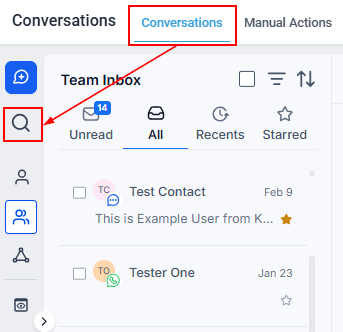 Click the three-line icon to filter conversations by channel — select **Calls** to narrow results.
The call recording appears in the conversation thread as an audio player.
Click the three-line icon to filter conversations by channel — select **Calls** to narrow results.
The call recording appears in the conversation thread as an audio player.
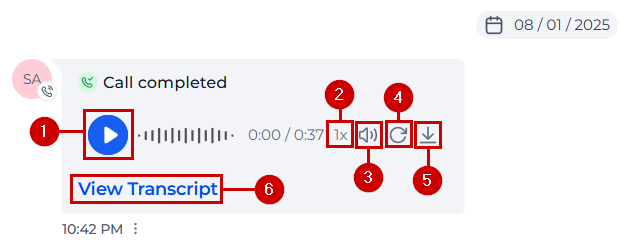 ### Recording player controls
| Control | Action |
| -------------- | ------------------------------------------------ |
| Play / Pause | Start or stop playback |
| Playback speed | Change the replay speed |
| Mute / Unmute | Toggle audio |
| Restart | Start playback from the beginning |
| Download | Save the audio file to your computer |
| Transcript | Auto-generate a text transcript of the recording |
### Recording player controls
| Control | Action |
| -------------- | ------------------------------------------------ |
| Play / Pause | Start or stop playback |
| Playback speed | Change the replay speed |
| Mute / Unmute | Toggle audio |
| Restart | Start playback from the beginning |
| Download | Save the audio file to your computer |
| Transcript | Auto-generate a text transcript of the recording |