> ## Documentation Index
> Fetch the complete documentation index at: https://help.hoopai.com/llms.txt
> Use this file to discover all available pages before exploring further.
# Managing bot status in conversations
> Enable or disable the AI conversation bot for individual contacts in HoopAI to balance automation with personal outreach.
The bot status toggle lets you control whether the AI conversation bot responds automatically to a specific contact. Turning it off hands the conversation to your team for fully manual, personal replies — while leaving it on keeps the bot active for that contact.
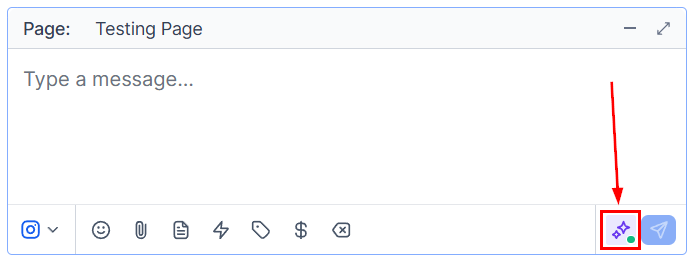 ## Where to find the bot status toggle
The bot status toggle is located in the **conversation panel** on the right-hand side when you have a contact's conversation open. Look for the **Bot** icon or toggle in the contact's action area.
***
## Enabling and disabling the bot
Navigate to **Conversations** and click on the contact whose bot status you want to change.
In the right-hand panel, find the **Bot** status toggle.
* **On (enabled)** — the AI bot will respond automatically to incoming messages from this contact according to your configured bot workflow.
* **Off (disabled)** — no automated bot responses will be sent; all replies must come from your team manually.
The bot status toggle only affects the individual contact's conversation. It does not change your global bot settings or affect other contacts.
***
## When to disable the bot
When speaking with a key prospect, existing client, or someone in a sensitive situation, disable the bot to ensure every message is crafted personally by your team.
During a live sales conversation, disable the bot so automated replies do not interrupt or contradict the conversation your rep is having.
If a contact explicitly asks to speak with a person, disable the bot immediately and take over manually.
Disable the bot for a test contact to verify that your manual reply workflows work correctly without bot interference.
***
## Re-enabling the bot
Simply toggle the bot back on in the conversation panel whenever you want automated responses to resume for that contact. This is useful when you have finished a manual follow-up phase and want to hand the contact back to your automated nurture sequence.
Combine bot status management with workflow conditions. For example, use a workflow trigger to automatically disable the bot when a contact replies with certain keywords (like "speak to someone"), and re-enable it after a set period if there is no further activity.
## Where to find the bot status toggle
The bot status toggle is located in the **conversation panel** on the right-hand side when you have a contact's conversation open. Look for the **Bot** icon or toggle in the contact's action area.
***
## Enabling and disabling the bot
Navigate to **Conversations** and click on the contact whose bot status you want to change.
In the right-hand panel, find the **Bot** status toggle.
* **On (enabled)** — the AI bot will respond automatically to incoming messages from this contact according to your configured bot workflow.
* **Off (disabled)** — no automated bot responses will be sent; all replies must come from your team manually.
The bot status toggle only affects the individual contact's conversation. It does not change your global bot settings or affect other contacts.
***
## When to disable the bot
When speaking with a key prospect, existing client, or someone in a sensitive situation, disable the bot to ensure every message is crafted personally by your team.
During a live sales conversation, disable the bot so automated replies do not interrupt or contradict the conversation your rep is having.
If a contact explicitly asks to speak with a person, disable the bot immediately and take over manually.
Disable the bot for a test contact to verify that your manual reply workflows work correctly without bot interference.
***
## Re-enabling the bot
Simply toggle the bot back on in the conversation panel whenever you want automated responses to resume for that contact. This is useful when you have finished a manual follow-up phase and want to hand the contact back to your automated nurture sequence.
Combine bot status management with workflow conditions. For example, use a workflow trigger to automatically disable the bot when a contact replies with certain keywords (like "speak to someone"), and re-enable it after a set period if there is no further activity.