> ## Documentation Index
> Fetch the complete documentation index at: https://help.hoopai.com/llms.txt
> Use this file to discover all available pages before exploring further.
# Tasks
> Create, assign, filter, and manage tasks linked to contacts, opportunities, and other objects in the HoopAI Platform.
Tasks keep your team organized by consolidating all action items in one place. You can create tasks linked to contacts, opportunities, companies, or custom objects, assign them to team members, set due dates, and monitor progress from a central dashboard.
## Accessing tasks
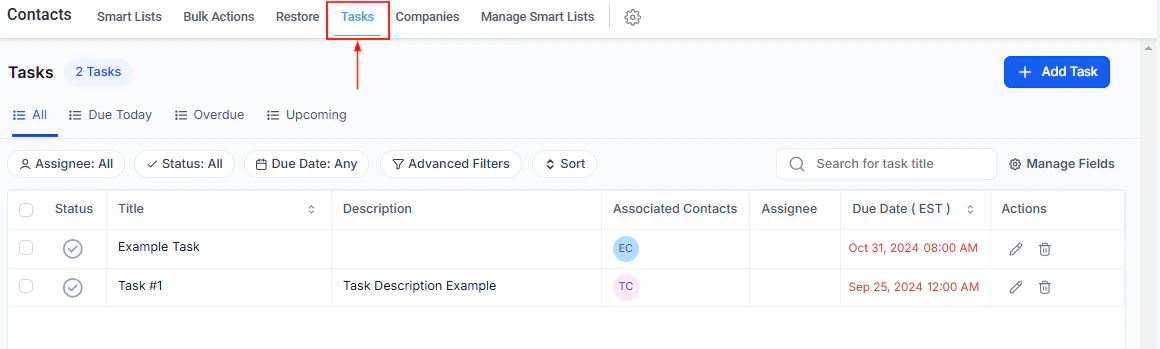
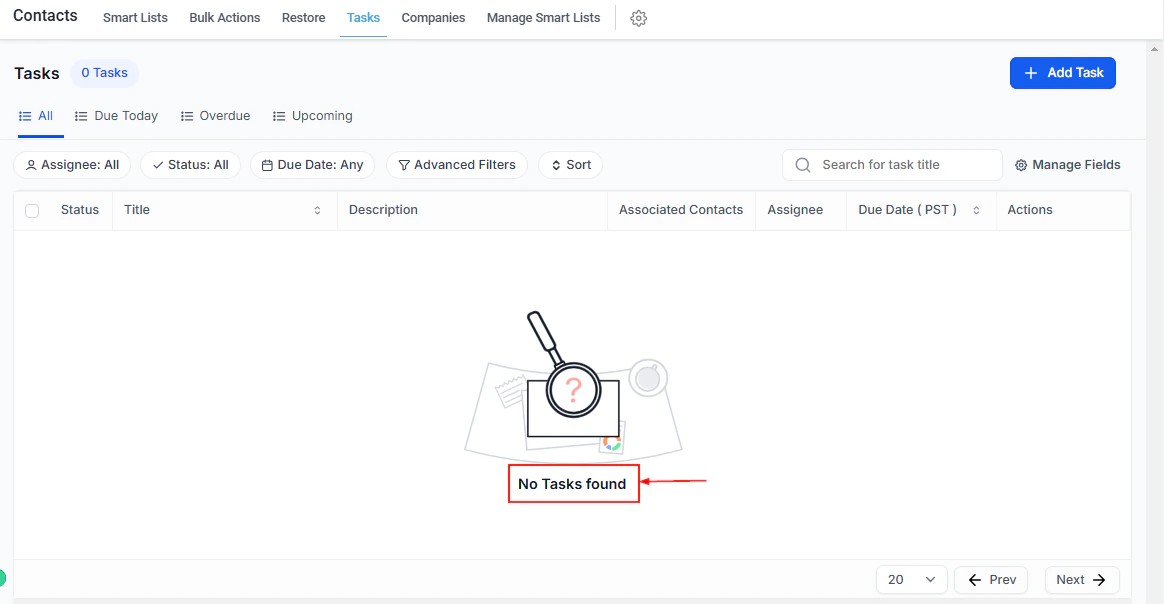
Navigate to **Contacts > Tasks** to see a full view of all tasks across your account.
 ***
## Task categories
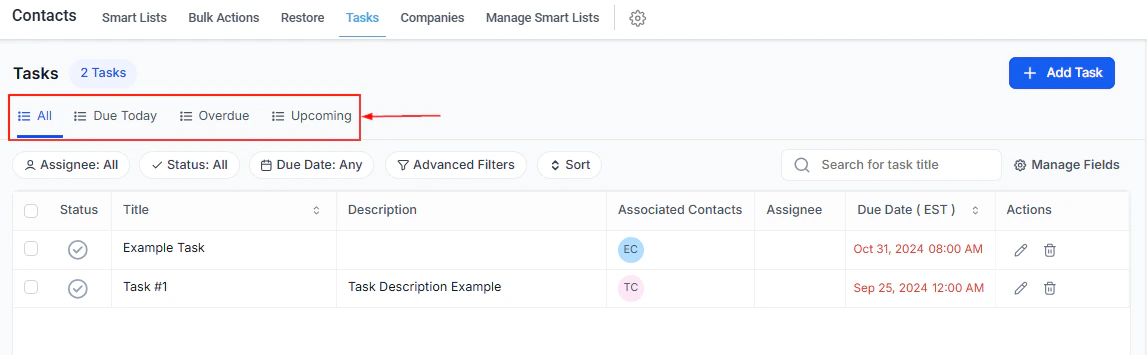
The task list is divided into four categories:
* **All** — every task in the system
* **Due Today** — tasks due by end of the current day
* **Overdue** — tasks that have passed their due date without completion
* **Upcoming** — tasks with future due dates
***
## Task categories
The task list is divided into four categories:
* **All** — every task in the system
* **Due Today** — tasks due by end of the current day
* **Overdue** — tasks that have passed their due date without completion
* **Upcoming** — tasks with future due dates
 ***
## Creating a task
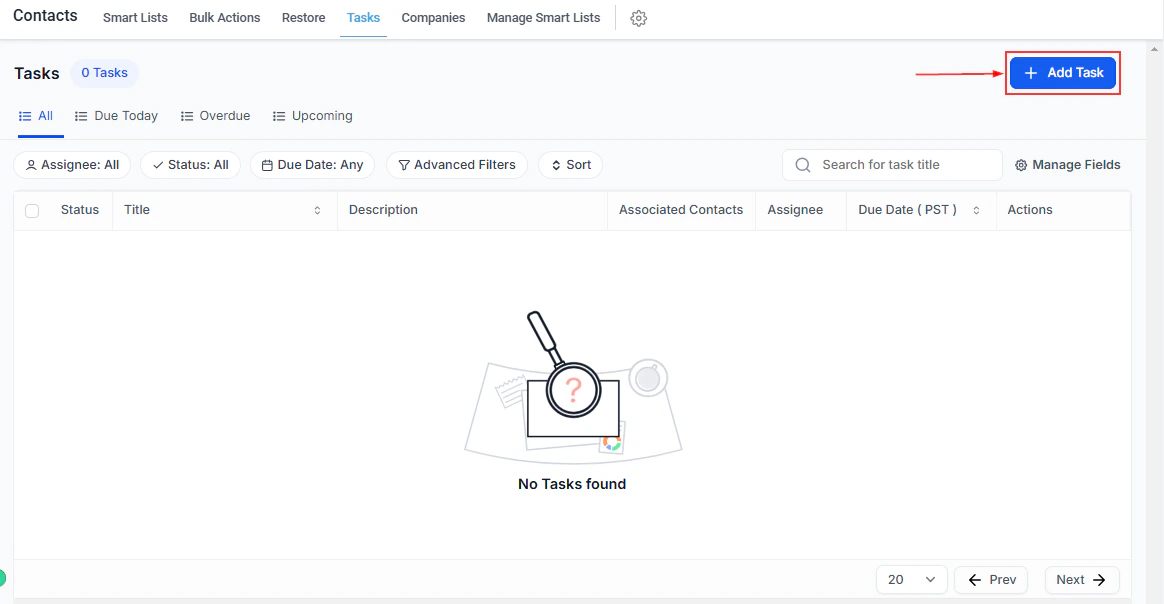
In the **Tasks** tab, click **+ Add New Task**. Alternatively, click **+ Add** in the Tasks section of any individual contact record.
Give the task a clear, descriptive title for easy identification.
Provide context or instructions for the assignee. A clear description ensures tasks are executed efficiently.
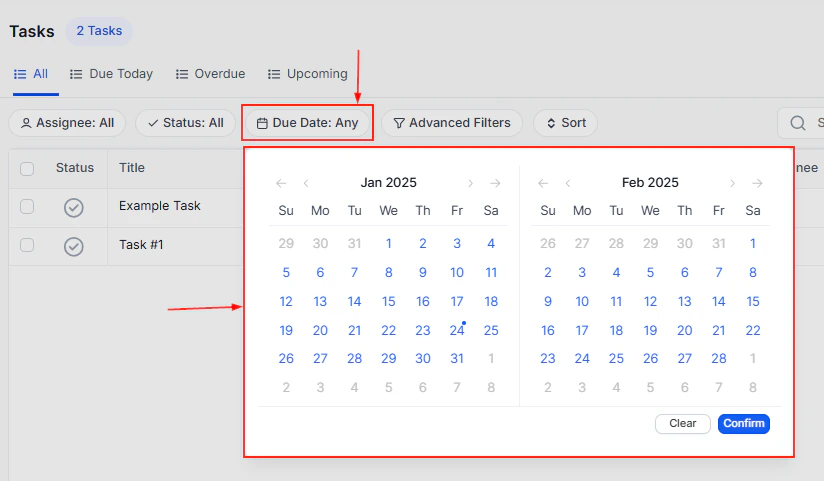
Assign a due date to establish a deadline and help your team prioritize.
Enable the **Recurring Tasks** toggle to automatically re-create the task at a set interval.
* **Repeats Every** — define the recurrence frequency (e.g., daily, every two weeks, monthly)
* **End Date** — set when the recurrence stops
Recurring tasks show a cycle icon in the Due Date column. Hover over the icon to see the recurrence frequency.
Use the **Contact** field to associate the task with a specific contact. For tasks that span multiple records, open the **Associate To** menu and select one or more object types (contacts, opportunities, companies, custom objects). Click **+ Add** to select specific records. Up to 10 of each object type can be linked per task.
Select an assignee from the dropdown to notify that team member and make them responsible for the task.
Click **Save** to add the task to your list, **Save and Add Another** to create an additional task immediately, or **Cancel** to discard.
***
## Creating a task
In the **Tasks** tab, click **+ Add New Task**. Alternatively, click **+ Add** in the Tasks section of any individual contact record.
Give the task a clear, descriptive title for easy identification.
Provide context or instructions for the assignee. A clear description ensures tasks are executed efficiently.
Assign a due date to establish a deadline and help your team prioritize.
Enable the **Recurring Tasks** toggle to automatically re-create the task at a set interval.
* **Repeats Every** — define the recurrence frequency (e.g., daily, every two weeks, monthly)
* **End Date** — set when the recurrence stops
Recurring tasks show a cycle icon in the Due Date column. Hover over the icon to see the recurrence frequency.
Use the **Contact** field to associate the task with a specific contact. For tasks that span multiple records, open the **Associate To** menu and select one or more object types (contacts, opportunities, companies, custom objects). Click **+ Add** to select specific records. Up to 10 of each object type can be linked per task.
Select an assignee from the dropdown to notify that team member and make them responsible for the task.
Click **Save** to add the task to your list, **Save and Add Another** to create an additional task immediately, or **Cancel** to discard.
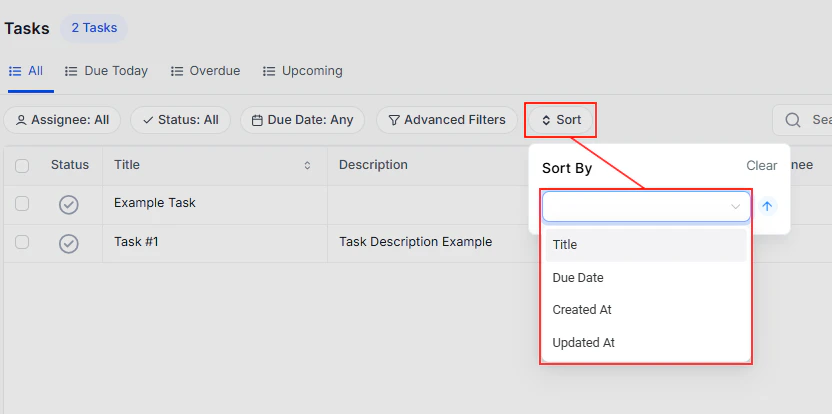 ***
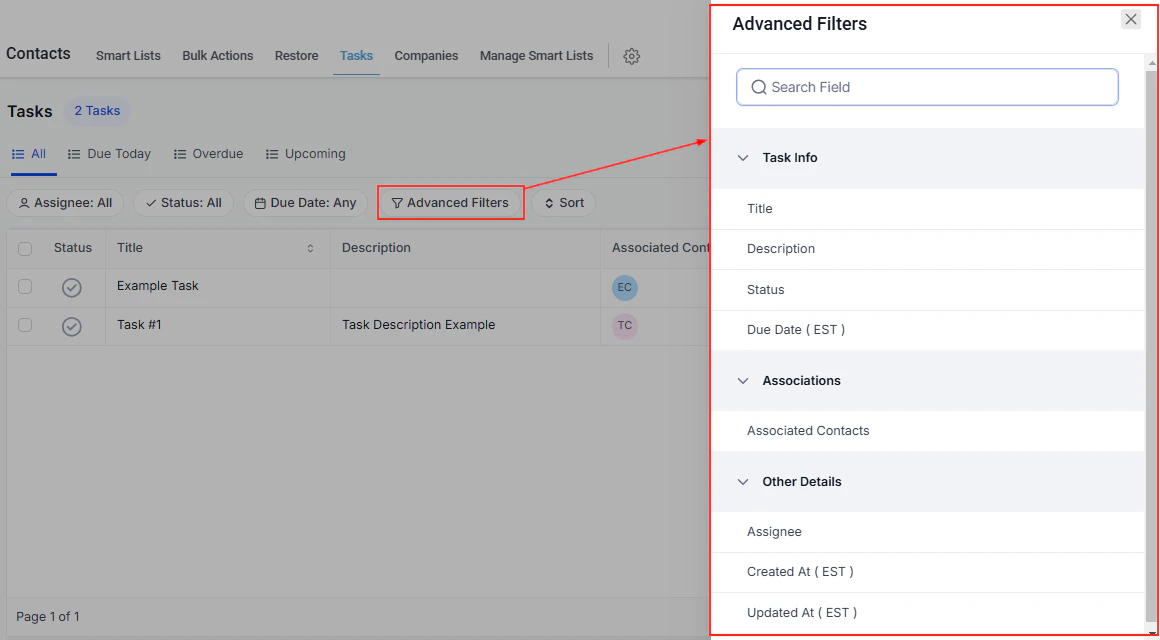
## Filtering and sorting tasks
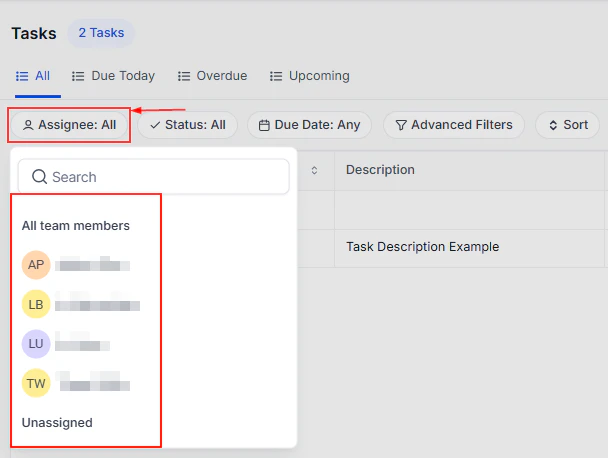
Use the **Assignees** filter to show tasks assigned to specific team members or tasks that are currently unassigned.
***
## Filtering and sorting tasks
Use the **Assignees** filter to show tasks assigned to specific team members or tasks that are currently unassigned.
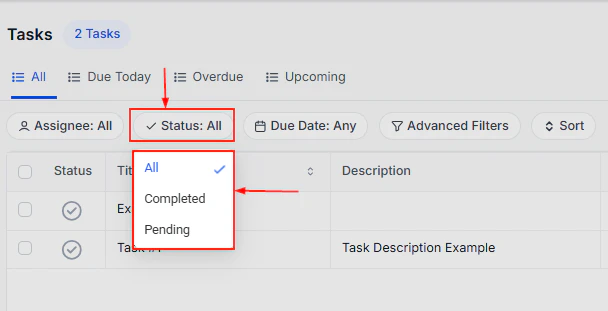
 Filter tasks by **Pending** or **Completed** status to prioritize active work.
Select an assignee to make a specific team member responsible for completing the task.
Filter tasks by **Pending** or **Completed** status to prioritize active work.
Select an assignee to make a specific team member responsible for completing the task.
 Check the checkmark icon on any task row to mark it as completed.
 Click the delete icon in the Actions column to permanently remove a task.
 ***
## Viewing tasks on a contact record
Tasks linked to a specific contact are visible directly within that contact's record.
***
## Viewing tasks on a contact record
Tasks linked to a specific contact are visible directly within that contact's record.
 ***
## Task table columns
| Column | Description |
| ------------------- | ------------------------------------------------------ |
| Status | Check the checkmark icon to mark a task as completed |
| Title | Click the task title to open the linked contact record |
| Description | Brief overview of the task's requirements |
| Associated Contacts | The contact or object linked to the task |
| Assignee | Team member responsible for the task |
| Due Date | Deadline; recurring tasks show a cycle icon |
| Actions | Edit or permanently delete the task |
***
## Multi-object tasks
A single task can be linked to multiple contacts, opportunities, companies, or custom objects — eliminating the need to create separate tasks for related records.
To add multiple objects to a new or existing task:
1. Open the task creation or edit form
2. Open the **Associate To** menu and select the object types to include
3. Click **+ Add** to select specific records (up to 10 per object type)
4. Click **Save**
Multi-object tasks appear in the Tasks tab of every linked record, keeping all related parties informed of outstanding action items.
***
## Task table columns
| Column | Description |
| ------------------- | ------------------------------------------------------ |
| Status | Check the checkmark icon to mark a task as completed |
| Title | Click the task title to open the linked contact record |
| Description | Brief overview of the task's requirements |
| Associated Contacts | The contact or object linked to the task |
| Assignee | Team member responsible for the task |
| Due Date | Deadline; recurring tasks show a cycle icon |
| Actions | Edit or permanently delete the task |
***
## Multi-object tasks
A single task can be linked to multiple contacts, opportunities, companies, or custom objects — eliminating the need to create separate tasks for related records.
To add multiple objects to a new or existing task:
1. Open the task creation or edit form
2. Open the **Associate To** menu and select the object types to include
3. Click **+ Add** to select specific records (up to 10 per object type)
4. Click **Save**
Multi-object tasks appear in the Tasks tab of every linked record, keeping all related parties informed of outstanding action items.