> ## Documentation Index
> Fetch the complete documentation index at: https://help.hoopai.com/llms.txt
> Use this file to discover all available pages before exploring further.
# Tags
> Create, apply, remove, and automate tags to organize and segment your contacts in the HoopAI Platform.
Tags are labels you attach to contacts to categorize and segment them. By combining tags with smart lists, you can instantly create dynamic filtered views, target specific groups in bulk actions, and trigger automations based on tag changes.
 ## Creating and applying tags
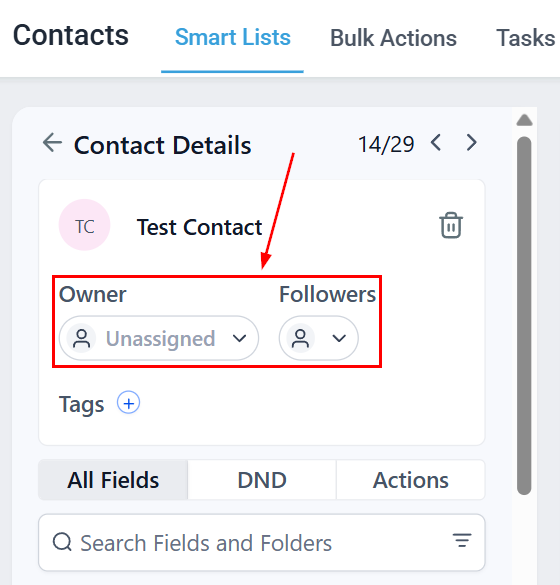
Navigate to **Contacts > Smart Lists** and click a contact's name to open their record.
In the **Tags** field, type a new tag name and press **Enter** to create it, or click the field to open the dropdown and select an existing tag.
## Creating and applying tags
Navigate to **Contacts > Smart Lists** and click a contact's name to open their record.
In the **Tags** field, type a new tag name and press **Enter** to create it, or click the field to open the dropdown and select an existing tag.
 Click the **X** next to any tag in the contact record to remove it.
You can also create tags globally under **Settings > Tags** by clicking **Create**, entering a tag name, and clicking **Create** again. Globally created tags are available for selection across all contacts.
***
## Adding and removing tags in bulk
To apply or remove tags across many contacts at once:
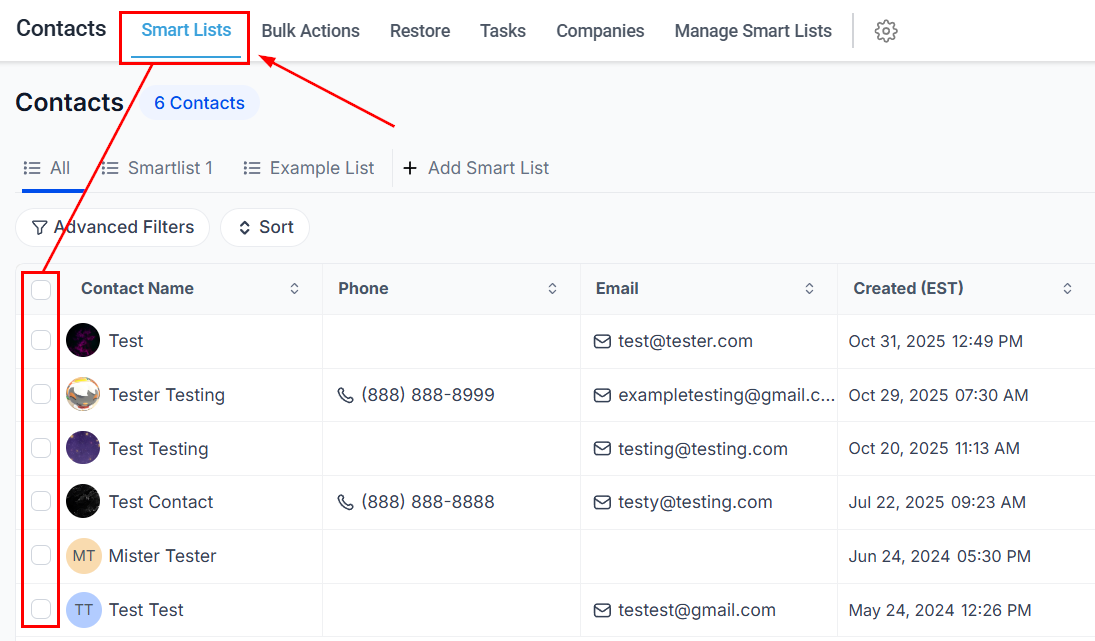
In the **Smart Lists** tab, check the contacts you want to update.
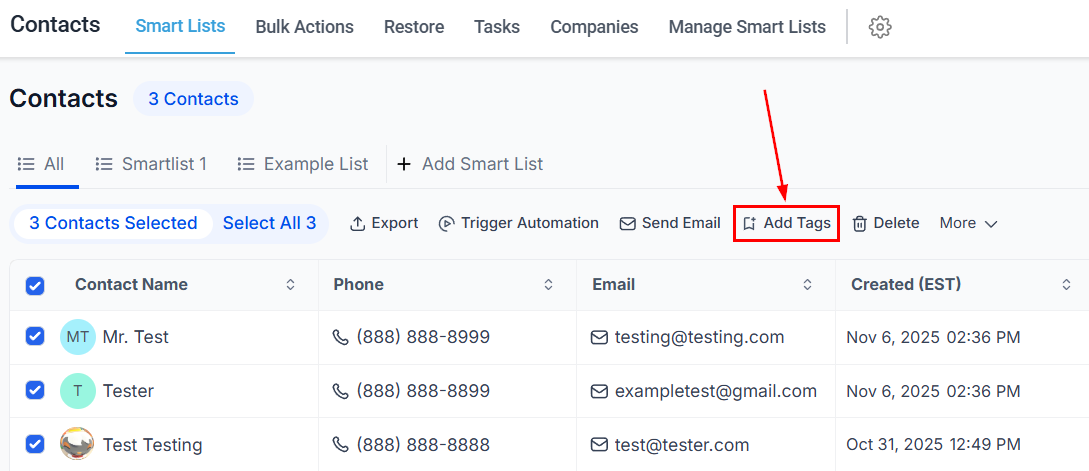
* To add tags: click the **Add Tag** icon in the bulk actions toolbar
* To remove tags: open the **More** dropdown and select **Remove Tags**
Click the **X** next to any tag in the contact record to remove it.
You can also create tags globally under **Settings > Tags** by clicking **Create**, entering a tag name, and clicking **Create** again. Globally created tags are available for selection across all contacts.
***
## Adding and removing tags in bulk
To apply or remove tags across many contacts at once:
In the **Smart Lists** tab, check the contacts you want to update.
* To add tags: click the **Add Tag** icon in the bulk actions toolbar
* To remove tags: open the **More** dropdown and select **Remove Tags**
 In the dialog:
* **Add Tags** — select from the dropdown; tags already applied to all contacts will not appear
* **Remove Tags** — select specific tags to remove, or choose **Remove All Tags** to clear every tag
In the dialog:
* **Add Tags** — select from the dropdown; tags already applied to all contacts will not appear
* **Remove Tags** — select specific tags to remove, or choose **Remove All Tags** to clear every tag
 Enter a descriptive name for the action (this appears in the bulk actions tracking report), then click **Add Tags** or **Remove Tags**.
If tags were removed by mistake, go to **Contacts > Bulk Actions**, find the action, and click the restore button in the three-dot menu.
***
## Using tags in smart lists
Tags are one of the most powerful filtering options in smart lists:
1. Open **Contacts > Smart Lists** and click **+ Add Smart List**
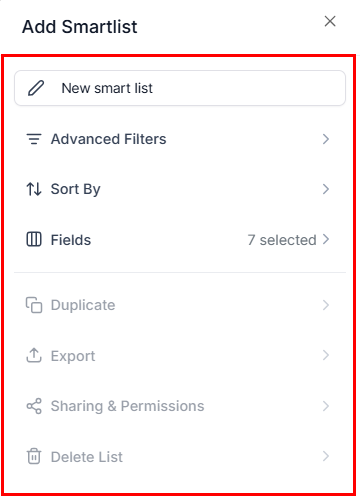
2. Click **Advanced Filters**
3. Select **Tag** as the filter field
4. Choose **Is**, **Is Not**, **Contains**, or **Is Empty** as the condition
5. Enter the tag value and click **Apply**
Enter a descriptive name for the action (this appears in the bulk actions tracking report), then click **Add Tags** or **Remove Tags**.
If tags were removed by mistake, go to **Contacts > Bulk Actions**, find the action, and click the restore button in the three-dot menu.
***
## Using tags in smart lists
Tags are one of the most powerful filtering options in smart lists:
1. Open **Contacts > Smart Lists** and click **+ Add Smart List**
2. Click **Advanced Filters**
3. Select **Tag** as the filter field
4. Choose **Is**, **Is Not**, **Contains**, or **Is Empty** as the condition
5. Enter the tag value and click **Apply**
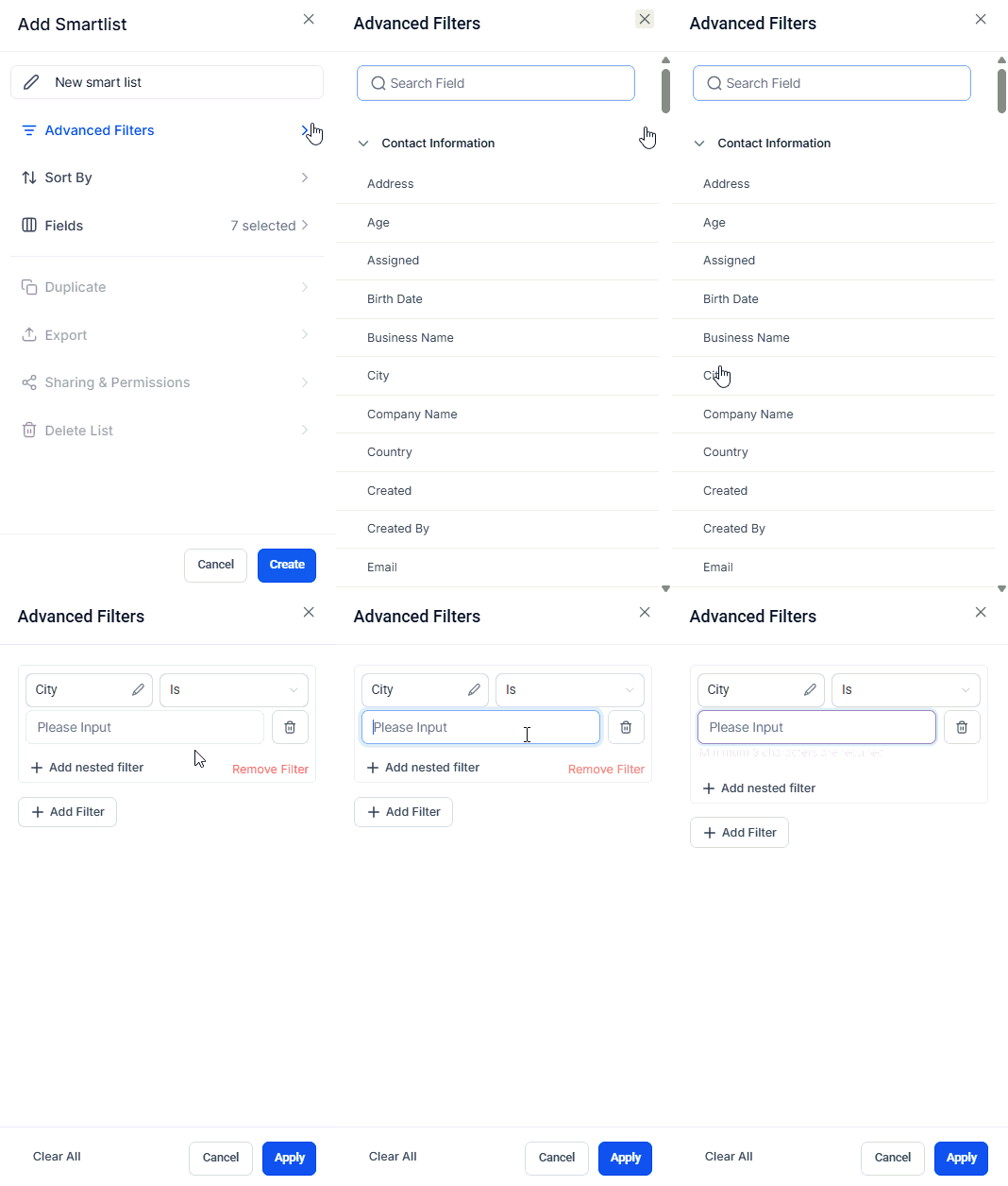 This lets you instantly segment contacts — for example, filtering everyone tagged "hot lead" or "VIP customer."
***
## Automating tags with workflows
Workflows can automatically apply or remove tags based on triggers:
* **Add Contact Tag** action — applies a tag when a contact reaches a specific step in a workflow
* **Remove Contact Tag** action — removes a tag when triggered
This ensures consistent tagging without manual effort. For full details on these workflow actions, refer to the **Automation** documentation.
***
## Practical examples
Tag contacts as `new-lead`, `qualified`, `proposal-sent`, or `closed-won` to track pipeline stages outside of Opportunities.
Tag attendees with `event-2026`, `vip-guest`, or `checked-in` to manage invitations and follow-ups.
Use tags like `newsletter-subscriber`, `loyalty-member`, or `churn-risk` to drive targeted marketing campaigns.
Tag contacts with `escalated` or `pending-callback` so your support team knows exactly who needs attention.
***
## Frequently asked questions
Yes. Contacts can have as many tags as needed. Use tags logically to maintain an organized system.
Deleting a tag removes it from every contact it was applied to. Use caution — this cannot be undone.
Use the **Advanced Filters** in Smart Lists, or use the search bar and filter by tag in the contacts view.
This lets you instantly segment contacts — for example, filtering everyone tagged "hot lead" or "VIP customer."
***
## Automating tags with workflows
Workflows can automatically apply or remove tags based on triggers:
* **Add Contact Tag** action — applies a tag when a contact reaches a specific step in a workflow
* **Remove Contact Tag** action — removes a tag when triggered
This ensures consistent tagging without manual effort. For full details on these workflow actions, refer to the **Automation** documentation.
***
## Practical examples
Tag contacts as `new-lead`, `qualified`, `proposal-sent`, or `closed-won` to track pipeline stages outside of Opportunities.
Tag attendees with `event-2026`, `vip-guest`, or `checked-in` to manage invitations and follow-ups.
Use tags like `newsletter-subscriber`, `loyalty-member`, or `churn-risk` to drive targeted marketing campaigns.
Tag contacts with `escalated` or `pending-callback` so your support team knows exactly who needs attention.
***
## Frequently asked questions
Yes. Contacts can have as many tags as needed. Use tags logically to maintain an organized system.
Deleting a tag removes it from every contact it was applied to. Use caution — this cannot be undone.
Use the **Advanced Filters** in Smart Lists, or use the search bar and filter by tag in the contacts view.