> ## Documentation Index
> Fetch the complete documentation index at: https://help.hoopai.com/llms.txt
> Use this file to discover all available pages before exploring further.
# Importing contacts
> Import contacts from a CSV file, handle shared information and deduplication, and troubleshoot common import errors in the HoopAI Platform.
The import feature lets you bring large sets of contacts into the HoopAI Platform from a CSV file. You can import contacts and opportunities simultaneously, map custom fields, add imported contacts to workflows and smart lists, and control how duplicates are handled.
## Preparing your CSV file
Before starting an import, make sure your file is properly formatted:
* **Format** — `.csv` with a single sheet
* **Size** — under 30 MB
* **Encoding** — UTF-8
* **Header row** — column names must be present for field mapping
### Formatting guidelines
| Field | Requirement |
| ------------- | -------------------------------------------------------------------------------------------- |
| Phone numbers | E.164 format preferred (e.g., `+1 1234567890`); US formats like `123-456-7890` also accepted |
| Dates | `mm/dd/yyyy` or `yyyy/mm/dd`; separators can be `/`, `-`, or `.` |
| Contact owner | `FirstName LastName` or `LastName FirstName` format |
| Tags | Comma-separated values: `Value 1, Value 2, Value 3` |
| Emails | Standard email format |
***
## Importing contacts
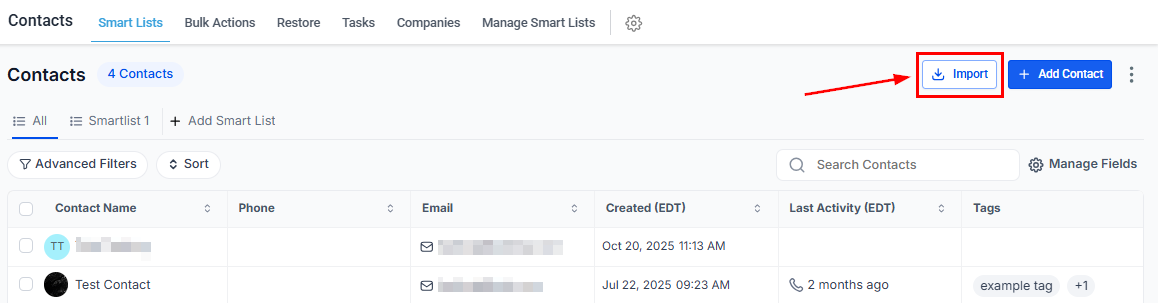
In the **Contacts** section, click the **Import** icon at the top right of the toolbar.
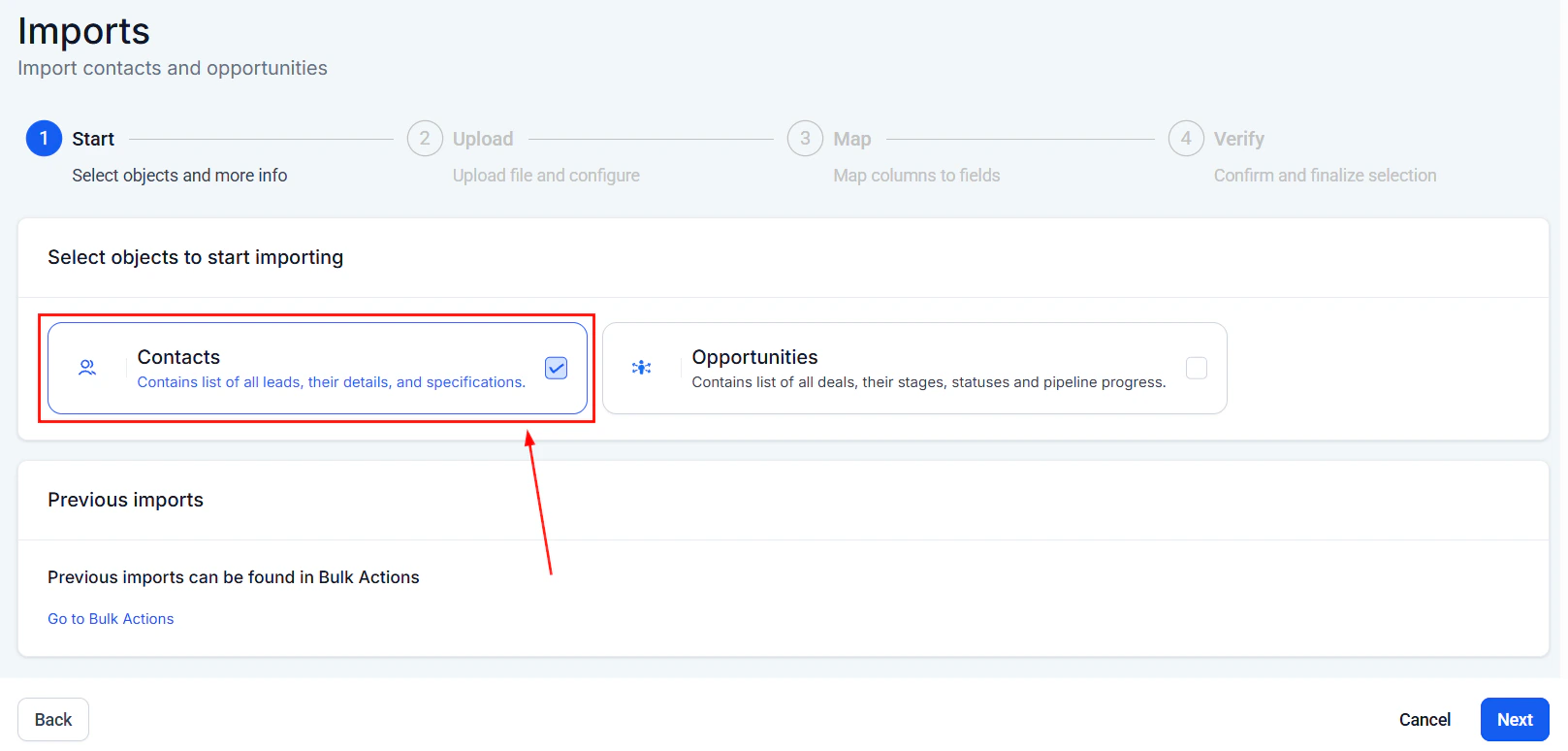
 Choose **Contacts**, **Opportunities**, or both, then click **Next**.
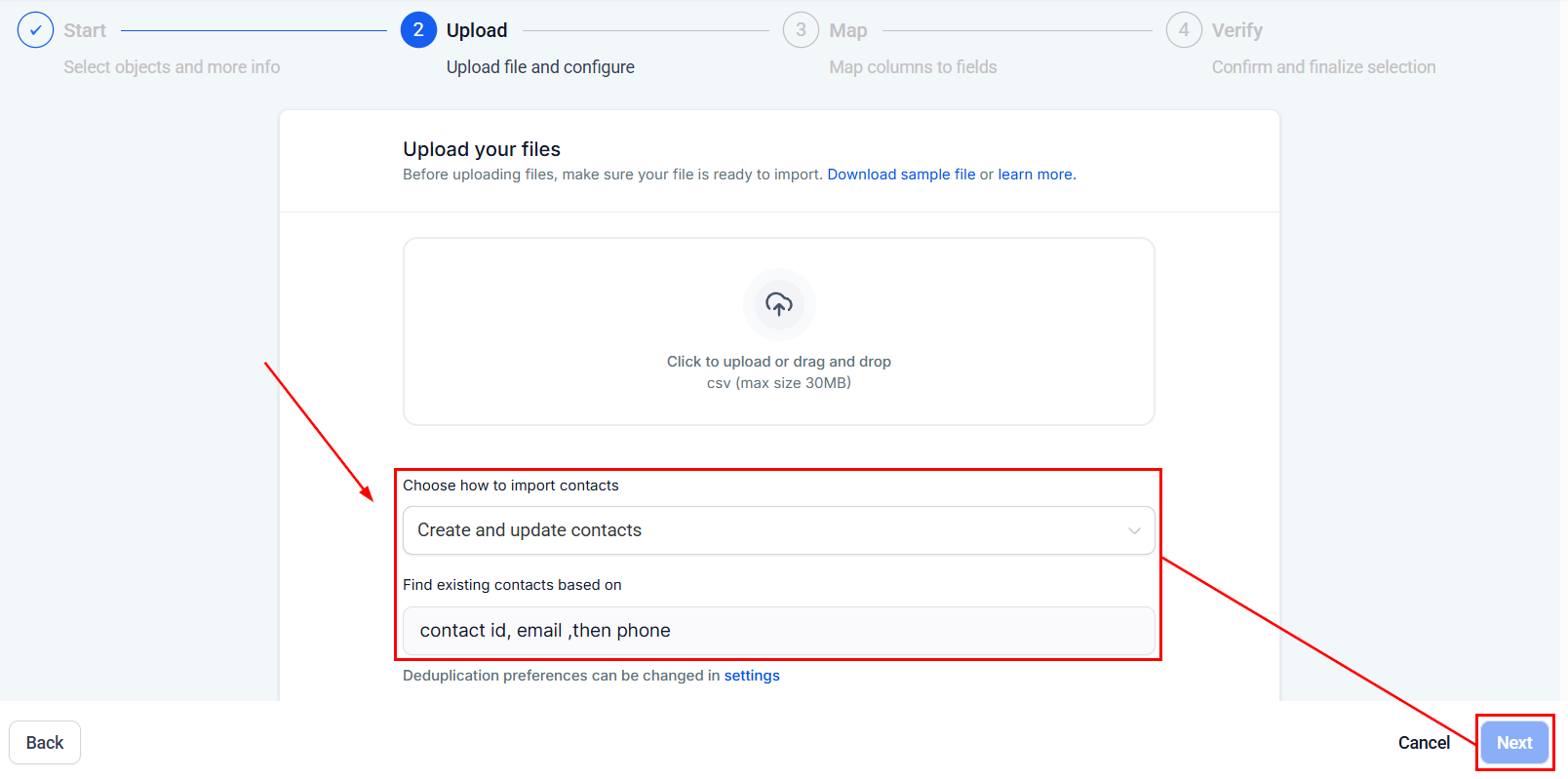
 Click **Upload a File** and select your CSV. The system uses email addresses (then phone numbers) as the default unique identifier for deduplication.
 Click **Next** to proceed.
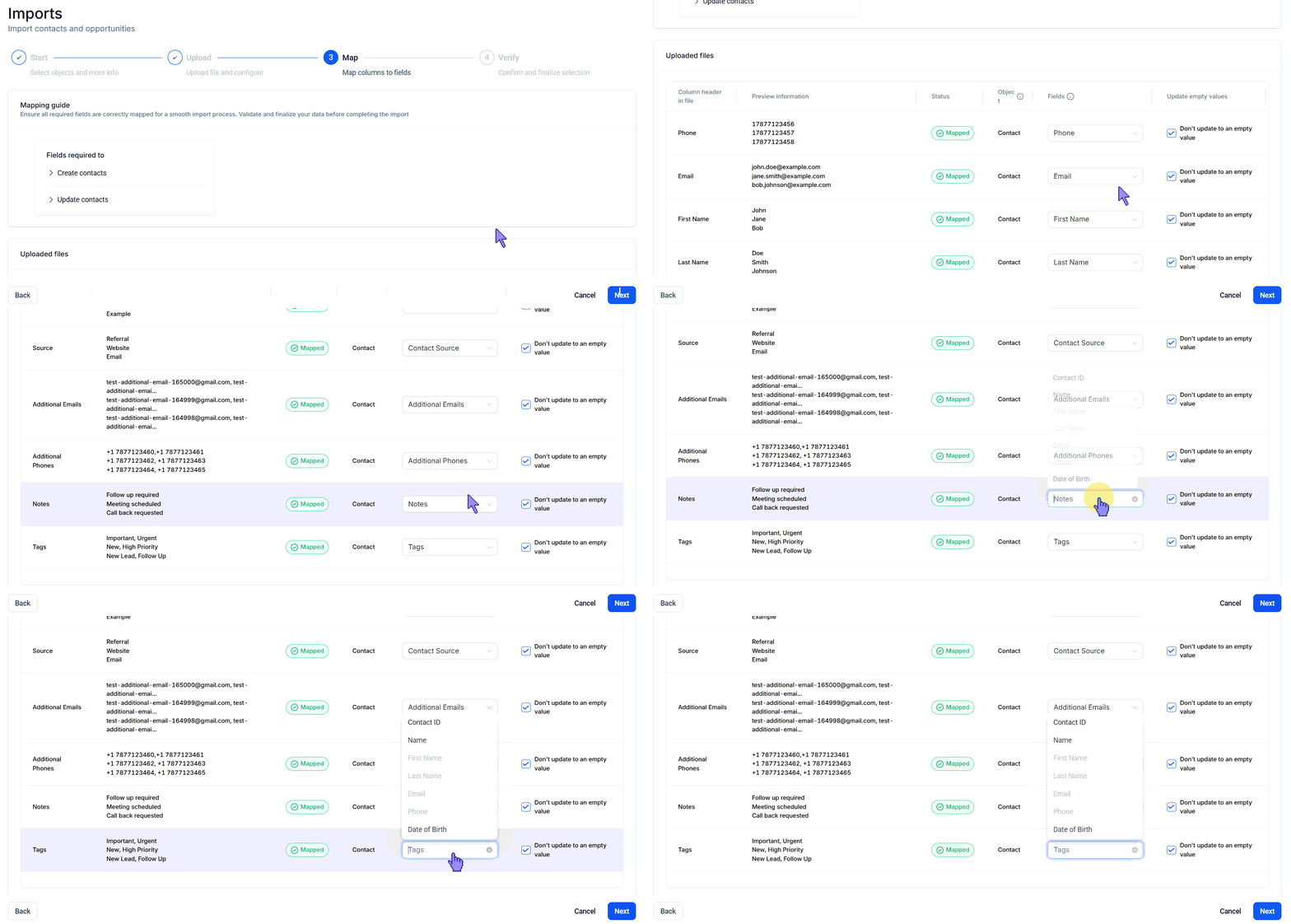
Map each column in your CSV to the corresponding Hoop contact field. Use the **Preview** column to verify the mapping is correct.
Click **Next** to proceed.
Map each column in your CSV to the corresponding Hoop contact field. Use the **Preview** column to verify the mapping is correct.
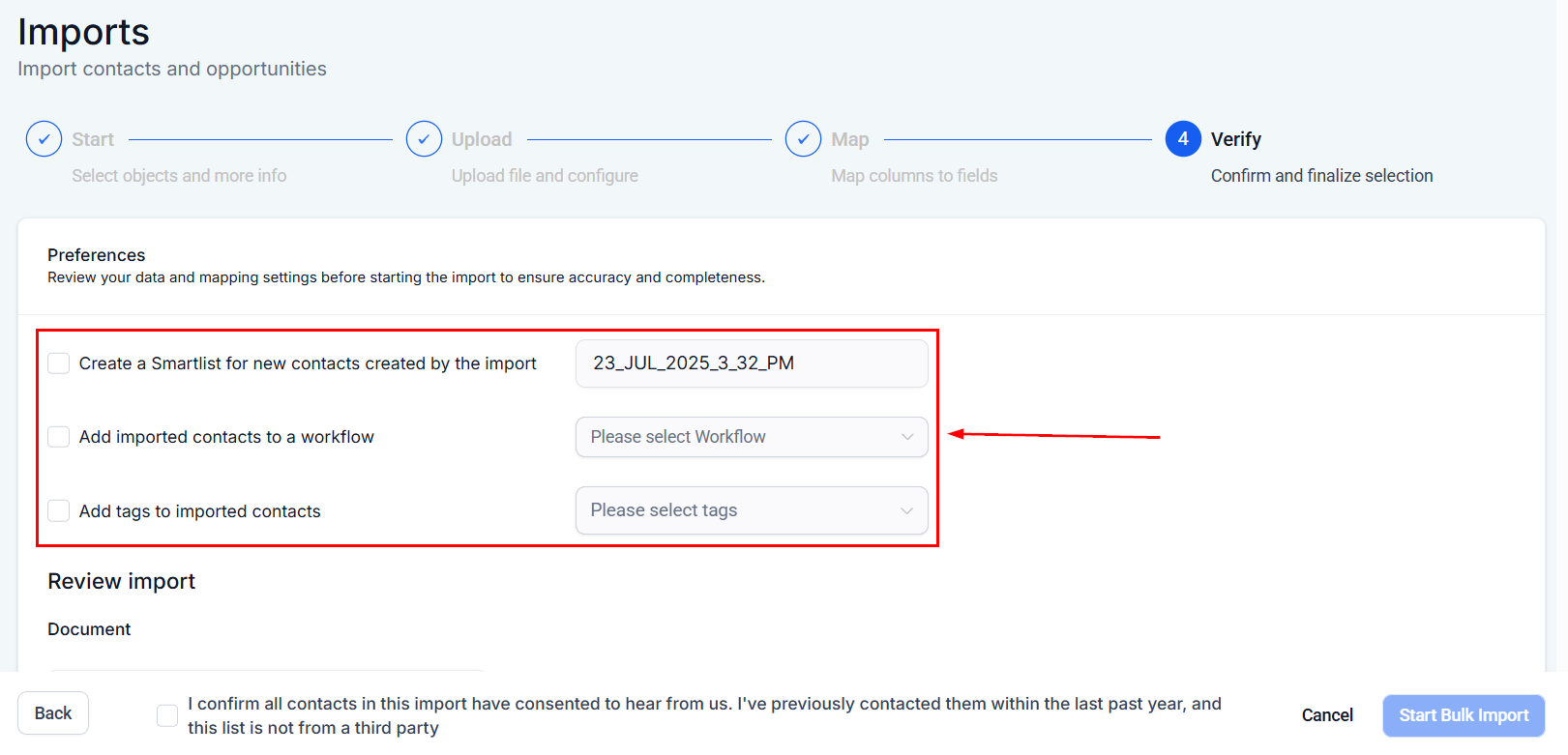
 Set optional preferences for what happens after import:
* **Create a Smart List** — automatically creates a smart list containing all newly imported contacts
* **Add to workflow** — enroll imported contacts in an automation
* **Add tags** — apply one or more tags to all imported contacts
Set optional preferences for what happens after import:
* **Create a Smart List** — automatically creates a smart list containing all newly imported contacts
* **Add to workflow** — enroll imported contacts in an automation
* **Add tags** — apply one or more tags to all imported contacts
 Cross-check the CSV against your field mapping. Check the **compliance checkbox** to confirm that all contacts have explicitly opted in to receive communications. Then click **Start Bulk Import**.
 Monitor progress in the **Bulk Actions** tab under Contacts.
 Contact imports cannot be reversed directly from the import wizard. To undo a mistaken import, go to **Contacts > Bulk Actions**, find the import action, and use the restore option in the three-dot menu.
***
## Importing contacts with shared information
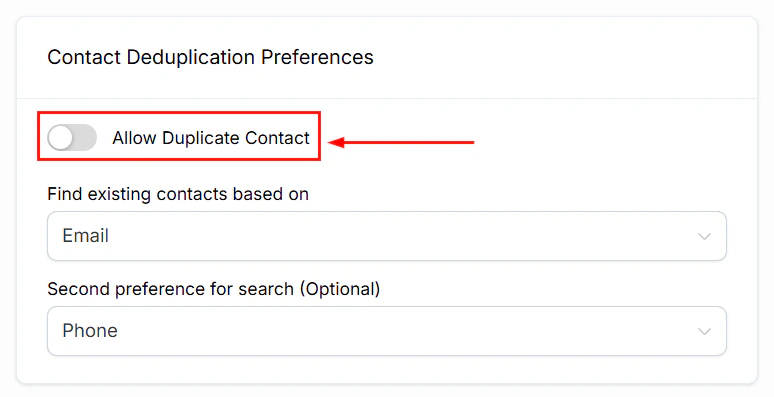
When multiple contacts share the same address, company, phone number, or email address, you need to configure deduplication settings first.
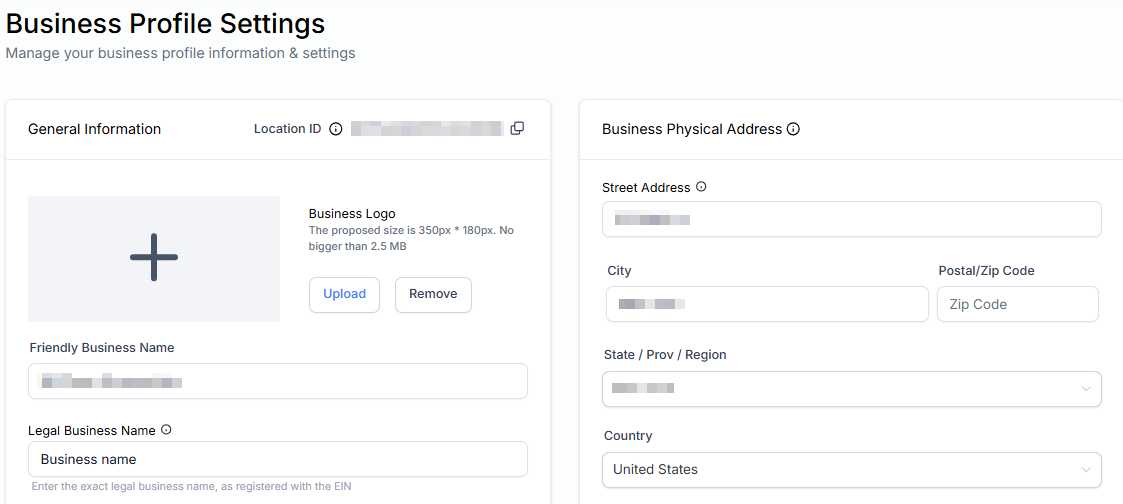
Go to **Settings > Business Profile** and scroll to **Contact Deduplication Preferences**.
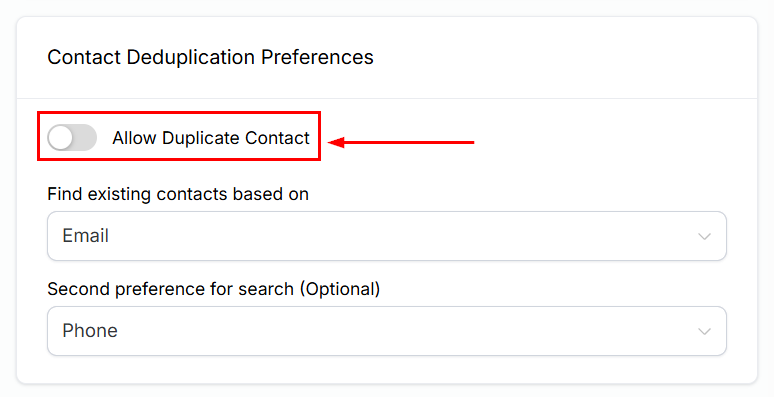
* Enable **Allow Duplicate Contacts** to permit new contacts to share identifiers with existing ones
* Configure the primary and secondary search preferences to match your import strategy
When "Allow Duplicate Contacts" is on, importing a contact with matching identifiers creates a new contact. When off, it updates the existing record instead.
Follow the standard import steps above. On the Upload step, select **Create and update contacts** as the import mode to ensure new entries are added without overwriting existing records.
Contact imports cannot be reversed directly from the import wizard. To undo a mistaken import, go to **Contacts > Bulk Actions**, find the import action, and use the restore option in the three-dot menu.
***
## Importing contacts with shared information
When multiple contacts share the same address, company, phone number, or email address, you need to configure deduplication settings first.
Go to **Settings > Business Profile** and scroll to **Contact Deduplication Preferences**.
* Enable **Allow Duplicate Contacts** to permit new contacts to share identifiers with existing ones
* Configure the primary and secondary search preferences to match your import strategy
When "Allow Duplicate Contacts" is on, importing a contact with matching identifiers creates a new contact. When off, it updates the existing record instead.
Follow the standard import steps above. On the Upload step, select **Create and update contacts** as the import mode to ensure new entries are added without overwriting existing records.
 ***
## Troubleshooting import errors
Go to **Contacts > Bulk Actions** and locate your import in the list.
Click **Show Stats** to see a breakdown of total contacts, successful imports, and errors.
Click the **Error** tab to see errors organized by line number. Each line number corresponds to a row in your CSV (Line 1 = first contact).
### Common errors and resolutions
| Error | Cause | Resolution |
| -------------------- | -------------------------------------------------------- | --------------------------------------------------------------- |
| Formatting error | Column headers or data types don't match required format | Fix the CSV structure and re-import |
| Missing information | Required fields (name, email, phone) are absent | Add the missing data and re-import |
| Duplicate contact | Contact matches an existing record | Adjust deduplication settings or use Manage Duplicates to merge |
| Encoding error | File is not UTF-8 encoded | Re-save the CSV with UTF-8 encoding |
| Invalid phone number | Phone format not recognized | Use E.164 format (`+1 1234567890`) |
### Troubleshooting tips
* **Pre-validate your data** — use spreadsheet software to check for missing values, formatting issues, and inconsistencies before importing
* **Test with a small batch** — import 5–10 rows first to confirm field mapping is correct before doing a full import
* **Check for hidden characters** — spreadsheet software sometimes adds invisible characters; resave as plain CSV if issues persist
***
## Frequently asked questions
Yes. On the first step of the import wizard, select both Contacts and Opportunities. Map fields for both objects during the mapping step.
Double-check the CSV for hidden formatting issues. If problems persist, contact Hoop support for further assistance.
Yes. Navigate to **Contacts > Bulk Actions**, find the import, and use the restore option in the three-dot menu to revert the imported contacts.
Map additional email columns during the field mapping step. The system will assign them as secondary email addresses on the contact record.
***
## Troubleshooting import errors
Go to **Contacts > Bulk Actions** and locate your import in the list.
Click **Show Stats** to see a breakdown of total contacts, successful imports, and errors.
Click the **Error** tab to see errors organized by line number. Each line number corresponds to a row in your CSV (Line 1 = first contact).
### Common errors and resolutions
| Error | Cause | Resolution |
| -------------------- | -------------------------------------------------------- | --------------------------------------------------------------- |
| Formatting error | Column headers or data types don't match required format | Fix the CSV structure and re-import |
| Missing information | Required fields (name, email, phone) are absent | Add the missing data and re-import |
| Duplicate contact | Contact matches an existing record | Adjust deduplication settings or use Manage Duplicates to merge |
| Encoding error | File is not UTF-8 encoded | Re-save the CSV with UTF-8 encoding |
| Invalid phone number | Phone format not recognized | Use E.164 format (`+1 1234567890`) |
### Troubleshooting tips
* **Pre-validate your data** — use spreadsheet software to check for missing values, formatting issues, and inconsistencies before importing
* **Test with a small batch** — import 5–10 rows first to confirm field mapping is correct before doing a full import
* **Check for hidden characters** — spreadsheet software sometimes adds invisible characters; resave as plain CSV if issues persist
***
## Frequently asked questions
Yes. On the first step of the import wizard, select both Contacts and Opportunities. Map fields for both objects during the mapping step.
Double-check the CSV for hidden formatting issues. If problems persist, contact Hoop support for further assistance.
Yes. Navigate to **Contacts > Bulk Actions**, find the import, and use the restore option in the three-dot menu to revert the imported contacts.
Map additional email columns during the field mapping step. The system will assign them as secondary email addresses on the contact record.