> ## Documentation Index
> Fetch the complete documentation index at: https://help.hoopai.com/llms.txt
> Use this file to discover all available pages before exploring further.
# Followers
> Add followers to contact records so team members are notified of updates and can access contacts even under restricted data visibility settings.
Followers give team members visibility into and management access to specific contact records. When a user follows a contact, they receive the same level of access as the contact owner — they can view conversations, edit data, and manage the contact's record. This is especially important in accounts that use restricted data visibility, where users can only see contacts they own or follow.
***
## How followers work
* A contact can have up to **10 followers** in addition to its owner
* Followers have the same edit permissions as the contact owner
* The follower feature is most meaningful when **Restrict data visibility to only assigned data** is enabled for a user — without that setting, users can see all contacts regardless of follower status
* Followers are visible in the contact header so every team member can see who is monitoring that record
***
## Adding followers to a contact
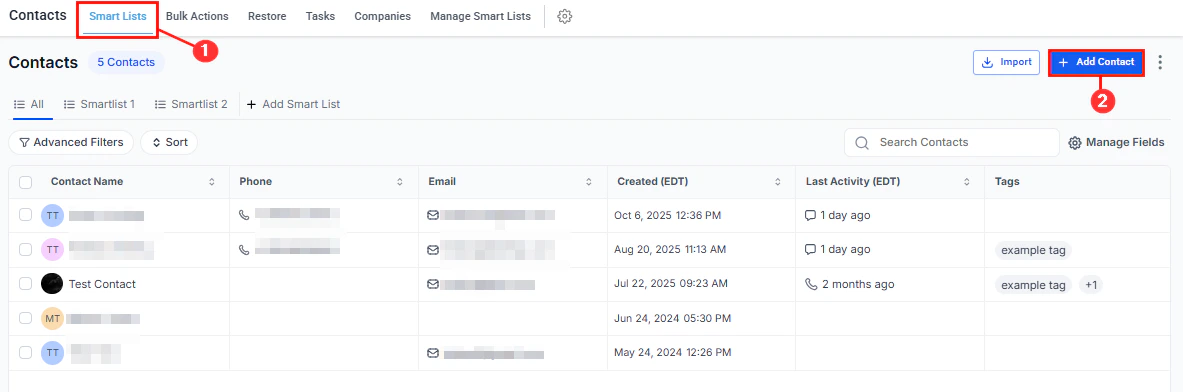
Navigate to **Contacts > Smart Lists** and click a contact's name to open their record.
In the contact header at the top of the record, look for the **Followers** icon (a people/group icon) next to the owner assignment area.
Click the **Followers** icon to open the follower dropdown. Select up to 10 team members from the list. Their avatars or names appear in the header immediately.
 Add followers when handing off a contact to another team member temporarily, or when multiple people need to collaborate on the same account without changing the primary owner.
***
## Removing a follower
Click the contact's name to open their record.
Click the **Followers** icon in the contact header.
Click the **X** next to the team member's name to remove them as a follower. The change takes effect immediately.
***
## Setting up restricted data visibility
Followers are most powerful when combined with restricted data visibility. This setting prevents users from seeing contacts they neither own nor follow, which is useful in multi-team environments where each user should only work with their own leads.
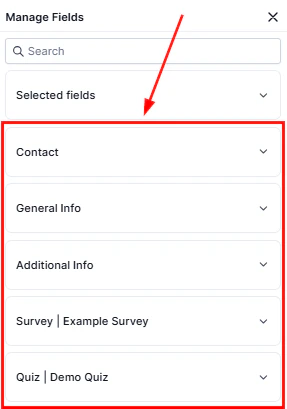
Navigate to **Settings > My Staff** and click the **Edit** button for the team member whose visibility you want to restrict.
In the user's permission settings, enable **Restrict data visibility to only assigned data**. When this is turned on, the user will only see contacts where they are listed as owner or follower.
Add followers when handing off a contact to another team member temporarily, or when multiple people need to collaborate on the same account without changing the primary owner.
***
## Removing a follower
Click the contact's name to open their record.
Click the **Followers** icon in the contact header.
Click the **X** next to the team member's name to remove them as a follower. The change takes effect immediately.
***
## Setting up restricted data visibility
Followers are most powerful when combined with restricted data visibility. This setting prevents users from seeing contacts they neither own nor follow, which is useful in multi-team environments where each user should only work with their own leads.
Navigate to **Settings > My Staff** and click the **Edit** button for the team member whose visibility you want to restrict.
In the user's permission settings, enable **Restrict data visibility to only assigned data**. When this is turned on, the user will only see contacts where they are listed as owner or follower.
 Click **Save**. The setting takes effect immediately for that user's next login or page refresh.
If a team member reports that they cannot see a contact they expect to have access to, verify that restricted data visibility is enabled for their account and then confirm they are listed as a follower (or owner) on that contact record.
***
## Bulk-adding followers
Click **Save**. The setting takes effect immediately for that user's next login or page refresh.
If a team member reports that they cannot see a contact they expect to have access to, verify that restricted data visibility is enabled for their account and then confirm they are listed as a follower (or owner) on that contact record.
***
## Bulk-adding followers
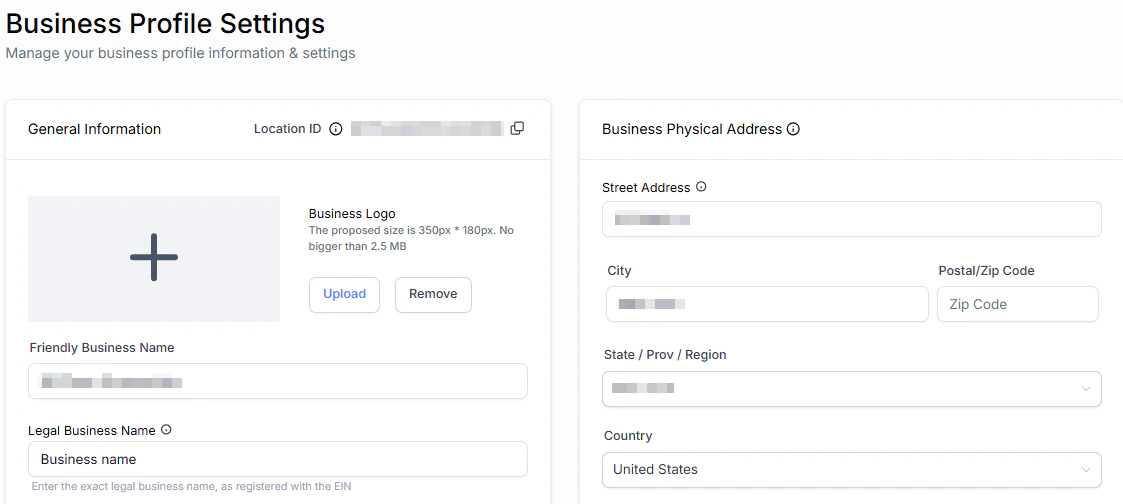 You can add a follower to many contacts at once using bulk actions:
In **Contacts > Smart Lists**, check the contacts you want to update.
Click the **More** dropdown in the bulk actions toolbar and select **Add Followers** (if available in your account).
Choose the team members to add as followers and click **Apply**. All selected contacts are updated simultaneously.
***
## Difference between owner and follower
| | Owner | Follower |
| -------------------------------- | --------------- | -------------------- |
| Assigned count | One per contact | Up to 10 per contact |
| Data access (restricted mode) | Yes | Yes |
| Edit permissions | Full | Full |
| Workflow "Assigned To" targeting | Yes | No |
| Receives task notifications | Yes | No |
| Appears in owner-based reports | Yes | No |
Use the **Owner** field for the primary person responsible for the contact's outcomes. Use **Followers** for anyone who needs visibility without taking ownership responsibility.
***
## Frequently asked questions
Followers gain data visibility rather than explicit notifications. To ensure team members are alerted to activity on a contact, use workflow triggers and notification actions to send internal alerts.
No. Each contact has exactly one owner. Use followers to give additional team members access without transferring ownership.
When duplicate contacts are merged, the followers from both records are combined on the master record, up to the maximum of 10 followers.
Yes. In the **Advanced Filters** of Smart Lists, you can filter by follower to see all contacts a specific team member is following.
You can add a follower to many contacts at once using bulk actions:
In **Contacts > Smart Lists**, check the contacts you want to update.
Click the **More** dropdown in the bulk actions toolbar and select **Add Followers** (if available in your account).
Choose the team members to add as followers and click **Apply**. All selected contacts are updated simultaneously.
***
## Difference between owner and follower
| | Owner | Follower |
| -------------------------------- | --------------- | -------------------- |
| Assigned count | One per contact | Up to 10 per contact |
| Data access (restricted mode) | Yes | Yes |
| Edit permissions | Full | Full |
| Workflow "Assigned To" targeting | Yes | No |
| Receives task notifications | Yes | No |
| Appears in owner-based reports | Yes | No |
Use the **Owner** field for the primary person responsible for the contact's outcomes. Use **Followers** for anyone who needs visibility without taking ownership responsibility.
***
## Frequently asked questions
Followers gain data visibility rather than explicit notifications. To ensure team members are alerted to activity on a contact, use workflow triggers and notification actions to send internal alerts.
No. Each contact has exactly one owner. Use followers to give additional team members access without transferring ownership.
When duplicate contacts are merged, the followers from both records are combined on the master record, up to the maximum of 10 followers.
Yes. In the **Advanced Filters** of Smart Lists, you can filter by follower to see all contacts a specific team member is following.