> ## Documentation Index
> Fetch the complete documentation index at: https://help.hoopai.com/llms.txt
> Use this file to discover all available pages before exploring further.
# Exporting contacts
> Export filtered contact lists to CSV from smart lists or bulk actions in the HoopAI Platform.
You can export any set of contacts to a CSV file at any time. Exports can be scoped to your entire contact database, a specific smart list, or any selection of contacts you choose. Exported files include the contact fields you configure and are delivered via download or email once the export is processed.
***
## Exporting from a smart list
The most common approach is to build a smart list with the exact filter criteria you need, then export the results.
Navigate to **Contacts > Smart Lists** and apply **Advanced Filters** to narrow your contacts to the set you want to export. For example:
* All contacts with the tag "newsletter-subscriber"
* All contacts in a specific pipeline stage
* All contacts added in the last 30 days
* All contacts in a particular city or state
Save the smart list if you plan to export this segment regularly.
To export all contacts in the list: click the **checkbox** in the column header to select all records on the page, then click **Select all \[N] contacts** to extend the selection to the full filtered result set.
To export a subset: manually check the boxes next to the contacts you want.
In the bulk actions toolbar that appears, click the **Export** icon (a download arrow or a dedicated Export button).
A dialog appears where you can:
* **Name the export** — this label appears in the Bulk Actions history for easy identification
* **Select fields to include** — choose which contact fields to include in the CSV; standard fields (name, email, phone, tags, etc.) and custom fields are all available
Click **Export** to begin. The system queues the export and processes it in the background.
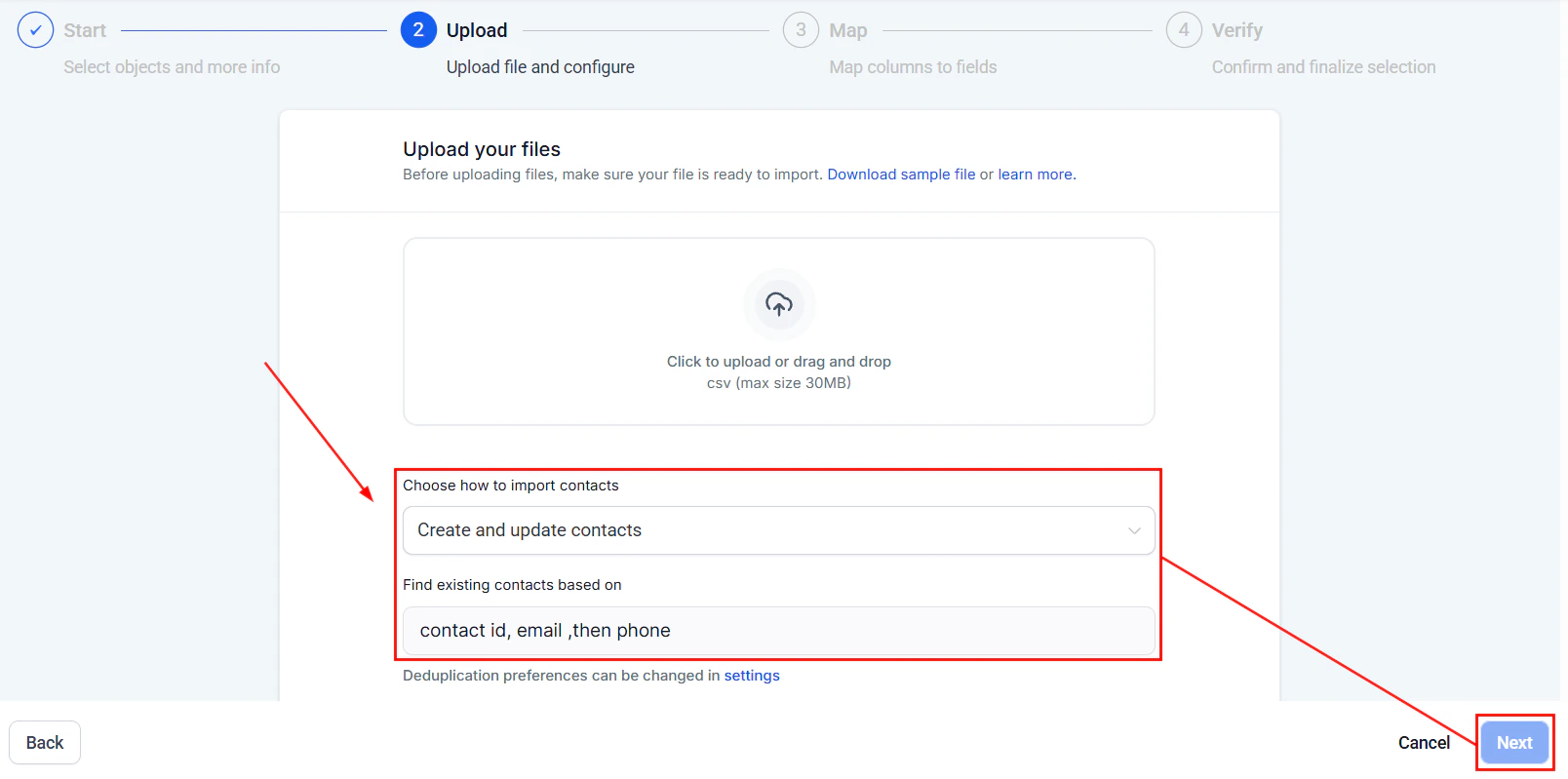 Navigate to **Contacts > Bulk Actions** and locate your export in the list. Once the status shows **Completed**, click **Download** to save the CSV file.
Build and save a smart list before exporting so you can re-export the same segment again in the future with one click.
***
## Exporting all contacts
To export your entire contact database:
Go to **Contacts > Smart Lists**. Make sure no filters are active so all contacts are visible.
Click the header checkbox to select all contacts on the page, then click **Select all \[N] contacts** to include every contact in the account.
Follow steps 3 through 6 from the smart list export instructions above.
***
## Fields included in the export
Navigate to **Contacts > Bulk Actions** and locate your export in the list. Once the status shows **Completed**, click **Download** to save the CSV file.
Build and save a smart list before exporting so you can re-export the same segment again in the future with one click.
***
## Exporting all contacts
To export your entire contact database:
Go to **Contacts > Smart Lists**. Make sure no filters are active so all contacts are visible.
Click the header checkbox to select all contacts on the page, then click **Select all \[N] contacts** to include every contact in the account.
Follow steps 3 through 6 from the smart list export instructions above.
***
## Fields included in the export
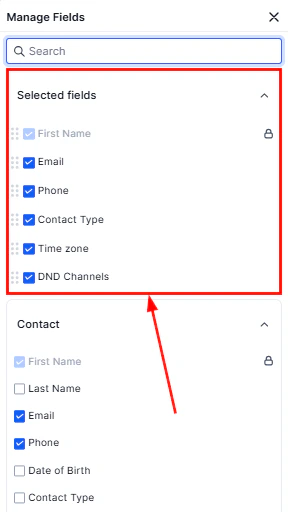 During the export configuration step, you can choose exactly which fields to include in the CSV. Available fields include:
**Standard contact fields:**
* First name, last name, full name
* Email address (primary and additional)
* Phone number (primary and additional)
* Tags
* Date of birth
* Address (street, city, state, zip, country)
* Company / business name
* Website
* Source
* Created date, last activity date
* Owner
* Contact score
* DND status per channel
**Custom fields:**
Any custom fields created in **Settings > Custom Fields** for the Contacts object are available for export.
***
## Tracking and managing exports
During the export configuration step, you can choose exactly which fields to include in the CSV. Available fields include:
**Standard contact fields:**
* First name, last name, full name
* Email address (primary and additional)
* Phone number (primary and additional)
* Tags
* Date of birth
* Address (street, city, state, zip, country)
* Company / business name
* Website
* Source
* Created date, last activity date
* Owner
* Contact score
* DND status per channel
**Custom fields:**
Any custom fields created in **Settings > Custom Fields** for the Contacts object are available for export.
***
## Tracking and managing exports
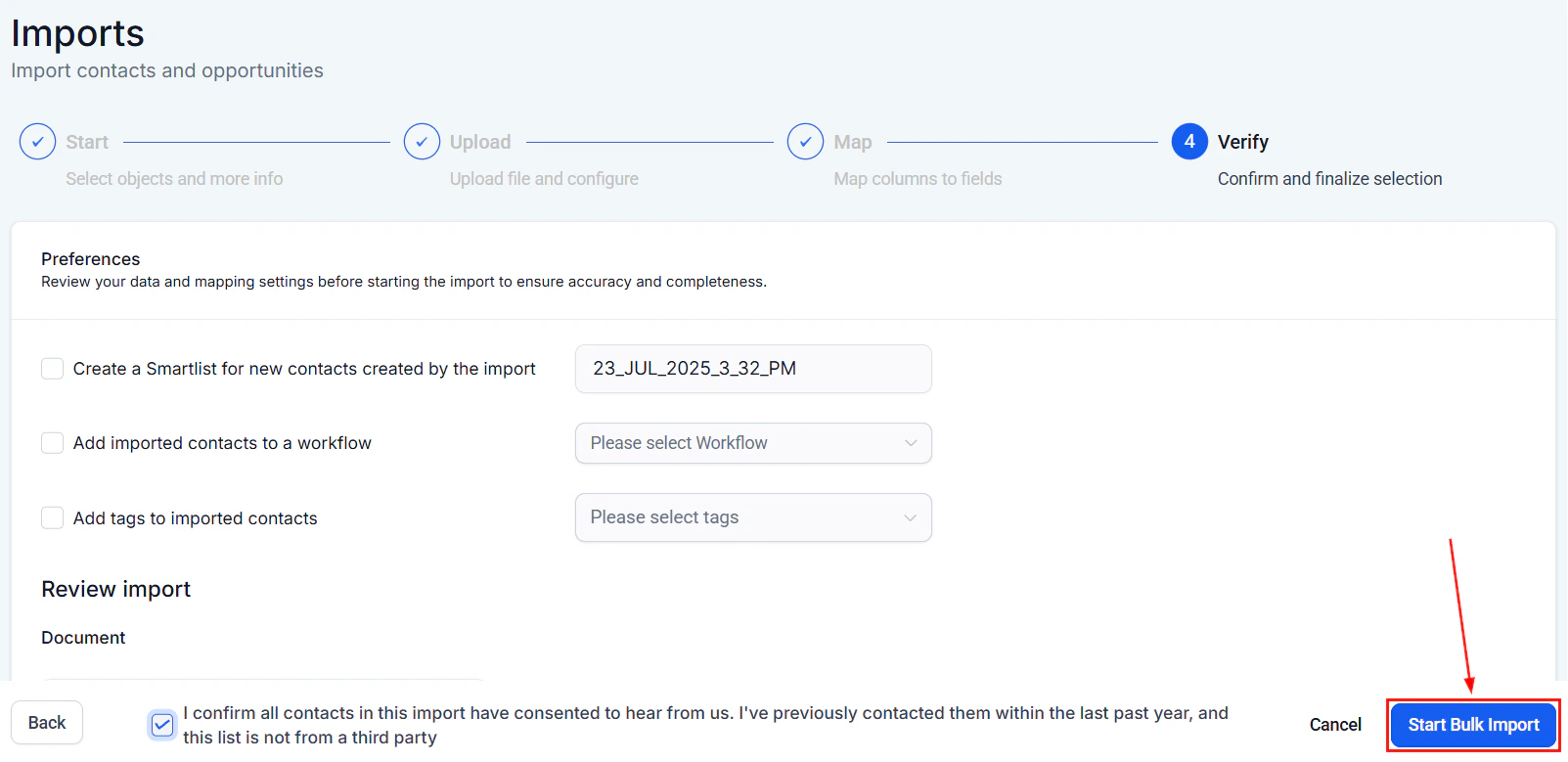 All export jobs are tracked in the **Bulk Actions** tab under Contacts.
| Column | Description |
| -------------- | ---------------------------------------------- |
| Action name | The label you gave the export when creating it |
| Type | Export |
| Status | Queued, Processing, Completed, or Failed |
| Total contacts | Number of contacts included in the export |
| Created | Date and time the export was initiated |
| Actions | Download the file or view details |
***
## Re-downloading a previous export
Export files remain available in Bulk Actions for a period after creation. To re-download:
1. Go to **Contacts > Bulk Actions**
2. Find the export in the list
3. Click **Download** in the Actions column
If the download link has expired, re-run the export from your saved smart list.
***
## Compliance considerations
When exporting contact data, ensure your use of that data complies with applicable privacy regulations:
* Only export data you have a legitimate need for and a lawful basis to process
* Do not share exported contact lists with third parties without appropriate data processing agreements in place
* Store exported files securely and delete them when they are no longer needed
* Contacts who have requested deletion under GDPR or similar regulations should not be included in outbound marketing exports
Exported CSV files contain personally identifiable information. Treat exported files with the same security standards as your live contact database.
***
## Frequently asked questions
There is no hard limit on export size. Very large exports (hundreds of thousands of contacts) may take several minutes to process. Monitor the Bulk Actions tab for completion status.
Scheduled exports are not available directly in the UI. For automated, recurring exports, use the API or set up a workflow that triggers an export notification when new contacts meet your criteria.
Yes, DND status is a field you can include in the export. The export does not automatically exclude DNC contacts — you must apply a smart list filter to exclude them if needed.
The contact export includes fields from the contact record. To export opportunity data, use the Opportunities section export feature, which can include linked contact fields as columns.
All export jobs are tracked in the **Bulk Actions** tab under Contacts.
| Column | Description |
| -------------- | ---------------------------------------------- |
| Action name | The label you gave the export when creating it |
| Type | Export |
| Status | Queued, Processing, Completed, or Failed |
| Total contacts | Number of contacts included in the export |
| Created | Date and time the export was initiated |
| Actions | Download the file or view details |
***
## Re-downloading a previous export
Export files remain available in Bulk Actions for a period after creation. To re-download:
1. Go to **Contacts > Bulk Actions**
2. Find the export in the list
3. Click **Download** in the Actions column
If the download link has expired, re-run the export from your saved smart list.
***
## Compliance considerations
When exporting contact data, ensure your use of that data complies with applicable privacy regulations:
* Only export data you have a legitimate need for and a lawful basis to process
* Do not share exported contact lists with third parties without appropriate data processing agreements in place
* Store exported files securely and delete them when they are no longer needed
* Contacts who have requested deletion under GDPR or similar regulations should not be included in outbound marketing exports
Exported CSV files contain personally identifiable information. Treat exported files with the same security standards as your live contact database.
***
## Frequently asked questions
There is no hard limit on export size. Very large exports (hundreds of thousands of contacts) may take several minutes to process. Monitor the Bulk Actions tab for completion status.
Scheduled exports are not available directly in the UI. For automated, recurring exports, use the API or set up a workflow that triggers an export notification when new contacts meet your criteria.
Yes, DND status is a field you can include in the export. The export does not automatically exclude DNC contacts — you must apply a smart list filter to exclude them if needed.
The contact export includes fields from the contact record. To export opportunity data, use the Opportunities section export feature, which can include linked contact fields as columns.