> ## Documentation Index
> Fetch the complete documentation index at: https://help.hoopai.com/llms.txt
> Use this file to discover all available pages before exploring further.
# Do Not Contact
> Manage Do Not Disturb (DND) settings, opt-outs, and communication channel restrictions for contacts in the HoopAI Platform.
The Do Not Contact (DNC) and Do Not Disturb (DND) features give you granular control over which communication channels are active for each contact. Use them to honour opt-out requests, comply with regulations such as GDPR and TCPA, and prevent unwanted messages from reaching contacts who have asked not to be contacted.
***
## Do Not Disturb vs Do Not Contact
The HoopAI Platform uses two related but distinct concepts:
| Term | Meaning |
| ------------------------ | --------------------------------------------------------------------------------------------------------------------------------------------------------------------- |
| **Do Not Disturb (DND)** | A per-channel flag on the contact record that blocks outbound communications on that channel |
| **Do Not Contact (DNC)** | A broader status that can indicate the contact should not be contacted at all, often used for contacts who have explicitly opted out or whose data must be suppressed |
In practice, DND is the primary tool you will use. You can enable DND for individual channels (SMS, email, calls, etc.) or for all channels at once.
***
## DND channels
DND can be set independently for each communication channel that is connected to your account:
* **SMS** — prevents automated and manual SMS messages
* **Calls** — prevents outbound calls from the dialer
* **Email** — prevents all outbound emails, including automated workflows
* **Facebook Messenger** — prevents outbound Facebook messages
* **Google My Business (GMB)** — prevents outbound GMB messages
* **WhatsApp** — prevents outbound WhatsApp messages
* **Instagram** — prevents outbound Instagram DMs
Channels that are not yet integrated with your account will not appear in the DND options.
***
## Setting DND on a contact
Navigate to **Contacts > Smart Lists** and click the contact's name.
In the left panel of the contact record, scroll to the **Do Not Disturb** section. It appears below the contact's communication details.
Click the toggle next to the channel you want to disable. The toggle turns red/active when DND is on for that channel.
* To block all channels at once, click **Enable All** or the master DND toggle if present
* To block only one channel, toggle only that channel's switch
Some DND toggles allow a note explaining the reason for the restriction (e.g., "Requested via phone call on March 1"). This is useful for audit and compliance purposes.
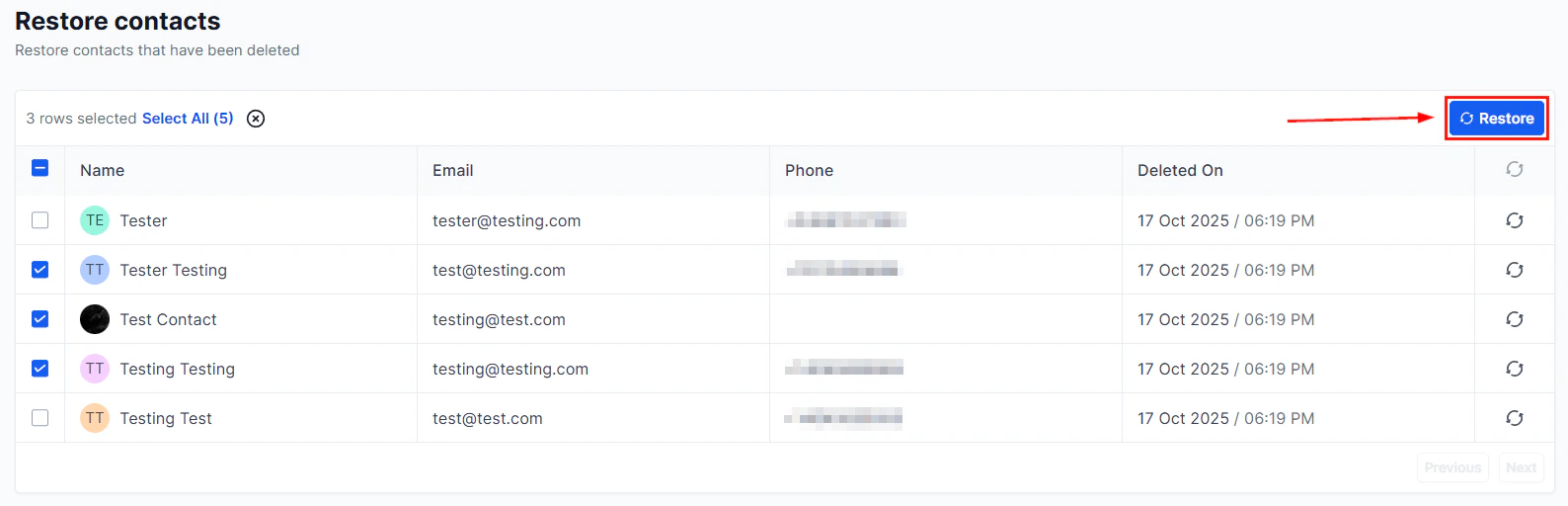 Once DND is enabled on a channel, workflow actions and manual sends targeting that channel will be silently blocked for this contact. The contact will not receive any message on the blocked channel, and the workflow will continue to the next step.
***
## Removing DND
To re-enable communication on a channel, toggle the DND switch off for that channel. This immediately restores the ability to send messages through that channel.
Only remove DND for a contact if you have a confirmed legal basis for doing so — for example, the contact has re-opted in through a confirmed opt-in process. Removing DND without proper consent may violate TCPA, GDPR, or other applicable regulations.
***
## Automatic DND from opt-outs
When a contact opts out through a regulated mechanism, the system automatically sets DND:
| Opt-out action | DND applied |
| ---------------------------------------- | ------------------------------------------ |
| Contact replies "STOP" to an SMS | SMS channel DND enabled automatically |
| Contact clicks "Unsubscribe" in an email | Email channel DND enabled automatically |
| Contact opts out via a WhatsApp message | WhatsApp channel DND enabled automatically |
These automatic opt-outs are processed immediately and cannot be bypassed by workflows.
To allow contacts to manage their own preferences, use an opt-in/opt-out workflow with a preference centre page. This gives contacts the ability to select which channels they want to hear from you on, reducing full opt-outs.
***
## Bulk-enabling DND
Once DND is enabled on a channel, workflow actions and manual sends targeting that channel will be silently blocked for this contact. The contact will not receive any message on the blocked channel, and the workflow will continue to the next step.
***
## Removing DND
To re-enable communication on a channel, toggle the DND switch off for that channel. This immediately restores the ability to send messages through that channel.
Only remove DND for a contact if you have a confirmed legal basis for doing so — for example, the contact has re-opted in through a confirmed opt-in process. Removing DND without proper consent may violate TCPA, GDPR, or other applicable regulations.
***
## Automatic DND from opt-outs
When a contact opts out through a regulated mechanism, the system automatically sets DND:
| Opt-out action | DND applied |
| ---------------------------------------- | ------------------------------------------ |
| Contact replies "STOP" to an SMS | SMS channel DND enabled automatically |
| Contact clicks "Unsubscribe" in an email | Email channel DND enabled automatically |
| Contact opts out via a WhatsApp message | WhatsApp channel DND enabled automatically |
These automatic opt-outs are processed immediately and cannot be bypassed by workflows.
To allow contacts to manage their own preferences, use an opt-in/opt-out workflow with a preference centre page. This gives contacts the ability to select which channels they want to hear from you on, reducing full opt-outs.
***
## Bulk-enabling DND
 To apply DND to many contacts at once:
Use **Advanced Filters** in Smart Lists to identify the contacts who need DND applied — for example, a list imported from an external suppression file, or contacts tagged "unsubscribed."
Check the contacts you want to update, then click **Select all \[N] contacts** to include the full filtered set.
In the bulk actions toolbar, open the **More** menu and select **Enable DND**. Choose the channels to restrict and confirm the action.
***
## DND in workflows
Workflows respect DND settings automatically — if a contact has DND enabled on a channel, any workflow action that would send through that channel is skipped for that contact. You do not need to add conditional logic to check DND status in every workflow.
You can also manage DND programmatically within a workflow using the **Enable/Disable DND** action:
* **Enable DND** — block a specific channel for the contact when a trigger fires (e.g., block SMS when a contact purchases and requests no further promotions)
* **Disable DND** — remove a DND restriction when a contact completes a re-opt-in flow
***
## GDPR and data subject requests
For contacts who submit a right-to-erasure (RTBF) or right-to-be-forgotten request under GDPR:
1. Enable DND on all channels immediately to stop communications
2. Delete the contact record from the HoopAI Platform (this removes their data from the active database)
3. Keep records of the deletion request separately in your compliance documentation
For data access requests, use the contact's activity timeline and custom fields to compile their stored information.
The HoopAI Platform provides the tools to implement your data compliance processes, but it is your responsibility to define those processes and ensure they meet your legal obligations. Consult your legal or compliance team for guidance specific to your jurisdiction.
***
## Identifying DNC contacts in smart lists
To apply DND to many contacts at once:
Use **Advanced Filters** in Smart Lists to identify the contacts who need DND applied — for example, a list imported from an external suppression file, or contacts tagged "unsubscribed."
Check the contacts you want to update, then click **Select all \[N] contacts** to include the full filtered set.
In the bulk actions toolbar, open the **More** menu and select **Enable DND**. Choose the channels to restrict and confirm the action.
***
## DND in workflows
Workflows respect DND settings automatically — if a contact has DND enabled on a channel, any workflow action that would send through that channel is skipped for that contact. You do not need to add conditional logic to check DND status in every workflow.
You can also manage DND programmatically within a workflow using the **Enable/Disable DND** action:
* **Enable DND** — block a specific channel for the contact when a trigger fires (e.g., block SMS when a contact purchases and requests no further promotions)
* **Disable DND** — remove a DND restriction when a contact completes a re-opt-in flow
***
## GDPR and data subject requests
For contacts who submit a right-to-erasure (RTBF) or right-to-be-forgotten request under GDPR:
1. Enable DND on all channels immediately to stop communications
2. Delete the contact record from the HoopAI Platform (this removes their data from the active database)
3. Keep records of the deletion request separately in your compliance documentation
For data access requests, use the contact's activity timeline and custom fields to compile their stored information.
The HoopAI Platform provides the tools to implement your data compliance processes, but it is your responsibility to define those processes and ensure they meet your legal obligations. Consult your legal or compliance team for guidance specific to your jurisdiction.
***
## Identifying DNC contacts in smart lists
 Use smart list filters to build a view of all DNC contacts:
1. Open **Contacts > Smart Lists** and click **Advanced Filters**
2. Select **DND** as the filter category
3. Choose the channel (e.g., SMS DND is enabled)
4. Click **Apply**
Save this as a smart list so you always have a current view of your suppression list.
***
## Frequently asked questions
Yes. DND blocks both automated workflow messages and manual sends from the Conversations tab or contact record. A warning may appear when you attempt to manually send to a DND contact.
The contact can still be enrolled in a workflow. Any workflow action that targets the DND channel is skipped for that contact, and the workflow moves on to the next action. No error is generated.
Yes. Filter your contacts using the DND filter in Smart Lists, select all matching contacts, and use the Export function to download the list as a CSV.
Yes. If a contact who previously opted out replies with "START" or "UNSTOP" to an SMS, the system automatically removes the SMS DND restriction, allowing messages to resume.
Use smart list filters to build a view of all DNC contacts:
1. Open **Contacts > Smart Lists** and click **Advanced Filters**
2. Select **DND** as the filter category
3. Choose the channel (e.g., SMS DND is enabled)
4. Click **Apply**
Save this as a smart list so you always have a current view of your suppression list.
***
## Frequently asked questions
Yes. DND blocks both automated workflow messages and manual sends from the Conversations tab or contact record. A warning may appear when you attempt to manually send to a DND contact.
The contact can still be enrolled in a workflow. Any workflow action that targets the DND channel is skipped for that contact, and the workflow moves on to the next action. No error is generated.
Yes. Filter your contacts using the DND filter in Smart Lists, select all matching contacts, and use the Export function to download the list as a CSV.
Yes. If a contact who previously opted out replies with "START" or "UNSTOP" to an SMS, the system automatically removes the SMS DND restriction, allowing messages to resume.