> ## Documentation Index
> Fetch the complete documentation index at: https://help.hoopai.com/llms.txt
> Use this file to discover all available pages before exploring further.
# Contact scoring
> Automatically score contacts based on their behaviours and attributes to prioritise leads and surface the most engaged prospects in the HoopAI Platform.
Contact scoring assigns a numerical score to each contact based on defined rules. As contacts take actions — submitting forms, opening emails, booking appointments, visiting pages — their score increases or decreases automatically. High scores surface contacts who are most engaged and ready to convert, so your team focuses attention where it matters most.
***
## How contact scoring works
A scoring model is a set of rules, each with a positive or negative point value. When a contact meets the condition for a rule, their score is updated accordingly. Scores update in real time as contacts interact with your business.
Examples of scoring rules:
* **+10 points** — contact submits a contact form
* **+5 points** — contact opens an email
* **+15 points** — contact books an appointment
* **+20 points** — contact visits the pricing page
* **-5 points** — contact unsubscribes from email
* **-10 points** — contact misses a scheduled appointment
***
## Setting up a scoring model
Navigate to **Contacts > Contact Scoring** (or through **Settings > Contact Scoring**, depending on your account layout).
Click **+ Add Model** or **Create Scoring Model**. Enter a name for the model that reflects its purpose — for example, "Marketing engagement score" or "Sales readiness score."
Click **+ Add Rule** to create the first rule. For each rule, configure:
* **Trigger** — the event or condition that updates the score (form submission, email opened, page visit, tag added, appointment booked, etc.)
* **Points** — the positive or negative value to apply when the rule is met
* **Condition filters** (optional) — narrow the rule further, for example "email opened AND campaign name contains 'newsletter'"
Configure whether points expire after a set number of days. Score expiry keeps your scores relevant — a contact who was engaged six months ago but has gone quiet will naturally see their score decline.
Toggle the model to **Active**. The model begins applying scores to contacts immediately based on new activity. Historical activity before the model was activated is not retroactively scored unless specifically configured.
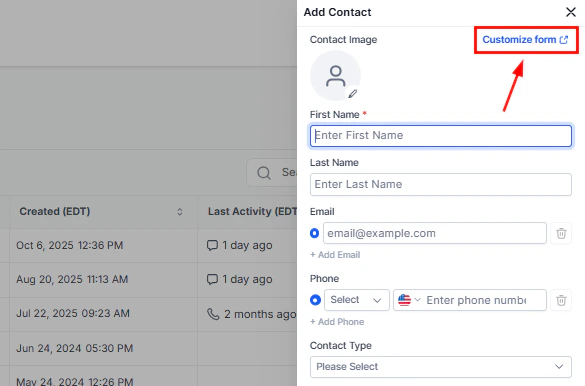 Start simple — create a model with 5 to 10 rules and refine it over time as you learn which behaviours best predict conversion. Avoid over-engineering your first scoring model.
***
## Viewing a contact's score
The contact score appears on the contact record and in smart list views:
* **On the contact record** — the score is displayed in the contact header or in the Contact Info section, depending on your account setup
* **In smart lists** — add the **Score** column to your smart list view to see scores at a glance and sort or filter by them
***
## Using scores in smart lists
Start simple — create a model with 5 to 10 rules and refine it over time as you learn which behaviours best predict conversion. Avoid over-engineering your first scoring model.
***
## Viewing a contact's score
The contact score appears on the contact record and in smart list views:
* **On the contact record** — the score is displayed in the contact header or in the Contact Info section, depending on your account setup
* **In smart lists** — add the **Score** column to your smart list view to see scores at a glance and sort or filter by them
***
## Using scores in smart lists
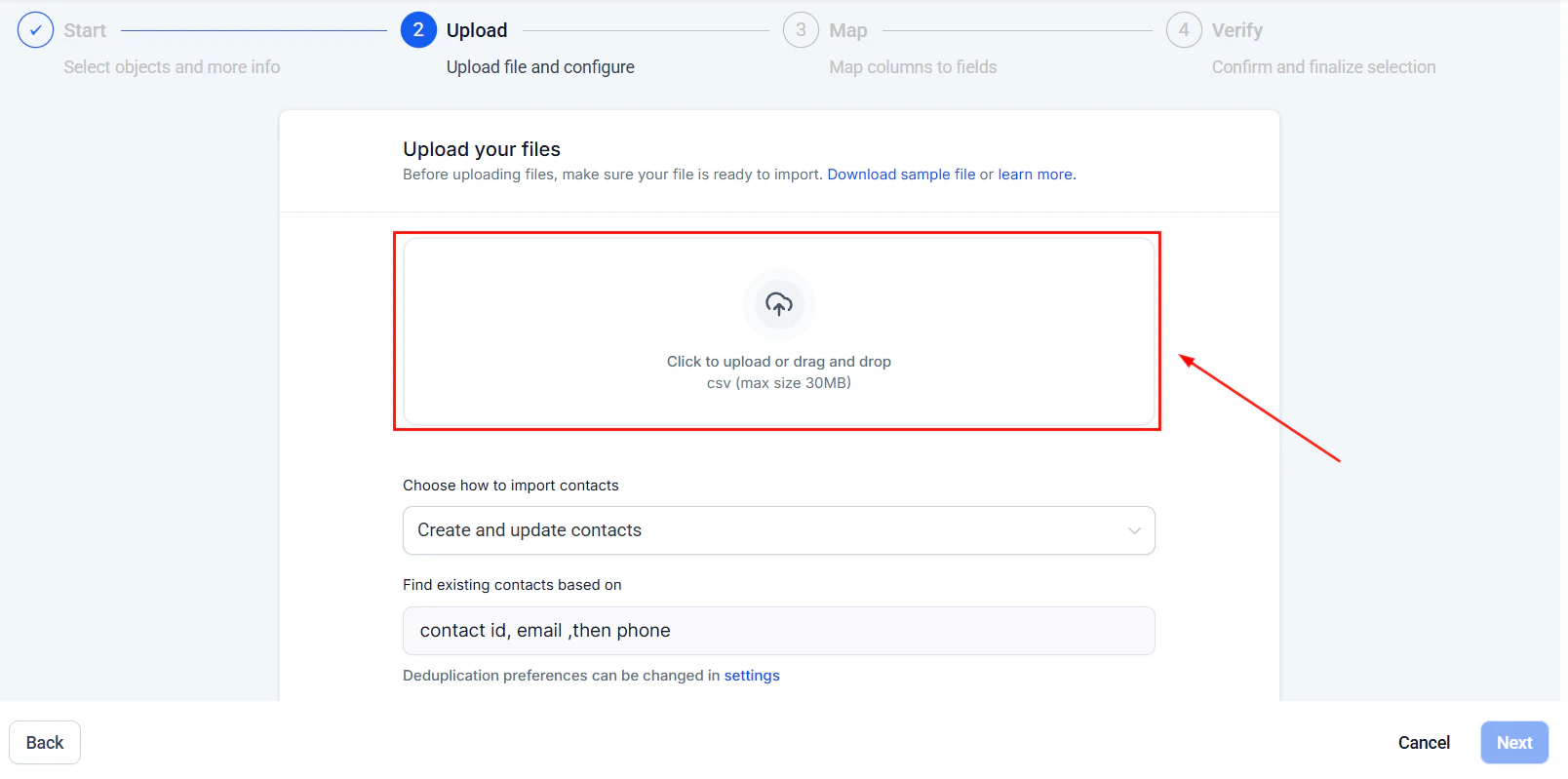 Contact scores are available as a filter condition in Smart Lists, allowing you to build powerful lead prioritisation views:
1. Open **Contacts > Smart Lists** and click **Advanced Filters**
2. Select **Contact Score** as the filter field
3. Choose a condition: **Is greater than**, **Is less than**, **Is between**, etc.
4. Enter the score threshold
5. Click **Apply** and save the smart list
Example smart lists powered by scoring:
* **Hot leads** — Score is greater than 75
* **Cold leads** — Score is less than 20
* **Re-engagement candidates** — Score decreased in the last 30 days
***
## Using scores in automations
Contact scores are available as a filter condition in Smart Lists, allowing you to build powerful lead prioritisation views:
1. Open **Contacts > Smart Lists** and click **Advanced Filters**
2. Select **Contact Score** as the filter field
3. Choose a condition: **Is greater than**, **Is less than**, **Is between**, etc.
4. Enter the score threshold
5. Click **Apply** and save the smart list
Example smart lists powered by scoring:
* **Hot leads** — Score is greater than 75
* **Cold leads** — Score is less than 20
* **Re-engagement candidates** — Score decreased in the last 30 days
***
## Using scores in automations
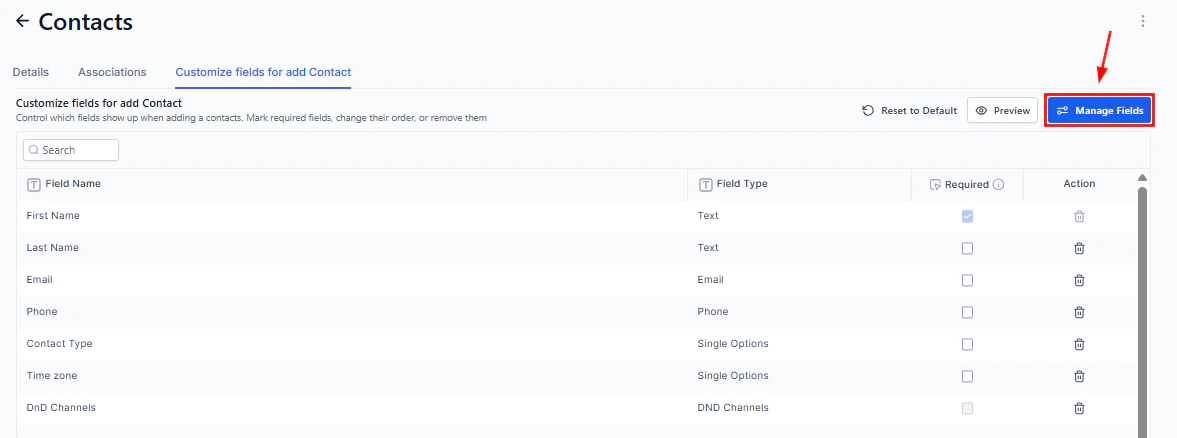 Trigger workflows based on score thresholds using the **Contact Score** trigger:
* **Score reaches a threshold** — trigger a workflow when a contact's score first exceeds a defined value (e.g., notify a sales rep when score reaches 50)
* **Score changes** — trigger based on any score change to run real-time follow-up logic
Within a workflow, you can also use the **Update Contact Score** action to manually add or subtract points as part of an automation sequence.
***
## Managing multiple scoring models
You can run multiple scoring models simultaneously. Each model tracks a separate score dimension:
* **Marketing engagement score** — tracks top-of-funnel engagement (emails, social, forms)
* **Sales readiness score** — tracks bottom-of-funnel signals (pricing page visits, demo requests, replies)
* **Customer health score** — tracks post-sale engagement (logins, support tickets, product usage)
Each model's score is stored separately on the contact record and can be referenced independently in filters and automations.
***
## Resetting a contact's score
To reset a contact's score to zero, open the contact record, locate the score field, and click **Reset Score** (or use the workflow **Update Contact Score** action and set the value to 0).
Use score resets when:
* A contact has been dormant and re-entered your pipeline as a new lead
* A sale has closed and you want to start a fresh post-sale health score
***
## Frequently asked questions
By default, scoring models apply to new activity going forward from when the model is activated. To score based on historical data, you can use a workflow with a bulk trigger to evaluate existing contacts against your rules.
Yes. There is no fixed limit on the number of models. Each model produces an independent score, so contacts can have multiple scores at the same time.
Yes. Open the contact record, locate the score, and use the edit or adjust control. You can also use the **Update Contact Score** workflow action to apply adjustments programmatically.
When two contacts are merged, the master record retains its score. You can manually adjust the score after the merge if the combined engagement history warrants a different value.
Trigger workflows based on score thresholds using the **Contact Score** trigger:
* **Score reaches a threshold** — trigger a workflow when a contact's score first exceeds a defined value (e.g., notify a sales rep when score reaches 50)
* **Score changes** — trigger based on any score change to run real-time follow-up logic
Within a workflow, you can also use the **Update Contact Score** action to manually add or subtract points as part of an automation sequence.
***
## Managing multiple scoring models
You can run multiple scoring models simultaneously. Each model tracks a separate score dimension:
* **Marketing engagement score** — tracks top-of-funnel engagement (emails, social, forms)
* **Sales readiness score** — tracks bottom-of-funnel signals (pricing page visits, demo requests, replies)
* **Customer health score** — tracks post-sale engagement (logins, support tickets, product usage)
Each model's score is stored separately on the contact record and can be referenced independently in filters and automations.
***
## Resetting a contact's score
To reset a contact's score to zero, open the contact record, locate the score field, and click **Reset Score** (or use the workflow **Update Contact Score** action and set the value to 0).
Use score resets when:
* A contact has been dormant and re-entered your pipeline as a new lead
* A sale has closed and you want to start a fresh post-sale health score
***
## Frequently asked questions
By default, scoring models apply to new activity going forward from when the model is activated. To score based on historical data, you can use a workflow with a bulk trigger to evaluate existing contacts against your rules.
Yes. There is no fixed limit on the number of models. Each model produces an independent score, so contacts can have multiple scores at the same time.
Yes. Open the contact record, locate the score, and use the edit or adjust control. You can also use the **Update Contact Score** workflow action to apply adjustments programmatically.
When two contacts are merged, the master record retains its score. You can manually adjust the score after the merge if the combined engagement history warrants a different value.