> ## Documentation Index
> Fetch the complete documentation index at: https://help.hoopai.com/llms.txt
> Use this file to discover all available pages before exploring further.
# Businesses
> Create and manage business (company) records in the HoopAI Platform and link them to individual contacts for account-based organisation.
The Businesses feature lets you create company-level records and associate individual contacts with those companies. This gives your team a structured, account-based view of your relationships — you can track deals, notes, and activities at the company level rather than only at the individual contact level.
Businesses are their own object in the HoopAI Platform and can be linked to contacts, opportunities, and custom objects through associations.
***
## Accessing businesses
Navigate to **Contacts** and click the **Businesses** tab at the top of the section. The businesses list shows all company records with their associated contact counts and key details.
***
## Creating a business
Go to **Contacts > Businesses** and click **+ Create Business** (or the **+ Add** button, depending on your account view).
Fill in the company information:
* **Business name** — the company's legal or trading name (required)
* **Phone number** — main business phone
* **Email address** — main business email
* **Website** — company URL
* **Address** — street, city, state, zip, and country
* **Description** — free-text notes about the company
Click **Save** to create the business record. It appears immediately in the Businesses list.
 ***
## Linking contacts to a business
After creating a business record, associate individual contacts with it so you can view all people at that company in one place.
### From the business record
In **Contacts > Businesses**, click the business name to open its record.
In the **Contacts** section of the business record, click **+ Add Contact**.
Type the contact's name or email to search. Select the matching contact from the dropdown to create the association.
### From a contact record
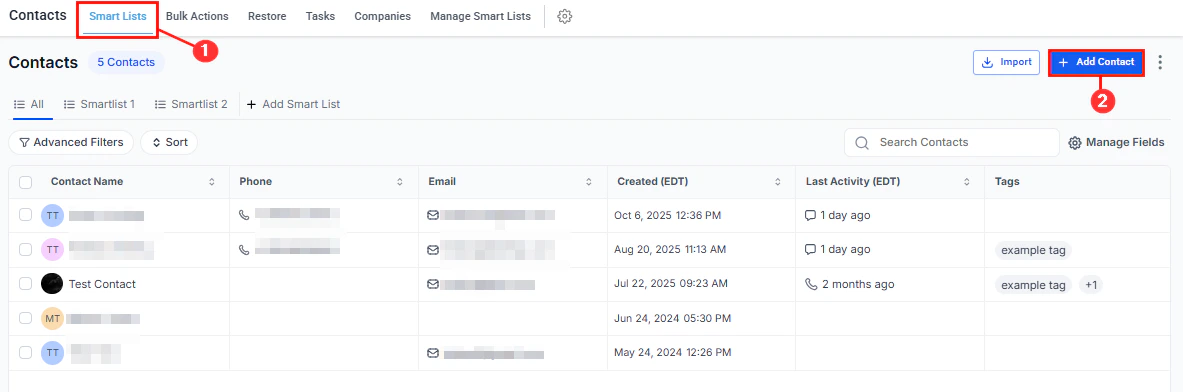
Navigate to **Contacts > Smart Lists** and click the contact's name.
Click the **General Info** tab in the left panel. Locate the **Business Name** field.
Type the business name. If it already exists in your Businesses list, select it from the suggestions. If it does not exist, type the name and save — a new business record may be created automatically, or you can create it separately in the Businesses tab.
Linking contacts to a business through the General Info tab is the fastest way to associate many contacts at once when doing a data import — include a "Business Name" column in your CSV and map it during the import field-mapping step.
***
## Viewing a business record
A business record consolidates everything related to that company in one view:
* **Overview panel** — name, phone, email, website, address, and description
* **Contacts** — all individual contacts linked to this business
* **Opportunities** — all open and closed deals associated with the business
* **Notes** — company-level notes visible across the team
* **Activity** — a timeline of interactions linked to the business or any of its contacts
* **Custom fields** — business-level custom fields configured in Settings
***
## Linking contacts to a business
After creating a business record, associate individual contacts with it so you can view all people at that company in one place.
### From the business record
In **Contacts > Businesses**, click the business name to open its record.
In the **Contacts** section of the business record, click **+ Add Contact**.
Type the contact's name or email to search. Select the matching contact from the dropdown to create the association.
### From a contact record
Navigate to **Contacts > Smart Lists** and click the contact's name.
Click the **General Info** tab in the left panel. Locate the **Business Name** field.
Type the business name. If it already exists in your Businesses list, select it from the suggestions. If it does not exist, type the name and save — a new business record may be created automatically, or you can create it separately in the Businesses tab.
Linking contacts to a business through the General Info tab is the fastest way to associate many contacts at once when doing a data import — include a "Business Name" column in your CSV and map it during the import field-mapping step.
***
## Viewing a business record
A business record consolidates everything related to that company in one view:
* **Overview panel** — name, phone, email, website, address, and description
* **Contacts** — all individual contacts linked to this business
* **Opportunities** — all open and closed deals associated with the business
* **Notes** — company-level notes visible across the team
* **Activity** — a timeline of interactions linked to the business or any of its contacts
* **Custom fields** — business-level custom fields configured in Settings
 ***
## Editing a business record
Click the business name in the **Businesses** list.
Click the pencil icon next to any field to edit it, or click directly into editable fields. Changes save automatically when you click outside the field.
***
## Removing a contact from a business
Navigate to **Contacts > Businesses** and click the business name.
In the **Contacts** section, click the **X** or the trash icon next to the contact you want to remove. This removes the link between the contact and the business but does not delete the contact record.
***
## Deleting a business
In the **Businesses** list, click the **three-dot icon** next to the business and select **Delete**. Confirm the deletion when prompted.
Deleting a business record removes the company and its associated data, but does not delete the individual contact records linked to it. Contacts remain in the system; they simply lose the business association.
***
## Business custom fields
***
## Editing a business record
Click the business name in the **Businesses** list.
Click the pencil icon next to any field to edit it, or click directly into editable fields. Changes save automatically when you click outside the field.
***
## Removing a contact from a business
Navigate to **Contacts > Businesses** and click the business name.
In the **Contacts** section, click the **X** or the trash icon next to the contact you want to remove. This removes the link between the contact and the business but does not delete the contact record.
***
## Deleting a business
In the **Businesses** list, click the **three-dot icon** next to the business and select **Delete**. Confirm the deletion when prompted.
Deleting a business record removes the company and its associated data, but does not delete the individual contact records linked to it. Contacts remain in the system; they simply lose the business association.
***
## Business custom fields
 You can create custom fields specifically for business records to capture company-specific attributes such as industry, company size, annual revenue, or account tier.
Go to **Settings > Custom Fields**, select the **Companies** object tab, and create fields using the same process as contact custom fields. Business custom fields appear in the business record and can be used as filter conditions in smart lists that target business objects.
***
## Frequently asked questions
A contact's primary business name field holds one company. However, through the Associations feature, you can link a contact to multiple business records using custom association labels.
Yes. During the contact import wizard, select both Contacts and Businesses as import objects. Map the business fields during the field-mapping step. New business records are created automatically for company names that do not already exist.
Yes. Use **Advanced Filters** in Smart Lists and filter by the **Business Name** field to find all contacts associated with a specific company.
Opportunities can be linked to both a contact and a business simultaneously. When you associate an opportunity with a contact who belongs to a business, the opportunity appears on both the contact record and the business record.
You can create custom fields specifically for business records to capture company-specific attributes such as industry, company size, annual revenue, or account tier.
Go to **Settings > Custom Fields**, select the **Companies** object tab, and create fields using the same process as contact custom fields. Business custom fields appear in the business record and can be used as filter conditions in smart lists that target business objects.
***
## Frequently asked questions
A contact's primary business name field holds one company. However, through the Associations feature, you can link a contact to multiple business records using custom association labels.
Yes. During the contact import wizard, select both Contacts and Businesses as import objects. Map the business fields during the field-mapping step. New business records are created automatically for company names that do not already exist.
Yes. Use **Advanced Filters** in Smart Lists and filter by the **Business Name** field to find all contacts associated with a specific company.
Opportunities can be linked to both a contact and a business simultaneously. When you associate an opportunity with a contact who belongs to a business, the opportunity appears on both the contact record and the business record.