> ## Documentation Index
> Fetch the complete documentation index at: https://help.hoopai.com/llms.txt
> Use this file to discover all available pages before exploring further.
# Bulk actions
> Import, export, delete, tag, message, merge, and automate multiple contacts at once using bulk actions in the HoopAI Platform.
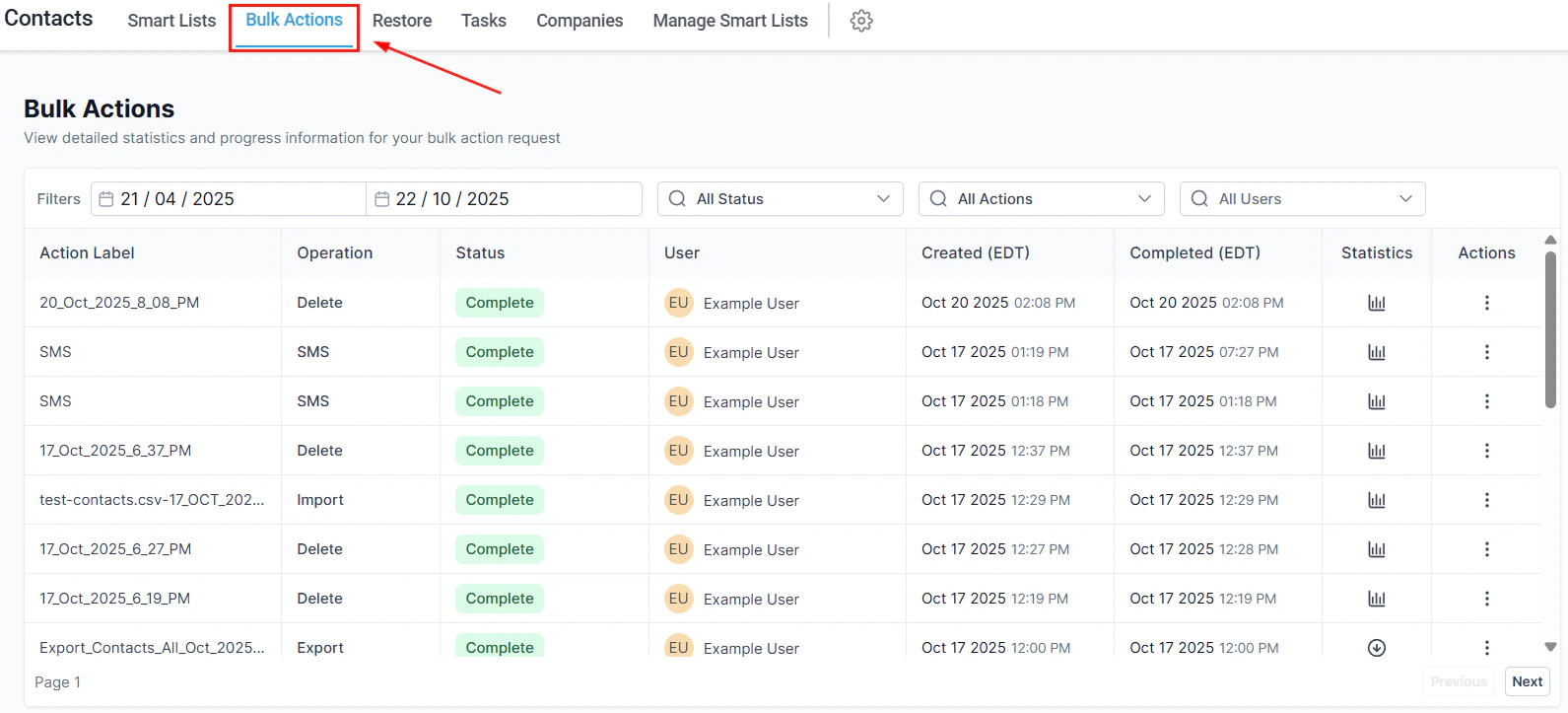
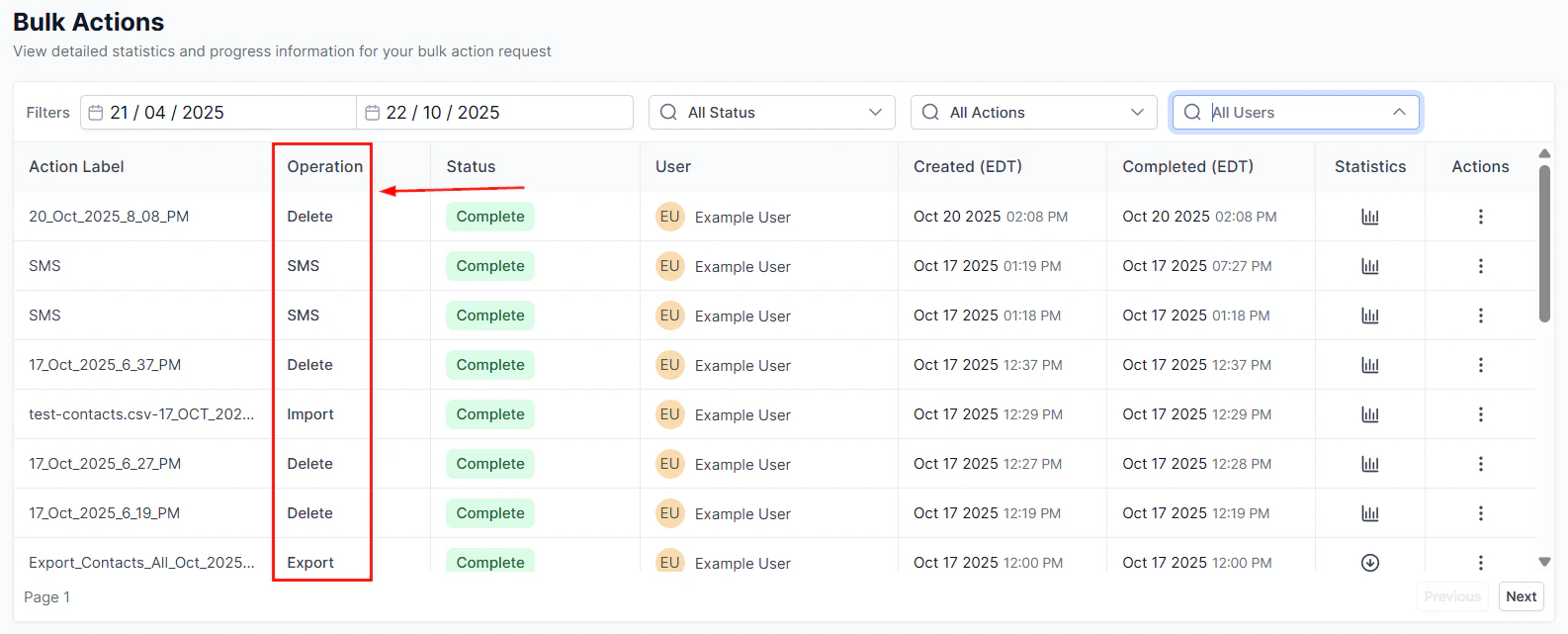
Bulk actions let you perform operations on many contacts simultaneously, saving significant time when managing large contact databases. All bulk operations can be monitored and managed in the **Bulk Actions** tab within the Contacts section.
 ## Quick action buttons
The Smart Lists tab includes a toolbar with quick action buttons for managing contacts efficiently.
## Quick action buttons
The Smart Lists tab includes a toolbar with quick action buttons for managing contacts efficiently.
 Select contacts and click the SMS icon to compose and send bulk text messages.
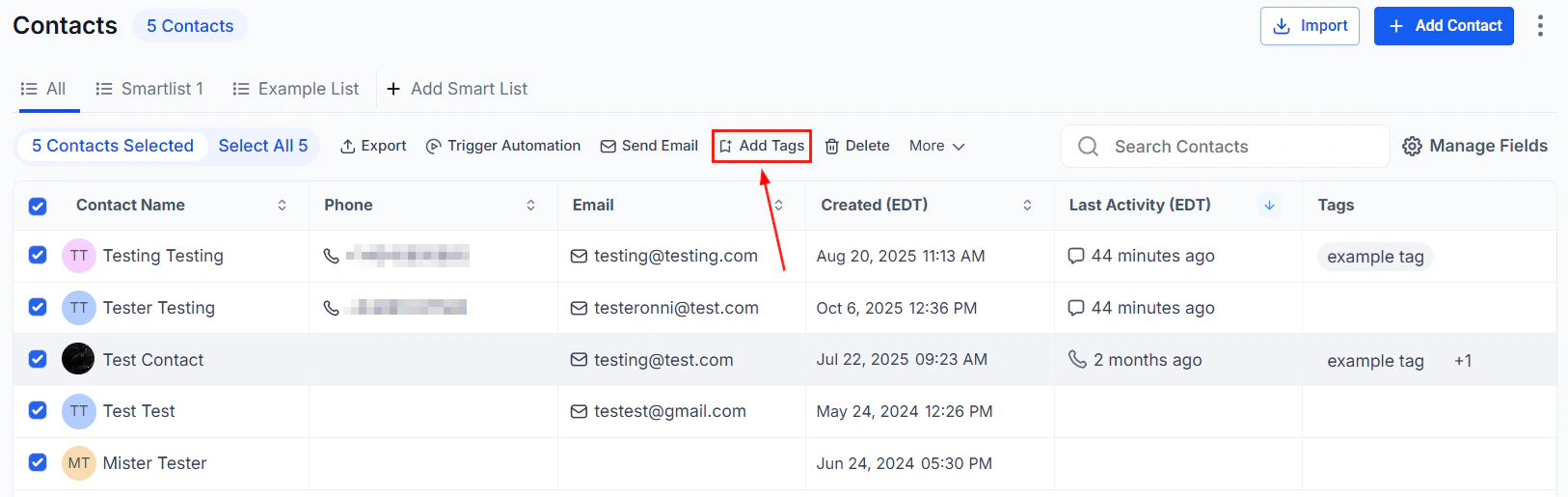
 Select contacts, then click **Add Tag** to apply tags with a single click.
 Select contacts, then click **Export** to download them as a CSV file.
 Select contacts, then click **Add to Automation** to enroll them in a workflow.
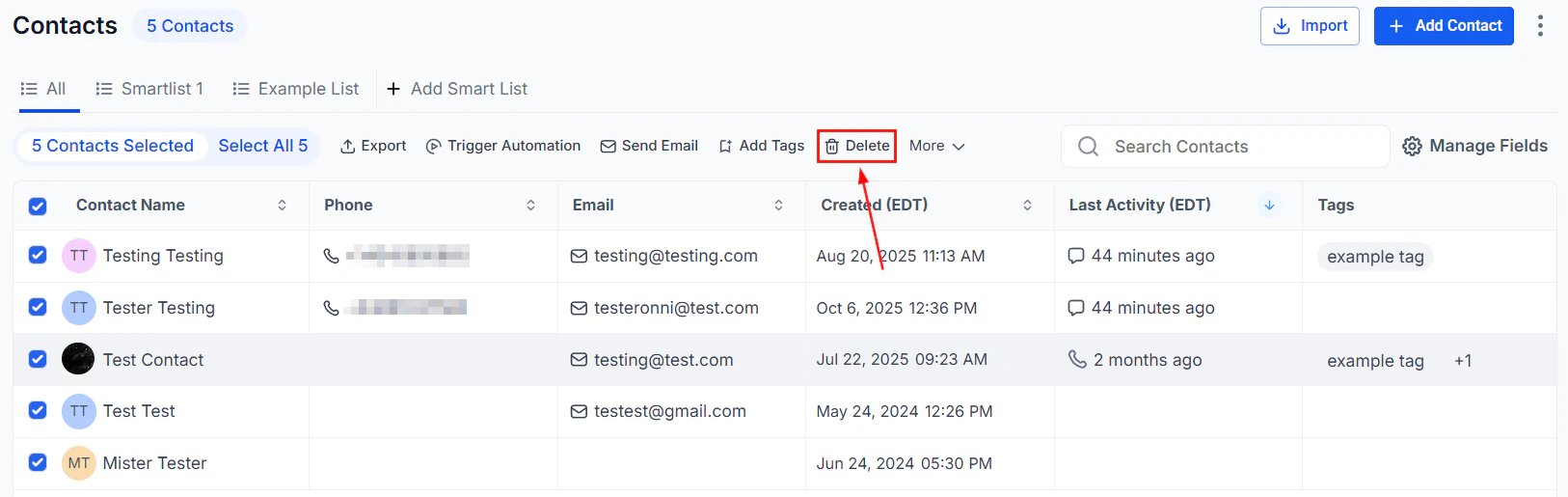
 Select contacts, then click **Delete Contact** to remove them from your database.
 ***
## Adding a contact manually
When an SMS, call, Facebook, Instagram, GMB message, or email is received from a potential client, the system automatically adds them to your contacts. You can also add contacts manually.
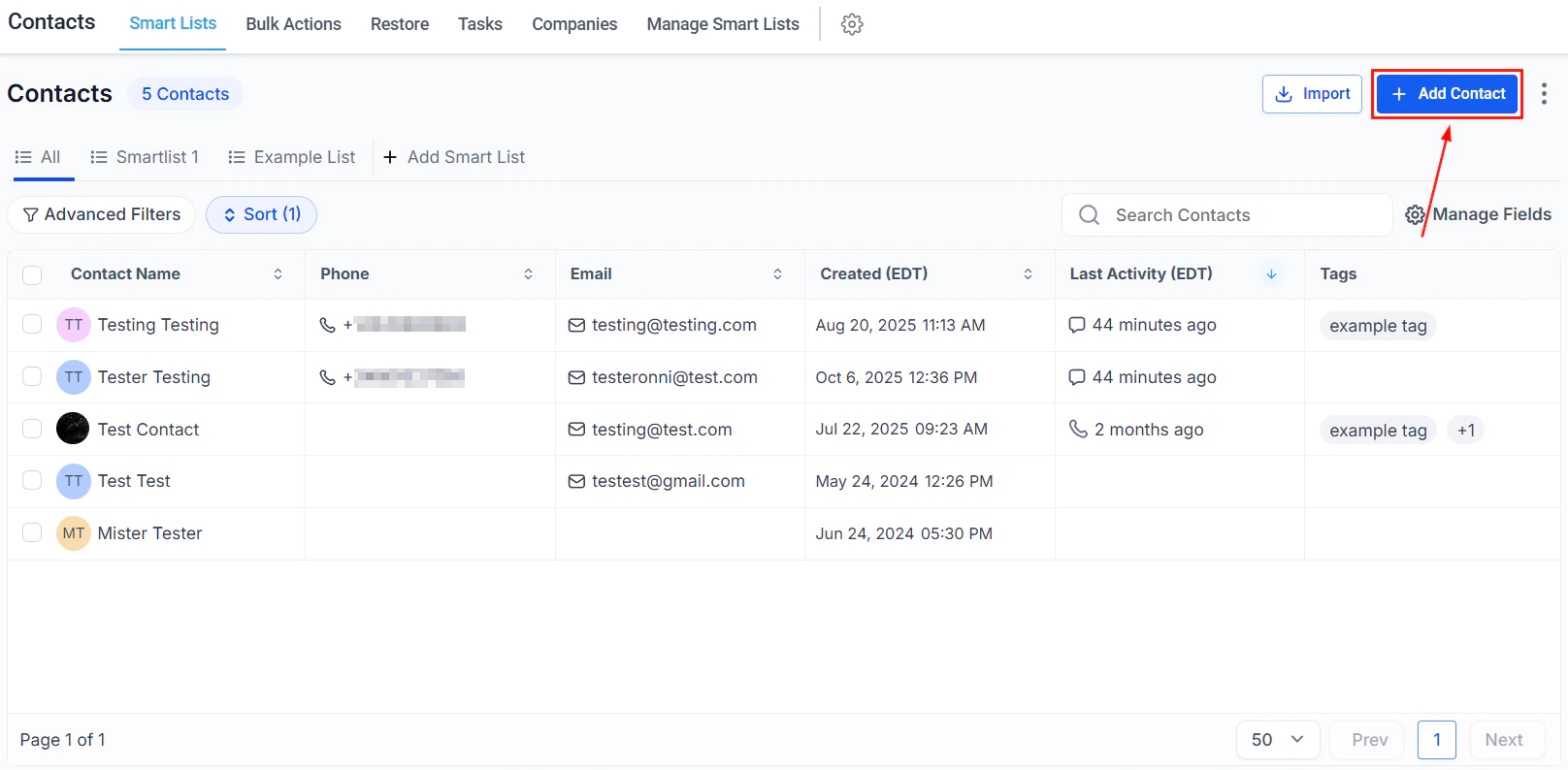
In the Smart Lists tab, click the **+** button at the top left of the contacts page.
Complete the fields in the contact creation form:
* **Contact Image** — upload a photo (512x512 px, under 2.5 MB) to identify the contact
* **First Name / Last Name** — the contact's full name
* **Email** — primary email; click **+ Add Email** to add additional addresses
* **Phone** — primary phone; click **+ Add Phone Numbers** to add more
* **Contact Type** — assign as **Lead** or **Customer**
* **Time Zone** — helps your team know the best time to reach them
* **DND** — enable Do Not Disturb for all or specific channels
Click **Save** to add the contact, or **Save and Add Another** to add the contact and immediately create a new one.
***
## Sending bulk SMS
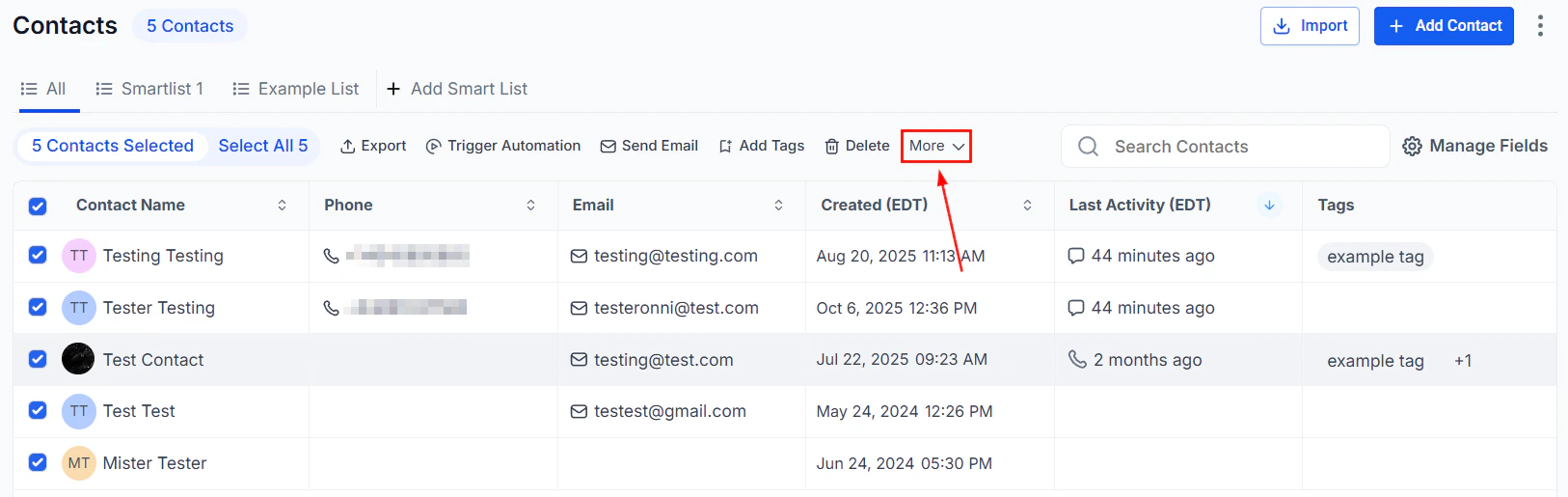
In the Smart Lists tab, select the contacts to message. Open the **More** dropdown and select **Send SMS**.
***
## Adding a contact manually
When an SMS, call, Facebook, Instagram, GMB message, or email is received from a potential client, the system automatically adds them to your contacts. You can also add contacts manually.
In the Smart Lists tab, click the **+** button at the top left of the contacts page.
Complete the fields in the contact creation form:
* **Contact Image** — upload a photo (512x512 px, under 2.5 MB) to identify the contact
* **First Name / Last Name** — the contact's full name
* **Email** — primary email; click **+ Add Email** to add additional addresses
* **Phone** — primary phone; click **+ Add Phone Numbers** to add more
* **Contact Type** — assign as **Lead** or **Customer**
* **Time Zone** — helps your team know the best time to reach them
* **DND** — enable Do Not Disturb for all or specific channels
Click **Save** to add the contact, or **Save and Add Another** to add the contact and immediately create a new one.
***
## Sending bulk SMS
In the Smart Lists tab, select the contacts to message. Open the **More** dropdown and select **Send SMS**.
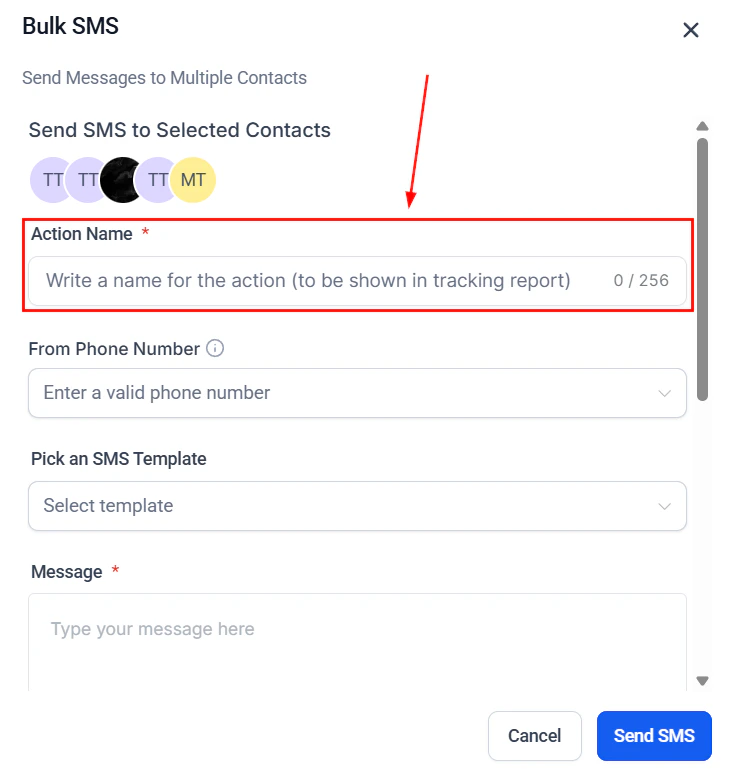
 Enter a name for the action (shown in tracking reports). Select the phone number to send from.
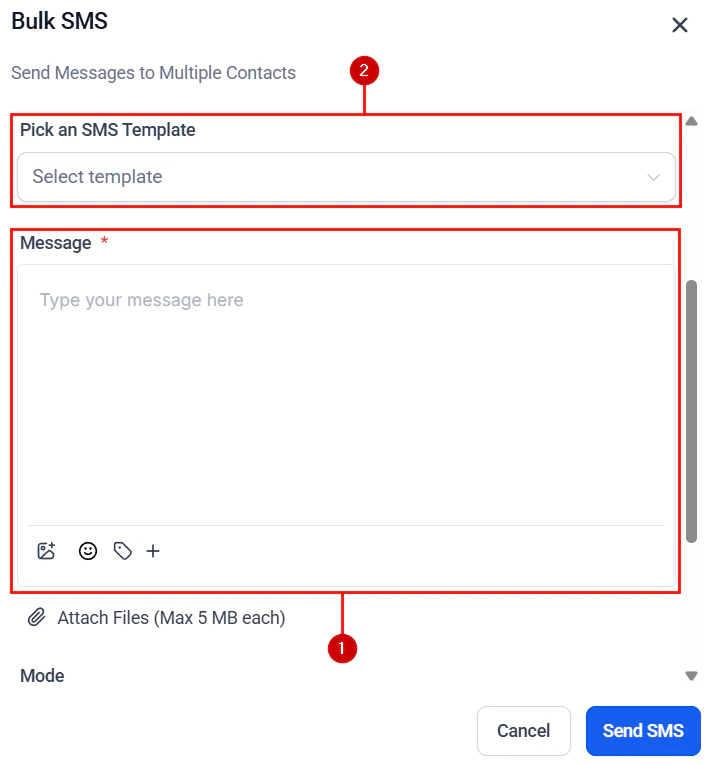
Write a message from scratch or select a pre-saved template. Use custom fields (first name, email, phone) for personalization.
Enter a name for the action (shown in tracking reports). Select the phone number to send from.
Write a message from scratch or select a pre-saved template. Use custom fields (first name, email, phone) for personalization.
 Select how to deliver the messages:
* **Send All at Once** — delivers to all selected contacts instantly
* **Send at a Scheduled Time** — choose a specific date and time
* **Send in Drip Mode** — sends in batches; configure Start On, Batch Quantity, Repeat After, Send On days, and an optional time window
Select how to deliver the messages:
* **Send All at Once** — delivers to all selected contacts instantly
* **Send at a Scheduled Time** — choose a specific date and time
* **Send in Drip Mode** — sends in batches; configure Start On, Batch Quantity, Repeat After, Send On days, and an optional time window
 Review your selections and click **Send** to queue the bulk action. Track progress in the **Bulk Actions** tab.
***
## Deleting contacts in bulk
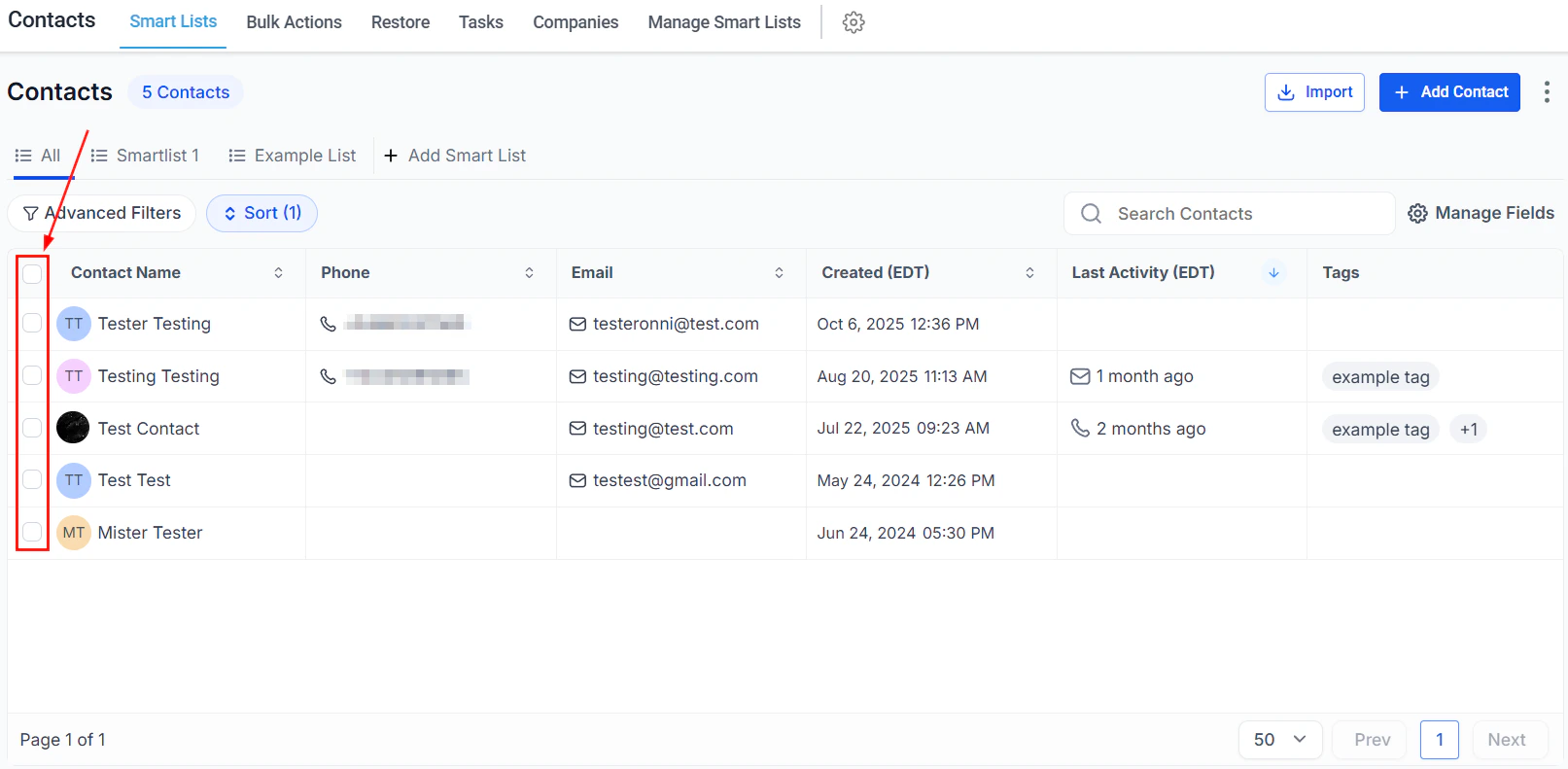
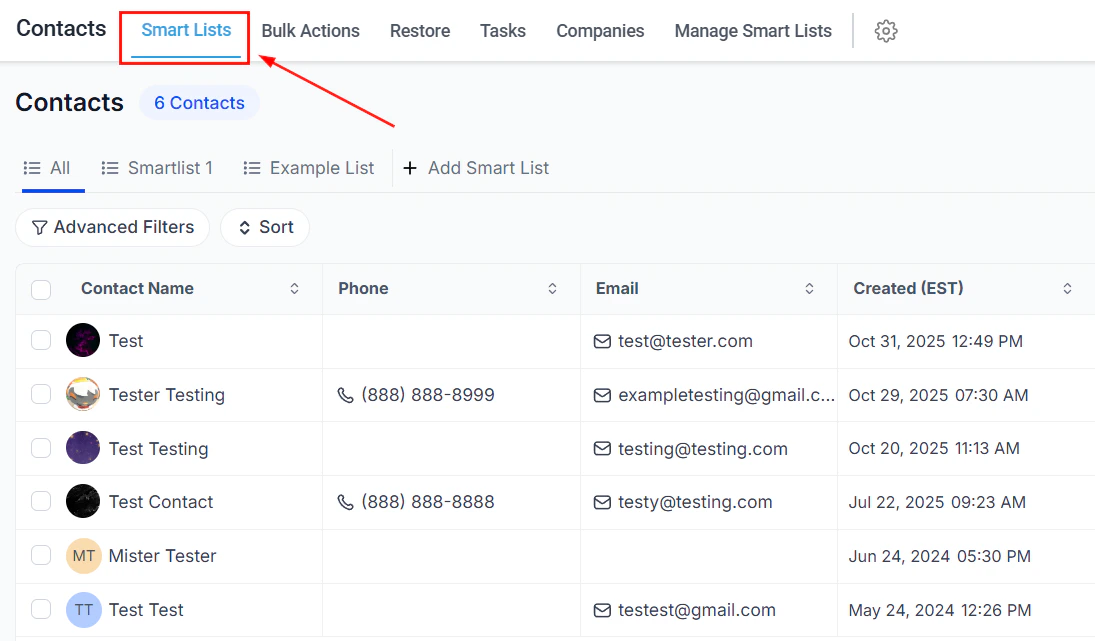
In the Smart Lists tab, check the contacts you want to remove.
Review your selections and click **Send** to queue the bulk action. Track progress in the **Bulk Actions** tab.
***
## Deleting contacts in bulk
In the Smart Lists tab, check the contacts you want to remove.
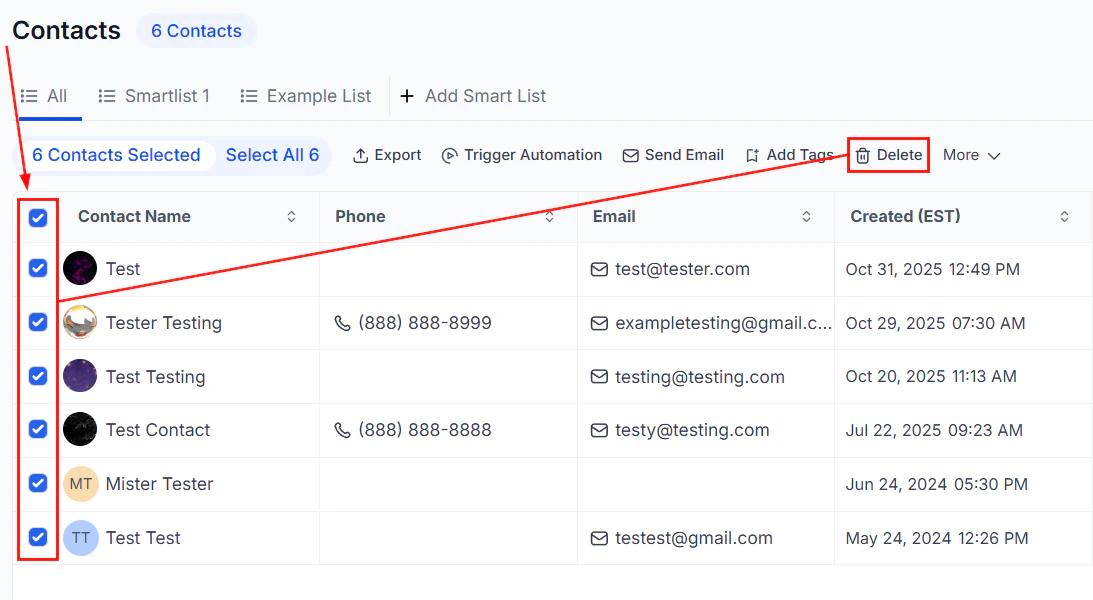
 Click the **Delete** (trash) icon in the bulk actions toolbar.
Type `DELETE` to confirm the action, then click **Delete**.
Click the **Delete** (trash) icon in the bulk actions toolbar.
Type `DELETE` to confirm the action, then click **Delete**.
 Deleting contacts also removes all associated conversations, notes, opportunities, tasks, appointments, and manual actions. Active campaigns and workflows for those contacts are also stopped. Recover deleted contacts from the **Restore** section of Contacts.
***
## Adding tags to contacts in bulk
In the Smart Lists tab, select the contacts you want to tag.
Deleting contacts also removes all associated conversations, notes, opportunities, tasks, appointments, and manual actions. Active campaigns and workflows for those contacts are also stopped. Recover deleted contacts from the **Restore** section of Contacts.
***
## Adding tags to contacts in bulk
In the Smart Lists tab, select the contacts you want to tag.
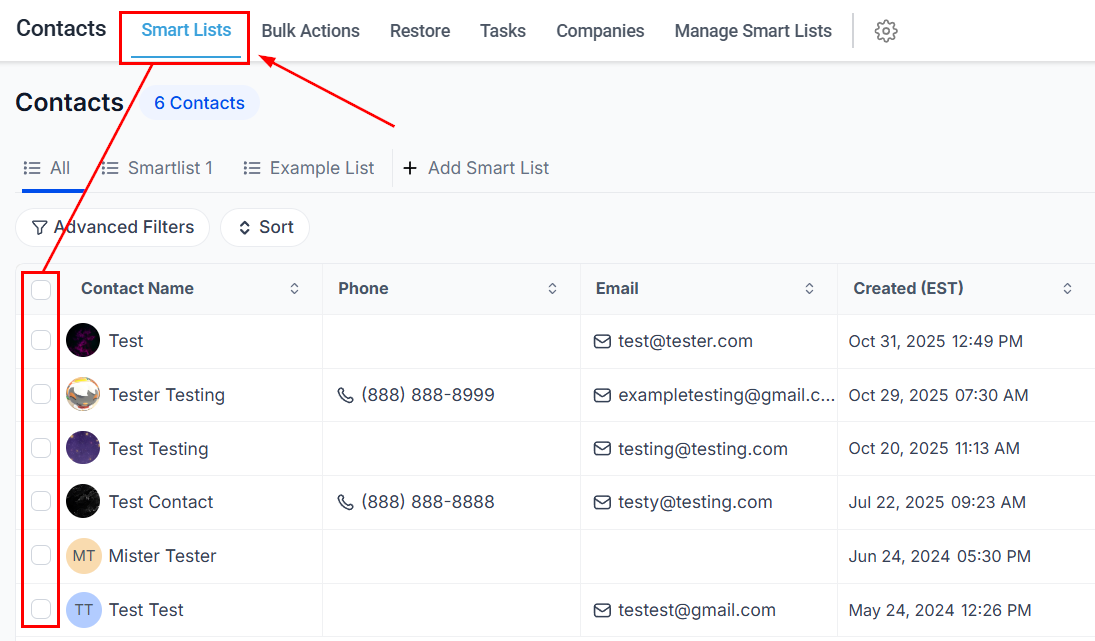 Click the **Add Tag** button in the bulk actions panel.
Enter a descriptive name for the action. This name appears in the tracking report.
Click the tags field to open the dropdown and select the tags to apply.
Click the **Add Tag** button in the bulk actions panel.
Enter a descriptive name for the action. This name appears in the tracking report.
Click the tags field to open the dropdown and select the tags to apply.
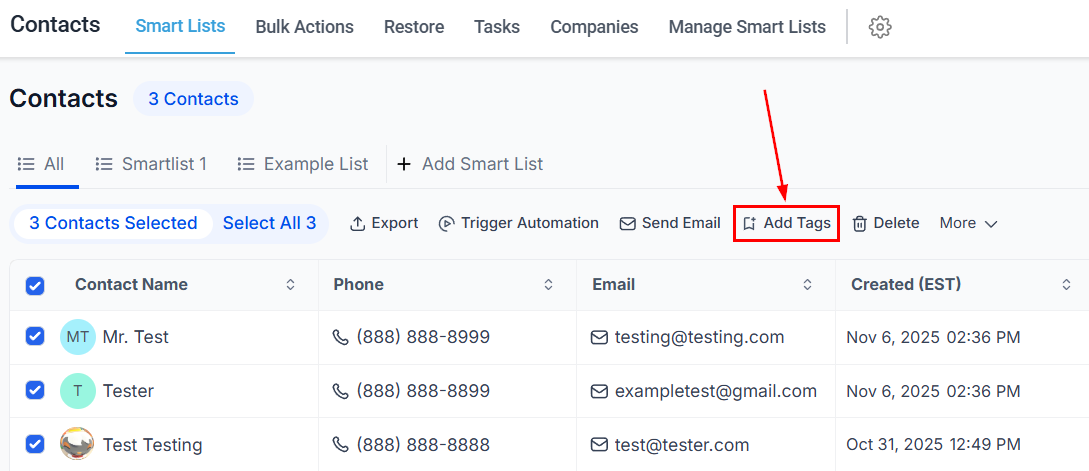 Click **Add Tags** to queue the bulk action.
***
## Importing contacts
Before uploading, ensure your CSV file meets these requirements:
* Format: `.csv` with a single sheet
* Size: under 30 MB
* Encoding: UTF-8
* A header row with column names matching Hoop field names
Additional formatting guidelines:
* **Phone numbers** — use E.164 format (e.g., `+1 1234567890`); US formats like `123-456-7890` are also accepted
* **Dates** — use `mm/dd/yyyy` or `yyyy/mm/dd` with `/`, `-`, or `.` separators
* **Tags** — format as `Value 1, Value 2, Value 3`
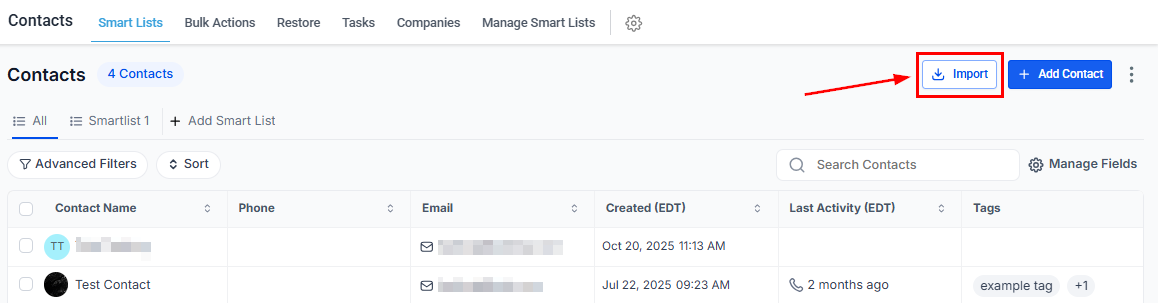
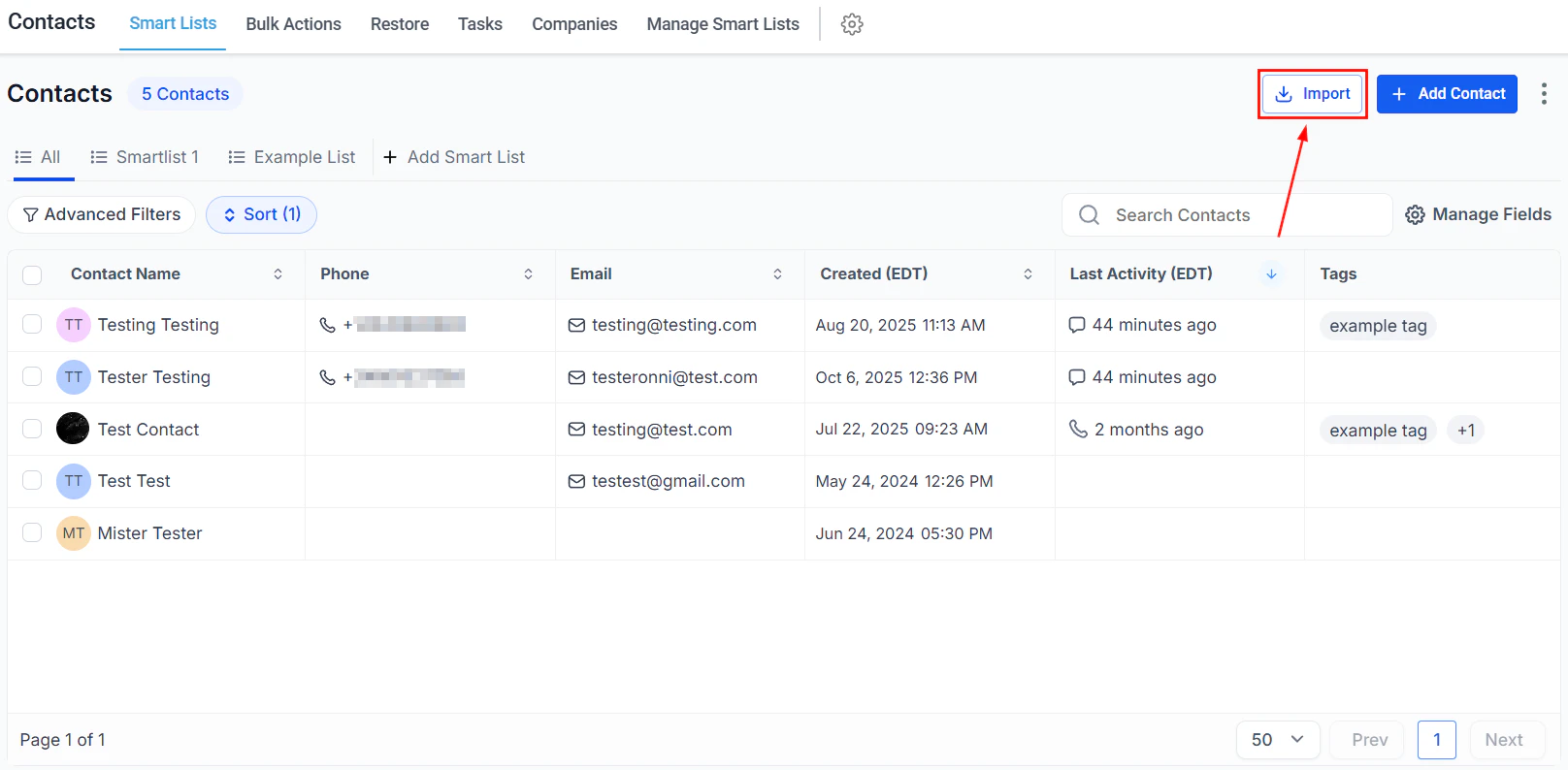
Click the **Import** icon at the top right of the Contacts toolbar.
Click **Add Tags** to queue the bulk action.
***
## Importing contacts
Before uploading, ensure your CSV file meets these requirements:
* Format: `.csv` with a single sheet
* Size: under 30 MB
* Encoding: UTF-8
* A header row with column names matching Hoop field names
Additional formatting guidelines:
* **Phone numbers** — use E.164 format (e.g., `+1 1234567890`); US formats like `123-456-7890` are also accepted
* **Dates** — use `mm/dd/yyyy` or `yyyy/mm/dd` with `/`, `-`, or `.` separators
* **Tags** — format as `Value 1, Value 2, Value 3`
Click the **Import** icon at the top right of the Contacts toolbar.
 Click **Upload a File** and select your CSV.
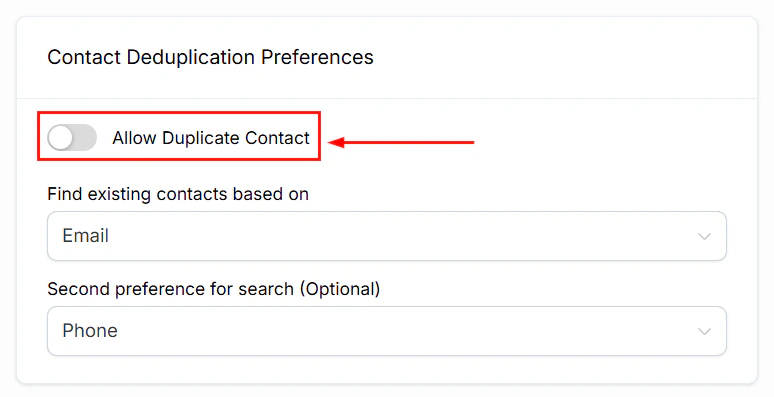 Click **Next** to proceed.
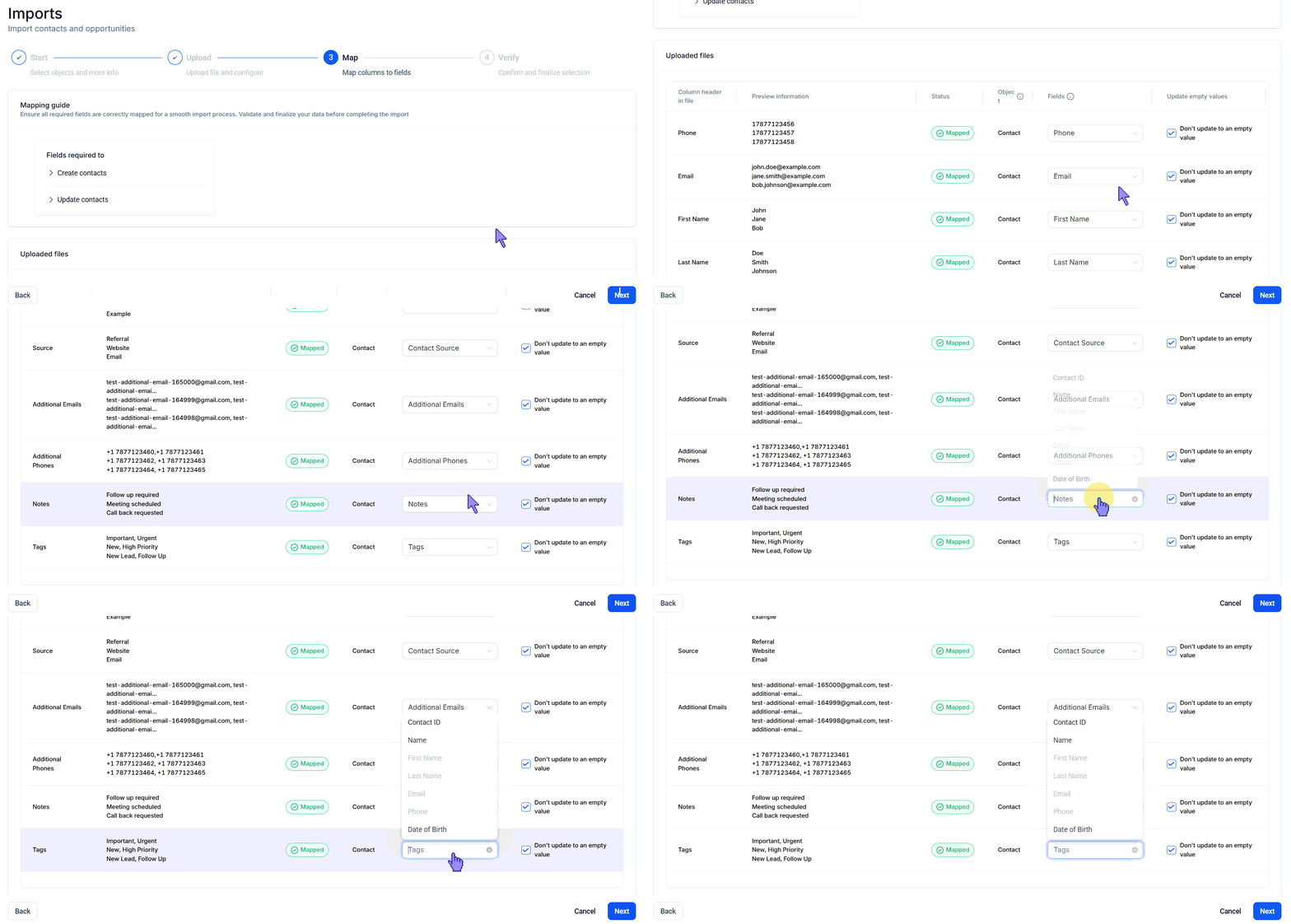
Map each column in your CSV to the corresponding Hoop contact field.
Click **Next** to proceed.
Map each column in your CSV to the corresponding Hoop contact field.
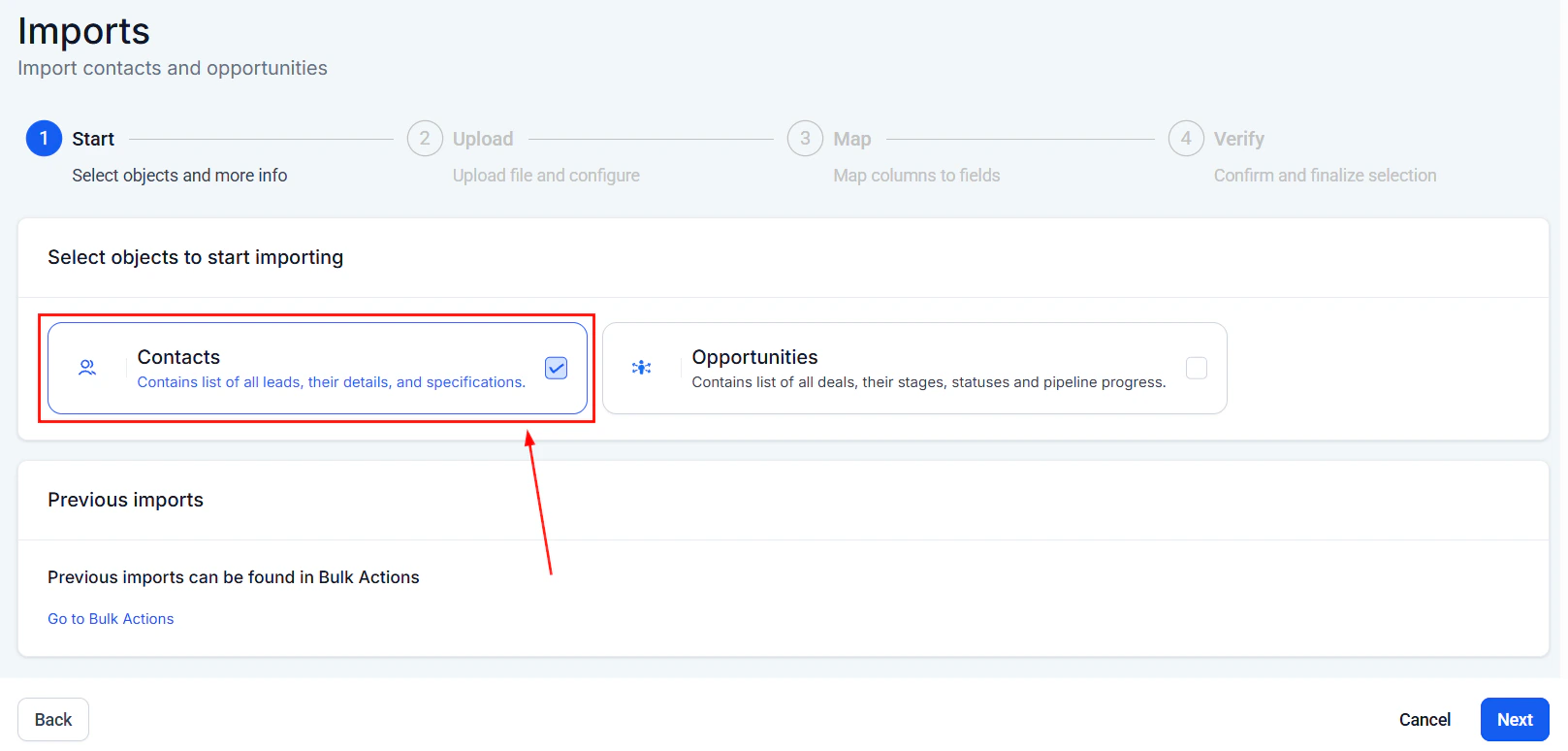 Set optional preferences:
* **Create a Smart List** for newly imported contacts
* **Add contacts to a workflow** by selecting a workflow from the dropdown
* **Add tags** to categorize the imported contacts
Set optional preferences:
* **Create a Smart List** for newly imported contacts
* **Add contacts to a workflow** by selecting a workflow from the dropdown
* **Add tags** to categorize the imported contacts
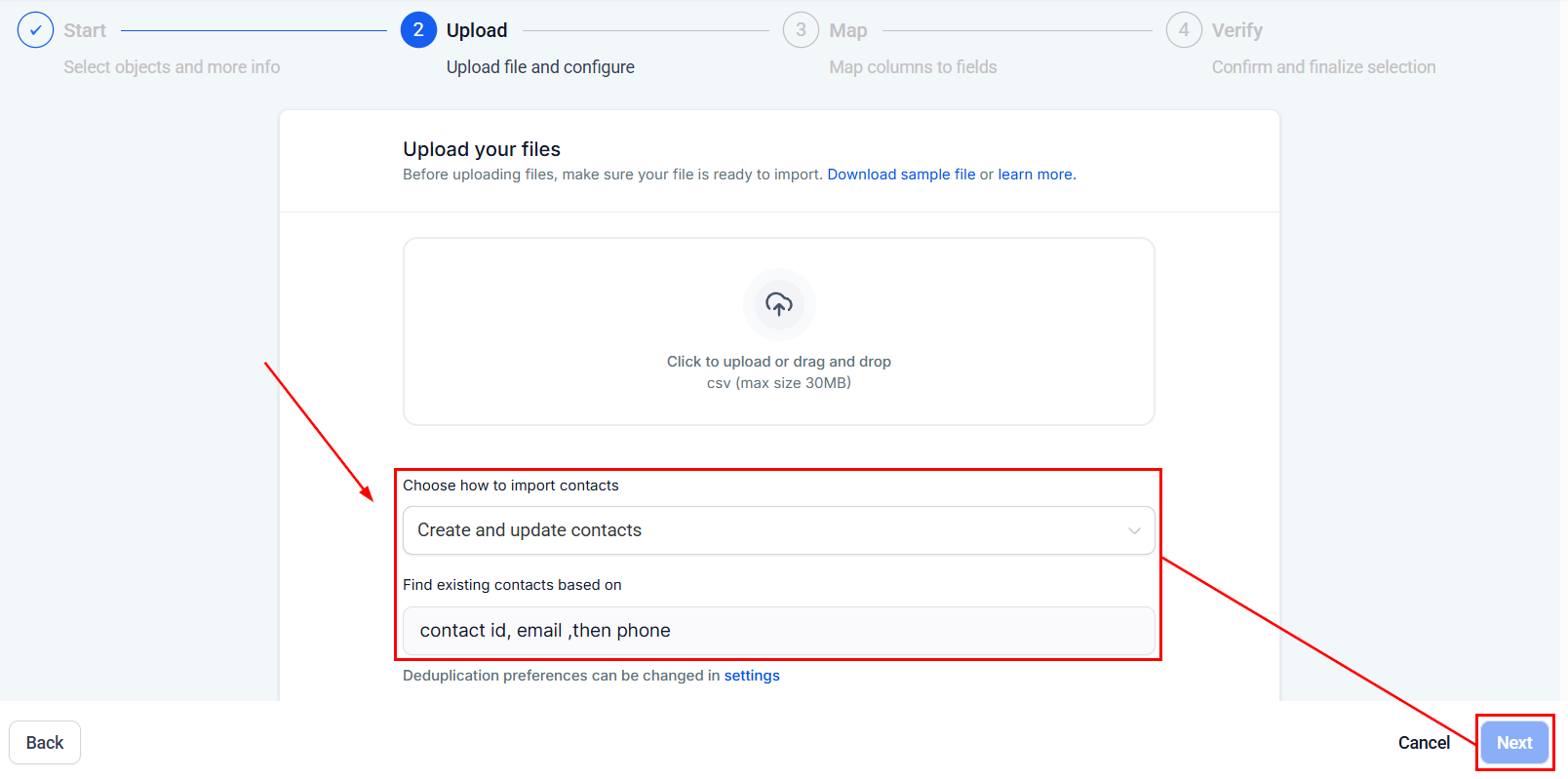 Check the compliance checkbox to confirm all contacts have opted in, then click **Start Bulk Import**.
 Contact imports cannot be reversed from the import wizard. To undo a mistaken import, navigate to the Bulk Actions tab and use the restore option in the three-dot menu for that action.
***
## Exporting contacts
In the Smart Lists tab, check the contacts you want to export.
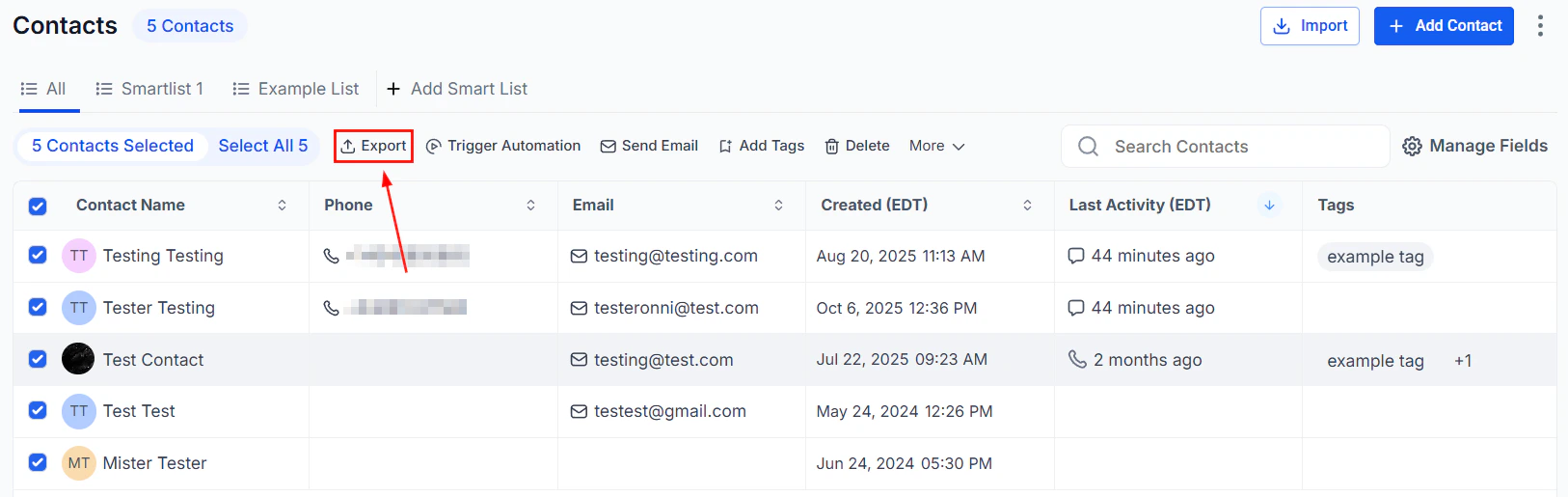
Click the **Export** action button in the bulk actions toolbar.
Confirm the action to download a CSV file to your device.
The exported CSV includes: Contact ID, first name, last name, business name, company name, phone number, email address, date created, last activity date, tags, additional email addresses, and additional phone numbers.
***
## Smart list quick action buttons
The quick action buttons in the Smart Lists tab provide single-click shortcuts for the most common operations.
Contact imports cannot be reversed from the import wizard. To undo a mistaken import, navigate to the Bulk Actions tab and use the restore option in the three-dot menu for that action.
***
## Exporting contacts
In the Smart Lists tab, check the contacts you want to export.
Click the **Export** action button in the bulk actions toolbar.
Confirm the action to download a CSV file to your device.
The exported CSV includes: Contact ID, first name, last name, business name, company name, phone number, email address, date created, last activity date, tags, additional email addresses, and additional phone numbers.
***
## Smart list quick action buttons
The quick action buttons in the Smart Lists tab provide single-click shortcuts for the most common operations.
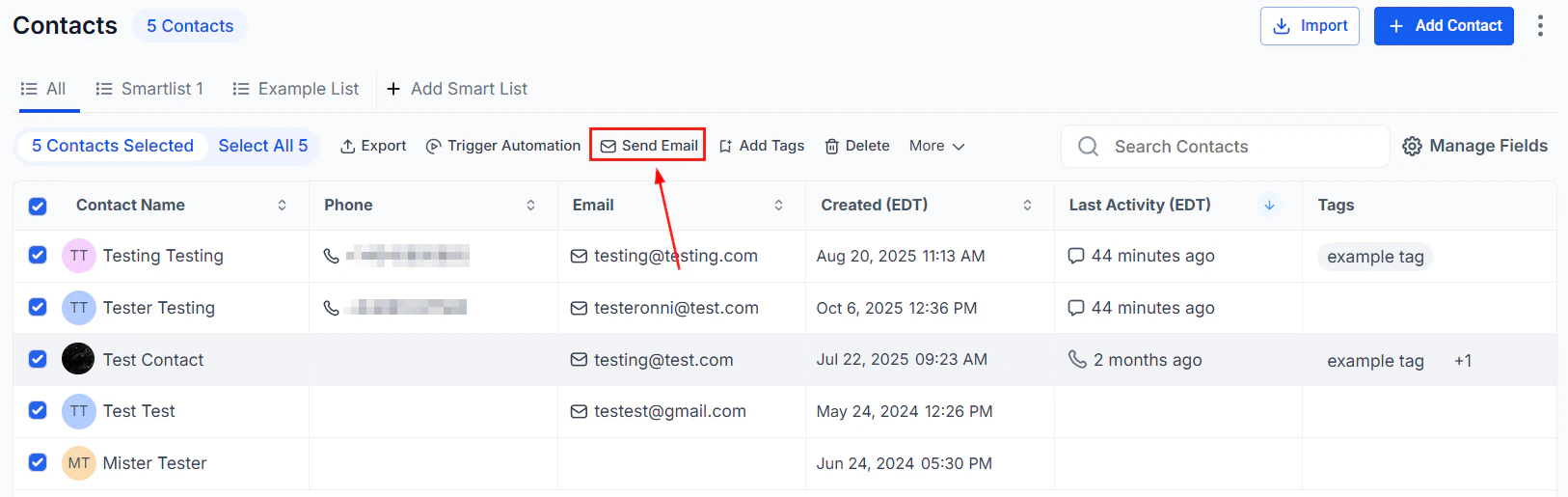
 Click the email icon to compose and send a bulk email to selected contacts.
 Click the SMS icon to compose and send a bulk text message.
 Click the review icon to send review requests via email, SMS, or WhatsApp.
 Click the tag icon to quickly apply tags to selected contacts.
 Click the export icon to download selected contacts as a CSV.
 Click the delete icon to permanently remove selected contacts.
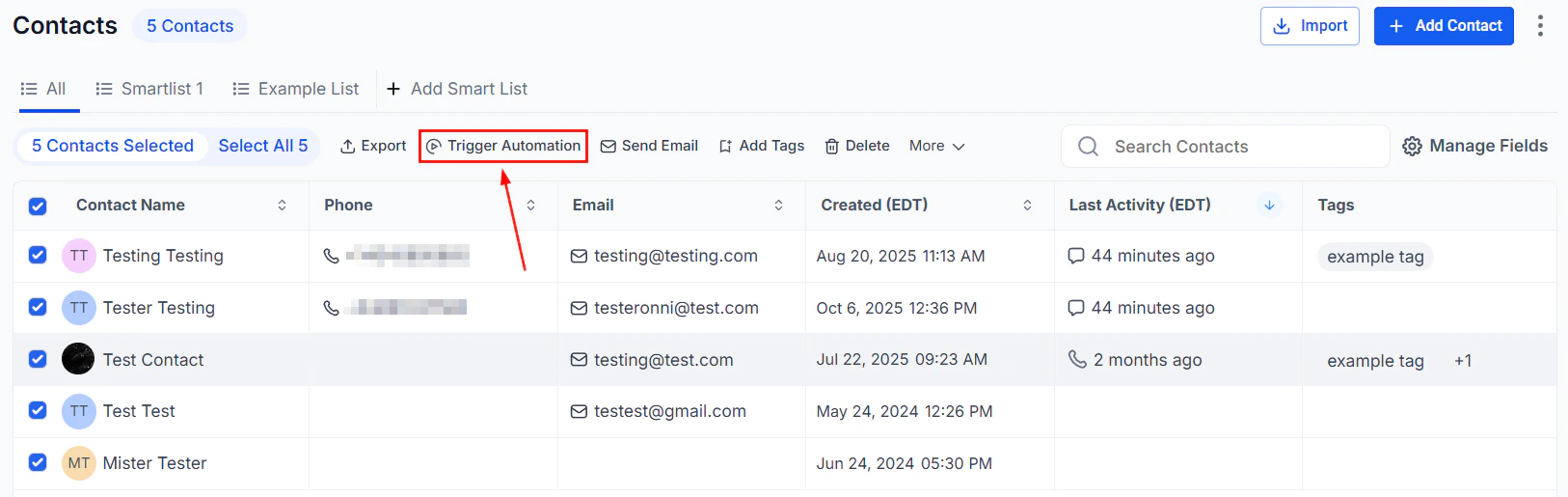
 Click the automation icon to enroll selected contacts in a workflow.
 ***
## Monitoring bulk actions
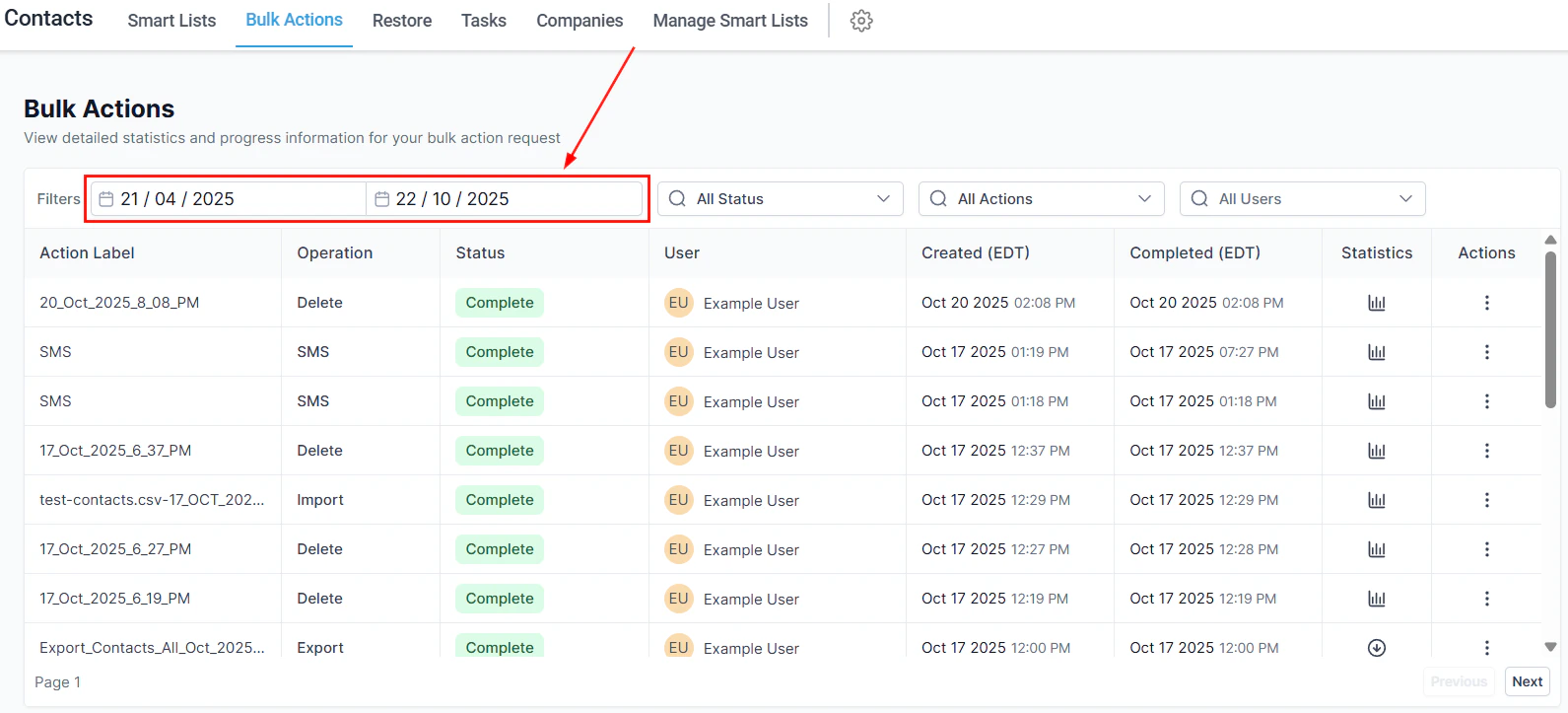
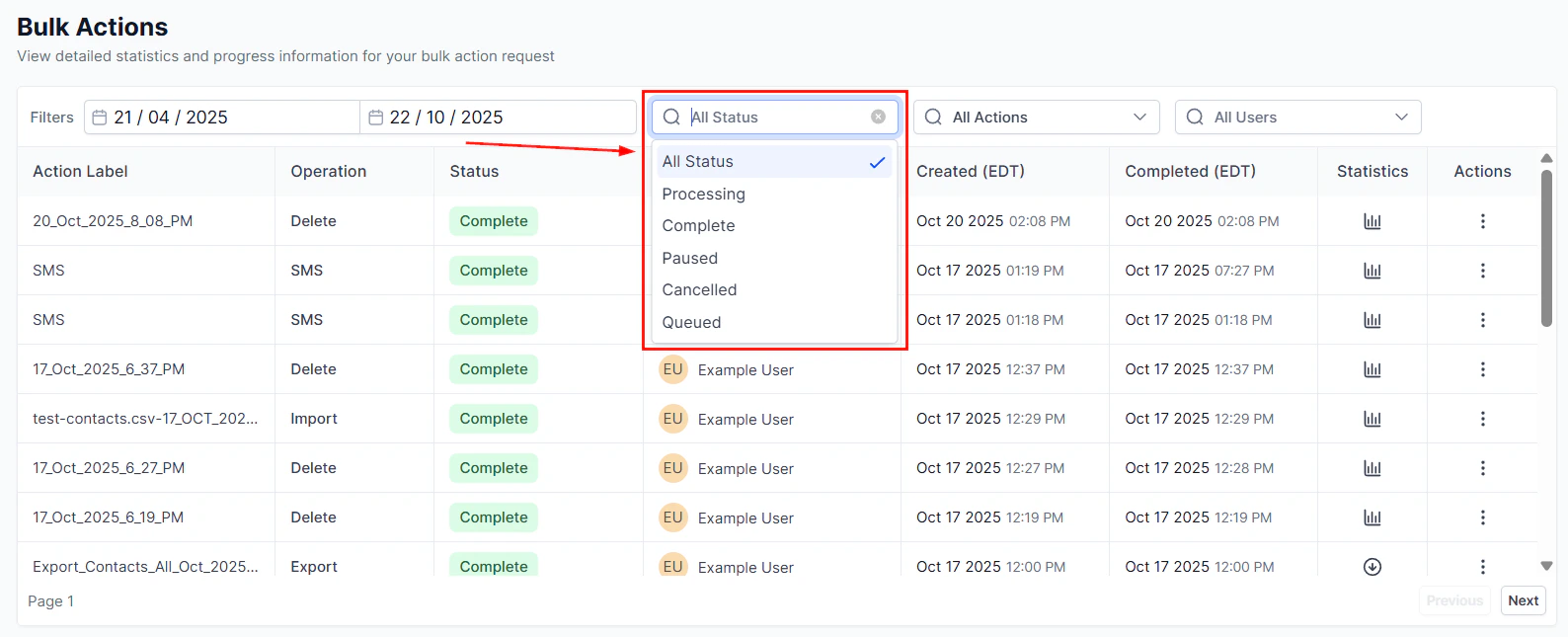
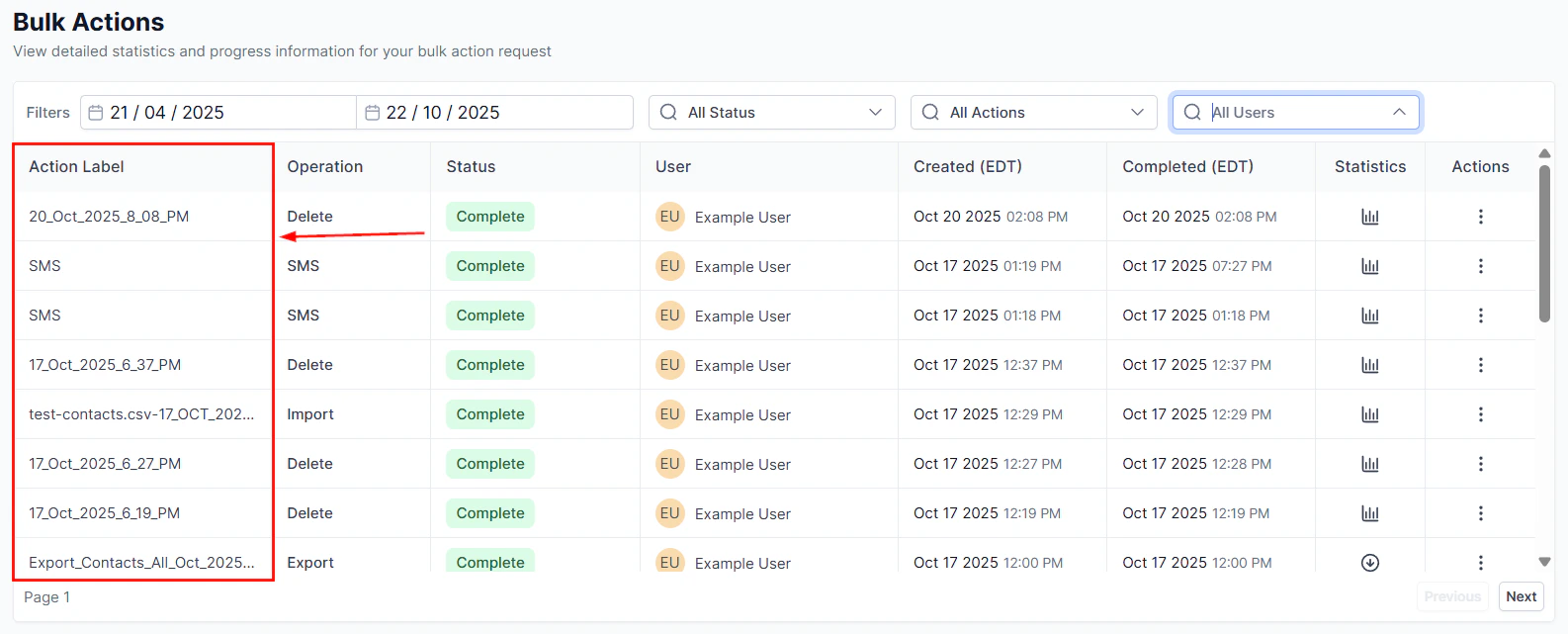
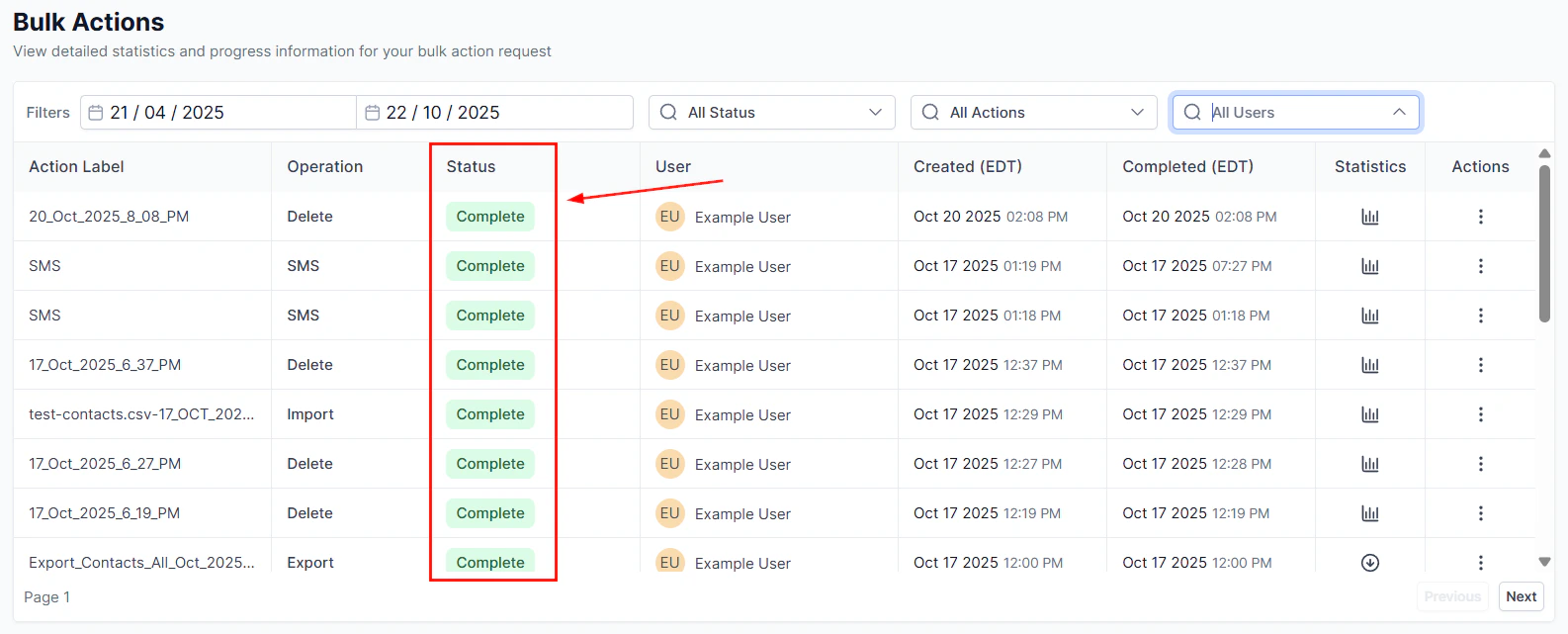
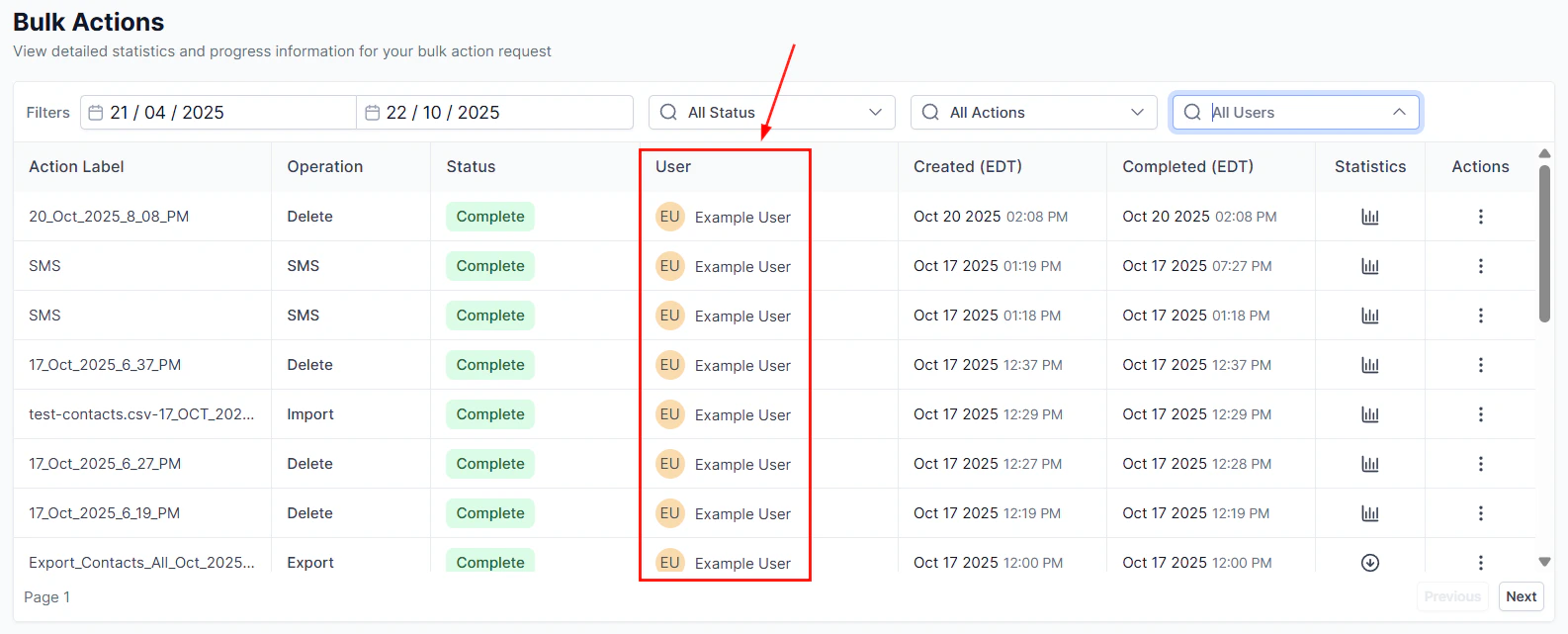
All bulk operations are tracked in the **Bulk Actions** tab within Contacts. Use the date range, status, action type, and user filters to find specific operations.
Bulk actions cannot be scheduled more than 720 hours (approximately 30 days) in the future.
### Sending rate limits
| Mode | Contact Range | Rate |
| ------------------------------- | ------------------ | ------------------- |
| Drip (30 sec – 1 min frequency) | Any | 1,000 messages/min |
| Drip (5 min frequency) | Any | 4,999 messages/min |
| Drip (6 – 10 min frequency) | Any | 5,000 messages/min |
| Drip (above 10 min frequency) | Any | 10,000 messages/min |
| Send all at once / Scheduled | Under 10k contacts | 15,000 contacts/hr |
| Send all at once / Scheduled | 10k – 50k contacts | 6,000 contacts/hr |
| Send all at once / Scheduled | 50k – 70k contacts | 3,000 contacts/hr |
| Send all at once / Scheduled | Over 70k contacts | 1,500 contacts/hr |
***
## Monitoring bulk actions
All bulk operations are tracked in the **Bulk Actions** tab within Contacts. Use the date range, status, action type, and user filters to find specific operations.
Bulk actions cannot be scheduled more than 720 hours (approximately 30 days) in the future.
### Sending rate limits
| Mode | Contact Range | Rate |
| ------------------------------- | ------------------ | ------------------- |
| Drip (30 sec – 1 min frequency) | Any | 1,000 messages/min |
| Drip (5 min frequency) | Any | 4,999 messages/min |
| Drip (6 – 10 min frequency) | Any | 5,000 messages/min |
| Drip (above 10 min frequency) | Any | 10,000 messages/min |
| Send all at once / Scheduled | Under 10k contacts | 15,000 contacts/hr |
| Send all at once / Scheduled | 10k – 50k contacts | 6,000 contacts/hr |
| Send all at once / Scheduled | 50k – 70k contacts | 3,000 contacts/hr |
| Send all at once / Scheduled | Over 70k contacts | 1,500 contacts/hr |