> ## Documentation Index
> Fetch the complete documentation index at: https://help.hoopai.com/llms.txt
> Use this file to discover all available pages before exploring further.
# Service calendars
> Set up service-based booking with staff assignments, rooms, equipment, and a customer-facing service menu in the HoopAI Platform.
A Service Calendar streamlines scheduling for service-based businesses. It lets you define individual services, assign staff members, manage physical resources (rooms and equipment), and display everything through a single customer-facing Service Menu.
**Ideal for:**
* Salons and hairdressers
* Spas and wellness centers
* Massage and therapy clinics
* Fitness studios and personal trainers
* Healthcare providers
* Pet groomers
* Event planners and many more
## Creating a service calendar
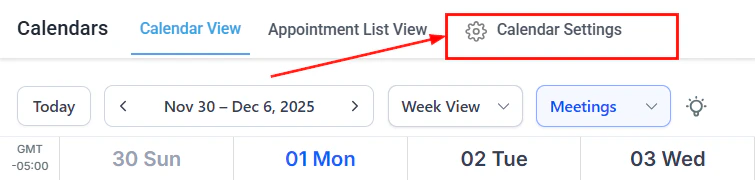
Navigate to **Calendars > Calendar Settings** and click **+ Create Calendar**.
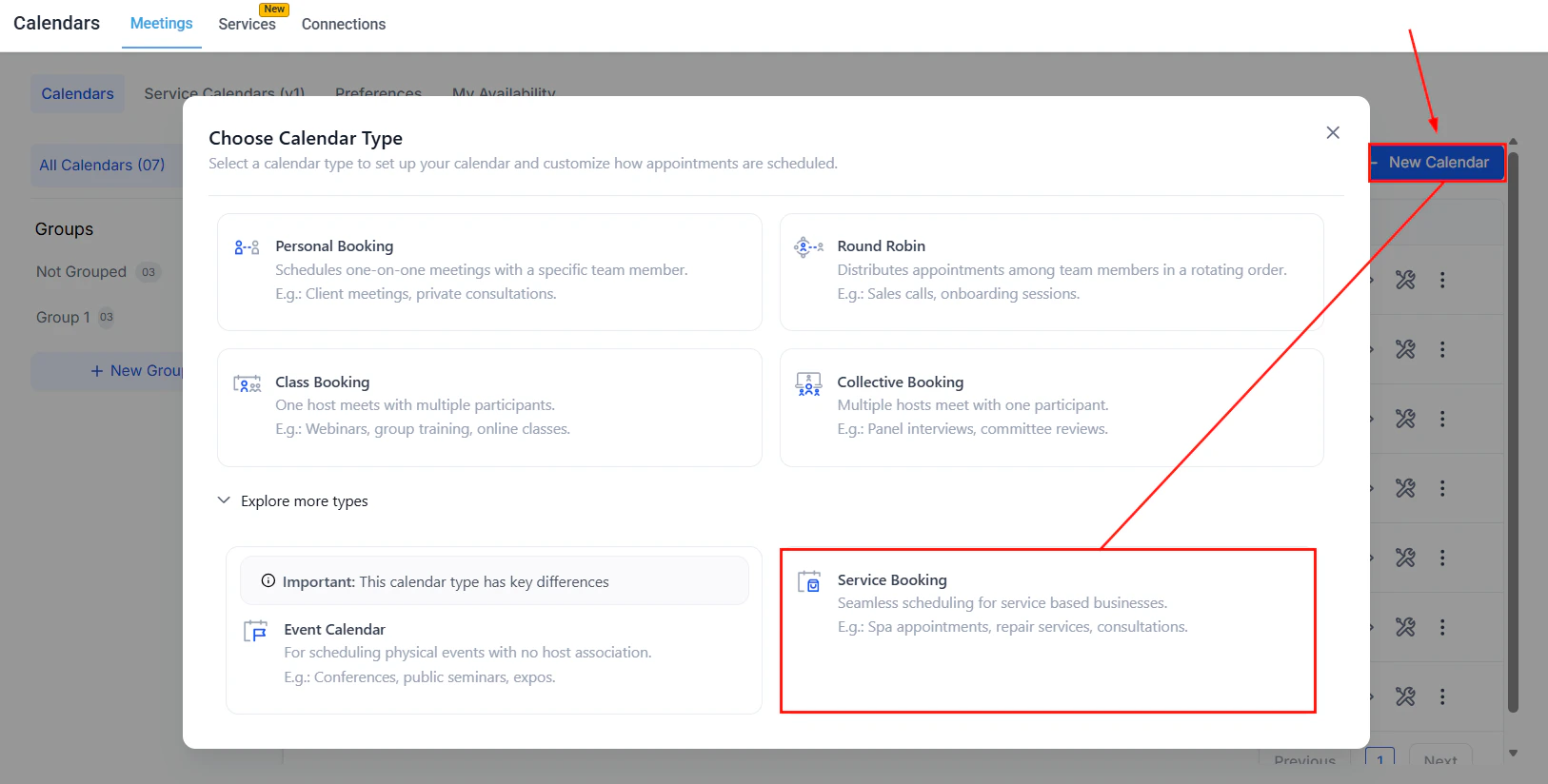
 Choose **Service Booking** as the calendar type. (If not visible, expand **Explore more types**.)
 Fill in the quick-start fields:
* **Service name** — shown to clients on the booking page
* **Select staff member** — team members who take this appointment
* **Custom URL** — the calendar slug for the booking link
Fill in the quick-start fields:
* **Service name** — shown to clients on the booking page
* **Select staff member** — team members who take this appointment
* **Custom URL** — the calendar slug for the booking link
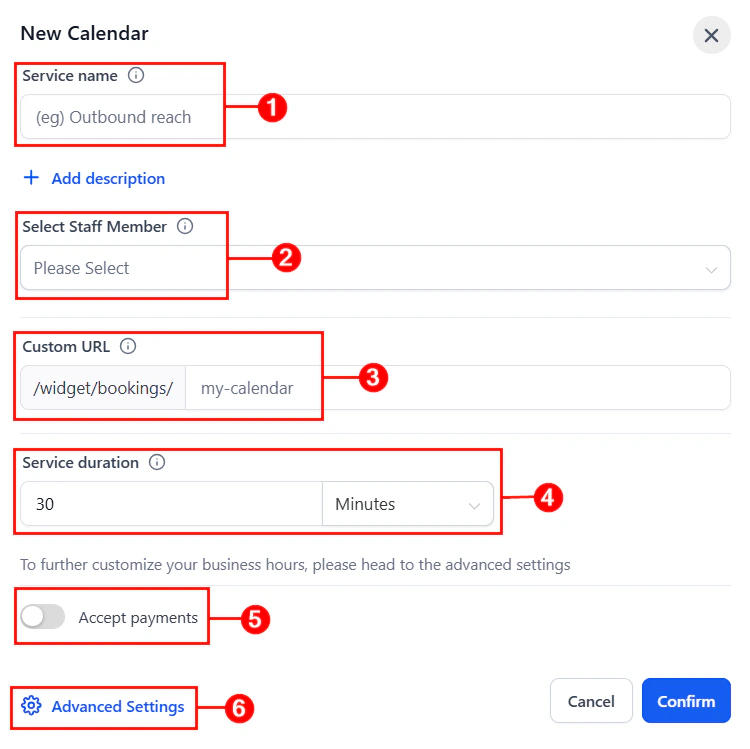 * **Service duration** — how long each appointment lasts
* **Accept payments** — toggle to charge for the service at booking time
* **Service duration** — how long each appointment lasts
* **Accept payments** — toggle to charge for the service at booking time
 Click **Confirm** to save immediately, or click **Advanced Settings** for full configuration.
***
## Advanced settings for service calendars
### Service details
Configure the client-facing information for the service:
Click **Confirm** to save immediately, or click **Advanced Settings** for full configuration.
***
## Advanced settings for service calendars
### Service details
Configure the client-facing information for the service:
 * **Calendar logo** — your brand image displayed on the booking page
* **Description** — what the service is, requirements, and any extra information for clients
* **Calendar group** — group this service calendar with others for a combined booking view
* **Meeting invite title** — what appears on calendar entries and confirmation emails
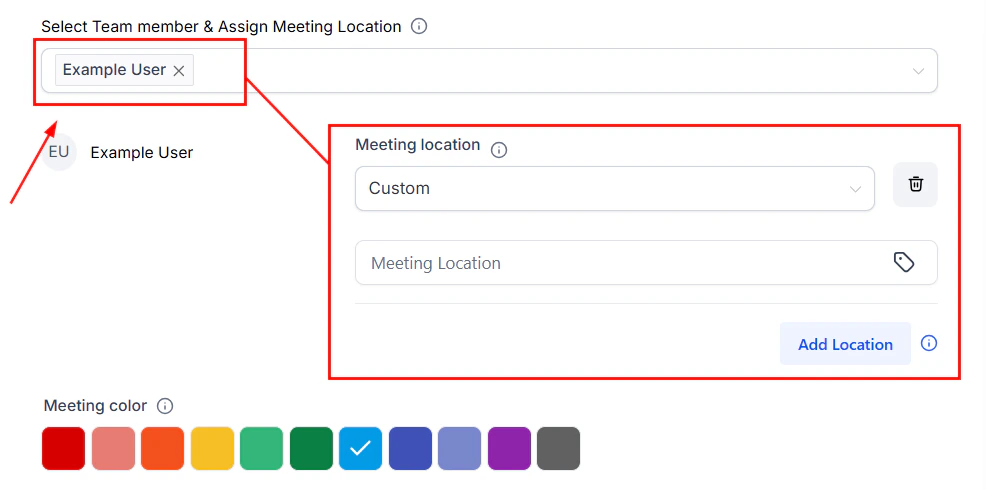
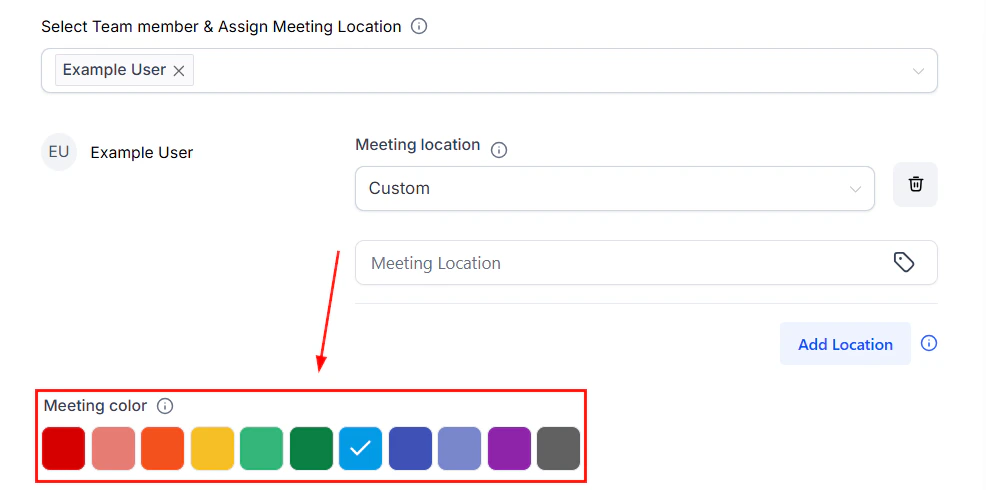
* **Team members and meeting location** — add all staff who take these appointments
* **Meeting color** — color synced to Google Calendar for this booking type
### Availability
Configure available days, times, and slot settings for the service calendar.
* **Calendar logo** — your brand image displayed on the booking page
* **Description** — what the service is, requirements, and any extra information for clients
* **Calendar group** — group this service calendar with others for a combined booking view
* **Meeting invite title** — what appears on calendar entries and confirmation emails
* **Team members and meeting location** — add all staff who take these appointments
* **Meeting color** — color synced to Google Calendar for this booking type
### Availability
Configure available days, times, and slot settings for the service calendar.
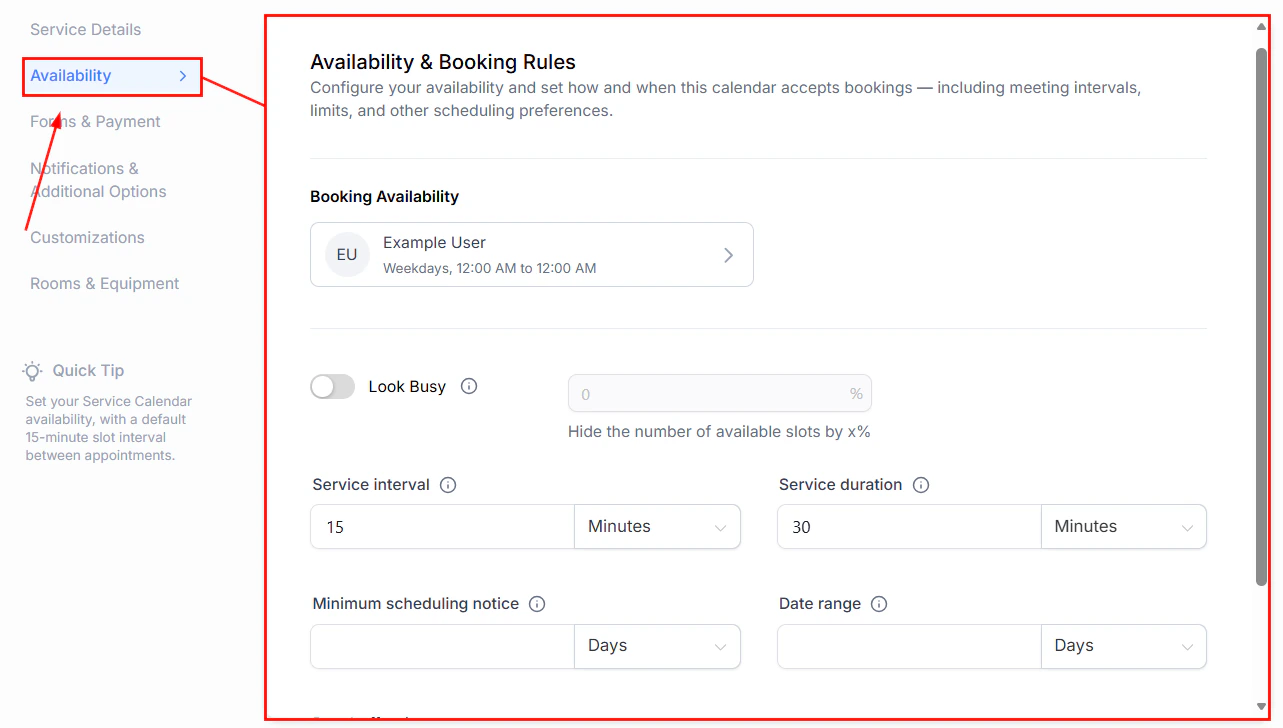 The same availability options apply as for other calendar types — see [Creating calendars](/calendars/creating-calendars) for the full reference.
### Forms and payment
Enable payment collection for this service:
The same availability options apply as for other calendar types — see [Creating calendars](/calendars/creating-calendars) for the full reference.
### Forms and payment
Enable payment collection for this service:
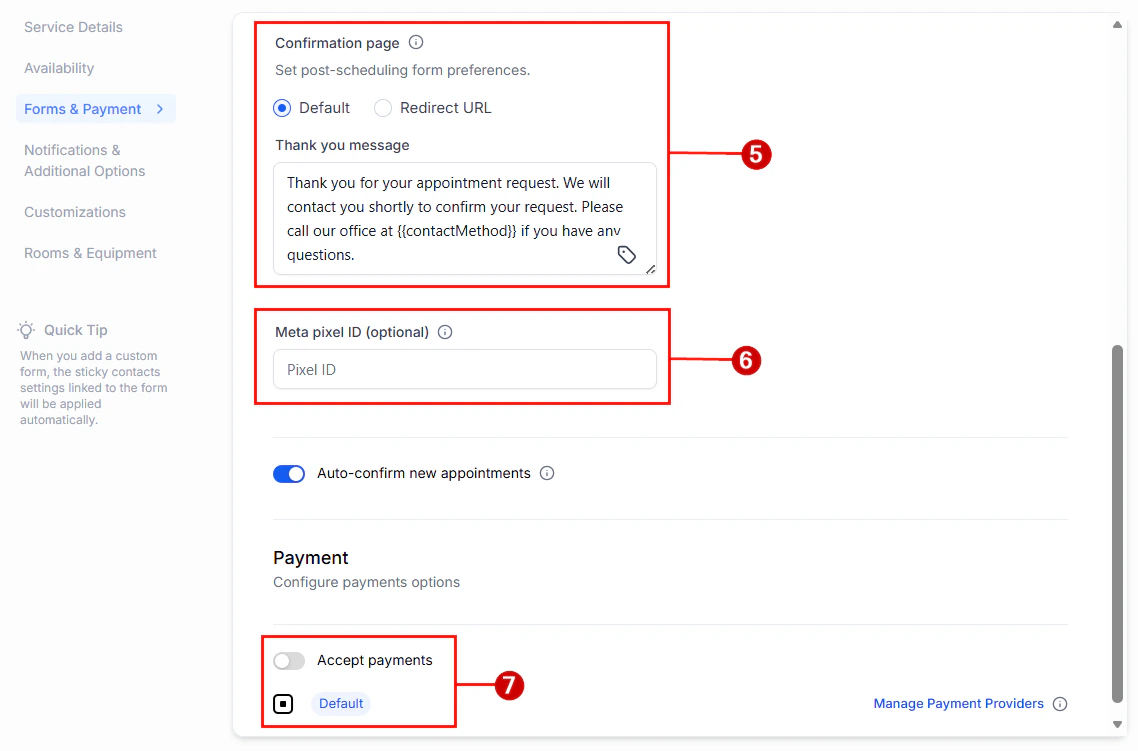 * **Select form** — the booking form contacts complete when scheduling
* **Consent checkbox** — SMS compliance opt-in at booking time
* **Payment** — enable to charge at booking time; supports full payment, deposits, and coupon codes
### Notifications and additional options
* **Notification templates** — customize confirmation, reminder, cancellation, and rescheduling emails and SMS
* **Reschedule policy** — provide a rescheduling link with a configurable expiry window
* **Cancellation policy** — provide a cancellation link with a configurable expiry window
### Rooms and equipment
In the **Rooms & Equipment** tab of the service calendar, select the rooms and equipment that this service requires. When a booking is made, those resources are automatically blocked for that time slot to prevent double-booking.
***
## Rooms and equipment
Rooms and equipment are physical resources linked to service calendars. Once linked, Hoop blocks them when booked so they cannot be double-booked across appointments.
### Creating a room
Rooms represent any physical space required for a service — a massage room, salon chair, treatment suite, or workout area.
Navigate to **Calendars > Calendar Settings** and find the **Rooms** tab.
* **Select form** — the booking form contacts complete when scheduling
* **Consent checkbox** — SMS compliance opt-in at booking time
* **Payment** — enable to charge at booking time; supports full payment, deposits, and coupon codes
### Notifications and additional options
* **Notification templates** — customize confirmation, reminder, cancellation, and rescheduling emails and SMS
* **Reschedule policy** — provide a rescheduling link with a configurable expiry window
* **Cancellation policy** — provide a cancellation link with a configurable expiry window
### Rooms and equipment
In the **Rooms & Equipment** tab of the service calendar, select the rooms and equipment that this service requires. When a booking is made, those resources are automatically blocked for that time slot to prevent double-booking.
***
## Rooms and equipment
Rooms and equipment are physical resources linked to service calendars. Once linked, Hoop blocks them when booked so they cannot be double-booked across appointments.
### Creating a room
Rooms represent any physical space required for a service — a massage room, salon chair, treatment suite, or workout area.
Navigate to **Calendars > Calendar Settings** and find the **Rooms** tab.
 Click **+ Create Room**.
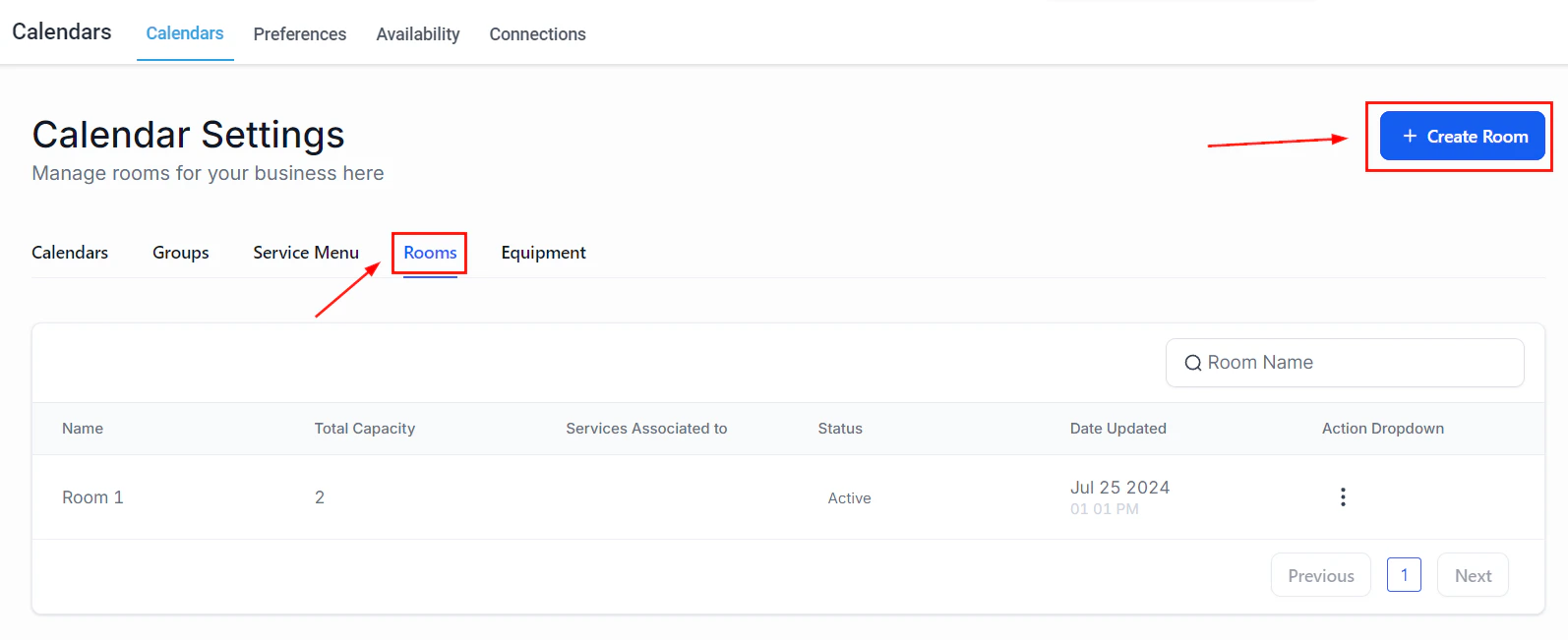 * **Name** — an identifying name visible to your team and clients
* **Description** — optional notes about what the room is used for
* **Total capacity** — maximum number of appointments that can be booked simultaneously in this room
* **Select calendar** — link this room to its service calendar
* **Name** — an identifying name visible to your team and clients
* **Description** — optional notes about what the room is used for
* **Total capacity** — maximum number of appointments that can be booked simultaneously in this room
* **Select calendar** — link this room to its service calendar
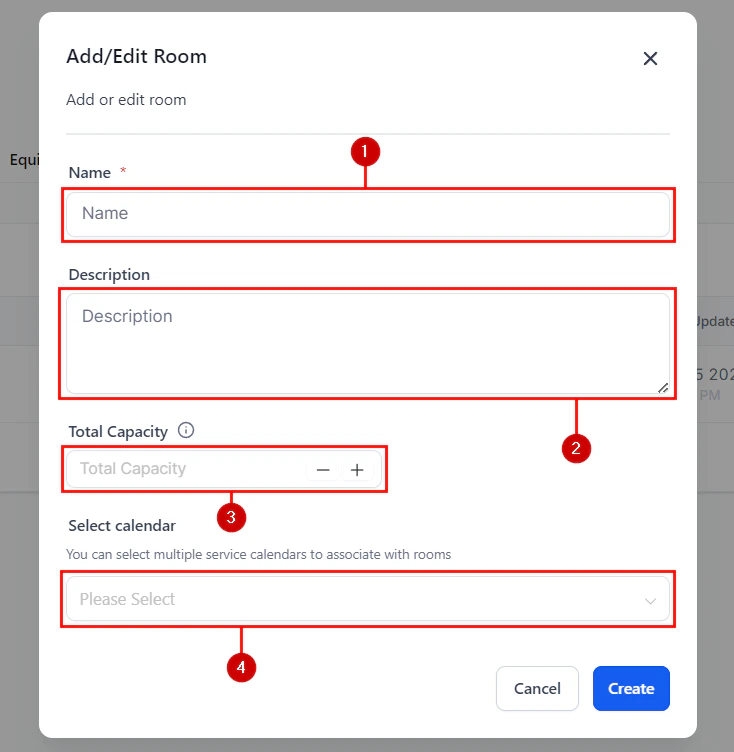 Click **Create** to save the room.
### Creating equipment
Equipment represents any tool, device, or machine used to deliver a service.
In **Calendar Settings**, select the **Equipment** tab.
Click **+ Create Equipment**.
* **Name** — identifying name for the equipment
* **Description** — optional notes (e.g., "Laser hair removal device")
* **Total quantity** — total number of units available, including out-of-service ones
* **Out-of-service quantity** — units currently unavailable (broken, in repair, etc.)
* **Select calendar** — link to the service calendar that uses this equipment
Click **Create** to save.
### Managing rooms and equipment
From the Rooms or Equipment tab, use the **three-dot action menu** next to each item to:
* **Edit** — update name, description, capacity, or linked calendar
* **Disable** — remove from active calendars without deleting
* **Delete** — permanently remove the room or equipment
***
## The service menu
The Service Menu is a centralized customer-facing booking page that displays all your service calendars in one place. Clients can browse categorized services, select a service and staff member, and book an appointment.
### Creating a service menu
Before creating a service menu, ensure you have already created calendar groups and service calendars.
In **Calendar Settings**, navigate to the **Service Menu** tab.
Click the **+ New Service Menu** button in the top right.
Add a name, select which calendar groups and service calendars to include, and customize the layout and branding.
Save the menu. It is active immediately and accessible via the scheduling link.
### Service menu management
The Service Menu list shows each menu with:
| Column | Description |
| ---------------- | --------------------------------------- |
| **Name** | The service menu's display name |
| **Date updated** | When the menu was last modified |
| **Status** | Active (visible to clients) or inactive |
Use the **three-dot action menu** for each service menu to:
* **Edit** — update menu settings, included services, and branding
* **Copy embed code** — get the iframe snippet to embed the menu on your website
* **Copy permanent link** — share a direct link to the menu on any external page
* **Copy scheduling link** — share via SMS, email, or any communication channel
* **Deactivate service menu** — hide the menu from clients without deleting it
* **Delete** — permanently remove the service menu
***
## Booking flow for clients
When a client visits your Service Menu link, they:
1. Browse available services grouped by category
2. Select a service
3. Choose a staff member (if staff selection is enabled)
4. Pick an available date and time
5. Complete the booking form
6. Pay (if payment is required)
7. Receive a confirmation email with appointment details
***
## Frequently asked questions
Yes. Enable **Google Organic Booking** for the service calendar in its settings. Your services will appear on your Google Business Profile for direct booking.
Yes. When creating a room, you link it to specific calendars. However, the total capacity setting controls how many concurrent appointments can use that room — Hoop enforces this automatically.
Hoop subtracts the out-of-service quantity from the total when calculating available units. Bookings that would require more units than are available will not be offered to clients.
Click **Create** to save the room.
### Creating equipment
Equipment represents any tool, device, or machine used to deliver a service.
In **Calendar Settings**, select the **Equipment** tab.
Click **+ Create Equipment**.
* **Name** — identifying name for the equipment
* **Description** — optional notes (e.g., "Laser hair removal device")
* **Total quantity** — total number of units available, including out-of-service ones
* **Out-of-service quantity** — units currently unavailable (broken, in repair, etc.)
* **Select calendar** — link to the service calendar that uses this equipment
Click **Create** to save.
### Managing rooms and equipment
From the Rooms or Equipment tab, use the **three-dot action menu** next to each item to:
* **Edit** — update name, description, capacity, or linked calendar
* **Disable** — remove from active calendars without deleting
* **Delete** — permanently remove the room or equipment
***
## The service menu
The Service Menu is a centralized customer-facing booking page that displays all your service calendars in one place. Clients can browse categorized services, select a service and staff member, and book an appointment.
### Creating a service menu
Before creating a service menu, ensure you have already created calendar groups and service calendars.
In **Calendar Settings**, navigate to the **Service Menu** tab.
Click the **+ New Service Menu** button in the top right.
Add a name, select which calendar groups and service calendars to include, and customize the layout and branding.
Save the menu. It is active immediately and accessible via the scheduling link.
### Service menu management
The Service Menu list shows each menu with:
| Column | Description |
| ---------------- | --------------------------------------- |
| **Name** | The service menu's display name |
| **Date updated** | When the menu was last modified |
| **Status** | Active (visible to clients) or inactive |
Use the **three-dot action menu** for each service menu to:
* **Edit** — update menu settings, included services, and branding
* **Copy embed code** — get the iframe snippet to embed the menu on your website
* **Copy permanent link** — share a direct link to the menu on any external page
* **Copy scheduling link** — share via SMS, email, or any communication channel
* **Deactivate service menu** — hide the menu from clients without deleting it
* **Delete** — permanently remove the service menu
***
## Booking flow for clients
When a client visits your Service Menu link, they:
1. Browse available services grouped by category
2. Select a service
3. Choose a staff member (if staff selection is enabled)
4. Pick an available date and time
5. Complete the booking form
6. Pay (if payment is required)
7. Receive a confirmation email with appointment details
***
## Frequently asked questions
Yes. Enable **Google Organic Booking** for the service calendar in its settings. Your services will appear on your Google Business Profile for direct booking.
Yes. When creating a room, you link it to specific calendars. However, the total capacity setting controls how many concurrent appointments can use that room — Hoop enforces this automatically.
Hoop subtracts the out-of-service quantity from the total when calculating available units. Bookings that would require more units than are available will not be offered to clients.