> ## Documentation Index
> Fetch the complete documentation index at: https://help.hoopai.com/llms.txt
> Use this file to discover all available pages before exploring further.
# Calendars
> Appointment management, six calendar types, booking pages, round-robin scheduling, group booking, payment collection, custom forms, and calendar integrations.
The Calendars section is your complete scheduling hub. Book and manage appointments, sync with Google and Outlook, create booking pages for multiple calendar types, and manage service-based scheduling with staff, rooms, and equipment — all in one place.
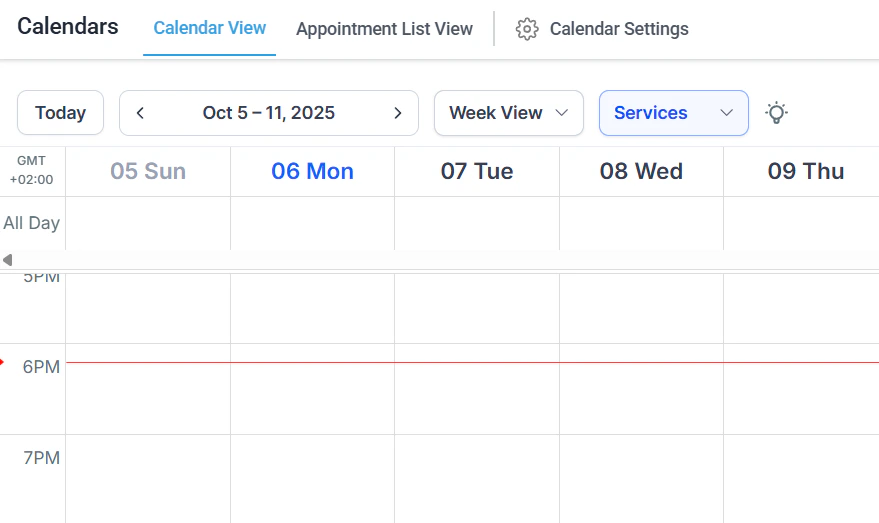 Book, view, edit, and manage appointments with filtering, smart lists, and status tracking
Choose from six calendar types: event, round robin, class booking, collective, personal, and service booking
Step-by-step guides for creating every calendar type and configuring availability schedules
Configure availability, sync integrations, payment collection, notifications, and compliance settings
Manage service-based bookings with staff assignments, rooms, equipment, and a customer-facing service menu
Create bookable service items with pricing, duration, staff assignments, and categories
Connect Google Calendar, iCloud, Microsoft Teams, Zoom, and Calendly
Embed your calendar on a website, enable Google organic booking, and create one-time booking links
Distribute bookings evenly or by priority across a team of available staff members
Accept multiple attendees per time slot for classes, webinars, and group sessions
Set working hours, buffer times, and reusable availability schedule templates
Configure confirmation, reminder, and follow-up messages for every calendar
Allow contacts to cancel or reschedule via self-service links
Require payment or deposits at the time of booking
Collect additional information from bookers using custom intake forms
Manage physical resources like rooms and equipment with automatic conflict blocking
Set up appointment series that repeat on a defined schedule
Track and manage contacts who miss their scheduled appointments
Create and share one-time or reusable links to specific calendars
## Getting started
Go to **Calendars > Creating Calendars** and select the calendar type that fits your use case. Event calendars work for most individual booking scenarios; service calendars are best for businesses with staff and multiple services.
Open **Calendars > Availability Hours** to define your working hours, set buffer time between appointments, and create reusable availability templates you can apply across multiple calendars.
Go to **Calendars > Calendar Integrations** to sync with Google Calendar, Outlook, iCloud, or Calendly. Two-way sync ensures no double bookings between your external schedule and the platform.
Open **Calendars > Booking Pages** to generate a shareable booking link or embed your calendar on a website. Enable Google organic booking to appear in search results.
Go to **Calendars > Appointment Notifications** to configure confirmation, reminder, and cancellation messages. You can customize the message content and delivery timing for each calendar independently.
## Frequently asked questions
The platform offers Event (general individual booking), Round Robin (distributes bookings across a team), Class Booking (multi-attendee group sessions), Collective (all team members must be available simultaneously), Personal (1:1 individual meetings), and Service Booking (staff, rooms, and equipment for service businesses).
Yes. The platform supports two-way sync with Google Calendar, Microsoft Outlook/Microsoft 365, and iCloud Calendar. You can also import from Calendly. Set up sync in **Calendars > Calendar Integrations**.
Yes. Enable payment collection in **Calendars > Payment Calendars**. You can require full payment or a deposit at booking. Stripe must be connected in your payment settings.
A round-robin calendar shows a single booking page to your customers but automatically assigns each booking to an available team member. You can configure assignments by equal rotation or by priority.
Yes. Use **Calendars > Custom Forms** to create intake forms with text fields, dropdowns, checkboxes, and file uploads. These forms appear on the booking page and the responses attach to the appointment record.
Go to **Calendars > No-Shows** to view contacts who missed appointments. You can update the appointment status to No-Show, trigger follow-up automations, and use no-show data to filter contacts in smart lists.
Book, view, edit, and manage appointments with filtering, smart lists, and status tracking
Choose from six calendar types: event, round robin, class booking, collective, personal, and service booking
Step-by-step guides for creating every calendar type and configuring availability schedules
Configure availability, sync integrations, payment collection, notifications, and compliance settings
Manage service-based bookings with staff assignments, rooms, equipment, and a customer-facing service menu
Create bookable service items with pricing, duration, staff assignments, and categories
Connect Google Calendar, iCloud, Microsoft Teams, Zoom, and Calendly
Embed your calendar on a website, enable Google organic booking, and create one-time booking links
Distribute bookings evenly or by priority across a team of available staff members
Accept multiple attendees per time slot for classes, webinars, and group sessions
Set working hours, buffer times, and reusable availability schedule templates
Configure confirmation, reminder, and follow-up messages for every calendar
Allow contacts to cancel or reschedule via self-service links
Require payment or deposits at the time of booking
Collect additional information from bookers using custom intake forms
Manage physical resources like rooms and equipment with automatic conflict blocking
Set up appointment series that repeat on a defined schedule
Track and manage contacts who miss their scheduled appointments
Create and share one-time or reusable links to specific calendars
## Getting started
Go to **Calendars > Creating Calendars** and select the calendar type that fits your use case. Event calendars work for most individual booking scenarios; service calendars are best for businesses with staff and multiple services.
Open **Calendars > Availability Hours** to define your working hours, set buffer time between appointments, and create reusable availability templates you can apply across multiple calendars.
Go to **Calendars > Calendar Integrations** to sync with Google Calendar, Outlook, iCloud, or Calendly. Two-way sync ensures no double bookings between your external schedule and the platform.
Open **Calendars > Booking Pages** to generate a shareable booking link or embed your calendar on a website. Enable Google organic booking to appear in search results.
Go to **Calendars > Appointment Notifications** to configure confirmation, reminder, and cancellation messages. You can customize the message content and delivery timing for each calendar independently.
## Frequently asked questions
The platform offers Event (general individual booking), Round Robin (distributes bookings across a team), Class Booking (multi-attendee group sessions), Collective (all team members must be available simultaneously), Personal (1:1 individual meetings), and Service Booking (staff, rooms, and equipment for service businesses).
Yes. The platform supports two-way sync with Google Calendar, Microsoft Outlook/Microsoft 365, and iCloud Calendar. You can also import from Calendly. Set up sync in **Calendars > Calendar Integrations**.
Yes. Enable payment collection in **Calendars > Payment Calendars**. You can require full payment or a deposit at booking. Stripe must be connected in your payment settings.
A round-robin calendar shows a single booking page to your customers but automatically assigns each booking to an available team member. You can configure assignments by equal rotation or by priority.
Yes. Use **Calendars > Custom Forms** to create intake forms with text fields, dropdowns, checkboxes, and file uploads. These forms appear on the booking page and the responses attach to the appointment record.
Go to **Calendars > No-Shows** to view contacts who missed appointments. You can update the appointment status to No-Show, trigger follow-up automations, and use no-show data to filter contacts in smart lists.