> ## Documentation Index
> Fetch the complete documentation index at: https://help.hoopai.com/llms.txt
> Use this file to discover all available pages before exploring further.
# No-shows
> Mark missed appointments, track no-show patterns, and automate follow-up for no-shows on the HoopAI platform.
A no-show occurs when a contact does not attend a scheduled appointment without cancelling in advance. The HoopAI platform distinguishes no-shows from cancellations in appointment records and allows you to build automated workflows that respond to missed appointments — re-engaging the contact, offering rescheduling, or escalating internally.
## Marking an appointment as no-show
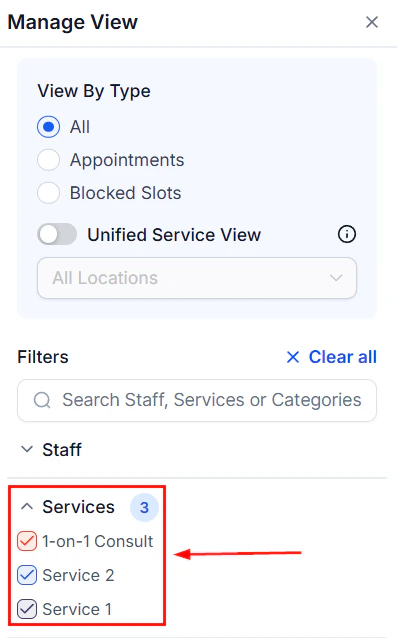 When a contact does not appear for their appointment, you should mark the appointment status as **No-show** to keep your records accurate. This is separate from cancellation and has its own status in the platform.
To mark a no-show:
1. Go to **Calendars > Appointments** in the left navigation.
2. Find the appointment in the list. Filter by date or calendar if needed.
3. Click the appointment to open the detail drawer.
4. In the **Status** field, select **No-show** from the status dropdown.
5. The appointment is updated immediately. Any configured no-show notifications will fire at this point.
You can also update appointment status from the main calendar view by clicking the appointment block and updating the status from the side panel.
Build a habit of marking no-shows the same day they occur. Timely status updates keep your pipeline data accurate and allow automated re-engagement workflows to run at the right time.
## No-show vs cancelled
These two statuses are related but distinct:
| Status | Meaning | Use when |
| ------------- | --------------------------------------------------------------------- | ---------------------------------------------------------------- |
| **Cancelled** | The appointment was proactively cancelled by the contact or your team | The contact or team member cancelled before the appointment time |
| **No-show** | The contact did not attend without cancelling | The appointment time passed and the contact was not present |
Using the correct status keeps your reporting accurate and ensures the right automations fire. A contact who cancels 48 hours in advance should not be treated the same way as one who simply does not appear.
## Automated no-show workflows
When a contact does not appear for their appointment, you should mark the appointment status as **No-show** to keep your records accurate. This is separate from cancellation and has its own status in the platform.
To mark a no-show:
1. Go to **Calendars > Appointments** in the left navigation.
2. Find the appointment in the list. Filter by date or calendar if needed.
3. Click the appointment to open the detail drawer.
4. In the **Status** field, select **No-show** from the status dropdown.
5. The appointment is updated immediately. Any configured no-show notifications will fire at this point.
You can also update appointment status from the main calendar view by clicking the appointment block and updating the status from the side panel.
Build a habit of marking no-shows the same day they occur. Timely status updates keep your pipeline data accurate and allow automated re-engagement workflows to run at the right time.
## No-show vs cancelled
These two statuses are related but distinct:
| Status | Meaning | Use when |
| ------------- | --------------------------------------------------------------------- | ---------------------------------------------------------------- |
| **Cancelled** | The appointment was proactively cancelled by the contact or your team | The contact or team member cancelled before the appointment time |
| **No-show** | The contact did not attend without cancelling | The appointment time passed and the contact was not present |
Using the correct status keeps your reporting accurate and ensures the right automations fire. A contact who cancels 48 hours in advance should not be treated the same way as one who simply does not appear.
## Automated no-show workflows
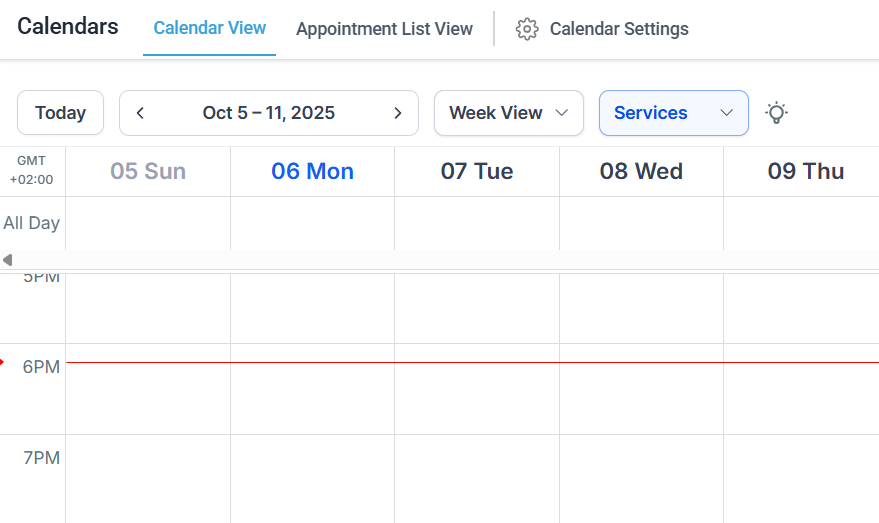 The platform's workflow builder can automatically respond when an appointment is marked as no-show. This is configured using the **Appointment Status** trigger.
### Basic no-show re-engagement workflow
1. Go to **Automations > Workflows** and click **+ Create Workflow**.
2. Add a trigger: **Appointment Status**.
3. In the trigger configuration, set the **Filter by Appointment Status** to **No-show**.
4. Add a brief delay (for example, 30 minutes to 1 hour) to allow for any last-minute arrivals or status corrections.
5. Add a **Send Email** or **Send SMS** action with a re-engagement message. Suggested content:
* Express that you missed them
* Offer a direct link to reschedule using `{{appointment.reschedule_link}}`
* Set a follow-up expiry or next step
6. Optionally add an internal notification step to alert the assigned team member so they can follow up personally.
7. Save and publish the workflow.
Add a filter to the trigger so the workflow only fires for specific calendars or contact tags. This prevents a single no-show workflow from running across every calendar in your account indiscriminately.
### Escalation workflows
For high-value appointments, add an internal escalation step. After marking a contact as a no-show, the workflow can:
* Send an internal SMS or email alert to the assigned user or a manager
* Create a task assigned to the team member to follow up by phone
* Add a tag to the contact (such as "No-show") for segmentation in future campaigns
* Move the contact into a re-engagement pipeline stage in your CRM
## Tracking no-show patterns
The platform's workflow builder can automatically respond when an appointment is marked as no-show. This is configured using the **Appointment Status** trigger.
### Basic no-show re-engagement workflow
1. Go to **Automations > Workflows** and click **+ Create Workflow**.
2. Add a trigger: **Appointment Status**.
3. In the trigger configuration, set the **Filter by Appointment Status** to **No-show**.
4. Add a brief delay (for example, 30 minutes to 1 hour) to allow for any last-minute arrivals or status corrections.
5. Add a **Send Email** or **Send SMS** action with a re-engagement message. Suggested content:
* Express that you missed them
* Offer a direct link to reschedule using `{{appointment.reschedule_link}}`
* Set a follow-up expiry or next step
6. Optionally add an internal notification step to alert the assigned team member so they can follow up personally.
7. Save and publish the workflow.
Add a filter to the trigger so the workflow only fires for specific calendars or contact tags. This prevents a single no-show workflow from running across every calendar in your account indiscriminately.
### Escalation workflows
For high-value appointments, add an internal escalation step. After marking a contact as a no-show, the workflow can:
* Send an internal SMS or email alert to the assigned user or a manager
* Create a task assigned to the team member to follow up by phone
* Add a tag to the contact (such as "No-show") for segmentation in future campaigns
* Move the contact into a re-engagement pipeline stage in your CRM
## Tracking no-show patterns
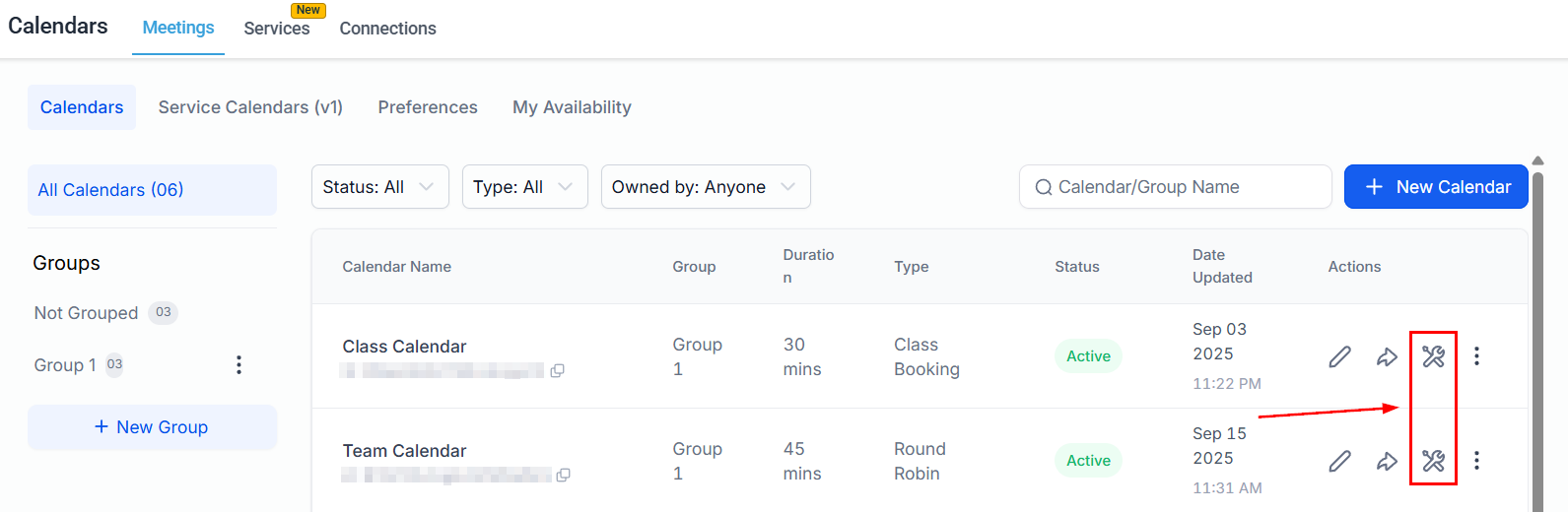 To analyze how often contacts are not showing up:
1. Go to **Calendars > Appointments**.
2. Use the **Status** filter to select **No-show**.
3. Filter by date range to see no-shows over a specific period.
4. Export the list if you need to perform deeper analysis.
High no-show rates often indicate a gap in the reminder sequence. Review your notification settings to ensure contacts receive timely reminders (24 hours before, 1 hour before) and that those reminders include a clear reschedule link so contacts who need to cancel can do so easily rather than simply not appearing.
## Reducing no-shows proactively
The best no-show strategy is prevention. Effective practices include:
* **Multiple reminders**: Send a 24-hour email reminder followed by a 1-hour SMS. Contacts who receive both reminders are significantly more likely to attend or cancel proactively.
* **Two-way SMS confirmation**: Send a reminder asking the contact to reply to confirm attendance. Use a workflow to update appointment status to confirmed when they respond.
* **Reschedule link in reminders**: Including a reschedule link in reminder messages gives contacts an easy way to change times rather than simply ignoring the appointment.
* **Waitlist thinking**: In high-demand calendars, a prompt re-engagement workflow that catches a no-show quickly lets you offer the slot to another contact before the day ends.
## No-show notifications
To send a notification when you mark an appointment as no-show, configure the **Cancellation** notification in your calendar's notification settings — the no-show status triggers the same notification event as a cancellation. You can customize the message body to reflect the no-show scenario rather than using the same language as a standard cancellation message.
To analyze how often contacts are not showing up:
1. Go to **Calendars > Appointments**.
2. Use the **Status** filter to select **No-show**.
3. Filter by date range to see no-shows over a specific period.
4. Export the list if you need to perform deeper analysis.
High no-show rates often indicate a gap in the reminder sequence. Review your notification settings to ensure contacts receive timely reminders (24 hours before, 1 hour before) and that those reminders include a clear reschedule link so contacts who need to cancel can do so easily rather than simply not appearing.
## Reducing no-shows proactively
The best no-show strategy is prevention. Effective practices include:
* **Multiple reminders**: Send a 24-hour email reminder followed by a 1-hour SMS. Contacts who receive both reminders are significantly more likely to attend or cancel proactively.
* **Two-way SMS confirmation**: Send a reminder asking the contact to reply to confirm attendance. Use a workflow to update appointment status to confirmed when they respond.
* **Reschedule link in reminders**: Including a reschedule link in reminder messages gives contacts an easy way to change times rather than simply ignoring the appointment.
* **Waitlist thinking**: In high-demand calendars, a prompt re-engagement workflow that catches a no-show quickly lets you offer the slot to another contact before the day ends.
## No-show notifications
To send a notification when you mark an appointment as no-show, configure the **Cancellation** notification in your calendar's notification settings — the no-show status triggers the same notification event as a cancellation. You can customize the message body to reflect the no-show scenario rather than using the same language as a standard cancellation message.