> ## Documentation Index
> Fetch the complete documentation index at: https://help.hoopai.com/llms.txt
> Use this file to discover all available pages before exploring further.
# Custom booking forms
> Attach intake forms to your calendars to collect pre-booking information and qualify leads before appointments on the HoopAI platform.
Custom booking forms let you collect information from contacts as part of the appointment booking process. Instead of arriving at an appointment with no context, you can gather intake details, qualify leads, capture preferences, or obtain consent before the session begins. Form responses are saved directly to the contact's CRM record and are visible on the appointment detail view.
## How custom forms work with calendars
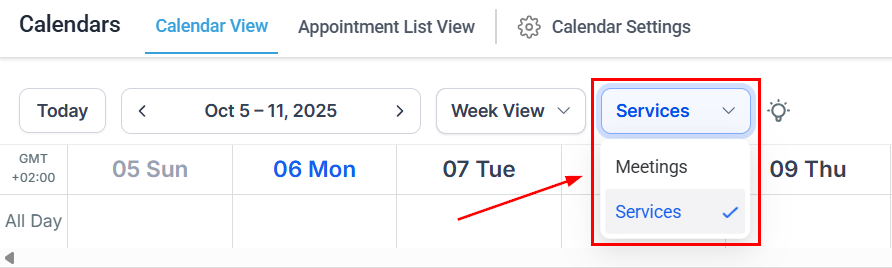 When you attach a form to a calendar, it appears as an additional step in the booking widget after the contact selects their time slot and enters their name and email. The contact must complete the form before the appointment is confirmed. If they close the browser before submitting, no appointment is created and no form data is saved.
The platform supports attaching one form per calendar. A single form can be used across multiple calendars by selecting it in each calendar's settings individually.
## Creating a form
Before attaching a form to a calendar, you need to create it. Forms are managed under the **Sites > Forms** section.
To create a new form:
1. Go to **Sites > Forms** and click **+ New Form**.
2. Add a form name.
3. Drag and drop fields from the left panel onto the form canvas. Common field types include:
* **Short text** — for brief answers
* **Long text / paragraph** — for open-ended responses
* **Dropdown** — for selecting from a predefined list
* **Checkbox** — for yes/no or multi-select answers
* **Phone** — for collecting a phone number
* **File upload** — for documents, photos, or signed agreements
4. Map each field to the corresponding contact custom field if you want the response to save to the CRM record automatically.
5. Click **Save**.
Map form fields to CRM custom fields wherever possible. Unmapped fields are visible on the appointment record but do not populate the contact's profile, which limits their usefulness in workflows and filtering.
## Attaching a form to a calendar
When you attach a form to a calendar, it appears as an additional step in the booking widget after the contact selects their time slot and enters their name and email. The contact must complete the form before the appointment is confirmed. If they close the browser before submitting, no appointment is created and no form data is saved.
The platform supports attaching one form per calendar. A single form can be used across multiple calendars by selecting it in each calendar's settings individually.
## Creating a form
Before attaching a form to a calendar, you need to create it. Forms are managed under the **Sites > Forms** section.
To create a new form:
1. Go to **Sites > Forms** and click **+ New Form**.
2. Add a form name.
3. Drag and drop fields from the left panel onto the form canvas. Common field types include:
* **Short text** — for brief answers
* **Long text / paragraph** — for open-ended responses
* **Dropdown** — for selecting from a predefined list
* **Checkbox** — for yes/no or multi-select answers
* **Phone** — for collecting a phone number
* **File upload** — for documents, photos, or signed agreements
4. Map each field to the corresponding contact custom field if you want the response to save to the CRM record automatically.
5. Click **Save**.
Map form fields to CRM custom fields wherever possible. Unmapped fields are visible on the appointment record but do not populate the contact's profile, which limits their usefulness in workflows and filtering.
## Attaching a form to a calendar
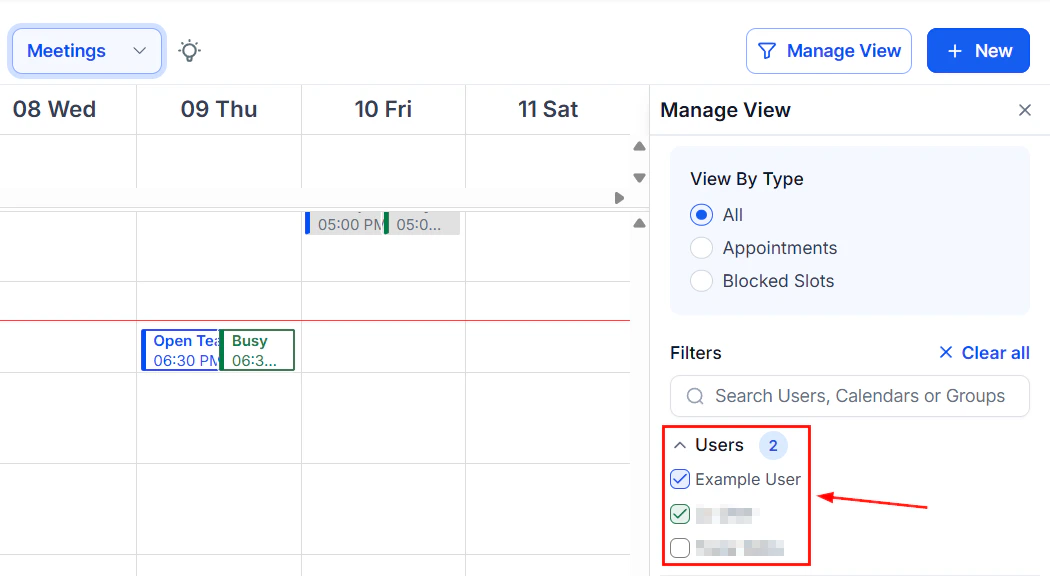 1. Go to **Calendars > Calendar Settings** and click **Edit** on your calendar.
2. Open the **Forms & Payment** tab.
3. In the **Select Form** dropdown, choose the form you want to attach.
4. Click **Save**.
The form will now appear as part of the booking flow for that calendar.
## Viewing form submissions
1. Go to **Calendars > Calendar Settings** and click **Edit** on your calendar.
2. Open the **Forms & Payment** tab.
3. In the **Select Form** dropdown, choose the form you want to attach.
4. Click **Save**.
The form will now appear as part of the booking flow for that calendar.
## Viewing form submissions
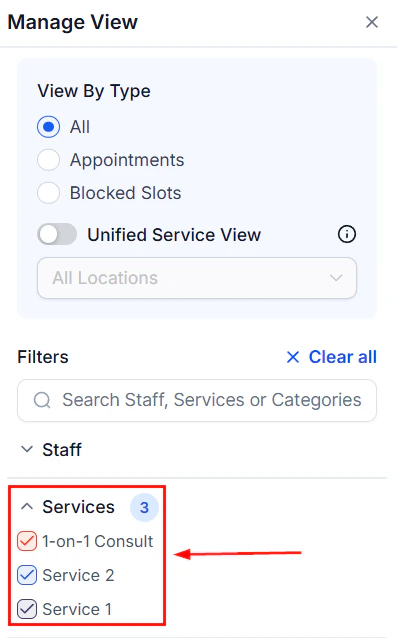 After a contact books an appointment, their form responses are visible in two places:
* **Appointment side drawer**: Open any appointment from the **Appointments** list or the calendar view. The form submission tab inside the appointment shows each question and the contact's answer.
* **Contact profile**: If fields were mapped to custom fields, the responses appear in the contact's profile under the relevant field groups.
This makes it easy to review intake information before an appointment without leaving the platform.
## Use cases by industry
Different businesses use booking forms for different purposes:
| Industry | Common form fields |
| --------------------- | --------------------------------------------------------------------------- |
| Coaching / consulting | Goals, current challenges, how they found you, expectations for the session |
| Health and wellness | Health history, current conditions, allergies, consent to treatment |
| Real estate | Budget range, property preferences, timeline, pre-approval status |
| Marketing teams | Business name, website, current marketing efforts, monthly budget |
| Legal / financial | Case type, previous experience with the issue, urgency level |
## Pre-qualifying leads
Booking forms are an effective lead qualification tool. By asking targeted questions before someone books, you can ensure only suitable prospects make it onto your calendar. For example, a financial advisor might ask for minimum investable assets; a real estate agent might ask for pre-approval status. If the contact's answers indicate they are not a good fit, you can review the submission and cancel or decline the appointment before it takes place.
The platform does not automatically block or filter bookings based on form responses. You still need to review submitted forms and take manual action if a contact does not meet your qualification criteria.
## Sticky contact behaviour
The HoopAI platform supports sticky contact functionality, which means that if a contact has previously filled in their name and email on any platform form or page, that information is pre-populated when they return to book through the calendar. This reduces friction and can improve booking completion rates. Form fields mapped to custom fields that are already populated in the CRM will similarly pre-fill for returning contacts.
After a contact books an appointment, their form responses are visible in two places:
* **Appointment side drawer**: Open any appointment from the **Appointments** list or the calendar view. The form submission tab inside the appointment shows each question and the contact's answer.
* **Contact profile**: If fields were mapped to custom fields, the responses appear in the contact's profile under the relevant field groups.
This makes it easy to review intake information before an appointment without leaving the platform.
## Use cases by industry
Different businesses use booking forms for different purposes:
| Industry | Common form fields |
| --------------------- | --------------------------------------------------------------------------- |
| Coaching / consulting | Goals, current challenges, how they found you, expectations for the session |
| Health and wellness | Health history, current conditions, allergies, consent to treatment |
| Real estate | Budget range, property preferences, timeline, pre-approval status |
| Marketing teams | Business name, website, current marketing efforts, monthly budget |
| Legal / financial | Case type, previous experience with the issue, urgency level |
## Pre-qualifying leads
Booking forms are an effective lead qualification tool. By asking targeted questions before someone books, you can ensure only suitable prospects make it onto your calendar. For example, a financial advisor might ask for minimum investable assets; a real estate agent might ask for pre-approval status. If the contact's answers indicate they are not a good fit, you can review the submission and cancel or decline the appointment before it takes place.
The platform does not automatically block or filter bookings based on form responses. You still need to review submitted forms and take manual action if a contact does not meet your qualification criteria.
## Sticky contact behaviour
The HoopAI platform supports sticky contact functionality, which means that if a contact has previously filled in their name and email on any platform form or page, that information is pre-populated when they return to book through the calendar. This reduces friction and can improve booking completion rates. Form fields mapped to custom fields that are already populated in the CRM will similarly pre-fill for returning contacts.