> ## Documentation Index
> Fetch the complete documentation index at: https://help.hoopai.com/llms.txt
> Use this file to discover all available pages before exploring further.
# Trigger Links
> Create trackable links that fire workflow automations when clicked by a contact.
Trigger links are special trackable URLs that fire a workflow automation the moment a contact clicks them. Use them in emails, SMS messages, and web pages to trigger personalised follow-up sequences.
Trigger Links are designed to record customer interactions with URLs you create, but how do you automate actions after the link is clicked? The Trigger Link Clicked workflow trigger was built just for those instances, allowing you to pair suitable actions to the specific link that was clicked. Follow along to learn how you can set up this trigger in your workflow.
### Adding the Trigger Link Clicked Trigger
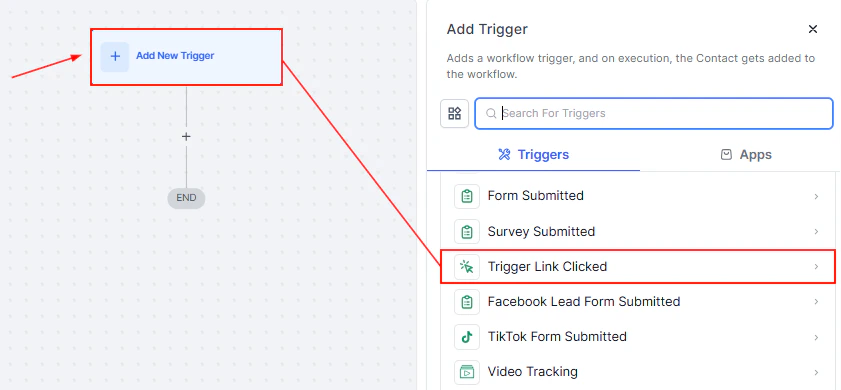
To get started with setting up your workflow, click on "Add New Trigger" and select Trigger Link Clicked.
 📌\*\*\*\*NOTE: \*\*\*\*To publish a workflow after adding a trigger, you must establish corresponding actions. Without actions, you can only save the workflow.
### Add Filter
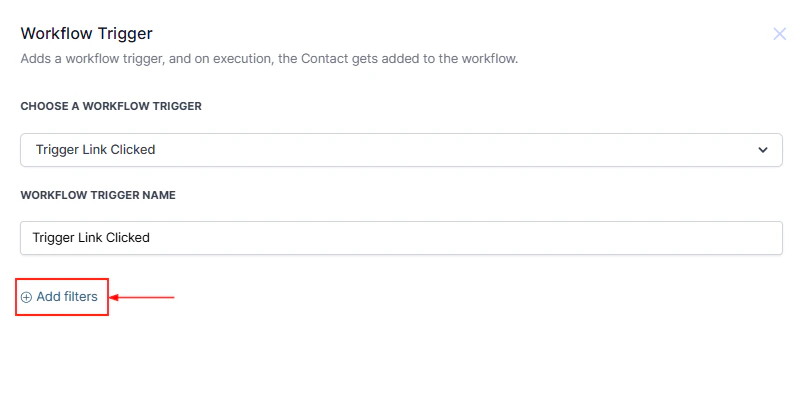
Click the "Add Filters" button to choose from the standard filter or custom filters.
📌\*\*\*\*NOTE: \*\*\*\*To publish a workflow after adding a trigger, you must establish corresponding actions. Without actions, you can only save the workflow.
### Add Filter
Click the "Add Filters" button to choose from the standard filter or custom filters.
 ### Trigger Link
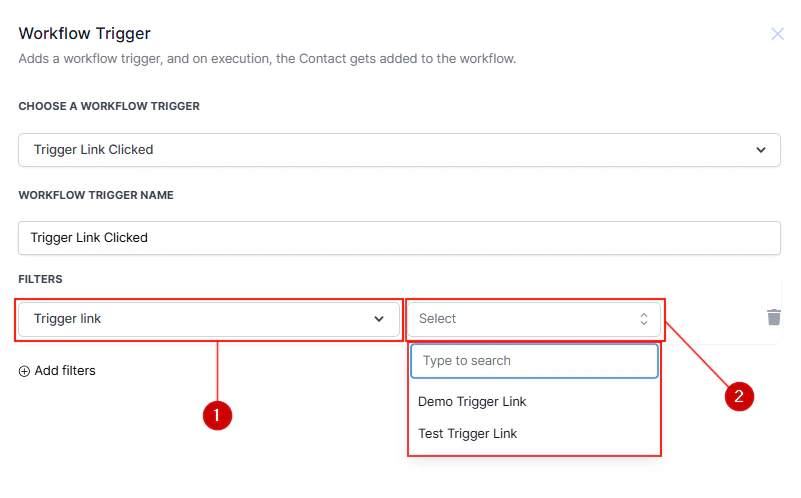
You can filter your trigger by clicking Add Filters and selecting Trigger Link. In the second dropdown, select the trigger link you would like to use for the workflow.
### Trigger Link
You can filter your trigger by clicking Add Filters and selecting Trigger Link. In the second dropdown, select the trigger link you would like to use for the workflow.
 ��****NOTE****: Only one trigger link can be added to each trigger. To activate a workflow when other trigger links are clicked, add multiple triggers to the workflow.
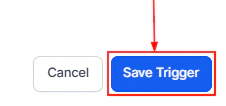
Once you've set up your filters, click ****"Save Trigger"**** to finalize your trigger link clicked workflow.
��****NOTE****: Only one trigger link can be added to each trigger. To activate a workflow when other trigger links are clicked, add multiple triggers to the workflow.
Once you've set up your filters, click ****"Save Trigger"**** to finalize your trigger link clicked workflow.
 Add workflow actions to automate tasks such as sending internal notifications or customer follow-ups.
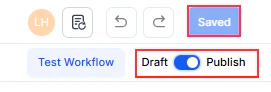
Once you've set up the trigger and its actions, Publish and Save the workflow to enable its functionality.
Add workflow actions to automate tasks such as sending internal notifications or customer follow-ups.
Once you've set up the trigger and its actions, Publish and Save the workflow to enable its functionality.
 The Trigger Link Clicked trigger helps businesses save time and improve customer engagement by streamlining repetitive tasks. By setting up this workflow, you can ensure timely responses, efficient follow-ups, and a more tailored customer experience.
## FAQs
A trigger link is a trackable URL that fires a workflow automation the moment a contact clicks it. Unlike a standard URL, it records the click event and immediately enrolls the contact in the linked workflow so you can send personalised follow-ups.
Trigger links can be embedded in SMS messages, emails, web pages, and any other channel where you can include a hyperlink. When the contact clicks the link they are redirected to the destination URL and the workflow is simultaneously triggered.
A single trigger link can only be associated with one filter per trigger. To activate additional workflows from the same link, add the same trigger link as a filter to multiple workflow triggers, or create separate trigger links for each workflow.
Navigate to Marketing > Trigger Links, click Add Trigger Link, give it a name, enter the destination URL, and save. The generated link is then available to insert into your messages and to select as a filter in the Trigger Link Clicked workflow trigger.
Yes. Open the trigger link record in Marketing > Trigger Links to see click counts. You can also filter Enrollment History in the linked workflow by trigger to see exactly which contacts entered via the link.
The Trigger Link Clicked trigger helps businesses save time and improve customer engagement by streamlining repetitive tasks. By setting up this workflow, you can ensure timely responses, efficient follow-ups, and a more tailored customer experience.
## FAQs
A trigger link is a trackable URL that fires a workflow automation the moment a contact clicks it. Unlike a standard URL, it records the click event and immediately enrolls the contact in the linked workflow so you can send personalised follow-ups.
Trigger links can be embedded in SMS messages, emails, web pages, and any other channel where you can include a hyperlink. When the contact clicks the link they are redirected to the destination URL and the workflow is simultaneously triggered.
A single trigger link can only be associated with one filter per trigger. To activate additional workflows from the same link, add the same trigger link as a filter to multiple workflow triggers, or create separate trigger links for each workflow.
Navigate to Marketing > Trigger Links, click Add Trigger Link, give it a name, enter the destination URL, and save. The generated link is then available to insert into your messages and to select as a filter in the Trigger Link Clicked workflow trigger.
Yes. Open the trigger link record in Marketing > Trigger Links to see click counts. You can also filter Enrollment History in the linked workflow by trigger to see exactly which contacts entered via the link.