> ## Documentation Index
> Fetch the complete documentation index at: https://help.hoopai.com/llms.txt
> Use this file to discover all available pages before exploring further.
# SMS Campaigns
> Set up automated SMS campaign workflows to engage contacts at scale using the HoopAI Platform.
SMS campaigns in the HoopAI Platform are powered by workflows. Create sequences of SMS messages, schedule them with delays, and personalise them with contact data — all from the Workflow Builder.
SMS marketing is an invaluable asset for businesses, offering unparalleled open rates and instant engagement. With text messages being opened 80% more frequently than emails—often within the first three minutes—this marketing channel presents a unique opportunity for immediate customer interaction. This section explores the strategic advantages of SMS opt-in campaigns, detailing how businesses can leverage them to offer discounts and cultivate a list of customers for ongoing communication.
### Ensuring Compliance in SMS Marketing
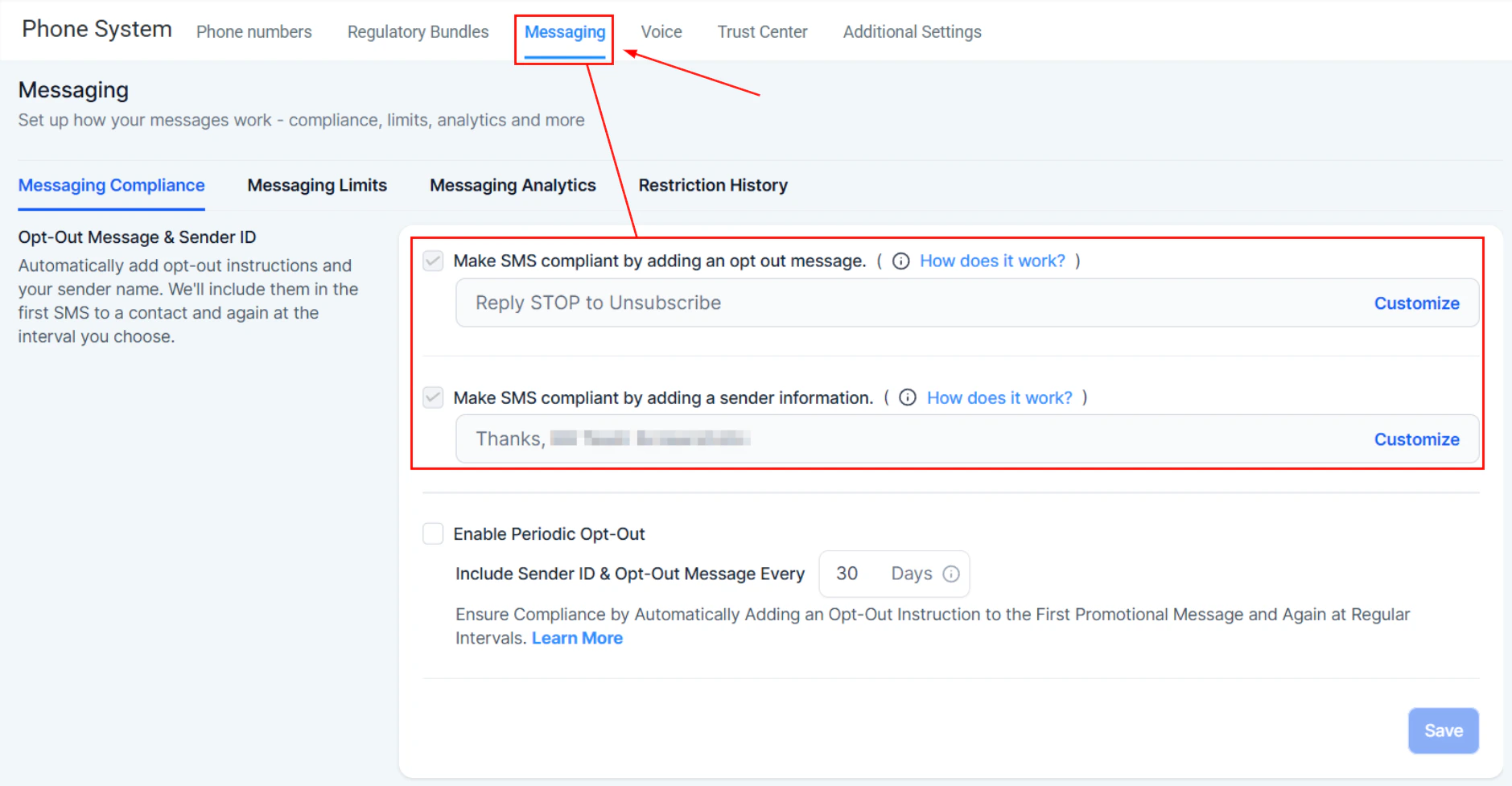
Before launching your SMS campaign, it's crucial to ensure compliance with recent legislative changes regarding SMS marketing. The CRM simplifies this process:
In your account settings, navigate to the Messaging tab in the Phone System section. In there, confirm that the options for SMS compliance, such as adding opt-out messages and including sender information, are enabled.
 ## Building Your SMS Campaign
Creating an effective SMS campaign involves several steps, from setting up workflows to crafting the perfect message. Here's how to get started:
For campaigns involving an image, upload the image file to the Media Storage section within your account.
## Building Your SMS Campaign
Creating an effective SMS campaign involves several steps, from setting up workflows to crafting the perfect message. Here's how to get started:
For campaigns involving an image, upload the image file to the Media Storage section within your account.
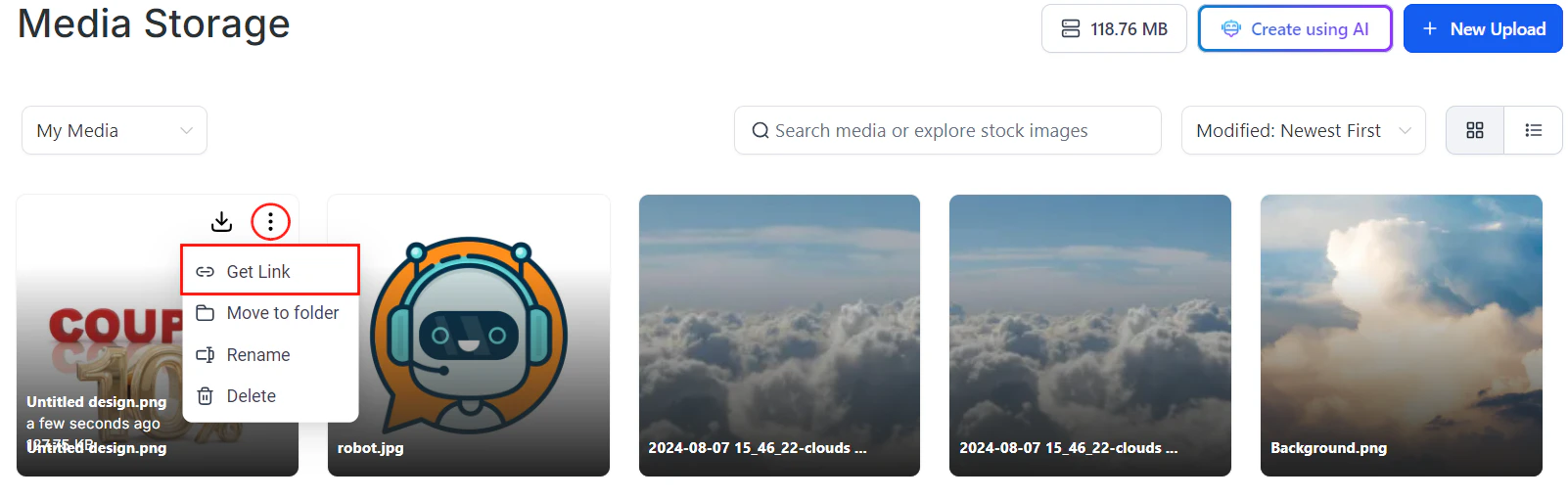
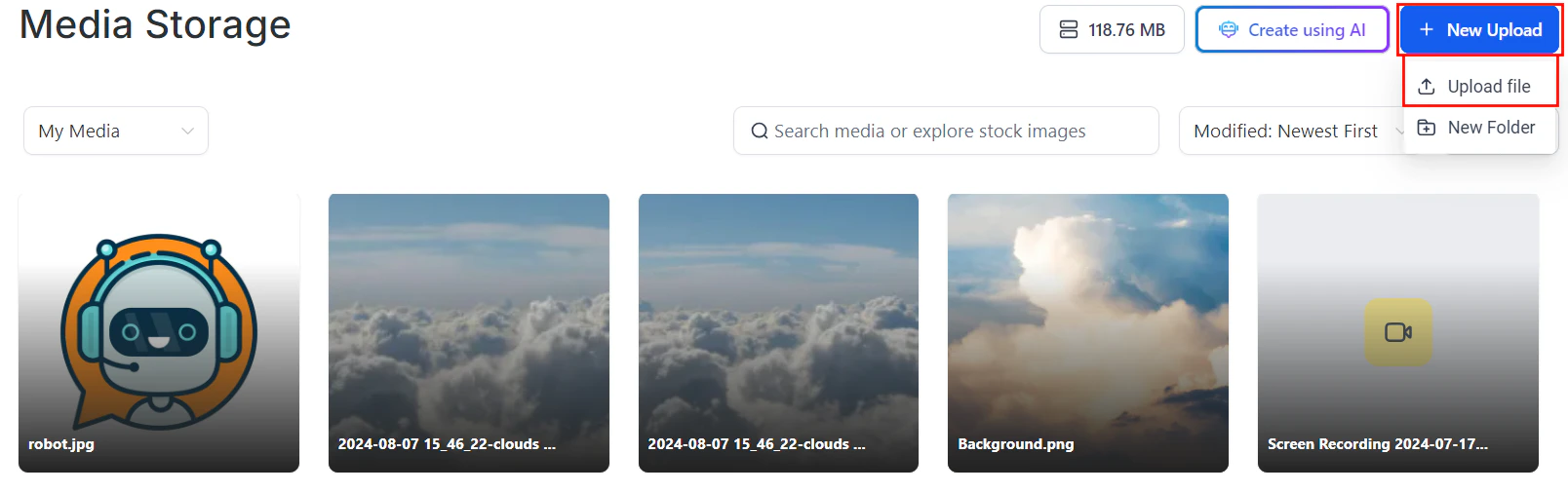 Copy the image link to your clipboard. This link will be utilized to create a trigger link for tracking engagement.
 ### Create a Trigger Link
Navigate to the Trigger Links tab inside the Marketing section, then proceed to create a new trigger link.
### Create a Trigger Link
Navigate to the Trigger Links tab inside the Marketing section, then proceed to create a new trigger link.
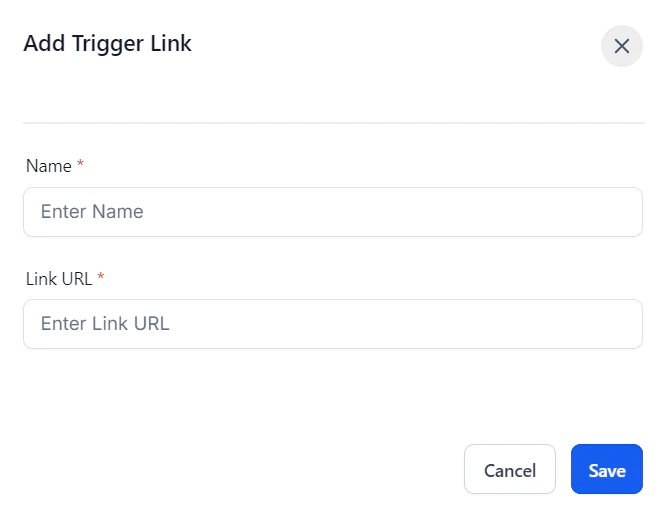
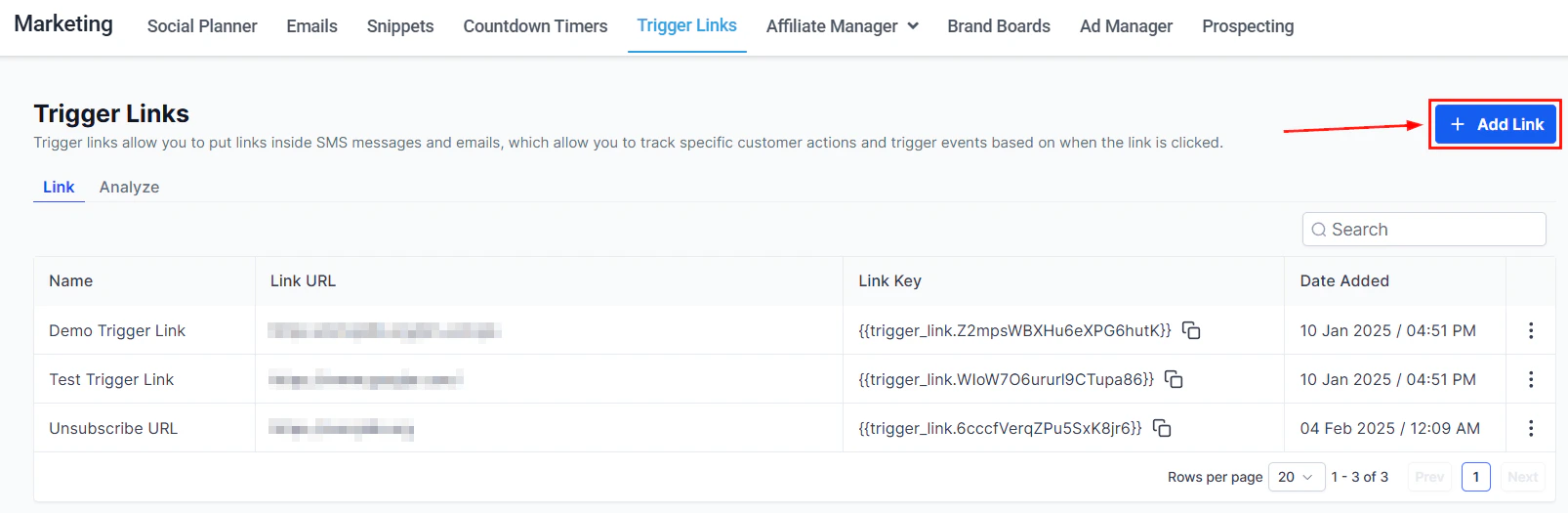 Enter a suitable name for the trigger link, then input the image link in the Link URL section. If you prefer to add a link to your SMS instead, input the link in the designated field. Click "Save" to confirm your changes.
 ### Initiate a Workflow
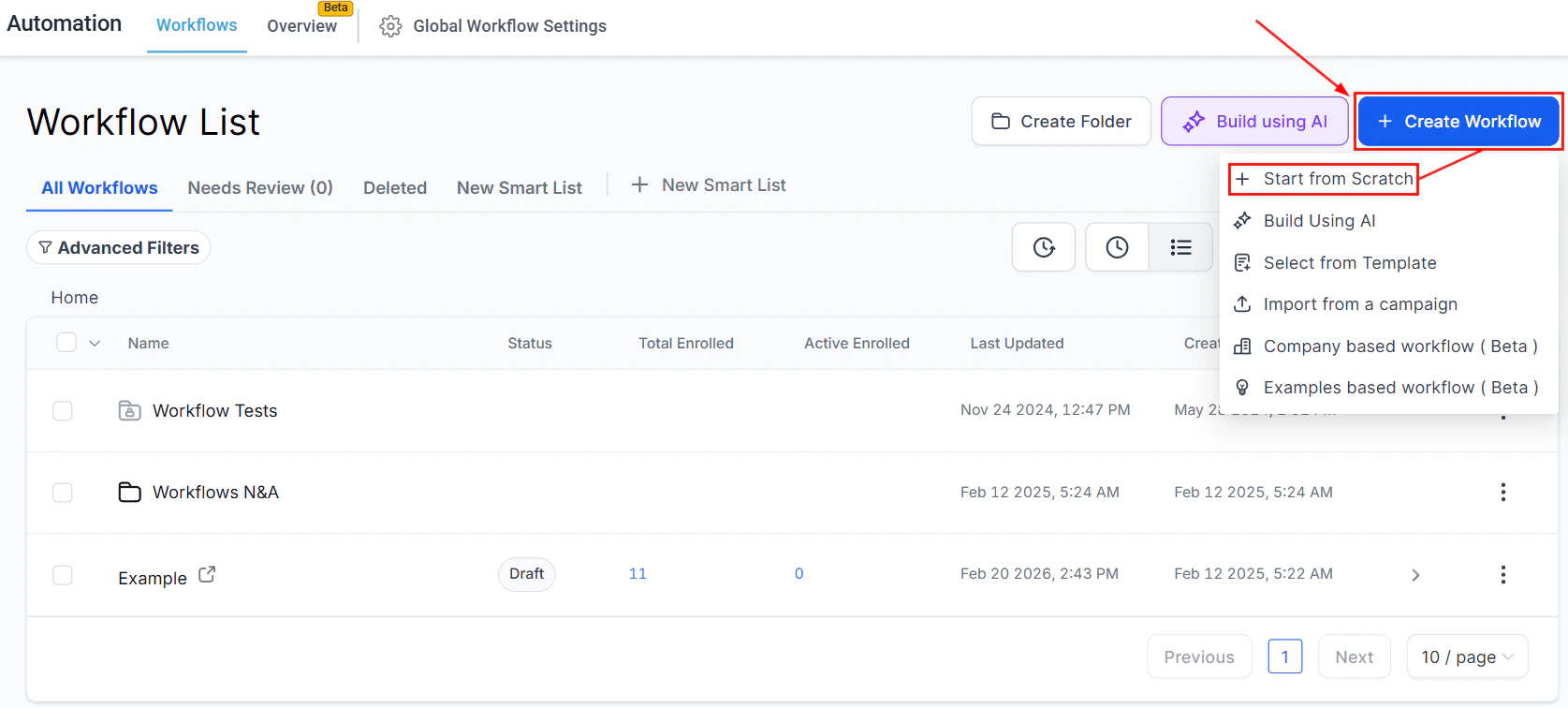
Begin creating a workflow for your campaign in the Workflows tab of the Automation section. This workflow will handle incoming messages and responses.
### Initiate a Workflow
Begin creating a workflow for your campaign in the Workflows tab of the Automation section. This workflow will handle incoming messages and responses.
 ### Set Up Triggers
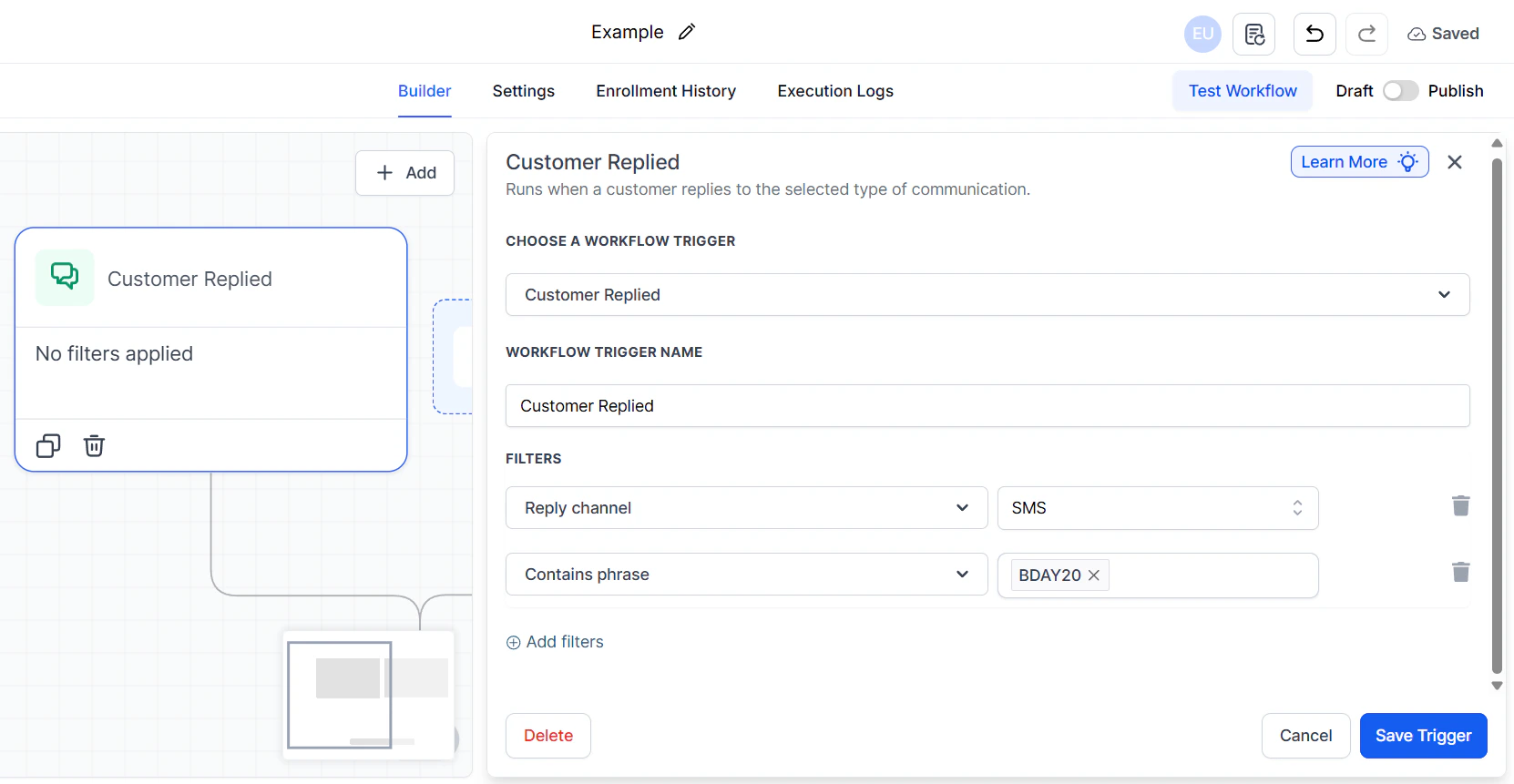
Add the "Customer Replied" trigger and set the filters as "Reply Channel = SMS" and "Contains phrase" followed by your keyword to start the workflow when someone texts a specific offer code, such as "BDay20" to your business number.
### Set Up Triggers
Add the "Customer Replied" trigger and set the filters as "Reply Channel = SMS" and "Contains phrase" followed by your keyword to start the workflow when someone texts a specific offer code, such as "BDay20" to your business number.
 ### Craft Your Message
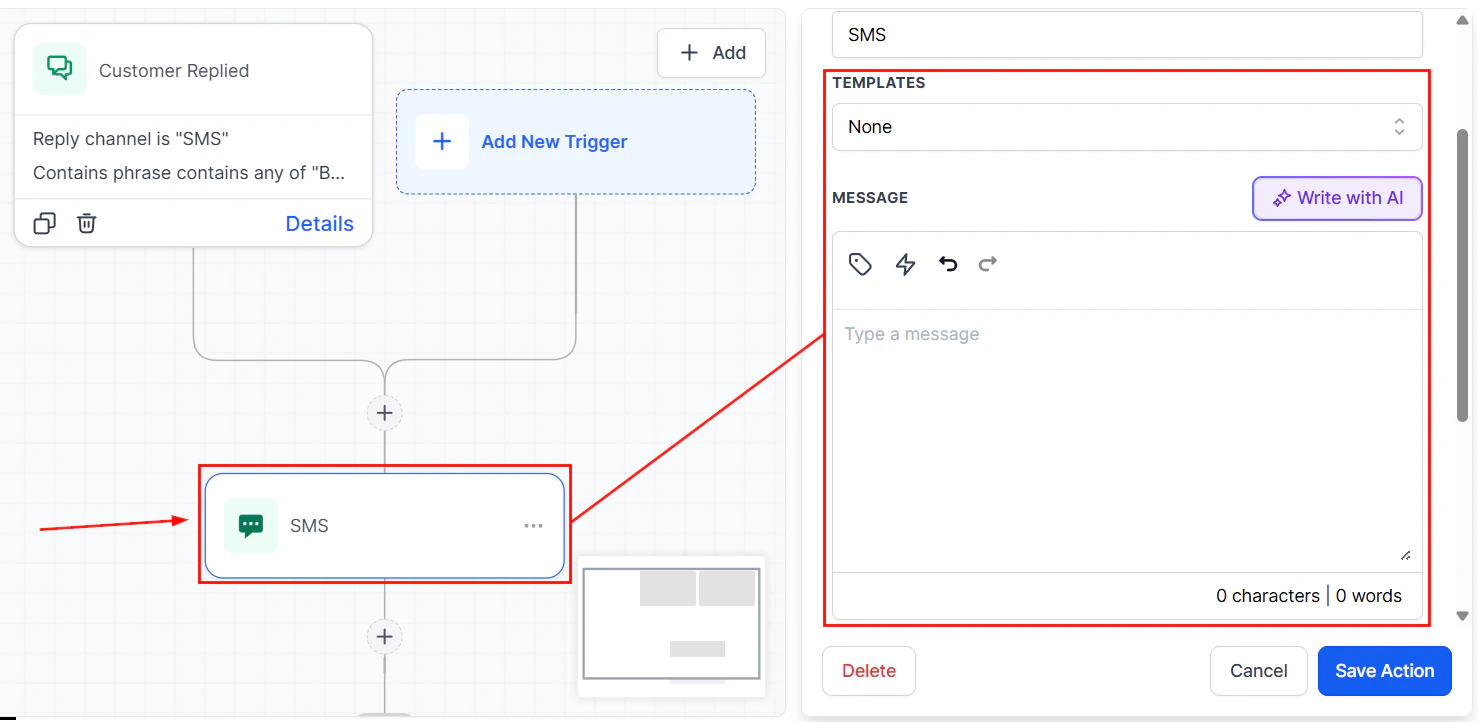
Compose a reply or use a template that thanks the customer for their interest and provides a link to the discount coupons or your chosen URL. Ensure the message makes the recipient feel valued and that your campaign settings comply with SMS regulations. Incorporate the trigger link into your SMS message within the workflow, ensuring recipients can easily access the coupon.
### Craft Your Message
Compose a reply or use a template that thanks the customer for their interest and provides a link to the discount coupons or your chosen URL. Ensure the message makes the recipient feel valued and that your campaign settings comply with SMS regulations. Incorporate the trigger link into your SMS message within the workflow, ensuring recipients can easily access the coupon.
 Incorporate follow-up actions, such as applying tags and implementing wait steps, to optimize engagement. Remember to publish and save your workflow to preserve your settings, and thoroughly test it to ensure it performs as intended.
Consider setting up additional workflows to interact with customers who click on the coupon link, using wait steps to avoid overwhelming them with immediate follow-up messages.
By strategically using SMS marketing, you can drive customer engagement and maximize the effectiveness of your campaigns.
## FAQs
Ensure your SMS settings are correct and that you've complied with all regulatory requirements. Check the customer's phone number for accuracy and confirm the workflow is Published. Review Execution Logs to see whether the Send SMS step shows a success or error status.
Personalize messages with the contact's first name and other merge fields. Offer genuine value (discounts, exclusive content) and use a clear call to action. Consider timing your messages for when customers are most likely to engage — typically mid-morning or early afternoon on weekdays.
Yes. SMS compliance regulations (TCPA in the US and equivalent laws in other regions) require that recipients have a way to opt out of future messages. HoopAI can automatically append an opt-out footer — enable this in Settings > Phone System > Messaging.
Yes. Upload the image to Media Storage, copy its link, and paste it directly into the SMS message body in the workflow action. Recipients on compatible carriers and devices will see the image inline.
Use an If/Else branch to check for a tag before sending, and add the tag after the SMS is sent. This way a contact who re-enters the workflow will be routed away from the SMS step if they've already received it.
Incorporate follow-up actions, such as applying tags and implementing wait steps, to optimize engagement. Remember to publish and save your workflow to preserve your settings, and thoroughly test it to ensure it performs as intended.
Consider setting up additional workflows to interact with customers who click on the coupon link, using wait steps to avoid overwhelming them with immediate follow-up messages.
By strategically using SMS marketing, you can drive customer engagement and maximize the effectiveness of your campaigns.
## FAQs
Ensure your SMS settings are correct and that you've complied with all regulatory requirements. Check the customer's phone number for accuracy and confirm the workflow is Published. Review Execution Logs to see whether the Send SMS step shows a success or error status.
Personalize messages with the contact's first name and other merge fields. Offer genuine value (discounts, exclusive content) and use a clear call to action. Consider timing your messages for when customers are most likely to engage — typically mid-morning or early afternoon on weekdays.
Yes. SMS compliance regulations (TCPA in the US and equivalent laws in other regions) require that recipients have a way to opt out of future messages. HoopAI can automatically append an opt-out footer — enable this in Settings > Phone System > Messaging.
Yes. Upload the image to Media Storage, copy its link, and paste it directly into the SMS message body in the workflow action. Recipients on compatible carriers and devices will see the image inline.
Use an If/Else branch to check for a tag before sending, and add the tag after the SMS is sent. This way a contact who re-enters the workflow will be routed away from the SMS step if they've already received it.