> ## Documentation Index
> Fetch the complete documentation index at: https://help.hoopai.com/llms.txt
> Use this file to discover all available pages before exploring further.
# Workflow AI examples and recipes
> Ready-to-use workflow recipes that combine AI with automation for powerful business outcomes.
The real power of HoopAI's AI features comes alive when you combine them with workflows. Instead of using AI in isolation, you can embed intelligent decision-making into your automated processes -- qualifying leads, routing support tickets, drafting responses, and personalizing outreach without manual intervention.
This page provides six complete, ready-to-use workflow recipes. Each recipe includes the goal, trigger, step-by-step configuration, AI setup, and expected outcome. Use them as-is or adapt them to fit your business.
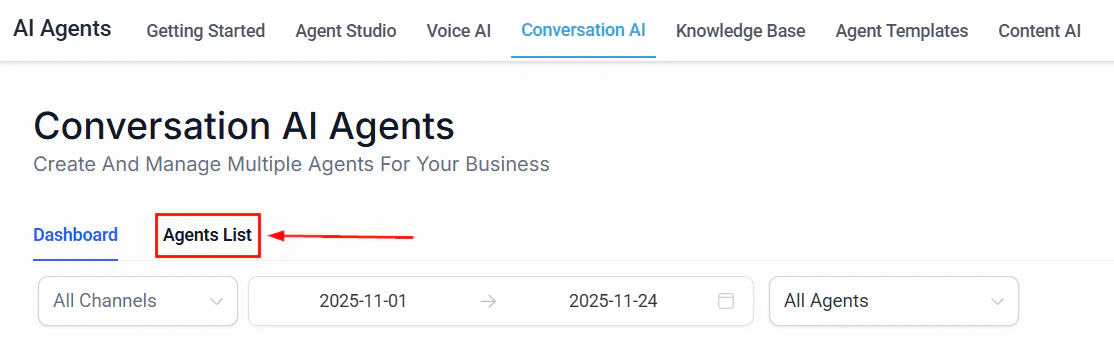 These recipes use AI actions and the AI decision maker, which consume AI credits. Monitor your usage in **Settings > AI credits**. For details on configuring AI actions, see [Using AI actions in workflows](/ai/workflow-ai/gpt-actions). For branching logic, see [AI decision maker](/ai/workflow-ai/ai-decision-maker).
***
## Recipe 1: Lead qualification with AI scoring and sales routing
**Goal:** Automatically score inbound leads based on their form submission data and route high-quality leads to your sales team instantly.
### Trigger
**Form Submitted** -- fires when a contact submits your lead capture form.
### Workflow steps
Select the specific form (e.g., "Free Consultation Request"). The trigger captures all form field values and contact data.
Add a **GPT-Powered AI Action** with this prompt:
```
You are a lead qualification assistant. Based on the following
information, assign a lead score from 1-10 and a category
(Hot, Warm, Cold).
Contact name: {{contact.name}}
Email: {{contact.email}}
Company: {{contact.company_name}}
Form message: {{form.message}}
Source: {{contact.source}}
Respond in this exact format:
Score: [number]
Category: [Hot/Warm/Cold]
Reason: [one sentence explanation]
```
Store the response in a variable called \`lead\_score\_result.
Add an **If/Else** condition that checks the \`lead\_score\_result variable:
* **If** the response contains "Hot" -- proceed to the hot lead path
* **Else if** the response contains "Warm" -- proceed to the warm lead path
* **Else** -- proceed to the cold lead path
1. **Add tag:** hot-lead
2. **Send internal notification** to the sales team via email or Slack: "Hot lead alert: `{{contact.name}}` scored as Hot."
3. **Send SMS** to the contact: "Thanks for reaching out, `{{contact.first_name}}`! A member of our team will call you within the hour."
4. **Create task** assigned to the sales manager with a 1-hour deadline
1. **Add tag:** warm-lead
2. **Send email** with a calendar link to book a discovery call
3. **Add to nurture campaign** for follow-up in 48 hours if no booking
1. **Add tag:** cold-lead
2. **Send email** with helpful resources and a soft CTA
3. **Add to long-term drip sequence**
### Expected outcome
Every lead is scored within seconds of form submission. Hot leads get immediate attention from your sales team, warm leads receive a booking link, and cold leads enter a nurture sequence -- all without manual triage.
***
These recipes use AI actions and the AI decision maker, which consume AI credits. Monitor your usage in **Settings > AI credits**. For details on configuring AI actions, see [Using AI actions in workflows](/ai/workflow-ai/gpt-actions). For branching logic, see [AI decision maker](/ai/workflow-ai/ai-decision-maker).
***
## Recipe 1: Lead qualification with AI scoring and sales routing
**Goal:** Automatically score inbound leads based on their form submission data and route high-quality leads to your sales team instantly.
### Trigger
**Form Submitted** -- fires when a contact submits your lead capture form.
### Workflow steps
Select the specific form (e.g., "Free Consultation Request"). The trigger captures all form field values and contact data.
Add a **GPT-Powered AI Action** with this prompt:
```
You are a lead qualification assistant. Based on the following
information, assign a lead score from 1-10 and a category
(Hot, Warm, Cold).
Contact name: {{contact.name}}
Email: {{contact.email}}
Company: {{contact.company_name}}
Form message: {{form.message}}
Source: {{contact.source}}
Respond in this exact format:
Score: [number]
Category: [Hot/Warm/Cold]
Reason: [one sentence explanation]
```
Store the response in a variable called \`lead\_score\_result.
Add an **If/Else** condition that checks the \`lead\_score\_result variable:
* **If** the response contains "Hot" -- proceed to the hot lead path
* **Else if** the response contains "Warm" -- proceed to the warm lead path
* **Else** -- proceed to the cold lead path
1. **Add tag:** hot-lead
2. **Send internal notification** to the sales team via email or Slack: "Hot lead alert: `{{contact.name}}` scored as Hot."
3. **Send SMS** to the contact: "Thanks for reaching out, `{{contact.first_name}}`! A member of our team will call you within the hour."
4. **Create task** assigned to the sales manager with a 1-hour deadline
1. **Add tag:** warm-lead
2. **Send email** with a calendar link to book a discovery call
3. **Add to nurture campaign** for follow-up in 48 hours if no booking
1. **Add tag:** cold-lead
2. **Send email** with helpful resources and a soft CTA
3. **Add to long-term drip sequence**
### Expected outcome
Every lead is scored within seconds of form submission. Hot leads get immediate attention from your sales team, warm leads receive a booking link, and cold leads enter a nurture sequence -- all without manual triage.
***
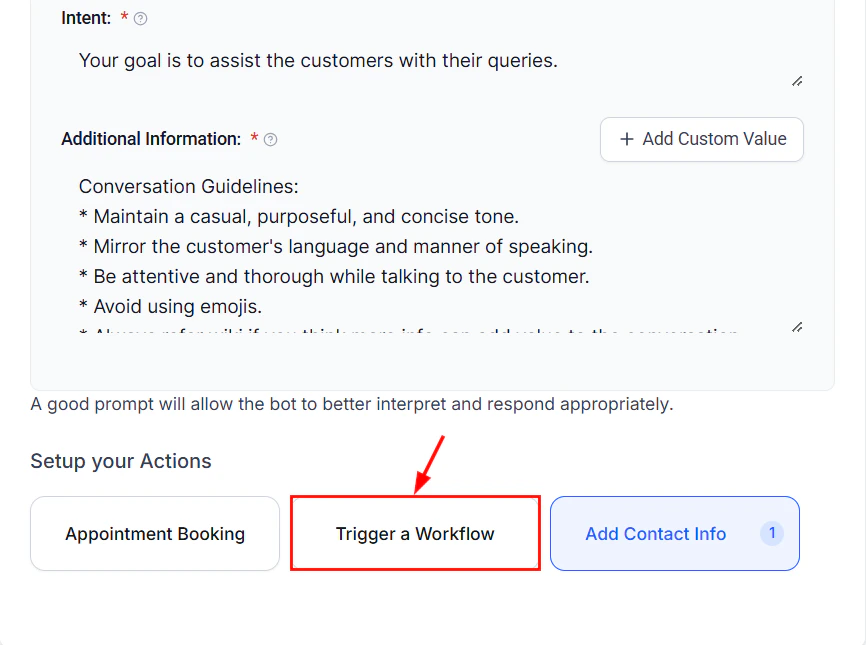 ***
## Recipe 2: After-hours inquiry with bot handoff and morning follow-up
**Goal:** Handle inquiries that arrive outside business hours with an AI bot, then trigger a personalized follow-up from a team member the next morning.
### Trigger
**Customer Replied** -- fires when a contact sends a message via SMS, email, or web chat.
### Workflow steps
Set the trigger to fire on any inbound message across all channels.
Add an **If/Else** condition using the **Time of Day** filter. Set your business hours (e.g., Monday-Friday, 9:00 AM-5:00 PM).
* **If** within business hours -- exit workflow (let your team handle it normally)
* **Else** -- continue to after-hours path
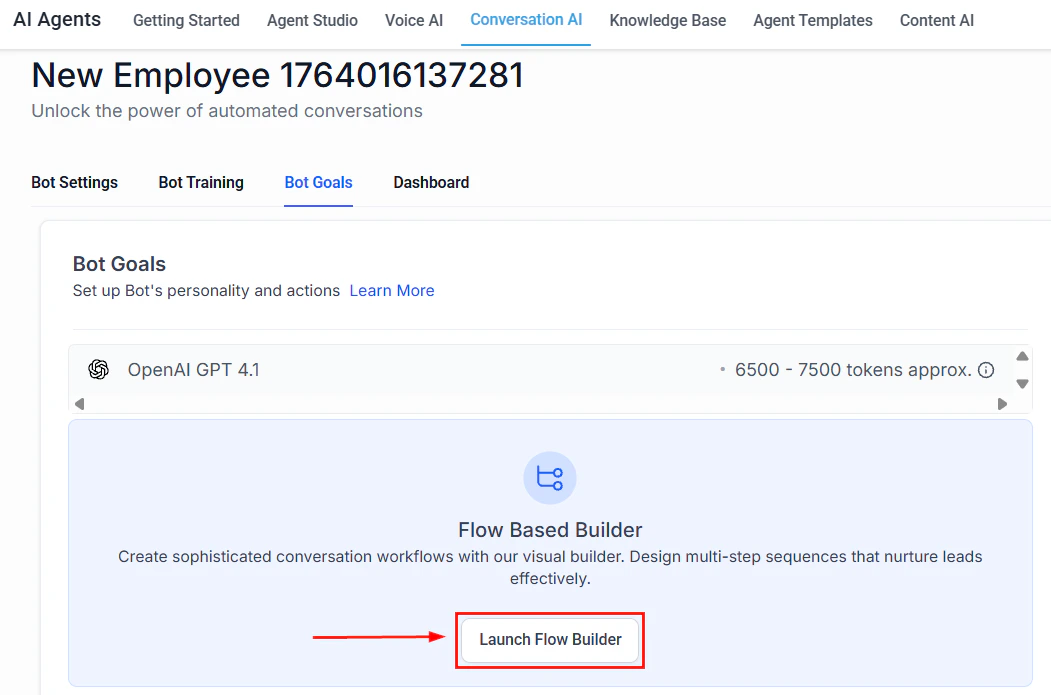
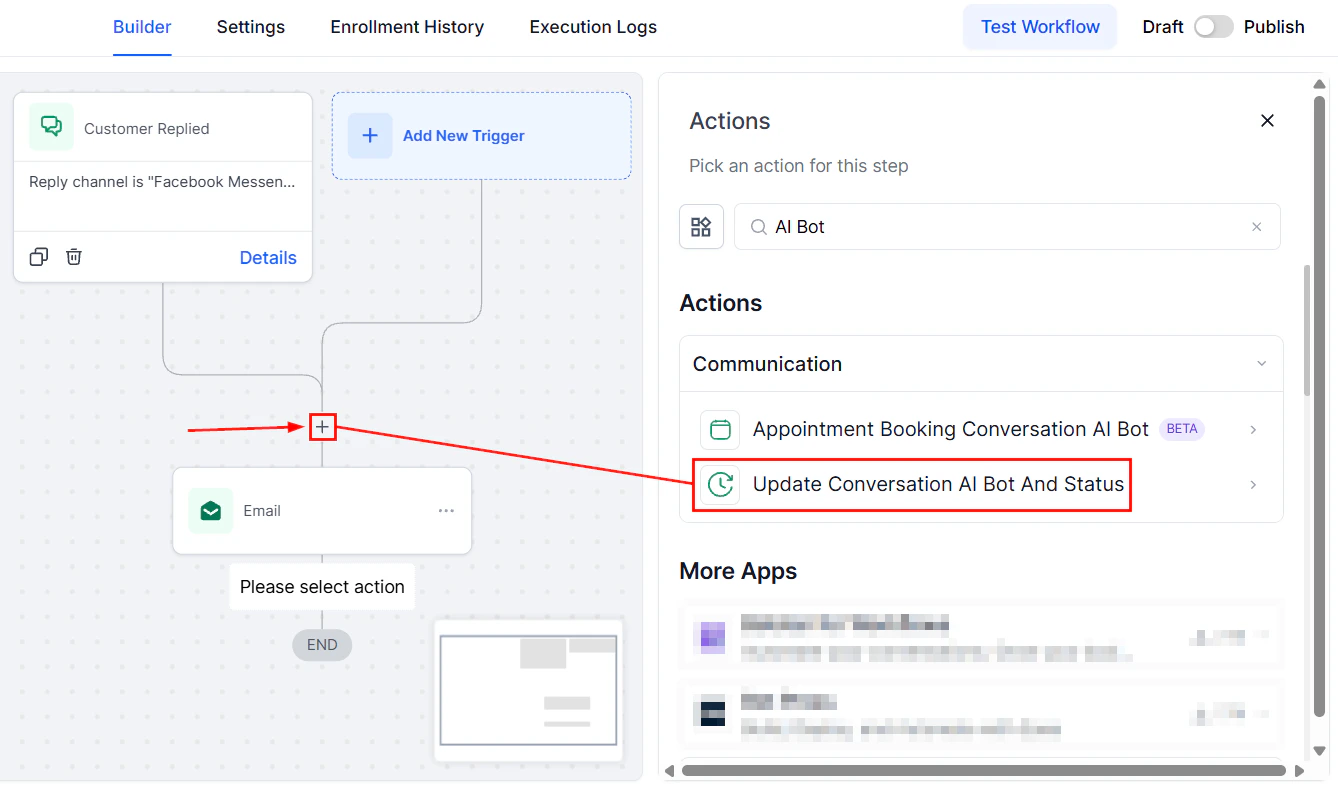
Add an **AI Bot** action that activates your after-hours Conversation AI agent. Configure the bot with instructions to help with basic questions using your knowledge base, collect what the contact needs help with, their preferred contact method, and the best time to reach them.
Add a **Wait** action set to "Until time of day" -- 9:00 AM the next business day.
Add a **GPT-Powered AI Action** that reads the conversation history and generates a summary in 2-3 bullet points, including what the contact needs and their preferred contact method.
Notify the assigned team member with the AI summary so they can follow up with full context.
### Expected outcome
After-hours inquiries get an immediate, helpful response from your AI bot. The next morning, your team receives a concise summary and can follow up personally -- no inquiry falls through the cracks.
***
## Recipe 2: After-hours inquiry with bot handoff and morning follow-up
**Goal:** Handle inquiries that arrive outside business hours with an AI bot, then trigger a personalized follow-up from a team member the next morning.
### Trigger
**Customer Replied** -- fires when a contact sends a message via SMS, email, or web chat.
### Workflow steps
Set the trigger to fire on any inbound message across all channels.
Add an **If/Else** condition using the **Time of Day** filter. Set your business hours (e.g., Monday-Friday, 9:00 AM-5:00 PM).
* **If** within business hours -- exit workflow (let your team handle it normally)
* **Else** -- continue to after-hours path
Add an **AI Bot** action that activates your after-hours Conversation AI agent. Configure the bot with instructions to help with basic questions using your knowledge base, collect what the contact needs help with, their preferred contact method, and the best time to reach them.
Add a **Wait** action set to "Until time of day" -- 9:00 AM the next business day.
Add a **GPT-Powered AI Action** that reads the conversation history and generates a summary in 2-3 bullet points, including what the contact needs and their preferred contact method.
Notify the assigned team member with the AI summary so they can follow up with full context.
### Expected outcome
After-hours inquiries get an immediate, helpful response from your AI bot. The next morning, your team receives a concise summary and can follow up personally -- no inquiry falls through the cracks.
 ***
## Recipe 3: Appointment no-show re-engagement
**Goal:** When a contact misses an appointment, use AI to craft a personalized re-engagement message that acknowledges the missed appointment and offers to reschedule.
### Trigger
**Appointment Status Changed** -- fires when an appointment status changes to "No Show."
### Workflow steps
Select the **Appointment Status Changed** trigger and filter for the "No Show" status.
Add a **Wait** action for 30 minutes. This gives a buffer in case the status was set prematurely.
Add a **GPT-Powered AI Action** that drafts a friendly, non-judgmental SMS message. The prompt should instruct the AI to acknowledge the missed appointment without blame, express understanding, and offer a direct link to reschedule. Keep it under 160 characters if possible.
Send an SMS using the AI-generated message as the body. Append your calendar booking link.
If no reply after 24 hours, send a second follow-up via email with additional rebooking options and a direct phone number to call.
### Expected outcome
Missed appointments get a timely, empathetic follow-up that feels personal rather than automated. Rebooking rates improve because the message is tailored to the specific appointment and contact.
***
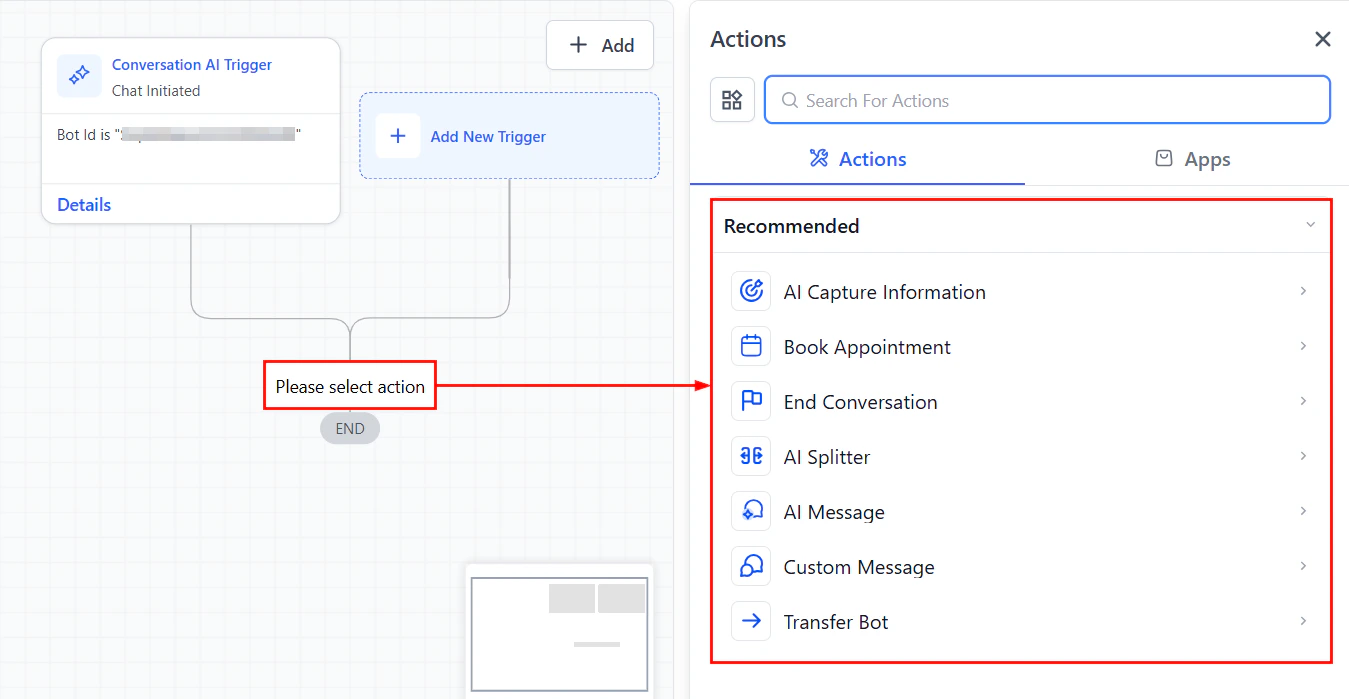
## Recipe 4: Review response with AI draft and human approval
**Goal:** When a new review comes in, have AI draft a response for your team to review and approve before posting.
### Trigger
**Review Received** -- fires when a new Google or Facebook review is detected.
### Workflow steps
Set the trigger to fire on all new reviews, regardless of star rating.
Branch based on the review rating:
* **5 stars** -- Positive response path
* **3-4 stars** -- Neutral response path
* **1-2 stars** -- Negative response path
Each branch gets its own AI action with a tailored prompt. For negative reviews, instruct the AI to thank the reviewer for their feedback, apologize for the experience without admitting fault, offer to resolve the issue offline, include a support email, keep it under 100 words, and avoid being defensive or dismissive.
Use a dedicated Slack channel like #review-responses so your team can quickly approve, edit, and post responses throughout the day.
Send an **Internal Notification** (email or Slack) to your team with the original review text and rating, the AI-drafted response, and a link to the review platform to post the response.
### Expected outcome
Every review gets a thoughtful, on-brand draft response within minutes. Your team reviews and posts it, ensuring quality control while saving 80% of the time it takes to write responses from scratch.
***
## Recipe 3: Appointment no-show re-engagement
**Goal:** When a contact misses an appointment, use AI to craft a personalized re-engagement message that acknowledges the missed appointment and offers to reschedule.
### Trigger
**Appointment Status Changed** -- fires when an appointment status changes to "No Show."
### Workflow steps
Select the **Appointment Status Changed** trigger and filter for the "No Show" status.
Add a **Wait** action for 30 minutes. This gives a buffer in case the status was set prematurely.
Add a **GPT-Powered AI Action** that drafts a friendly, non-judgmental SMS message. The prompt should instruct the AI to acknowledge the missed appointment without blame, express understanding, and offer a direct link to reschedule. Keep it under 160 characters if possible.
Send an SMS using the AI-generated message as the body. Append your calendar booking link.
If no reply after 24 hours, send a second follow-up via email with additional rebooking options and a direct phone number to call.
### Expected outcome
Missed appointments get a timely, empathetic follow-up that feels personal rather than automated. Rebooking rates improve because the message is tailored to the specific appointment and contact.
***
## Recipe 4: Review response with AI draft and human approval
**Goal:** When a new review comes in, have AI draft a response for your team to review and approve before posting.
### Trigger
**Review Received** -- fires when a new Google or Facebook review is detected.
### Workflow steps
Set the trigger to fire on all new reviews, regardless of star rating.
Branch based on the review rating:
* **5 stars** -- Positive response path
* **3-4 stars** -- Neutral response path
* **1-2 stars** -- Negative response path
Each branch gets its own AI action with a tailored prompt. For negative reviews, instruct the AI to thank the reviewer for their feedback, apologize for the experience without admitting fault, offer to resolve the issue offline, include a support email, keep it under 100 words, and avoid being defensive or dismissive.
Use a dedicated Slack channel like #review-responses so your team can quickly approve, edit, and post responses throughout the day.
Send an **Internal Notification** (email or Slack) to your team with the original review text and rating, the AI-drafted response, and a link to the review platform to post the response.
### Expected outcome
Every review gets a thoughtful, on-brand draft response within minutes. Your team reviews and posts it, ensuring quality control while saving 80% of the time it takes to write responses from scratch.
 ***
***
 ***
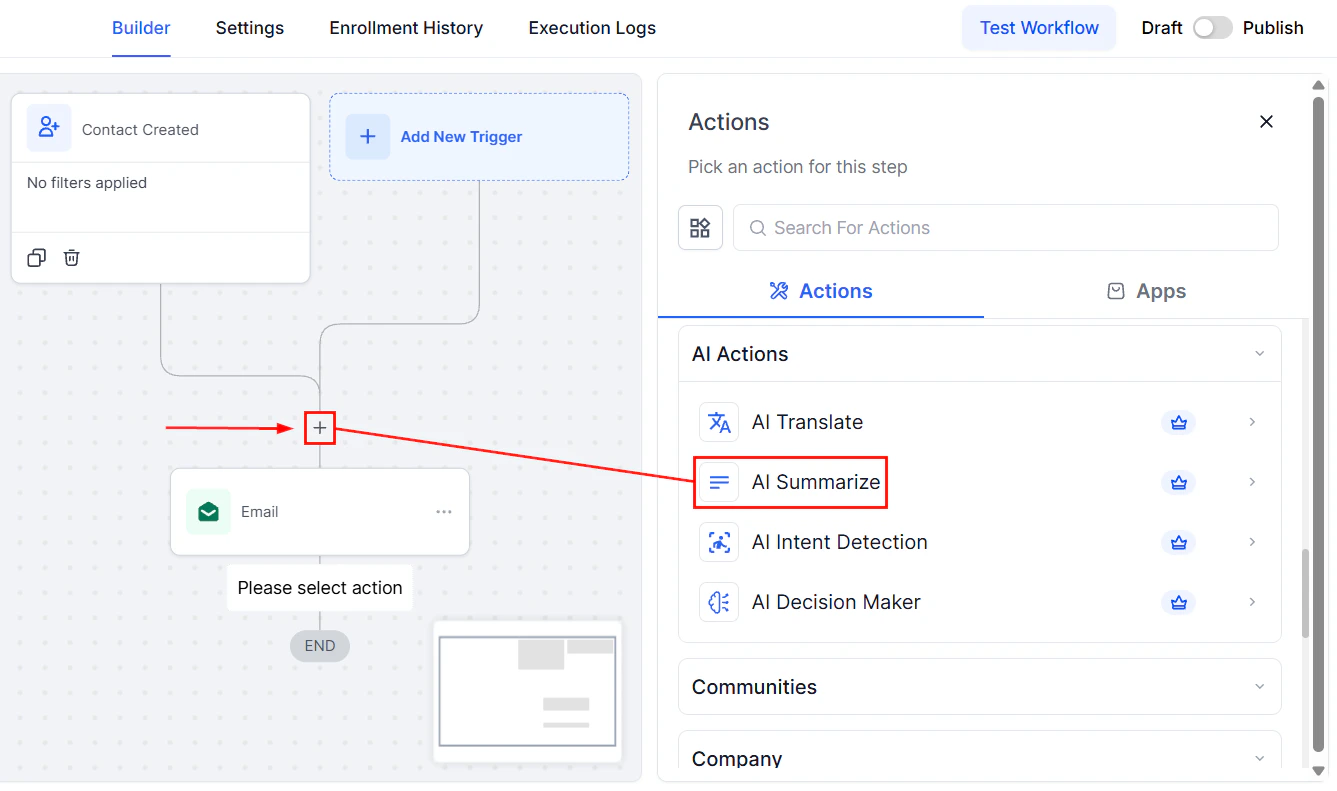
## Recipe 5: New contact AI welcome with drip sequence
**Goal:** Send a personalized AI-generated welcome message to new contacts and enroll them in a targeted drip sequence based on their interests.
### Trigger
**Contact Created** -- fires when a new contact is added to HoopAI.
### Workflow steps
Optionally add a filter for specific sources (e.g., only contacts from web forms, not manual imports).
A short delay ensures all contact data has fully synced before the AI processes it.
Use a GPT-Powered AI Action to write a personalized welcome SMS. The prompt should instruct the AI to welcome the contact warmly, reference how they found you (if source data is available), ask one qualifying question about what they are looking for, be conversational (not corporate), and stay under 300 characters.
Send the AI-generated welcome message via SMS.
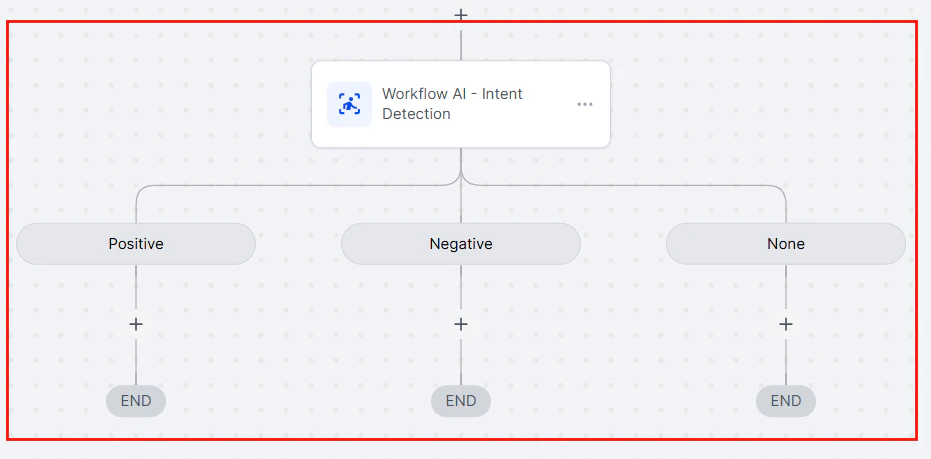
When the contact replies, use an AI action to classify their primary interest into one of your predefined categories (e.g., Service A, Service B, Service C, General Inquiry). Instruct the AI to respond with only the category name.
Branch on the classification result and add the contact to the appropriate drip campaign for their interest category.
### Expected outcome
New contacts receive a personalized welcome within minutes. Their first reply is automatically classified and used to enroll them in the most relevant nurture sequence, ensuring they receive content that matches their interests from day one.
***
***
## Recipe 5: New contact AI welcome with drip sequence
**Goal:** Send a personalized AI-generated welcome message to new contacts and enroll them in a targeted drip sequence based on their interests.
### Trigger
**Contact Created** -- fires when a new contact is added to HoopAI.
### Workflow steps
Optionally add a filter for specific sources (e.g., only contacts from web forms, not manual imports).
A short delay ensures all contact data has fully synced before the AI processes it.
Use a GPT-Powered AI Action to write a personalized welcome SMS. The prompt should instruct the AI to welcome the contact warmly, reference how they found you (if source data is available), ask one qualifying question about what they are looking for, be conversational (not corporate), and stay under 300 characters.
Send the AI-generated welcome message via SMS.
When the contact replies, use an AI action to classify their primary interest into one of your predefined categories (e.g., Service A, Service B, Service C, General Inquiry). Instruct the AI to respond with only the category name.
Branch on the classification result and add the contact to the appropriate drip campaign for their interest category.
### Expected outcome
New contacts receive a personalized welcome within minutes. Their first reply is automatically classified and used to enroll them in the most relevant nurture sequence, ensuring they receive content that matches their interests from day one.
***
 ## Recipe 6: Support ticket AI classification and team routing
**Goal:** Automatically classify incoming support requests by urgency and topic, then route them to the correct team member with full context.
### Trigger
**Customer Replied** -- fires when a contact sends a message tagged as a support request (or from a support-specific channel).
### Workflow steps
Filter to messages from your support channel, support email, or contacts with a "support-request" tag.
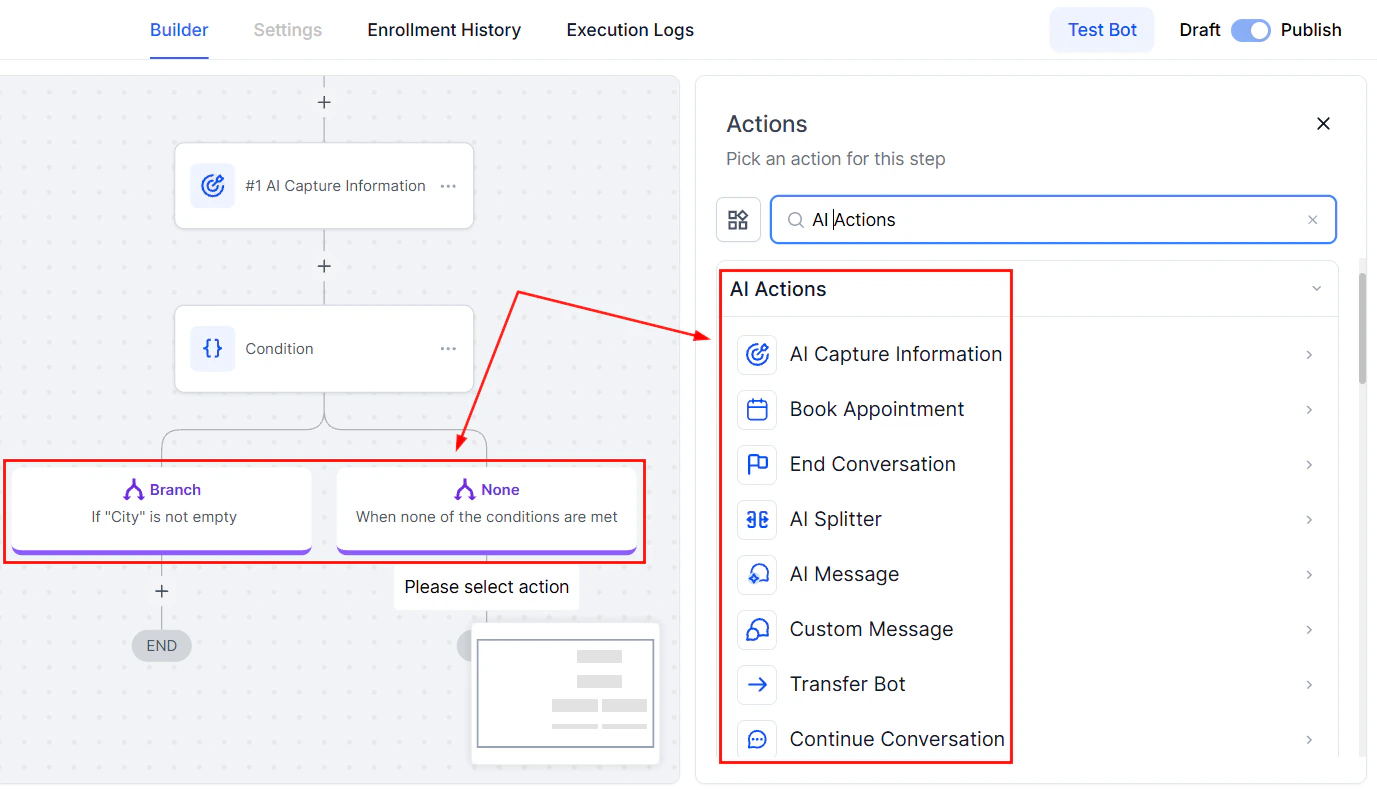
Use a GPT-Powered AI Action to classify the support message. The prompt should instruct the AI to analyze the message and respond with an urgency level (Low, Medium, High, or Critical), a category (Billing, Technical, Account, Feature Request, or Other), a one-sentence summary, and a brief suggested action.
Branch on the classification result:
* **Critical** -- Immediate notification to team lead plus auto-assign
* **High** -- Assign to next available senior support agent
* **Medium** -- Add to support queue with standard SLA
* **Low** -- Auto-respond with knowledge base article if relevant, queue for batch review
1. **Send internal notification** to the support team lead with the full classification
2. **Create task** with a 1-hour deadline
3. **Send SMS to contact:** "We've received your message and a senior team member is reviewing it now. We'll get back to you shortly."
4. **Add tag:** critical-support
For low-urgency tickets, add a second AI action that drafts a helpful response using the knowledge base. If the AI cannot answer confidently, it should say a team member will follow up. Send the response via the same channel the contact used.
### Expected outcome
Every support request is classified within seconds. Critical issues get immediate human attention, while routine questions receive instant AI-powered answers. Your team focuses their energy where it matters most.
***
## Recipe 6: Support ticket AI classification and team routing
**Goal:** Automatically classify incoming support requests by urgency and topic, then route them to the correct team member with full context.
### Trigger
**Customer Replied** -- fires when a contact sends a message tagged as a support request (or from a support-specific channel).
### Workflow steps
Filter to messages from your support channel, support email, or contacts with a "support-request" tag.
Use a GPT-Powered AI Action to classify the support message. The prompt should instruct the AI to analyze the message and respond with an urgency level (Low, Medium, High, or Critical), a category (Billing, Technical, Account, Feature Request, or Other), a one-sentence summary, and a brief suggested action.
Branch on the classification result:
* **Critical** -- Immediate notification to team lead plus auto-assign
* **High** -- Assign to next available senior support agent
* **Medium** -- Add to support queue with standard SLA
* **Low** -- Auto-respond with knowledge base article if relevant, queue for batch review
1. **Send internal notification** to the support team lead with the full classification
2. **Create task** with a 1-hour deadline
3. **Send SMS to contact:** "We've received your message and a senior team member is reviewing it now. We'll get back to you shortly."
4. **Add tag:** critical-support
For low-urgency tickets, add a second AI action that drafts a helpful response using the knowledge base. If the AI cannot answer confidently, it should say a team member will follow up. Send the response via the same channel the contact used.
### Expected outcome
Every support request is classified within seconds. Critical issues get immediate human attention, while routine questions receive instant AI-powered answers. Your team focuses their energy where it matters most.
***
 ## Customizing these recipes
Each recipe is a starting point. Here are common ways to adapt them:
* **Swap channels** -- Replace SMS with email, WhatsApp, or web chat depending on your audience
* **Adjust timing** -- Change wait durations to match your business cadence
* **Add conditions** -- Layer in additional If/Else branches for more granular routing
* **Combine recipes** -- Chain multiple recipes together (e.g., lead qualification followed by welcome followed by drip)
* **Refine prompts** -- Iterate on AI prompts based on real conversation data to improve accuracy
Always test workflows with sample contacts before activating them for your full audience. Use the workflow test mode to verify each step produces the expected output.
## Next steps
Deep dive into configuring GPT-powered AI actions for your workflows.
Use AI to make intelligent branching decisions in your workflows.
Learn how to trigger and control Conversation AI bots from within workflows.
Write better prompts to get more accurate and useful AI outputs.
## Customizing these recipes
Each recipe is a starting point. Here are common ways to adapt them:
* **Swap channels** -- Replace SMS with email, WhatsApp, or web chat depending on your audience
* **Adjust timing** -- Change wait durations to match your business cadence
* **Add conditions** -- Layer in additional If/Else branches for more granular routing
* **Combine recipes** -- Chain multiple recipes together (e.g., lead qualification followed by welcome followed by drip)
* **Refine prompts** -- Iterate on AI prompts based on real conversation data to improve accuracy
Always test workflows with sample contacts before activating them for your full audience. Use the workflow test mode to verify each step produces the expected output.
## Next steps
Deep dive into configuring GPT-powered AI actions for your workflows.
Use AI to make intelligent branching decisions in your workflows.
Learn how to trigger and control Conversation AI bots from within workflows.
Write better prompts to get more accurate and useful AI outputs.