> ## Documentation Index
> Fetch the complete documentation index at: https://help.hoopai.com/llms.txt
> Use this file to discover all available pages before exploring further.
# Connecting AI agents to workflows
> Trigger workflows from bot interactions and use workflow results in bot responses.
## Why connect AI agents to workflows?
AI agents excel at conversations. Workflows excel at automation. When you connect them, you get the best of both worlds: intelligent, natural conversations that trigger powerful behind-the-scenes automation.
A standalone AI agent can answer questions and collect information. A standalone workflow can send emails and update records. Together, they can have a conversation with a lead, qualify them in real time, book an appointment, notify your sales team, add the contact to a nurture sequence, and send a personalized follow-up — all without human intervention.
## How the connection works
The integration between AI agents and workflows operates in two directions:
1. **Bot to workflow** — The AI agent triggers a workflow based on something that happens during the conversation (e.g., the contact expresses interest, provides qualifying information, or requests a callback)
2. **Workflow to bot** — A workflow activates an AI agent to initiate or continue a conversation (e.g., a timed follow-up, a re-engagement message, or a post-purchase check-in)
Both directions can be chained together, creating sophisticated automation sequences that feel personal and responsive.
 ## Triggering workflows from AI agents
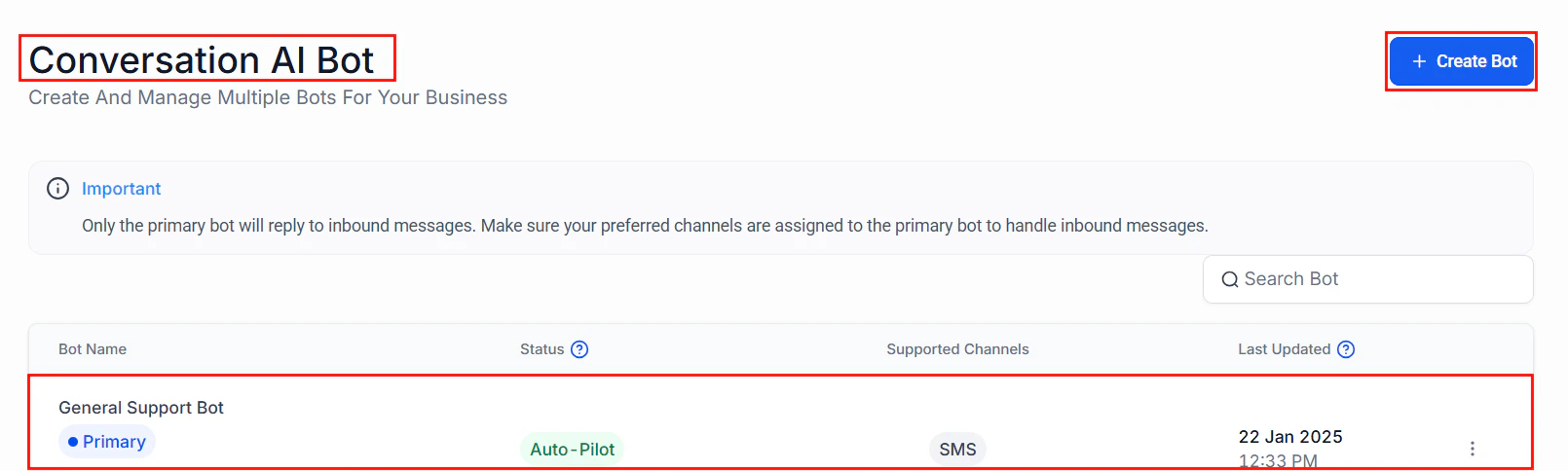
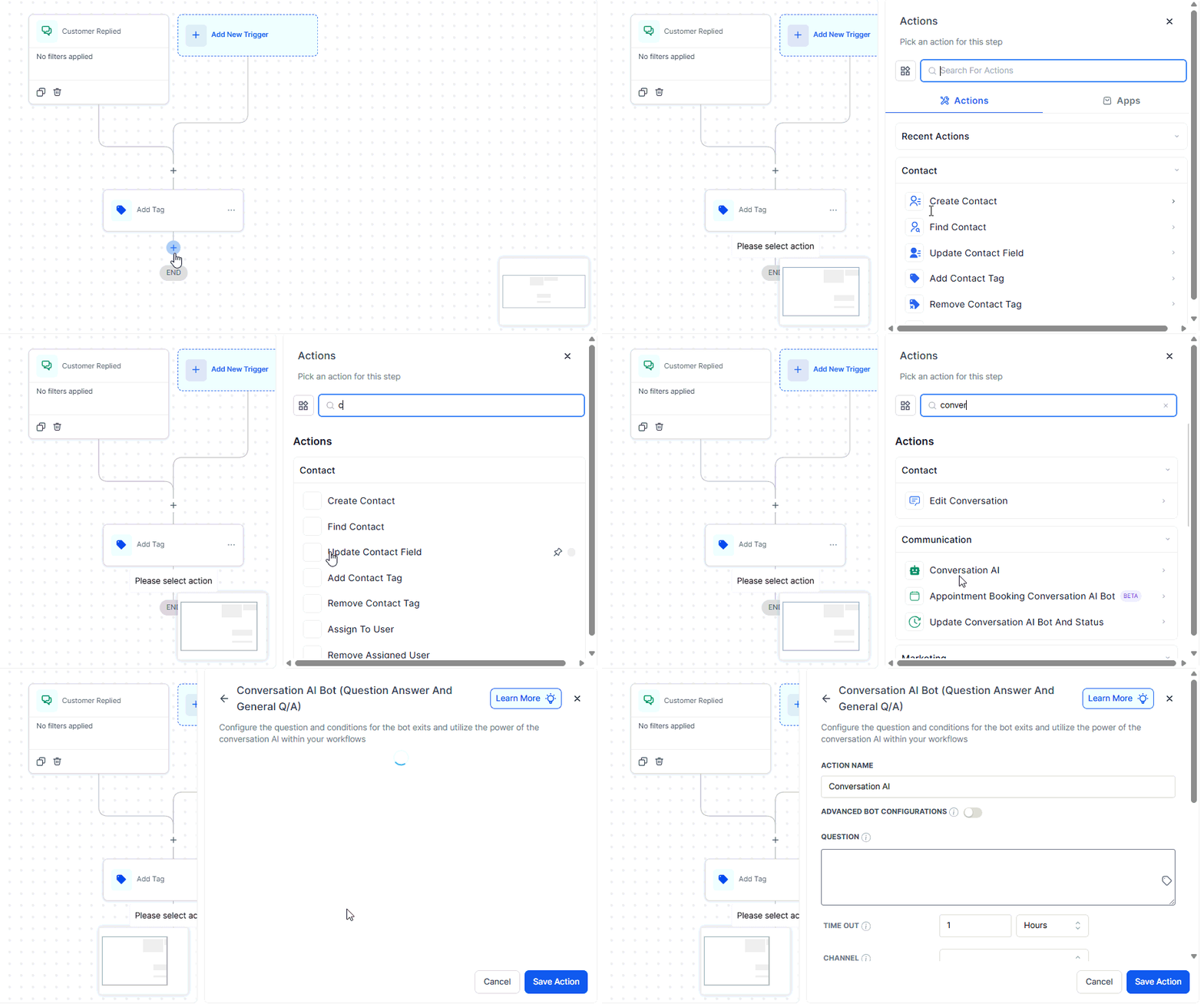
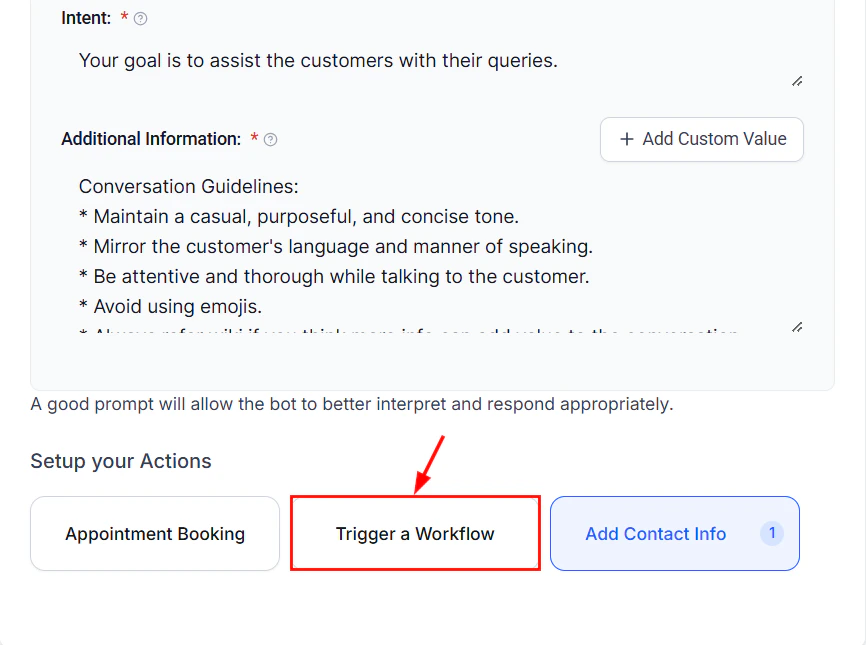
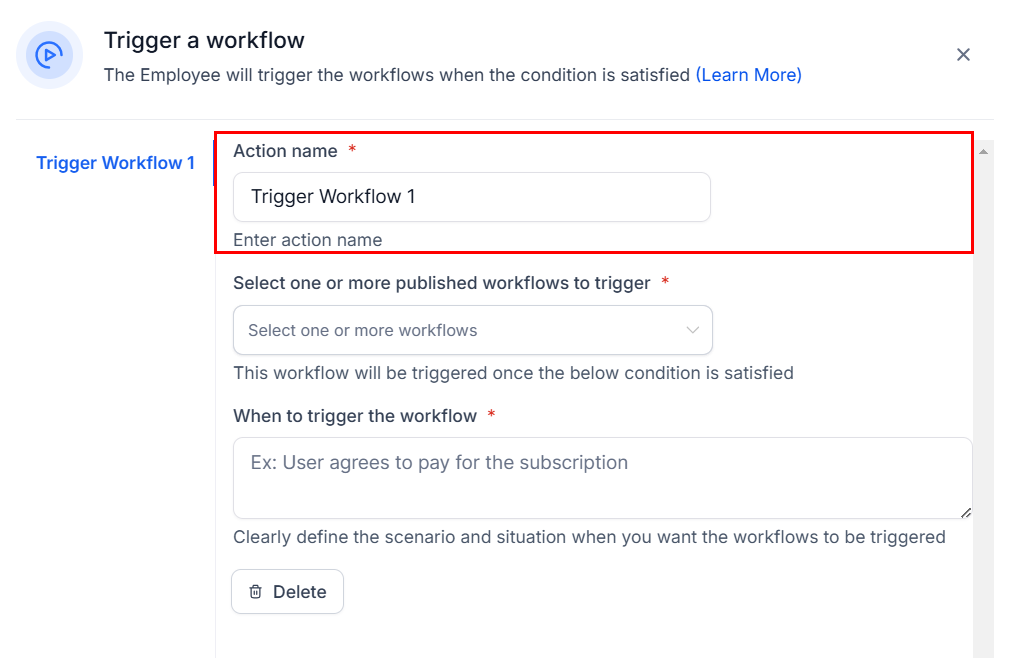
Navigate to **AI Agents** and select the agent you want to connect to a workflow. Go to the agent's **Actions** tab.
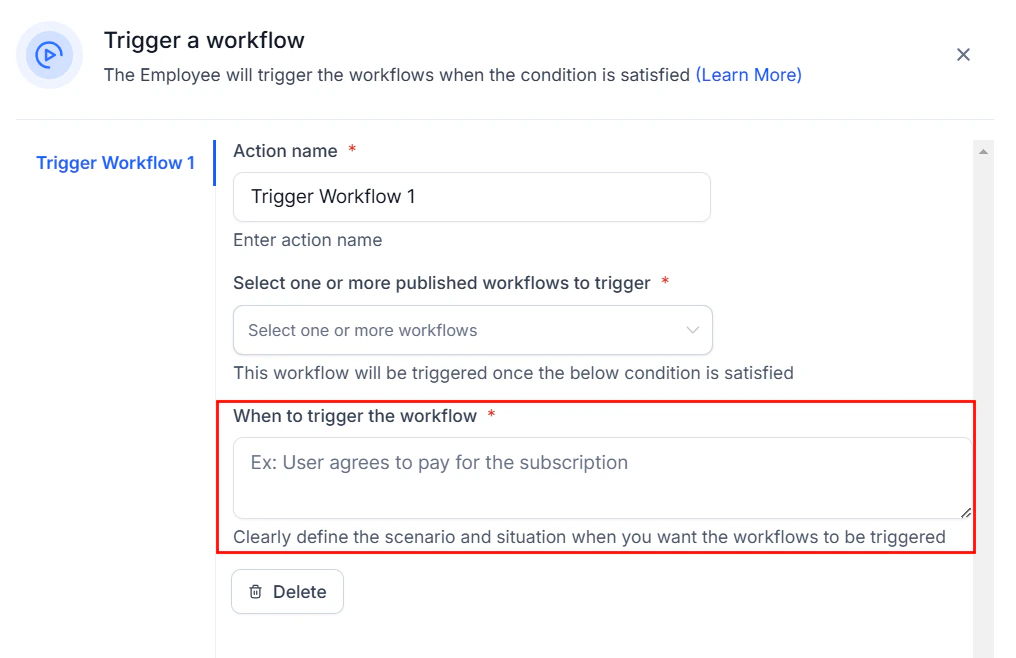
In the actions list, find **Trigger Workflow**. This action tells HoopAI to start a specific workflow when the AI agent determines the right moment during a conversation.
## Triggering workflows from AI agents
Navigate to **AI Agents** and select the agent you want to connect to a workflow. Go to the agent's **Actions** tab.
In the actions list, find **Trigger Workflow**. This action tells HoopAI to start a specific workflow when the AI agent determines the right moment during a conversation.
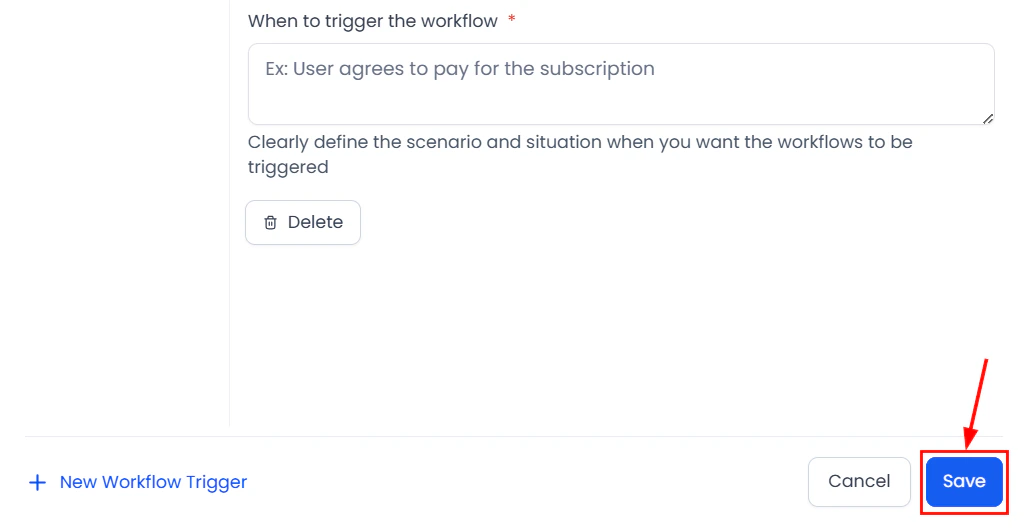
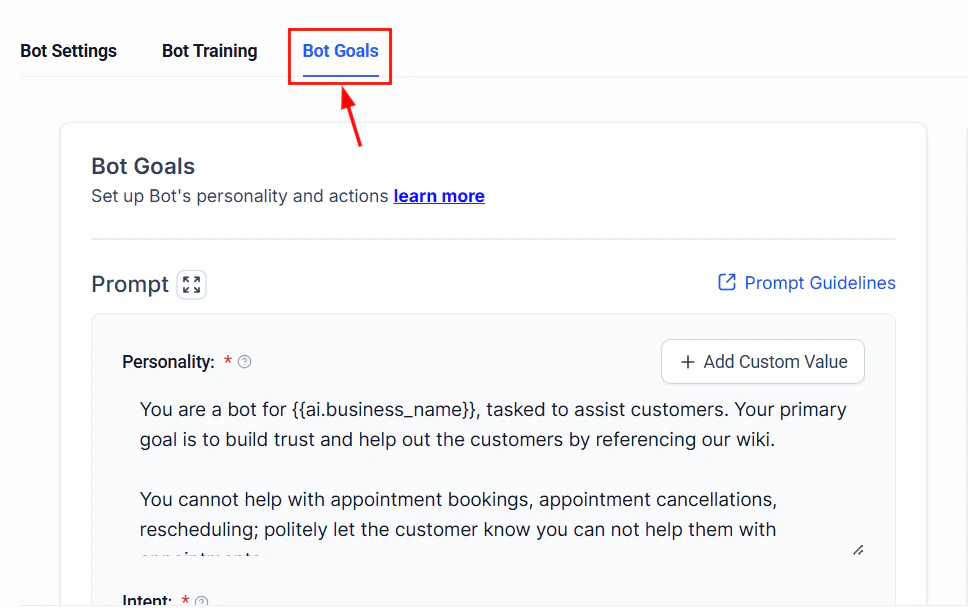 Choose which workflow to trigger from the dropdown. The workflow must already exist in your **Automation > Workflows** section. You can select any workflow that uses a compatible trigger type.
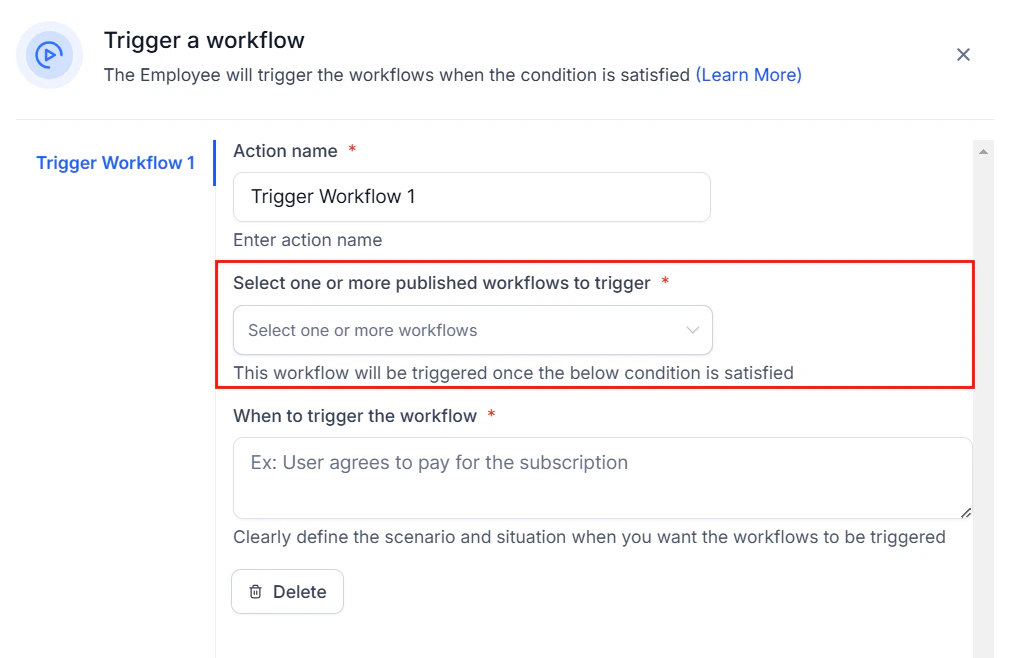 Specify when the AI agent should fire the workflow. Common conditions include:
* The contact provides a specific piece of information (email, phone, service need)
* The conversation reaches a particular intent (wants to book, ready to buy, needs support)
* The contact explicitly requests something (callback, pricing, brochure)
Pass data collected during the conversation into the workflow. Map extracted information like name, email, service interest, and budget to contact fields or workflow variables.
Start a test conversation with your AI agent. Provide the information that should trigger the workflow. Verify that the workflow starts and receives the correct data.
The AI agent continues the conversation even after triggering a workflow. The workflow runs in the background while the agent keeps engaging the contact. This creates a seamless experience where the contact never knows automation is happening behind the scenes.
Specify when the AI agent should fire the workflow. Common conditions include:
* The contact provides a specific piece of information (email, phone, service need)
* The conversation reaches a particular intent (wants to book, ready to buy, needs support)
* The contact explicitly requests something (callback, pricing, brochure)
Pass data collected during the conversation into the workflow. Map extracted information like name, email, service interest, and budget to contact fields or workflow variables.
Start a test conversation with your AI agent. Provide the information that should trigger the workflow. Verify that the workflow starts and receives the correct data.
The AI agent continues the conversation even after triggering a workflow. The workflow runs in the background while the agent keeps engaging the contact. This creates a seamless experience where the contact never knows automation is happening behind the scenes.
 ## Passing conversation context
When an AI agent triggers a workflow, you can pass rich conversation context beyond simple field values:
### Available context data
| Data type | Description | Example use |
| -------------------- | ---------------------------------------- | ----------------------------------- |
| Collected fields | Structured data the bot extracted | Name, email, phone, service type |
| Conversation summary | AI-generated summary of the chat | Include in internal notifications |
| Contact intent | What the contact is trying to accomplish | Route to correct department |
| Sentiment | The contact's emotional state | Prioritize negative sentiment |
| Full transcript | Complete conversation history | Attach to support tickets |
| Custom variables | Bot-specific variables you defined | Budget range, timeline, preferences |
### Mapping conversation data to contact fields
During the AI agent setup, you define which pieces of information the agent should extract. These map directly to HoopAI contact fields:
```text theme={null}
Bot extracts "service_needed" → Maps to custom field "Service Interest"
Bot extracts "budget" → Maps to custom field "Budget Range"
Bot extracts "timeline" → Maps to custom field "Project Timeline"
```
Once mapped, these fields are available to the triggered workflow via standard merge fields like `{{contact.custom_field.service_interest}}`.
## Using workflow results in bot responses
Sometimes you need a workflow to process data and return results to the AI agent. This creates a round-trip: the bot collects information, a workflow processes it, and the bot delivers the result.
### Common round-trip scenarios
**Flow:**
1. Contact asks about pricing for a specific service
2. AI agent collects service details and location
3. Workflow triggers: looks up pricing from a custom values list or external API via webhook
4. Pricing data returns to the conversation
5. AI agent presents the quote naturally in conversation
**Configuration:** Use a webhook action in the workflow to call your pricing API, then store the result in a contact custom field that the AI agent can reference.
**Flow:**
1. Contact wants to book an appointment
2. AI agent asks for preferred date and time
3. Workflow triggers: checks calendar availability
4. Available slots return to the conversation
5. AI agent presents options and confirms booking
**Configuration:** The workflow checks the assigned user's calendar and updates a custom field with available slots. The AI agent reads this field and presents options.
**Flow:**
1. Existing customer asks about their account
2. AI agent collects identifying information
3. Workflow triggers: pulls account details from your system
4. Account information returns to the conversation
5. AI agent shares relevant details while protecting sensitive data
**Configuration:** Use conditional logic in your AI agent to determine what information is safe to share and what requires human handoff.
## Passing conversation context
When an AI agent triggers a workflow, you can pass rich conversation context beyond simple field values:
### Available context data
| Data type | Description | Example use |
| -------------------- | ---------------------------------------- | ----------------------------------- |
| Collected fields | Structured data the bot extracted | Name, email, phone, service type |
| Conversation summary | AI-generated summary of the chat | Include in internal notifications |
| Contact intent | What the contact is trying to accomplish | Route to correct department |
| Sentiment | The contact's emotional state | Prioritize negative sentiment |
| Full transcript | Complete conversation history | Attach to support tickets |
| Custom variables | Bot-specific variables you defined | Budget range, timeline, preferences |
### Mapping conversation data to contact fields
During the AI agent setup, you define which pieces of information the agent should extract. These map directly to HoopAI contact fields:
```text theme={null}
Bot extracts "service_needed" → Maps to custom field "Service Interest"
Bot extracts "budget" → Maps to custom field "Budget Range"
Bot extracts "timeline" → Maps to custom field "Project Timeline"
```
Once mapped, these fields are available to the triggered workflow via standard merge fields like `{{contact.custom_field.service_interest}}`.
## Using workflow results in bot responses
Sometimes you need a workflow to process data and return results to the AI agent. This creates a round-trip: the bot collects information, a workflow processes it, and the bot delivers the result.
### Common round-trip scenarios
**Flow:**
1. Contact asks about pricing for a specific service
2. AI agent collects service details and location
3. Workflow triggers: looks up pricing from a custom values list or external API via webhook
4. Pricing data returns to the conversation
5. AI agent presents the quote naturally in conversation
**Configuration:** Use a webhook action in the workflow to call your pricing API, then store the result in a contact custom field that the AI agent can reference.
**Flow:**
1. Contact wants to book an appointment
2. AI agent asks for preferred date and time
3. Workflow triggers: checks calendar availability
4. Available slots return to the conversation
5. AI agent presents options and confirms booking
**Configuration:** The workflow checks the assigned user's calendar and updates a custom field with available slots. The AI agent reads this field and presents options.
**Flow:**
1. Existing customer asks about their account
2. AI agent collects identifying information
3. Workflow triggers: pulls account details from your system
4. Account information returns to the conversation
5. AI agent shares relevant details while protecting sensitive data
**Configuration:** Use conditional logic in your AI agent to determine what information is safe to share and what requires human handoff.
 ## Bot to workflow to bot chains
The most powerful automation patterns chain multiple handoffs between AI agents and workflows. Here is a complete example:
### Lead qualification chain
```text theme={null}
1. Website visitor starts chat
└─ AI Agent: Greets visitor, asks qualifying questions
2. Visitor provides budget and timeline
└─ AI Agent: Triggers "Lead Scoring" workflow
3. Lead Scoring workflow runs
├─ AI Action: Scores lead 1-10 based on all data
├─ Update Contact: Stores score in custom field
└─ If/Else: Score >= 7?
├─ Yes: Tag "hot_lead", notify sales on Slack
└─ No: Tag "nurture_lead"
4. AI Agent reads the score from the contact field
├─ Hot lead: "Great news! Let me connect you with a specialist.
│ When works best for a quick call?"
└─ Nurture lead: "Thanks for your interest! I'll send you some
resources that might help."
5. Based on response:
└─ Hot lead books appointment → Triggers "Appointment Booked" workflow
└─ Nurture lead → Triggers "Drip Sequence" workflow
```
This chain handles the entire lead journey from first contact to qualified handoff, automatically.
## Bot to workflow to bot chains
The most powerful automation patterns chain multiple handoffs between AI agents and workflows. Here is a complete example:
### Lead qualification chain
```text theme={null}
1. Website visitor starts chat
└─ AI Agent: Greets visitor, asks qualifying questions
2. Visitor provides budget and timeline
└─ AI Agent: Triggers "Lead Scoring" workflow
3. Lead Scoring workflow runs
├─ AI Action: Scores lead 1-10 based on all data
├─ Update Contact: Stores score in custom field
└─ If/Else: Score >= 7?
├─ Yes: Tag "hot_lead", notify sales on Slack
└─ No: Tag "nurture_lead"
4. AI Agent reads the score from the contact field
├─ Hot lead: "Great news! Let me connect you with a specialist.
│ When works best for a quick call?"
└─ Nurture lead: "Thanks for your interest! I'll send you some
resources that might help."
5. Based on response:
└─ Hot lead books appointment → Triggers "Appointment Booked" workflow
└─ Nurture lead → Triggers "Drip Sequence" workflow
```
This chain handles the entire lead journey from first contact to qualified handoff, automatically.
 ## Auto follow-up workflows
One of the most valuable patterns is using workflows to follow up after bot conversations end.
### Post-conversation follow-up
Set the trigger to fire when an AI agent conversation ends. You can filter by which agent or conversation channel.
Insert a delay — typically 30 minutes to 24 hours depending on your use case. This gives the contact time before receiving follow-up.
Check whether the conversation resulted in a booking, a sale, or just an inquiry. Route each outcome differently.
* **Booked appointment:** Send confirmation email with details
* **Expressed interest but did not book:** Send a "still interested?" message with a booking link
* **Just browsing:** Add to a general nurture sequence
* **Negative experience:** Alert team for personal outreach
Set up a re-engagement workflow that triggers if a contact who chatted with your AI agent has not converted within 48 hours. A well-timed follow-up message can recover leads that would otherwise go cold.
## Contact tagging from AI agents
AI agents can apply tags during conversations, which then serve as workflow triggers or conditions.
### Strategic tagging patterns
| Conversation event | Tag applied | Workflow triggered |
| ---------------------------------- | -------------------- | ------------------------------- |
| Contact asks about pricing | `interested_pricing` | Send pricing follow-up sequence |
| Contact mentions competitor | `competitor_aware` | Send comparison content |
| Contact expresses urgency | `urgent_need` | Priority sales notification |
| Contact requests human | `wants_human` | Immediate team alert |
| Contact provides positive feedback | `happy_customer` | Request review workflow |
| Contact mentions referral | `referral_lead` | Referral tracking workflow |
### Setting up tag-based workflows
1. In your AI agent, configure actions to apply specific tags based on conversation context
2. In **Automation > Workflows**, create workflows with the trigger **Tag Added**
3. Filter by the specific tag name
4. Build your automation sequence
This creates a loosely coupled system where the AI agent and workflows communicate through tags. The advantage is flexibility — you can modify workflows without changing the AI agent, and vice versa.
## Auto follow-up workflows
One of the most valuable patterns is using workflows to follow up after bot conversations end.
### Post-conversation follow-up
Set the trigger to fire when an AI agent conversation ends. You can filter by which agent or conversation channel.
Insert a delay — typically 30 minutes to 24 hours depending on your use case. This gives the contact time before receiving follow-up.
Check whether the conversation resulted in a booking, a sale, or just an inquiry. Route each outcome differently.
* **Booked appointment:** Send confirmation email with details
* **Expressed interest but did not book:** Send a "still interested?" message with a booking link
* **Just browsing:** Add to a general nurture sequence
* **Negative experience:** Alert team for personal outreach
Set up a re-engagement workflow that triggers if a contact who chatted with your AI agent has not converted within 48 hours. A well-timed follow-up message can recover leads that would otherwise go cold.
## Contact tagging from AI agents
AI agents can apply tags during conversations, which then serve as workflow triggers or conditions.
### Strategic tagging patterns
| Conversation event | Tag applied | Workflow triggered |
| ---------------------------------- | -------------------- | ------------------------------- |
| Contact asks about pricing | `interested_pricing` | Send pricing follow-up sequence |
| Contact mentions competitor | `competitor_aware` | Send comparison content |
| Contact expresses urgency | `urgent_need` | Priority sales notification |
| Contact requests human | `wants_human` | Immediate team alert |
| Contact provides positive feedback | `happy_customer` | Request review workflow |
| Contact mentions referral | `referral_lead` | Referral tracking workflow |
### Setting up tag-based workflows
1. In your AI agent, configure actions to apply specific tags based on conversation context
2. In **Automation > Workflows**, create workflows with the trigger **Tag Added**
3. Filter by the specific tag name
4. Build your automation sequence
This creates a loosely coupled system where the AI agent and workflows communicate through tags. The advantage is flexibility — you can modify workflows without changing the AI agent, and vice versa.
 ## Best practices for AI agent and workflow integration
### Design principles
* **Keep AI agents focused on conversation.** Let workflows handle the backend automation. Do not try to make the AI agent do everything.
* **Use clear handoff points.** Define exactly when and why a workflow should trigger. Ambiguous trigger conditions lead to unreliable automation.
* **Always include fallbacks.** If a workflow fails or returns unexpected data, the AI agent should have a graceful response rather than breaking the conversation.
* **Test the complete chain.** Testing the AI agent alone or the workflow alone is not enough. Test them together with realistic data.
### Performance tips
* Minimize the number of workflow triggers per conversation to conserve AI credits
* Use tags for simple routing and reserve workflow triggers for complex multi-step processes
* Add short wait steps between bot-to-workflow triggers to prevent race conditions
* Monitor workflow execution logs alongside conversation logs to debug issues
Avoid creating circular triggers where a workflow triggers a bot that triggers the same workflow. This can create infinite loops and consume your AI credits rapidly. Always include exit conditions in your chains.
### Debugging connection issues
| Symptom | Likely cause | Fix |
| --------------------------------- | ---------------------------------- | ---------------------------------------------------------- |
| Workflow never triggers | Trigger conditions too restrictive | Broaden conditions, check AI agent action config |
| Workflow triggers multiple times | Missing deduplication | Add a "has tag" condition to prevent re-triggering |
| Data missing in workflow | Field mapping incorrect | Verify custom field names match between agent and workflow |
| Bot does not see workflow results | Timing issue | Add a short wait in the bot before reading updated fields |
| Conversation feels disconnected | No context passing | Include conversation summary in workflow notifications |
## Next steps
Deep dive into all available AI agent actions.
Add AI-powered generation steps to your workflows.
Complete recipes combining AI agents with workflows.
Master the fundamentals of HoopAI workflow automation.
## Best practices for AI agent and workflow integration
### Design principles
* **Keep AI agents focused on conversation.** Let workflows handle the backend automation. Do not try to make the AI agent do everything.
* **Use clear handoff points.** Define exactly when and why a workflow should trigger. Ambiguous trigger conditions lead to unreliable automation.
* **Always include fallbacks.** If a workflow fails or returns unexpected data, the AI agent should have a graceful response rather than breaking the conversation.
* **Test the complete chain.** Testing the AI agent alone or the workflow alone is not enough. Test them together with realistic data.
### Performance tips
* Minimize the number of workflow triggers per conversation to conserve AI credits
* Use tags for simple routing and reserve workflow triggers for complex multi-step processes
* Add short wait steps between bot-to-workflow triggers to prevent race conditions
* Monitor workflow execution logs alongside conversation logs to debug issues
Avoid creating circular triggers where a workflow triggers a bot that triggers the same workflow. This can create infinite loops and consume your AI credits rapidly. Always include exit conditions in your chains.
### Debugging connection issues
| Symptom | Likely cause | Fix |
| --------------------------------- | ---------------------------------- | ---------------------------------------------------------- |
| Workflow never triggers | Trigger conditions too restrictive | Broaden conditions, check AI agent action config |
| Workflow triggers multiple times | Missing deduplication | Add a "has tag" condition to prevent re-triggering |
| Data missing in workflow | Field mapping incorrect | Verify custom field names match between agent and workflow |
| Bot does not see workflow results | Timing issue | Add a short wait in the bot before reading updated fields |
| Conversation feels disconnected | No context passing | Include conversation summary in workflow notifications |
## Next steps
Deep dive into all available AI agent actions.
Add AI-powered generation steps to your workflows.
Complete recipes combining AI agents with workflows.
Master the fundamentals of HoopAI workflow automation.