> ## Documentation Index
> Fetch the complete documentation index at: https://help.hoopai.com/llms.txt
> Use this file to discover all available pages before exploring further.
# AI Decision Maker
> Use natural language conditions to route contacts intelligently in HoopAI workflows.
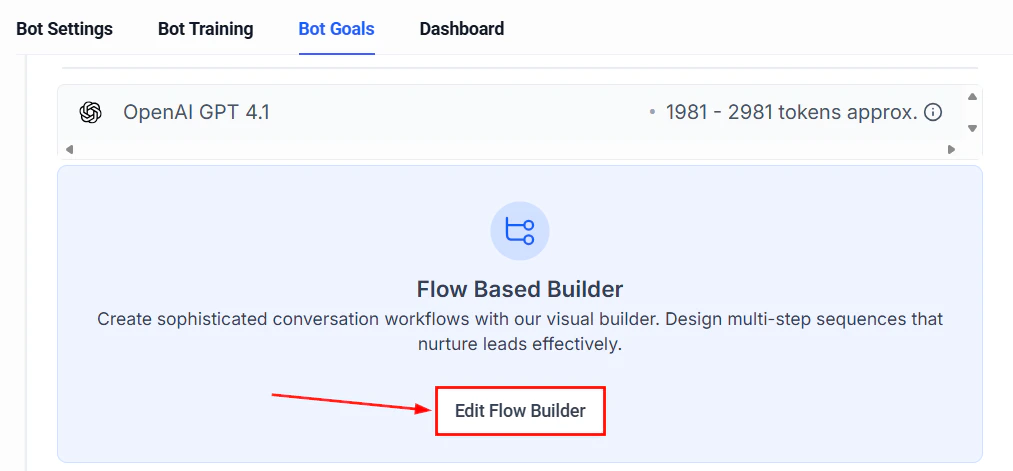 ## What is the AI Decision Maker?
The AI Decision Maker is a workflow action that replaces rigid, rule-based conditions with natural language intelligence. Instead of building complex chains of if/else branches to evaluate contact data, you describe your routing logic in plain English and let the AI determine which path each contact should follow.
Traditional workflow conditions require exact matches: "If tag equals VIP" or "If custom field contains plumbing." The AI Decision Maker understands nuance, context, and intent. It can evaluate sentiment, classify requests, assess quality, and make judgment calls that would otherwise require a human reviewer.
The AI Decision Maker consumes AI credits each time it evaluates a contact. Factor this into your workflow design, especially for high-volume automations.
## When to use AI Decision Maker vs traditional conditions
Not every decision needs AI. Here is a quick guide:
| Use traditional conditions when... | Use AI Decision Maker when... |
| ----------------------------------------- | ----------------------------------- |
| Checking exact field values (tag = "VIP") | Evaluating free-text responses |
| Comparing numbers (score > 7) | Assessing sentiment or tone |
| Checking if a field exists or is empty | Classifying intent from messages |
| Simple yes/no logic | Making subjective quality judgments |
| High-volume, low-complexity routing | Complex, multi-factor decisions |
The best workflows often combine both approaches: use traditional conditions for clear-cut logic and the AI Decision Maker for the nuanced decisions in between.
## Setting up the AI Decision Maker
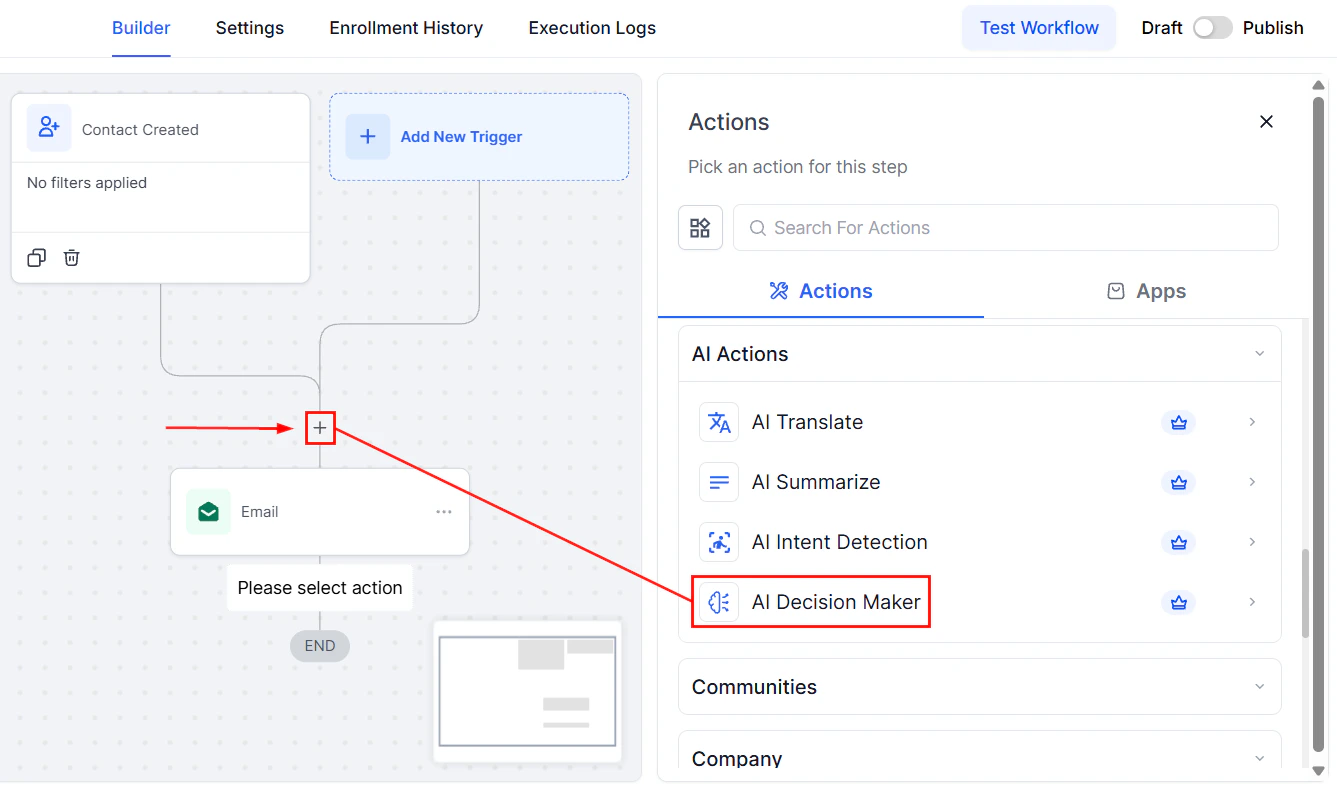
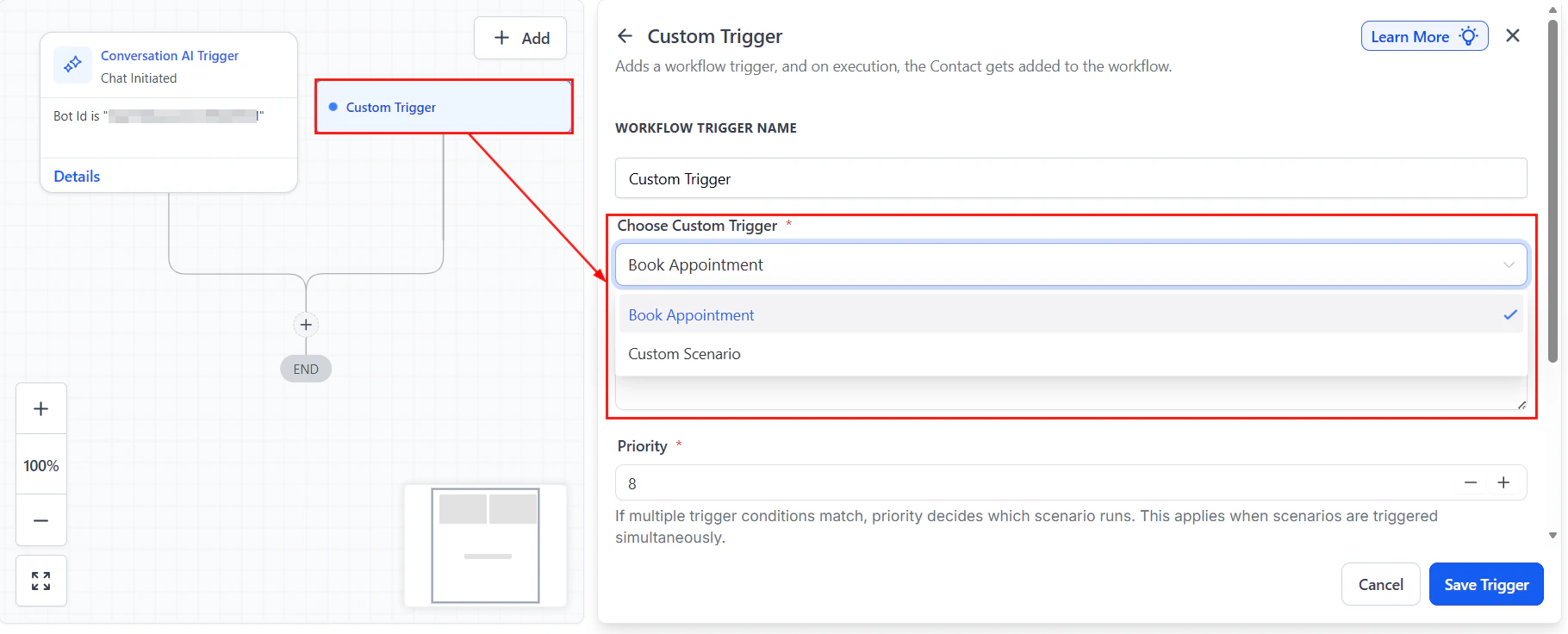
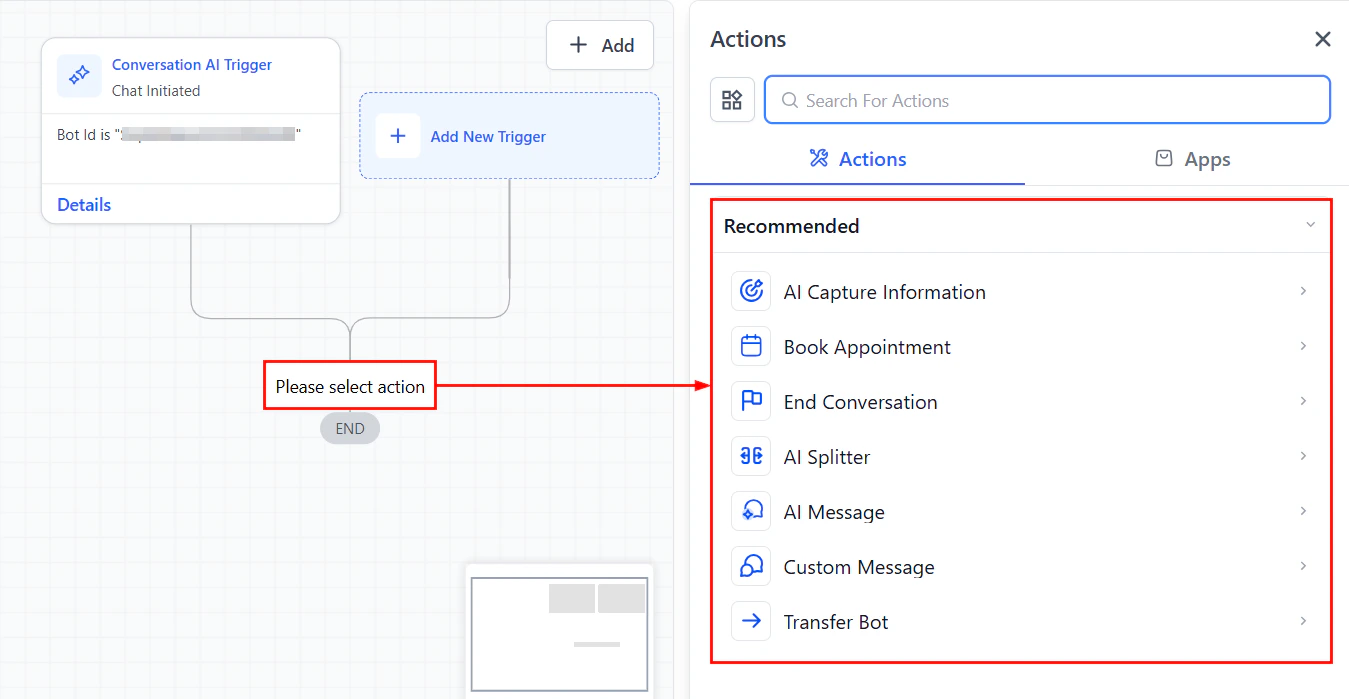
In the workflow editor, click **+** to add a new action. Search for **AI Decision Maker** and add it to your workflow at the point where you need intelligent routing.
## What is the AI Decision Maker?
The AI Decision Maker is a workflow action that replaces rigid, rule-based conditions with natural language intelligence. Instead of building complex chains of if/else branches to evaluate contact data, you describe your routing logic in plain English and let the AI determine which path each contact should follow.
Traditional workflow conditions require exact matches: "If tag equals VIP" or "If custom field contains plumbing." The AI Decision Maker understands nuance, context, and intent. It can evaluate sentiment, classify requests, assess quality, and make judgment calls that would otherwise require a human reviewer.
The AI Decision Maker consumes AI credits each time it evaluates a contact. Factor this into your workflow design, especially for high-volume automations.
## When to use AI Decision Maker vs traditional conditions
Not every decision needs AI. Here is a quick guide:
| Use traditional conditions when... | Use AI Decision Maker when... |
| ----------------------------------------- | ----------------------------------- |
| Checking exact field values (tag = "VIP") | Evaluating free-text responses |
| Comparing numbers (score > 7) | Assessing sentiment or tone |
| Checking if a field exists or is empty | Classifying intent from messages |
| Simple yes/no logic | Making subjective quality judgments |
| High-volume, low-complexity routing | Complex, multi-factor decisions |
The best workflows often combine both approaches: use traditional conditions for clear-cut logic and the AI Decision Maker for the nuanced decisions in between.
## Setting up the AI Decision Maker
In the workflow editor, click **+** to add a new action. Search for **AI Decision Maker** and add it to your workflow at the point where you need intelligent routing.
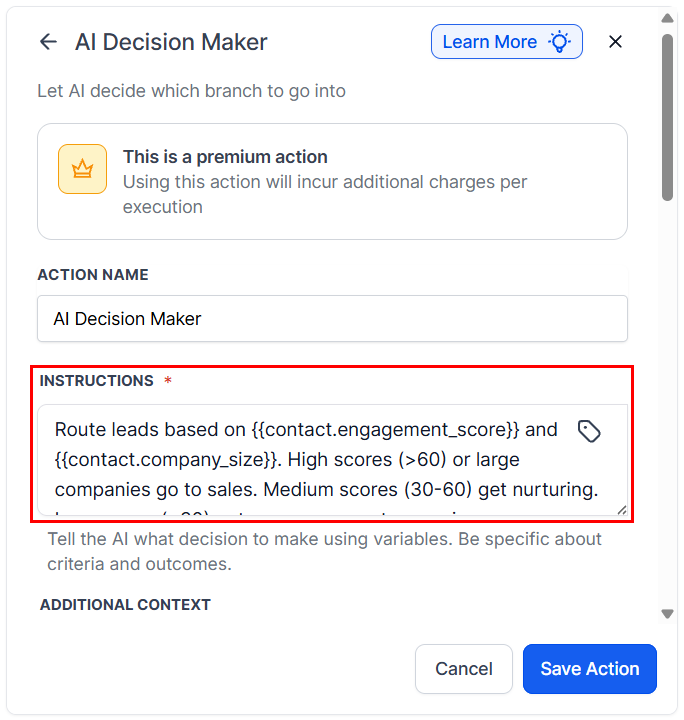
 Describe the decision the AI needs to make. Be specific about what data to consider and what outcomes are possible. For example:
```text theme={null}
Based on the following message from a potential customer, determine their intent:
Message: {{contact.last_message}}
Classify as one of:
- "pricing" if they are asking about costs or pricing
- "support" if they need help with an existing service
- "new_service" if they want to start a new service
- "complaint" if they are unhappy or frustrated
- "other" if none of the above apply
```
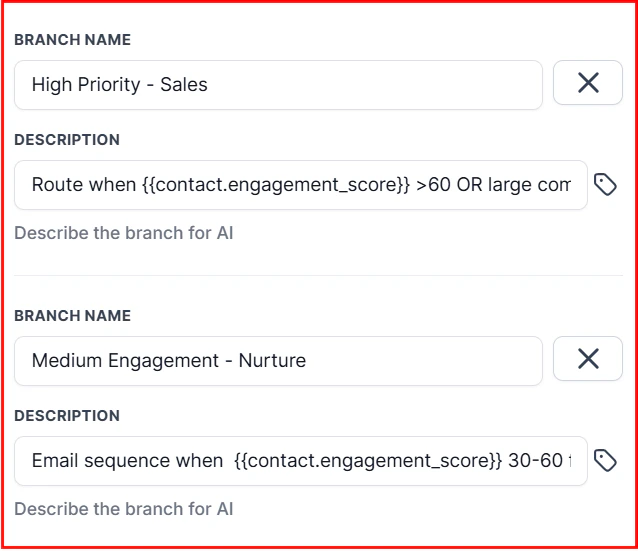
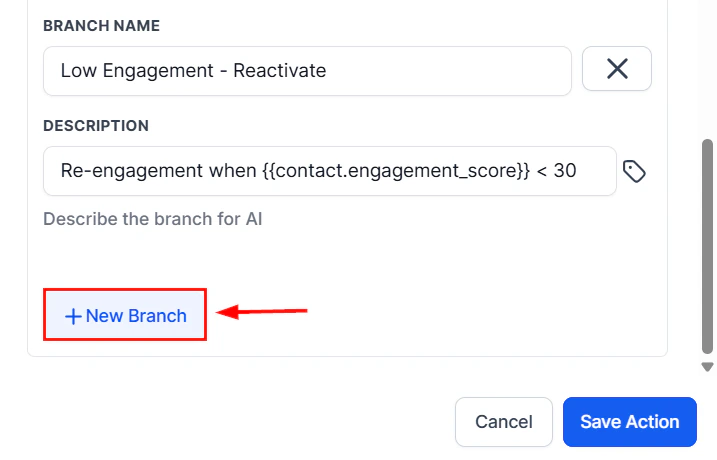
Create a branch for each possible outcome the AI might return. Each branch leads to a different set of downstream actions. Map the AI's possible responses to your branch names.
Describe the decision the AI needs to make. Be specific about what data to consider and what outcomes are possible. For example:
```text theme={null}
Based on the following message from a potential customer, determine their intent:
Message: {{contact.last_message}}
Classify as one of:
- "pricing" if they are asking about costs or pricing
- "support" if they need help with an existing service
- "new_service" if they want to start a new service
- "complaint" if they are unhappy or frustrated
- "other" if none of the above apply
```
Create a branch for each possible outcome the AI might return. Each branch leads to a different set of downstream actions. Map the AI's possible responses to your branch names.
 Build out the actions for each branch.
 For example:
* **Pricing** branch: send pricing PDF, notify sales team
* **Support** branch: create support ticket, send acknowledgment
* **Complaint** branch: escalate to manager, send apology message
Always include a default or "other" branch to handle cases the AI cannot confidently classify. This prevents contacts from getting stuck in a workflow with no path forward.
Run test contacts through the workflow with varied data to ensure the AI routes them correctly. Pay special attention to edge cases and ambiguous inputs.
For example:
* **Pricing** branch: send pricing PDF, notify sales team
* **Support** branch: create support ticket, send acknowledgment
* **Complaint** branch: escalate to manager, send apology message
Always include a default or "other" branch to handle cases the AI cannot confidently classify. This prevents contacts from getting stuck in a workflow with no path forward.
Run test contacts through the workflow with varied data to ensure the AI routes them correctly. Pay special attention to edge cases and ambiguous inputs.
 ## Writing effective decision prompts
The quality of your routing depends entirely on how well you write your decision prompt. Follow these guidelines:
### Be exhaustive with categories
List every possible outcome explicitly. If you leave a category undefined, the AI will improvise, which leads to unpredictable routing.
```text theme={null}
Classify this lead's urgency:
- "urgent" if they mention a deadline within 48 hours, an emergency, or use words like "ASAP" or "immediately"
- "high" if they mention a deadline within a week or express strong interest
- "medium" if they are exploring options but have no immediate deadline
- "low" if they are just browsing or gathering information for future reference
```
### Provide context about your business
The AI makes better decisions when it understands your domain:
```text theme={null}
You are a routing assistant for a residential HVAC company.
We offer: AC repair, heating repair, installation, and maintenance plans.
Based on the customer's message, determine which department should handle this:
Message: {{contact.last_message}}
```
### Use structured output instructions
Tell the AI to return only the classification label, not an explanation:
```text theme={null}
Return ONLY the category name, with no additional text or explanation.
```
This makes it easier to match the AI output to your workflow branches.
Test your decision prompt with at least 10 different sample inputs before going live. Include obvious cases, edge cases, and deliberately ambiguous inputs to see how the AI handles them.
## Example use cases
**Scenario:** Route incoming messages based on the customer's emotional state.
**Decision prompt:**
```text theme={null}
Analyze the sentiment of this customer message:
Message: {{contact.last_message}}
Return one of:
- "positive" if the customer is happy, grateful, or satisfied
- "neutral" if the message is informational with no strong emotion
- "negative" if the customer is frustrated, angry, or disappointed
```
**Branches:**
* **Positive:** Send a thank-you message, ask for a review
* **Neutral:** Continue normal follow-up sequence
* **Negative:** Alert team lead, send empathetic response, create priority ticket
**Why it works:** Unhappy customers get immediate human attention instead of receiving a generic automated response that could make things worse.
**Scenario:** Automatically categorize what new leads are looking for based on their form responses or initial messages.
**Decision prompt:**
```text theme={null}
A new lead submitted the following information:
- Service interest: {{contact.custom_field.service_interest}}
- Message: {{contact.custom_field.form_message}}
- Source: {{contact.source}}
Classify their primary intent as:
- "buy_now" if they are ready to purchase or book immediately
- "compare" if they are comparing options or requesting quotes
- "research" if they are early-stage and just gathering information
- "existing_customer" if they appear to already be a customer
```
**Branches:**
* **Buy now:** Immediate sales team notification, priority follow-up
* **Compare:** Send comparison guide, schedule consultation
* **Research:** Add to educational drip sequence
* **Existing customer:** Route to account management
**Scenario:** Evaluate whether a lead is worth immediate sales attention based on multiple data points.
**Decision prompt:**
```text theme={null}
Evaluate this lead's quality based on the following data:
- Name: {{contact.first_name}} {{contact.last_name}}
- Company: {{contact.company_name}}
- Budget: {{contact.custom_field.budget}}
- Timeline: {{contact.custom_field.timeline}}
- Source: {{contact.source}}
- Message: {{contact.custom_field.inquiry_message}}
Return one of:
- "hot" if they have budget, timeline within 30 days, and clear intent
- "warm" if they have some buying signals but missing key info
- "cold" if they are unlikely to convert soon
```
**Branches:**
* **Hot:** Notify sales immediately, send calendar link, priority tag
* **Warm:** Add to nurture sequence, schedule follow-up in 3 days
* **Cold:** Add to long-term drip, no immediate sales action
**Scenario:** Classify incoming support requests by urgency and topic, then route to the right team.
**Decision prompt:**
```text theme={null}
A customer submitted a support request:
- Customer since: {{contact.custom_field.customer_since}}
- Plan: {{contact.custom_field.plan_type}}
- Request: {{contact.custom_field.support_message}}
Classify this ticket:
Priority: "critical", "high", "medium", or "low"
Category: "billing", "technical", "account", or "general"
Return in format: priority|category (e.g., "high|technical")
```
**Branches:**
* **Critical:** Immediate team alert, auto-response with ETA
* **High:** Add to priority queue, send acknowledgment
* **Medium/Low:** Standard queue, automated response with resources
## Writing effective decision prompts
The quality of your routing depends entirely on how well you write your decision prompt. Follow these guidelines:
### Be exhaustive with categories
List every possible outcome explicitly. If you leave a category undefined, the AI will improvise, which leads to unpredictable routing.
```text theme={null}
Classify this lead's urgency:
- "urgent" if they mention a deadline within 48 hours, an emergency, or use words like "ASAP" or "immediately"
- "high" if they mention a deadline within a week or express strong interest
- "medium" if they are exploring options but have no immediate deadline
- "low" if they are just browsing or gathering information for future reference
```
### Provide context about your business
The AI makes better decisions when it understands your domain:
```text theme={null}
You are a routing assistant for a residential HVAC company.
We offer: AC repair, heating repair, installation, and maintenance plans.
Based on the customer's message, determine which department should handle this:
Message: {{contact.last_message}}
```
### Use structured output instructions
Tell the AI to return only the classification label, not an explanation:
```text theme={null}
Return ONLY the category name, with no additional text or explanation.
```
This makes it easier to match the AI output to your workflow branches.
Test your decision prompt with at least 10 different sample inputs before going live. Include obvious cases, edge cases, and deliberately ambiguous inputs to see how the AI handles them.
## Example use cases
**Scenario:** Route incoming messages based on the customer's emotional state.
**Decision prompt:**
```text theme={null}
Analyze the sentiment of this customer message:
Message: {{contact.last_message}}
Return one of:
- "positive" if the customer is happy, grateful, or satisfied
- "neutral" if the message is informational with no strong emotion
- "negative" if the customer is frustrated, angry, or disappointed
```
**Branches:**
* **Positive:** Send a thank-you message, ask for a review
* **Neutral:** Continue normal follow-up sequence
* **Negative:** Alert team lead, send empathetic response, create priority ticket
**Why it works:** Unhappy customers get immediate human attention instead of receiving a generic automated response that could make things worse.
**Scenario:** Automatically categorize what new leads are looking for based on their form responses or initial messages.
**Decision prompt:**
```text theme={null}
A new lead submitted the following information:
- Service interest: {{contact.custom_field.service_interest}}
- Message: {{contact.custom_field.form_message}}
- Source: {{contact.source}}
Classify their primary intent as:
- "buy_now" if they are ready to purchase or book immediately
- "compare" if they are comparing options or requesting quotes
- "research" if they are early-stage and just gathering information
- "existing_customer" if they appear to already be a customer
```
**Branches:**
* **Buy now:** Immediate sales team notification, priority follow-up
* **Compare:** Send comparison guide, schedule consultation
* **Research:** Add to educational drip sequence
* **Existing customer:** Route to account management
**Scenario:** Evaluate whether a lead is worth immediate sales attention based on multiple data points.
**Decision prompt:**
```text theme={null}
Evaluate this lead's quality based on the following data:
- Name: {{contact.first_name}} {{contact.last_name}}
- Company: {{contact.company_name}}
- Budget: {{contact.custom_field.budget}}
- Timeline: {{contact.custom_field.timeline}}
- Source: {{contact.source}}
- Message: {{contact.custom_field.inquiry_message}}
Return one of:
- "hot" if they have budget, timeline within 30 days, and clear intent
- "warm" if they have some buying signals but missing key info
- "cold" if they are unlikely to convert soon
```
**Branches:**
* **Hot:** Notify sales immediately, send calendar link, priority tag
* **Warm:** Add to nurture sequence, schedule follow-up in 3 days
* **Cold:** Add to long-term drip, no immediate sales action
**Scenario:** Classify incoming support requests by urgency and topic, then route to the right team.
**Decision prompt:**
```text theme={null}
A customer submitted a support request:
- Customer since: {{contact.custom_field.customer_since}}
- Plan: {{contact.custom_field.plan_type}}
- Request: {{contact.custom_field.support_message}}
Classify this ticket:
Priority: "critical", "high", "medium", or "low"
Category: "billing", "technical", "account", or "general"
Return in format: priority|category (e.g., "high|technical")
```
**Branches:**
* **Critical:** Immediate team alert, auto-response with ETA
* **High:** Add to priority queue, send acknowledgment
* **Medium/Low:** Standard queue, automated response with resources
 ## Combining AI Decision Maker with traditional conditions
The most effective workflows layer AI decisions alongside traditional logic. Here is a recommended pattern:
1. **Traditional condition first** — filter out clear-cut cases (missing data, already-tagged contacts, specific sources)
2. **AI Decision Maker second** — handle the nuanced cases that require interpretation
3. **Traditional condition after AI** — add guardrails based on the AI's output (e.g., only proceed if confidence is high)
This approach minimizes AI credit usage by reserving the AI Decision Maker for situations where it adds genuine value.
### Example: layered decision workflow
```text theme={null}
Trigger: New message received
│
├─ If/Else: Is contact tagged "VIP"?
│ ├─ Yes → Route directly to account manager
│ └─ No → Continue
│
├─ AI Decision Maker: Classify message intent
│ ├─ "sales" → Sales workflow
│ ├─ "support" → Support workflow
│ ├─ "billing" → Billing workflow
│ └─ "other" → General inbox
```
## Testing your decision branches
Thorough testing prevents misrouted contacts and wasted AI credits.
### Manual testing
1. Create test contacts with varied data profiles
2. Run each test contact through the workflow manually
3. Verify the AI selects the correct branch for each scenario
4. Document any misclassifications and refine your prompt
### Edge case checklist
* What happens when the input field is empty?
* What if the contact writes in a language other than English?
* What if the message is very short (one or two words)?
* What if the message contains multiple intents?
* What if the message is spam or irrelevant?
Add handling for each edge case in your prompt or as a fallback branch.
Never rely solely on AI decisions for critical business processes without human review. For high-stakes routing (e.g., complaint escalation, refund processing), include a manual approval step after the AI classification.
## Performance considerations
### Response time
The AI Decision Maker typically processes in 2 to 5 seconds. For time-sensitive workflows, factor this delay into your design. If sub-second routing is required, use traditional conditions instead.
### Credit usage
Each evaluation consumes AI credits. To optimize:
* Use traditional conditions to pre-filter contacts before reaching the AI step
* Avoid placing AI Decision Maker inside loops
* Consolidate multiple AI decisions into a single prompt when possible
### Accuracy over time
Periodically audit your AI Decision Maker's routing accuracy. As your business evolves, the categories and criteria may need updating. Schedule a monthly review of misrouted contacts and refine your prompts accordingly.
## Next steps
Generate AI-powered content within your workflow steps.
Connect conversational AI agents to your workflow automations.
See complete workflow recipes using AI Decision Maker.
Learn the fundamentals of HoopAI workflow automation.
## Combining AI Decision Maker with traditional conditions
The most effective workflows layer AI decisions alongside traditional logic. Here is a recommended pattern:
1. **Traditional condition first** — filter out clear-cut cases (missing data, already-tagged contacts, specific sources)
2. **AI Decision Maker second** — handle the nuanced cases that require interpretation
3. **Traditional condition after AI** — add guardrails based on the AI's output (e.g., only proceed if confidence is high)
This approach minimizes AI credit usage by reserving the AI Decision Maker for situations where it adds genuine value.
### Example: layered decision workflow
```text theme={null}
Trigger: New message received
│
├─ If/Else: Is contact tagged "VIP"?
│ ├─ Yes → Route directly to account manager
│ └─ No → Continue
│
├─ AI Decision Maker: Classify message intent
│ ├─ "sales" → Sales workflow
│ ├─ "support" → Support workflow
│ ├─ "billing" → Billing workflow
│ └─ "other" → General inbox
```
## Testing your decision branches
Thorough testing prevents misrouted contacts and wasted AI credits.
### Manual testing
1. Create test contacts with varied data profiles
2. Run each test contact through the workflow manually
3. Verify the AI selects the correct branch for each scenario
4. Document any misclassifications and refine your prompt
### Edge case checklist
* What happens when the input field is empty?
* What if the contact writes in a language other than English?
* What if the message is very short (one or two words)?
* What if the message contains multiple intents?
* What if the message is spam or irrelevant?
Add handling for each edge case in your prompt or as a fallback branch.
Never rely solely on AI decisions for critical business processes without human review. For high-stakes routing (e.g., complaint escalation, refund processing), include a manual approval step after the AI classification.
## Performance considerations
### Response time
The AI Decision Maker typically processes in 2 to 5 seconds. For time-sensitive workflows, factor this delay into your design. If sub-second routing is required, use traditional conditions instead.
### Credit usage
Each evaluation consumes AI credits. To optimize:
* Use traditional conditions to pre-filter contacts before reaching the AI step
* Avoid placing AI Decision Maker inside loops
* Consolidate multiple AI decisions into a single prompt when possible
### Accuracy over time
Periodically audit your AI Decision Maker's routing accuracy. As your business evolves, the categories and criteria may need updating. Schedule a monthly review of misrouted contacts and refine your prompts accordingly.
## Next steps
Generate AI-powered content within your workflow steps.
Connect conversational AI agents to your workflow automations.
See complete workflow recipes using AI Decision Maker.
Learn the fundamentals of HoopAI workflow automation.