> ## Documentation Index
> Fetch the complete documentation index at: https://help.hoopai.com/llms.txt
> Use this file to discover all available pages before exploring further.
# Testing and debugging Voice AI
> How to test your Voice AI agents, diagnose issues, and iterate on your configuration.
Testing is essential before deploying a Voice AI agent to live callers. This guide covers how to test your agent, interpret test results, and debug common issues.
## Testing your agent
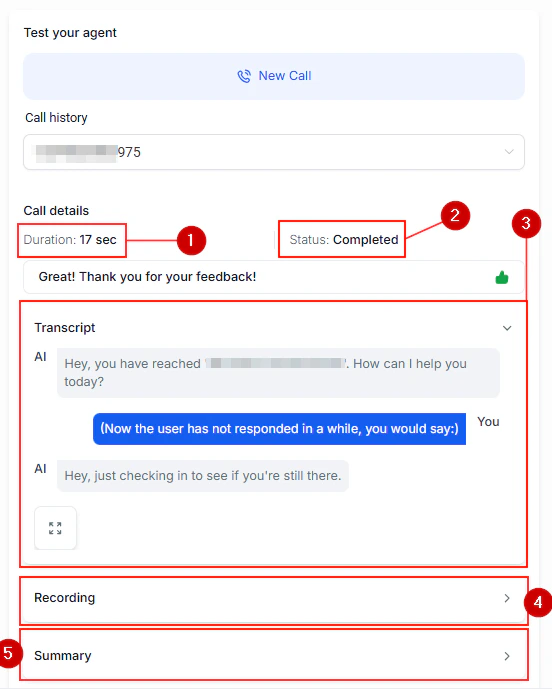
In your Voice AI agent settings, click **Test Call** to initiate a test conversation. This lets you interact with your agent as a caller would, without using a live phone number.
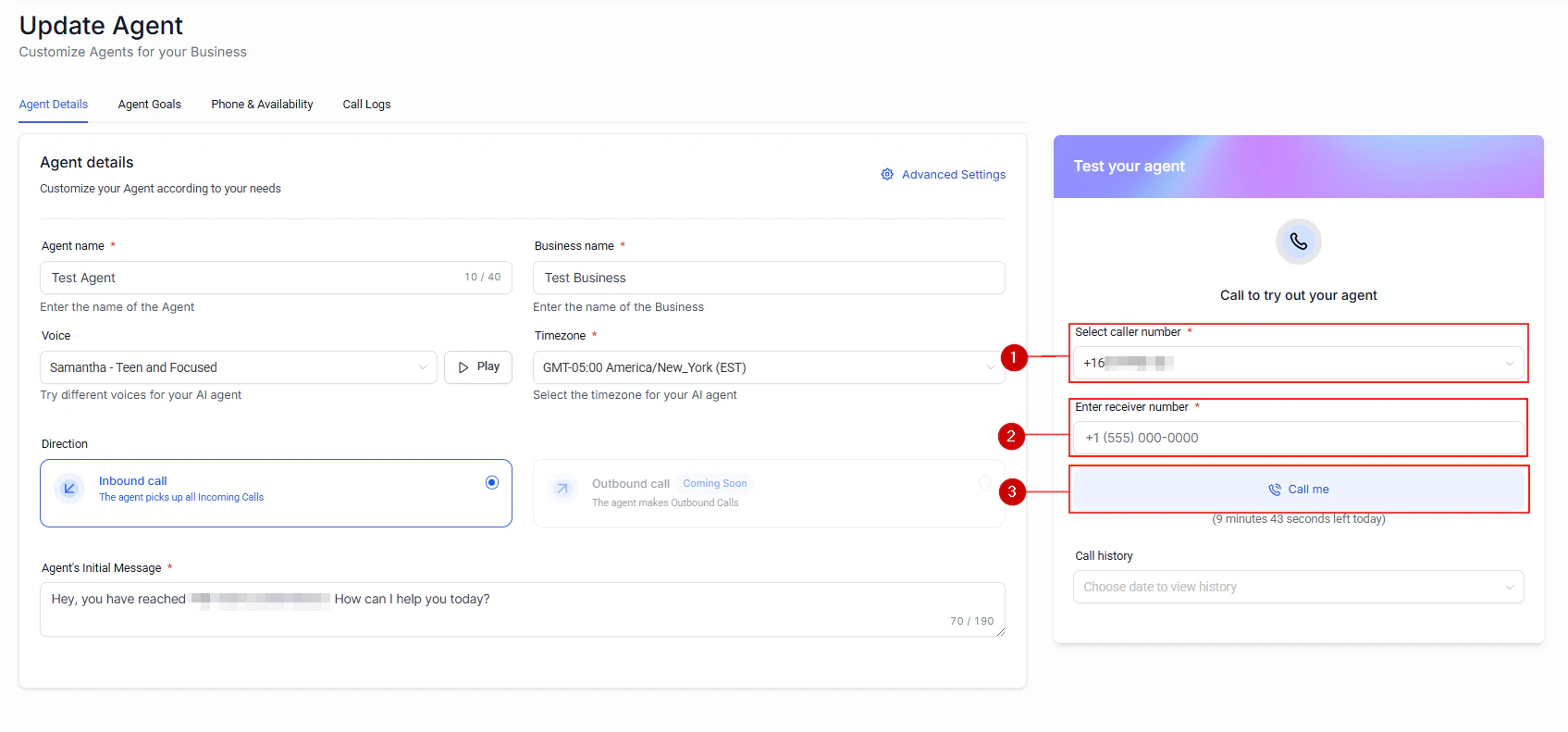
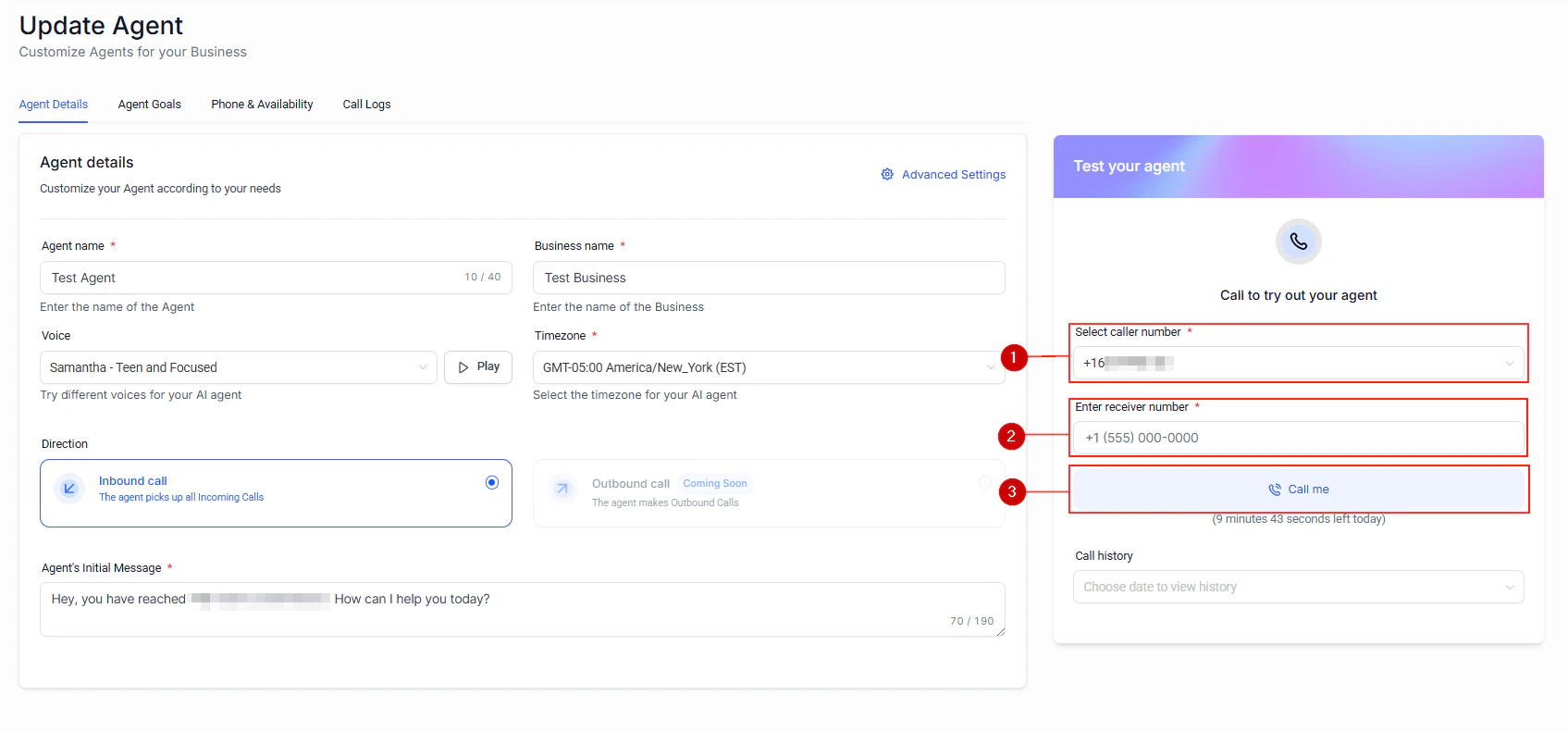 After each test call, review the full transcript in the agent dashboard. Look for:
* Correct understanding of caller intent
* Appropriate responses and tone
* Successful action execution (appointment booking, data collection)
* Proper escalation behavior
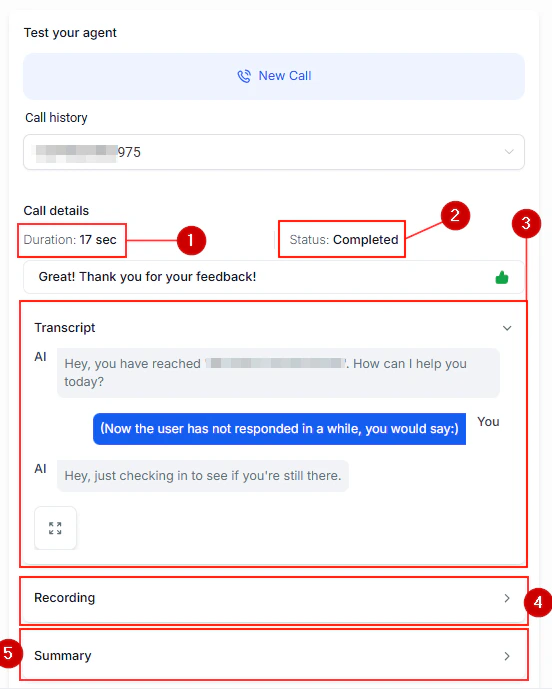
After each test call, review the full transcript in the agent dashboard. Look for:
* Correct understanding of caller intent
* Appropriate responses and tone
* Successful action execution (appointment booking, data collection)
* Proper escalation behavior
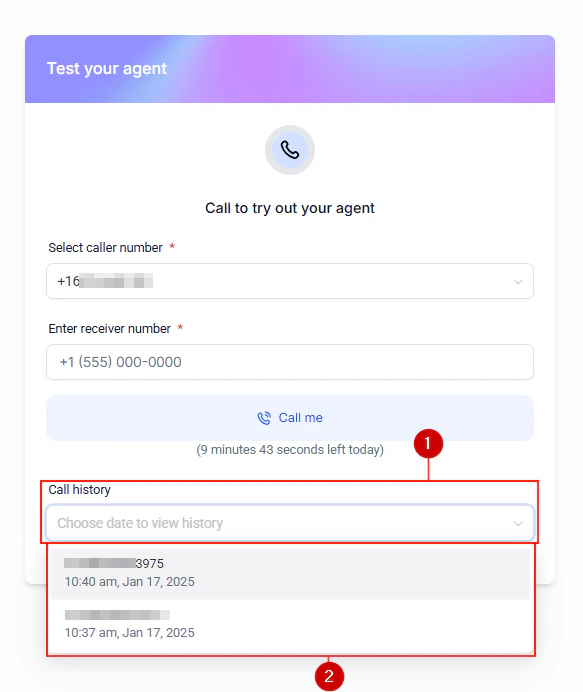
 Adjust your system prompt based on test results. Common improvements include:
* Adding specific handling for edge cases
* Clarifying the agent role and boundaries
* Improving fallback responses
* Refining appointment booking instructions
After multiple test calls, review the aggregated results to identify patterns. Check the success rate for each action (appointment bookings, transfers, data collection) and look for recurring failure points.
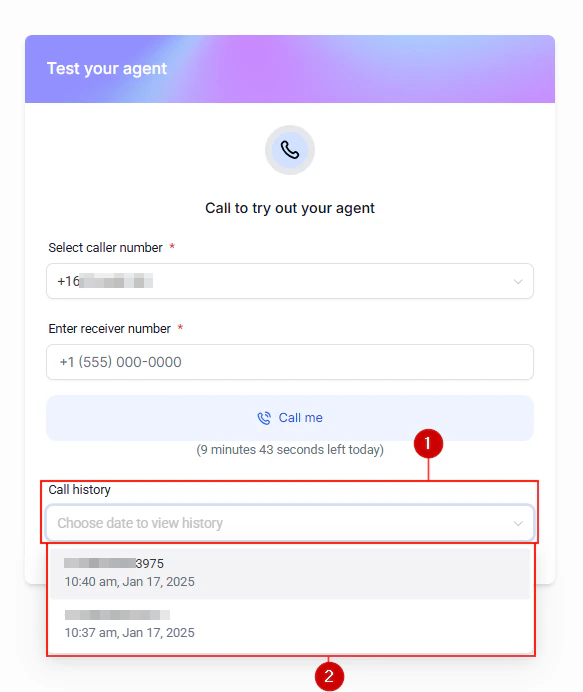
Adjust your system prompt based on test results. Common improvements include:
* Adding specific handling for edge cases
* Clarifying the agent role and boundaries
* Improving fallback responses
* Refining appointment booking instructions
After multiple test calls, review the aggregated results to identify patterns. Check the success rate for each action (appointment bookings, transfers, data collection) and look for recurring failure points.
 ## Common issues
Review your system prompt for clarity. Make sure the agent role and supported topics are explicitly defined. Add example scenarios for common caller requests.
Check your knowledge base and system prompt for outdated or conflicting information. Ensure business hours, pricing, and service details are current.
Verify your phone number is properly configured. Check that the speech-to-text and text-to-speech settings match your expected language and accent.
Confirm your calendar is connected and the agent has the correct calendar ID. Test that free slots are available for the time ranges your agent offers.
## Next steps
Review agent configuration options
Set up human handoff for complex situations
## Common issues
Review your system prompt for clarity. Make sure the agent role and supported topics are explicitly defined. Add example scenarios for common caller requests.
Check your knowledge base and system prompt for outdated or conflicting information. Ensure business hours, pricing, and service details are current.
Verify your phone number is properly configured. Check that the speech-to-text and text-to-speech settings match your expected language and accent.
Confirm your calendar is connected and the agent has the correct calendar ID. Test that free slots are available for the time ranges your agent offers.
## Next steps
Review agent configuration options
Set up human handoff for complex situations