> ## Documentation Index
> Fetch the complete documentation index at: https://help.hoopai.com/llms.txt
> Use this file to discover all available pages before exploring further.
# Voice AI phone number setup
> How to purchase, assign, and configure phone numbers for HoopAI Voice AI agents.
Every Voice AI agent needs at least one phone number to make or receive calls. This guide covers purchasing new numbers, assigning existing numbers, forwarding from external providers, configuring working hours, and setting up failover behavior.
For general phone number setup across all HoopAI features, see [Phone number setup](/getting-started/phone-number-setup). This page focuses specifically on phone number configuration for Voice AI agents.
## Phone number types
HoopAI supports several types of phone numbers for Voice AI:
| Type | Best for | Notes |
| --------------------- | ---------------------------------------- | -------------------------------------------------------- |
| **Local numbers** | Businesses serving a specific area | Callers see a familiar area code, improving answer rates |
| **Toll-free numbers** | National businesses, support lines | 800, 888, 877, etc. — no charge to the caller |
| **Existing numbers** | Businesses migrating from another system | Forward or port your current number to HoopAI |
For outbound Voice AI calls, local numbers with an area code matching your target audience typically achieve the highest answer rates. Toll-free numbers can sometimes be flagged as spam by carrier filtering.
## Purchasing a new phone number
Navigate to **Settings** in the left sidebar, then select **Phone Numbers**. Click **Add Number** or **Buy Number** in the top-right corner.
Choose your country and enter a desired area code or city. HoopAI will display a list of available numbers. You can filter by:
* **Number type** — Local or toll-free
* **Area code** — Specific region
* **Contains** — Search for numbers containing specific digits (e.g., numbers ending in 0000)
Click on the number you want and confirm the purchase. The number is immediately added to your account and ready for assignment.
Phone number costs vary by type and country. Local US numbers typically cost a few dollars per month, while toll-free numbers may cost slightly more. Check your billing page for current pricing.
Some countries and number types require address verification or identity documentation before the number becomes active. If prompted, submit the required information. Approval is usually processed within 24-48 hours.
## Assigning a number to a Voice AI agent
Once you have a phone number in your HoopAI account, you can assign it to a Voice AI agent.
Go to **AI Agents** > **Voice AI** and select the agent you want to configure. If you have not created an agent yet, see [Creating Voice AI agents](/ai/voice-ai/creating-agents).
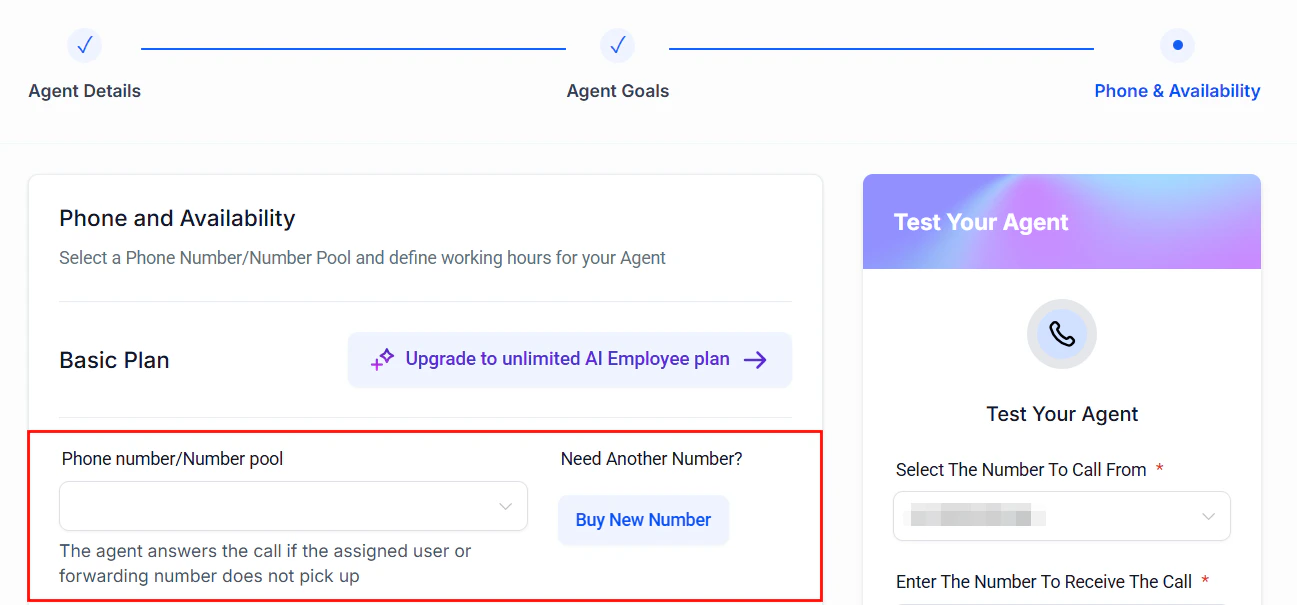
In the agent configuration panel, find the **Phone Number** section. Click **Assign Number**.
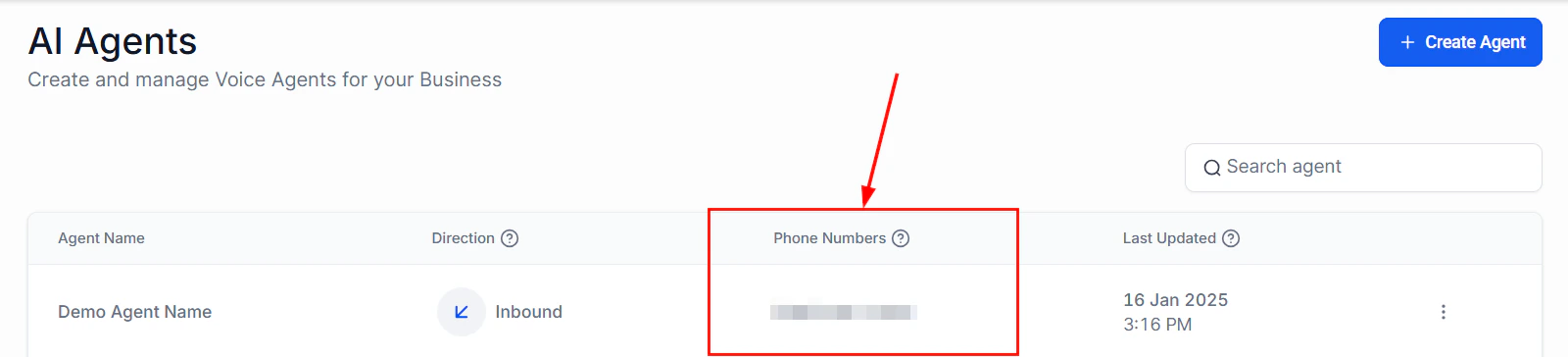 Choose from your available numbers. Numbers already assigned to another Voice AI agent will be marked as in use. A single number can only be assigned to one Voice AI agent at a time.
Assigning a number to a Voice AI agent will override any existing call routing for that number. If the number was previously used for a standard IVR or forwarded to a team member, those settings will be replaced by the Voice AI agent.
Choose from your available numbers. Numbers already assigned to another Voice AI agent will be marked as in use. A single number can only be assigned to one Voice AI agent at a time.
Assigning a number to a Voice AI agent will override any existing call routing for that number. If the number was previously used for a standard IVR or forwarded to a team member, those settings will be replaced by the Voice AI agent.
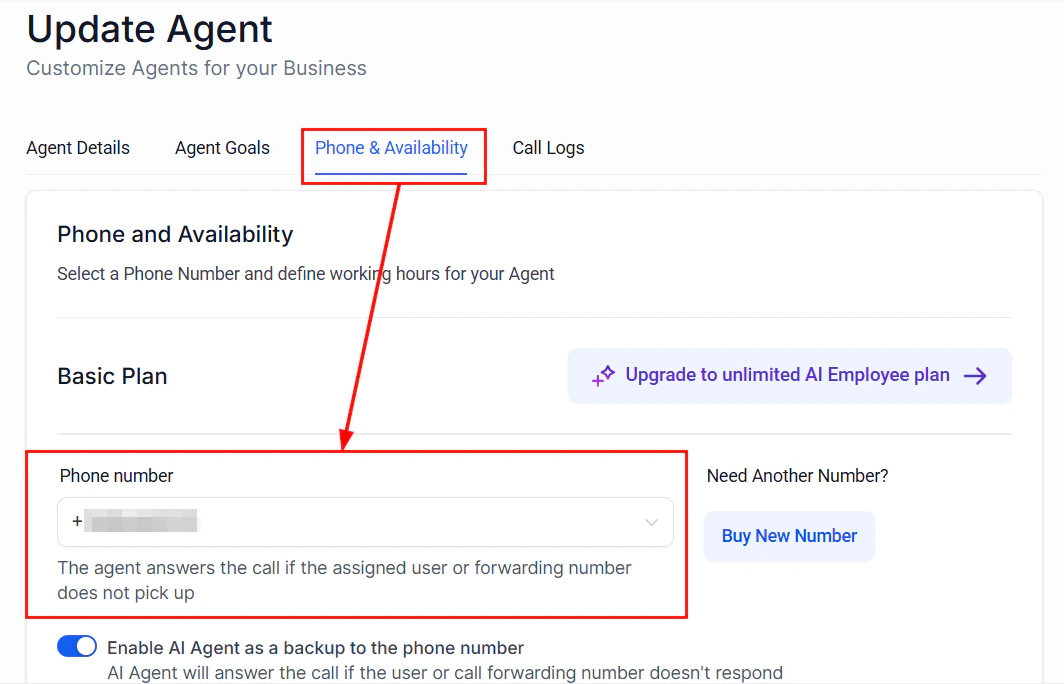
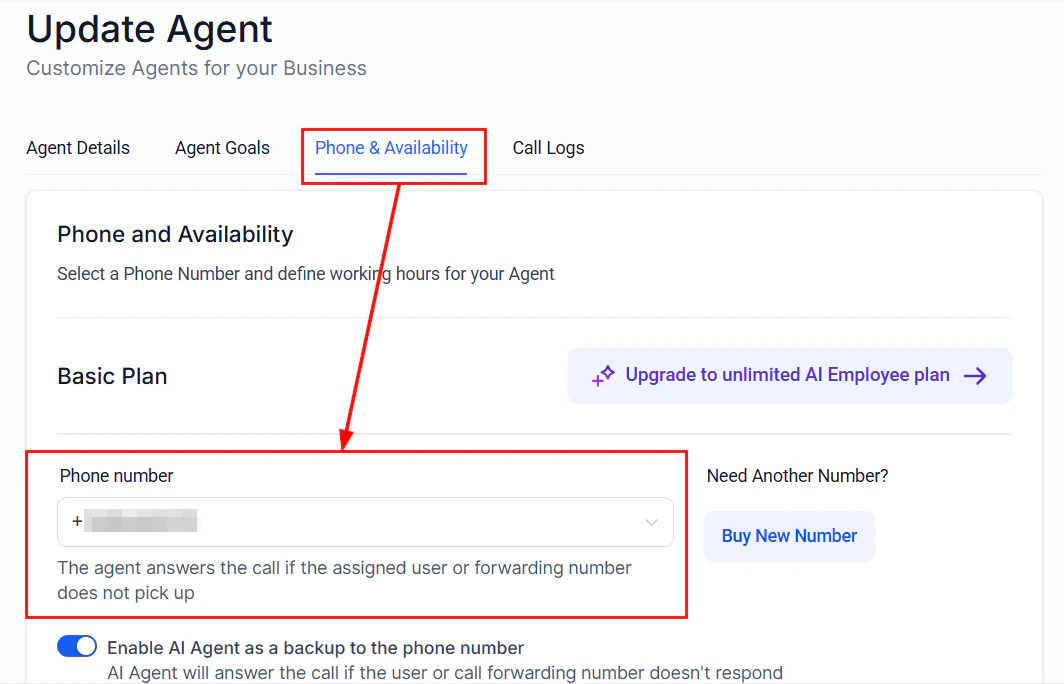 Click **Save**. Inbound calls to that number will now be answered by your Voice AI agent. For outbound agents, this number will appear as the caller ID when the agent places calls.
## Forwarding an existing number
If you already have a business phone number with another provider and do not want to port it, you can forward calls to your HoopAI Voice AI number.
### How call forwarding works
1. A customer calls your existing business number.
2. Your external provider forwards the call to your HoopAI number.
3. Your Voice AI agent answers the forwarded call.
### Setting up forwarding
Contact your current phone provider and request **unconditional call forwarding** (also called "always forward") to your HoopAI number. The exact steps depend on your provider, but the general process is:
1. Purchase or identify a HoopAI number to receive forwarded calls.
2. Assign that HoopAI number to your Voice AI agent.
3. Configure forwarding on your external provider to point to the HoopAI number.
4. Test by calling your original business number and verifying the Voice AI agent answers.
Click **Save**. Inbound calls to that number will now be answered by your Voice AI agent. For outbound agents, this number will appear as the caller ID when the agent places calls.
## Forwarding an existing number
If you already have a business phone number with another provider and do not want to port it, you can forward calls to your HoopAI Voice AI number.
### How call forwarding works
1. A customer calls your existing business number.
2. Your external provider forwards the call to your HoopAI number.
3. Your Voice AI agent answers the forwarded call.
### Setting up forwarding
Contact your current phone provider and request **unconditional call forwarding** (also called "always forward") to your HoopAI number. The exact steps depend on your provider, but the general process is:
1. Purchase or identify a HoopAI number to receive forwarded calls.
2. Assign that HoopAI number to your Voice AI agent.
3. Configure forwarding on your external provider to point to the HoopAI number.
4. Test by calling your original business number and verifying the Voice AI agent answers.
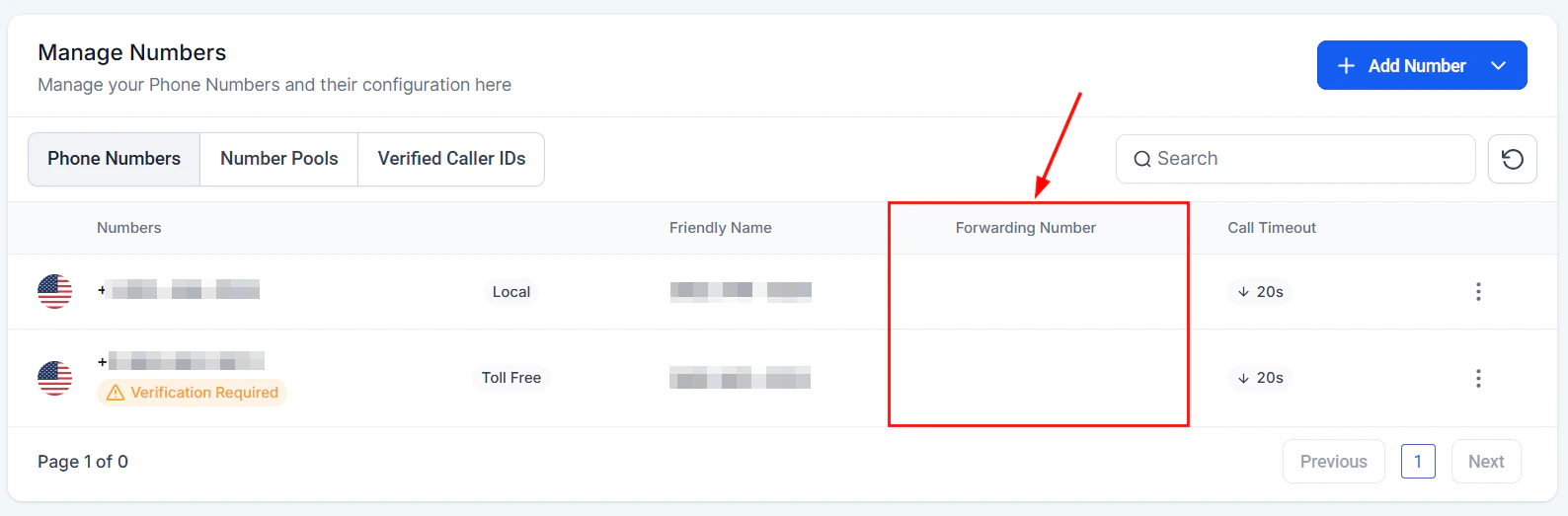
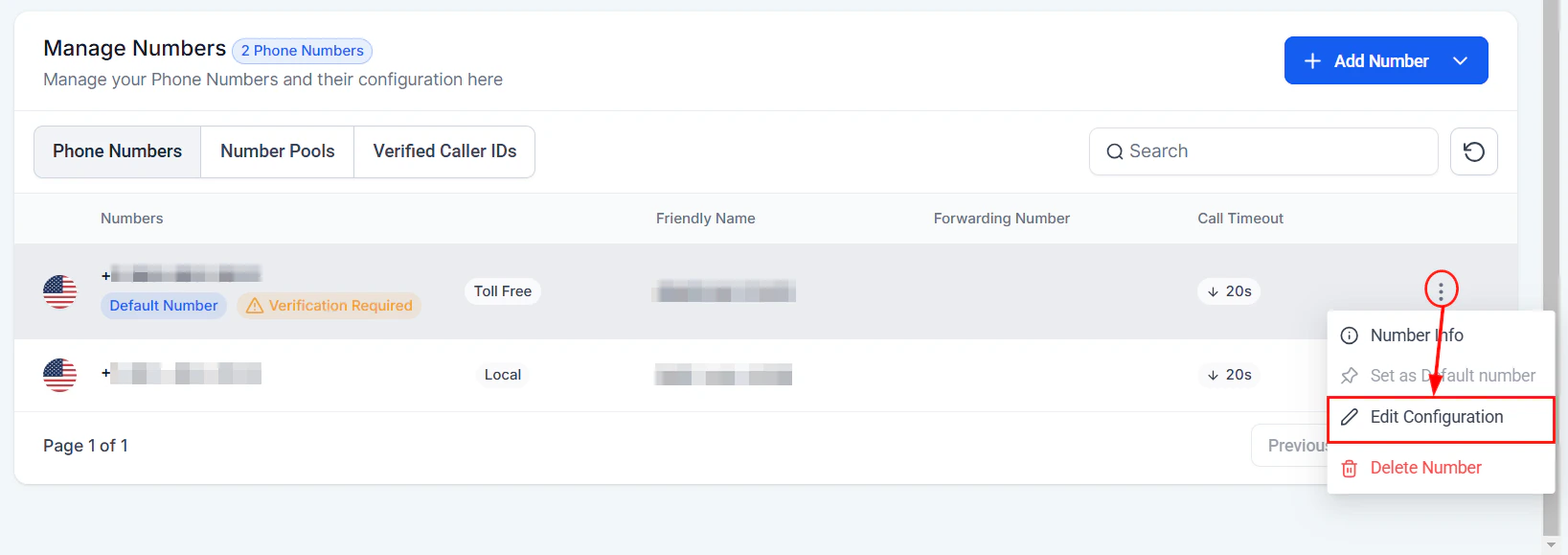 Call forwarding may add slight latency (typically 1-2 seconds) to the initial connection as the call routes through an additional hop. This is usually imperceptible to callers but worth noting for time-sensitive applications.
### Conditional forwarding options
Instead of forwarding all calls, you can set up conditional forwarding:
* **Forward on no answer** — Calls ring your human team first. If no one picks up within a set time, the call forwards to your Voice AI agent as a backup.
* **Forward on busy** — When all lines are busy, overflow calls go to your Voice AI agent.
* **Forward outside business hours** — Calls only forward to the AI agent after hours.
These options are configured on your external provider's side, not within HoopAI.
Call forwarding may add slight latency (typically 1-2 seconds) to the initial connection as the call routes through an additional hop. This is usually imperceptible to callers but worth noting for time-sensitive applications.
### Conditional forwarding options
Instead of forwarding all calls, you can set up conditional forwarding:
* **Forward on no answer** — Calls ring your human team first. If no one picks up within a set time, the call forwards to your Voice AI agent as a backup.
* **Forward on busy** — When all lines are busy, overflow calls go to your Voice AI agent.
* **Forward outside business hours** — Calls only forward to the AI agent after hours.
These options are configured on your external provider's side, not within HoopAI.
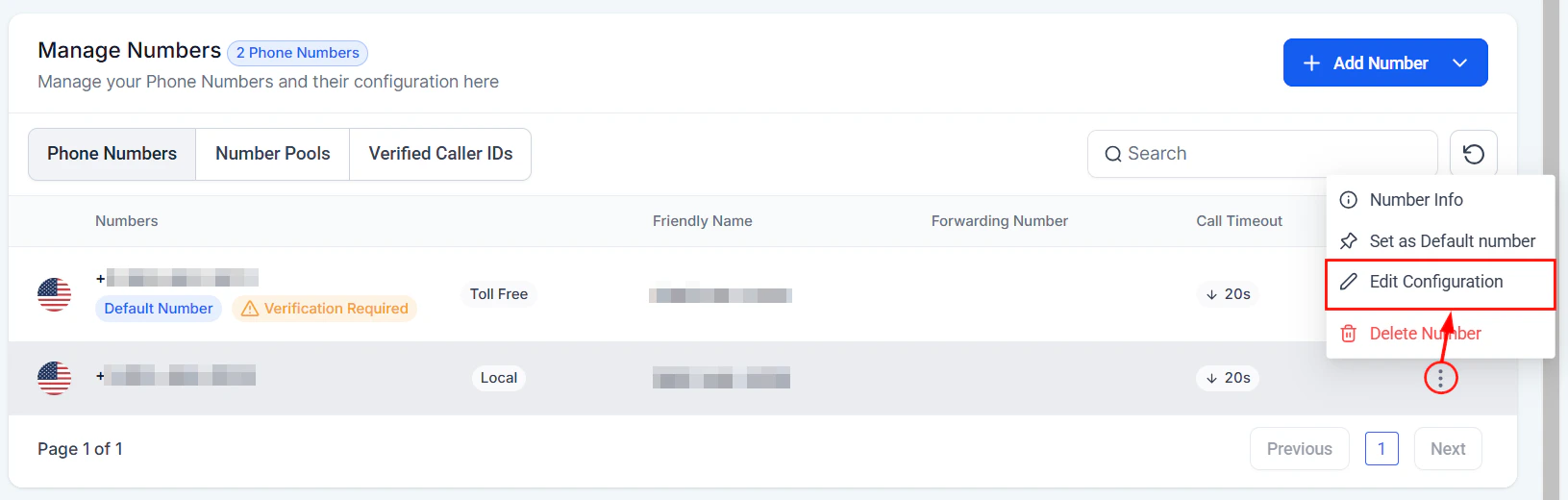 ## Porting a number to HoopAI
If you want to fully transfer an existing number to HoopAI (rather than forwarding), you can submit a port request.
You will need:
* The phone number(s) to port
* Your current provider's name
* Account number with the current provider
* A recent bill or letter of authorization (LOA)
* The authorized name on the account
Go to **Settings** > **Phone Numbers** and click **Port Number**. Fill in the required information and upload your documentation.
Porting typically takes 7-14 business days for US numbers. International ports may take longer. You will receive email updates on the status.
Do not cancel service with your current provider until the port is confirmed complete. Canceling early can cause the port to fail and you may lose the number.
Once the port completes, the number appears in your HoopAI phone numbers list. Assign it to your Voice AI agent as described above.
## Configuring working hours
Working hours determine when your Voice AI agent actively answers calls on a given number. This is configured per agent, not per number.
### Setting working hours
## Porting a number to HoopAI
If you want to fully transfer an existing number to HoopAI (rather than forwarding), you can submit a port request.
You will need:
* The phone number(s) to port
* Your current provider's name
* Account number with the current provider
* A recent bill or letter of authorization (LOA)
* The authorized name on the account
Go to **Settings** > **Phone Numbers** and click **Port Number**. Fill in the required information and upload your documentation.
Porting typically takes 7-14 business days for US numbers. International ports may take longer. You will receive email updates on the status.
Do not cancel service with your current provider until the port is confirmed complete. Canceling early can cause the port to fail and you may lose the number.
Once the port completes, the number appears in your HoopAI phone numbers list. Assign it to your Voice AI agent as described above.
## Configuring working hours
Working hours determine when your Voice AI agent actively answers calls on a given number. This is configured per agent, not per number.
### Setting working hours
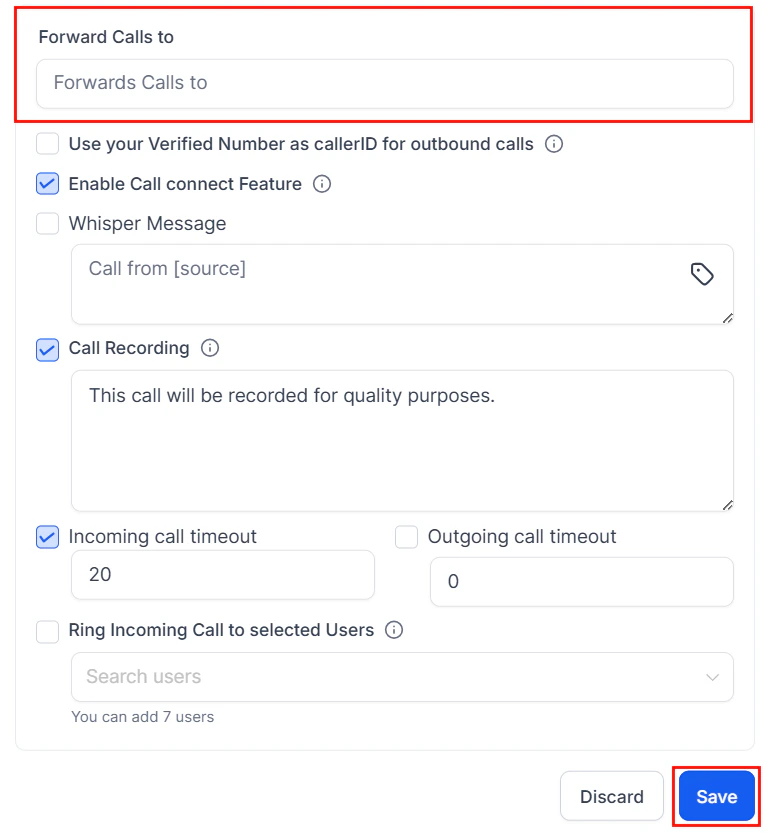 1. Open your Voice AI agent settings.
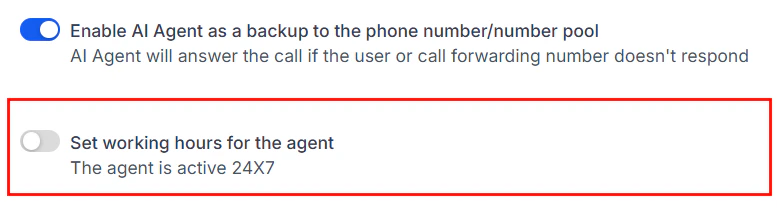
2. Navigate to the **Working Hours** section.
3. Toggle working hours **on** to enable scheduling.
4. For each day of the week, set the start and end times.
5. Select the correct **timezone** for your business.
1. Open your Voice AI agent settings.
2. Navigate to the **Working Hours** section.
3. Toggle working hours **on** to enable scheduling.
4. For each day of the week, set the start and end times.
5. Select the correct **timezone** for your business.
 Double-check your timezone setting. A common issue is the agent being configured in the wrong timezone, causing it to go offline during business hours or remain active when it should not be. See [Troubleshooting Voice AI](/ai/voice-ai/troubleshooting) for more on timezone issues.
### After-hours behavior
When a call comes in outside of working hours, you can configure one of these behaviors:
| Behavior | Description |
| ------------------------ | ------------------------------------------------------------------------------------------------------------------------------------------------------------------------------ |
| **Voicemail** | Play a custom message and record the caller's voicemail. The recording is saved to the contact's conversation in the CRM. |
| **After-hours agent** | Route to a different Voice AI agent with a simplified after-hours prompt (e.g., "We're currently closed. I can take a message or help you book an appointment for tomorrow."). |
| **Forward to number** | Send the call to an external number, such as an on-call team member's personal phone. |
| **Hang up with message** | Play a brief recorded message with your business hours, then disconnect. |
The **after-hours agent** option is powerful for businesses that want 24/7 AI coverage but with different behavior outside business hours. For example, your daytime agent might transfer to staff, while the after-hours agent only takes messages and books next-day appointments.
## Failover configuration
Failover defines what happens when the Voice AI agent cannot connect — for example, due to a technical issue or if the agent is disabled.
### Setting up failover
1. In your agent settings, find the **Failover** section.
2. Choose a failover destination:
* **Voicemail** — Record a message from the caller.
* **Forward to number** — Route to a backup phone number (human team member, call center, or another line).
* **Play message and disconnect** — Inform the caller of the issue and ask them to call back.
3. Set a **failover timeout** — how many seconds to wait before triggering failover (default: 10 seconds).
Failover is a safety net. In normal operation, Voice AI agents connect within 1-2 seconds. If failover triggers frequently, check the [Troubleshooting Voice AI](/ai/voice-ai/troubleshooting) guide for diagnosis steps.
## Managing multiple numbers
For businesses with multiple locations or departments, you can assign different numbers to different Voice AI agents:
* **Main line** — General receptionist agent that handles common questions and routes to departments.
* **Sales line** — Agent focused on qualifying leads and booking sales calls.
* **Support line** — Agent that troubleshoots common issues and escalates complex cases.
* **Location-specific lines** — Each branch office has its own number and agent with location-specific information.
Each number-agent pairing operates independently with its own prompt, actions, working hours, and escalation rules.
## Phone number best practices
Calls from local area codes are answered at significantly higher rates than toll-free or unknown area codes. If you serve multiple regions, consider purchasing a local number for each area.
To reduce the chance of your outbound calls being flagged as spam, ensure your numbers are properly registered and have valid caller ID attestation. HoopAI handles STIR/SHAKEN signing automatically for numbers purchased through the platform.
Always configure a failover number that routes to a human. Even the most reliable systems can experience occasional issues, and a missed call could mean a missed customer.
After changing phone assignments, forwarding rules, or working hours, make a test call to verify everything works as expected. A quick 30-second test can prevent hours of missed calls.
## Next steps
Build and configure your first Voice AI agent.
Understand calling directions and when to use each.
Configure human handoff rules for your assigned numbers.
Fix common phone and call connection issues.
Double-check your timezone setting. A common issue is the agent being configured in the wrong timezone, causing it to go offline during business hours or remain active when it should not be. See [Troubleshooting Voice AI](/ai/voice-ai/troubleshooting) for more on timezone issues.
### After-hours behavior
When a call comes in outside of working hours, you can configure one of these behaviors:
| Behavior | Description |
| ------------------------ | ------------------------------------------------------------------------------------------------------------------------------------------------------------------------------ |
| **Voicemail** | Play a custom message and record the caller's voicemail. The recording is saved to the contact's conversation in the CRM. |
| **After-hours agent** | Route to a different Voice AI agent with a simplified after-hours prompt (e.g., "We're currently closed. I can take a message or help you book an appointment for tomorrow."). |
| **Forward to number** | Send the call to an external number, such as an on-call team member's personal phone. |
| **Hang up with message** | Play a brief recorded message with your business hours, then disconnect. |
The **after-hours agent** option is powerful for businesses that want 24/7 AI coverage but with different behavior outside business hours. For example, your daytime agent might transfer to staff, while the after-hours agent only takes messages and books next-day appointments.
## Failover configuration
Failover defines what happens when the Voice AI agent cannot connect — for example, due to a technical issue or if the agent is disabled.
### Setting up failover
1. In your agent settings, find the **Failover** section.
2. Choose a failover destination:
* **Voicemail** — Record a message from the caller.
* **Forward to number** — Route to a backup phone number (human team member, call center, or another line).
* **Play message and disconnect** — Inform the caller of the issue and ask them to call back.
3. Set a **failover timeout** — how many seconds to wait before triggering failover (default: 10 seconds).
Failover is a safety net. In normal operation, Voice AI agents connect within 1-2 seconds. If failover triggers frequently, check the [Troubleshooting Voice AI](/ai/voice-ai/troubleshooting) guide for diagnosis steps.
## Managing multiple numbers
For businesses with multiple locations or departments, you can assign different numbers to different Voice AI agents:
* **Main line** — General receptionist agent that handles common questions and routes to departments.
* **Sales line** — Agent focused on qualifying leads and booking sales calls.
* **Support line** — Agent that troubleshoots common issues and escalates complex cases.
* **Location-specific lines** — Each branch office has its own number and agent with location-specific information.
Each number-agent pairing operates independently with its own prompt, actions, working hours, and escalation rules.
## Phone number best practices
Calls from local area codes are answered at significantly higher rates than toll-free or unknown area codes. If you serve multiple regions, consider purchasing a local number for each area.
To reduce the chance of your outbound calls being flagged as spam, ensure your numbers are properly registered and have valid caller ID attestation. HoopAI handles STIR/SHAKEN signing automatically for numbers purchased through the platform.
Always configure a failover number that routes to a human. Even the most reliable systems can experience occasional issues, and a missed call could mean a missed customer.
After changing phone assignments, forwarding rules, or working hours, make a test call to verify everything works as expected. A quick 30-second test can prevent hours of missed calls.
## Next steps
Build and configure your first Voice AI agent.
Understand calling directions and when to use each.
Configure human handoff rules for your assigned numbers.
Fix common phone and call connection issues.