> ## Documentation Index
> Fetch the complete documentation index at: https://help.hoopai.com/llms.txt
> Use this file to discover all available pages before exploring further.
# Automate review responses
> Set up Reviews AI to automatically respond to Google reviews with appropriate tone and follow-up actions.
Set up Reviews AI to automatically respond to every Google review your business receives — positive reviews get a warm thank-you, negative reviews get an empathetic response and trigger follow-up actions, and you never miss a review again.
**Overview**
| | |
| -------------------- | ------------------------------------------------------------------------------------------------------------------------------------------------------------------------ |
| **Goal** | Configure Reviews AI to automatically respond to Google Business Profile reviews with the right tone, handle negative reviews with care, and trigger follow-up workflows |
| **Time to build** | 20–30 minutes |
| **Prerequisites** | Reviews AI enabled, Google Business Profile connected, workflows configured |
| **AI features used** | Reviews AI + Workflows |
| **Difficulty** | Beginner |
***
 ## Architecture overview
The review automation flow works as follows:
1. **Review received** — A customer leaves a review on your Google Business Profile.
2. **Review synced** — HoopAI detects the new review and syncs it to the [reviews dashboard](/academy/quick-start/reviews-reputation-management).
3. **AI analysis** — Reviews AI analyzes the review's sentiment, star rating, and content.
4. **Response generation** — The AI drafts a response matching the appropriate tone for the review type.
5. **Response handling** — Depending on your mode (auto-pilot or suggestive), the response is either posted automatically or queued for your approval.
6. **Follow-up actions** — Workflows trigger based on the review rating: thank-you sequences for positive reviews, recovery sequences for negative reviews.
***
## Step-by-step build
Navigate to **Settings > Integrations** and connect your Google Business Profile (GBP).
Requirements:
* You must have owner or manager access to the GBP listing
* The listing must be verified with Google
* If you have multiple locations, connect each one
Once connected, HoopAI will sync existing reviews and begin monitoring for new ones. See [Google My Business chat](/academy/quick-start/google-my-business-chat) for integration details.
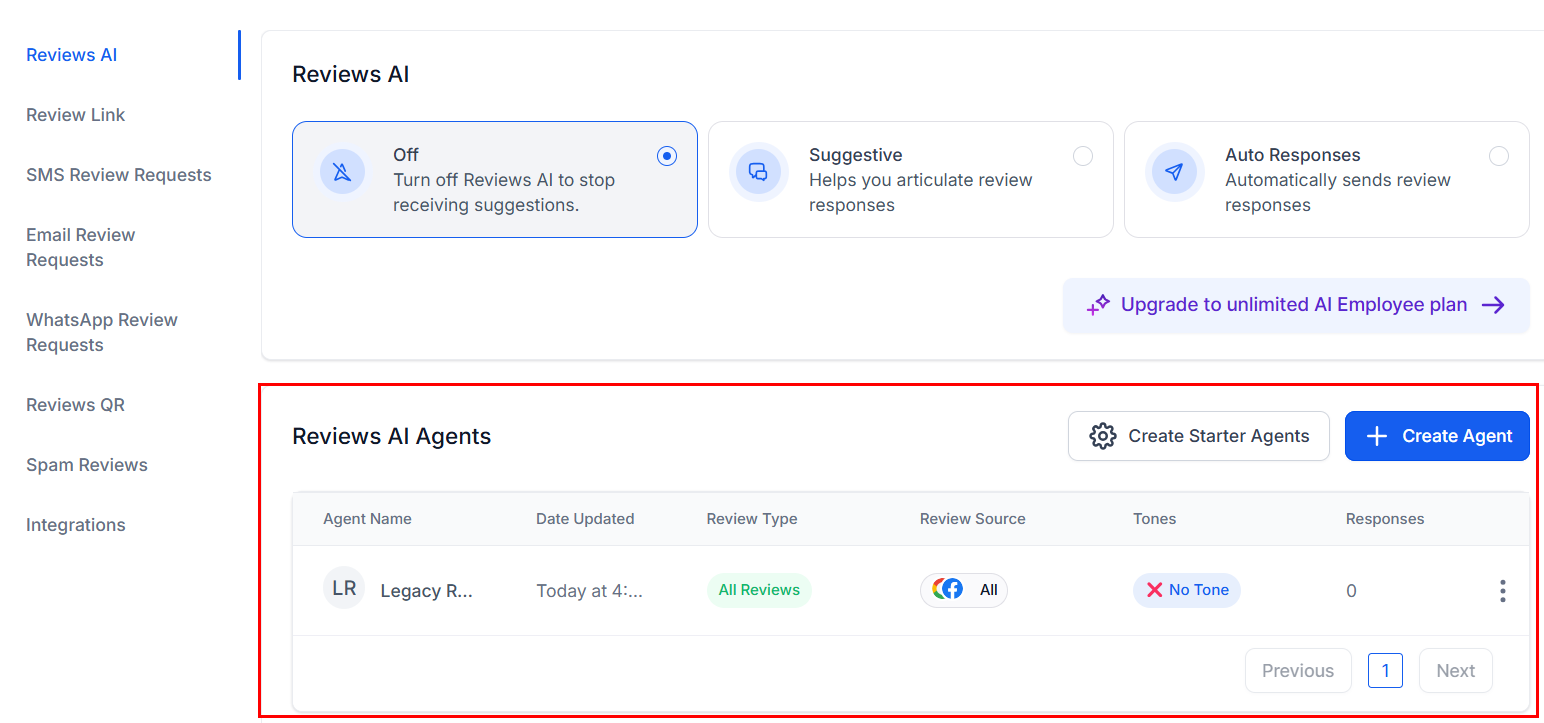
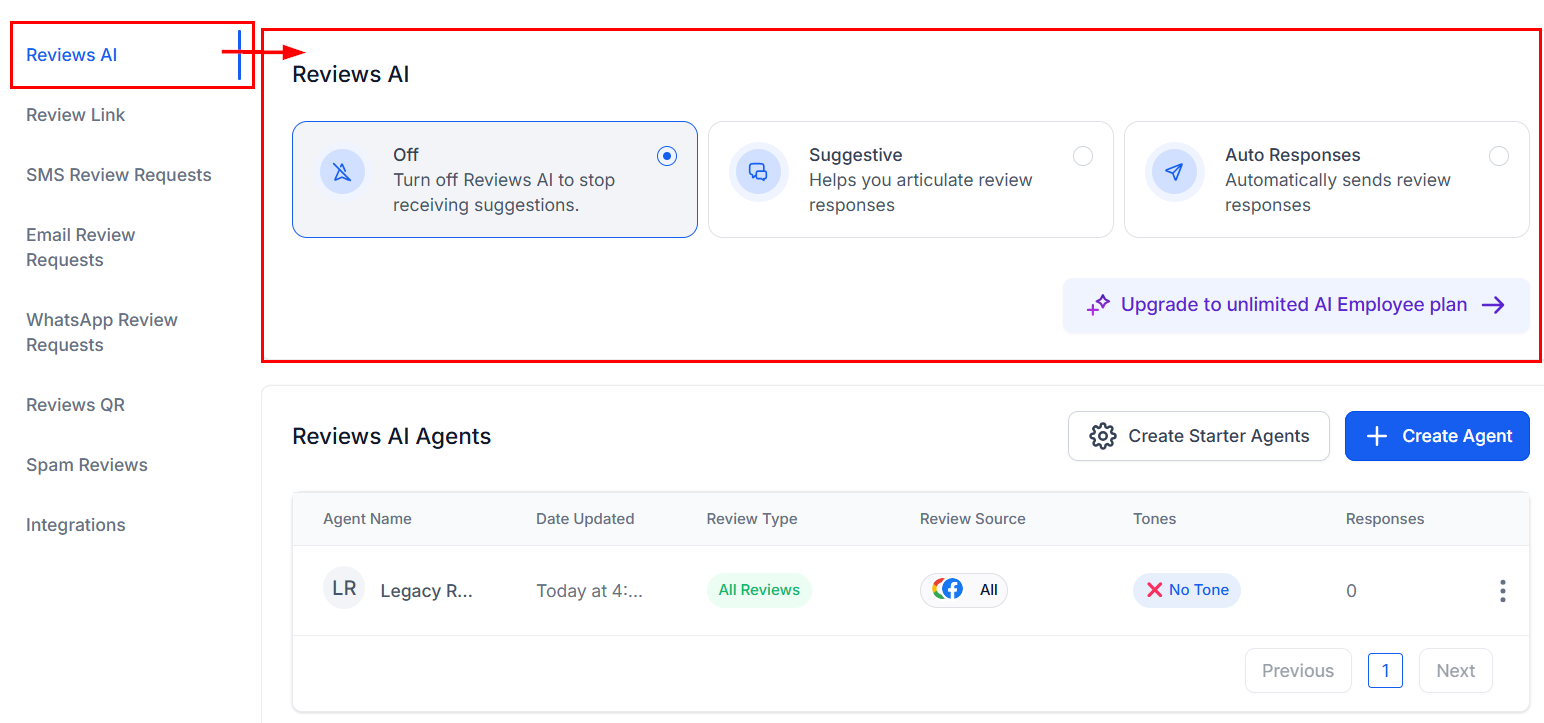
Go to **AI Agents > Reviews AI** (or **Reputation > Reviews** depending on your navigation). This is where you configure how the AI handles review responses.
## Architecture overview
The review automation flow works as follows:
1. **Review received** — A customer leaves a review on your Google Business Profile.
2. **Review synced** — HoopAI detects the new review and syncs it to the [reviews dashboard](/academy/quick-start/reviews-reputation-management).
3. **AI analysis** — Reviews AI analyzes the review's sentiment, star rating, and content.
4. **Response generation** — The AI drafts a response matching the appropriate tone for the review type.
5. **Response handling** — Depending on your mode (auto-pilot or suggestive), the response is either posted automatically or queued for your approval.
6. **Follow-up actions** — Workflows trigger based on the review rating: thank-you sequences for positive reviews, recovery sequences for negative reviews.
***
## Step-by-step build
Navigate to **Settings > Integrations** and connect your Google Business Profile (GBP).
Requirements:
* You must have owner or manager access to the GBP listing
* The listing must be verified with Google
* If you have multiple locations, connect each one
Once connected, HoopAI will sync existing reviews and begin monitoring for new ones. See [Google My Business chat](/academy/quick-start/google-my-business-chat) for integration details.
Go to **AI Agents > Reviews AI** (or **Reputation > Reviews** depending on your navigation). This is where you configure how the AI handles review responses.
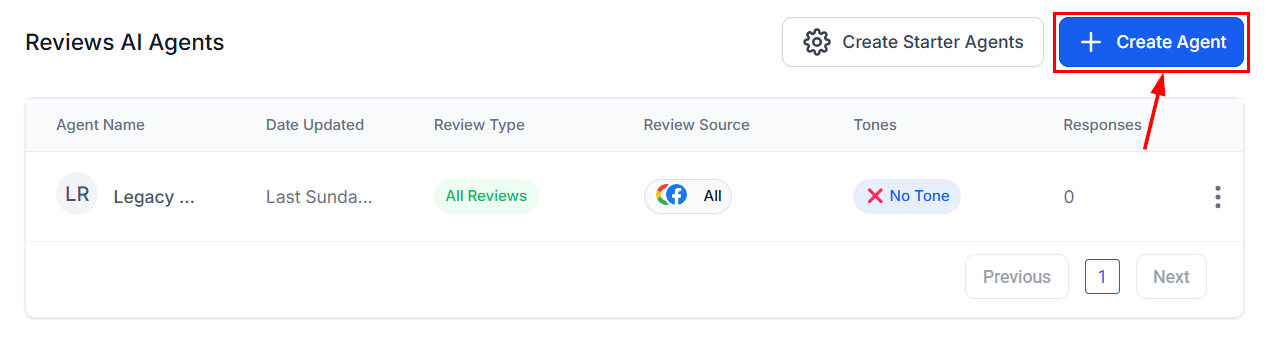
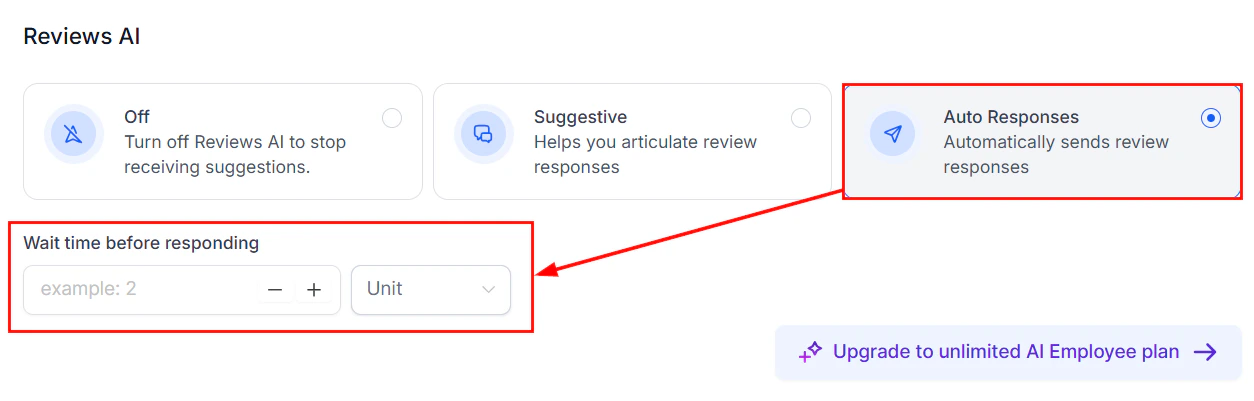
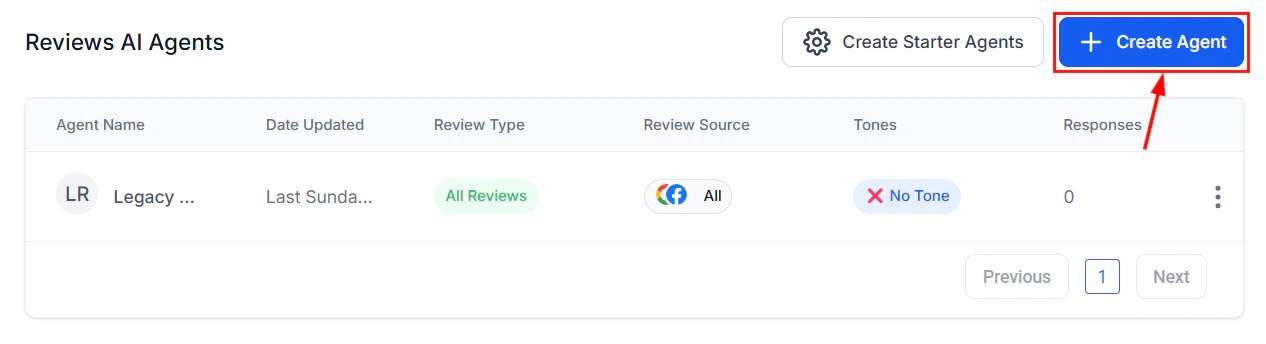 Reviews AI offers two modes:
**Auto-pilot mode** (recommended after testing):
* The AI automatically posts responses to reviews without human approval
* Best for businesses that receive many reviews and want instant responses
* You can still edit or delete responses after they are posted
**Suggestive mode** (recommended for initial setup):
* The AI drafts a response and queues it for your approval
* You review, edit if needed, and then approve to post
* Best for businesses that want to maintain tight control over public responses
Start with suggestive mode for the first two weeks. Review every AI-generated response to make sure the tone and content match your expectations. Once you are confident, switch to auto-pilot.
Reviews AI offers two modes:
**Auto-pilot mode** (recommended after testing):
* The AI automatically posts responses to reviews without human approval
* Best for businesses that receive many reviews and want instant responses
* You can still edit or delete responses after they are posted
**Suggestive mode** (recommended for initial setup):
* The AI drafts a response and queues it for your approval
* You review, edit if needed, and then approve to post
* Best for businesses that want to maintain tight control over public responses
Start with suggestive mode for the first two weeks. Review every AI-generated response to make sure the tone and content match your expectations. Once you are confident, switch to auto-pilot.
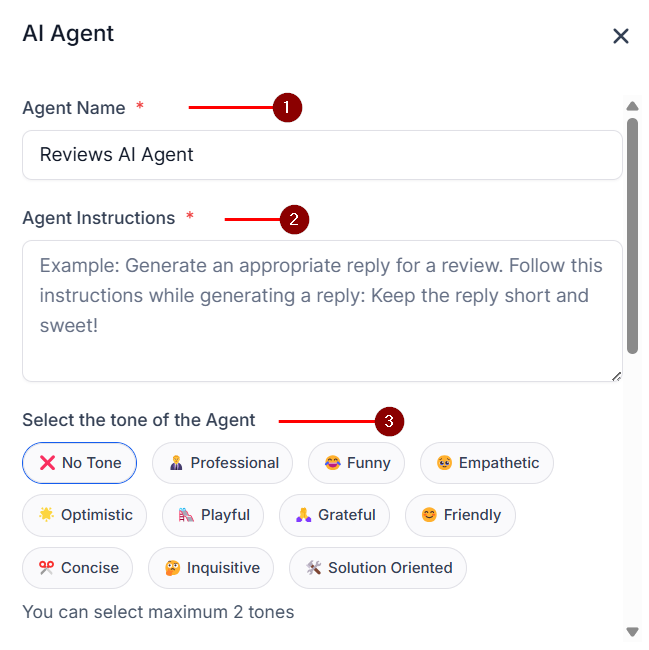
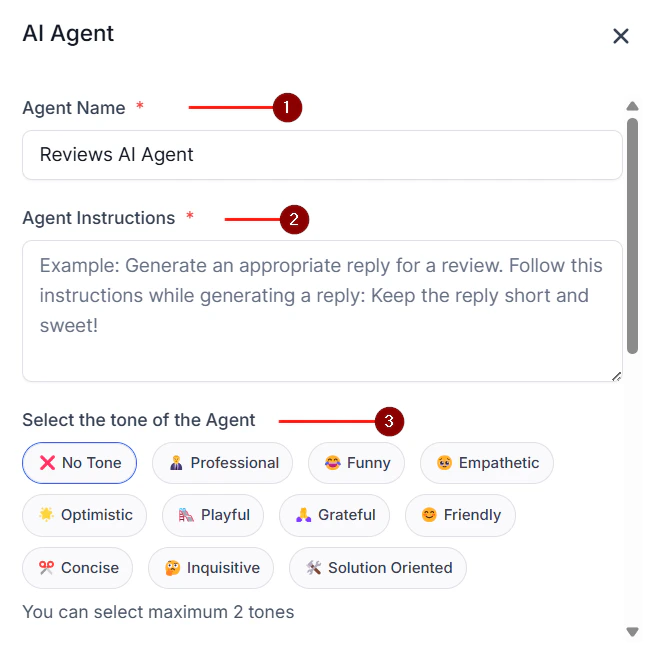 In the Reviews AI settings, customize the response parameters:
**Business information**:
* Business name (as it should appear in responses)
* Business type and industry
* Key services or products to mention
**Tone settings**:
* **Positive reviews (4-5 stars)**: Warm, grateful, enthusiastic. Thank the reviewer by name, reference specific details from their review, and invite them back.
* **Neutral reviews (3 stars)**: Professional, appreciative, improvement-focused. Thank them for the feedback, acknowledge what went well, and address any concerns.
* **Negative reviews (1-2 stars)**: Empathetic, professional, solution-oriented. Apologize for their experience, do not get defensive, and offer to resolve the issue offline.
**Style guidelines**:
* Keep responses to 2-4 sentences
* Always use the reviewer's name if available
* Reference specific details from their review to show you read it
* Include a call to action (come back soon, call us to resolve, etc.)
* Never argue, make excuses, or blame the customer
In the Reviews AI settings, customize the response parameters:
**Business information**:
* Business name (as it should appear in responses)
* Business type and industry
* Key services or products to mention
**Tone settings**:
* **Positive reviews (4-5 stars)**: Warm, grateful, enthusiastic. Thank the reviewer by name, reference specific details from their review, and invite them back.
* **Neutral reviews (3 stars)**: Professional, appreciative, improvement-focused. Thank them for the feedback, acknowledge what went well, and address any concerns.
* **Negative reviews (1-2 stars)**: Empathetic, professional, solution-oriented. Apologize for their experience, do not get defensive, and offer to resolve the issue offline.
**Style guidelines**:
* Keep responses to 2-4 sentences
* Always use the reviewer's name if available
* Reference specific details from their review to show you read it
* Include a call to action (come back soon, call us to resolve, etc.)
* Never argue, make excuses, or blame the customer
 Configure different behavior based on the star rating:
| Rating | AI behavior | Follow-up action |
| ------- | ----------------------------------------- | ----------------------------------------------------------------- |
| 5 stars | Auto-respond with enthusiastic thank-you | Tag "review-5-star," send thank-you SMS to customer |
| 4 stars | Auto-respond with grateful acknowledgment | Tag "review-4-star" |
| 3 stars | Auto-respond or queue for review | Tag "review-3-star," create task for manager |
| 2 stars | Queue for human review before posting | Tag "review-negative," alert manager, create recovery task |
| 1 star | Queue for human review before posting | Tag "review-negative," alert manager, create urgent recovery task |
Always have a human review responses to 1 and 2-star reviews before posting, even if you use auto-pilot for positive reviews. A poorly worded response to a negative review can go viral and cause significant brand damage.
Configure different behavior based on the star rating:
| Rating | AI behavior | Follow-up action |
| ------- | ----------------------------------------- | ----------------------------------------------------------------- |
| 5 stars | Auto-respond with enthusiastic thank-you | Tag "review-5-star," send thank-you SMS to customer |
| 4 stars | Auto-respond with grateful acknowledgment | Tag "review-4-star" |
| 3 stars | Auto-respond or queue for review | Tag "review-3-star," create task for manager |
| 2 stars | Queue for human review before posting | Tag "review-negative," alert manager, create recovery task |
| 1 star | Queue for human review before posting | Tag "review-negative," alert manager, create urgent recovery task |
Always have a human review responses to 1 and 2-star reviews before posting, even if you use auto-pilot for positive reviews. A poorly worded response to a negative review can go viral and cause significant brand damage.
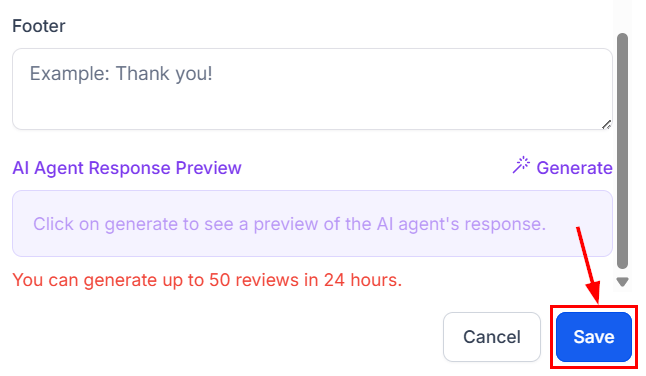 Create a workflow triggered by **Tag Added — "review-5-star"** or **"review-4-star"**:
1. **Send thank-you SMS** (if you have the reviewer's phone number): "Hi `{{contact.first_name}}`, thank you so much for the wonderful review! It means a lot to our team. We look forward to seeing you again."
2. **Add to referral campaign**: Positive reviewers are your best source of referrals. Add them to a referral request sequence 7 days later.
3. **Add to loyalty segment**: Tag them for exclusive offers or loyalty programs.
4. **Internal celebration**: Send an internal notification to the team so they know they are doing great work.
Create a workflow triggered by **Tag Added — "review-negative"**:
1. **Alert the manager immediately**: Internal SMS and email with the review text, reviewer name, and star rating
2. **Create urgent task**: Assigned to the manager with a 2-hour due time — "Contact `{{contact.name}}` to resolve their review complaint"
3. **Wait 1 hour** (give the manager time to respond publicly first)
4. **Send private outreach** (if you have their contact info): "Hi `{{contact.first_name}}`, I saw your recent feedback and I want to make this right. Can we chat about your experience? I am available at \[PHONE] or you can reply to this message."
5. **If resolved** (manager marks task complete): Send a gentle follow-up in 7 days asking if they would consider updating their review
6. **Track resolution**: Update a "Review Resolution" custom field
Never ask a customer to delete or change a negative review directly. Instead, resolve their issue and then gently mention: "If your experience has improved, we would be grateful if you updated your review to reflect that." This approach is both ethical and more effective.
Do not just respond to reviews — proactively ask happy customers to leave them:
**Trigger**: Appointment completed, invoice paid, or custom event indicating a positive interaction
1. **Wait 2 hours** after the positive interaction
2. **Send SMS**: "Hi `{{contact.first_name}}`, we hope you had a great experience with us today! If you have a moment, we would really appreciate a Google review. It helps other people find us: \[REVIEW LINK]"
3. **Wait 3 days**: If no review detected, send one follow-up: "Just a friendly reminder — if you enjoyed your experience, a quick Google review would mean the world to us: \[REVIEW LINK]"
4. **Do not send more than 2 requests** per interaction
Timing matters. The best time to ask for a review is immediately after a positive experience, while the good feelings are fresh. Two hours is the sweet spot — long enough to not feel pushy, short enough to be top-of-mind.
Set up alerts so you never miss an important review:
1. **All negative reviews (1-2 stars)**: Instant SMS + email to the business owner or manager
2. **All reviews**: Daily summary email with new reviews, average rating, and response status
3. **Weekly report**: Week-over-week review volume, average rating trend, response rate, and resolution rate
Go to **Automation > Workflows** and create notification workflows for each alert type.
***
## Full prompt
Reviews AI uses a configuration-based approach rather than a traditional prompt. However, you can customize the response style by providing guidelines. Here is a configuration template:
```text Reviews AI response guidelines theme={null}
BUSINESS CONTEXT:
- Business name: [BUSINESS NAME]
- Industry: [INDUSTRY]
- Key services: [SERVICE 1], [SERVICE 2], [SERVICE 3]
- Brand voice: [Professional and warm / Casual and friendly / Formal and authoritative]
RESPONSE RULES FOR 5-STAR REVIEWS:
- Start with a warm thank-you that includes the reviewer's name
- Reference a specific detail from their review to show you read it
- Mention the specific service or team member if they did
- Invite them to return or try another service
- Keep to 2-3 sentences
- Example tone: "Thank you so much, [NAME]! We are thrilled to hear that [SPECIFIC DETAIL]. Our team takes pride in [RELATED VALUE]. We look forward to seeing you again!"
RESPONSE RULES FOR 4-STAR REVIEWS:
- Thank them warmly
- Acknowledge the positive aspects they mentioned
- If they mentioned a minor issue, acknowledge it briefly
- Invite feedback on how to earn that fifth star
- Keep to 2-3 sentences
RESPONSE RULES FOR 3-STAR REVIEWS:
- Thank them for taking the time to share feedback
- Acknowledge both the positives and concerns
- Show that you take their feedback seriously
- Invite them to reach out directly so you can improve their experience
- Keep to 3-4 sentences
RESPONSE RULES FOR 1-2 STAR REVIEWS:
- Lead with empathy: "We are sorry to hear about your experience"
- Do not make excuses or get defensive
- Take ownership even if the complaint seems unfair
- Invite them to contact you directly to resolve the issue
- Provide a specific contact method (phone number or email)
- Keep to 3-4 sentences
- Never mention compensation publicly (handle that privately)
THINGS TO NEVER DO:
- Never argue with a reviewer
- Never reveal private customer information in a public response
- Never offer discounts or refunds in public responses (do this privately)
- Never use a template that is obviously copy-pasted (every response must feel personalized)
- Never ignore negative reviews — they require a response within 24 hours
- Never use overly corporate language ("We apologize for any inconvenience caused")
- Never blame the customer, even indirectly
```
***
## Testing your review automation
Leave a test 5-star review (or simulate one). Verify the AI generates an enthusiastic, personalized response and the positive review workflow fires.
Simulate a 3-star review with mixed feedback. Verify the AI acknowledges both positives and concerns and invites further conversation.
Simulate a 1-star review with a specific complaint. Verify the response is empathetic, does not get defensive, and offers to resolve the issue offline. Verify the negative review workflow fires and the manager is alerted.
If using suggestive mode, verify that responses are queued for approval and not posted automatically.
If using auto-pilot, verify that positive review responses are posted automatically and negative reviews are still queued for approval (per your rating-based rules).
Complete a test appointment and verify the review request SMS fires 2 hours later with the correct Google review link.
Verify that the daily summary email and instant negative review alerts arrive correctly.
***
## Optimization tips
1. **Respond to every review within 24 hours.** Google's algorithm favors businesses that respond quickly and consistently. Auto-pilot mode ensures you never miss a response.
2. **Personalize every response.** The AI should reference specific details from the review (the service they used, the team member they mentioned, the outcome they experienced). Generic "Thank you for your review" responses feel robotic and can actually hurt your reputation.
3. **Track your response rate.** Aim for 100% of reviews responded to. Even a simple thank-you on a 5-star review signals to potential customers that you care.
4. **Monitor sentiment trends.** If your average rating drops, investigate immediately. Look at the negative reviews from the past 30 days and identify common themes (wait times, specific services, certain team members).
5. **Use negative reviews as improvement data.** Every negative review is free market research. Track complaint categories and share them with your team weekly. Businesses that act on review feedback see measurable improvement within 90 days.
6. **Increase review volume with proactive requests.** Most happy customers do not leave reviews unless asked. A well-timed review request can double your monthly review volume. More reviews also dilute the impact of occasional negative ones.
***
## KPIs to measure success
| KPI | Target | Where to find it |
| ----------------------------------- | ----------------------------------------------------------- | -------------------------- |
| **Response rate** | 100% of reviews receive a response | Reviews dashboard |
| **Response time** | Under 4 hours for auto-pilot, under 24 hours for suggestive | Reviews dashboard |
| **Average star rating** | 4.5+ stars | Google Business Profile |
| **Monthly review volume** | 20%+ increase after implementing review requests | Google Business Profile |
| **Negative review resolution rate** | 50%+ of negative reviewers contacted and issue resolved | Recovery workflow tracking |
| **Review update rate** | 15%+ of resolved negative reviewers update their rating | Manual tracking |
| **Review request conversion** | 10–20% of customers asked leave a review | Workflow tracking |
***
## Next steps
Manage review automation across multiple Google Business Profile locations.
Handle negative review follow-ups even outside business hours.
Full guide to reputation management in HoopAI.
Build more sophisticated review response and recovery workflows.
Create a workflow triggered by **Tag Added — "review-5-star"** or **"review-4-star"**:
1. **Send thank-you SMS** (if you have the reviewer's phone number): "Hi `{{contact.first_name}}`, thank you so much for the wonderful review! It means a lot to our team. We look forward to seeing you again."
2. **Add to referral campaign**: Positive reviewers are your best source of referrals. Add them to a referral request sequence 7 days later.
3. **Add to loyalty segment**: Tag them for exclusive offers or loyalty programs.
4. **Internal celebration**: Send an internal notification to the team so they know they are doing great work.
Create a workflow triggered by **Tag Added — "review-negative"**:
1. **Alert the manager immediately**: Internal SMS and email with the review text, reviewer name, and star rating
2. **Create urgent task**: Assigned to the manager with a 2-hour due time — "Contact `{{contact.name}}` to resolve their review complaint"
3. **Wait 1 hour** (give the manager time to respond publicly first)
4. **Send private outreach** (if you have their contact info): "Hi `{{contact.first_name}}`, I saw your recent feedback and I want to make this right. Can we chat about your experience? I am available at \[PHONE] or you can reply to this message."
5. **If resolved** (manager marks task complete): Send a gentle follow-up in 7 days asking if they would consider updating their review
6. **Track resolution**: Update a "Review Resolution" custom field
Never ask a customer to delete or change a negative review directly. Instead, resolve their issue and then gently mention: "If your experience has improved, we would be grateful if you updated your review to reflect that." This approach is both ethical and more effective.
Do not just respond to reviews — proactively ask happy customers to leave them:
**Trigger**: Appointment completed, invoice paid, or custom event indicating a positive interaction
1. **Wait 2 hours** after the positive interaction
2. **Send SMS**: "Hi `{{contact.first_name}}`, we hope you had a great experience with us today! If you have a moment, we would really appreciate a Google review. It helps other people find us: \[REVIEW LINK]"
3. **Wait 3 days**: If no review detected, send one follow-up: "Just a friendly reminder — if you enjoyed your experience, a quick Google review would mean the world to us: \[REVIEW LINK]"
4. **Do not send more than 2 requests** per interaction
Timing matters. The best time to ask for a review is immediately after a positive experience, while the good feelings are fresh. Two hours is the sweet spot — long enough to not feel pushy, short enough to be top-of-mind.
Set up alerts so you never miss an important review:
1. **All negative reviews (1-2 stars)**: Instant SMS + email to the business owner or manager
2. **All reviews**: Daily summary email with new reviews, average rating, and response status
3. **Weekly report**: Week-over-week review volume, average rating trend, response rate, and resolution rate
Go to **Automation > Workflows** and create notification workflows for each alert type.
***
## Full prompt
Reviews AI uses a configuration-based approach rather than a traditional prompt. However, you can customize the response style by providing guidelines. Here is a configuration template:
```text Reviews AI response guidelines theme={null}
BUSINESS CONTEXT:
- Business name: [BUSINESS NAME]
- Industry: [INDUSTRY]
- Key services: [SERVICE 1], [SERVICE 2], [SERVICE 3]
- Brand voice: [Professional and warm / Casual and friendly / Formal and authoritative]
RESPONSE RULES FOR 5-STAR REVIEWS:
- Start with a warm thank-you that includes the reviewer's name
- Reference a specific detail from their review to show you read it
- Mention the specific service or team member if they did
- Invite them to return or try another service
- Keep to 2-3 sentences
- Example tone: "Thank you so much, [NAME]! We are thrilled to hear that [SPECIFIC DETAIL]. Our team takes pride in [RELATED VALUE]. We look forward to seeing you again!"
RESPONSE RULES FOR 4-STAR REVIEWS:
- Thank them warmly
- Acknowledge the positive aspects they mentioned
- If they mentioned a minor issue, acknowledge it briefly
- Invite feedback on how to earn that fifth star
- Keep to 2-3 sentences
RESPONSE RULES FOR 3-STAR REVIEWS:
- Thank them for taking the time to share feedback
- Acknowledge both the positives and concerns
- Show that you take their feedback seriously
- Invite them to reach out directly so you can improve their experience
- Keep to 3-4 sentences
RESPONSE RULES FOR 1-2 STAR REVIEWS:
- Lead with empathy: "We are sorry to hear about your experience"
- Do not make excuses or get defensive
- Take ownership even if the complaint seems unfair
- Invite them to contact you directly to resolve the issue
- Provide a specific contact method (phone number or email)
- Keep to 3-4 sentences
- Never mention compensation publicly (handle that privately)
THINGS TO NEVER DO:
- Never argue with a reviewer
- Never reveal private customer information in a public response
- Never offer discounts or refunds in public responses (do this privately)
- Never use a template that is obviously copy-pasted (every response must feel personalized)
- Never ignore negative reviews — they require a response within 24 hours
- Never use overly corporate language ("We apologize for any inconvenience caused")
- Never blame the customer, even indirectly
```
***
## Testing your review automation
Leave a test 5-star review (or simulate one). Verify the AI generates an enthusiastic, personalized response and the positive review workflow fires.
Simulate a 3-star review with mixed feedback. Verify the AI acknowledges both positives and concerns and invites further conversation.
Simulate a 1-star review with a specific complaint. Verify the response is empathetic, does not get defensive, and offers to resolve the issue offline. Verify the negative review workflow fires and the manager is alerted.
If using suggestive mode, verify that responses are queued for approval and not posted automatically.
If using auto-pilot, verify that positive review responses are posted automatically and negative reviews are still queued for approval (per your rating-based rules).
Complete a test appointment and verify the review request SMS fires 2 hours later with the correct Google review link.
Verify that the daily summary email and instant negative review alerts arrive correctly.
***
## Optimization tips
1. **Respond to every review within 24 hours.** Google's algorithm favors businesses that respond quickly and consistently. Auto-pilot mode ensures you never miss a response.
2. **Personalize every response.** The AI should reference specific details from the review (the service they used, the team member they mentioned, the outcome they experienced). Generic "Thank you for your review" responses feel robotic and can actually hurt your reputation.
3. **Track your response rate.** Aim for 100% of reviews responded to. Even a simple thank-you on a 5-star review signals to potential customers that you care.
4. **Monitor sentiment trends.** If your average rating drops, investigate immediately. Look at the negative reviews from the past 30 days and identify common themes (wait times, specific services, certain team members).
5. **Use negative reviews as improvement data.** Every negative review is free market research. Track complaint categories and share them with your team weekly. Businesses that act on review feedback see measurable improvement within 90 days.
6. **Increase review volume with proactive requests.** Most happy customers do not leave reviews unless asked. A well-timed review request can double your monthly review volume. More reviews also dilute the impact of occasional negative ones.
***
## KPIs to measure success
| KPI | Target | Where to find it |
| ----------------------------------- | ----------------------------------------------------------- | -------------------------- |
| **Response rate** | 100% of reviews receive a response | Reviews dashboard |
| **Response time** | Under 4 hours for auto-pilot, under 24 hours for suggestive | Reviews dashboard |
| **Average star rating** | 4.5+ stars | Google Business Profile |
| **Monthly review volume** | 20%+ increase after implementing review requests | Google Business Profile |
| **Negative review resolution rate** | 50%+ of negative reviewers contacted and issue resolved | Recovery workflow tracking |
| **Review update rate** | 15%+ of resolved negative reviewers update their rating | Manual tracking |
| **Review request conversion** | 10–20% of customers asked leave a review | Workflow tracking |
***
## Next steps
Manage review automation across multiple Google Business Profile locations.
Handle negative review follow-ups even outside business hours.
Full guide to reputation management in HoopAI.
Build more sophisticated review response and recovery workflows.