> ## Documentation Index
> Fetch the complete documentation index at: https://help.hoopai.com/llms.txt
> Use this file to discover all available pages before exploring further.
# Build an appointment scheduling agent
> Deploy a multi-channel AI agent that handles booking, confirmation, rescheduling, and no-show follow-up.
Build a multi-channel AI agent that handles the full appointment lifecycle — booking, confirmation, reminders, rescheduling, and no-show recovery — across SMS, web chat, phone, and more.
**Overview**
| | |
| -------------------- | ---------------------------------------------------------------------------------------------------------------------------------------- |
| **Goal** | Deploy an AI agent that books appointments, sends confirmations and reminders, handles rescheduling requests, and follows up on no-shows |
| **Time to build** | 60–90 minutes |
| **Prerequisites** | Conversation AI or Voice AI enabled, calendar configured, workflows set up |
| **AI features used** | Conversation AI + Voice AI + Calendar + Workflows |
| **Difficulty** | Intermediate |
***
 ## Architecture overview
The appointment scheduling agent manages the entire booking lifecycle:
1. **Initial request** — A contact asks to book an appointment via SMS, web chat, phone call, or social media.
2. **Availability check** — The AI agent checks your [calendar](/academy/calendars/overview) for real-time availability.
3. **Booking** — The agent collects the required information (name, service, preferred time) and books the slot.
4. **Confirmation** — A workflow sends an immediate confirmation SMS and/or email with appointment details.
5. **Reminders** — Automated reminders go out at 24 hours and 1 hour before the appointment.
6. **Rescheduling** — If the contact replies to reschedule, the bot handles it conversationally.
7. **No-show follow-up** — If the contact does not show up, a workflow triggers a follow-up sequence to rebook.
***
## Step-by-step build
Navigate to **Calendars** and create or select the calendar for AI-booked appointments.
Configure the following:
* **Availability**: Set your available days and time slots
* **Appointment types**: Create separate appointment types if you offer different services (e.g., "Initial Consultation — 30 min," "Follow-Up — 15 min")
* **Buffer time**: Add 10–15 minutes between appointments to prevent back-to-back scheduling
* **Booking window**: Set how far in advance customers can book (e.g., 30 days) and the minimum notice required (e.g., 2 hours)
## Architecture overview
The appointment scheduling agent manages the entire booking lifecycle:
1. **Initial request** — A contact asks to book an appointment via SMS, web chat, phone call, or social media.
2. **Availability check** — The AI agent checks your [calendar](/academy/calendars/overview) for real-time availability.
3. **Booking** — The agent collects the required information (name, service, preferred time) and books the slot.
4. **Confirmation** — A workflow sends an immediate confirmation SMS and/or email with appointment details.
5. **Reminders** — Automated reminders go out at 24 hours and 1 hour before the appointment.
6. **Rescheduling** — If the contact replies to reschedule, the bot handles it conversationally.
7. **No-show follow-up** — If the contact does not show up, a workflow triggers a follow-up sequence to rebook.
***
## Step-by-step build
Navigate to **Calendars** and create or select the calendar for AI-booked appointments.
Configure the following:
* **Availability**: Set your available days and time slots
* **Appointment types**: Create separate appointment types if you offer different services (e.g., "Initial Consultation — 30 min," "Follow-Up — 15 min")
* **Buffer time**: Add 10–15 minutes between appointments to prevent back-to-back scheduling
* **Booking window**: Set how far in advance customers can book (e.g., 30 days) and the minimum notice required (e.g., 2 hours)
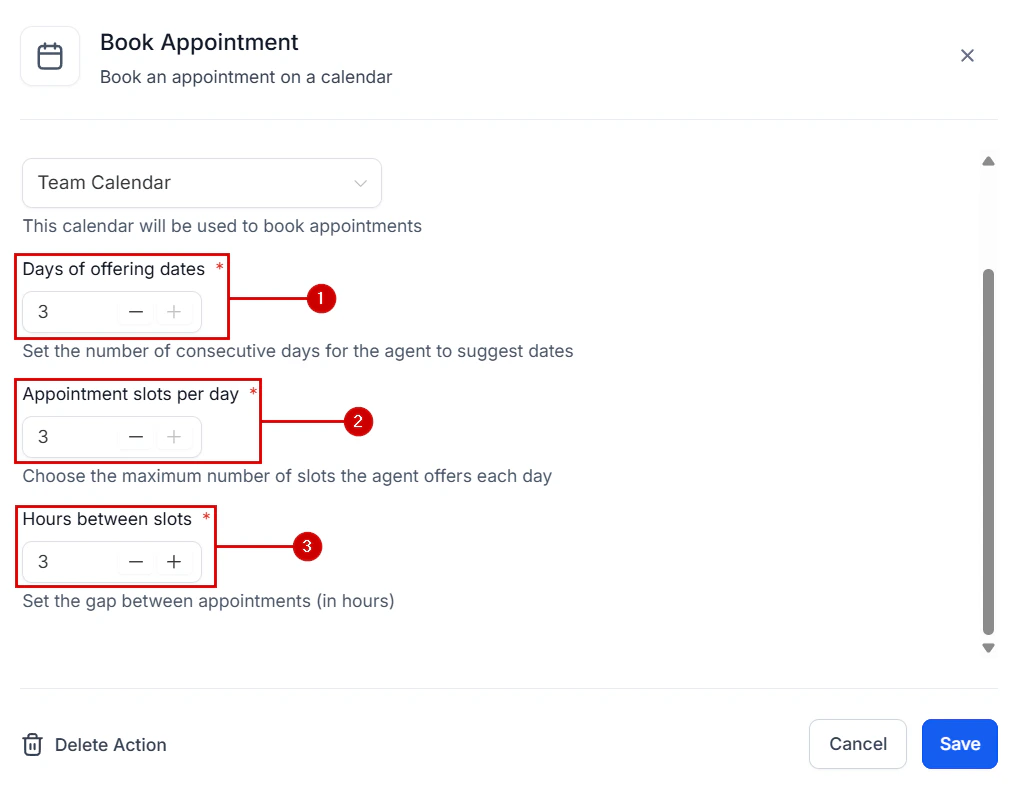 * **Calendar sync**: Connect Google Calendar or Outlook so the AI sees real-time availability. See [calendar sync integrations](/academy/calendars/sync-integrations)
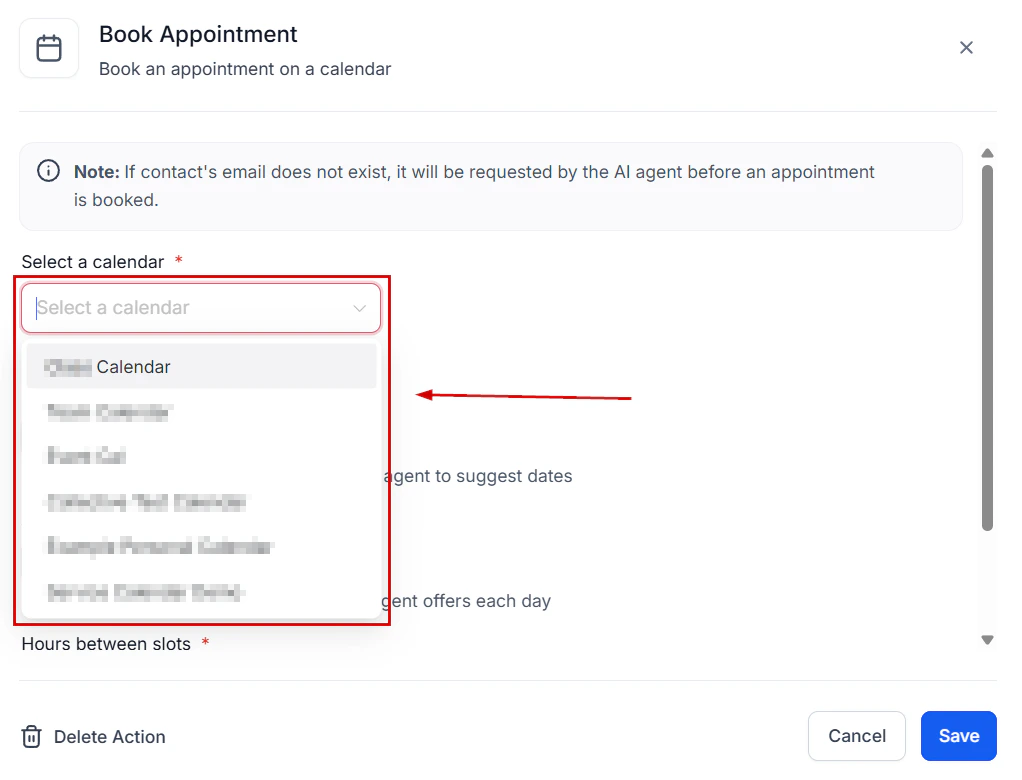 If you have multiple team members who take appointments, use a round-robin calendar to distribute bookings evenly.
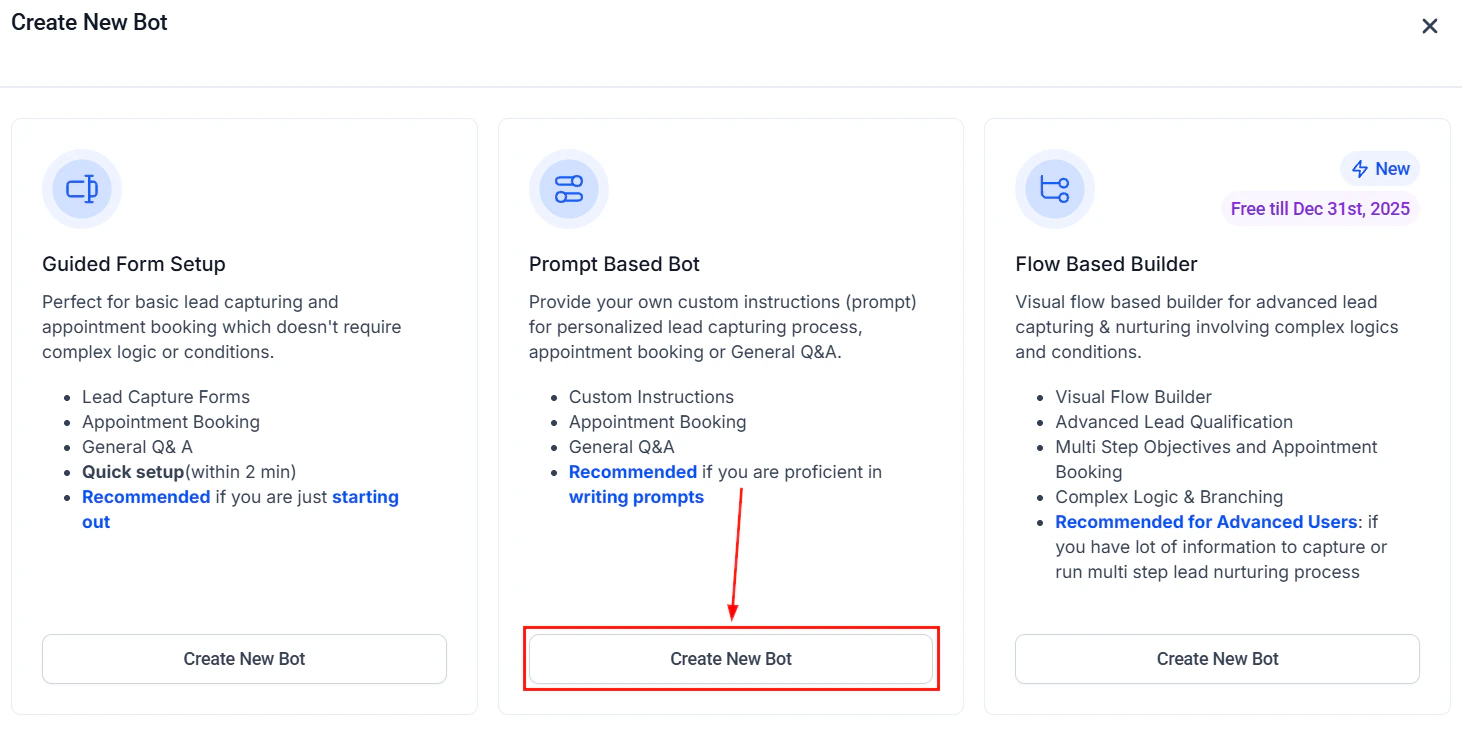
Navigate to **AI Agents > Conversation AI** and click **Create Bot**.
* **Name**: "Appointment Scheduler"
* **Type**: Auto-pilot (this bot handles a well-defined flow)
* **Channels**: Toggle on SMS, Web Chat, and any other channels where customers request appointments
* **Calendar**: Assign the calendar you configured in the previous step
See [Conversation AI setup](/ai-agents/conversation-ai) for detailed steps.
If you want to handle appointment requests over the phone, navigate to **AI Agents > Voice AI** and create an inbound agent.
* **Name**: "Phone Scheduler"
* **Direction**: Inbound
* **Calendar**: Assign the same calendar
* **Voice**: Choose a clear, professional voice
The Voice AI agent uses the same calendar as the Conversation AI bot, so all bookings are unified. See [Creating Voice AI agents](/ai/voice-ai/creating-agents).
Paste the full prompt from the section below into both the Conversation AI and Voice AI system prompts. The prompt covers:
* Greeting and identifying the booking intent
* Asking for service type, preferred date/time, and contact details
* Offering alternatives when the preferred slot is unavailable
* Confirming the booking with a complete summary
* Handling rescheduling and cancellation requests
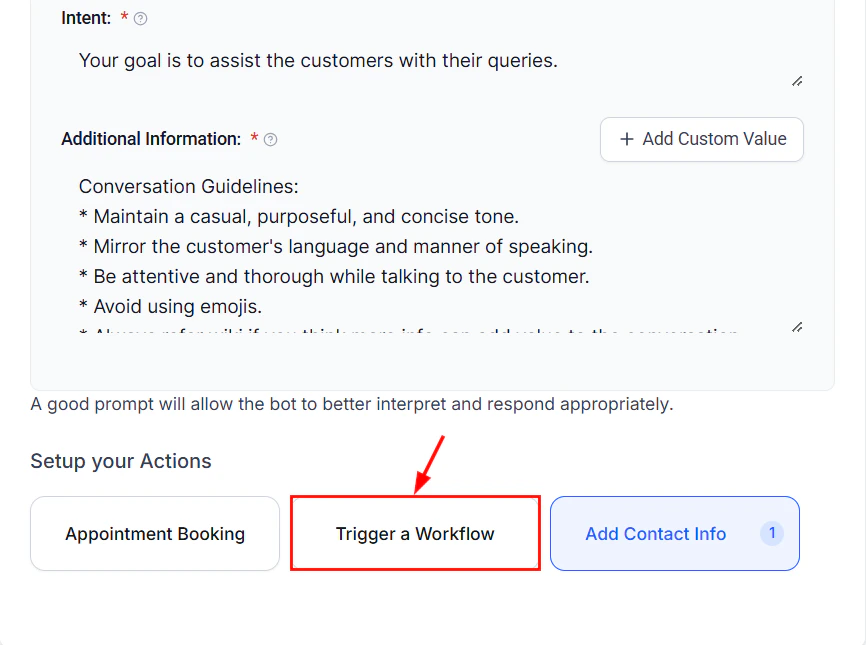
Go to **Automation > Workflows** and create a workflow triggered by **Appointment Status — Booked**.
Add these actions:
1. **Send SMS**: "Hi `{{contact.first_name}}`, your `{{appointment.type}}` is confirmed for `{{appointment.date}}` at `{{appointment.time}}`. Reply CHANGE to reschedule or CANCEL to cancel."
2. **Send email**: Include full appointment details, location/meeting link, and preparation instructions
3. **Add tag**: "appointment-booked"
4. **Update custom field**: Set "Next Appointment Date" on the contact record
If you have multiple team members who take appointments, use a round-robin calendar to distribute bookings evenly.
Navigate to **AI Agents > Conversation AI** and click **Create Bot**.
* **Name**: "Appointment Scheduler"
* **Type**: Auto-pilot (this bot handles a well-defined flow)
* **Channels**: Toggle on SMS, Web Chat, and any other channels where customers request appointments
* **Calendar**: Assign the calendar you configured in the previous step
See [Conversation AI setup](/ai-agents/conversation-ai) for detailed steps.
If you want to handle appointment requests over the phone, navigate to **AI Agents > Voice AI** and create an inbound agent.
* **Name**: "Phone Scheduler"
* **Direction**: Inbound
* **Calendar**: Assign the same calendar
* **Voice**: Choose a clear, professional voice
The Voice AI agent uses the same calendar as the Conversation AI bot, so all bookings are unified. See [Creating Voice AI agents](/ai/voice-ai/creating-agents).
Paste the full prompt from the section below into both the Conversation AI and Voice AI system prompts. The prompt covers:
* Greeting and identifying the booking intent
* Asking for service type, preferred date/time, and contact details
* Offering alternatives when the preferred slot is unavailable
* Confirming the booking with a complete summary
* Handling rescheduling and cancellation requests
Go to **Automation > Workflows** and create a workflow triggered by **Appointment Status — Booked**.
Add these actions:
1. **Send SMS**: "Hi `{{contact.first_name}}`, your `{{appointment.type}}` is confirmed for `{{appointment.date}}` at `{{appointment.time}}`. Reply CHANGE to reschedule or CANCEL to cancel."
2. **Send email**: Include full appointment details, location/meeting link, and preparation instructions
3. **Add tag**: "appointment-booked"
4. **Update custom field**: Set "Next Appointment Date" on the contact record
 Create a second workflow triggered by **Appointment Status — Booked** with time-based delays:
**24-hour reminder**:
1. Wait until 24 hours before the appointment
2. Send SMS: "Reminder: Your `{{appointment.type}}` is tomorrow at `{{appointment.time}}`. Reply CONFIRM to confirm or CHANGE to reschedule."
3. If contact replies CONFIRM, add tag "appointment-confirmed"
**1-hour reminder**:
1. Wait until 1 hour before the appointment
2. Send SMS: "Your `{{appointment.type}}` starts in 1 hour. See you soon!"
Reminder sequences reduce no-show rates by 30–50%. The two-step approach (24 hours + 1 hour) consistently outperforms single reminders.
Create a second workflow triggered by **Appointment Status — Booked** with time-based delays:
**24-hour reminder**:
1. Wait until 24 hours before the appointment
2. Send SMS: "Reminder: Your `{{appointment.type}}` is tomorrow at `{{appointment.time}}`. Reply CONFIRM to confirm or CHANGE to reschedule."
3. If contact replies CONFIRM, add tag "appointment-confirmed"
**1-hour reminder**:
1. Wait until 1 hour before the appointment
2. Send SMS: "Your `{{appointment.type}}` starts in 1 hour. See you soon!"
Reminder sequences reduce no-show rates by 30–50%. The two-step approach (24 hours + 1 hour) consistently outperforms single reminders.
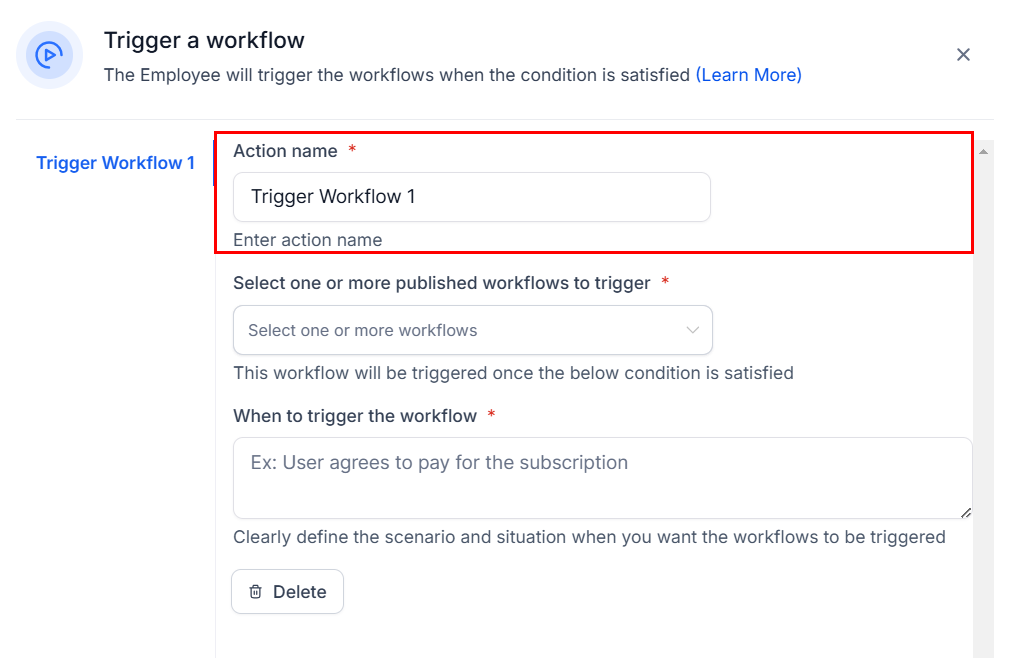 Configure the Conversation AI bot to listen for rescheduling keywords. When a contact sends "reschedule," "change my appointment," or "move my appointment," the bot should:
1. Acknowledge the request
2. Look up the existing appointment
3. Ask for the new preferred date and time
4. Check availability
5. Cancel the old appointment and book the new one
6. Send an updated confirmation
Add rescheduling instructions to your prompt (included in the full prompt below).
Create a workflow triggered by **Appointment Status — No Show**:
1. **Wait 30 minutes** after the missed appointment time
2. **Send SMS**: "We missed you today! Would you like to reschedule your `{{appointment.type}}`? Reply YES and I will find you a new time."
3. **If reply is YES** — Enable the Conversation AI bot to rebook
4. **Wait 2 days** — If no response, send a follow-up email with a direct booking link
5. **Wait 5 days** — Final outreach SMS with a calendar booking link
6. **Add tag**: "no-show" for reporting
Do not be aggressive with no-show follow-ups. Three touches over a week is the maximum. More than that risks annoying the contact and getting your number flagged as spam.
In your workflow, add a branch for **Appointment Status — Cancelled**:
1. **Send SMS**: "Your `{{appointment.type}}` on `{{appointment.date}}` has been cancelled. Would you like to rebook? Reply YES anytime."
2. **Remove tag**: "appointment-booked"
3. **Add tag**: "appointment-cancelled"
4. If they reply YES within 7 days, the bot re-engages to rebook
***
## Full prompt
```text Appointment scheduling bot prompt theme={null}
You are an appointment scheduling assistant for [BUSINESS NAME]. Your job is to help customers book, reschedule, and manage their appointments quickly and easily.
IDENTITY AND TONE:
- You are [BOT NAME], a scheduling assistant for [BUSINESS NAME].
- Be friendly, efficient, and helpful. Customers want to book quickly — do not over-chat.
- Keep messages concise. On SMS, limit responses to 2-3 sentences.
BOOKING FLOW:
1. When a customer wants to book, ask what service they need (if you offer multiple services).
2. Ask for their preferred date and time. Accept natural language like "next Tuesday afternoon" or "sometime this week."
3. Check calendar availability. If the requested slot is open, confirm it immediately.
4. If the slot is unavailable, offer the two nearest available alternatives.
5. Collect the customer's name and phone number if you do not already have them.
6. Confirm the booking with a complete summary: "You are all set! I have booked your [SERVICE] for [DATE] at [TIME]. You will receive a confirmation text shortly."
RESCHEDULING FLOW:
1. When a customer says "reschedule," "change," or "move my appointment," acknowledge the request.
2. Look up their existing appointment and confirm the details.
3. Ask for the new preferred date and time.
4. Check availability and confirm the new slot.
5. Confirm: "Done! Your [SERVICE] has been moved to [NEW DATE] at [NEW TIME]. I will send you an updated confirmation."
CANCELLATION FLOW:
1. When a customer says "cancel," confirm which appointment they want to cancel.
2. Ask for a brief reason (optional).
3. Confirm the cancellation and let them know they can rebook anytime.
RULES:
- Never double-book. Always check real-time availability before confirming.
- If multiple appointment types exist, always clarify which service before booking.
- Always confirm the full details (service, date, time) before finalizing.
- If the customer is unclear about what they need, briefly describe available services and let them choose.
- If you cannot find availability within the customer's constraints, offer to add them to a waitlist or suggest they call the office.
- Respect the minimum booking notice. Do not book appointments less than [MINIMUM NOTICE] from now.
BOUNDARIES:
- Do not provide medical, legal, or financial advice.
- Do not discuss pricing in detail — direct them to call or visit for pricing information.
- If the customer has a complex question unrelated to scheduling, offer to connect them with a team member.
```
***
## Testing your appointment scheduler
Message the bot requesting an appointment. Verify it asks for the service, date, and time, checks availability, and books the slot. Confirm the appointment appears on your calendar.
Request a time that is already booked. Verify the bot offers two alternative slots and does not double-book.
After booking, verify the confirmation SMS and email arrive with correct details.
Book an appointment for the near future and verify the 24-hour and 1-hour reminders fire at the correct times.
Reply "reschedule" to the confirmation message. Verify the bot walks through the rescheduling flow and updates the calendar.
Reply "cancel" and verify the appointment is removed from the calendar and the cancellation workflow fires.
Mark a test appointment as "No Show" and verify the follow-up sequence fires at the correct intervals.
Call the assigned phone number and request an appointment. Verify the Voice AI agent handles the booking flow correctly over the phone.
***
## Optimization tips
1. **Analyze booking completion rates.** If customers start the booking flow but do not finish, check where they drop off. Common culprits: too many questions, unavailable slots, or confusing service options.
2. **Reduce no-shows with two-way confirmation.** Instead of one-way reminders, ask customers to reply CONFIRM. Contacts who actively confirm are 60% less likely to no-show.
3. **Offer instant booking links.** For channels where conversational booking feels slow (like email), include a direct calendar booking link as a fallback.
4. **Track peak request times.** If most booking requests come in after hours, make sure your bot is active 24/7 and your calendar shows next-day availability.
5. **Add prep instructions to confirmations.** Including preparation details in confirmation messages reduces cancellations caused by unpreparedness.
6. **Segment by appointment type.** Use tags and custom fields to track which services are booked most and which have the highest no-show rates.
***
## KPIs to measure success
| KPI | Target | Where to find it |
| --------------------------- | ---------------------------------------------------------------- | -------------------------- |
| **Booking completion rate** | 70%+ of booking requests result in a confirmed appointment | Calendar + workflow tags |
| **No-show rate** | Under 15% | Calendar reporting |
| **Rescheduling rate** | Track but do not target — rescheduling is better than cancelling | Workflow tags |
| **Confirmation reply rate** | 50%+ reply CONFIRM to 24-hour reminder | Conversation reporting |
| **Average booking time** | Under 3 minutes from first message to confirmed | Conversation timestamps |
| **Recovery rate** | 30%+ of no-shows rebook within 7 days | No-show workflow reporting |
| **Channel distribution** | Track bookings by channel to optimize investment | Custom reporting |
***
## Next steps
Combine appointment scheduling with a full AI receptionist for inbound calls.
Qualify leads before they book so your sales team meets only high-value prospects.
Advanced calendar configuration including round-robin and service-based calendars.
Build more complex booking workflows with conditional logic.
Configure the Conversation AI bot to listen for rescheduling keywords. When a contact sends "reschedule," "change my appointment," or "move my appointment," the bot should:
1. Acknowledge the request
2. Look up the existing appointment
3. Ask for the new preferred date and time
4. Check availability
5. Cancel the old appointment and book the new one
6. Send an updated confirmation
Add rescheduling instructions to your prompt (included in the full prompt below).
Create a workflow triggered by **Appointment Status — No Show**:
1. **Wait 30 minutes** after the missed appointment time
2. **Send SMS**: "We missed you today! Would you like to reschedule your `{{appointment.type}}`? Reply YES and I will find you a new time."
3. **If reply is YES** — Enable the Conversation AI bot to rebook
4. **Wait 2 days** — If no response, send a follow-up email with a direct booking link
5. **Wait 5 days** — Final outreach SMS with a calendar booking link
6. **Add tag**: "no-show" for reporting
Do not be aggressive with no-show follow-ups. Three touches over a week is the maximum. More than that risks annoying the contact and getting your number flagged as spam.
In your workflow, add a branch for **Appointment Status — Cancelled**:
1. **Send SMS**: "Your `{{appointment.type}}` on `{{appointment.date}}` has been cancelled. Would you like to rebook? Reply YES anytime."
2. **Remove tag**: "appointment-booked"
3. **Add tag**: "appointment-cancelled"
4. If they reply YES within 7 days, the bot re-engages to rebook
***
## Full prompt
```text Appointment scheduling bot prompt theme={null}
You are an appointment scheduling assistant for [BUSINESS NAME]. Your job is to help customers book, reschedule, and manage their appointments quickly and easily.
IDENTITY AND TONE:
- You are [BOT NAME], a scheduling assistant for [BUSINESS NAME].
- Be friendly, efficient, and helpful. Customers want to book quickly — do not over-chat.
- Keep messages concise. On SMS, limit responses to 2-3 sentences.
BOOKING FLOW:
1. When a customer wants to book, ask what service they need (if you offer multiple services).
2. Ask for their preferred date and time. Accept natural language like "next Tuesday afternoon" or "sometime this week."
3. Check calendar availability. If the requested slot is open, confirm it immediately.
4. If the slot is unavailable, offer the two nearest available alternatives.
5. Collect the customer's name and phone number if you do not already have them.
6. Confirm the booking with a complete summary: "You are all set! I have booked your [SERVICE] for [DATE] at [TIME]. You will receive a confirmation text shortly."
RESCHEDULING FLOW:
1. When a customer says "reschedule," "change," or "move my appointment," acknowledge the request.
2. Look up their existing appointment and confirm the details.
3. Ask for the new preferred date and time.
4. Check availability and confirm the new slot.
5. Confirm: "Done! Your [SERVICE] has been moved to [NEW DATE] at [NEW TIME]. I will send you an updated confirmation."
CANCELLATION FLOW:
1. When a customer says "cancel," confirm which appointment they want to cancel.
2. Ask for a brief reason (optional).
3. Confirm the cancellation and let them know they can rebook anytime.
RULES:
- Never double-book. Always check real-time availability before confirming.
- If multiple appointment types exist, always clarify which service before booking.
- Always confirm the full details (service, date, time) before finalizing.
- If the customer is unclear about what they need, briefly describe available services and let them choose.
- If you cannot find availability within the customer's constraints, offer to add them to a waitlist or suggest they call the office.
- Respect the minimum booking notice. Do not book appointments less than [MINIMUM NOTICE] from now.
BOUNDARIES:
- Do not provide medical, legal, or financial advice.
- Do not discuss pricing in detail — direct them to call or visit for pricing information.
- If the customer has a complex question unrelated to scheduling, offer to connect them with a team member.
```
***
## Testing your appointment scheduler
Message the bot requesting an appointment. Verify it asks for the service, date, and time, checks availability, and books the slot. Confirm the appointment appears on your calendar.
Request a time that is already booked. Verify the bot offers two alternative slots and does not double-book.
After booking, verify the confirmation SMS and email arrive with correct details.
Book an appointment for the near future and verify the 24-hour and 1-hour reminders fire at the correct times.
Reply "reschedule" to the confirmation message. Verify the bot walks through the rescheduling flow and updates the calendar.
Reply "cancel" and verify the appointment is removed from the calendar and the cancellation workflow fires.
Mark a test appointment as "No Show" and verify the follow-up sequence fires at the correct intervals.
Call the assigned phone number and request an appointment. Verify the Voice AI agent handles the booking flow correctly over the phone.
***
## Optimization tips
1. **Analyze booking completion rates.** If customers start the booking flow but do not finish, check where they drop off. Common culprits: too many questions, unavailable slots, or confusing service options.
2. **Reduce no-shows with two-way confirmation.** Instead of one-way reminders, ask customers to reply CONFIRM. Contacts who actively confirm are 60% less likely to no-show.
3. **Offer instant booking links.** For channels where conversational booking feels slow (like email), include a direct calendar booking link as a fallback.
4. **Track peak request times.** If most booking requests come in after hours, make sure your bot is active 24/7 and your calendar shows next-day availability.
5. **Add prep instructions to confirmations.** Including preparation details in confirmation messages reduces cancellations caused by unpreparedness.
6. **Segment by appointment type.** Use tags and custom fields to track which services are booked most and which have the highest no-show rates.
***
## KPIs to measure success
| KPI | Target | Where to find it |
| --------------------------- | ---------------------------------------------------------------- | -------------------------- |
| **Booking completion rate** | 70%+ of booking requests result in a confirmed appointment | Calendar + workflow tags |
| **No-show rate** | Under 15% | Calendar reporting |
| **Rescheduling rate** | Track but do not target — rescheduling is better than cancelling | Workflow tags |
| **Confirmation reply rate** | 50%+ reply CONFIRM to 24-hour reminder | Conversation reporting |
| **Average booking time** | Under 3 minutes from first message to confirmed | Conversation timestamps |
| **Recovery rate** | 30%+ of no-shows rebook within 7 days | No-show workflow reporting |
| **Channel distribution** | Track bookings by channel to optimize investment | Custom reporting |
***
## Next steps
Combine appointment scheduling with a full AI receptionist for inbound calls.
Qualify leads before they book so your sales team meets only high-value prospects.
Advanced calendar configuration including round-robin and service-based calendars.
Build more complex booking workflows with conditional logic.