> ## Documentation Index
> Fetch the complete documentation index at: https://help.hoopai.com/llms.txt
> Use this file to discover all available pages before exploring further.
# Prompt library
> Ready-to-use prompt templates for every industry and use case in HoopAI.
The HoopAI prompt library is a curated collection of copy-paste prompt templates designed to help you deploy AI-powered conversations faster. Whether you are building a customer support bot, a lead qualification flow, or a voice AI receptionist, these templates give you a proven starting point.
 ## What is the prompt library?
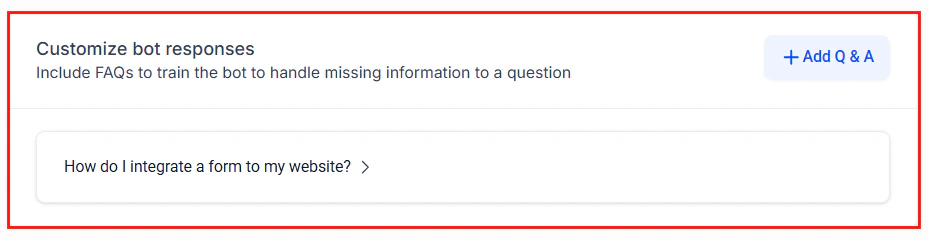
Every AI bot in HoopAI — whether it runs on [Conversation AI](/ai/conversation-ai/overview) or [Voice AI](/ai/voice-ai/overview) — is powered by a system prompt. The system prompt tells the AI who it is, what it should do, and how it should behave.
Writing a great prompt from scratch takes time and iteration. The prompt library removes that friction by providing **battle-tested templates** you can drop into your bots and customize in minutes.
## How to use a template
Browse the categories below to find the template closest to your use case.
Each template includes a full prompt inside a code block. Copy the entire text.
Look for `{variables}` wrapped in curly braces. Replace them with your actual business information — company name, hours, services, and so on.
Navigate to your bot configuration in HoopAI and paste the prompt into the system prompt field.
Run test conversations and adjust the prompt based on real interactions. Small tweaks to tone, guardrails, or instructions can make a big difference.
## Customization guidance
Templates are starting points, not finished products. The best-performing bots are always customized for your specific business, audience, and tone of voice.
Here are the most impactful customizations you can make:
* **Business details** — Replace every `{variable}` with accurate information. The more specific you are, the better the AI performs.
* **Tone and personality** — Adjust the voice to match your brand. A law firm sounds different from a surf shop.
* **Guardrails** — Add explicit instructions about what the AI should never say or promise. This is especially important for regulated industries.
* **Escalation rules** — Define exactly when and how the AI should hand off to a human agent.
* **Knowledge base** — Pair your prompt with a [knowledge base](/ai/conversation-ai/knowledge-base) for answers that go beyond what fits in a prompt.
## Browse by category
FAQ bots, billing inquiries, complaint handling, and product support.
Lead qualification, pricing discussions, demo booking, and follow-ups.
Scheduling, rescheduling, reminders, and no-show follow-ups.
Property inquiries, showing scheduling, buyer qualification, and listing follow-ups.
Medical appointment scheduling, patient intake, follow-up care, and HIPAA-conscious FAQ bots.
Order status, returns, product recommendations, and abandoned cart recovery.
AI receptionists, after-hours answering, outbound calls, and appointment confirmations.
## Next steps
Learn how Conversation AI works before deploying your first bot.
Understand Voice AI capabilities for phone-based agents.
Pair prompts with a knowledge base for richer answers.
Step-by-step guide to creating and configuring your AI bot.
## What is the prompt library?
Every AI bot in HoopAI — whether it runs on [Conversation AI](/ai/conversation-ai/overview) or [Voice AI](/ai/voice-ai/overview) — is powered by a system prompt. The system prompt tells the AI who it is, what it should do, and how it should behave.
Writing a great prompt from scratch takes time and iteration. The prompt library removes that friction by providing **battle-tested templates** you can drop into your bots and customize in minutes.
## How to use a template
Browse the categories below to find the template closest to your use case.
Each template includes a full prompt inside a code block. Copy the entire text.
Look for `{variables}` wrapped in curly braces. Replace them with your actual business information — company name, hours, services, and so on.
Navigate to your bot configuration in HoopAI and paste the prompt into the system prompt field.
Run test conversations and adjust the prompt based on real interactions. Small tweaks to tone, guardrails, or instructions can make a big difference.
## Customization guidance
Templates are starting points, not finished products. The best-performing bots are always customized for your specific business, audience, and tone of voice.
Here are the most impactful customizations you can make:
* **Business details** — Replace every `{variable}` with accurate information. The more specific you are, the better the AI performs.
* **Tone and personality** — Adjust the voice to match your brand. A law firm sounds different from a surf shop.
* **Guardrails** — Add explicit instructions about what the AI should never say or promise. This is especially important for regulated industries.
* **Escalation rules** — Define exactly when and how the AI should hand off to a human agent.
* **Knowledge base** — Pair your prompt with a [knowledge base](/ai/conversation-ai/knowledge-base) for answers that go beyond what fits in a prompt.
## Browse by category
FAQ bots, billing inquiries, complaint handling, and product support.
Lead qualification, pricing discussions, demo booking, and follow-ups.
Scheduling, rescheduling, reminders, and no-show follow-ups.
Property inquiries, showing scheduling, buyer qualification, and listing follow-ups.
Medical appointment scheduling, patient intake, follow-up care, and HIPAA-conscious FAQ bots.
Order status, returns, product recommendations, and abandoned cart recovery.
AI receptionists, after-hours answering, outbound calls, and appointment confirmations.
## Next steps
Learn how Conversation AI works before deploying your first bot.
Understand Voice AI capabilities for phone-based agents.
Pair prompts with a knowledge base for richer answers.
Step-by-step guide to creating and configuring your AI bot.