> ## Documentation Index
> Fetch the complete documentation index at: https://help.hoopai.com/llms.txt
> Use this file to discover all available pages before exploring further.
# Troubleshooting Conversation AI
> Solutions to common Conversation AI issues including bot silence, wrong answers, and escalation problems.
Even a well-configured Conversation AI bot can run into issues. This guide covers the most common problems, their root causes, and step-by-step solutions. Use the accordion sections below to jump to the issue you are experiencing.
Before troubleshooting, make sure you are familiar with the basics of [Conversation AI](/ai-agents/conversation-ai), [bot settings](/ai-agents/bot-settings), and your [knowledge base](/ai-agents/knowledge-base) configuration.
***
 ## Common issues and solutions
This is the most frequently reported issue. If your bot is not responding to inbound messages, work through these checks in order.
### Check 1: Bot status
The most common cause is that the bot is turned off or set to **Suggestive** mode instead of **Auto-Pilot**.
1. Navigate to **Settings > Conversation AI** and select your bot.
2. Confirm the **Bot Status** is set to **Auto-Pilot**. If it is set to **Suggestive**, the bot will only suggest responses in the inbox — it will not send them automatically.
3. If the status is **Off**, toggle it to Auto-Pilot and save.
See [Conversation AI](/ai-agents/conversation-ai) for details on bot status modes.
### Check 2: Channel assignment
The bot only responds on channels that are explicitly assigned to it.
1. In your bot settings, check the **Channels** section.
2. Confirm that the channel the customer is messaging on (SMS, Facebook, Instagram, WhatsApp, Web Chat) is toggled on.
3. If the channel is not assigned, toggle it on and save.
See [multi-channel deployment](/ai/conversation-ai/multi-channel) for channel-specific setup instructions.
### Check 3: Contact bot status
Each contact has an individual bot status that can override the global bot setting.
1. Open the conversation in the [conversations inbox](/conversations/overview).
2. Check the [contact details panel](/conversations/contact-details-panel) for the **Bot Status** indicator.
3. If the status shows **Stopped** or **Paused**, the bot will not respond to this specific contact even if the bot is globally active.
4. Re-enable the bot for this contact manually or via a workflow.
Learn more about [bot status per contact](/conversations/bot-status).
### Check 4: Primary bot assignment
If you are using multiple bots, make sure the correct bot is designated as the primary bot.
1. Go to **Settings > Conversation AI**.
2. Verify which bot is marked as **Primary**. The primary bot handles all inbound conversations not assigned to another bot via workflow.
3. If no bot is set as primary, inbound messages on unassigned channels will go unanswered.
See [bot settings](/ai-agents/bot-settings) for primary vs non-primary configuration.
### Check 5: Do Not Disturb
If the contact has [Do Not Disturb](/conversations/do-not-disturb) enabled, no messages (including bot messages) will be sent to them.
### Check 6: Phone number or integration issues
* For **SMS**: Verify your phone number is active and properly provisioned in **Settings > Phone Numbers**.
* For **Instagram/Facebook**: Verify the integration is connected in **Settings > Integrations**. Reconnect if the token has expired.
* For **WhatsApp**: Verify the WhatsApp Business API connection is active.
If your bot is responding but providing incorrect information, the issue usually lies in the knowledge base or the bot prompt.
### Knowledge base issues
1. **Check training status**: Navigate to **Settings > Knowledge Base** and verify that your knowledge base shows a **Trained** status. If it shows **Pending** or **Failed**, the bot may not have access to the information. See [knowledge base](/ai-agents/knowledge-base) for training details.
2. **Review content accuracy**: Open your knowledge base and verify that the information is correct and up to date. Outdated content is a common source of wrong answers.
3. **Check knowledge base assignment**: Make sure the correct knowledge base is assigned to the bot. A bot can only use knowledge bases that are explicitly linked to it.
4. **Improve content format**: Structure your knowledge base content with clear headings, short paragraphs, and explicit Q\&A pairs. The AI retrieves information more accurately when content is well-organised.
### Prompt refinement
1. **Add grounding instructions**: Include explicit instructions in your prompt like "Only answer questions using information from your knowledge base. If you do not have the information, say so and offer to connect the customer with a team member."
2. **Be specific about boundaries**: Tell the bot what topics it should and should not discuss. For example: "Do not provide pricing information. Instead, direct the customer to schedule a call."
3. **Include example responses**: Adding 2-3 example question-and-answer pairs in your prompt helps the bot understand the expected response format and level of detail.
4. **Test with real questions**: After updating the prompt, test with the exact questions that were producing wrong answers.
### Hallucination prevention
AI bots can sometimes generate plausible-sounding but incorrect information (known as "hallucination"). To minimise this:
* Add a prompt instruction: "Never make up information. If you are unsure about something, clearly state that you do not have that information."
* Keep knowledge base content factual and avoid ambiguous language.
* Regularly review conversation logs on the [Conversation AI dashboard](/ai-agents/conversation-ai-dashboard) to catch inaccuracies early.
If the bot keeps sending messages when it should stop, the issue is usually related to the max messages setting or missing stop conditions.
### Max messages setting
1. Open your bot settings and look for the **Max Messages** configuration.
2. Set a reasonable limit (e.g., 10-15 messages per conversation). Once this limit is reached, the bot will stop responding.
3. If max messages is set to unlimited or a very high number, the bot will continue responding indefinitely.
### Stop bot action
Configure a [Stop Bot action](/ai-agents/conversation-ai-actions) in your bot goals:
1. Navigate to your bot **Bot Goals** tab.
2. Add a **Stop Bot** action with clear trigger conditions (e.g., "Stop when the customer says goodbye", "Stop after the appointment is booked").
3. Test the stop conditions to make sure they trigger reliably.
### Workflow-based stop
You can also stop the bot using a workflow:
1. Create a workflow with an appropriate trigger (e.g., appointment booked, tag added).
2. Add a **Disable Bot for Contact** action.
3. This immediately stops the bot from sending further messages to that contact.
If the bot is in a conversation loop (responding to its own messages or system notifications), disable the bot immediately via the conversations inbox and review the trigger conditions.
If the bot is supposed to book appointments but fails to do so, check these areas.
### Calendar connection
1. Navigate to **Settings > Calendars** and verify that a calendar is connected and active.
2. Confirm the calendar is linked to the correct team member or resource.
3. If using Google Calendar or Outlook, check that the integration token has not expired.
### Bot action configuration
1. In your bot **Bot Goals** tab, verify that a **Book Appointment** action is configured.
2. Check that the correct calendar is selected in the action settings.
3. Review the trigger conditions — the bot needs clear instructions on when to offer booking (e.g., "When the customer expresses interest in scheduling a meeting").
See [Conversation AI actions](/ai-agents/conversation-ai-actions) for complete action setup instructions.
### Timezone issues
1. Verify the account timezone in **Settings > Business Profile**.
2. Check that the calendar availability is set in the correct timezone.
3. If the bot is showing wrong available times, the timezone mismatch is likely the cause.
### Availability settings
1. Open the calendar that the bot is trying to book on.
2. Verify that **availability hours** are set and not blocked.
3. Check for conflicts — if all slots are full, the bot cannot offer any times.
4. Make sure the **booking buffer** and **minimum scheduling notice** settings are not overly restrictive.
### Prompt instructions
Make sure your prompt includes clear instructions for the booking flow:
```
When the customer wants to schedule an appointment, collect their
preferred date and time, then use the Book Appointment action.
If no times are available on their preferred date, suggest
alternative dates.
```
If there is a noticeable delay between the customer message and the bot response, consider these factors.
### Expected delay
By design, the bot waits approximately **2 minutes** after the last customer message before responding when in Auto-Pilot mode. This is intentional — it allows the customer to send multiple messages before the bot responds, creating a more natural conversation flow.
If the delay is significantly longer than 2 minutes, continue with the checks below.
### Knowledge base size
Large knowledge bases take longer to search. If your knowledge base contains hundreds of pages or very long documents:
1. Break large documents into smaller, focused sections.
2. Remove outdated or irrelevant content.
3. Use clear headings and structured formatting to help the AI find information faster.
See [knowledge base](/ai-agents/knowledge-base) for content optimisation tips.
### Prompt complexity
Extremely long or complex prompts can slow response generation:
1. Keep your prompt focused and concise — aim for under 2000 words.
2. Remove redundant instructions.
3. Use clear, simple language in your prompt rather than complex conditional logic.
### Concurrent load
During peak hours, response times may increase slightly due to higher demand on the AI system. This is normal and typically resolves on its own.
If you consistently experience slow responses during business hours, consider streamlining your knowledge base and prompt as described above.
Finding the right balance for human escalation is critical. If the bot escalates too many conversations, it defeats the purpose of automation. If it escalates too few, customers with complex issues get stuck.
### Escalation triggers in the prompt
The bot escalation behaviour is primarily controlled by your prompt. Review and adjust these instructions:
**If the bot escalates too often:**
* Your prompt may have overly broad escalation triggers. Narrow them down. Instead of "escalate if the customer seems unhappy", use "escalate only if the customer explicitly requests to speak with a human agent or if the customer expresses strong frustration after two or more attempts to resolve their issue."
* Make sure the bot has enough information in its [knowledge base](/ai-agents/knowledge-base) to handle common questions without escalating.
* Add instructions like: "Try to resolve the issue using your knowledge base before escalating. Only escalate as a last resort."
**If the bot does not escalate enough:**
* Add explicit escalation triggers to your prompt: "If the customer mentions a legal issue, a safety concern, or requests a refund over \$500, immediately escalate to a human agent."
* Include a catch-all: "If you cannot confidently answer the question after checking your knowledge base, escalate to a human agent."
* Make sure a [human handover action](/ai-agents/conversation-ai-actions) is properly configured in your bot goals.
### Monitoring escalation rates
Use the [Conversation AI dashboard](/ai-agents/conversation-ai-dashboard) to track escalation rates over time. A healthy escalation rate depends on your business, but generally:
* **Under 10%**: The bot is handling most conversations well (verify it is not missing cases that should escalate).
* **10-25%**: Normal range for most businesses.
* **Over 25%**: The bot may need a better knowledge base or more detailed prompt instructions.
If your bot is responding in a language different from what the customer expects, address these settings.
### Prompt language specification
The most reliable way to control the bot language is through explicit prompt instructions:
```
Always respond in English, regardless of what language the customer
writes in. If the customer writes in a language other than English,
respond in English and politely let them know that you can best
assist them in English.
```
Or, for multilingual support:
```
Detect the language of the first message and respond in that same
language for the entire conversation. Supported languages: English,
Spanish, French. If the customer writes in an unsupported language,
respond in English.
```
### Multi-bot language routing
For the best multilingual experience, use separate bots for each language with [multi-bot orchestration](/ai/conversation-ai/multi-bot). This allows each bot to have:
* A prompt written entirely in the target language
* A language-specific knowledge base
* Tone and cultural nuances appropriate for that audience
### Knowledge base language
If your knowledge base is in English but your prompt tells the bot to respond in Spanish, the bot will translate on the fly — which can introduce inaccuracies. For best results, create separate knowledge bases in each language you support.
If the bot seems to answer questions from general knowledge rather than your specific knowledge base content, check these areas.
### Training status
1. Go to **Settings > Knowledge Base** and find the knowledge base assigned to your bot.
2. Check the **Status** column. It should show **Trained**.
3. If the status is **Pending**, wait for training to complete. If it shows **Failed**, delete and re-add the content.
See [knowledge base](/ai-agents/knowledge-base) for detailed training instructions.
### Knowledge base assignment
1. Open your bot settings.
2. Verify the correct knowledge base is selected in the **Knowledge Base** section.
3. A bot will only reference knowledge bases that are explicitly assigned to it.
### Content relevance
The AI searches the knowledge base for content relevant to the question. If the content does not closely match the question, it may not be retrieved.
* **Use clear, descriptive headings** that match how customers ask questions.
* **Include FAQ-style content** with explicit question-and-answer pairs.
* **Avoid jargon** unless your customers use it too.
* **Keep content concise** — long, rambling documents make it harder for the AI to find the right information.
### Format issues
* **URLs**: If you added a URL as a knowledge source, verify the page is publicly accessible and not behind a login wall.
* **File uploads**: Ensure uploaded files are in a supported format (PDF, DOCX, TXT) and the text is selectable (not scanned images).
* **Content length**: Very short knowledge base entries (a sentence or two) may not provide enough context. Aim for at least a paragraph per topic.
### Grounding instructions in the prompt
Add explicit instructions to force the bot to prioritise the knowledge base:
```
Always base your answers on information from your knowledge base.
Do not use general knowledge to answer customer questions. If the
answer is not in your knowledge base, tell the customer that you
will find out and get back to them.
```
***
## Using dashboard metrics to identify issues
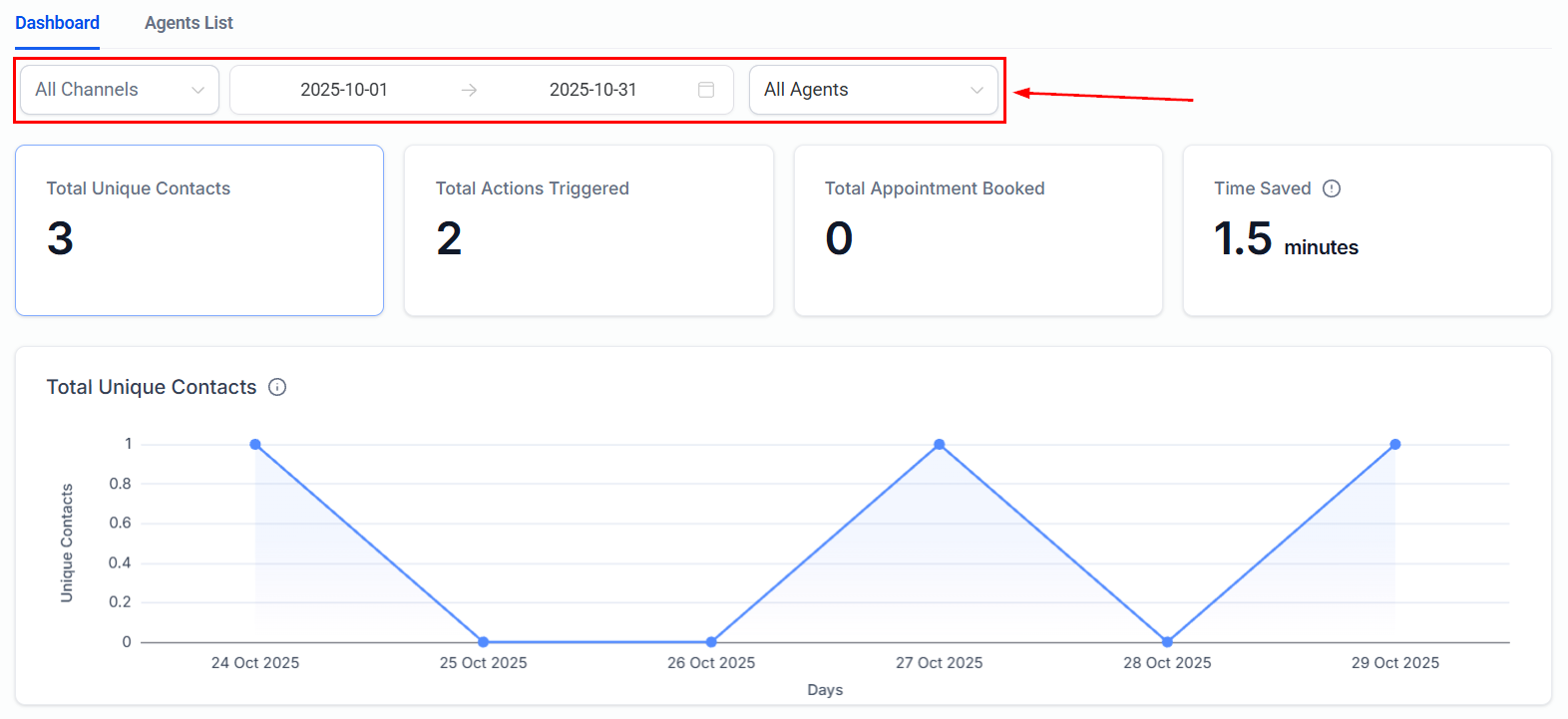
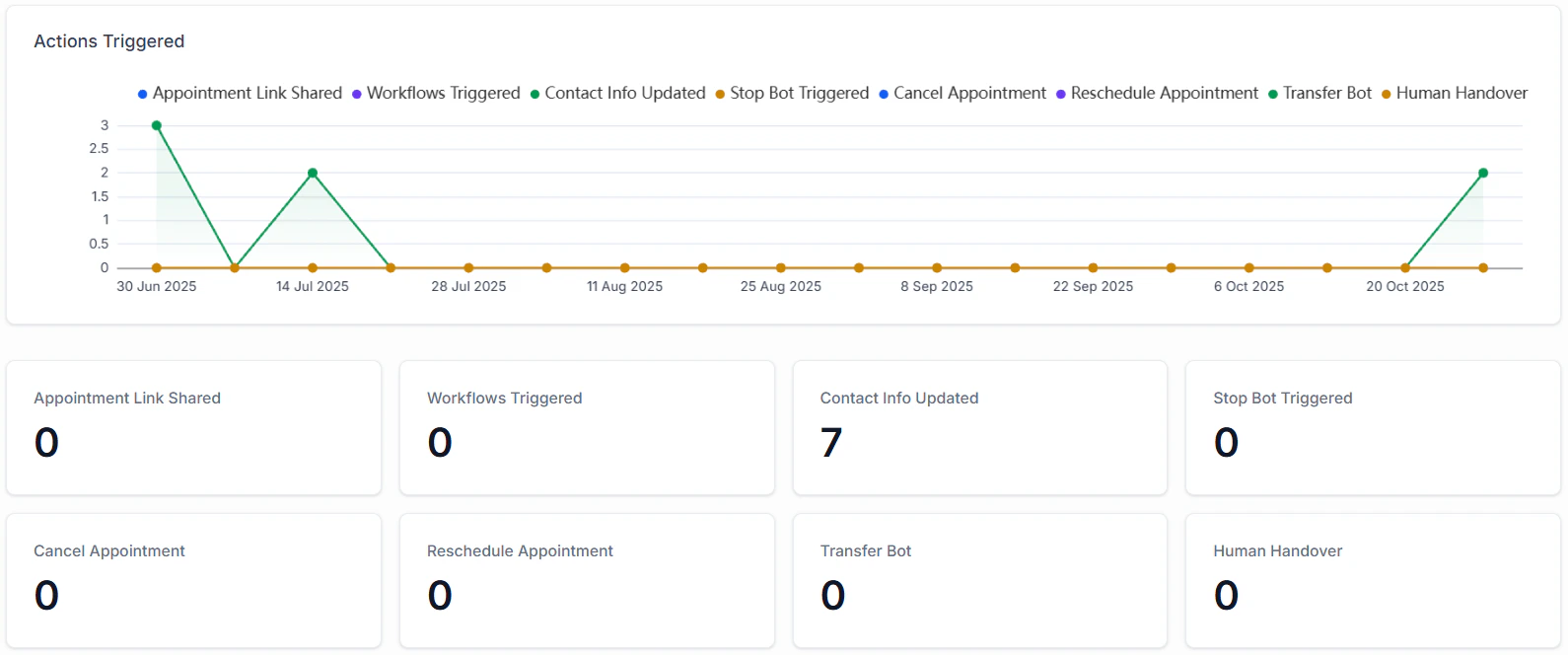
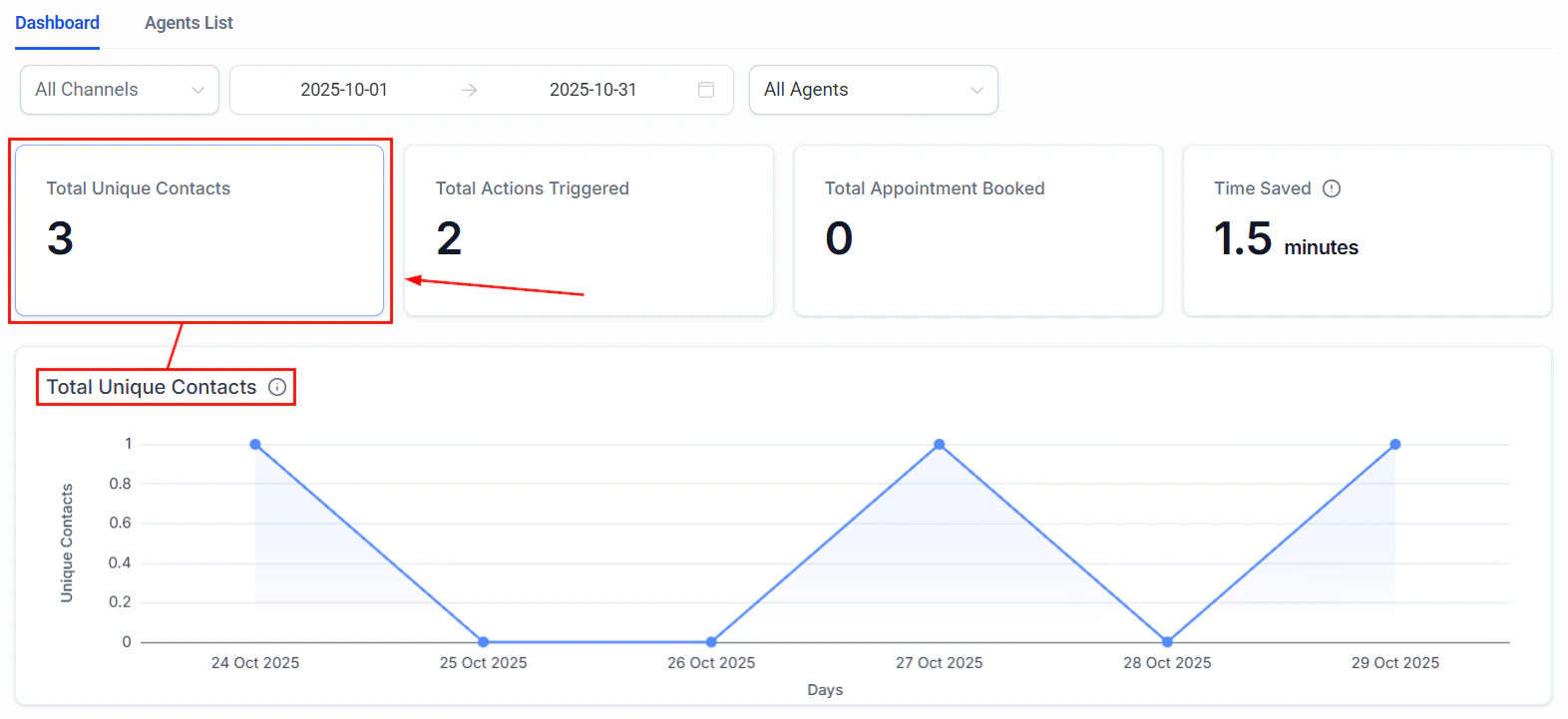
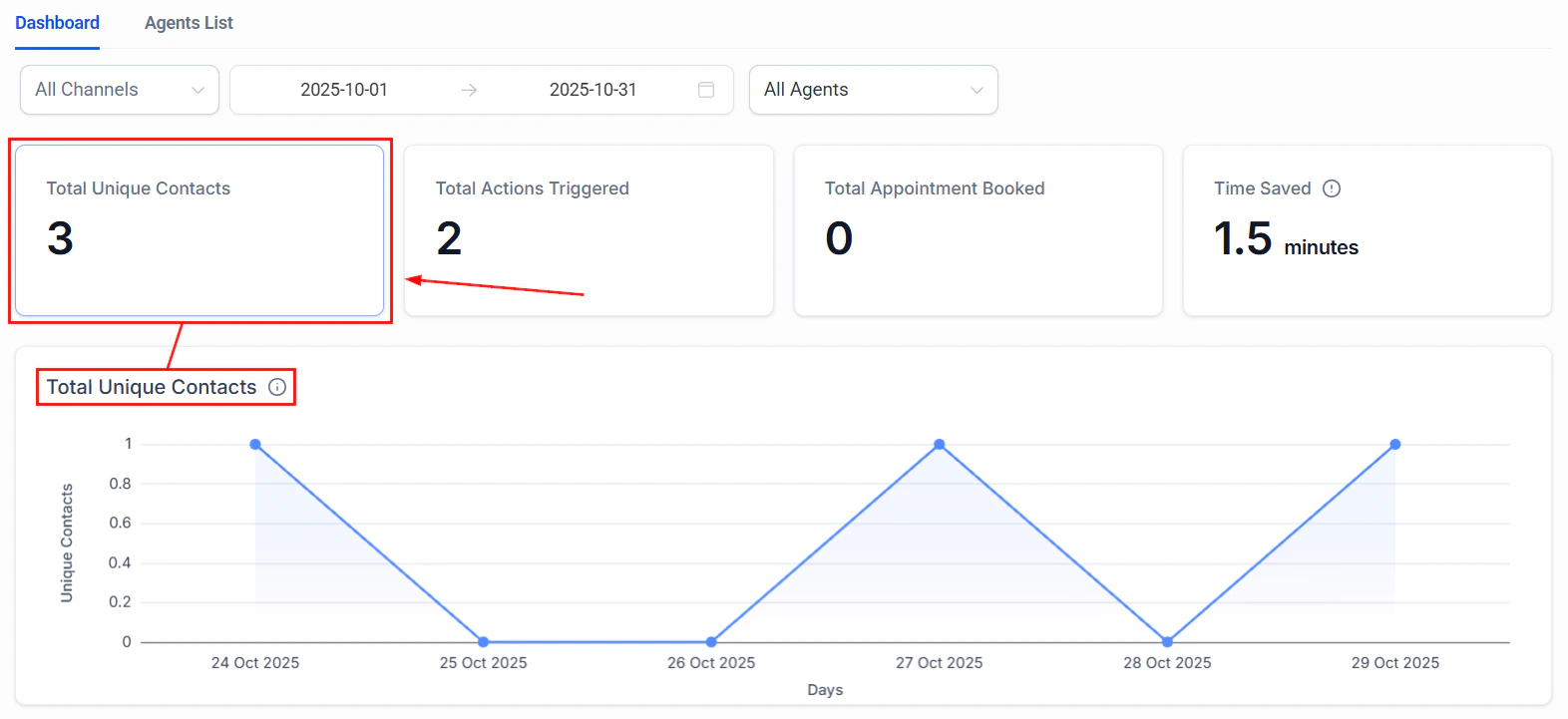
The [Conversation AI dashboard](/ai-agents/conversation-ai-dashboard) provides metrics that can help you proactively identify and diagnose issues before they become widespread.
## Common issues and solutions
This is the most frequently reported issue. If your bot is not responding to inbound messages, work through these checks in order.
### Check 1: Bot status
The most common cause is that the bot is turned off or set to **Suggestive** mode instead of **Auto-Pilot**.
1. Navigate to **Settings > Conversation AI** and select your bot.
2. Confirm the **Bot Status** is set to **Auto-Pilot**. If it is set to **Suggestive**, the bot will only suggest responses in the inbox — it will not send them automatically.
3. If the status is **Off**, toggle it to Auto-Pilot and save.
See [Conversation AI](/ai-agents/conversation-ai) for details on bot status modes.
### Check 2: Channel assignment
The bot only responds on channels that are explicitly assigned to it.
1. In your bot settings, check the **Channels** section.
2. Confirm that the channel the customer is messaging on (SMS, Facebook, Instagram, WhatsApp, Web Chat) is toggled on.
3. If the channel is not assigned, toggle it on and save.
See [multi-channel deployment](/ai/conversation-ai/multi-channel) for channel-specific setup instructions.
### Check 3: Contact bot status
Each contact has an individual bot status that can override the global bot setting.
1. Open the conversation in the [conversations inbox](/conversations/overview).
2. Check the [contact details panel](/conversations/contact-details-panel) for the **Bot Status** indicator.
3. If the status shows **Stopped** or **Paused**, the bot will not respond to this specific contact even if the bot is globally active.
4. Re-enable the bot for this contact manually or via a workflow.
Learn more about [bot status per contact](/conversations/bot-status).
### Check 4: Primary bot assignment
If you are using multiple bots, make sure the correct bot is designated as the primary bot.
1. Go to **Settings > Conversation AI**.
2. Verify which bot is marked as **Primary**. The primary bot handles all inbound conversations not assigned to another bot via workflow.
3. If no bot is set as primary, inbound messages on unassigned channels will go unanswered.
See [bot settings](/ai-agents/bot-settings) for primary vs non-primary configuration.
### Check 5: Do Not Disturb
If the contact has [Do Not Disturb](/conversations/do-not-disturb) enabled, no messages (including bot messages) will be sent to them.
### Check 6: Phone number or integration issues
* For **SMS**: Verify your phone number is active and properly provisioned in **Settings > Phone Numbers**.
* For **Instagram/Facebook**: Verify the integration is connected in **Settings > Integrations**. Reconnect if the token has expired.
* For **WhatsApp**: Verify the WhatsApp Business API connection is active.
If your bot is responding but providing incorrect information, the issue usually lies in the knowledge base or the bot prompt.
### Knowledge base issues
1. **Check training status**: Navigate to **Settings > Knowledge Base** and verify that your knowledge base shows a **Trained** status. If it shows **Pending** or **Failed**, the bot may not have access to the information. See [knowledge base](/ai-agents/knowledge-base) for training details.
2. **Review content accuracy**: Open your knowledge base and verify that the information is correct and up to date. Outdated content is a common source of wrong answers.
3. **Check knowledge base assignment**: Make sure the correct knowledge base is assigned to the bot. A bot can only use knowledge bases that are explicitly linked to it.
4. **Improve content format**: Structure your knowledge base content with clear headings, short paragraphs, and explicit Q\&A pairs. The AI retrieves information more accurately when content is well-organised.
### Prompt refinement
1. **Add grounding instructions**: Include explicit instructions in your prompt like "Only answer questions using information from your knowledge base. If you do not have the information, say so and offer to connect the customer with a team member."
2. **Be specific about boundaries**: Tell the bot what topics it should and should not discuss. For example: "Do not provide pricing information. Instead, direct the customer to schedule a call."
3. **Include example responses**: Adding 2-3 example question-and-answer pairs in your prompt helps the bot understand the expected response format and level of detail.
4. **Test with real questions**: After updating the prompt, test with the exact questions that were producing wrong answers.
### Hallucination prevention
AI bots can sometimes generate plausible-sounding but incorrect information (known as "hallucination"). To minimise this:
* Add a prompt instruction: "Never make up information. If you are unsure about something, clearly state that you do not have that information."
* Keep knowledge base content factual and avoid ambiguous language.
* Regularly review conversation logs on the [Conversation AI dashboard](/ai-agents/conversation-ai-dashboard) to catch inaccuracies early.
If the bot keeps sending messages when it should stop, the issue is usually related to the max messages setting or missing stop conditions.
### Max messages setting
1. Open your bot settings and look for the **Max Messages** configuration.
2. Set a reasonable limit (e.g., 10-15 messages per conversation). Once this limit is reached, the bot will stop responding.
3. If max messages is set to unlimited or a very high number, the bot will continue responding indefinitely.
### Stop bot action
Configure a [Stop Bot action](/ai-agents/conversation-ai-actions) in your bot goals:
1. Navigate to your bot **Bot Goals** tab.
2. Add a **Stop Bot** action with clear trigger conditions (e.g., "Stop when the customer says goodbye", "Stop after the appointment is booked").
3. Test the stop conditions to make sure they trigger reliably.
### Workflow-based stop
You can also stop the bot using a workflow:
1. Create a workflow with an appropriate trigger (e.g., appointment booked, tag added).
2. Add a **Disable Bot for Contact** action.
3. This immediately stops the bot from sending further messages to that contact.
If the bot is in a conversation loop (responding to its own messages or system notifications), disable the bot immediately via the conversations inbox and review the trigger conditions.
If the bot is supposed to book appointments but fails to do so, check these areas.
### Calendar connection
1. Navigate to **Settings > Calendars** and verify that a calendar is connected and active.
2. Confirm the calendar is linked to the correct team member or resource.
3. If using Google Calendar or Outlook, check that the integration token has not expired.
### Bot action configuration
1. In your bot **Bot Goals** tab, verify that a **Book Appointment** action is configured.
2. Check that the correct calendar is selected in the action settings.
3. Review the trigger conditions — the bot needs clear instructions on when to offer booking (e.g., "When the customer expresses interest in scheduling a meeting").
See [Conversation AI actions](/ai-agents/conversation-ai-actions) for complete action setup instructions.
### Timezone issues
1. Verify the account timezone in **Settings > Business Profile**.
2. Check that the calendar availability is set in the correct timezone.
3. If the bot is showing wrong available times, the timezone mismatch is likely the cause.
### Availability settings
1. Open the calendar that the bot is trying to book on.
2. Verify that **availability hours** are set and not blocked.
3. Check for conflicts — if all slots are full, the bot cannot offer any times.
4. Make sure the **booking buffer** and **minimum scheduling notice** settings are not overly restrictive.
### Prompt instructions
Make sure your prompt includes clear instructions for the booking flow:
```
When the customer wants to schedule an appointment, collect their
preferred date and time, then use the Book Appointment action.
If no times are available on their preferred date, suggest
alternative dates.
```
If there is a noticeable delay between the customer message and the bot response, consider these factors.
### Expected delay
By design, the bot waits approximately **2 minutes** after the last customer message before responding when in Auto-Pilot mode. This is intentional — it allows the customer to send multiple messages before the bot responds, creating a more natural conversation flow.
If the delay is significantly longer than 2 minutes, continue with the checks below.
### Knowledge base size
Large knowledge bases take longer to search. If your knowledge base contains hundreds of pages or very long documents:
1. Break large documents into smaller, focused sections.
2. Remove outdated or irrelevant content.
3. Use clear headings and structured formatting to help the AI find information faster.
See [knowledge base](/ai-agents/knowledge-base) for content optimisation tips.
### Prompt complexity
Extremely long or complex prompts can slow response generation:
1. Keep your prompt focused and concise — aim for under 2000 words.
2. Remove redundant instructions.
3. Use clear, simple language in your prompt rather than complex conditional logic.
### Concurrent load
During peak hours, response times may increase slightly due to higher demand on the AI system. This is normal and typically resolves on its own.
If you consistently experience slow responses during business hours, consider streamlining your knowledge base and prompt as described above.
Finding the right balance for human escalation is critical. If the bot escalates too many conversations, it defeats the purpose of automation. If it escalates too few, customers with complex issues get stuck.
### Escalation triggers in the prompt
The bot escalation behaviour is primarily controlled by your prompt. Review and adjust these instructions:
**If the bot escalates too often:**
* Your prompt may have overly broad escalation triggers. Narrow them down. Instead of "escalate if the customer seems unhappy", use "escalate only if the customer explicitly requests to speak with a human agent or if the customer expresses strong frustration after two or more attempts to resolve their issue."
* Make sure the bot has enough information in its [knowledge base](/ai-agents/knowledge-base) to handle common questions without escalating.
* Add instructions like: "Try to resolve the issue using your knowledge base before escalating. Only escalate as a last resort."
**If the bot does not escalate enough:**
* Add explicit escalation triggers to your prompt: "If the customer mentions a legal issue, a safety concern, or requests a refund over \$500, immediately escalate to a human agent."
* Include a catch-all: "If you cannot confidently answer the question after checking your knowledge base, escalate to a human agent."
* Make sure a [human handover action](/ai-agents/conversation-ai-actions) is properly configured in your bot goals.
### Monitoring escalation rates
Use the [Conversation AI dashboard](/ai-agents/conversation-ai-dashboard) to track escalation rates over time. A healthy escalation rate depends on your business, but generally:
* **Under 10%**: The bot is handling most conversations well (verify it is not missing cases that should escalate).
* **10-25%**: Normal range for most businesses.
* **Over 25%**: The bot may need a better knowledge base or more detailed prompt instructions.
If your bot is responding in a language different from what the customer expects, address these settings.
### Prompt language specification
The most reliable way to control the bot language is through explicit prompt instructions:
```
Always respond in English, regardless of what language the customer
writes in. If the customer writes in a language other than English,
respond in English and politely let them know that you can best
assist them in English.
```
Or, for multilingual support:
```
Detect the language of the first message and respond in that same
language for the entire conversation. Supported languages: English,
Spanish, French. If the customer writes in an unsupported language,
respond in English.
```
### Multi-bot language routing
For the best multilingual experience, use separate bots for each language with [multi-bot orchestration](/ai/conversation-ai/multi-bot). This allows each bot to have:
* A prompt written entirely in the target language
* A language-specific knowledge base
* Tone and cultural nuances appropriate for that audience
### Knowledge base language
If your knowledge base is in English but your prompt tells the bot to respond in Spanish, the bot will translate on the fly — which can introduce inaccuracies. For best results, create separate knowledge bases in each language you support.
If the bot seems to answer questions from general knowledge rather than your specific knowledge base content, check these areas.
### Training status
1. Go to **Settings > Knowledge Base** and find the knowledge base assigned to your bot.
2. Check the **Status** column. It should show **Trained**.
3. If the status is **Pending**, wait for training to complete. If it shows **Failed**, delete and re-add the content.
See [knowledge base](/ai-agents/knowledge-base) for detailed training instructions.
### Knowledge base assignment
1. Open your bot settings.
2. Verify the correct knowledge base is selected in the **Knowledge Base** section.
3. A bot will only reference knowledge bases that are explicitly assigned to it.
### Content relevance
The AI searches the knowledge base for content relevant to the question. If the content does not closely match the question, it may not be retrieved.
* **Use clear, descriptive headings** that match how customers ask questions.
* **Include FAQ-style content** with explicit question-and-answer pairs.
* **Avoid jargon** unless your customers use it too.
* **Keep content concise** — long, rambling documents make it harder for the AI to find the right information.
### Format issues
* **URLs**: If you added a URL as a knowledge source, verify the page is publicly accessible and not behind a login wall.
* **File uploads**: Ensure uploaded files are in a supported format (PDF, DOCX, TXT) and the text is selectable (not scanned images).
* **Content length**: Very short knowledge base entries (a sentence or two) may not provide enough context. Aim for at least a paragraph per topic.
### Grounding instructions in the prompt
Add explicit instructions to force the bot to prioritise the knowledge base:
```
Always base your answers on information from your knowledge base.
Do not use general knowledge to answer customer questions. If the
answer is not in your knowledge base, tell the customer that you
will find out and get back to them.
```
***
## Using dashboard metrics to identify issues
The [Conversation AI dashboard](/ai-agents/conversation-ai-dashboard) provides metrics that can help you proactively identify and diagnose issues before they become widespread.
 ### Key metrics to monitor
| Metric | What it tells you | Action if abnormal |
| ---------------------------------- | -------------------------------------------------- | ------------------------------------------------------------- |
| **Response rate** | Percentage of inbound messages the bot responds to | Low rate suggests channel assignment or bot status issues |
| **Average response time** | How long the bot takes to respond | High times suggest knowledge base or prompt complexity issues |
| **Escalation rate** | Percentage of conversations handed to humans | Adjust escalation triggers in your prompt |
| **Appointment booking rate** | How often the bot successfully books | Check calendar connection and availability settings |
| **Conversation completion rate** | How often the bot resolves the conversation | Low rates suggest knowledge gaps or prompt issues |
| **Message count per conversation** | Average messages before resolution | High counts may indicate the bot is going in circles |
### Setting up regular reviews
Establish a routine for reviewing bot performance:
1. **Daily**: Glance at response rates and escalation rates to catch sudden changes.
2. **Weekly**: Review conversation logs for quality. Read 5-10 random conversations to spot issues the metrics might miss.
3. **Monthly**: Analyse trends, update the knowledge base with new FAQs, and refine the prompt based on observed patterns.
***
### Key metrics to monitor
| Metric | What it tells you | Action if abnormal |
| ---------------------------------- | -------------------------------------------------- | ------------------------------------------------------------- |
| **Response rate** | Percentage of inbound messages the bot responds to | Low rate suggests channel assignment or bot status issues |
| **Average response time** | How long the bot takes to respond | High times suggest knowledge base or prompt complexity issues |
| **Escalation rate** | Percentage of conversations handed to humans | Adjust escalation triggers in your prompt |
| **Appointment booking rate** | How often the bot successfully books | Check calendar connection and availability settings |
| **Conversation completion rate** | How often the bot resolves the conversation | Low rates suggest knowledge gaps or prompt issues |
| **Message count per conversation** | Average messages before resolution | High counts may indicate the bot is going in circles |
### Setting up regular reviews
Establish a routine for reviewing bot performance:
1. **Daily**: Glance at response rates and escalation rates to catch sudden changes.
2. **Weekly**: Review conversation logs for quality. Read 5-10 random conversations to spot issues the metrics might miss.
3. **Monthly**: Analyse trends, update the knowledge base with new FAQs, and refine the prompt based on observed patterns.
***
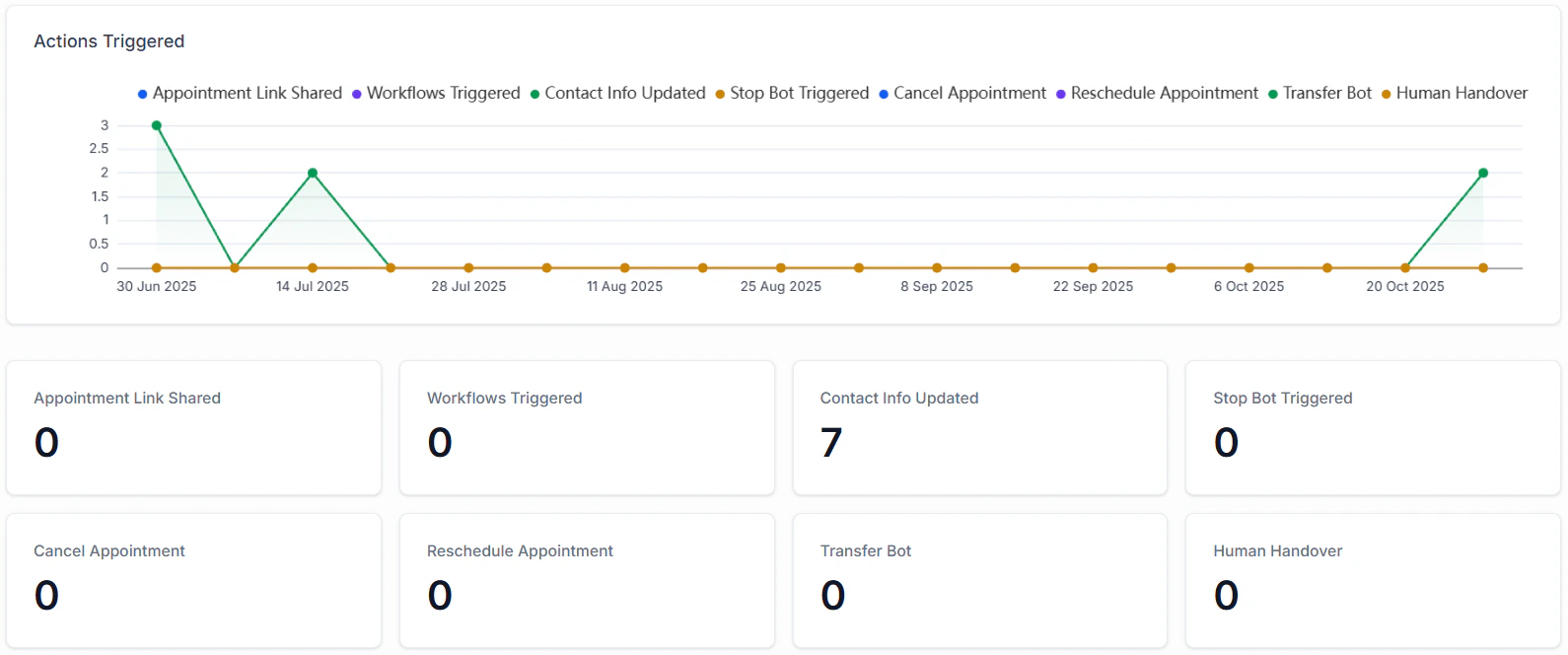 ## Diagnostic checklist
When troubleshooting any Conversation AI issue, run through this quick checklist:
Is the bot set to **Auto-Pilot**? Is it the primary bot or properly triggered by a workflow?
Is the affected channel toggled on in the bot settings?
Is the bot active for this specific contact? Check the [contact details panel](/conversations/contact-details-panel).
Does the prompt clearly instruct the bot on how to handle this type of question or scenario?
Is the knowledge base trained, assigned to the bot, and does it contain relevant content?
Create a new test contact and send a message to rule out contact-specific issues.
Check the [Conversation AI dashboard](/ai-agents/conversation-ai-dashboard) for any unusual metric changes.
***
## When to contact support
If you have worked through all the troubleshooting steps above and the issue persists, it is time to reach out to HoopAI support. When contacting support, provide the following information to speed up resolution:
* **Bot name and ID**: Which bot is affected.
* **Channel**: Which channel the issue occurs on.
* **Contact example**: A specific contact or conversation where the issue is visible.
* **Steps taken**: What troubleshooting steps you have already completed.
* **Screenshots**: Include screenshots of the bot settings, the conversation, and any error messages.
* **Timeline**: When the issue first started and whether anything changed around that time (prompt updates, knowledge base changes, integration reconnections).
You can reach HoopAI support through the in-app chat widget or by emailing the support team directly.
***
## Next steps
Review bot setup and configuration fundamentals.
Monitor bot performance metrics and conversation analytics.
Configure bot status, channels, and primary bot assignment.
Create and manage the knowledge sources that power your bot.
## Diagnostic checklist
When troubleshooting any Conversation AI issue, run through this quick checklist:
Is the bot set to **Auto-Pilot**? Is it the primary bot or properly triggered by a workflow?
Is the affected channel toggled on in the bot settings?
Is the bot active for this specific contact? Check the [contact details panel](/conversations/contact-details-panel).
Does the prompt clearly instruct the bot on how to handle this type of question or scenario?
Is the knowledge base trained, assigned to the bot, and does it contain relevant content?
Create a new test contact and send a message to rule out contact-specific issues.
Check the [Conversation AI dashboard](/ai-agents/conversation-ai-dashboard) for any unusual metric changes.
***
## When to contact support
If you have worked through all the troubleshooting steps above and the issue persists, it is time to reach out to HoopAI support. When contacting support, provide the following information to speed up resolution:
* **Bot name and ID**: Which bot is affected.
* **Channel**: Which channel the issue occurs on.
* **Contact example**: A specific contact or conversation where the issue is visible.
* **Steps taken**: What troubleshooting steps you have already completed.
* **Screenshots**: Include screenshots of the bot settings, the conversation, and any error messages.
* **Timeline**: When the issue first started and whether anything changed around that time (prompt updates, knowledge base changes, integration reconnections).
You can reach HoopAI support through the in-app chat widget or by emailing the support team directly.
***
## Next steps
Review bot setup and configuration fundamentals.
Monitor bot performance metrics and conversation analytics.
Configure bot status, channels, and primary bot assignment.
Create and manage the knowledge sources that power your bot.