> ## Documentation Index
> Fetch the complete documentation index at: https://help.hoopai.com/llms.txt
> Use this file to discover all available pages before exploring further.
# Conversation AI overview
> Build AI-powered chatbots that handle customer conversations across SMS, email, web chat, and social media.
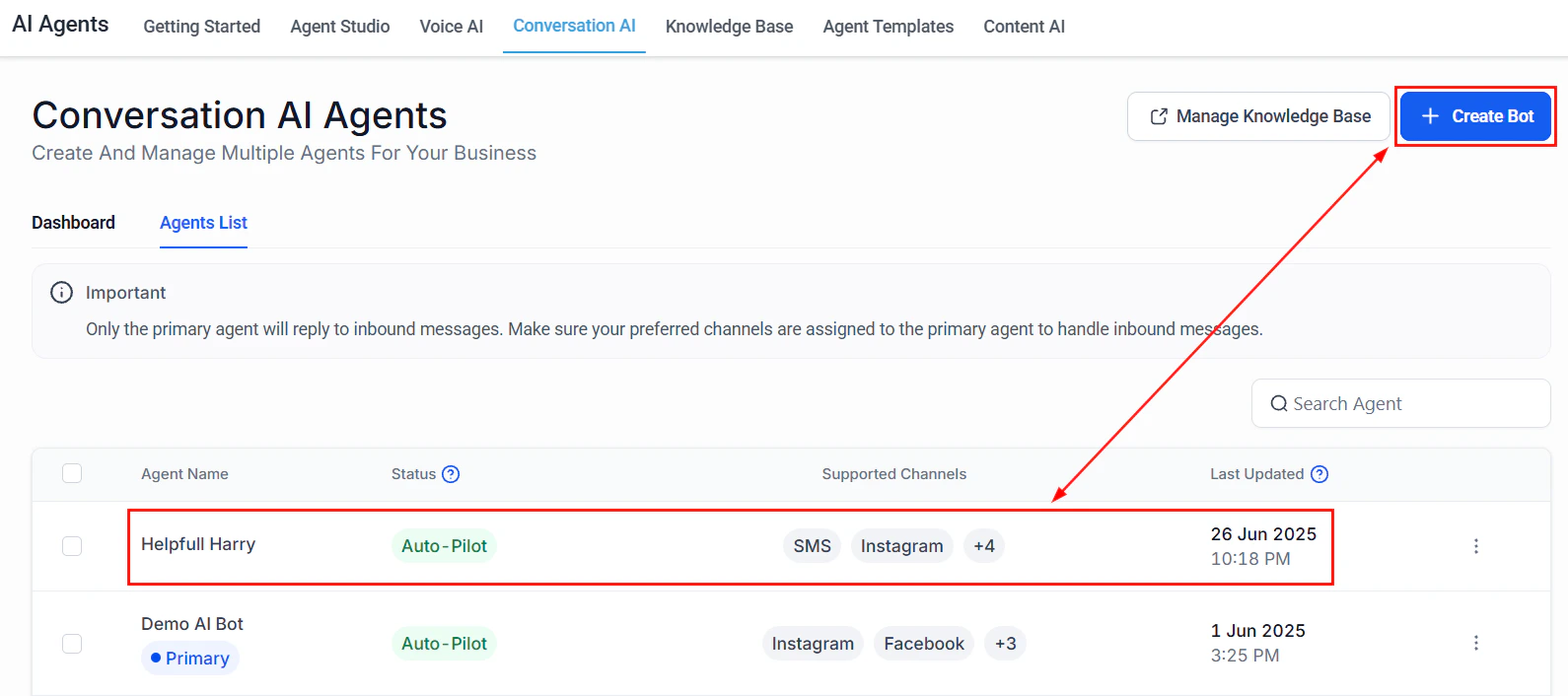
Conversation AI lets you deploy intelligent chatbots across every communication channel in HoopAI. These bots can answer customer questions, qualify leads, book appointments, and hand off to human agents when needed.
 ## Key capabilities
| Feature | Description |
| ------------------------- | ---------------------------------------------------------- |
| **Multi-channel support** | Deploy across SMS, web chat, Instagram, Facebook, WhatsApp |
| **Knowledge base** | Train your bot with business-specific information |
| **Lead qualification** | Automatically qualify leads based on conversation data |
| **Appointment booking** | Book meetings directly through chat conversations |
| **Human handoff** | Seamlessly transfer to a team member when needed |
| **Custom actions** | Trigger workflows and update contact records |
## How it works
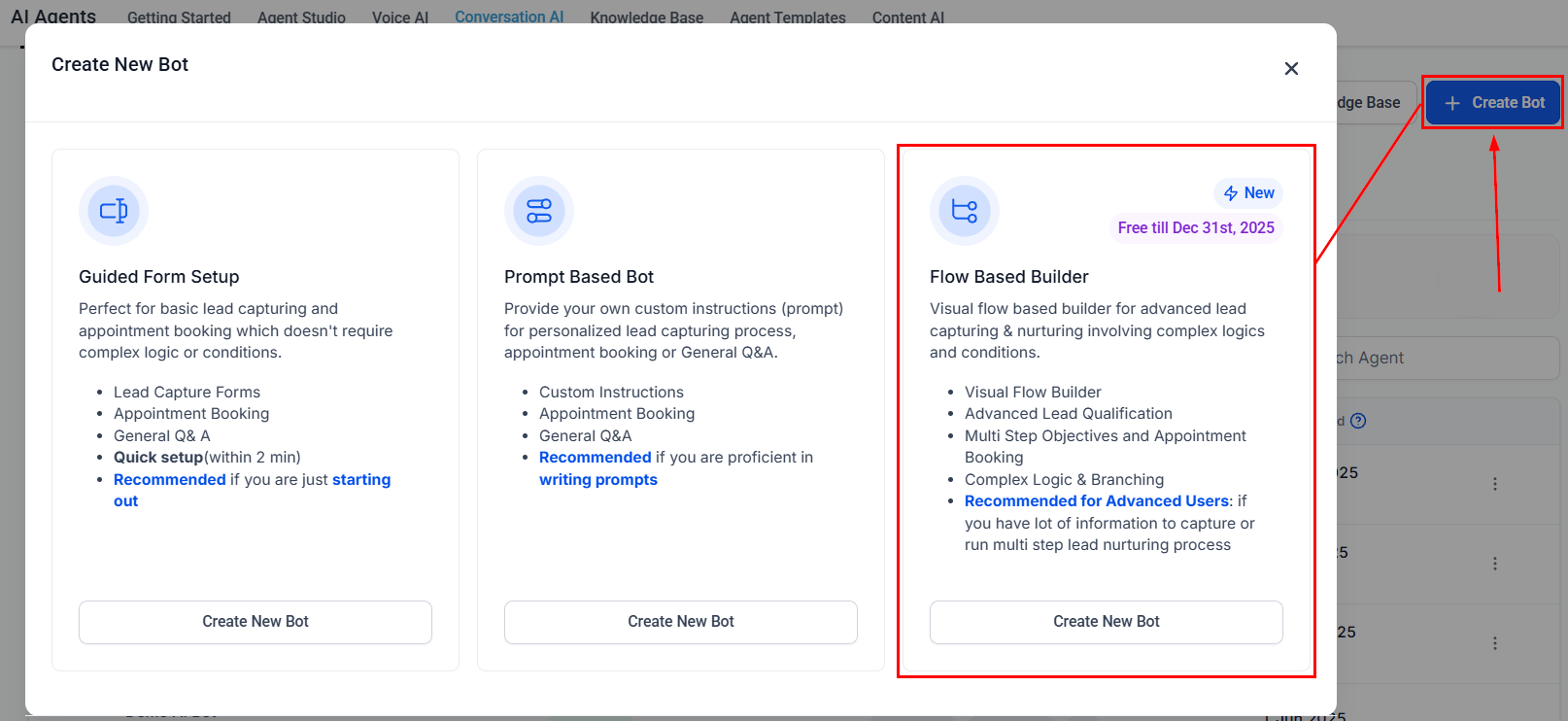
Each Conversation AI bot is powered by a system prompt and an optional knowledge base. When a message arrives on an assigned channel, the bot:
1. Reads the incoming message and conversation history
2. Processes it through the AI model with your system prompt and knowledge base
3. Generates a contextual response
4. Takes actions (booking, tagging, escalating) as configured
## Key capabilities
| Feature | Description |
| ------------------------- | ---------------------------------------------------------- |
| **Multi-channel support** | Deploy across SMS, web chat, Instagram, Facebook, WhatsApp |
| **Knowledge base** | Train your bot with business-specific information |
| **Lead qualification** | Automatically qualify leads based on conversation data |
| **Appointment booking** | Book meetings directly through chat conversations |
| **Human handoff** | Seamlessly transfer to a team member when needed |
| **Custom actions** | Trigger workflows and update contact records |
## How it works
Each Conversation AI bot is powered by a system prompt and an optional knowledge base. When a message arrives on an assigned channel, the bot:
1. Reads the incoming message and conversation history
2. Processes it through the AI model with your system prompt and knowledge base
3. Generates a contextual response
4. Takes actions (booking, tagging, escalating) as configured
 ## Bot overview
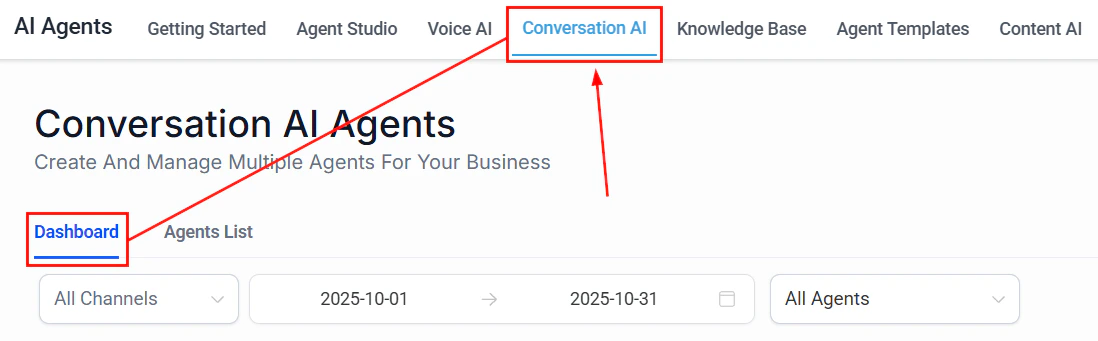
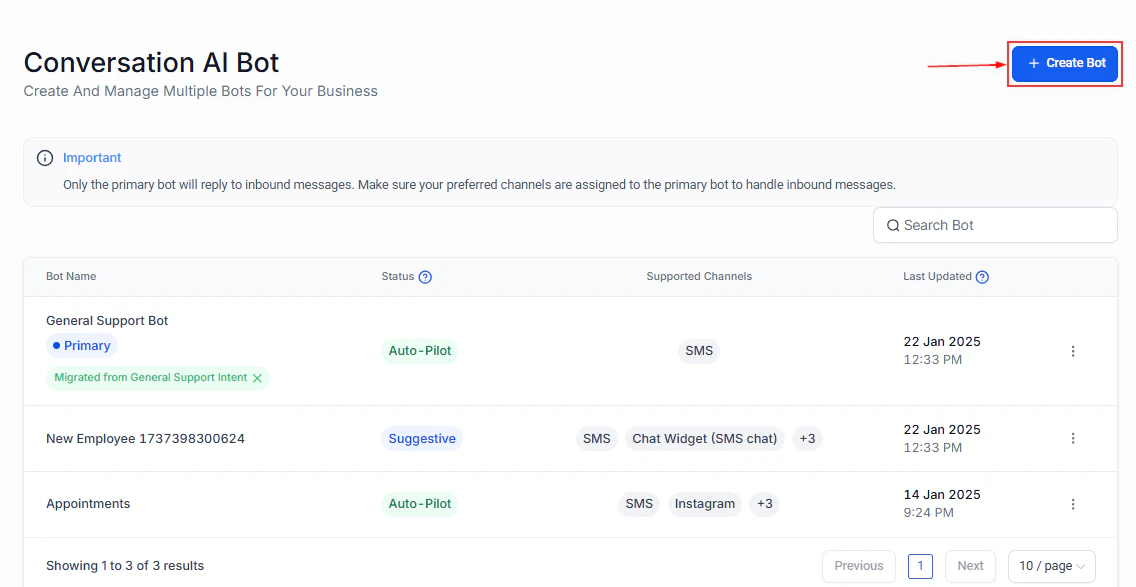
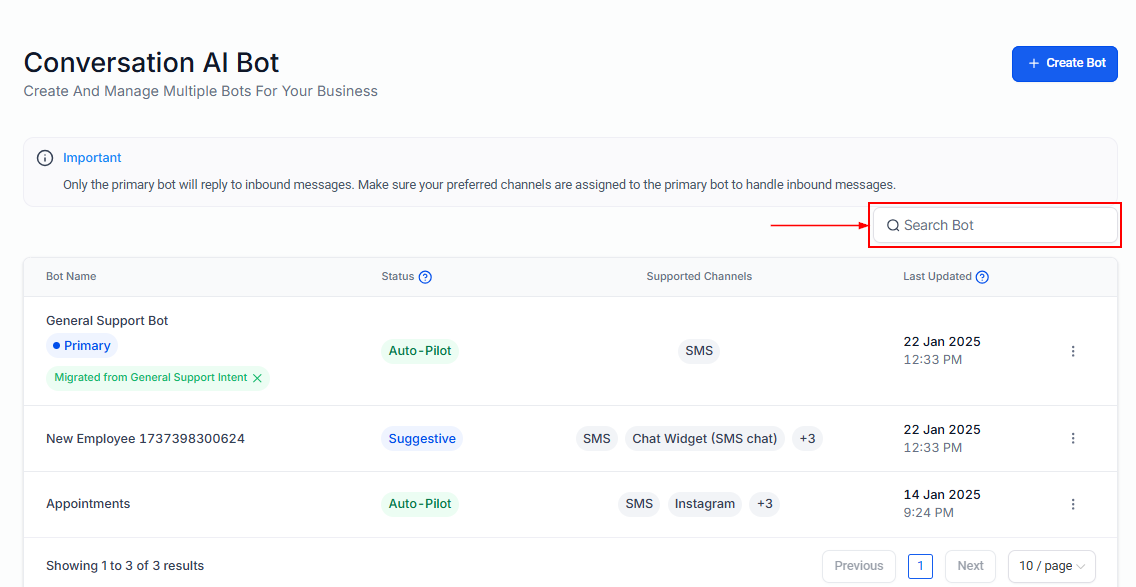
Once a bot is created, the bot overview screen gives you a summary of its configuration, status, and recent activity.
## Bot overview
Once a bot is created, the bot overview screen gives you a summary of its configuration, status, and recent activity.
 ## Auto-pilot mode
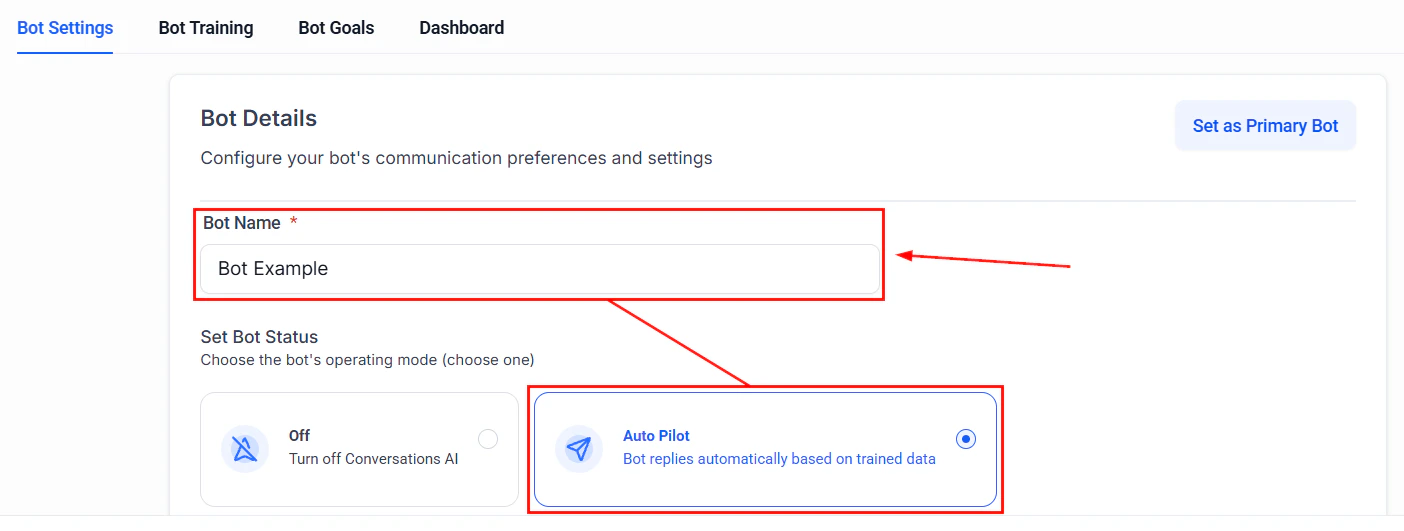
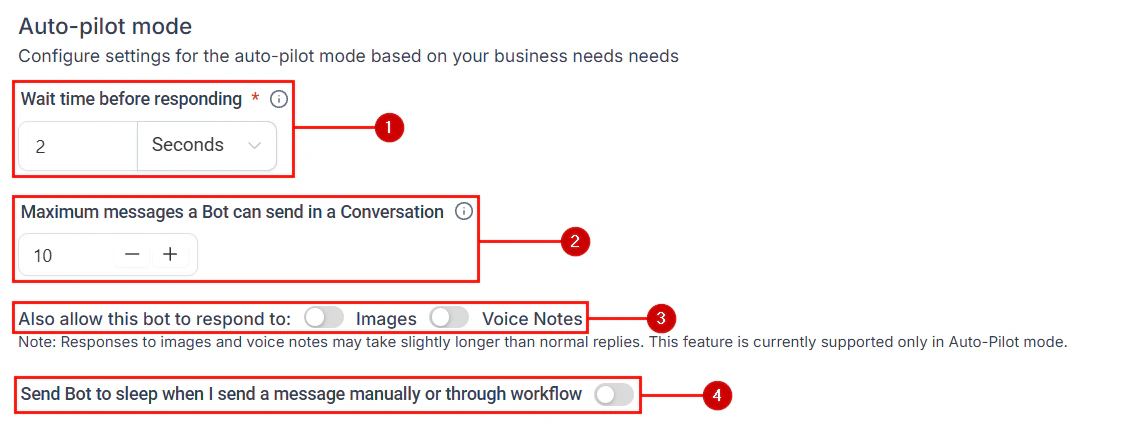
Auto-pilot mode lets your Conversation AI bot operate fully autonomously — handling conversations end-to-end without human intervention. In this mode, the bot responds to every message, executes actions (booking, tagging, workflow triggers), and manages follow-ups independently.
### Enabling auto-pilot
1. Open your bot's settings in **AI Agents > Conversation AI**
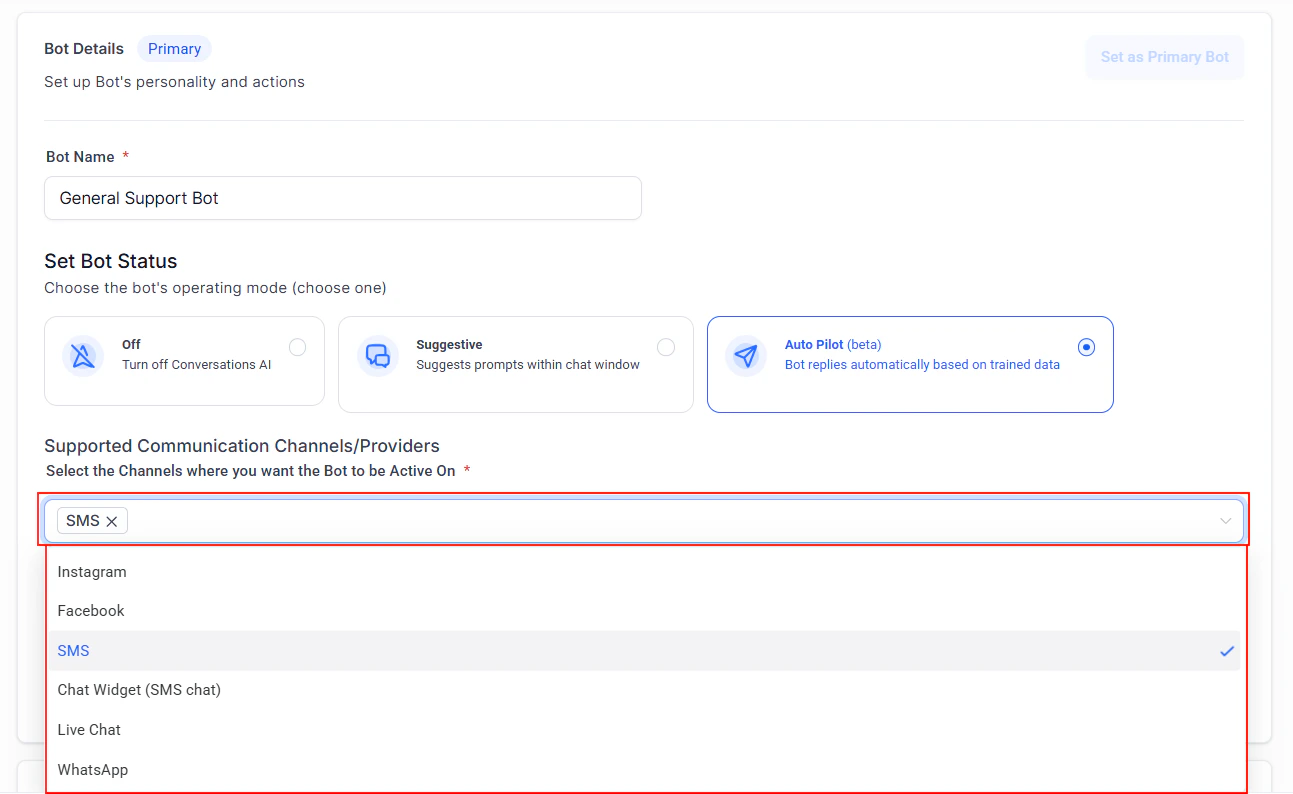
2. Set the bot's operating mode to **Auto-Pilot**
3. Configure the channels the bot should operate on
4. Save
### When to use auto-pilot vs. suggestive mode
| Mode | Best for |
| -------------- | ------------------------------------------------------------------------------- |
| **Auto-pilot** | After-hours support, lead qualification, appointment booking, FAQ handling |
| **Suggestive** | Complex sales conversations, sensitive topics, new bot deployments being tested |
In suggestive mode, the bot drafts responses that a team member reviews before sending. Use suggestive mode during initial deployment to verify response quality, then switch to auto-pilot once you are confident in the bot's performance.
In auto-pilot mode, the bot sends messages without human review. Test thoroughly in suggestive mode first. Monitor conversations regularly after switching to auto-pilot to catch any issues early.
***
## Getting started
Configure your bot behavior and channel assignments
Train your bot with business-specific information
Deploy your bot across all supported channels
Fine-tune responses with training data
## Auto-pilot mode
Auto-pilot mode lets your Conversation AI bot operate fully autonomously — handling conversations end-to-end without human intervention. In this mode, the bot responds to every message, executes actions (booking, tagging, workflow triggers), and manages follow-ups independently.
### Enabling auto-pilot
1. Open your bot's settings in **AI Agents > Conversation AI**
2. Set the bot's operating mode to **Auto-Pilot**
3. Configure the channels the bot should operate on
4. Save
### When to use auto-pilot vs. suggestive mode
| Mode | Best for |
| -------------- | ------------------------------------------------------------------------------- |
| **Auto-pilot** | After-hours support, lead qualification, appointment booking, FAQ handling |
| **Suggestive** | Complex sales conversations, sensitive topics, new bot deployments being tested |
In suggestive mode, the bot drafts responses that a team member reviews before sending. Use suggestive mode during initial deployment to verify response quality, then switch to auto-pilot once you are confident in the bot's performance.
In auto-pilot mode, the bot sends messages without human review. Test thoroughly in suggestive mode first. Monitor conversations regularly after switching to auto-pilot to catch any issues early.
***
## Getting started
Configure your bot behavior and channel assignments
Train your bot with business-specific information
Deploy your bot across all supported channels
Fine-tune responses with training data