> ## Documentation Index
> Fetch the complete documentation index at: https://help.hoopai.com/llms.txt
> Use this file to discover all available pages before exploring further.
# Multi-channel deployment
> Deploy your Conversation AI bot across SMS, Instagram, Facebook Messenger, WhatsApp, and web chat.
Conversation AI bots in HoopAI can operate across every channel your customers use — SMS, Instagram DMs, Facebook Messenger, WhatsApp, and your website chat widget. Each channel has its own strengths, limitations, and best practices. This guide walks you through setting up and optimising your bot for every supported channel so you can deliver a consistent, high-quality experience everywhere.
Before you begin, make sure you have already [created and configured a Conversation AI bot](/ai-agents/conversation-ai) and reviewed your [bot settings](/ai-agents/bot-settings) to understand primary vs non-primary bot assignments.
 ## How channel assignment works
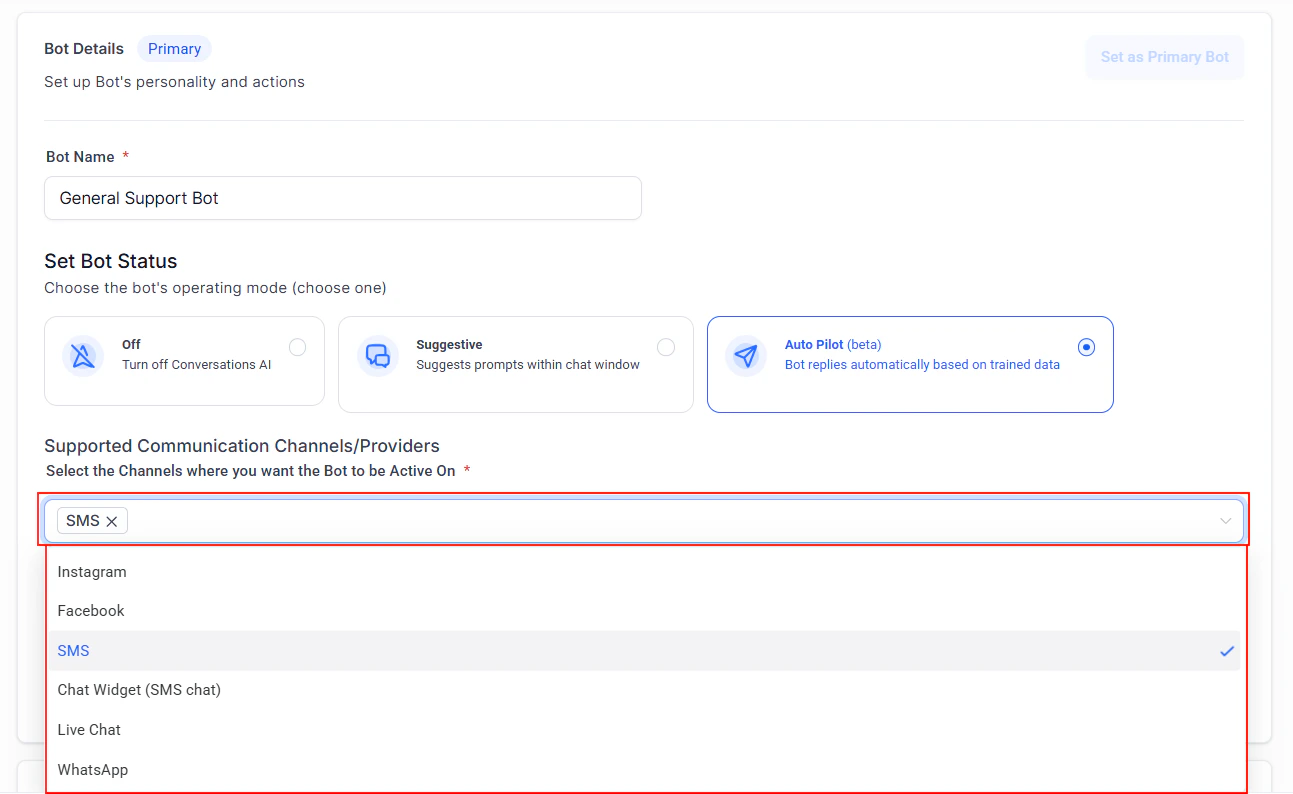
Every Conversation AI bot is assigned to one or more communication channels. When a message arrives on a given channel, HoopAI routes it to the bot that is assigned to that channel. If no bot is assigned to a channel, inbound messages on that channel will not trigger any AI response.
To assign channels:
Navigate to **Settings > Conversation AI** and select the bot you want to configure. See [bot settings](/ai-agents/bot-settings) for a full walkthrough.
In the **Channels** section, toggle on the channels you want this bot to handle. Available channels include SMS, Facebook Messenger, Instagram DM, WhatsApp, Web Chat, Google My Business, and Email.
Click **Save** and send a test message on each channel to confirm the bot responds as expected.
Each channel can only be assigned to one bot at a time. If you need different bots for different channels, see [multi-bot orchestration](/ai/conversation-ai/multi-bot).
***
## Auto follow-up action
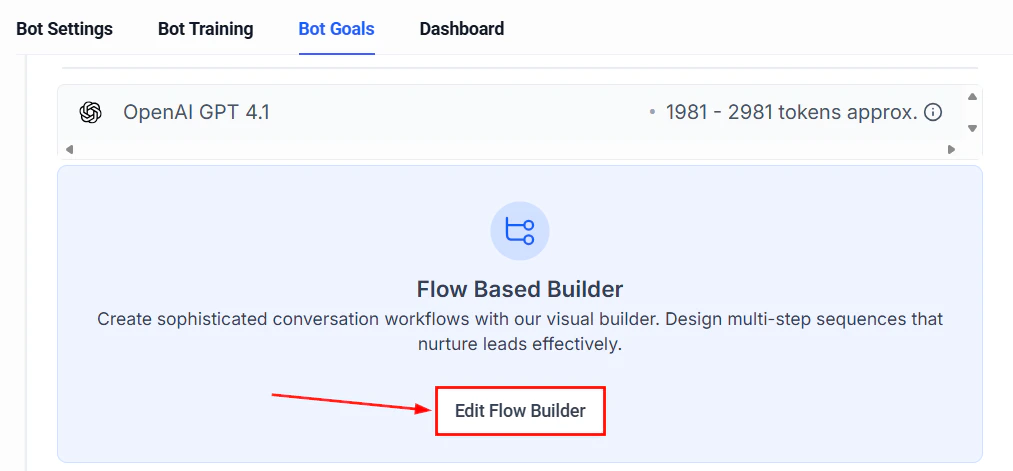
The auto follow-up action lets your bot automatically re-engage contacts who have gone silent. This is particularly useful for multi-channel deployments where leads may drop off mid-conversation.
## How channel assignment works
Every Conversation AI bot is assigned to one or more communication channels. When a message arrives on a given channel, HoopAI routes it to the bot that is assigned to that channel. If no bot is assigned to a channel, inbound messages on that channel will not trigger any AI response.
To assign channels:
Navigate to **Settings > Conversation AI** and select the bot you want to configure. See [bot settings](/ai-agents/bot-settings) for a full walkthrough.
In the **Channels** section, toggle on the channels you want this bot to handle. Available channels include SMS, Facebook Messenger, Instagram DM, WhatsApp, Web Chat, Google My Business, and Email.
Click **Save** and send a test message on each channel to confirm the bot responds as expected.
Each channel can only be assigned to one bot at a time. If you need different bots for different channels, see [multi-bot orchestration](/ai/conversation-ai/multi-bot).
***
## Auto follow-up action
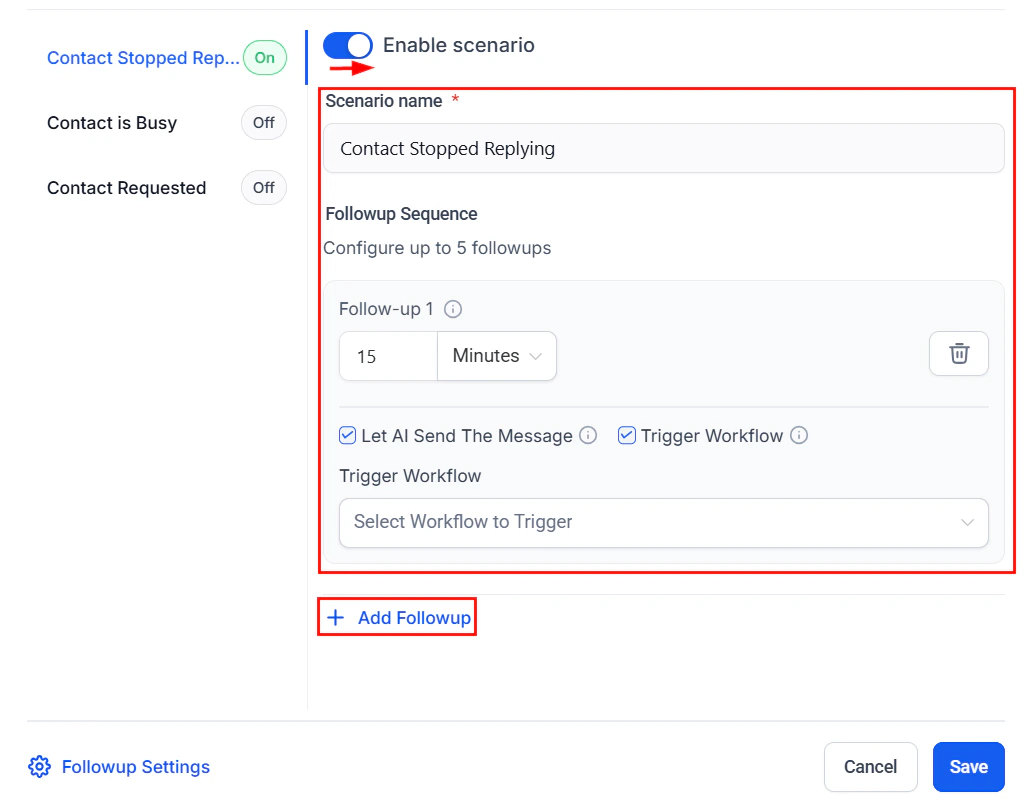
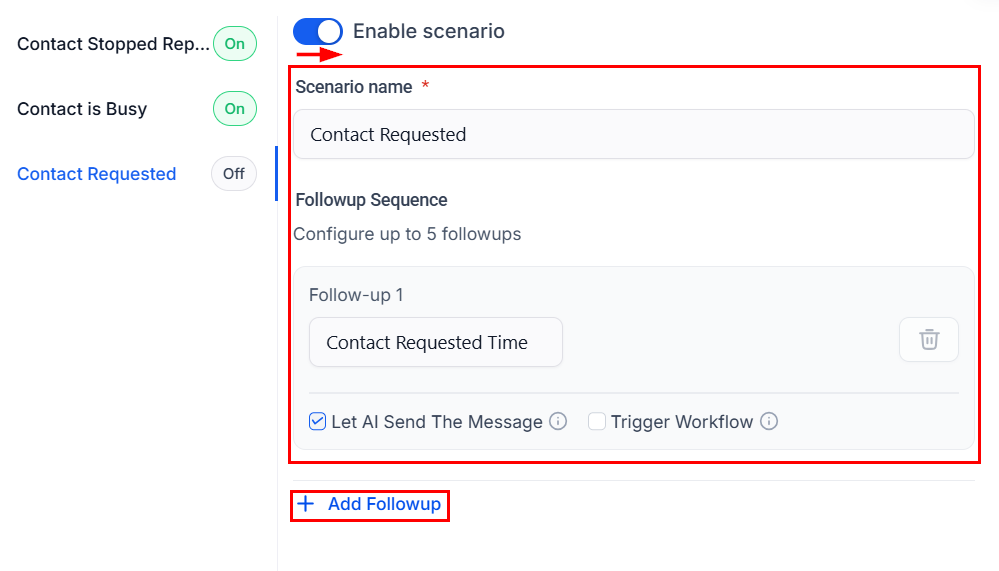
The auto follow-up action lets your bot automatically re-engage contacts who have gone silent. This is particularly useful for multi-channel deployments where leads may drop off mid-conversation.
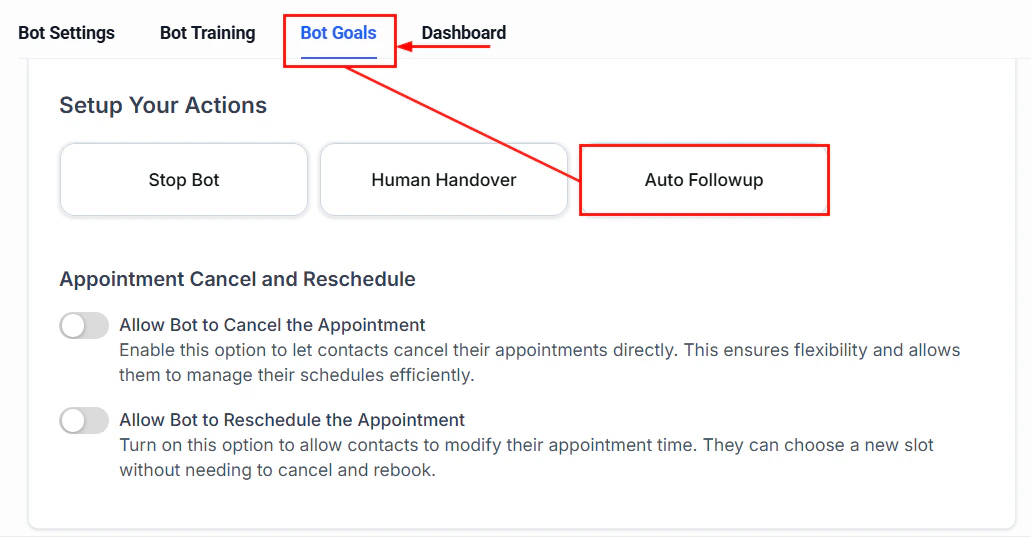 You can also integrate the auto follow-up with workflows for more advanced re-engagement sequences.
 ***
## Channel-specific setup and best practices
Use the tabs below to jump to the channel you are configuring.
### SMS configuration
SMS is often the highest-engagement channel because messages land directly on a customer's phone. However, SMS has unique constraints you need to plan for.
#### Setup checklist
* **Phone number**: Ensure you have an active phone number provisioned in HoopAI. Go to **Settings > Phone Numbers** to confirm.
* **A2P 10DLC registration**: If you are sending SMS in the United States, you must complete [A2P 10DLC registration](/getting-started/a2p-10dlc-registration) to avoid carrier filtering.
* **Assign the channel**: In your bot settings, toggle **SMS** on under the Channels section.
#### Best practices
1. **Keep messages short.** SMS messages are limited to 160 characters per segment. Longer messages get split into multiple segments, which increases cost and can feel overwhelming. Instruct your bot in the prompt to keep replies under 300 characters when possible.
2. **Avoid links in early messages.** Carriers often flag messages with URLs as spam, especially from new numbers. Let the bot build rapport before sharing links.
3. **Handle opt-outs gracefully.** HoopAI automatically processes STOP and UNSUBSCRIBE keywords. Make sure your bot prompt includes instructions to never argue with a customer who wants to opt out.
4. **Use natural language.** Avoid overly formal or robotic phrasing. SMS is a casual channel — customers expect quick, conversational replies.
5. **Set quiet hours.** Configure your bot to avoid sending messages late at night or early in the morning. This can be managed through workflow timing or bot scheduling settings.
#### Prompt tip for SMS
Add a line like this to your bot prompt:
```
When replying via SMS, keep your responses concise — ideally under
2-3 short sentences. Use plain language and avoid bullet points or
formatting that does not render well in text messages.
```
### Instagram DM setup
Instagram is a visual-first platform, and users who message you via DMs often expect quick, casual responses.
#### Setup checklist
* **Connect your Instagram account**: Navigate to **Settings > Integrations** and connect your Instagram Business or Creator account. Your account must be linked to a Facebook Page.
* **Enable messaging**: In your Instagram app settings, make sure **Allow Access to Messages** is turned on under Privacy > Messages.
* **Assign the channel**: In your bot settings, toggle **Instagram** on.
#### Best practices
1. **Be casual and friendly.** Instagram users expect a conversational, approachable tone. Avoid corporate jargon.
2. **Respond quickly.** Instagram rewards fast response times with a "Very responsive" badge on your profile.
3. **Handle media messages.** Customers may send images, voice notes, or story replies. Include instructions in your prompt for how the bot should handle these (e.g., "If the customer sends an image, acknowledge it and ask how you can help").
4. **Keep emoji use moderate.** A few well-placed emojis can feel natural on Instagram, but overusing them can seem unprofessional.
5. **Story replies.** When someone replies to your Instagram Story, it arrives as a DM. Your bot should be ready to handle these contextually.
#### Prompt tip for Instagram
```
When replying on Instagram, use a friendly and casual tone. You may
use 1-2 emojis per message where appropriate. Keep responses short
and conversational — think texting a friend, not writing an email.
```
### Facebook Messenger setup
Facebook Messenger remains one of the most popular messaging platforms and is especially effective for businesses with an active Facebook Page.
#### Setup checklist
* **Connect your Facebook Page**: Go to **Settings > Integrations** and connect your Facebook Page. You must have admin access to the page.
* **Assign the channel**: In your bot settings, toggle **Facebook Messenger** on.
* **Test the connection**: Send a message to your Facebook Page from a personal account and confirm the bot responds.
#### Best practices
1. **Use the greeting text.** Facebook Messenger allows you to set a greeting that appears before a user sends their first message. Use this to set expectations about response times and what the bot can help with.
2. **Leverage quick replies.** While the bot generates free-text responses, you can use workflows to send structured quick-reply buttons for common actions like booking appointments.
3. **Handle page mentions vs direct messages.** The bot only responds to direct messages, not comments on your posts. For comment automation, use a separate workflow.
4. **Respect the 24-hour messaging window.** Facebook limits businesses to responding within 24 hours of the last user message. After that, you need a message tag or sponsored message. Your bot handles this automatically, but be aware of it for follow-up strategies.
#### Prompt tip for Facebook Messenger
```
When replying on Facebook Messenger, be helpful and conversational.
You can use slightly longer responses than SMS since users expect a
richer messaging experience. Still aim for clarity and brevity.
```
### WhatsApp integration
WhatsApp is the dominant messaging platform in many international markets and is excellent for businesses with a global customer base.
#### Setup checklist
* **Register for WhatsApp Business API**: Navigate to **Settings > Integrations > WhatsApp** and follow the guided setup to connect your WhatsApp Business account.
* **Verify your business**: WhatsApp requires business verification through Meta Business Manager before you can send messages.
* **Assign the channel**: Toggle **WhatsApp** on in your bot's channel settings.
* **Configure message templates**: For outbound or follow-up messages, you need pre-approved WhatsApp message templates. See [WhatsApp messaging](/conversations/whatsapp-messaging) for details.
#### Best practices
1. **Use the 24-hour conversation window wisely.** Similar to Facebook, WhatsApp allows free-form messaging within 24 hours of the last customer message. Outside this window, you must use approved templates.
2. **Support multimedia.** WhatsApp users commonly send images, documents, voice notes, and location pins. Instruct your bot on how to handle each type.
3. **Leverage WhatsApp-specific features.** WhatsApp supports bold, italic, and monospace formatting using simple markdown-like syntax. Your bot can use these to make messages more readable.
4. **Be mindful of international audiences.** If your WhatsApp audience spans multiple countries, consider using a [multi-bot setup](/ai/conversation-ai/multi-bot) with language-specific bots.
5. **Comply with WhatsApp policies.** Avoid promotional content in service conversations. WhatsApp has strict policies about message categories.
#### Prompt tip for WhatsApp
```
When replying on WhatsApp, you may use *bold* and _italic_ formatting
for emphasis. Keep messages professional but warm. If the customer
writes in a language other than English, respond in their language.
```
### Website live chat / chat widget
The HoopAI [chat widget](/chat-widget/overview) embeds directly on your website and gives visitors an instant way to engage with your AI bot. This channel typically allows for the richest interactions because there are no message-length restrictions or platform policies to navigate.
#### Setup checklist
* **Install the chat widget**: Follow the [chat widget installation guide](/chat-widget/installation) to add the widget to your website.
* **Customise the widget**: Use the [customisation options](/chat-widget/customization) to match your brand colours, avatar, and welcome message.
* **Enable AI chat**: Make sure AI chat is enabled in [chat settings](/chat-widget/chat-settings). See [AI chat configuration](/chat-widget/ai-chat) for advanced options.
* **Assign the channel**: Toggle **Live Chat** or **Web Chat** on in your bot's channel settings.
#### Best practices
1. **Use a welcome message.** Greet visitors proactively to encourage engagement. A good welcome message might be: "Hi there! I'm here to help you with any questions. What can I do for you today?"
2. **Provide detailed responses.** Unlike SMS, web chat has no length constraints. Your bot can provide thorough, well-structured answers with bullet points and formatting.
3. **Include calls to action.** Guide visitors toward booking appointments, requesting quotes, or exploring specific pages on your site.
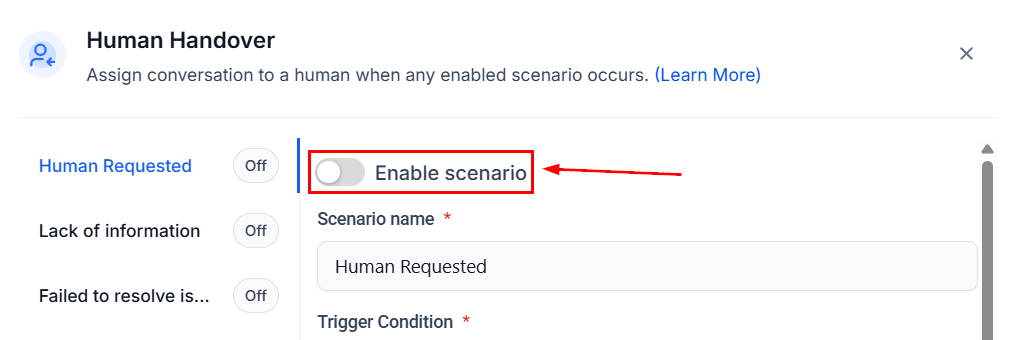
4. **Set up fallback to human.** Always have a clear path for visitors to reach a human agent if the bot cannot help. Configure the [human handover action](/ai-agents/conversation-ai-actions) in your bot settings.
***
## Channel-specific setup and best practices
Use the tabs below to jump to the channel you are configuring.
### SMS configuration
SMS is often the highest-engagement channel because messages land directly on a customer's phone. However, SMS has unique constraints you need to plan for.
#### Setup checklist
* **Phone number**: Ensure you have an active phone number provisioned in HoopAI. Go to **Settings > Phone Numbers** to confirm.
* **A2P 10DLC registration**: If you are sending SMS in the United States, you must complete [A2P 10DLC registration](/getting-started/a2p-10dlc-registration) to avoid carrier filtering.
* **Assign the channel**: In your bot settings, toggle **SMS** on under the Channels section.
#### Best practices
1. **Keep messages short.** SMS messages are limited to 160 characters per segment. Longer messages get split into multiple segments, which increases cost and can feel overwhelming. Instruct your bot in the prompt to keep replies under 300 characters when possible.
2. **Avoid links in early messages.** Carriers often flag messages with URLs as spam, especially from new numbers. Let the bot build rapport before sharing links.
3. **Handle opt-outs gracefully.** HoopAI automatically processes STOP and UNSUBSCRIBE keywords. Make sure your bot prompt includes instructions to never argue with a customer who wants to opt out.
4. **Use natural language.** Avoid overly formal or robotic phrasing. SMS is a casual channel — customers expect quick, conversational replies.
5. **Set quiet hours.** Configure your bot to avoid sending messages late at night or early in the morning. This can be managed through workflow timing or bot scheduling settings.
#### Prompt tip for SMS
Add a line like this to your bot prompt:
```
When replying via SMS, keep your responses concise — ideally under
2-3 short sentences. Use plain language and avoid bullet points or
formatting that does not render well in text messages.
```
### Instagram DM setup
Instagram is a visual-first platform, and users who message you via DMs often expect quick, casual responses.
#### Setup checklist
* **Connect your Instagram account**: Navigate to **Settings > Integrations** and connect your Instagram Business or Creator account. Your account must be linked to a Facebook Page.
* **Enable messaging**: In your Instagram app settings, make sure **Allow Access to Messages** is turned on under Privacy > Messages.
* **Assign the channel**: In your bot settings, toggle **Instagram** on.
#### Best practices
1. **Be casual and friendly.** Instagram users expect a conversational, approachable tone. Avoid corporate jargon.
2. **Respond quickly.** Instagram rewards fast response times with a "Very responsive" badge on your profile.
3. **Handle media messages.** Customers may send images, voice notes, or story replies. Include instructions in your prompt for how the bot should handle these (e.g., "If the customer sends an image, acknowledge it and ask how you can help").
4. **Keep emoji use moderate.** A few well-placed emojis can feel natural on Instagram, but overusing them can seem unprofessional.
5. **Story replies.** When someone replies to your Instagram Story, it arrives as a DM. Your bot should be ready to handle these contextually.
#### Prompt tip for Instagram
```
When replying on Instagram, use a friendly and casual tone. You may
use 1-2 emojis per message where appropriate. Keep responses short
and conversational — think texting a friend, not writing an email.
```
### Facebook Messenger setup
Facebook Messenger remains one of the most popular messaging platforms and is especially effective for businesses with an active Facebook Page.
#### Setup checklist
* **Connect your Facebook Page**: Go to **Settings > Integrations** and connect your Facebook Page. You must have admin access to the page.
* **Assign the channel**: In your bot settings, toggle **Facebook Messenger** on.
* **Test the connection**: Send a message to your Facebook Page from a personal account and confirm the bot responds.
#### Best practices
1. **Use the greeting text.** Facebook Messenger allows you to set a greeting that appears before a user sends their first message. Use this to set expectations about response times and what the bot can help with.
2. **Leverage quick replies.** While the bot generates free-text responses, you can use workflows to send structured quick-reply buttons for common actions like booking appointments.
3. **Handle page mentions vs direct messages.** The bot only responds to direct messages, not comments on your posts. For comment automation, use a separate workflow.
4. **Respect the 24-hour messaging window.** Facebook limits businesses to responding within 24 hours of the last user message. After that, you need a message tag or sponsored message. Your bot handles this automatically, but be aware of it for follow-up strategies.
#### Prompt tip for Facebook Messenger
```
When replying on Facebook Messenger, be helpful and conversational.
You can use slightly longer responses than SMS since users expect a
richer messaging experience. Still aim for clarity and brevity.
```
### WhatsApp integration
WhatsApp is the dominant messaging platform in many international markets and is excellent for businesses with a global customer base.
#### Setup checklist
* **Register for WhatsApp Business API**: Navigate to **Settings > Integrations > WhatsApp** and follow the guided setup to connect your WhatsApp Business account.
* **Verify your business**: WhatsApp requires business verification through Meta Business Manager before you can send messages.
* **Assign the channel**: Toggle **WhatsApp** on in your bot's channel settings.
* **Configure message templates**: For outbound or follow-up messages, you need pre-approved WhatsApp message templates. See [WhatsApp messaging](/conversations/whatsapp-messaging) for details.
#### Best practices
1. **Use the 24-hour conversation window wisely.** Similar to Facebook, WhatsApp allows free-form messaging within 24 hours of the last customer message. Outside this window, you must use approved templates.
2. **Support multimedia.** WhatsApp users commonly send images, documents, voice notes, and location pins. Instruct your bot on how to handle each type.
3. **Leverage WhatsApp-specific features.** WhatsApp supports bold, italic, and monospace formatting using simple markdown-like syntax. Your bot can use these to make messages more readable.
4. **Be mindful of international audiences.** If your WhatsApp audience spans multiple countries, consider using a [multi-bot setup](/ai/conversation-ai/multi-bot) with language-specific bots.
5. **Comply with WhatsApp policies.** Avoid promotional content in service conversations. WhatsApp has strict policies about message categories.
#### Prompt tip for WhatsApp
```
When replying on WhatsApp, you may use *bold* and _italic_ formatting
for emphasis. Keep messages professional but warm. If the customer
writes in a language other than English, respond in their language.
```
### Website live chat / chat widget
The HoopAI [chat widget](/chat-widget/overview) embeds directly on your website and gives visitors an instant way to engage with your AI bot. This channel typically allows for the richest interactions because there are no message-length restrictions or platform policies to navigate.
#### Setup checklist
* **Install the chat widget**: Follow the [chat widget installation guide](/chat-widget/installation) to add the widget to your website.
* **Customise the widget**: Use the [customisation options](/chat-widget/customization) to match your brand colours, avatar, and welcome message.
* **Enable AI chat**: Make sure AI chat is enabled in [chat settings](/chat-widget/chat-settings). See [AI chat configuration](/chat-widget/ai-chat) for advanced options.
* **Assign the channel**: Toggle **Live Chat** or **Web Chat** on in your bot's channel settings.
#### Best practices
1. **Use a welcome message.** Greet visitors proactively to encourage engagement. A good welcome message might be: "Hi there! I'm here to help you with any questions. What can I do for you today?"
2. **Provide detailed responses.** Unlike SMS, web chat has no length constraints. Your bot can provide thorough, well-structured answers with bullet points and formatting.
3. **Include calls to action.** Guide visitors toward booking appointments, requesting quotes, or exploring specific pages on your site.
4. **Set up fallback to human.** Always have a clear path for visitors to reach a human agent if the bot cannot help. Configure the [human handover action](/ai-agents/conversation-ai-actions) in your bot settings.
 Use the [Conversation AI dashboard](/ai-agents/conversation-ai-dashboard) to monitor how many conversations originate from your website widget.
#### Prompt tip for web chat
```
When replying via live chat on our website, provide detailed and
helpful responses. You may use bullet points and numbered lists for
clarity. Always include a clear next step or call to action at the
end of your response.
```
***
## Channel-specific prompt strategies
While each tab above includes a prompt tip, here is a summary of how your bot prompt should adapt by channel. You can include all of these instructions in a single prompt — the bot will automatically detect which channel a conversation is happening on and adjust accordingly.
| Channel | Tone | Length | Formatting | Key consideration |
| ------------------ | ------------------ | ------------- | ---------------- | ----------------------------- |
| SMS | Concise, casual | 1-3 sentences | Plain text only | Carrier filtering, opt-outs |
| Instagram DM | Friendly, casual | 2-4 sentences | Minimal emoji ok | Story replies, media handling |
| Facebook Messenger | Conversational | 3-5 sentences | Light formatting | 24-hour window |
| WhatsApp | Professional, warm | 3-5 sentences | Bold/italic ok | Templates, international |
| Web chat | Detailed, helpful | No limit | Full formatting | CTAs, human handover |
You can use a single prompt instruction block that covers all channels. Add a section like: "Adapt your response style based on the messaging channel. Be brief on SMS, casual on Instagram, and detailed on web chat."
***
## Unified inbox management
When your bot operates across multiple channels, all conversations flow into the HoopAI [unified inbox](/conversations/overview). This means your team can see and manage every interaction in one place regardless of where it originated.
### Key inbox features for multi-channel bots
* **Channel indicator**: Each conversation is tagged with the channel it came from (SMS, IG, FB, WhatsApp, Web Chat), making it easy to identify context at a glance.
* **Bot status per contact**: You can see whether the bot is active, paused, or stopped for each individual contact. Learn more about [bot status management](/conversations/bot-status).
* **Conversation labels**: Use [conversation labels](/conversations/conversation-labels) to categorise conversations by channel, topic, or priority.
* **Assignment rules**: Set up [conversation assignment](/conversations/conversation-assignment) rules to route escalated conversations to the right team member based on the originating channel.
* **Filters and bulk actions**: Use [filters](/conversations/filters-and-bulk-actions) to view only conversations from a specific channel, making it easy to audit bot performance by channel.
### Handling cross-channel contacts
A single contact may reach out on multiple channels. HoopAI merges these interactions into one contact record, so the bot has full context regardless of channel. Keep these tips in mind:
1. **Consistent information**: Make sure your bot provides the same information regardless of channel. Discrepancies can confuse customers.
2. **Channel preference**: If a customer messages on both SMS and web chat, consider which channel to continue the conversation on. You can use workflows to consolidate communication.
3. **Contact bot status**: The bot status is set per contact, not per channel. If the bot is stopped for a contact on SMS, it will also be stopped on other channels unless you use separate bots per channel.
***
## Testing your multi-channel deployment
Before going live across all channels, follow this testing checklist:
Send a test message on each channel and confirm the bot responds with appropriate tone and formatting for that channel.
Send "STOP" via SMS and confirm the bot does not respond and the contact is properly opted out.
Trigger an escalation scenario and verify the conversation is properly handed off to a human agent across each channel.
Confirm that all test conversations appear in the [conversations inbox](/conversations/overview) with the correct channel labels.
Check the [Conversation AI dashboard](/ai-agents/conversation-ai-dashboard) to verify that metrics are being tracked for each channel.
***
## Common multi-channel issues
| Issue | Likely cause | Solution |
| ---------------------------------------- | ----------------------------------------------------- | -------------------------------------------------------------------- |
| Bot responds on SMS but not Instagram | Instagram channel not assigned to bot | Check channel assignments in [bot settings](/ai-agents/bot-settings) |
| Messages not arriving from WhatsApp | WhatsApp Business API not connected | Re-verify the integration in Settings > Integrations |
| Bot tone is too formal on Instagram | Prompt does not include channel-specific instructions | Add channel-aware tone instructions to your prompt |
| Duplicate conversations for same contact | Contact has multiple phone numbers or profiles | Merge contacts in the CRM |
| Chat widget not showing on website | Widget code not installed or blocked by ad blocker | Follow the [installation guide](/chat-widget/installation) |
For more detailed troubleshooting, see [Troubleshooting Conversation AI](/ai/conversation-ai/troubleshooting).
***
## Next steps
Use different bots for different channels, departments, or languages.
Configure primary and non-primary bots and manage channel assignments.
Set up and customise the website chat widget for your AI bot.
Learn how the unified inbox works across all messaging channels.
Use the [Conversation AI dashboard](/ai-agents/conversation-ai-dashboard) to monitor how many conversations originate from your website widget.
#### Prompt tip for web chat
```
When replying via live chat on our website, provide detailed and
helpful responses. You may use bullet points and numbered lists for
clarity. Always include a clear next step or call to action at the
end of your response.
```
***
## Channel-specific prompt strategies
While each tab above includes a prompt tip, here is a summary of how your bot prompt should adapt by channel. You can include all of these instructions in a single prompt — the bot will automatically detect which channel a conversation is happening on and adjust accordingly.
| Channel | Tone | Length | Formatting | Key consideration |
| ------------------ | ------------------ | ------------- | ---------------- | ----------------------------- |
| SMS | Concise, casual | 1-3 sentences | Plain text only | Carrier filtering, opt-outs |
| Instagram DM | Friendly, casual | 2-4 sentences | Minimal emoji ok | Story replies, media handling |
| Facebook Messenger | Conversational | 3-5 sentences | Light formatting | 24-hour window |
| WhatsApp | Professional, warm | 3-5 sentences | Bold/italic ok | Templates, international |
| Web chat | Detailed, helpful | No limit | Full formatting | CTAs, human handover |
You can use a single prompt instruction block that covers all channels. Add a section like: "Adapt your response style based on the messaging channel. Be brief on SMS, casual on Instagram, and detailed on web chat."
***
## Unified inbox management
When your bot operates across multiple channels, all conversations flow into the HoopAI [unified inbox](/conversations/overview). This means your team can see and manage every interaction in one place regardless of where it originated.
### Key inbox features for multi-channel bots
* **Channel indicator**: Each conversation is tagged with the channel it came from (SMS, IG, FB, WhatsApp, Web Chat), making it easy to identify context at a glance.
* **Bot status per contact**: You can see whether the bot is active, paused, or stopped for each individual contact. Learn more about [bot status management](/conversations/bot-status).
* **Conversation labels**: Use [conversation labels](/conversations/conversation-labels) to categorise conversations by channel, topic, or priority.
* **Assignment rules**: Set up [conversation assignment](/conversations/conversation-assignment) rules to route escalated conversations to the right team member based on the originating channel.
* **Filters and bulk actions**: Use [filters](/conversations/filters-and-bulk-actions) to view only conversations from a specific channel, making it easy to audit bot performance by channel.
### Handling cross-channel contacts
A single contact may reach out on multiple channels. HoopAI merges these interactions into one contact record, so the bot has full context regardless of channel. Keep these tips in mind:
1. **Consistent information**: Make sure your bot provides the same information regardless of channel. Discrepancies can confuse customers.
2. **Channel preference**: If a customer messages on both SMS and web chat, consider which channel to continue the conversation on. You can use workflows to consolidate communication.
3. **Contact bot status**: The bot status is set per contact, not per channel. If the bot is stopped for a contact on SMS, it will also be stopped on other channels unless you use separate bots per channel.
***
## Testing your multi-channel deployment
Before going live across all channels, follow this testing checklist:
Send a test message on each channel and confirm the bot responds with appropriate tone and formatting for that channel.
Send "STOP" via SMS and confirm the bot does not respond and the contact is properly opted out.
Trigger an escalation scenario and verify the conversation is properly handed off to a human agent across each channel.
Confirm that all test conversations appear in the [conversations inbox](/conversations/overview) with the correct channel labels.
Check the [Conversation AI dashboard](/ai-agents/conversation-ai-dashboard) to verify that metrics are being tracked for each channel.
***
## Common multi-channel issues
| Issue | Likely cause | Solution |
| ---------------------------------------- | ----------------------------------------------------- | -------------------------------------------------------------------- |
| Bot responds on SMS but not Instagram | Instagram channel not assigned to bot | Check channel assignments in [bot settings](/ai-agents/bot-settings) |
| Messages not arriving from WhatsApp | WhatsApp Business API not connected | Re-verify the integration in Settings > Integrations |
| Bot tone is too formal on Instagram | Prompt does not include channel-specific instructions | Add channel-aware tone instructions to your prompt |
| Duplicate conversations for same contact | Contact has multiple phone numbers or profiles | Merge contacts in the CRM |
| Chat widget not showing on website | Widget code not installed or blocked by ad blocker | Follow the [installation guide](/chat-widget/installation) |
For more detailed troubleshooting, see [Troubleshooting Conversation AI](/ai/conversation-ai/troubleshooting).
***
## Next steps
Use different bots for different channels, departments, or languages.
Configure primary and non-primary bots and manage channel assignments.
Set up and customise the website chat widget for your AI bot.
Learn how the unified inbox works across all messaging channels.