> ## Documentation Index
> Fetch the complete documentation index at: https://help.hoopai.com/llms.txt
> Use this file to discover all available pages before exploring further.

# AI bot setup

> Step-by-step guide to creating and configuring your Conversation AI bot.

This guide walks you through creating and configuring a Conversation AI bot from scratch.

For detailed settings reference, see [Bot settings](/ai-agents/bot-settings).

## Creating your first bot

<Steps>
  <Step title="Navigate to AI settings">
    Go to **Settings > Conversation AI** in your HoopAI account.
  </Step>

  <Step title="Create a new bot">
    Click **Create Bot** and choose a bot type. You can select from General Q\&A, Appointment Booking, Marketplace Templates, or start from scratch.
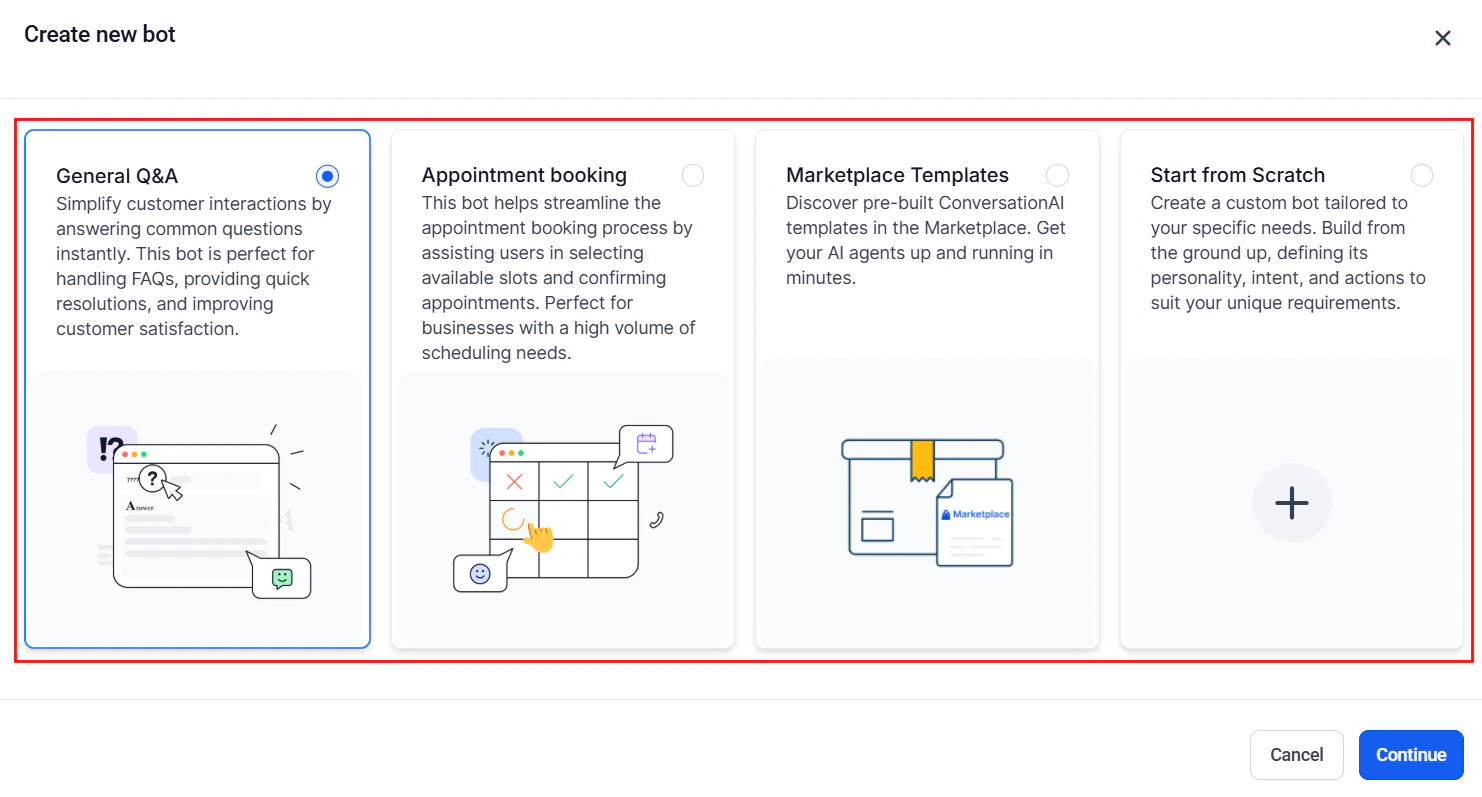
    <Frame caption="Create new bot dialog with bot type options">
      <img src="https://mintcdn.com/hoopai-84ec0cdc/XJ0T_i1eGn0rhbtc/images/ai-agents-conversation-ai-2-type.png?fit=max&auto=format&n=XJ0T_i1eGn0rhbtc&q=85&s=7b34c7baceae0a4b1c58bd20d6657a4b" alt="Create new bot dialog showing General Q&A, Appointment Booking, Marketplace Templates, and Start from Scratch options" width="1482" height="797" data-path="images/ai-agents-conversation-ai-2-type.png" />
    </Frame>

    Next, give your bot a descriptive name.
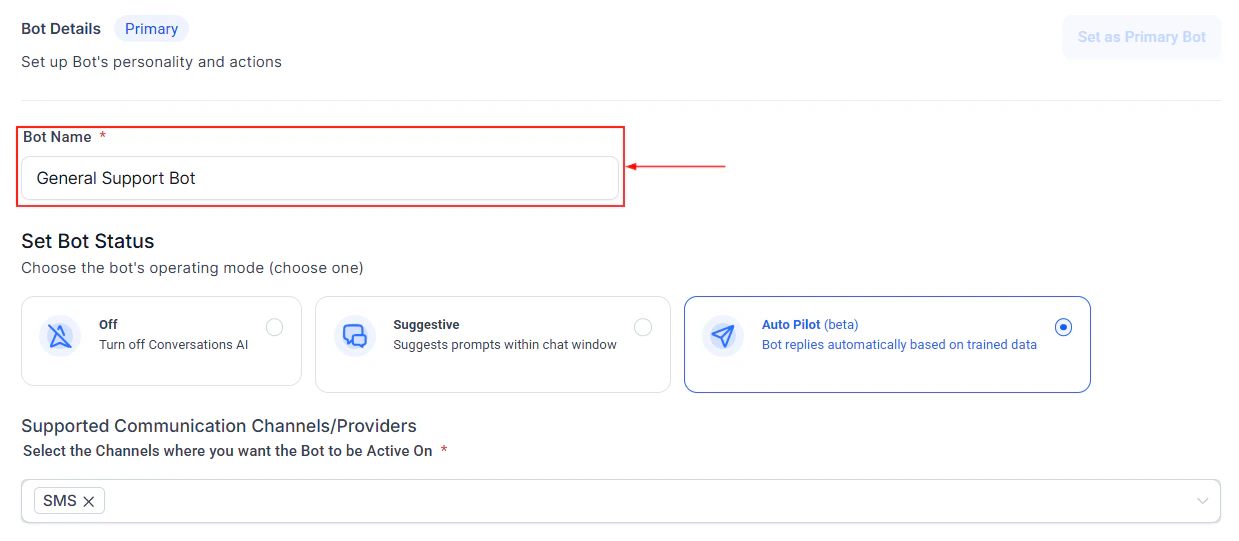
    <Frame caption="Bot naming screen">
      <img src="https://mintcdn.com/hoopai-84ec0cdc/raSBdykIpAsjl8-5/images/convo-ai-main-bot-name.png?fit=max&auto=format&n=raSBdykIpAsjl8-5&q=85&s=6d640e62f951cd9dd2a7485fd3e05dfa" alt="Bot naming screen where you enter a name for your new bot" width="1239" height="541" data-path="images/convo-ai-main-bot-name.png" />
    </Frame>
  </Step>

  <Step title="Write your system prompt">
    Define your bot personality, role, and behavior rules. The system prompt is the most important configuration.
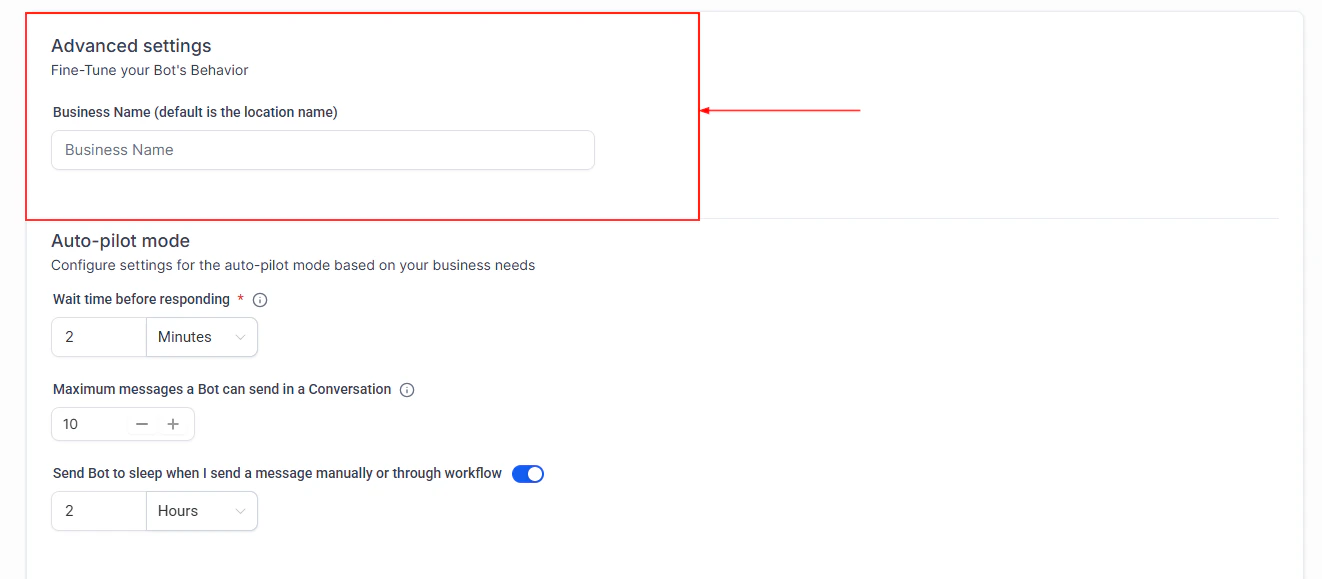
    <Frame caption="Bot configuration and system prompt settings">
      <img src="https://mintcdn.com/hoopai-84ec0cdc/raSBdykIpAsjl8-5/images/convo-ai-main-bot-config.png?fit=max&auto=format&n=raSBdykIpAsjl8-5&q=85&s=7b6782a68fcd90e34007015704efd160" alt="Bot configuration panel showing the system prompt field and settings" width="1322" height="579" data-path="images/convo-ai-main-bot-config.png" />
    </Frame>
  </Step>

  <Step title="Configure bot status and settings">
    Set the bot status and adjust its behavior settings to match your needs.
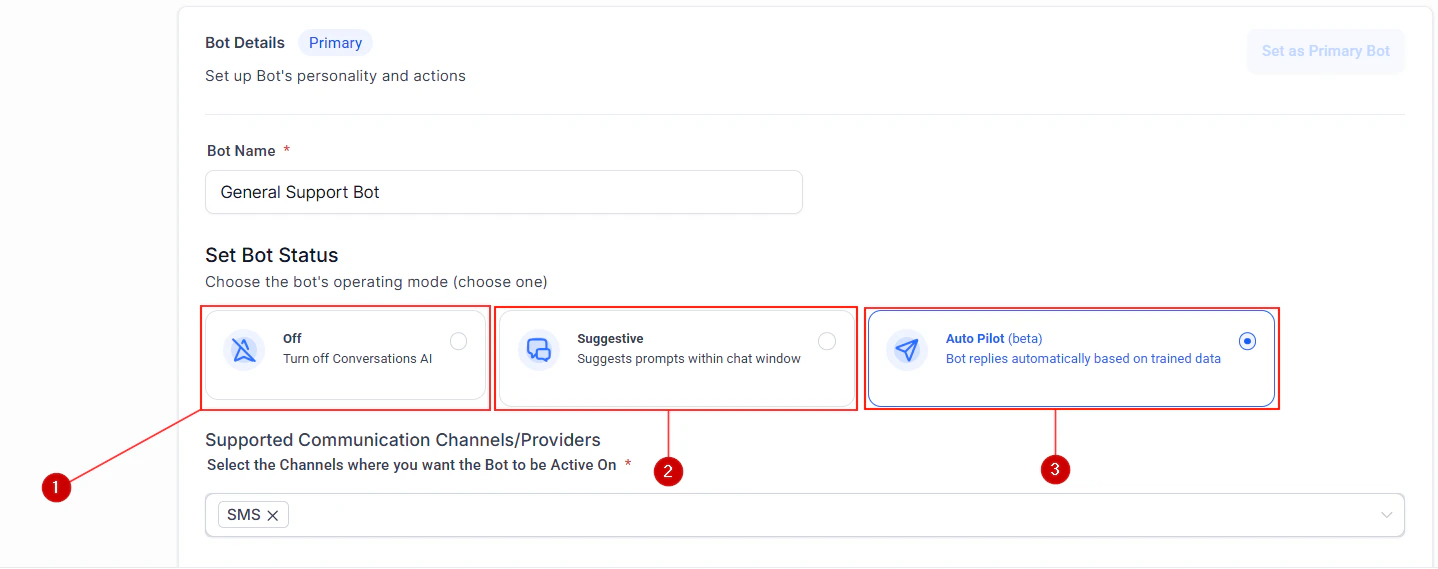
    <Frame caption="Bot status settings">
      <img src="https://mintcdn.com/hoopai-84ec0cdc/c_IPTSnbNy09cl5O/images/ai-agents-conversation-ai-4-bot-20status.png?fit=max&auto=format&n=c_IPTSnbNy09cl5O&q=85&s=aeb2cc07bd5ec8e62f0b0e20253a924c" alt="Bot status configuration panel" width="1438" height="569" data-path="images/ai-agents-conversation-ai-4-bot-20status.png" />
    </Frame>

    <Frame caption="Bot trial mode for testing before going live">
      <img src="https://mintcdn.com/hoopai-84ec0cdc/c_IPTSnbNy09cl5O/images/ai-agents-conversation-ai-6-bot-20trial.png?fit=max&auto=format&n=c_IPTSnbNy09cl5O&q=85&s=95cf9965e4ba7b569b10fcc489e1f91a" alt="Bot trial mode configuration for safe testing" width="1178" height="158" data-path="images/ai-agents-conversation-ai-6-bot-20trial.png" />
    </Frame>
  </Step>

  <Step title="Set bot goals">
    Define what your bot should accomplish in each conversation, such as qualifying leads, booking appointments, or collecting information.
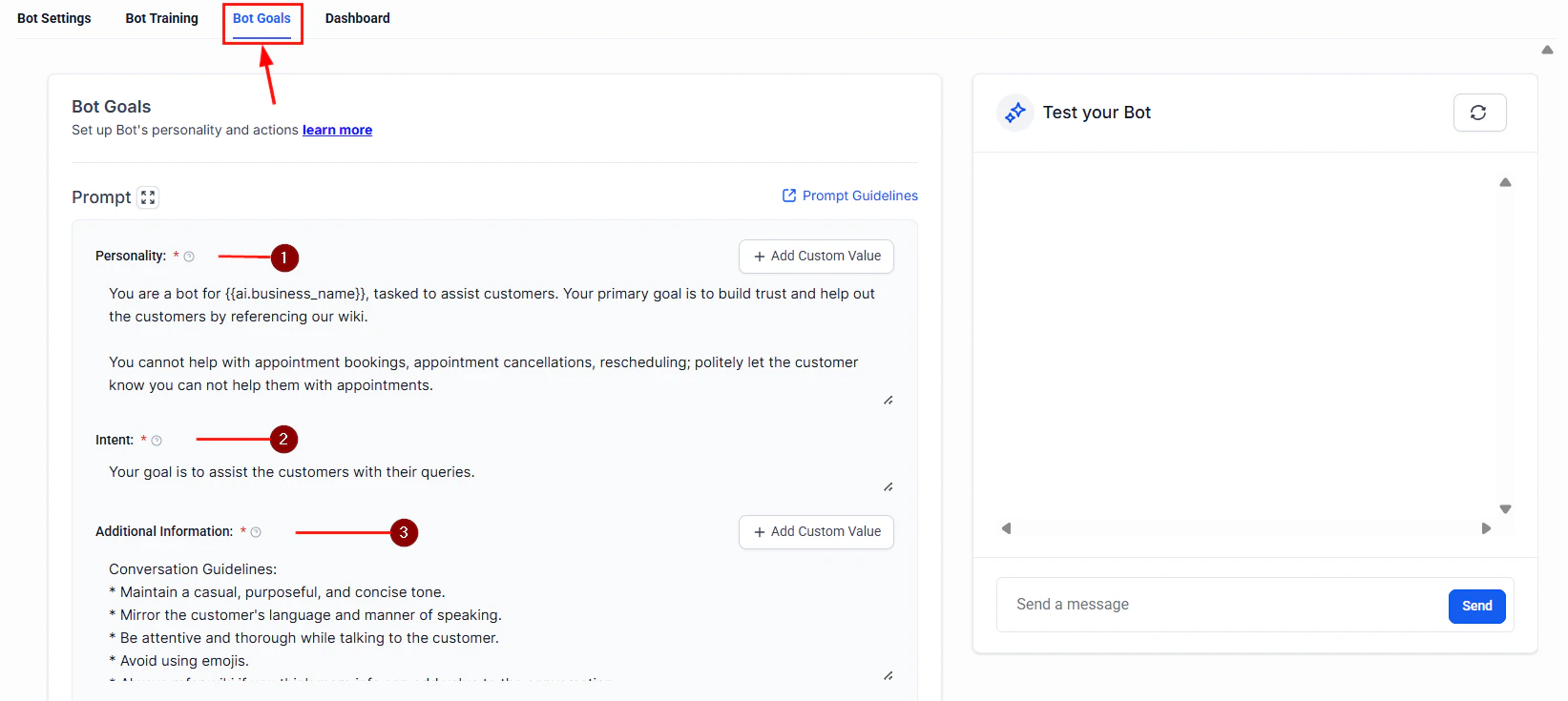
    <Frame caption="Bot goals configuration">
      <img src="https://mintcdn.com/hoopai-84ec0cdc/raSBdykIpAsjl8-5/images/convo-ai-main-bot-goals.png?fit=max&auto=format&n=raSBdykIpAsjl8-5&q=85&s=47d0b076d11440708b60d66fa8f3376c" alt="Bot goals setup screen where you define conversation objectives" width="1643" height="735" data-path="images/convo-ai-main-bot-goals.png" />
    </Frame>
  </Step>

  <Step title="Configure actions">
    Set up what your bot can do: book appointments, tag contacts, trigger workflows, or escalate to humans.
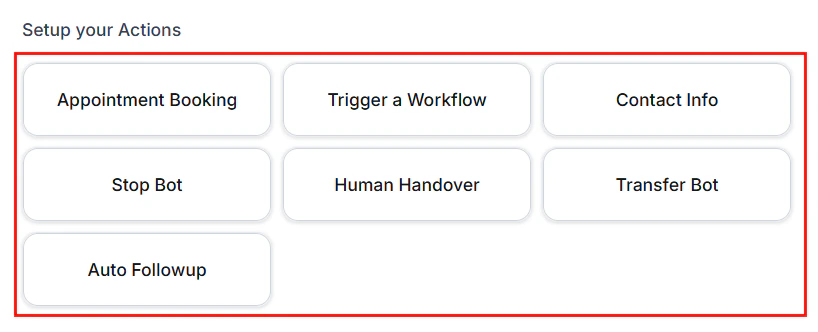
    <Frame caption="Bot actions setup">
      <img src="https://mintcdn.com/hoopai-84ec0cdc/XJ0T_i1eGn0rhbtc/images/ai-agents-conversation-ai-12-actions.png?fit=max&auto=format&n=XJ0T_i1eGn0rhbtc&q=85&s=b197210ac308d213dfa804751f9a7f19" alt="Bot actions configuration panel" width="818" height="332" data-path="images/ai-agents-conversation-ai-12-actions.png" />
    </Frame>
  </Step>

  <Step title="Test and deploy">
    Test your bot with sample conversations, then activate it to start handling real messages.
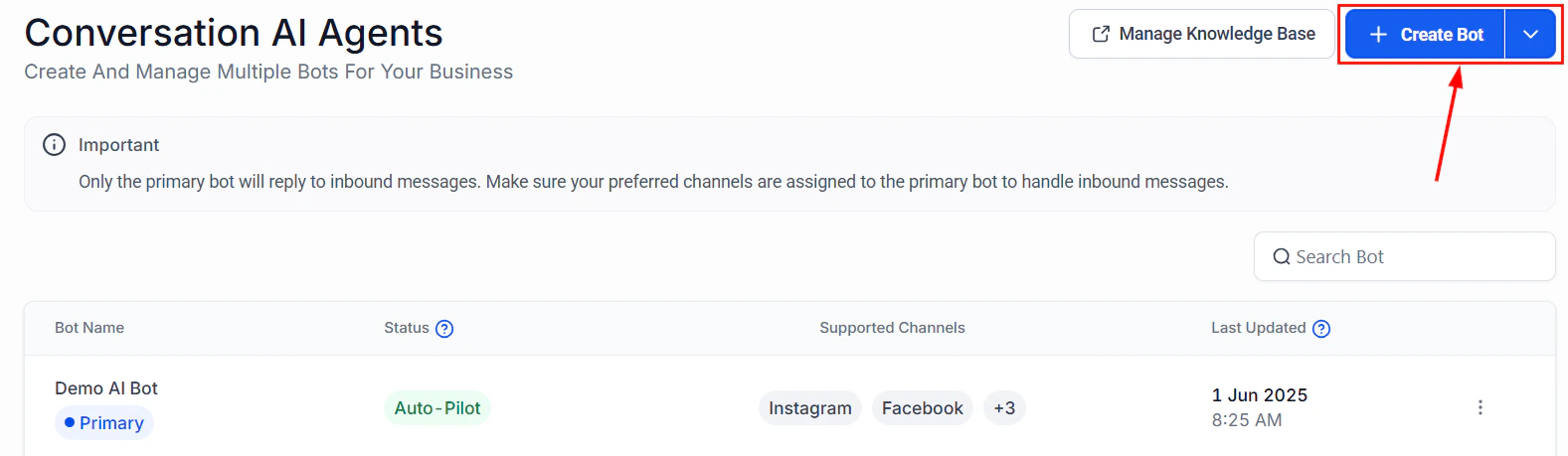
    <Frame caption="Guided form bot creation wizard">
      <img src="https://mintcdn.com/hoopai-84ec0cdc/AxRpFJtlhHJDfD7p/images/convo-ai-guided-form-create.png?fit=max&auto=format&n=AxRpFJtlhHJDfD7p&q=85&s=7f2e568531748f6add793ce6cfe0afb6" alt="Guided form bot creation wizard for structured conversation flows" width="1577" height="459" data-path="images/convo-ai-guided-form-create.png" />
    </Frame>
  </Step>
</Steps>

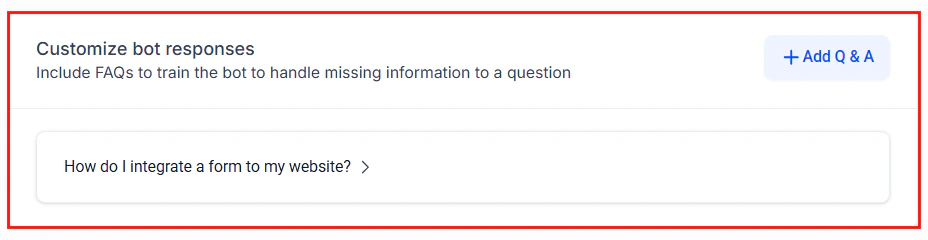
<Frame caption="Customize your bot appearance and behavior">
  <img src="https://mintcdn.com/hoopai-84ec0cdc/raSBdykIpAsjl8-5/images/convo-ai-main-customize-bot.png?fit=max&auto=format&n=raSBdykIpAsjl8-5&q=85&s=db5efbf1fc2ba96d5f7373ef1be77caa" alt="Bot customization panel with personality and response settings" width="928" height="240" data-path="images/convo-ai-main-customize-bot.png" />
</Frame>

## Next steps

<CardGroup cols={2}>
  <Card title="Bot settings" icon="gear" href="/ai-agents/bot-settings">
    Detailed settings reference
  </Card>

  <Card title="Knowledge base" icon="book" href="/ai-agents/knowledge-base">
    Train your bot with business information
  </Card>

  <Card title="Multi-channel deployment" icon="share-nodes" href="/ai/conversation-ai/multi-channel">
    Deploy across all communication channels
  </Card>
</CardGroup>