> ## Documentation Index
> Fetch the complete documentation index at: https://help.hoopai.com/llms.txt
> Use this file to discover all available pages before exploring further.
# Content AI in the social planner
> Create AI-powered social media posts tailored for each platform using HoopAI's Content AI.
## Overview
Creating consistent, engaging social media content across multiple platforms is one of the most time-consuming marketing tasks. Content AI in HoopAI's social planner generates platform-optimized posts, captions, hashtags, and even images — all from a simple description of what you want to communicate.
Instead of crafting separate posts for Facebook, Instagram, LinkedIn, and X (formerly Twitter), you describe your message once and Content AI adapts it for each platform's unique format, audience expectations, and best practices.
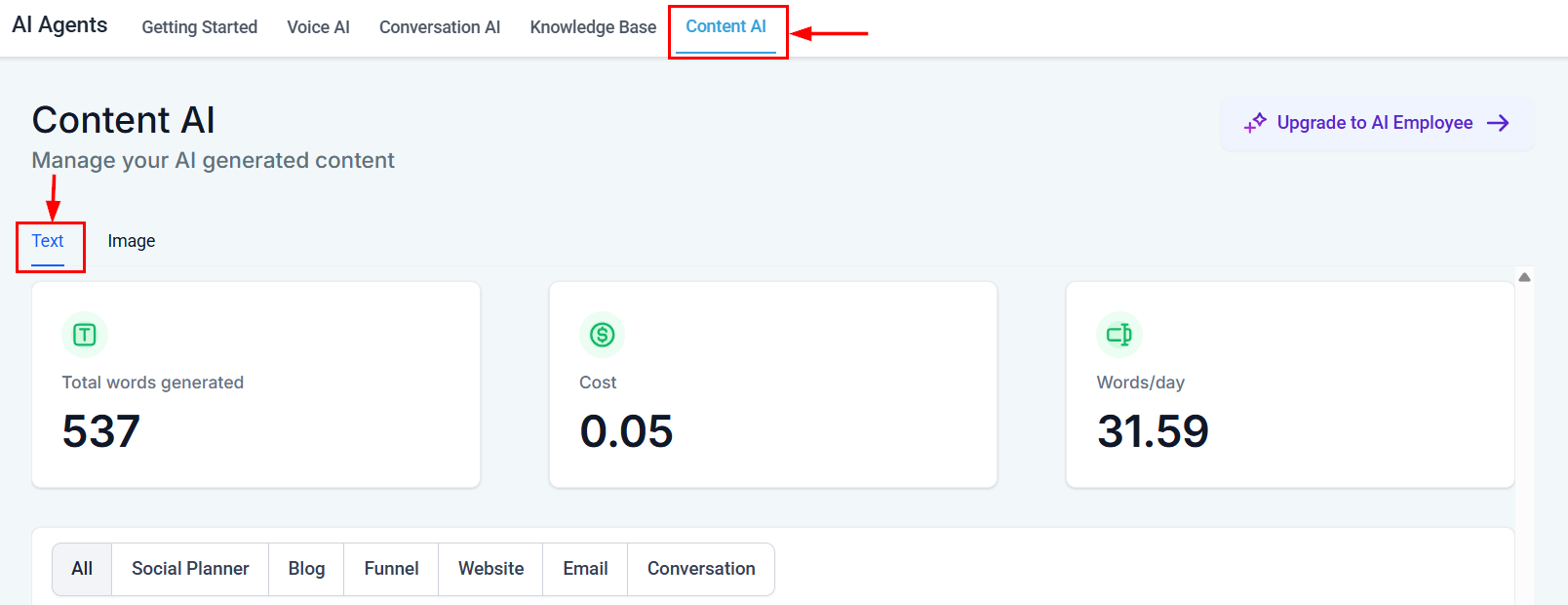 ## Accessing Content AI in the social planner
Navigate to **Marketing > Social Planner** from the main menu.
Click **New Post** or click on a date in the calendar view to start creating content.
Choose which social media accounts you want to post to. You can select multiple platforms and Content AI will tailor the content for each one.
Click the **AI** icon in the post composer to open the Content AI panel.
## Generating posts by platform
Each social platform has different norms, character limits, and audience expectations. Content AI understands these differences and generates appropriately formatted content for each.
### Facebook
Content AI generates Facebook posts that are:
* **Conversational and engaging** — written to encourage comments and shares
* **Medium length** — typically 40-80 words, the sweet spot for Facebook engagement
* **Question-oriented** — often ends with a question to drive interaction
* **Emoji-appropriate** — uses emojis sparingly to add personality without overdoing it
**Example prompt:** "Announce our new weekend hours starting this Saturday. We're now open 8 AM to 6 PM on Saturdays."
**AI output:** Posts that frame the announcement as a benefit to customers, include a call to engage, and match the conversational tone Facebook users expect.
### Instagram
Content AI generates Instagram captions that are:
* **Story-driven** — leads with a hook or narrative
* **Hashtag-rich** — includes a mix of popular and niche hashtags
* **Structured with line breaks** — easy to scan on mobile
* **CTA-focused** — directs to link in bio or encourages saves/shares
The AI understands that Instagram captions can be longer (up to 2,200 characters) and uses that space strategically, front-loading the most important content before the "more" fold.
### LinkedIn
Content AI generates LinkedIn posts that are:
* **Professional and value-driven** — focused on insights, lessons, and expertise
* **Formatted for readability** — short paragraphs, line breaks between thoughts
* **Authority-building** — positions you or your business as a thought leader
* **Engagement-optimized** — ends with a question or call for opinions
LinkedIn's algorithm favors text-only posts and posts that generate comments. Content AI structures content accordingly.
### X (formerly Twitter)
Content AI generates posts for X that are:
* **Concise** — respects character limits (280 characters for standard posts)
* **Punchy** — every word earns its place
* **Thread-ready** — can generate multi-tweet threads for complex topics
* **Hashtag-minimal** — 1-2 relevant hashtags maximum, as X best practices suggest
For longer topics, the AI can create a thread with a compelling hook tweet followed by supporting points.
When posting across multiple platforms, let Content AI generate platform-specific versions rather than posting identical content everywhere. Each platform's audience engages differently, and tailored content consistently outperforms cross-posted content.
## Guided content questions
When you open Content AI in the social planner, it guides you through a series of questions to understand what you need:
1. **What is the topic or message?** — Describe what you want to communicate
2. **What is the goal?** — Engagement, awareness, traffic, sales, education?
3. **Who is the audience?** — Existing customers, prospects, general public?
4. **What tone do you want?** — Professional, casual, humorous, inspirational?
5. **Any specific details to include?** — Dates, links, offers, mentions?
You can answer all questions for comprehensive results or skip to basics for a quick draft.
## Hashtag and caption generation
### Hashtag generation
Content AI generates hashtags based on:
* **Your content** — relevant to the specific post topic
* **Your industry** — common hashtags in your business category
* **Trending tags** — currently popular hashtags that relate to your message
* **Mix strategy** — combines high-volume hashtags (for reach) with niche hashtags (for targeted visibility)
For Instagram, the AI typically generates 15-25 hashtags. For X, 1-2. For LinkedIn, 3-5. For Facebook, hashtags are used sparingly or omitted entirely, matching each platform's norms.
### Caption generation
Beyond the main post text, Content AI can generate:
* **Alt text** for images (important for accessibility)
* **First comment** content (useful for Instagram hashtag strategies)
* **Location tags** suggestions based on content context
* **Mention suggestions** when the content relates to partners or collaborators
## Image AI for social posts
Content AI includes image generation capabilities for social media posts.
## Accessing Content AI in the social planner
Navigate to **Marketing > Social Planner** from the main menu.
Click **New Post** or click on a date in the calendar view to start creating content.
Choose which social media accounts you want to post to. You can select multiple platforms and Content AI will tailor the content for each one.
Click the **AI** icon in the post composer to open the Content AI panel.
## Generating posts by platform
Each social platform has different norms, character limits, and audience expectations. Content AI understands these differences and generates appropriately formatted content for each.
### Facebook
Content AI generates Facebook posts that are:
* **Conversational and engaging** — written to encourage comments and shares
* **Medium length** — typically 40-80 words, the sweet spot for Facebook engagement
* **Question-oriented** — often ends with a question to drive interaction
* **Emoji-appropriate** — uses emojis sparingly to add personality without overdoing it
**Example prompt:** "Announce our new weekend hours starting this Saturday. We're now open 8 AM to 6 PM on Saturdays."
**AI output:** Posts that frame the announcement as a benefit to customers, include a call to engage, and match the conversational tone Facebook users expect.
### Instagram
Content AI generates Instagram captions that are:
* **Story-driven** — leads with a hook or narrative
* **Hashtag-rich** — includes a mix of popular and niche hashtags
* **Structured with line breaks** — easy to scan on mobile
* **CTA-focused** — directs to link in bio or encourages saves/shares
The AI understands that Instagram captions can be longer (up to 2,200 characters) and uses that space strategically, front-loading the most important content before the "more" fold.
### LinkedIn
Content AI generates LinkedIn posts that are:
* **Professional and value-driven** — focused on insights, lessons, and expertise
* **Formatted for readability** — short paragraphs, line breaks between thoughts
* **Authority-building** — positions you or your business as a thought leader
* **Engagement-optimized** — ends with a question or call for opinions
LinkedIn's algorithm favors text-only posts and posts that generate comments. Content AI structures content accordingly.
### X (formerly Twitter)
Content AI generates posts for X that are:
* **Concise** — respects character limits (280 characters for standard posts)
* **Punchy** — every word earns its place
* **Thread-ready** — can generate multi-tweet threads for complex topics
* **Hashtag-minimal** — 1-2 relevant hashtags maximum, as X best practices suggest
For longer topics, the AI can create a thread with a compelling hook tweet followed by supporting points.
When posting across multiple platforms, let Content AI generate platform-specific versions rather than posting identical content everywhere. Each platform's audience engages differently, and tailored content consistently outperforms cross-posted content.
## Guided content questions
When you open Content AI in the social planner, it guides you through a series of questions to understand what you need:
1. **What is the topic or message?** — Describe what you want to communicate
2. **What is the goal?** — Engagement, awareness, traffic, sales, education?
3. **Who is the audience?** — Existing customers, prospects, general public?
4. **What tone do you want?** — Professional, casual, humorous, inspirational?
5. **Any specific details to include?** — Dates, links, offers, mentions?
You can answer all questions for comprehensive results or skip to basics for a quick draft.
## Hashtag and caption generation
### Hashtag generation
Content AI generates hashtags based on:
* **Your content** — relevant to the specific post topic
* **Your industry** — common hashtags in your business category
* **Trending tags** — currently popular hashtags that relate to your message
* **Mix strategy** — combines high-volume hashtags (for reach) with niche hashtags (for targeted visibility)
For Instagram, the AI typically generates 15-25 hashtags. For X, 1-2. For LinkedIn, 3-5. For Facebook, hashtags are used sparingly or omitted entirely, matching each platform's norms.
### Caption generation
Beyond the main post text, Content AI can generate:
* **Alt text** for images (important for accessibility)
* **First comment** content (useful for Instagram hashtag strategies)
* **Location tags** suggestions based on content context
* **Mention suggestions** when the content relates to partners or collaborators
## Image AI for social posts
Content AI includes image generation capabilities for social media posts.
 ### Generating social media images
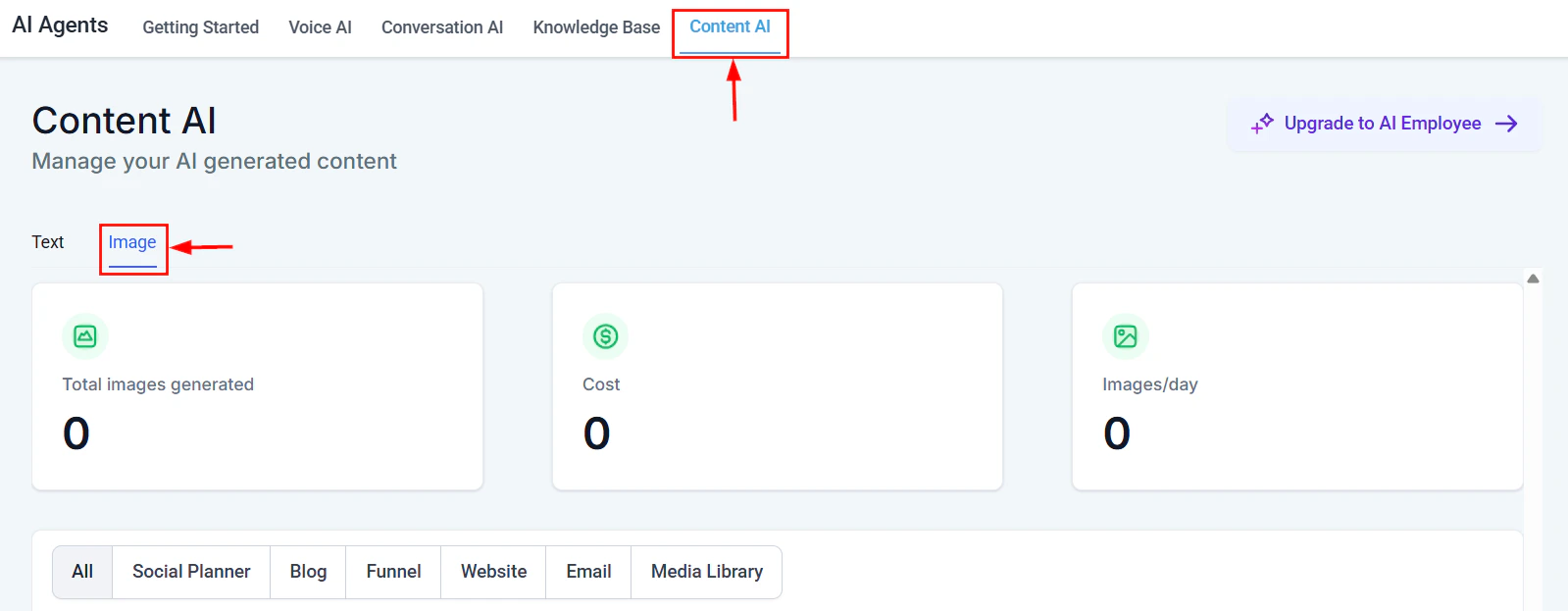
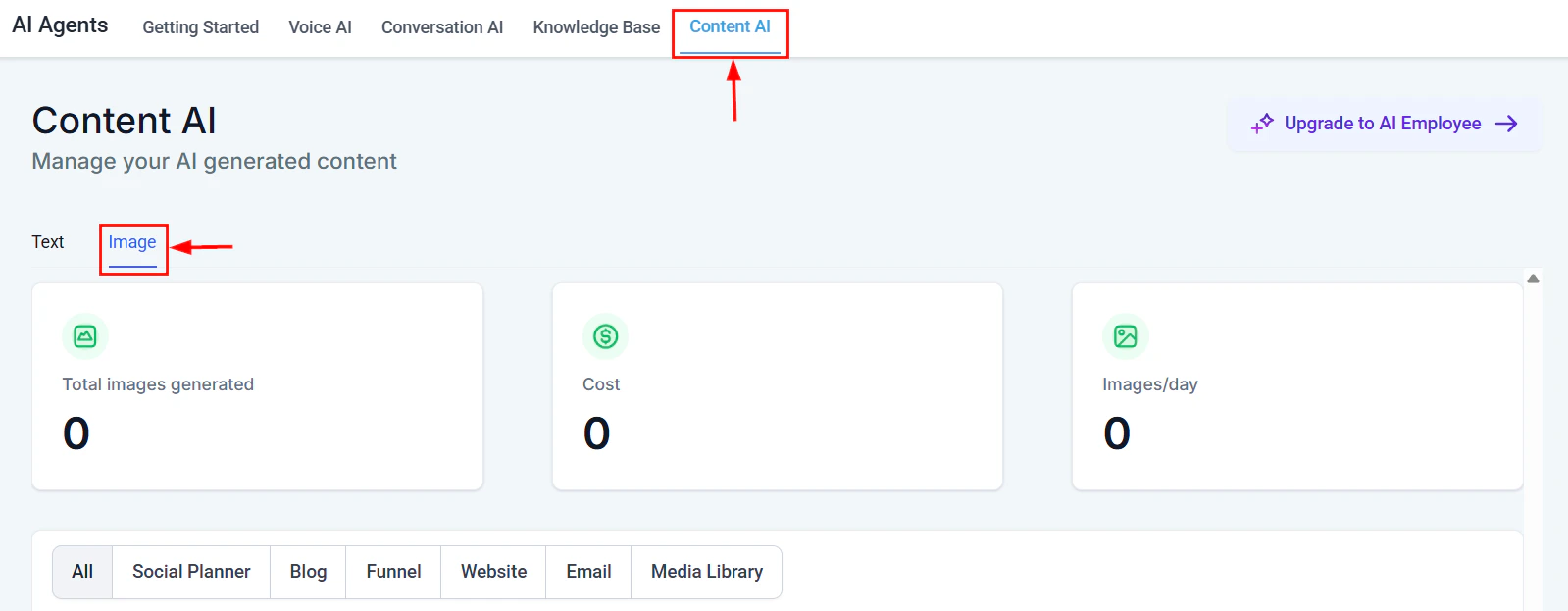
In the Content AI panel, switch to the **Image** tab. Describe what you want the image to show. Be specific about style, colors, subjects, and mood.
Choose the platform-appropriate dimensions:
* **Square (1080x1080)** — Instagram feed, Facebook
* **Portrait (1080x1350)** — Instagram feed (preferred), Pinterest
* **Landscape (1200x628)** — Facebook, LinkedIn, X
* **Story (1080x1920)** — Instagram/Facebook Stories
The AI generates image options. Select the one that best fits your post. You can regenerate with modified instructions if needed.
The selected image attaches to your post. Continue editing the caption or schedule the post.
### Generating social media images
In the Content AI panel, switch to the **Image** tab. Describe what you want the image to show. Be specific about style, colors, subjects, and mood.
Choose the platform-appropriate dimensions:
* **Square (1080x1080)** — Instagram feed, Facebook
* **Portrait (1080x1350)** — Instagram feed (preferred), Pinterest
* **Landscape (1200x628)** — Facebook, LinkedIn, X
* **Story (1080x1920)** — Instagram/Facebook Stories
The AI generates image options. Select the one that best fits your post. You can regenerate with modified instructions if needed.
The selected image attaches to your post. Continue editing the caption or schedule the post.
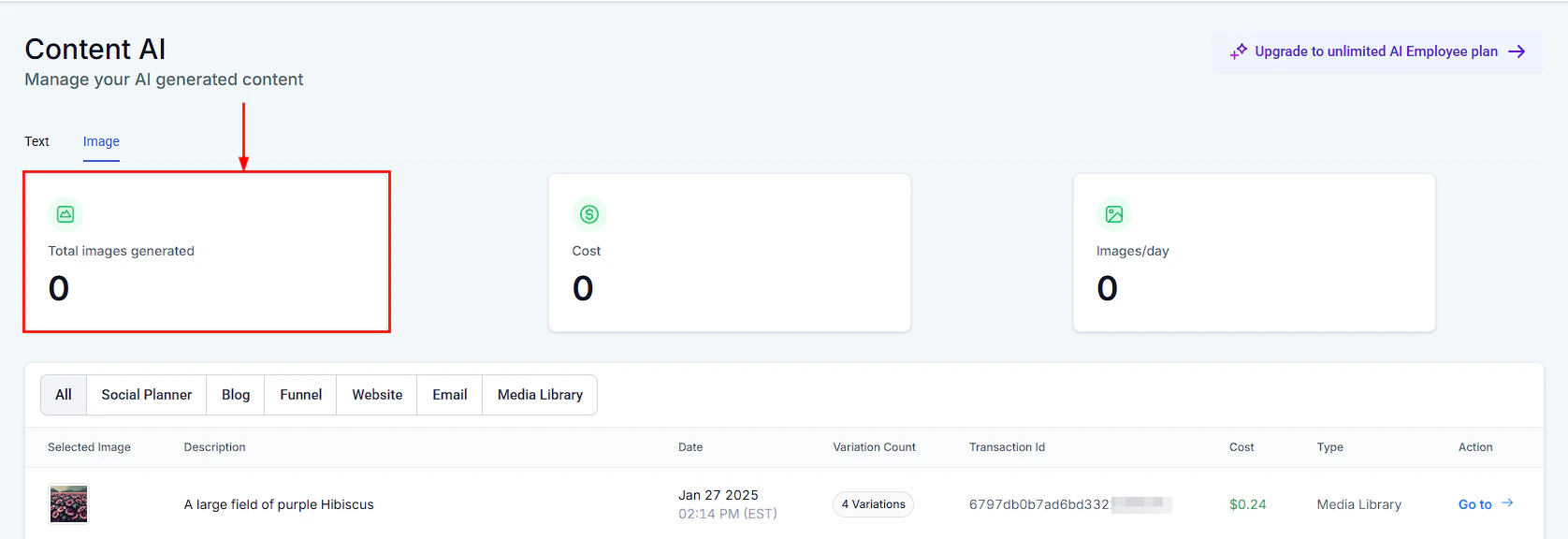
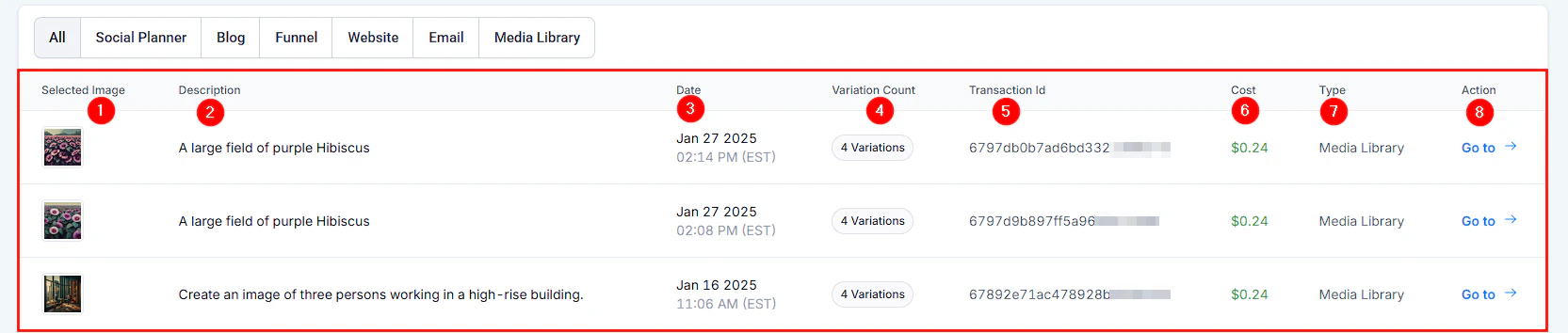
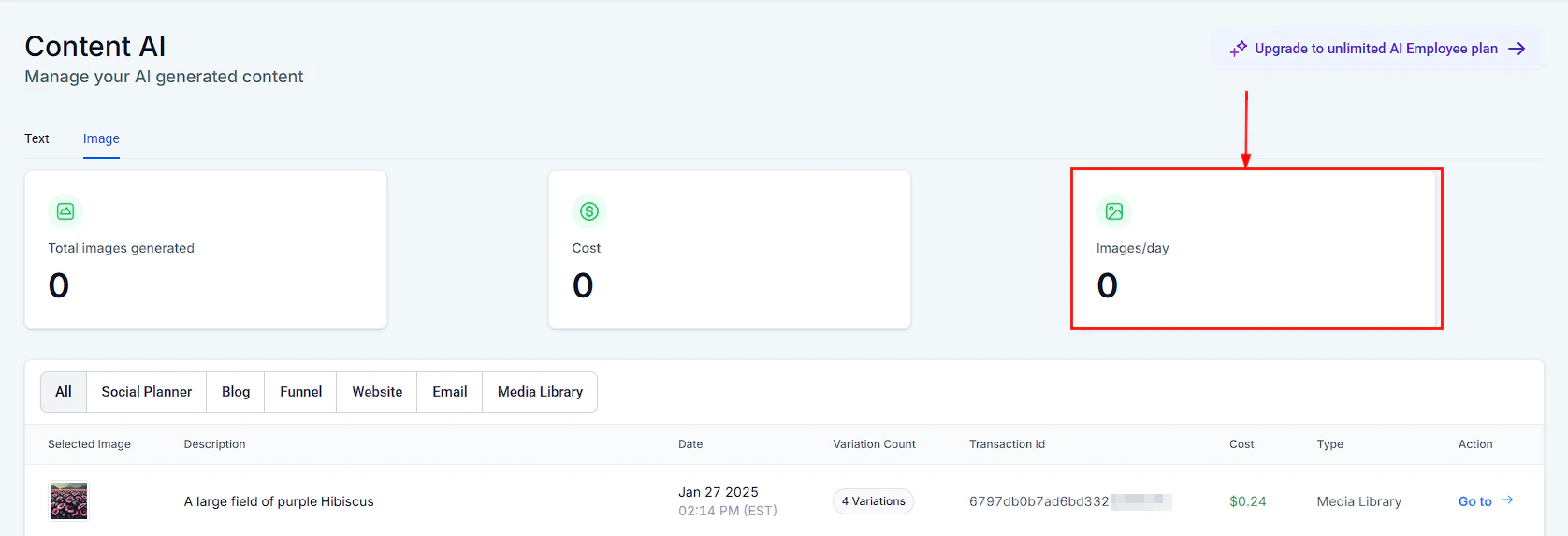 Image generation consumes image credits, which are separate from word credits. Check your image credit balance in **Settings > AI credits** before generating in bulk. For more details on image AI capabilities, see [Content and image AI](/academy/media-social-posting/content-image-ai).
### Image prompting tips for social media
* **Be specific about style:** "flat illustration," "photorealistic," "minimalist graphic"
* **Include brand colors:** "Use blue (#1E3A5F) and white as primary colors"
* **Describe the composition:** "Product centered, clean background, overhead angle"
* **Avoid text in images:** AI-generated text in images is often unreliable; add text overlays in an editor instead
Image generation consumes image credits, which are separate from word credits. Check your image credit balance in **Settings > AI credits** before generating in bulk. For more details on image AI capabilities, see [Content and image AI](/academy/media-social-posting/content-image-ai).
### Image prompting tips for social media
* **Be specific about style:** "flat illustration," "photorealistic," "minimalist graphic"
* **Include brand colors:** "Use blue (#1E3A5F) and white as primary colors"
* **Describe the composition:** "Product centered, clean background, overhead angle"
* **Avoid text in images:** AI-generated text in images is often unreliable; add text overlays in an editor instead
 ## Scheduling AI-generated content
Once Content AI generates your posts, you can schedule them directly from the social planner.
### Scheduling workflow
1. **Review and edit** each platform-specific post
2. **Attach media** (AI-generated images or your own uploads)
3. **Set the date and time** for each post
4. **Preview** how the post will appear on each platform
5. **Schedule** or **publish immediately**
### Batch content creation
Content AI excels at batch content creation. Use it to generate a week or month of content in one session:
1. List your content themes or topics for the period
2. Generate posts for each topic across all platforms
3. Review and refine in bulk
4. Schedule everything at once using the calendar view
This approach is more efficient and produces more consistent messaging than creating posts one at a time.
Create a content calendar template with recurring themes (e.g., Monday tips, Wednesday behind-the-scenes, Friday promotions). Then use Content AI to generate posts following this structure each week. This saves planning time and ensures content variety.
## Scheduling AI-generated content
Once Content AI generates your posts, you can schedule them directly from the social planner.
### Scheduling workflow
1. **Review and edit** each platform-specific post
2. **Attach media** (AI-generated images or your own uploads)
3. **Set the date and time** for each post
4. **Preview** how the post will appear on each platform
5. **Schedule** or **publish immediately**
### Batch content creation
Content AI excels at batch content creation. Use it to generate a week or month of content in one session:
1. List your content themes or topics for the period
2. Generate posts for each topic across all platforms
3. Review and refine in bulk
4. Schedule everything at once using the calendar view
This approach is more efficient and produces more consistent messaging than creating posts one at a time.
Create a content calendar template with recurring themes (e.g., Monday tips, Wednesday behind-the-scenes, Friday promotions). Then use Content AI to generate posts following this structure each week. This saves planning time and ensures content variety.
 ## Brand voice in social content
Consistency across your social presence builds brand recognition and trust. Content AI maintains your brand voice when properly configured.
### Setting up brand voice for social
1. Navigate to **Settings > AI > Brand Voice**
2. Define your social media voice separately from other channels if needed
3. Include examples of posts that represent your ideal tone
4. List phrases, slang, or expressions your brand uses or avoids
5. Specify any platform-specific voice adjustments
### Per-platform voice adjustments
Your brand voice may shift slightly between platforms:
| Platform | Voice adjustment |
| --------- | ------------------------------------------------------------- |
| Facebook | Warmer, more conversational, community-oriented |
| Instagram | Visual storytelling, aspirational, lifestyle-focused |
| LinkedIn | Thought leadership, professional insights, industry expertise |
| X | Concise, timely, witty, direct |
Content AI applies these adjustments automatically when generating platform-specific content.
## Measuring AI content performance
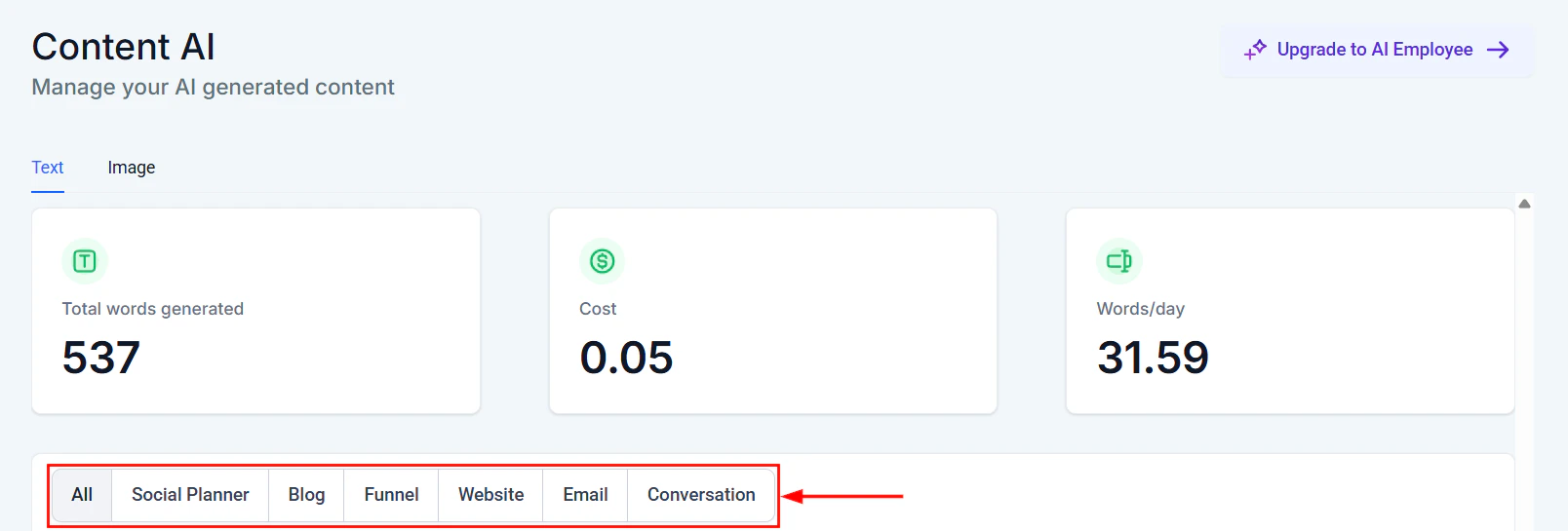
After publishing AI-generated content, track its performance to improve future generations:
## Brand voice in social content
Consistency across your social presence builds brand recognition and trust. Content AI maintains your brand voice when properly configured.
### Setting up brand voice for social
1. Navigate to **Settings > AI > Brand Voice**
2. Define your social media voice separately from other channels if needed
3. Include examples of posts that represent your ideal tone
4. List phrases, slang, or expressions your brand uses or avoids
5. Specify any platform-specific voice adjustments
### Per-platform voice adjustments
Your brand voice may shift slightly between platforms:
| Platform | Voice adjustment |
| --------- | ------------------------------------------------------------- |
| Facebook | Warmer, more conversational, community-oriented |
| Instagram | Visual storytelling, aspirational, lifestyle-focused |
| LinkedIn | Thought leadership, professional insights, industry expertise |
| X | Concise, timely, witty, direct |
Content AI applies these adjustments automatically when generating platform-specific content.
## Measuring AI content performance
After publishing AI-generated content, track its performance to improve future generations:
 ### Key metrics to monitor
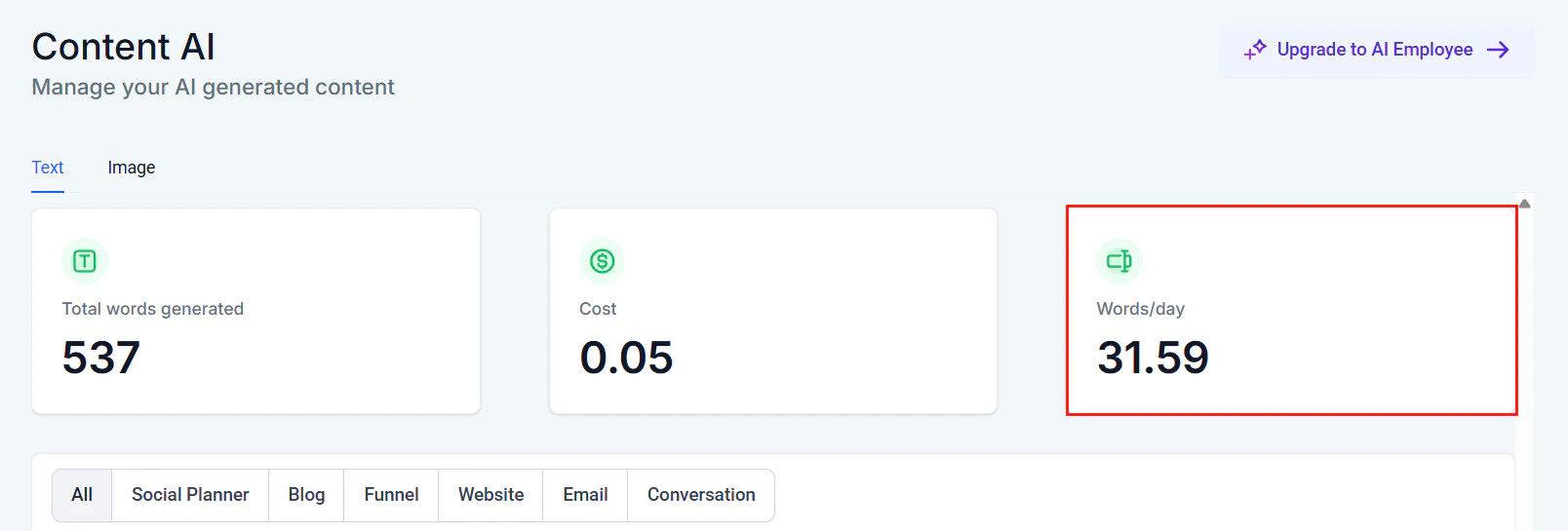 * **Engagement rate** — likes, comments, shares relative to reach
* **Click-through rate** — for posts with links
* **Follower growth** — during periods of AI-generated content
* **Best-performing formats** — which AI-generated styles resonate most
* **Platform comparison** — which platforms show the strongest AI content performance
### Feedback loop
Use performance data to refine your AI prompts:
* Posts with high engagement? Note the tone and format in your brand voice settings
* Posts with low engagement? Adjust the prompt style for similar future content
* Platform-specific trends? Update platform voice adjustments accordingly
AI-generated social media content should be reviewed for accuracy, brand alignment, and sensitivity before publishing. The AI may not be aware of current events, cultural sensitivities, or recent changes to your business that could affect how a post is received.
## Next steps
Explore all Content AI capabilities across HoopAI.
Generate compelling email content with Content AI.
Deep dive into AI image generation for marketing.
Maximize your results with proven AI content strategies.
* **Engagement rate** — likes, comments, shares relative to reach
* **Click-through rate** — for posts with links
* **Follower growth** — during periods of AI-generated content
* **Best-performing formats** — which AI-generated styles resonate most
* **Platform comparison** — which platforms show the strongest AI content performance
### Feedback loop
Use performance data to refine your AI prompts:
* Posts with high engagement? Note the tone and format in your brand voice settings
* Posts with low engagement? Adjust the prompt style for similar future content
* Platform-specific trends? Update platform voice adjustments accordingly
AI-generated social media content should be reviewed for accuracy, brand alignment, and sensitivity before publishing. The AI may not be aware of current events, cultural sensitivities, or recent changes to your business that could affect how a post is received.
## Next steps
Explore all Content AI capabilities across HoopAI.
Generate compelling email content with Content AI.
Deep dive into AI image generation for marketing.
Maximize your results with proven AI content strategies.