> ## Documentation Index
> Fetch the complete documentation index at: https://help.hoopai.com/llms.txt
> Use this file to discover all available pages before exploring further.
# Content AI in the email builder
> Generate compelling email subject lines, body copy, and CTAs with HoopAI's Content AI.
## Overview
Content AI in the email builder helps you create high-performing emails faster by generating subject lines, body copy, calls-to-action, and complete email drafts. Instead of staring at a blank page, you describe what you need and the AI produces polished content you can use immediately or refine to match your brand.
Whether you are building a one-off campaign, a drip sequence, or a transactional email, Content AI accelerates every step of the writing process.
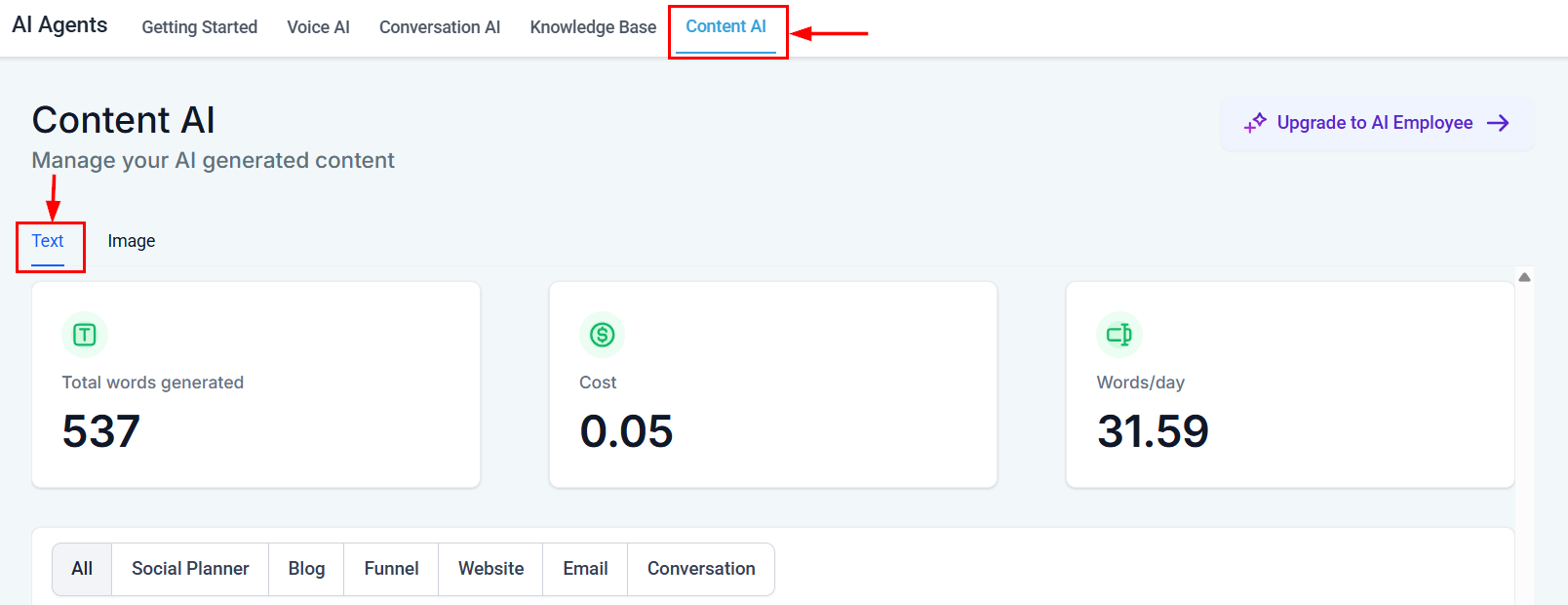
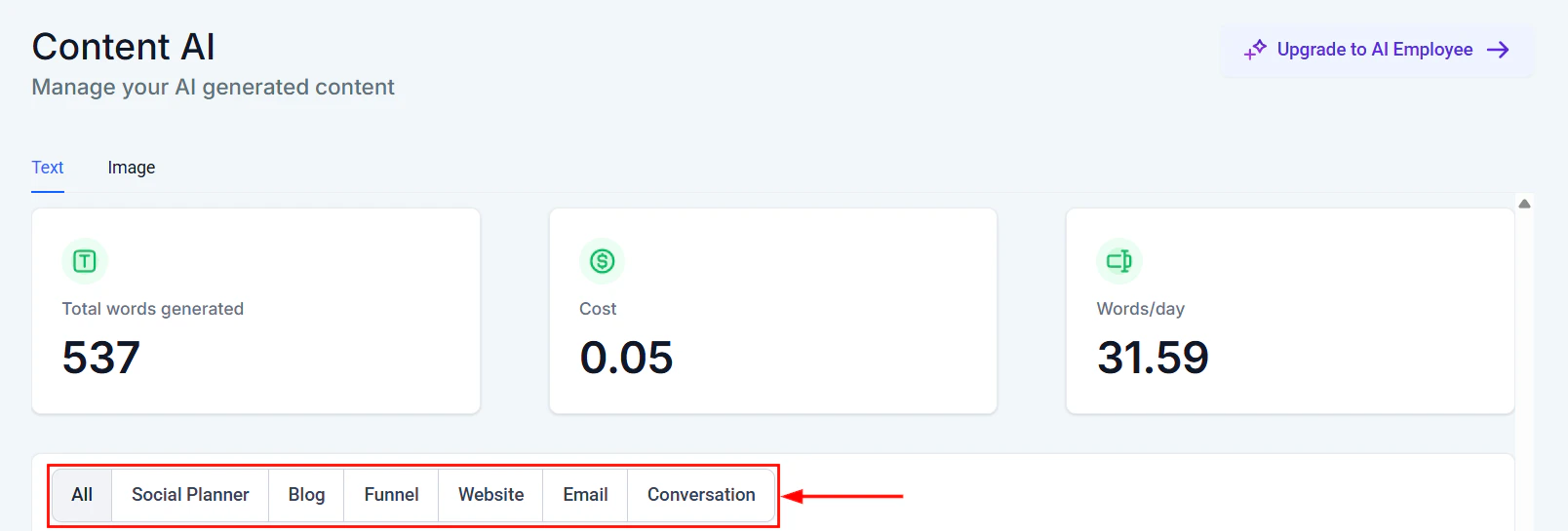
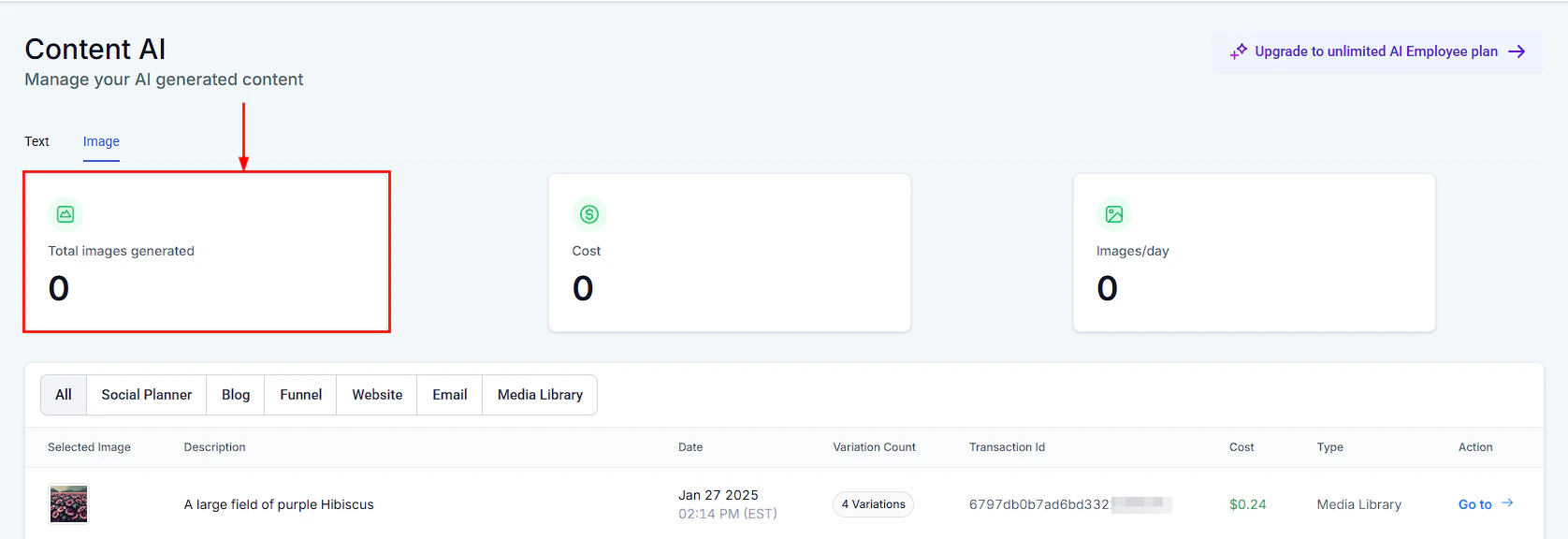
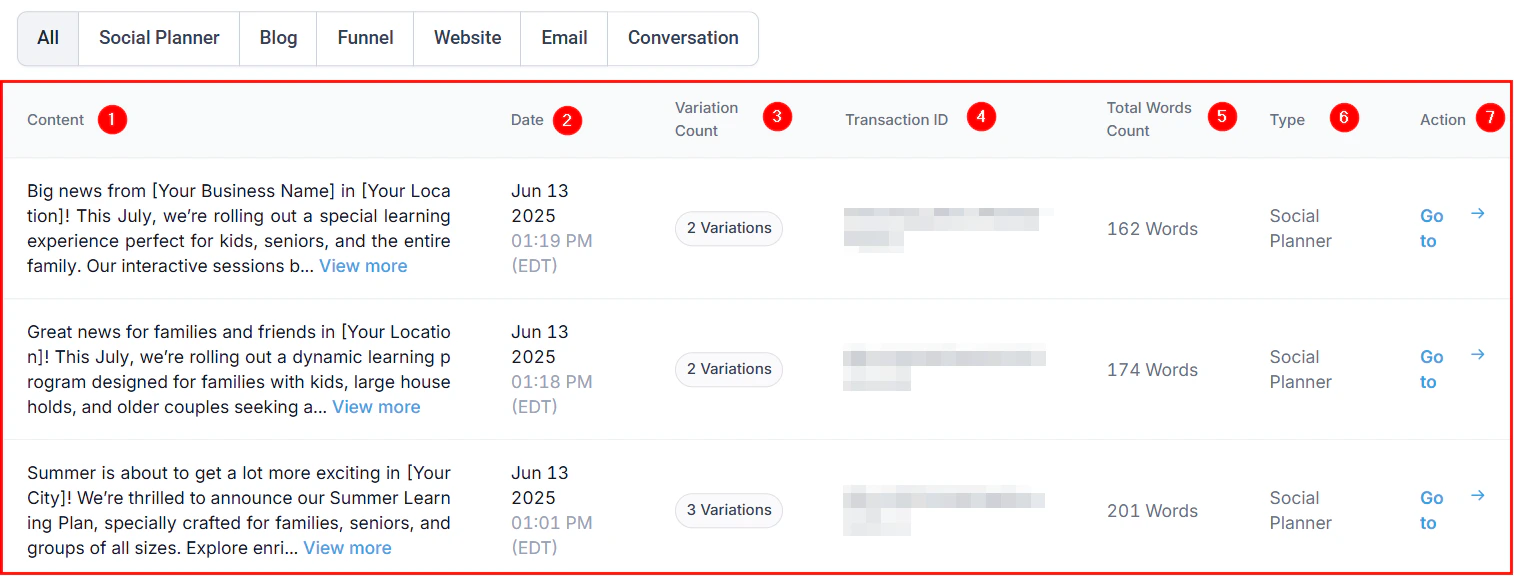
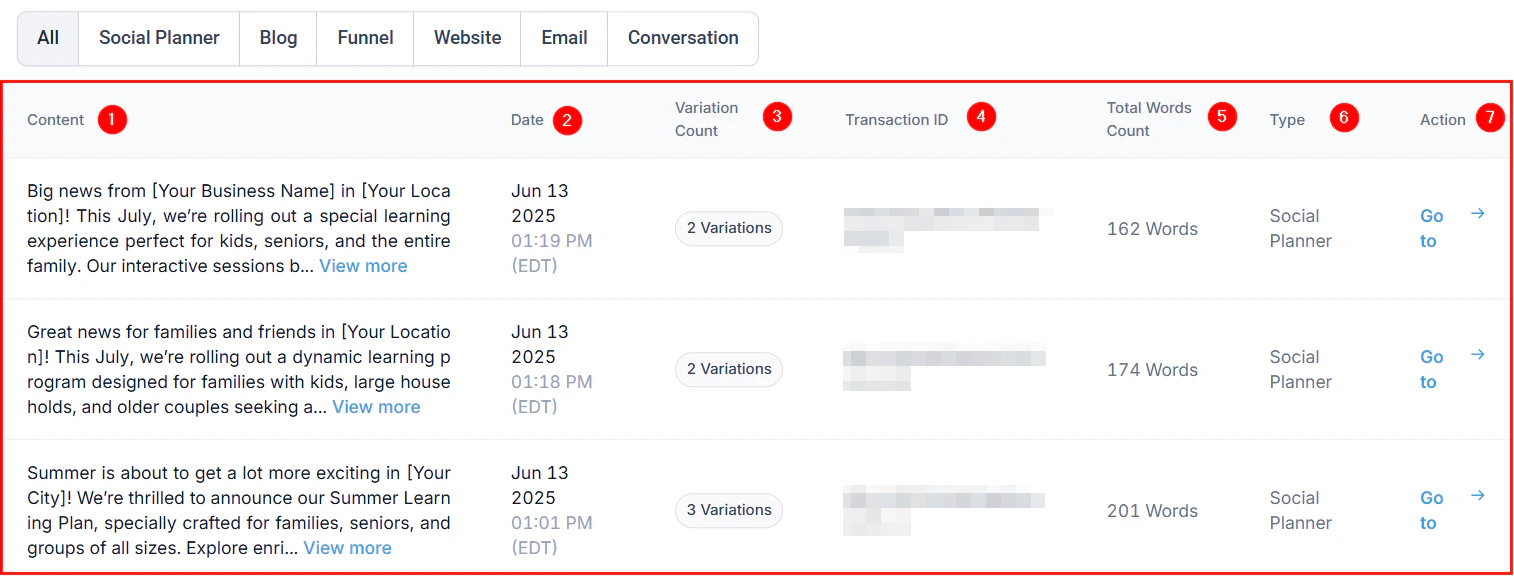
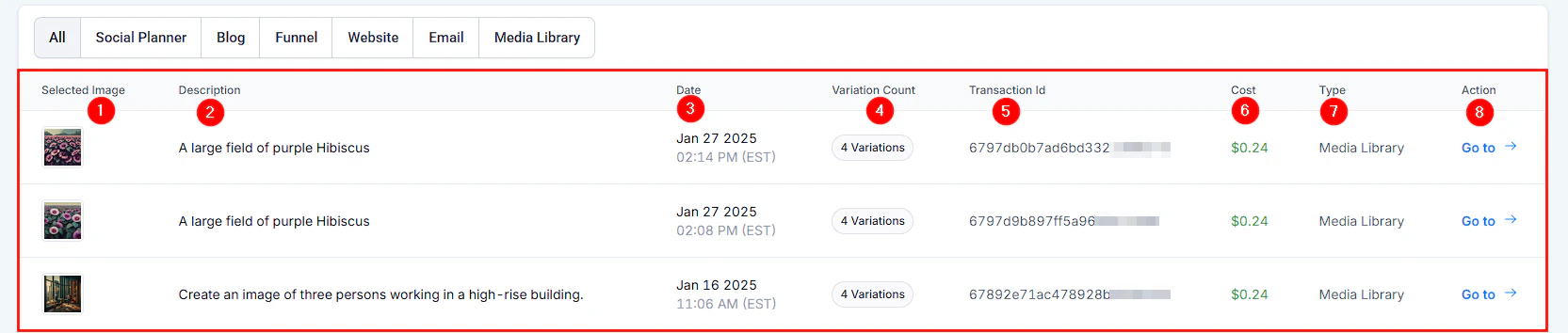
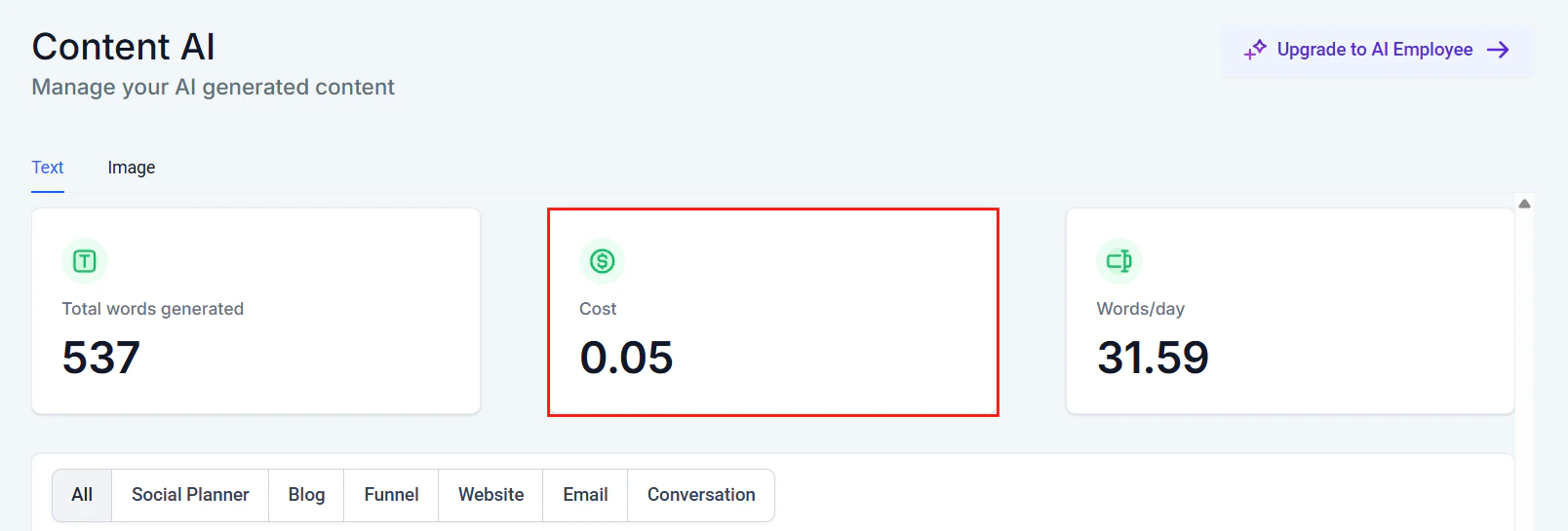
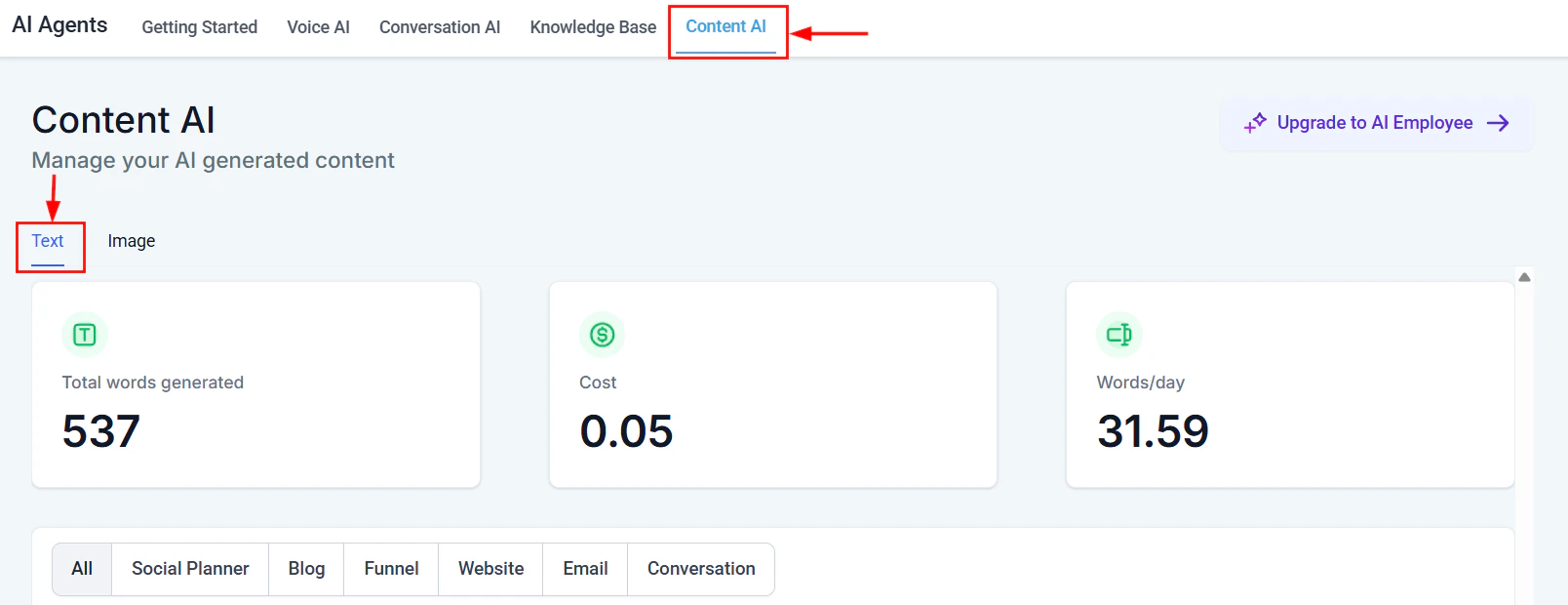 Content AI in the email builder consumes word credits from your HoopAI plan. Each generation request uses credits based on the length of the output. Monitor your usage in **Settings > AI credits**.
## Accessing Content AI in the email builder
Content AI is available anywhere you write text in the email builder:
1. Open **Marketing > Emails** and create a new email or edit an existing one
2. In the email builder, click on any text element (heading, paragraph, button)
3. Look for the **AI** icon in the text editing toolbar
4. Click it to open the Content AI panel
You can also access Content AI from the subject line field when composing your campaign settings.
## Generating subject lines
Subject lines make or break your open rates. Content AI generates multiple options so you can pick the strongest one.
In your email campaign settings, click the **AI** icon next to the subject line field.
Tell the AI what the email is about. The more context you give, the better the results:
* **Email topic:** What is the main message?
* **Audience:** Who is receiving this email?
* **Tone:** Professional, casual, urgent, playful?
* **Goal:** Opens, clicks, replies?
Click **Generate** to receive 3-5 subject line options. Each will use a different angle or approach.
Click on a subject line to use it, or click **Regenerate** for new options. You can also edit the selected line manually.
### Subject line strategies the AI uses
The AI applies proven email marketing techniques:
* **Curiosity gap** — creates intrigue without being clickbait
* **Personalization** — incorporates merge fields like `{{contact.first_name}}`
* **Urgency** — suggests time-sensitive language when appropriate
* **Benefit-focused** — leads with what the reader gains
* **Question format** — engages by asking something relevant
Generate subject lines in batches and save the best ones for A/B testing. Having 4-5 strong options lets you test what resonates with your specific audience.
## Generating body copy
Content AI can generate complete email body sections or help you expand on bullet points.
Content AI in the email builder consumes word credits from your HoopAI plan. Each generation request uses credits based on the length of the output. Monitor your usage in **Settings > AI credits**.
## Accessing Content AI in the email builder
Content AI is available anywhere you write text in the email builder:
1. Open **Marketing > Emails** and create a new email or edit an existing one
2. In the email builder, click on any text element (heading, paragraph, button)
3. Look for the **AI** icon in the text editing toolbar
4. Click it to open the Content AI panel
You can also access Content AI from the subject line field when composing your campaign settings.
## Generating subject lines
Subject lines make or break your open rates. Content AI generates multiple options so you can pick the strongest one.
In your email campaign settings, click the **AI** icon next to the subject line field.
Tell the AI what the email is about. The more context you give, the better the results:
* **Email topic:** What is the main message?
* **Audience:** Who is receiving this email?
* **Tone:** Professional, casual, urgent, playful?
* **Goal:** Opens, clicks, replies?
Click **Generate** to receive 3-5 subject line options. Each will use a different angle or approach.
Click on a subject line to use it, or click **Regenerate** for new options. You can also edit the selected line manually.
### Subject line strategies the AI uses
The AI applies proven email marketing techniques:
* **Curiosity gap** — creates intrigue without being clickbait
* **Personalization** — incorporates merge fields like `{{contact.first_name}}`
* **Urgency** — suggests time-sensitive language when appropriate
* **Benefit-focused** — leads with what the reader gains
* **Question format** — engages by asking something relevant
Generate subject lines in batches and save the best ones for A/B testing. Having 4-5 strong options lets you test what resonates with your specific audience.
## Generating body copy
Content AI can generate complete email body sections or help you expand on bullet points.
 ### Full email draft
Provide the AI with:
* The purpose of the email (welcome, promotion, follow-up, announcement)
* Key points to cover
* Desired length (short, medium, detailed)
* Tone and style preferences
* Any specific offers, links, or deadlines to include
The AI generates a complete draft that you can drop into your email template and customize.
### Section-by-section generation
For more control, generate content one section at a time:
| Section | What to tell the AI |
| ----------------- | -------------------------------------------------------------- |
| Opening hook | Email topic, audience pain point, desired emotional response |
| Value proposition | Product/service benefits, what makes your offer unique |
| Social proof | Type of proof to reference (testimonials, stats, case studies) |
| Call-to-action | What action you want, urgency level, incentive details |
| P.S. line | Additional hook, reminder, or secondary CTA |
### Expanding bullet points into paragraphs
If you have an outline but need fleshed-out copy:
1. Type your bullet points into the text element
2. Select the text and click the AI icon
3. Choose **Expand** to turn each bullet into a polished paragraph
4. Review and edit the output
### Full email draft
Provide the AI with:
* The purpose of the email (welcome, promotion, follow-up, announcement)
* Key points to cover
* Desired length (short, medium, detailed)
* Tone and style preferences
* Any specific offers, links, or deadlines to include
The AI generates a complete draft that you can drop into your email template and customize.
### Section-by-section generation
For more control, generate content one section at a time:
| Section | What to tell the AI |
| ----------------- | -------------------------------------------------------------- |
| Opening hook | Email topic, audience pain point, desired emotional response |
| Value proposition | Product/service benefits, what makes your offer unique |
| Social proof | Type of proof to reference (testimonials, stats, case studies) |
| Call-to-action | What action you want, urgency level, incentive details |
| P.S. line | Additional hook, reminder, or secondary CTA |
### Expanding bullet points into paragraphs
If you have an outline but need fleshed-out copy:
1. Type your bullet points into the text element
2. Select the text and click the AI icon
3. Choose **Expand** to turn each bullet into a polished paragraph
4. Review and edit the output
 ## Generating CTAs
Strong calls-to-action drive clicks. Content AI generates CTA button text and surrounding copy.
**Input:** Tell the AI what action you want the reader to take and what they get in return.
**Output examples:**
* "Book your free consultation" (service business)
* "Claim your 20% discount" (e-commerce)
* "See the full case study" (B2B)
* "Reserve your spot — only 12 left" (event)
The AI adapts CTA language to match the tone and context of your email.
## Personalizing with merge fields and AI
Content AI and merge fields work together to create emails that feel individually crafted at scale.
### How to combine them
1. **In your AI prompt:** Reference the type of personalization you want. Example: "Write a follow-up email that references the contact's service interest."
2. **In the output:** The AI generates copy with natural insertion points for merge fields.
3. **After generation:** Insert the appropriate merge fields where the AI indicated personalization should go.
### Example
**AI prompt:** "Write a re-engagement email for a contact who hasn't visited in 3 months. Reference their last service."
**AI output:**
```text theme={null}
Hi {{contact.first_name}},
It's been a while since your last visit with us for
{{contact.custom_field.last_service}}. We've made some
exciting updates since then and would love to see you again.
As a valued customer, here's an exclusive 15% off your next appointment.
```
The merge fields ensure each recipient sees their own name and service history, while the AI-generated copy provides the framework and tone.
## Generating CTAs
Strong calls-to-action drive clicks. Content AI generates CTA button text and surrounding copy.
**Input:** Tell the AI what action you want the reader to take and what they get in return.
**Output examples:**
* "Book your free consultation" (service business)
* "Claim your 20% discount" (e-commerce)
* "See the full case study" (B2B)
* "Reserve your spot — only 12 left" (event)
The AI adapts CTA language to match the tone and context of your email.
## Personalizing with merge fields and AI
Content AI and merge fields work together to create emails that feel individually crafted at scale.
### How to combine them
1. **In your AI prompt:** Reference the type of personalization you want. Example: "Write a follow-up email that references the contact's service interest."
2. **In the output:** The AI generates copy with natural insertion points for merge fields.
3. **After generation:** Insert the appropriate merge fields where the AI indicated personalization should go.
### Example
**AI prompt:** "Write a re-engagement email for a contact who hasn't visited in 3 months. Reference their last service."
**AI output:**
```text theme={null}
Hi {{contact.first_name}},
It's been a while since your last visit with us for
{{contact.custom_field.last_service}}. We've made some
exciting updates since then and would love to see you again.
As a valued customer, here's an exclusive 15% off your next appointment.
```
The merge fields ensure each recipient sees their own name and service history, while the AI-generated copy provides the framework and tone.
 ## A/B testing AI-generated variants
Content AI is a powerful A/B testing companion. Generate multiple versions of the same email and let data determine the winner.
### A/B testing workflow
Create your first email version using Content AI with one angle or tone (e.g., benefit-focused, professional tone).
Regenerate with a different prompt (e.g., urgency-focused, conversational tone). Save this as your second variant.
In your campaign settings, enable A/B testing. Assign variant A and variant B. Set your test percentage (typically 20-30% of your list).
Choose whether the winner is determined by open rate (test subject lines) or click rate (test body/CTA).
Send the test. After sufficient data, the winner automatically sends to the remaining list. Use the results to inform future AI prompts.
### What to A/B test with AI
| Element | Variant A | Variant B |
| ------------ | ---------------------------------- | ---------------------------------------- |
| Subject line | Curiosity-based | Benefit-based |
| Opening line | Personal story | Statistic/fact |
| CTA text | Action-oriented ("Book now") | Benefit-oriented ("Get your free quote") |
| Email length | Short and punchy (under 100 words) | Detailed with sections (200+ words) |
| Tone | Professional and authoritative | Warm and conversational |
## Brand voice consistency
Content AI produces better results when it understands your brand voice.
### Configuring brand voice
1. Navigate to **Settings > AI > Brand Voice**
2. Define your brand's tone (e.g., professional but approachable, witty but not sarcastic)
3. Add example phrases or sentences that represent your voice
4. List words or phrases to avoid
5. Save your brand voice settings
Once configured, Content AI across the platform — including the email builder — will reference these settings when generating content.
### Manual voice guidance
If you haven't set up brand voice globally, include voice instructions directly in your AI prompts:
```text theme={null}
Write in a warm, professional tone. Use short sentences.
Avoid jargon and corporate-speak. Sound like a helpful neighbor,
not a salesperson. Never use exclamation marks more than once per email.
```
For a comprehensive guide to configuring and maintaining your brand voice across all Content AI features, see [Content AI overview](/ai-agents/content-ai).
## Cost tracking and optimization
### Understanding credit consumption
Each Content AI generation in the email builder uses word credits:
* **Subject line generation** — minimal credits (short output)
* **Section generation** — moderate credits (paragraph-length output)
* **Full email draft** — higher credits (complete email output)
* **Regeneration** — each regeneration uses additional credits
## A/B testing AI-generated variants
Content AI is a powerful A/B testing companion. Generate multiple versions of the same email and let data determine the winner.
### A/B testing workflow
Create your first email version using Content AI with one angle or tone (e.g., benefit-focused, professional tone).
Regenerate with a different prompt (e.g., urgency-focused, conversational tone). Save this as your second variant.
In your campaign settings, enable A/B testing. Assign variant A and variant B. Set your test percentage (typically 20-30% of your list).
Choose whether the winner is determined by open rate (test subject lines) or click rate (test body/CTA).
Send the test. After sufficient data, the winner automatically sends to the remaining list. Use the results to inform future AI prompts.
### What to A/B test with AI
| Element | Variant A | Variant B |
| ------------ | ---------------------------------- | ---------------------------------------- |
| Subject line | Curiosity-based | Benefit-based |
| Opening line | Personal story | Statistic/fact |
| CTA text | Action-oriented ("Book now") | Benefit-oriented ("Get your free quote") |
| Email length | Short and punchy (under 100 words) | Detailed with sections (200+ words) |
| Tone | Professional and authoritative | Warm and conversational |
## Brand voice consistency
Content AI produces better results when it understands your brand voice.
### Configuring brand voice
1. Navigate to **Settings > AI > Brand Voice**
2. Define your brand's tone (e.g., professional but approachable, witty but not sarcastic)
3. Add example phrases or sentences that represent your voice
4. List words or phrases to avoid
5. Save your brand voice settings
Once configured, Content AI across the platform — including the email builder — will reference these settings when generating content.
### Manual voice guidance
If you haven't set up brand voice globally, include voice instructions directly in your AI prompts:
```text theme={null}
Write in a warm, professional tone. Use short sentences.
Avoid jargon and corporate-speak. Sound like a helpful neighbor,
not a salesperson. Never use exclamation marks more than once per email.
```
For a comprehensive guide to configuring and maintaining your brand voice across all Content AI features, see [Content AI overview](/ai-agents/content-ai).
## Cost tracking and optimization
### Understanding credit consumption
Each Content AI generation in the email builder uses word credits:
* **Subject line generation** — minimal credits (short output)
* **Section generation** — moderate credits (paragraph-length output)
* **Full email draft** — higher credits (complete email output)
* **Regeneration** — each regeneration uses additional credits
 ### Tips for minimizing credit usage
* Write outlines and bullet points yourself, then use AI only to polish and expand
* Save effective prompts as templates so you do not waste credits on trial and error
* Use the AI for your first draft, then manually write variations instead of regenerating
* Generate in batches during a dedicated content creation session rather than one-off requests
### Tracking usage
Monitor your credit consumption in **Settings > AI credits**. Set up alerts to notify you when usage reaches a specified threshold so there are no surprises at the end of the billing cycle.
AI-generated email content should always be reviewed before sending. Check for accuracy, brand alignment, and compliance with email marketing regulations (CAN-SPAM, GDPR). The AI does not verify claims, offers, or legal requirements.
## Common use cases
Use Content AI to generate a 3-5 email welcome series. Provide context about your business, target audience, and the journey you want new contacts to take. Generate each email separately with instructions to build on the previous one.
Describe your offer, deadline, and target audience. The AI generates urgency-driven copy with clear CTAs. Great for seasonal sales, flash promotions, and limited-time offers.
Tell the AI about inactive contacts and what might bring them back. It generates win-back copy that acknowledges the gap and provides a compelling reason to re-engage.
Provide event details, value propositions, and logistics. The AI creates invitation emails with all necessary information presented in an engaging format.
Share your newsletter topics and key points. The AI expands them into readable, engaging sections with transitions that tie everything together.
## Next steps
Learn about Content AI capabilities across the platform.
Generate AI-powered social media posts for every platform.
Use AI for landing page and website copy.
Proven strategies for getting the most from Content AI.
### Tips for minimizing credit usage
* Write outlines and bullet points yourself, then use AI only to polish and expand
* Save effective prompts as templates so you do not waste credits on trial and error
* Use the AI for your first draft, then manually write variations instead of regenerating
* Generate in batches during a dedicated content creation session rather than one-off requests
### Tracking usage
Monitor your credit consumption in **Settings > AI credits**. Set up alerts to notify you when usage reaches a specified threshold so there are no surprises at the end of the billing cycle.
AI-generated email content should always be reviewed before sending. Check for accuracy, brand alignment, and compliance with email marketing regulations (CAN-SPAM, GDPR). The AI does not verify claims, offers, or legal requirements.
## Common use cases
Use Content AI to generate a 3-5 email welcome series. Provide context about your business, target audience, and the journey you want new contacts to take. Generate each email separately with instructions to build on the previous one.
Describe your offer, deadline, and target audience. The AI generates urgency-driven copy with clear CTAs. Great for seasonal sales, flash promotions, and limited-time offers.
Tell the AI about inactive contacts and what might bring them back. It generates win-back copy that acknowledges the gap and provides a compelling reason to re-engage.
Provide event details, value propositions, and logistics. The AI creates invitation emails with all necessary information presented in an engaging format.
Share your newsletter topics and key points. The AI expands them into readable, engaging sections with transitions that tie everything together.
## Next steps
Learn about Content AI capabilities across the platform.
Generate AI-powered social media posts for every platform.
Use AI for landing page and website copy.
Proven strategies for getting the most from Content AI.