> ## Documentation Index
> Fetch the complete documentation index at: https://help.hoopai.com/llms.txt
> Use this file to discover all available pages before exploring further.
# Reviews AI agent — automated Google review responses
> Automatically respond to customer reviews using AI agents with customizable tone, language, and response style in HoopAI Reputation management.
The Reviews AI Agent streamlines your review management workflow by using AI to generate natural, brand-consistent responses to customer reviews. Instead of manually writing a reply to every review, you configure one or more AI agents — each with its own personality, tone, and response rules — and let them handle replies automatically. You save time while maintaining a consistent, professional presence across every review platform you manage.
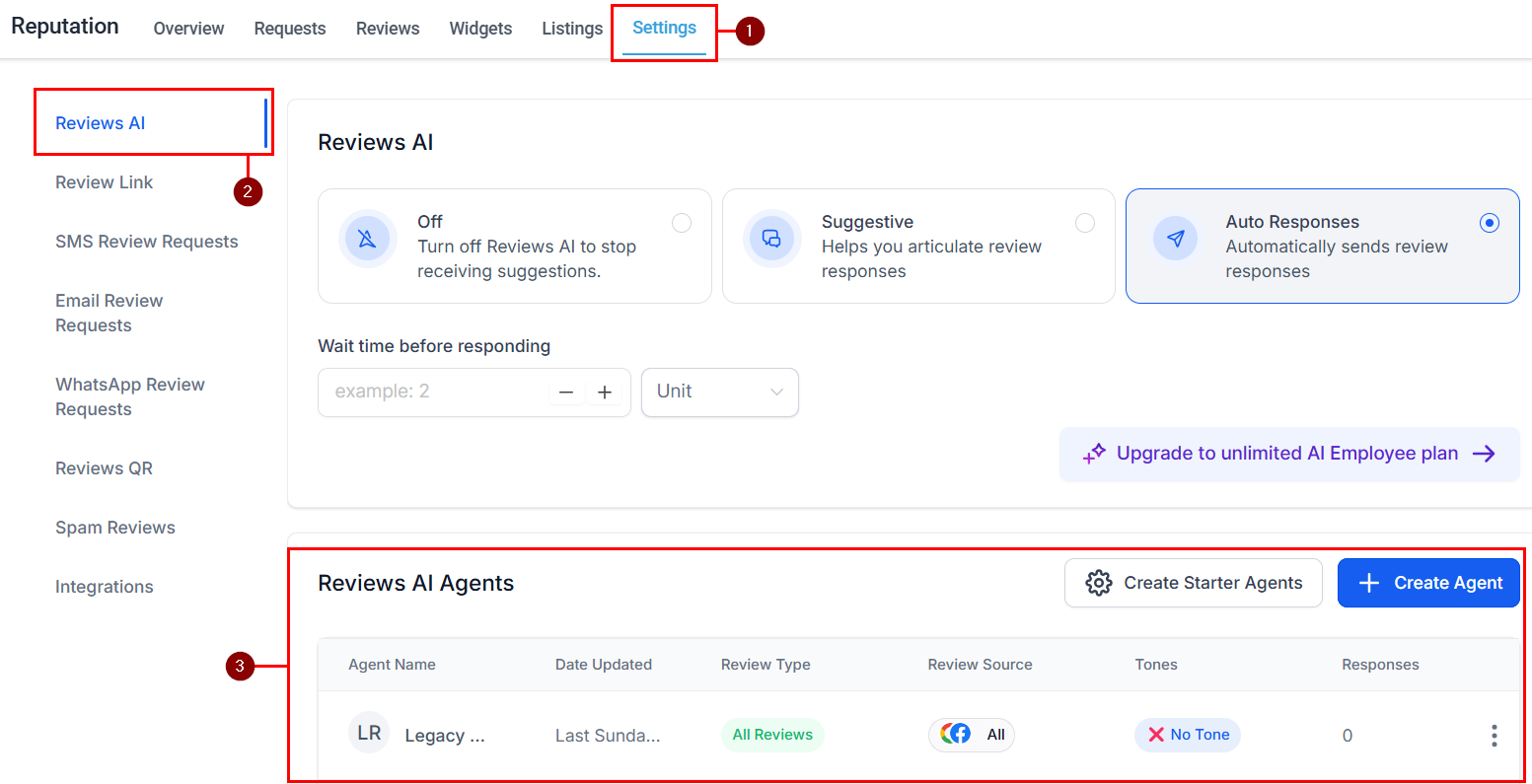 The Reviews AI Agent is configured inside **Reputation > Settings > Reviews AI**. You need a connected Google Business Profile or other supported review platform before the agent can respond to reviews. The agent can also be accessed and managed from the **AI Agents** section under the Automation and AI tab.
***
## How the Reviews AI Agent works
The Reviews AI Agent monitors your connected review platforms for incoming reviews. When a new review arrives, the AI reads it, detects the context and sentiment, and generates a response using your configured tone, language, and guidelines. Responses can be posted automatically or held for your review before going live.
Key capabilities:
* **Multiple agents** — Create separate agents for different review sources, languages, or locations, each with its own personality and rules.
* **Smart logic** — The agent uses the review text, star rating, and platform to tailor each reply.
* **Language detection** — Respond in the reviewer's language automatically, or fix all replies to a single language.
* **Templates** — Use pre-built templates as a starting point instead of configuring from scratch.
* **Multi-page management** — Assign agents to multiple review pages from a single setup.
***
## Setting up a Reviews AI Agent
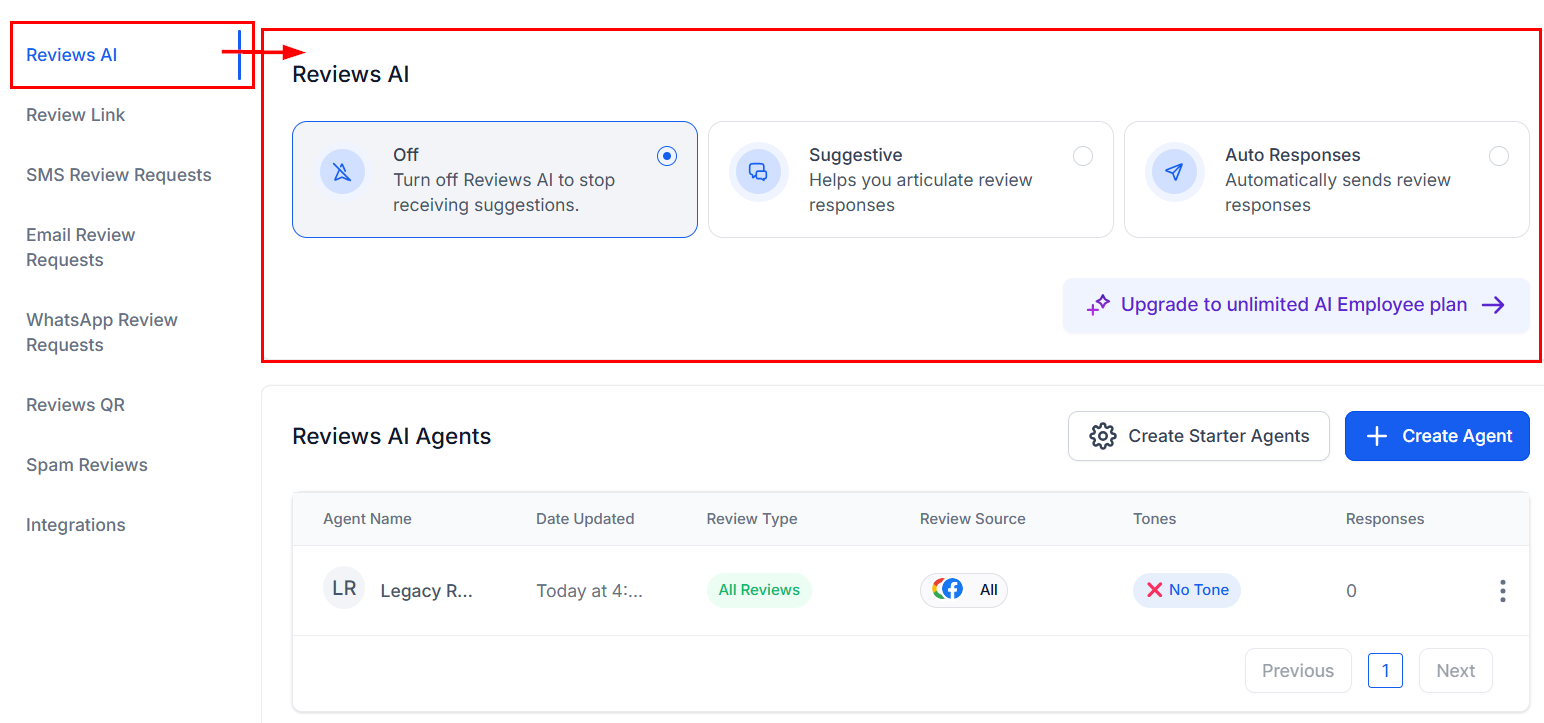
Go to **Reputation > Settings**, then scroll to the **Reviews AI** section. The Reviews AI Agents table lists all agents created in your account.
The Reviews AI Agent is configured inside **Reputation > Settings > Reviews AI**. You need a connected Google Business Profile or other supported review platform before the agent can respond to reviews. The agent can also be accessed and managed from the **AI Agents** section under the Automation and AI tab.
***
## How the Reviews AI Agent works
The Reviews AI Agent monitors your connected review platforms for incoming reviews. When a new review arrives, the AI reads it, detects the context and sentiment, and generates a response using your configured tone, language, and guidelines. Responses can be posted automatically or held for your review before going live.
Key capabilities:
* **Multiple agents** — Create separate agents for different review sources, languages, or locations, each with its own personality and rules.
* **Smart logic** — The agent uses the review text, star rating, and platform to tailor each reply.
* **Language detection** — Respond in the reviewer's language automatically, or fix all replies to a single language.
* **Templates** — Use pre-built templates as a starting point instead of configuring from scratch.
* **Multi-page management** — Assign agents to multiple review pages from a single setup.
***
## Setting up a Reviews AI Agent
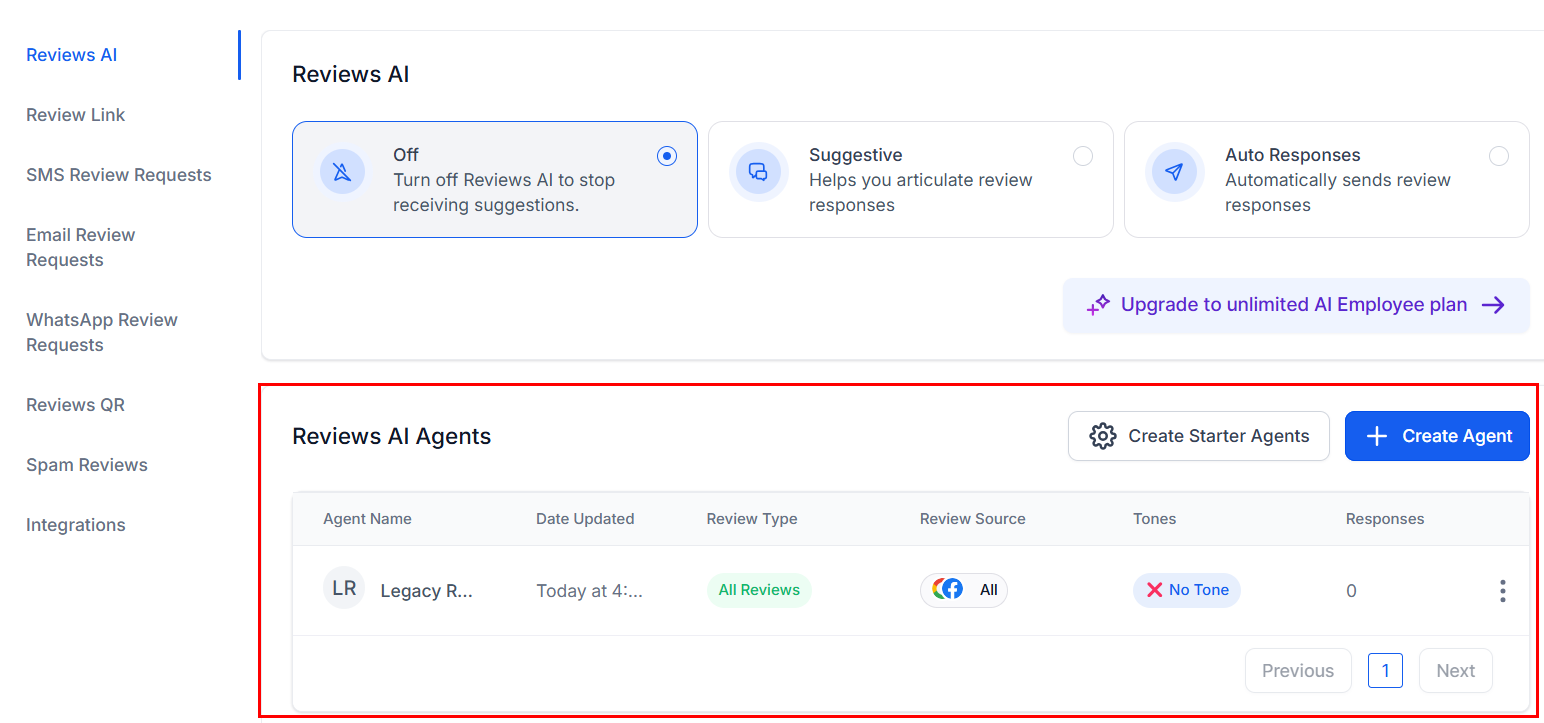
Go to **Reputation > Settings**, then scroll to the **Reviews AI** section. The Reviews AI Agents table lists all agents created in your account.
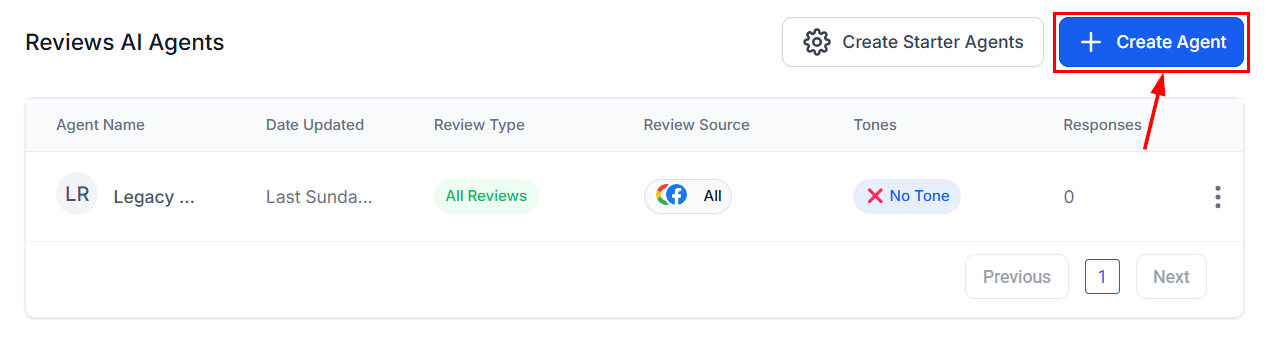
 Click **+ Create Agent** in the agents table to start a new agent.
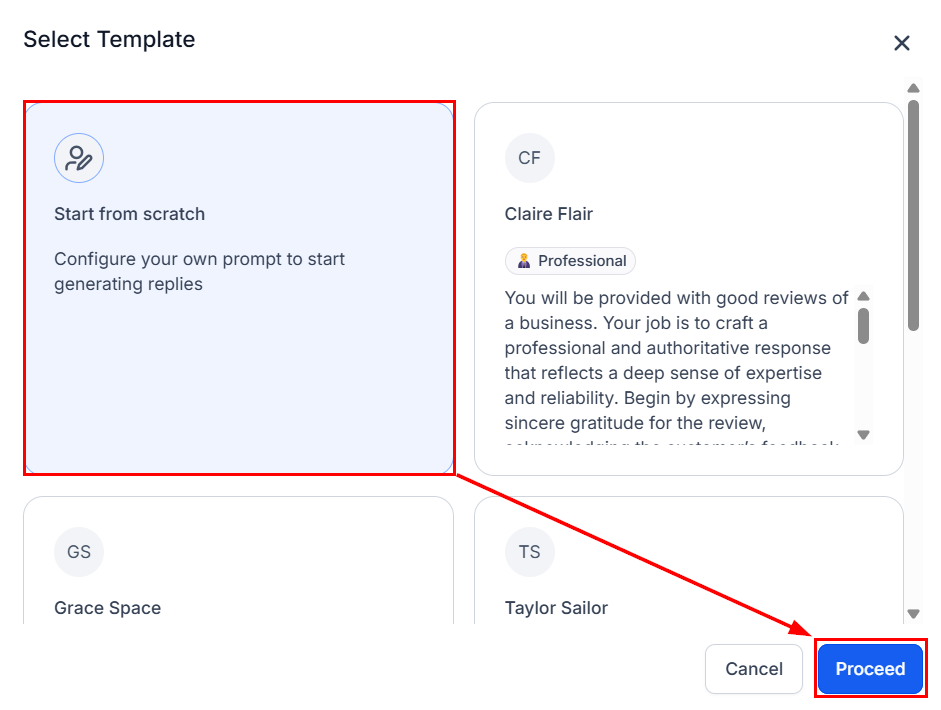
 Select a pre-built template for a quick start, or choose to configure the agent from scratch. This guide covers building from scratch.
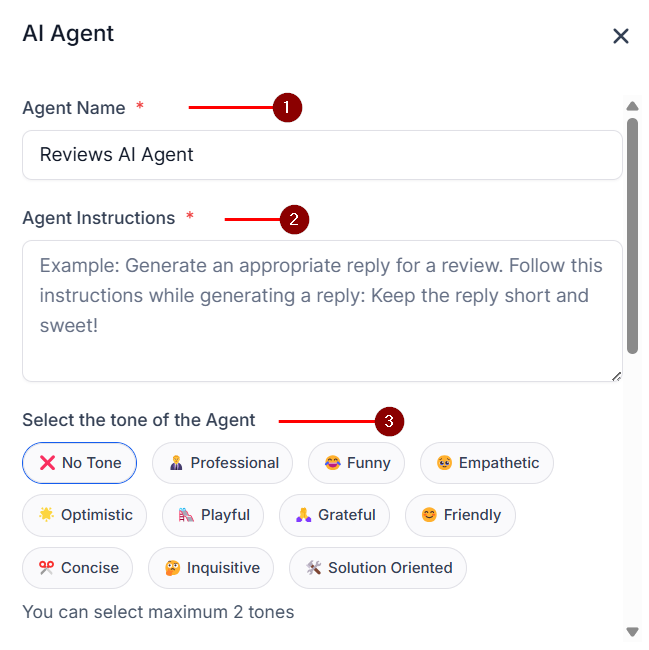
 * **Agent name** — An internal label to identify this agent in the table.
* **Overview** — A description of the agent's response style, objective, and desired reply length. This is your main instruction prompt.
* **Tone** — Select up to two tones to guide how the agent writes (for example, "Professional" and "Empathetic").
* **Agent name** — An internal label to identify this agent in the table.
* **Overview** — A description of the agent's response style, objective, and desired reply length. This is your main instruction prompt.
* **Tone** — Select up to two tones to guide how the agent writes (for example, "Professional" and "Empathetic").
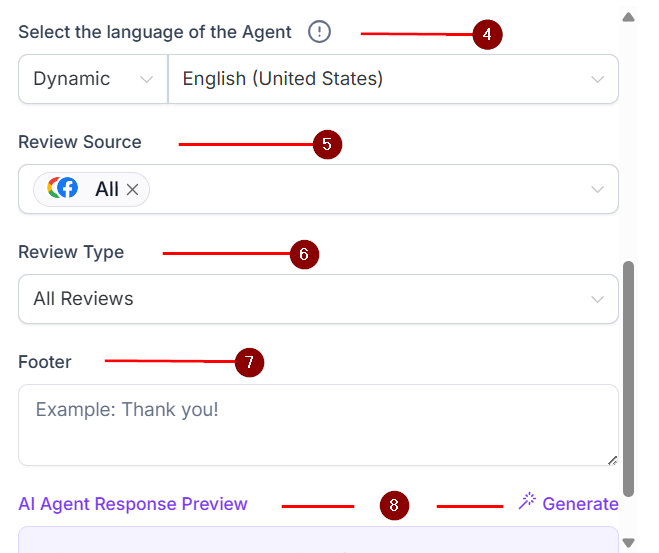
 Configure:
* **Primary language** — The agent's base language for generating responses.
* **Language mode** — Choose **Dynamic** to match each review's language automatically, or **Fixed** to always reply in the primary language regardless of the review language.
* **Review sources** — Select which platforms this agent should monitor (e.g., Google, Facebook).
* **Review types** — Specify which review types (by star rating or sentiment) this agent should respond to.
* **Footer** — Add optional closing text appended to every reply (e.g., "Thank you for choosing \[Business Name]!").
Configure:
* **Primary language** — The agent's base language for generating responses.
* **Language mode** — Choose **Dynamic** to match each review's language automatically, or **Fixed** to always reply in the primary language regardless of the review language.
* **Review sources** — Select which platforms this agent should monitor (e.g., Google, Facebook).
* **Review types** — Specify which review types (by star rating or sentiment) this agent should respond to.
* **Footer** — Add optional closing text appended to every reply (e.g., "Thank you for choosing \[Business Name]!").
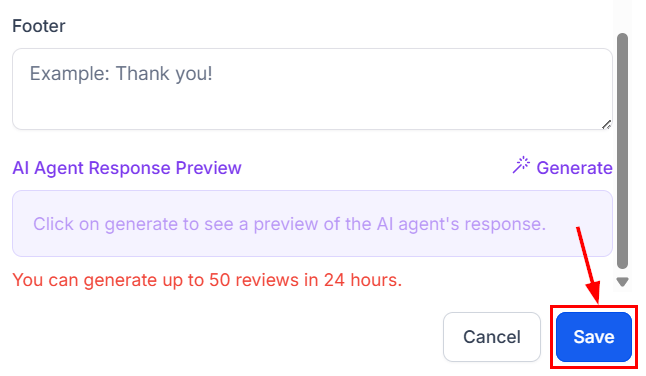
 Click **Generate Preview** to see a sample response based on your configuration. Review and refine the settings as needed, then click **Save** to activate the agent.
 Once saved, your Reviews AI Agent is active and will automatically respond to incoming reviews matching your selected criteria using the configured style and tone.
***
## AI response behavior
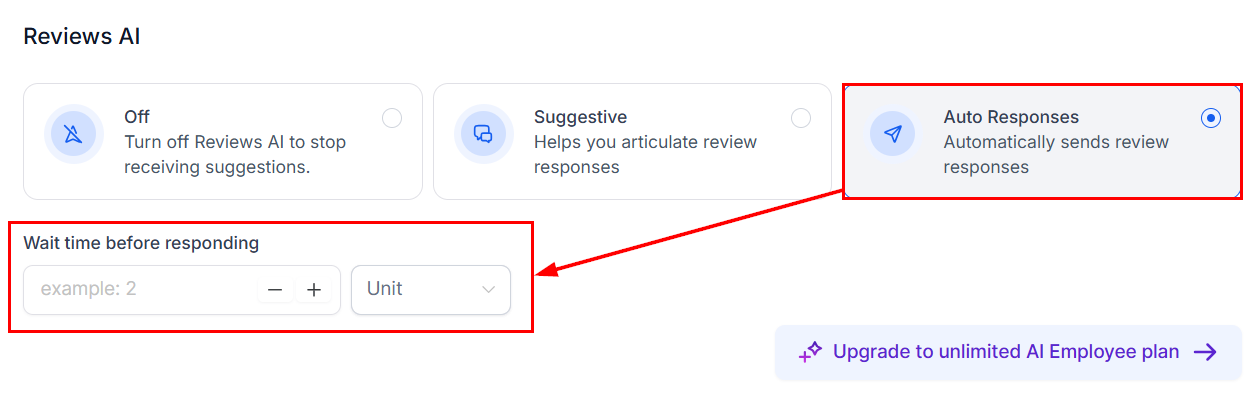
Beyond individual agents, the Reviews AI section in Reputation Settings provides global response controls.
**AI Response Behavior** lets you choose the overall operating mode:
| Mode | How it works |
| ------------ | ------------------------------------------------------------------------------- |
| Auto-respond | The AI generates and posts responses automatically without human review |
| Suggestive | The AI drafts responses which a team member reviews and approves before posting |
| Disabled | AI assistance is turned off; all responses are written manually |
In auto-respond mode, responses post publicly without human review. Test your agent configuration thoroughly in suggestive mode first. Only switch to auto-respond once you are satisfied with the quality and tone of generated responses.
**Auto Responses** — Configure the wait time before the agent responds after a review is posted. This prevents responses from appearing instantaneous, which can seem automated to reviewers.
Once saved, your Reviews AI Agent is active and will automatically respond to incoming reviews matching your selected criteria using the configured style and tone.
***
## AI response behavior
Beyond individual agents, the Reviews AI section in Reputation Settings provides global response controls.
**AI Response Behavior** lets you choose the overall operating mode:
| Mode | How it works |
| ------------ | ------------------------------------------------------------------------------- |
| Auto-respond | The AI generates and posts responses automatically without human review |
| Suggestive | The AI drafts responses which a team member reviews and approves before posting |
| Disabled | AI assistance is turned off; all responses are written manually |
In auto-respond mode, responses post publicly without human review. Test your agent configuration thoroughly in suggestive mode first. Only switch to auto-respond once you are satisfied with the quality and tone of generated responses.
**Auto Responses** — Configure the wait time before the agent responds after a review is posted. This prevents responses from appearing instantaneous, which can seem automated to reviewers.
 ***
## Suggestive vs auto-pilot modes
The Reviews AI Agent operates in one of two modes, controlled by the **AI Response Behavior** setting:
In suggestive mode, the AI drafts a response for each incoming review, but **does not post it automatically**. A team member reviews the draft, edits it if needed, and manually approves it for posting.
**Best for:**
* New deployments where you are still tuning the agent's tone
* Businesses in sensitive industries (healthcare, legal)
* Teams that want final human approval before any public response
To use suggestive mode, set **AI Response Behavior** to **Suggestive** in Reputation Settings.
In auto-pilot mode, the AI generates and posts responses automatically without human review. Responses go live after the configured wait time.
**Best for:**
* High-volume review businesses that cannot manually review every response
* Established agents with proven response quality
* Businesses that prioritize fast response times
To use auto-pilot mode, set **AI Response Behavior** to **Auto-respond** in Reputation Settings.
Start in suggestive mode for the first 2-4 weeks. Review AI-generated drafts to verify quality and tone, then switch to auto-pilot once you are confident in the output.
***
## AI-powered review summaries
The Reviews AI can generate summaries of your recent reviews, giving you a quick overview of customer sentiment and common themes without reading every individual review.
Review summaries highlight:
* **Overall sentiment** — positive, negative, or mixed trend
* **Common praise themes** — what customers consistently love (e.g., "fast service," "friendly staff")
* **Common complaint themes** — recurring issues (e.g., "long wait times," "parking")
* **Notable reviews** — standout positive and negative reviews that merit attention
Access review summaries in **Reputation > Reviews** by clicking the **AI Summary** button at the top of the reviews list.
***
## Managing your agents
The Reviews AI Agents table gives you an at-a-glance view of all configured agents, including:
* Agent name
* Number of responses sent
* Active or inactive status
From the table you can create new agents, edit existing ones, or deactivate agents you no longer need.
Consider creating multiple agents for different scenarios — a high-energy agent for 5-star reviews, a calm and empathetic agent for 1–2 star reviews, and language-specific agents if your business serves customers in multiple languages. Assign them strategically to ensure every review gets a reply that matches the situation.
Contact your HoopAI account administrator to create starter Reviews AI Agents, which will automatically generate responses for future reviews using default settings.
***
## Frequently asked questions
The Reviews AI Agent works with Google Business Profile reviews and other platforms connected to your Reputation section. Configure review sources per agent during setup under the **Review sources** setting. Not all review platforms may be available depending on your connected integrations.
Yes. You can create multiple agents — for example, one per language, one per location, or separate agents for positive versus negative reviews. Each agent operates independently with its own tone, language, and filter rules. All agents are visible and manageable from the Reviews AI Agents table.
In **Dynamic** mode the agent detects the language of each incoming review and replies in the same language. In **Fixed** mode all replies are written in the agent's configured primary language, regardless of the review language. Use fixed mode if you want all public responses to be in one language for consistency.
No. The agent only processes new reviews that arrive after the agent is activated. It does not retroactively generate responses for existing reviews. You can manually respond to past reviews directly in **Reputation > Reviews**.
In suggestive mode you can discard any AI draft before it is posted. In auto-respond mode responses post automatically, so you cannot block individual responses before they go live. If you need to remove an already-posted response, do so directly in your Google Business Profile dashboard.
The agent uses the business information in your connected review platform profile plus the overview and instructions you write during agent configuration. For more accurate and personalized responses — especially if you want the agent to reference specific services or team members — provide detailed instructions in the **Overview** field.
Yes. Responses are posted using your connected review platform credentials, so they appear publicly as replies from the business owner — exactly as they would if written and submitted manually.
Yes. When creating a new agent, select a pre-built template on the setup method screen. Templates provide a starting configuration with pre-filled tone, language, and response guidelines that you can customize further.
***
## Suggestive vs auto-pilot modes
The Reviews AI Agent operates in one of two modes, controlled by the **AI Response Behavior** setting:
In suggestive mode, the AI drafts a response for each incoming review, but **does not post it automatically**. A team member reviews the draft, edits it if needed, and manually approves it for posting.
**Best for:**
* New deployments where you are still tuning the agent's tone
* Businesses in sensitive industries (healthcare, legal)
* Teams that want final human approval before any public response
To use suggestive mode, set **AI Response Behavior** to **Suggestive** in Reputation Settings.
In auto-pilot mode, the AI generates and posts responses automatically without human review. Responses go live after the configured wait time.
**Best for:**
* High-volume review businesses that cannot manually review every response
* Established agents with proven response quality
* Businesses that prioritize fast response times
To use auto-pilot mode, set **AI Response Behavior** to **Auto-respond** in Reputation Settings.
Start in suggestive mode for the first 2-4 weeks. Review AI-generated drafts to verify quality and tone, then switch to auto-pilot once you are confident in the output.
***
## AI-powered review summaries
The Reviews AI can generate summaries of your recent reviews, giving you a quick overview of customer sentiment and common themes without reading every individual review.
Review summaries highlight:
* **Overall sentiment** — positive, negative, or mixed trend
* **Common praise themes** — what customers consistently love (e.g., "fast service," "friendly staff")
* **Common complaint themes** — recurring issues (e.g., "long wait times," "parking")
* **Notable reviews** — standout positive and negative reviews that merit attention
Access review summaries in **Reputation > Reviews** by clicking the **AI Summary** button at the top of the reviews list.
***
## Managing your agents
The Reviews AI Agents table gives you an at-a-glance view of all configured agents, including:
* Agent name
* Number of responses sent
* Active or inactive status
From the table you can create new agents, edit existing ones, or deactivate agents you no longer need.
Consider creating multiple agents for different scenarios — a high-energy agent for 5-star reviews, a calm and empathetic agent for 1–2 star reviews, and language-specific agents if your business serves customers in multiple languages. Assign them strategically to ensure every review gets a reply that matches the situation.
Contact your HoopAI account administrator to create starter Reviews AI Agents, which will automatically generate responses for future reviews using default settings.
***
## Frequently asked questions
The Reviews AI Agent works with Google Business Profile reviews and other platforms connected to your Reputation section. Configure review sources per agent during setup under the **Review sources** setting. Not all review platforms may be available depending on your connected integrations.
Yes. You can create multiple agents — for example, one per language, one per location, or separate agents for positive versus negative reviews. Each agent operates independently with its own tone, language, and filter rules. All agents are visible and manageable from the Reviews AI Agents table.
In **Dynamic** mode the agent detects the language of each incoming review and replies in the same language. In **Fixed** mode all replies are written in the agent's configured primary language, regardless of the review language. Use fixed mode if you want all public responses to be in one language for consistency.
No. The agent only processes new reviews that arrive after the agent is activated. It does not retroactively generate responses for existing reviews. You can manually respond to past reviews directly in **Reputation > Reviews**.
In suggestive mode you can discard any AI draft before it is posted. In auto-respond mode responses post automatically, so you cannot block individual responses before they go live. If you need to remove an already-posted response, do so directly in your Google Business Profile dashboard.
The agent uses the business information in your connected review platform profile plus the overview and instructions you write during agent configuration. For more accurate and personalized responses — especially if you want the agent to reference specific services or team members — provide detailed instructions in the **Overview** field.
Yes. Responses are posted using your connected review platform credentials, so they appear publicly as replies from the business owner — exactly as they would if written and submitted manually.
Yes. When creating a new agent, select a pre-built template on the setup method screen. Templates provide a starting configuration with pre-filled tone, language, and response guidelines that you can customize further.