> ## Documentation Index
> Fetch the complete documentation index at: https://help.hoopai.com/llms.txt
> Use this file to discover all available pages before exploring further.
# AI agents
> Conversation AI, Voice AI, Knowledge Base, Content AI, Reviews AI, flow-based builder, bot training, and AI dashboard.
The HoopAI Platform includes a suite of AI-powered agents that handle customer interactions across chat, voice, and content channels — reducing manual work while keeping every interaction on-brand.
 Deploy chat bots that answer questions, book appointments, and collect contact information automatically
Add knowledge sources, Q\&A pairs, and training data to improve bot accuracy
Monitor bot performance, conversation volume, and handoff rates across all channels
Build structured conversation flows with branching logic and conditional paths
Configure what the bot can do — book appointments, stop the bot, hand off to a human, and more
Set bot name, personality, tone, and channel assignments
AI-powered inbound and outbound calling agents that handle real conversations over the phone
Train your AI agents with custom knowledge sources so they always give accurate answers
Generate on-brand marketing copy, images, and text with AI-assisted content tools
Automatically respond to Google Business Profile reviews using AI — set tone, guidelines, and choose auto-pilot or human-approval mode
## Getting started
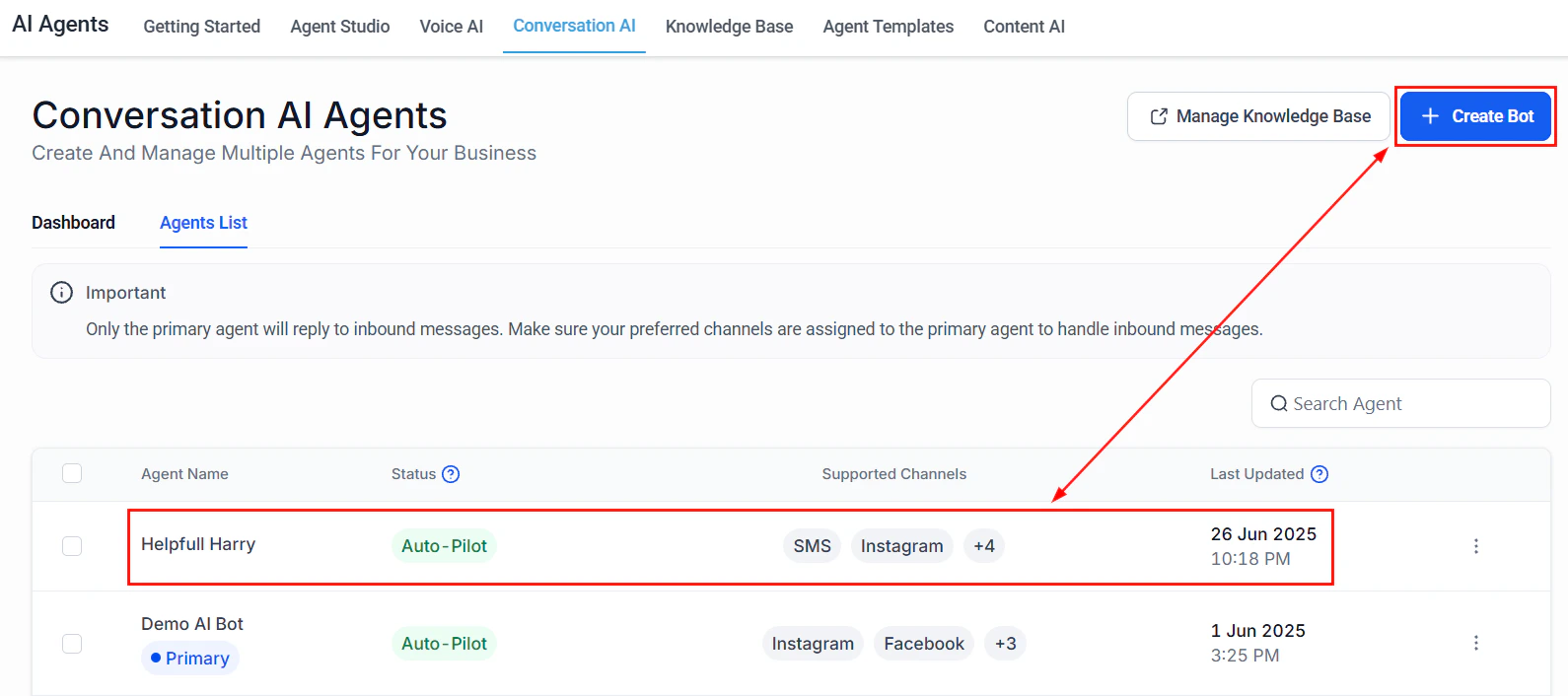
Go to **AI Agents > Conversation AI** and click **Create Bot**. Give it a name, set the personality and tone, and select which channels it will operate on (SMS, live chat, Facebook, Instagram).
Open **AI Agents > Knowledge Base** and add knowledge sources — upload documents, paste URLs, or write Q\&A pairs. Assign the knowledge base to your bot so it draws on accurate information.
Go to **AI Agents > Train Your Bot** and review suggested Q\&A pairs, correct any inaccurate responses, and add edge cases. The more training data you provide, the better the bot performs.
Open **AI Agents > Conversation AI Actions** to define what the bot can do mid-conversation — book a calendar appointment, collect contact information, stop the bot and hand off to a human, or fire a workflow.
Publish your bot and monitor performance in **AI Agents > Conversation AI Dashboard**. Review conversation logs, handoff rates, and adjust training data based on real interactions.
## Frequently asked questions
In Suggestive mode, the bot drafts a reply that a human agent reviews and sends. In Auto-Pilot mode, the bot sends replies automatically without human review. Suggestive mode is a good starting point when setting up a new bot so you can review its accuracy before enabling full automation.
Conversation AI supports SMS, live chat (website widget), Facebook Messenger, and Instagram Direct Messages. Each channel can be configured independently so you can run the bot on some channels while keeping human agents on others.
Conversation AI handles text-based channels. Voice AI handles phone calls — it can answer inbound calls, conduct outbound calls, and hold natural voice conversations using speech-to-text and text-to-speech. Both types of agents draw on the same knowledge base.
Yes. Add the **Book Appointment** action in Conversation AI Actions. The bot will check calendar availability and create an appointment directly in the platform, sending confirmation to the contact.
Configure a **Stop Bot** action in your Conversation AI Actions. You can trigger it based on contact keywords, sentiment, or when a contact requests a human. The conversation moves to your team's inbox for manual follow-up.
The Reviews AI agent monitors incoming Google Business Profile reviews and posts AI-generated responses automatically. You set the tone, guidelines, and which star ratings trigger an auto-response. You can also run it in approval mode so responses are drafted but require a human to publish.
Deploy chat bots that answer questions, book appointments, and collect contact information automatically
Add knowledge sources, Q\&A pairs, and training data to improve bot accuracy
Monitor bot performance, conversation volume, and handoff rates across all channels
Build structured conversation flows with branching logic and conditional paths
Configure what the bot can do — book appointments, stop the bot, hand off to a human, and more
Set bot name, personality, tone, and channel assignments
AI-powered inbound and outbound calling agents that handle real conversations over the phone
Train your AI agents with custom knowledge sources so they always give accurate answers
Generate on-brand marketing copy, images, and text with AI-assisted content tools
Automatically respond to Google Business Profile reviews using AI — set tone, guidelines, and choose auto-pilot or human-approval mode
## Getting started
Go to **AI Agents > Conversation AI** and click **Create Bot**. Give it a name, set the personality and tone, and select which channels it will operate on (SMS, live chat, Facebook, Instagram).
Open **AI Agents > Knowledge Base** and add knowledge sources — upload documents, paste URLs, or write Q\&A pairs. Assign the knowledge base to your bot so it draws on accurate information.
Go to **AI Agents > Train Your Bot** and review suggested Q\&A pairs, correct any inaccurate responses, and add edge cases. The more training data you provide, the better the bot performs.
Open **AI Agents > Conversation AI Actions** to define what the bot can do mid-conversation — book a calendar appointment, collect contact information, stop the bot and hand off to a human, or fire a workflow.
Publish your bot and monitor performance in **AI Agents > Conversation AI Dashboard**. Review conversation logs, handoff rates, and adjust training data based on real interactions.
## Frequently asked questions
In Suggestive mode, the bot drafts a reply that a human agent reviews and sends. In Auto-Pilot mode, the bot sends replies automatically without human review. Suggestive mode is a good starting point when setting up a new bot so you can review its accuracy before enabling full automation.
Conversation AI supports SMS, live chat (website widget), Facebook Messenger, and Instagram Direct Messages. Each channel can be configured independently so you can run the bot on some channels while keeping human agents on others.
Conversation AI handles text-based channels. Voice AI handles phone calls — it can answer inbound calls, conduct outbound calls, and hold natural voice conversations using speech-to-text and text-to-speech. Both types of agents draw on the same knowledge base.
Yes. Add the **Book Appointment** action in Conversation AI Actions. The bot will check calendar availability and create an appointment directly in the platform, sending confirmation to the contact.
Configure a **Stop Bot** action in your Conversation AI Actions. You can trigger it based on contact keywords, sentiment, or when a contact requests a human. The conversation moves to your team's inbox for manual follow-up.
The Reviews AI agent monitors incoming Google Business Profile reviews and posts AI-generated responses automatically. You set the tone, guidelines, and which star ratings trigger an auto-response. You can also run it in approval mode so responses are drafted but require a human to publish.