> ## Documentation Index
> Fetch the complete documentation index at: https://help.hoopai.com/llms.txt
> Use this file to discover all available pages before exploring further.

# Keyword SMS marketing automation

> Build keyword-triggered workflows to automatically capture leads from SMS and social media without any manual follow-up.

export const CourseTracker = ({courseId, lessonId, videoId}) => {
  const [progress, setProgress] = useState({});
  const [expanded, setExpanded] = useState(false);
  useEffect(() => {
    setProgress(loadProgress());
    document.body.setAttribute("data-academy", "true");
    return () => document.body.removeAttribute("data-academy");
  }, []);
  const course = COURSES[courseId];
  if (!course) return null;
  const lessons = course.lessons;
  const currentIndex = lessons.findIndex(l => l.id === lessonId);
  const completedCount = lessons.filter(l => !!progress[courseId + "/" + l.id]).length;
  const percent = lessons.length > 0 ? Math.round(completedCount / lessons.length * 100) : 0;
  const isCurrentDone = !!progress[courseId + "/" + lessonId];
  const prev = currentIndex > 0 ? lessons[currentIndex - 1] : null;
  const next = currentIndex < lessons.length - 1 ? lessons[currentIndex + 1] : null;
  const totalDuration = formatTotalDuration(lessons);
  const handleToggle = () => {
    const key = courseId + "/" + lessonId;
    const updated = {
      ...progress
    };
    if (updated[key]) {
      delete updated[key];
    } else {
      updated[key] = Date.now();
    }
    setProgress(updated);
    persistProgress(updated);
  };
  const lessonPath = lesson => "/academy/" + course.dir + "/" + lesson.id;
  const videoEmbed = videoId ? <div style={{
    position: "relative",
    width: "100%",
    paddingBottom: "56.25%",
    borderRadius: "var(--ds-radius-lg)",
    overflow: "hidden",
    marginBottom: "24px",
    background: "#000"
  }}>
      <iframe src={"https://www.youtube-nocookie.com/embed/" + videoId + "?rel=0"} title="Lesson video" allow="accelerometer; autoplay; clipboard-write; encrypted-media; gyroscope; picture-in-picture" allowFullScreen style={{
    position: "absolute",
    top: 0,
    left: 0,
    width: "100%",
    height: "100%",
    border: "none"
  }} />
    </div> : null;
  const lessonList = lessons.map(lesson => {
    const isActive = lesson.id === lessonId;
    const isDone = !!progress[courseId + "/" + lesson.id];
    const itemStyle = {
      display: "flex",
      alignItems: "center",
      gap: "8px",
      padding: "10px 16px",
      borderTop: "1px solid var(--academy-border-subtle, #f3f4f6)",
      background: isActive ? "var(--academy-active-bg, #f9fafb)" : "transparent",
      textDecoration: "none",
      cursor: isActive ? "default" : "pointer",
      color: "inherit",
      transition: "background 0.15s"
    };
    const titleStyle = {
      flex: 1,
      fontSize: "13px",
      fontWeight: isActive ? 600 : 400,
      color: isActive ? "var(--academy-text, #111827)" : "var(--academy-text-secondary, #6b7280)",
      overflow: "hidden",
      textOverflow: "ellipsis",
      whiteSpace: "nowrap",
      lineHeight: "1.4"
    };
    const durationStyle = {
      fontSize: "12px",
      color: "var(--academy-text-muted, #9ca3af)",
      whiteSpace: "nowrap"
    };
    const inner = <>
        {isDone ? <CheckCircle /> : <VideoIcon />}
        <span style={titleStyle}>{lesson.title}</span>
        <span style={durationStyle}>{lesson.duration}</span>
      </>;
    if (isActive) {
      return <div key={lesson.id} style={itemStyle}>
          {inner}
        </div>;
    }
    return <a key={lesson.id} href={lessonPath(lesson)} style={itemStyle}>
        {inner}
      </a>;
  });
  return <div className="not-prose" id="academy-course-tracker">
      {videoEmbed}
      <div className="academy-tracker" style={{
    fontFamily: "Inter, -apple-system, BlinkMacSystemFont, sans-serif",
    borderRadius: "var(--ds-radius-lg)",
    border: "1px solid var(--academy-border, #e5e7eb)",
    background: "var(--academy-bg, #ffffff)",
    overflow: "hidden",
    marginBottom: "24px"
  }}>
        {}
        <div style={{
    padding: "16px 16px 0"
  }}>
          <h3 style={{
    margin: 0,
    fontSize: "16px",
    fontWeight: 600,
    lineHeight: "1.4",
    color: "var(--academy-text, #111827)"
  }}>
            {course.title}
          </h3>
          <div style={{
    display: "flex",
    gap: "12px",
    marginTop: "8px"
  }}>
            <span style={{
    display: "flex",
    alignItems: "center",
    gap: "5px",
    fontSize: "12px",
    color: "var(--academy-text-secondary, #6b7280)",
    padding: "3px 8px 3px 6px",
    borderRadius: "var(--ds-radius-sm)",
    border: "1px solid var(--academy-border, #e5e7eb)"
  }}>
              <BookIcon /> {lessons.length} lessons
            </span>
            <span style={{
    display: "flex",
    alignItems: "center",
    gap: "5px",
    fontSize: "12px",
    color: "var(--academy-text-secondary, #6b7280)",
    padding: "3px 8px 3px 6px",
    borderRadius: "var(--ds-radius-sm)",
    border: "1px solid var(--academy-border, #e5e7eb)"
  }}>
              <ClockIcon /> Approx. {totalDuration}
            </span>
          </div>
        </div>

        {}
        <div style={{
    padding: "14px 16px 16px"
  }}>
          <div style={{
    display: "flex",
    justifyContent: "space-between",
    fontSize: "12px",
    color: "var(--academy-text-secondary, #6b7280)"
  }}>
            <span>Your progress</span>
            <span style={{
    fontWeight: 500,
    color: "var(--academy-text, #111827)"
  }}>
              {percent}%
            </span>
          </div>
          <div style={{
    height: "6px",
    borderRadius: "var(--ds-radius-full)",
    background: "var(--academy-track, #f3f4f6)",
    marginTop: "8px",
    overflow: "hidden"
  }}>
            <div style={{
    height: "100%",
    borderRadius: "var(--ds-radius-full)",
    background: "var(--academy-progress, #3b82f6)",
    transition: "width 0.5s cubic-bezier(0.4, 0, 0.2, 1)",
    width: percent + "%"
  }} />
          </div>
        </div>

        {}
        <div className="academy-lessons-desktop">{lessonList}</div>

        {}
        <div className="academy-lessons-mobile">
          <button onClick={() => setExpanded(!expanded)} aria-expanded={expanded} style={{
    display: "flex",
    alignItems: "center",
    justifyContent: "space-between",
    padding: "12px 16px",
    cursor: "pointer",
    borderTop: "1px solid var(--academy-border-subtle, #f3f4f6)",
    background: "transparent",
    border: "none",
    borderTopStyle: "solid",
    borderTopWidth: "1px",
    borderTopColor: "var(--academy-border-subtle, #f3f4f6)",
    width: "100%",
    textAlign: "left",
    color: "var(--academy-text-secondary, #6b7280)",
    fontSize: "13px",
    fontWeight: 500,
    fontFamily: "inherit"
  }}>
            <span>
              {expanded ? "Hide lessons" : "Show all " + lessons.length + " lessons"}
            </span>
            <ChevronDown open={expanded} />
          </button>
          {expanded && lessonList}
        </div>

        {}
        <div style={{
    display: "flex",
    alignItems: "center",
    justifyContent: "space-between",
    borderTop: "1px solid var(--academy-border, #e5e7eb)",
    padding: "10px 16px"
  }}>
          {prev ? <a href={lessonPath(prev)} style={{
    fontSize: "13px",
    color: "var(--academy-text-secondary, #6b7280)",
    textDecoration: "none",
    display: "flex",
    alignItems: "center",
    gap: "4px"
  }}>
              ‹ Previous
            </a> : <div />}
          <button onClick={handleToggle} style={{
    fontSize: "13px",
    fontWeight: 500,
    cursor: "pointer",
    padding: "6px 14px",
    borderRadius: "var(--ds-radius-md)",
    border: isCurrentDone ? "1px solid var(--academy-border, #e5e7eb)" : "none",
    background: isCurrentDone ? "var(--academy-bg, #ffffff)" : "var(--academy-btn-bg, #111827)",
    color: isCurrentDone ? "var(--academy-complete, #10b981)" : "var(--academy-btn-text, #ffffff)",
    display: "flex",
    alignItems: "center",
    gap: "6px",
    transition: "all 0.2s",
    lineHeight: "1.4",
    fontFamily: "inherit"
  }}>
            {isCurrentDone ? <>
                <CheckCircle /> Completed
              </> : "Mark as completed"}
          </button>
          {next ? <a href={lessonPath(next)} style={{
    fontSize: "13px",
    color: "var(--academy-text-secondary, #6b7280)",
    textDecoration: "none",
    display: "flex",
    alignItems: "center",
    gap: "4px"
  }}>
              Next ›
            </a> : <div />}
        </div>
      </div>
    </div>;
};

<CourseTracker courseId="workflow-automation" lessonId="keyword-sms-marketing-automation" />

Keyword SMS automation lets you capture leads automatically when someone texts a specific word or phrase to your business number. You promote the keyword — at events, on social media, in emails — and the HoopAI Platform handles everything else: capturing the contact, sending the response, applying tags, and enrolling the contact in follow-up sequences.

<Frame caption="The Keyword SMS Marketing Automation lesson in the HoopAI Academy">
  <img src="https://mintlify.s3.us-west-1.amazonaws.com/hoopai-84ec0cdc/images/academy-sms-blast.png" alt="Keyword SMS marketing automation article" />
</Frame>

## Why this matters

A keyword opt-in is one of the simplest and highest-converting lead generation tools available. When you say "Text GUIDE to \[number]" at an event or in a social media post, every person who texts in becomes a new lead in your system — automatically tagged, sequenced, and followed up with — without any manual work on your part.

## How to set up keyword SMS automation

<Steps>
  <Step title="Create a new workflow">
    Go to **Automation** > **Workflows** and click **New Workflow**. Name it based on your keyword — for example, "Keyword Opt-In: GUIDE".

    <Frame caption="Creating a new keyword automation workflow in the HoopAI Platform">
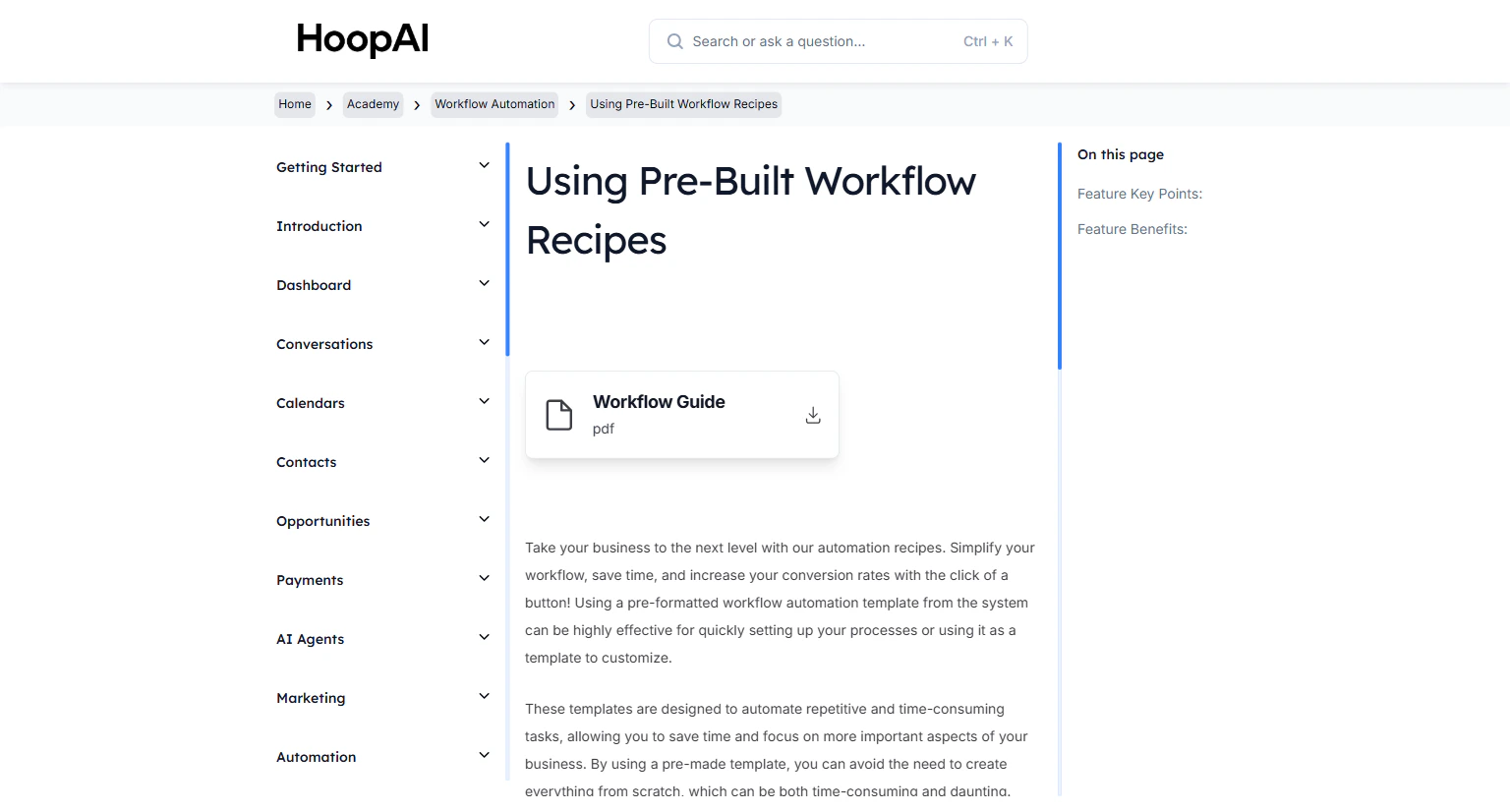
      <img src="https://mintcdn.com/hoopai-84ec0cdc/gyU98wGhFXcTdqFf/images/academy-workflow-triggers.png?fit=max&auto=format&n=gyU98wGhFXcTdqFf&q=85&s=0aa03e5a41598c8044d00b6cb03b7b27" alt="New keyword workflow creation" width="1536" height="826" data-path="images/academy-workflow-triggers.png" />
    </Frame>
  </Step>

  <Step title="Add the Customer Replied trigger">
    Click **Add Trigger** and select **Customer Replied**. This trigger fires whenever a contact sends a message matching your specified criteria.
  </Step>

  <Step title="Configure the trigger filters">
    Add the following filters to the trigger:

    * **Channel:** SMS (or the channel you want to monitor — Facebook Messenger and Instagram also work)
    * **Reply Type:** Exact Match Phrase
    * **Value:** Your keyword — for example, `GUIDE`, `FREEBIE`, or `JOIN`

    Exact match ensures the workflow only fires when someone texts your exact keyword — not just any message.

    <Frame caption="Configuring the keyword trigger filter — channel, reply type, and keyword value">
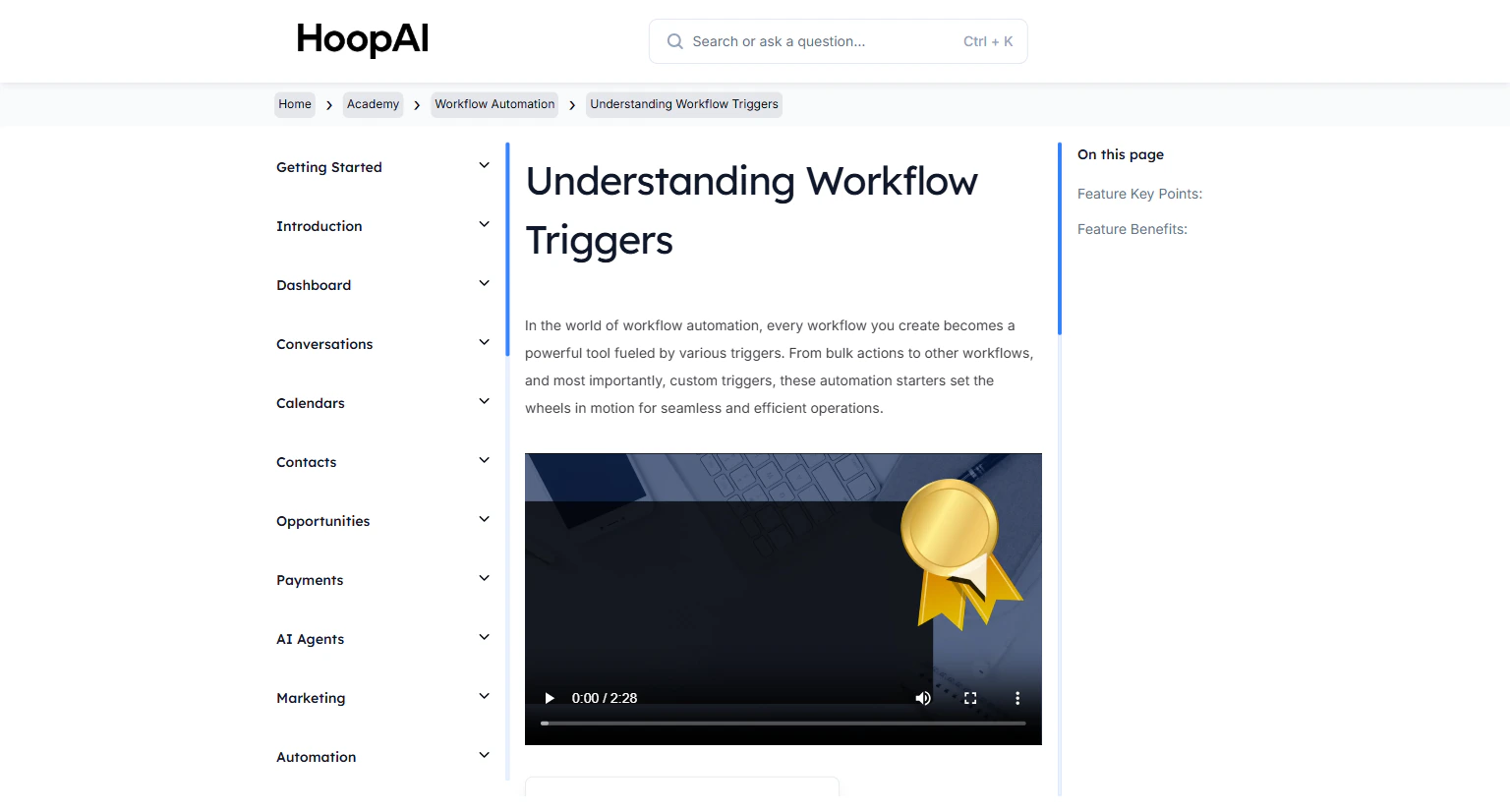
      <img src="https://mintcdn.com/hoopai-84ec0cdc/gyU98wGhFXcTdqFf/images/academy-workflow-recipes.png?fit=max&auto=format&n=gyU98wGhFXcTdqFf&q=85&s=82127a8fe14c91ea981ab7dbb7c56771" alt="Keyword trigger filter configuration" width="1536" height="826" data-path="images/academy-workflow-recipes.png" />
    </Frame>
  </Step>

  <Step title="Add a Send SMS action">
    Click **Add Action** > **Send SMS**. Write your automated reply. For example:

    > "Thanks for texting! Here's your free guide: \[link]. Reply STOP to opt out."

    Always include an opt-out instruction — this is required by carrier regulations.
  </Step>

  <Step title="Add follow-up actions">
    Continue building the automation sequence:

    * **Add Tag:** Tag the contact with your keyword for segmentation — e.g., `keyword-guide`
    * **Add to List:** Place them in a relevant contact list
    * **Wait Step:** Pause 1 day before the next follow-up
    * **Send SMS or Email:** Continue nurturing with additional value-driven content

    <Tip>
      Build a 5-day follow-up sequence after the initial keyword response. Day 1: deliver the promised resource. Day 2: share a related tip or case study. Day 3: invite them to book a call or visit your site. Days 4-5: soft close with a clear offer.
    </Tip>
  </Step>

  <Step title="Publish and promote">
    Toggle the workflow to **Published**. Then promote your keyword everywhere your audience will see it:

    * Social media bios and posts
    * Business cards and printed materials
    * Speaking events and webinars
    * Website landing pages
    * Podcast calls-to-action

    <Frame caption="Promoting a keyword call-to-action across marketing channels for continuous lead capture">
      <img src="https://mintlify.s3.us-west-1.amazonaws.com/hoopai-84ec0cdc/images/academy-sms-blast.png" alt="Keyword promotion strategy" />
    </Frame>
  </Step>
</Steps>

## Key points

<AccordionGroup>
  <Accordion title="Why keyword automation is powerful">
    Keyword opt-ins provide a frictionless way for interested people to raise their hand. One call-to-action at a speaking event or in a social media post can generate dozens of new leads automatically — without any manual follow-up required.
  </Accordion>

  <Accordion title="Multi-channel keyword triggers">
    The same workflow structure works across multiple channels. Set the channel filter to Facebook Messenger, Instagram, Google My Business, or SMS depending on where you want to capture opt-ins.
  </Accordion>

  <Accordion title="Using multiple keywords">
    Create a separate workflow for each keyword. Different keywords can represent different lead magnets, campaigns, or audiences — and each workflow can deliver a customized response and follow-up sequence.
  </Accordion>

  <Accordion title="Compliance reminder">
    Always include an opt-out instruction ("Reply STOP to unsubscribe") in your first automated message. This is required by US carrier regulations and protects your sender reputation.
  </Accordion>
</AccordionGroup>

## Key benefits

<AccordionGroup>
  <Accordion title="Hands-free lead capture">
    Collect contact information and opt-ins without any manual intervention.
  </Accordion>

  <Accordion title="Instant engagement">
    Contacts receive an immediate, professional response the moment they text in.
  </Accordion>

  <Accordion title="Flexible promotion">
    Works in any context — events, social media, podcasts, printed materials.
  </Accordion>

  <Accordion title="Precise segmentation">
    Use keyword-based tags to segment leads for targeted follow-up campaigns.
  </Accordion>

  <Accordion title="Scalable growth">
    A single keyword call-to-action can generate leads continuously over time.
  </Accordion>
</AccordionGroup>