> ## Documentation Index
> Fetch the complete documentation index at: https://help.hoopai.com/llms.txt
> Use this file to discover all available pages before exploring further.

# Customizing workflow actions

> Learn how to configure workflow action steps — messaging, wait steps, if/else branches, webhooks, and more — in the HoopAI Platform.

export const CourseTracker = ({courseId, lessonId, videoId}) => {
  const [progress, setProgress] = useState({});
  const [expanded, setExpanded] = useState(false);
  useEffect(() => {
    setProgress(loadProgress());
    document.body.setAttribute("data-academy", "true");
    return () => document.body.removeAttribute("data-academy");
  }, []);
  const course = COURSES[courseId];
  if (!course) return null;
  const lessons = course.lessons;
  const currentIndex = lessons.findIndex(l => l.id === lessonId);
  const completedCount = lessons.filter(l => !!progress[courseId + "/" + l.id]).length;
  const percent = lessons.length > 0 ? Math.round(completedCount / lessons.length * 100) : 0;
  const isCurrentDone = !!progress[courseId + "/" + lessonId];
  const prev = currentIndex > 0 ? lessons[currentIndex - 1] : null;
  const next = currentIndex < lessons.length - 1 ? lessons[currentIndex + 1] : null;
  const totalDuration = formatTotalDuration(lessons);
  const handleToggle = () => {
    const key = courseId + "/" + lessonId;
    const updated = {
      ...progress
    };
    if (updated[key]) {
      delete updated[key];
    } else {
      updated[key] = Date.now();
    }
    setProgress(updated);
    persistProgress(updated);
  };
  const lessonPath = lesson => "/academy/" + course.dir + "/" + lesson.id;
  const videoEmbed = videoId ? <div style={{
    position: "relative",
    width: "100%",
    paddingBottom: "56.25%",
    borderRadius: "var(--ds-radius-lg)",
    overflow: "hidden",
    marginBottom: "24px",
    background: "#000"
  }}>
      <iframe src={"https://www.youtube-nocookie.com/embed/" + videoId + "?rel=0"} title="Lesson video" allow="accelerometer; autoplay; clipboard-write; encrypted-media; gyroscope; picture-in-picture" allowFullScreen style={{
    position: "absolute",
    top: 0,
    left: 0,
    width: "100%",
    height: "100%",
    border: "none"
  }} />
    </div> : null;
  const lessonList = lessons.map(lesson => {
    const isActive = lesson.id === lessonId;
    const isDone = !!progress[courseId + "/" + lesson.id];
    const itemStyle = {
      display: "flex",
      alignItems: "center",
      gap: "8px",
      padding: "10px 16px",
      borderTop: "1px solid var(--academy-border-subtle, #f3f4f6)",
      background: isActive ? "var(--academy-active-bg, #f9fafb)" : "transparent",
      textDecoration: "none",
      cursor: isActive ? "default" : "pointer",
      color: "inherit",
      transition: "background 0.15s"
    };
    const titleStyle = {
      flex: 1,
      fontSize: "13px",
      fontWeight: isActive ? 600 : 400,
      color: isActive ? "var(--academy-text, #111827)" : "var(--academy-text-secondary, #6b7280)",
      overflow: "hidden",
      textOverflow: "ellipsis",
      whiteSpace: "nowrap",
      lineHeight: "1.4"
    };
    const durationStyle = {
      fontSize: "12px",
      color: "var(--academy-text-muted, #9ca3af)",
      whiteSpace: "nowrap"
    };
    const inner = <>
        {isDone ? <CheckCircle /> : <VideoIcon />}
        <span style={titleStyle}>{lesson.title}</span>
        <span style={durationStyle}>{lesson.duration}</span>
      </>;
    if (isActive) {
      return <div key={lesson.id} style={itemStyle}>
          {inner}
        </div>;
    }
    return <a key={lesson.id} href={lessonPath(lesson)} style={itemStyle}>
        {inner}
      </a>;
  });
  return <div className="not-prose" id="academy-course-tracker">
      {videoEmbed}
      <div className="academy-tracker" style={{
    fontFamily: "Inter, -apple-system, BlinkMacSystemFont, sans-serif",
    borderRadius: "var(--ds-radius-lg)",
    border: "1px solid var(--academy-border, #e5e7eb)",
    background: "var(--academy-bg, #ffffff)",
    overflow: "hidden",
    marginBottom: "24px"
  }}>
        {}
        <div style={{
    padding: "16px 16px 0"
  }}>
          <h3 style={{
    margin: 0,
    fontSize: "16px",
    fontWeight: 600,
    lineHeight: "1.4",
    color: "var(--academy-text, #111827)"
  }}>
            {course.title}
          </h3>
          <div style={{
    display: "flex",
    gap: "12px",
    marginTop: "8px"
  }}>
            <span style={{
    display: "flex",
    alignItems: "center",
    gap: "5px",
    fontSize: "12px",
    color: "var(--academy-text-secondary, #6b7280)",
    padding: "3px 8px 3px 6px",
    borderRadius: "var(--ds-radius-sm)",
    border: "1px solid var(--academy-border, #e5e7eb)"
  }}>
              <BookIcon /> {lessons.length} lessons
            </span>
            <span style={{
    display: "flex",
    alignItems: "center",
    gap: "5px",
    fontSize: "12px",
    color: "var(--academy-text-secondary, #6b7280)",
    padding: "3px 8px 3px 6px",
    borderRadius: "var(--ds-radius-sm)",
    border: "1px solid var(--academy-border, #e5e7eb)"
  }}>
              <ClockIcon /> Approx. {totalDuration}
            </span>
          </div>
        </div>

        {}
        <div style={{
    padding: "14px 16px 16px"
  }}>
          <div style={{
    display: "flex",
    justifyContent: "space-between",
    fontSize: "12px",
    color: "var(--academy-text-secondary, #6b7280)"
  }}>
            <span>Your progress</span>
            <span style={{
    fontWeight: 500,
    color: "var(--academy-text, #111827)"
  }}>
              {percent}%
            </span>
          </div>
          <div style={{
    height: "6px",
    borderRadius: "var(--ds-radius-full)",
    background: "var(--academy-track, #f3f4f6)",
    marginTop: "8px",
    overflow: "hidden"
  }}>
            <div style={{
    height: "100%",
    borderRadius: "var(--ds-radius-full)",
    background: "var(--academy-progress, #3b82f6)",
    transition: "width 0.5s cubic-bezier(0.4, 0, 0.2, 1)",
    width: percent + "%"
  }} />
          </div>
        </div>

        {}
        <div className="academy-lessons-desktop">{lessonList}</div>

        {}
        <div className="academy-lessons-mobile">
          <button onClick={() => setExpanded(!expanded)} aria-expanded={expanded} style={{
    display: "flex",
    alignItems: "center",
    justifyContent: "space-between",
    padding: "12px 16px",
    cursor: "pointer",
    borderTop: "1px solid var(--academy-border-subtle, #f3f4f6)",
    background: "transparent",
    border: "none",
    borderTopStyle: "solid",
    borderTopWidth: "1px",
    borderTopColor: "var(--academy-border-subtle, #f3f4f6)",
    width: "100%",
    textAlign: "left",
    color: "var(--academy-text-secondary, #6b7280)",
    fontSize: "13px",
    fontWeight: 500,
    fontFamily: "inherit"
  }}>
            <span>
              {expanded ? "Hide lessons" : "Show all " + lessons.length + " lessons"}
            </span>
            <ChevronDown open={expanded} />
          </button>
          {expanded && lessonList}
        </div>

        {}
        <div style={{
    display: "flex",
    alignItems: "center",
    justifyContent: "space-between",
    borderTop: "1px solid var(--academy-border, #e5e7eb)",
    padding: "10px 16px"
  }}>
          {prev ? <a href={lessonPath(prev)} style={{
    fontSize: "13px",
    color: "var(--academy-text-secondary, #6b7280)",
    textDecoration: "none",
    display: "flex",
    alignItems: "center",
    gap: "4px"
  }}>
              ‹ Previous
            </a> : <div />}
          <button onClick={handleToggle} style={{
    fontSize: "13px",
    fontWeight: 500,
    cursor: "pointer",
    padding: "6px 14px",
    borderRadius: "var(--ds-radius-md)",
    border: isCurrentDone ? "1px solid var(--academy-border, #e5e7eb)" : "none",
    background: isCurrentDone ? "var(--academy-bg, #ffffff)" : "var(--academy-btn-bg, #111827)",
    color: isCurrentDone ? "var(--academy-complete, #10b981)" : "var(--academy-btn-text, #ffffff)",
    display: "flex",
    alignItems: "center",
    gap: "6px",
    transition: "all 0.2s",
    lineHeight: "1.4",
    fontFamily: "inherit"
  }}>
            {isCurrentDone ? <>
                <CheckCircle /> Completed
              </> : "Mark as completed"}
          </button>
          {next ? <a href={lessonPath(next)} style={{
    fontSize: "13px",
    color: "var(--academy-text-secondary, #6b7280)",
    textDecoration: "none",
    display: "flex",
    alignItems: "center",
    gap: "4px"
  }}>
              Next ›
            </a> : <div />}
        </div>
      </div>
    </div>;
};

<CourseTracker courseId="workflow-automation" lessonId="customizing-workflow-actions" />

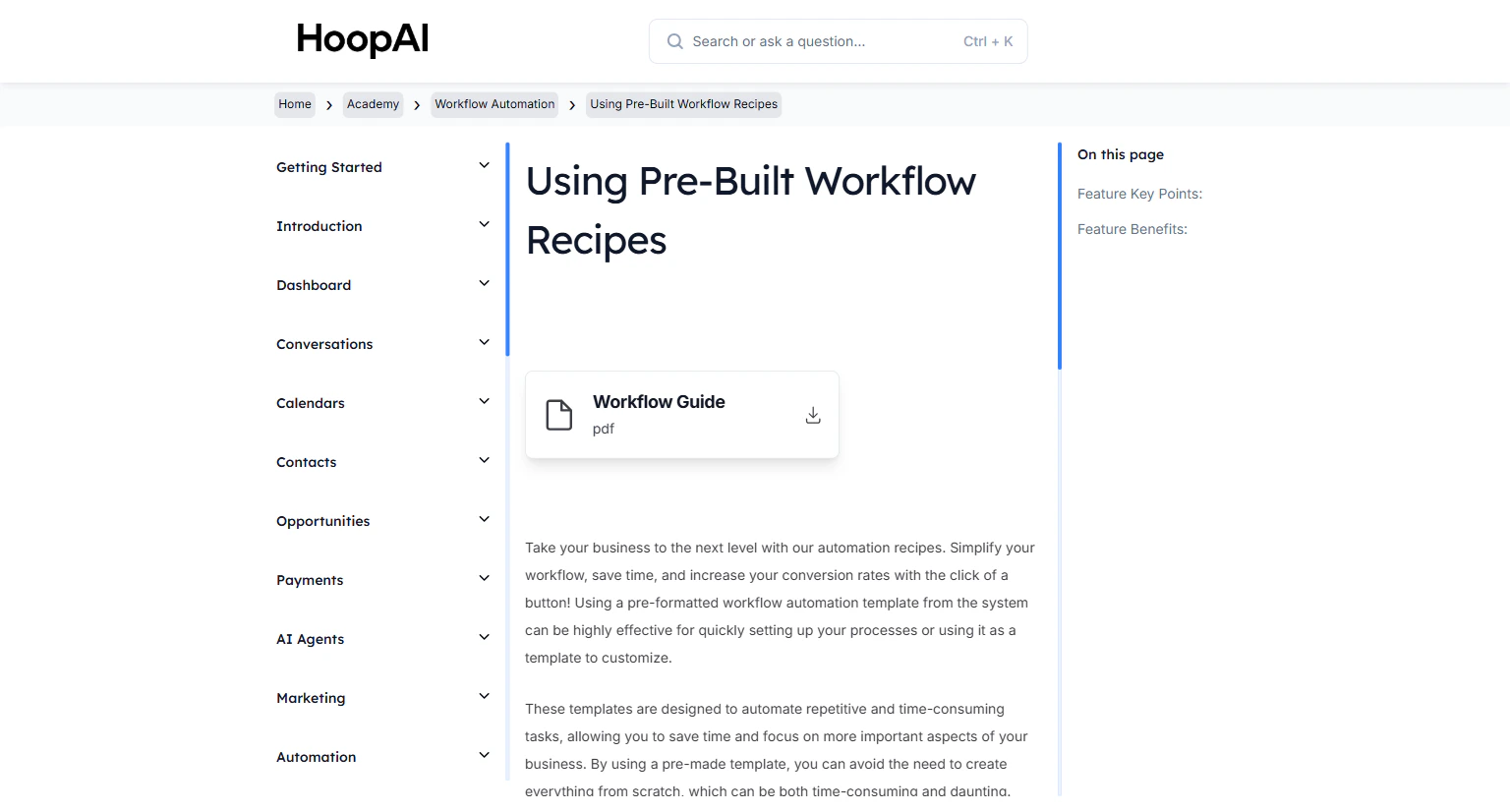
Workflow actions are the steps that execute after a workflow is triggered. Each action performs a specific task — sending a message, updating a record, applying a tag, waiting a set time, or branching based on conditions. By customizing actions, you control precisely what happens at every stage of your automation.

<Frame caption="The Customizing Workflow Actions lesson in the HoopAI Academy">
  <img src="https://mintcdn.com/hoopai-84ec0cdc/gyU98wGhFXcTdqFf/images/academy-workflow-recipes.png?fit=max&auto=format&n=gyU98wGhFXcTdqFf&q=85&s=82127a8fe14c91ea981ab7dbb7c56771" alt="Customizing workflow actions article" width="1536" height="826" data-path="images/academy-workflow-recipes.png" />
</Frame>

## Why this matters

The trigger gets a contact into a workflow — but it is the action sequence that determines what actually happens to them. A well-designed action chain can qualify leads, nurture them with relevant content, book appointments, move pipeline stages, and notify your team — all without any human intervention. The depth of your automation depends entirely on how well you configure these steps.

## Types of workflow actions

<AccordionGroup>
  <Accordion title="Messaging actions">
    Send communications to contacts:

    * **Send SMS:** Send a text message to the contact
    * **Send Email:** Send an email from your designated sending address
    * **Send Voicemail Drop:** Deliver a pre-recorded voicemail without ringing the contact's phone
    * **Add to Conversation:** Create or update a conversation thread
  </Accordion>

  <Accordion title="Contact management actions">
    Update contact records automatically:

    * **Add Tag / Remove Tag:** Apply or remove tags for segmentation
    * **Update Contact Field:** Set a custom field value on the contact record
    * **Add to / Remove from List:** Add or remove the contact from a contact list
    * **Assign User:** Assign the contact to a specific team member
  </Accordion>

  <Accordion title="Pipeline and opportunity actions">
    Move contacts through your sales process:

    * **Create Opportunity:** Creates a new opportunity on a pipeline
    * **Update Opportunity Status:** Moves an opportunity to a different stage
  </Accordion>

  <Accordion title="Operation steps">
    Control workflow flow and logic:

    * **Wait Step:** Pause the workflow for a set time or until a condition is met
    * **If/Else Branch:** Split the workflow into different paths based on contact data or behavior
    * **Go To:** Jump to a different step in the workflow
    * **Goal Event:** Skip to a specified step when a specific contact action occurs
    * **Webhook:** Send contact data to an external URL for integration with other platforms
  </Accordion>

  <Accordion title="Notification actions">
    Alert your team members:

    * **Internal Notification:** Send an email or SMS to a team member when a contact reaches a step
    * **Create Task:** Add a task to a team member's task list
  </Accordion>
</AccordionGroup>

## How to customize workflow actions

<Steps>
  <Step title="Open the workflow builder">
    In **Automation** > **Workflows**, open the workflow you want to configure. You will see the workflow canvas with any existing trigger and action steps.

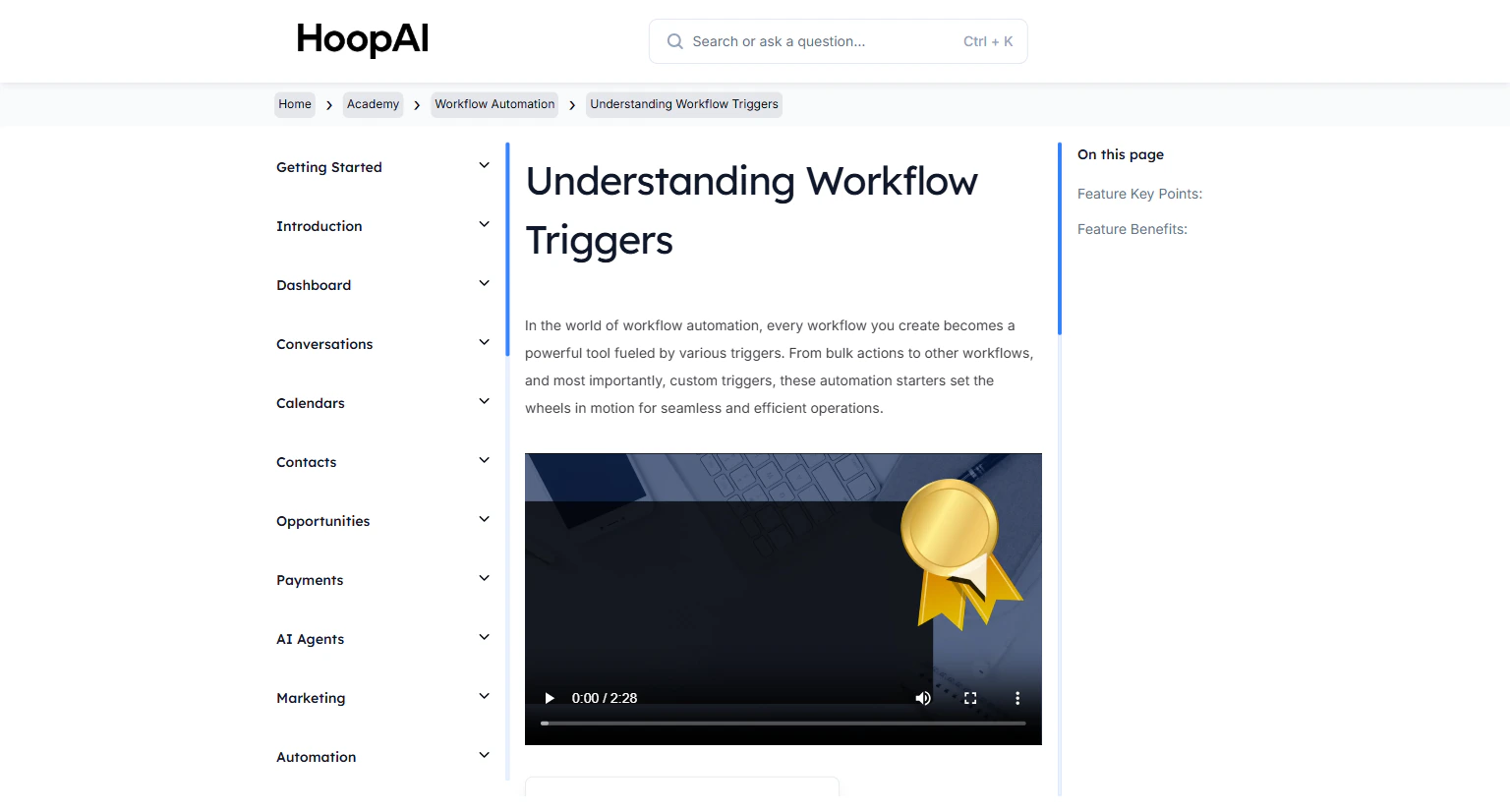
    <Frame caption="The workflow action builder canvas in the HoopAI Platform">
      <img src="https://mintcdn.com/hoopai-84ec0cdc/gyU98wGhFXcTdqFf/images/academy-workflow-triggers.png?fit=max&auto=format&n=gyU98wGhFXcTdqFf&q=85&s=0aa03e5a41598c8044d00b6cb03b7b27" alt="Workflow action builder" width="1536" height="826" data-path="images/academy-workflow-triggers.png" />
    </Frame>
  </Step>

  <Step title="Click Add Action">
    After your trigger (or after an existing action step), click **Add Action** to insert a new step.
  </Step>

  <Step title="Select an action type">
    Browse the action categories and select the action that matches what you want to happen at this step.
  </Step>

  <Step title="Configure the action">
    Fill in the action's details based on the action type:

    * **Send SMS/Email:** Write the message, select the sender, use custom field merge tags like `{{contact.first_name}}`
    * **Wait Step:** Choose the wait duration (minutes, hours, days) or condition to wait for
    * **If/Else Branch:** Set the condition that determines which path a contact takes
    * **Add Tag:** Select the tag to apply from your existing tag list

    <Frame caption="Configuring a Send SMS action step with a personalized message and merge tags">
      <img src="https://mintcdn.com/hoopai-84ec0cdc/gyU98wGhFXcTdqFf/images/academy-workflow-recipes.png?fit=max&auto=format&n=gyU98wGhFXcTdqFf&q=85&s=82127a8fe14c91ea981ab7dbb7c56771" alt="Configuring a workflow action step" width="1536" height="826" data-path="images/academy-workflow-recipes.png" />
    </Frame>

    <Tip>
      Always use merge tags in your message actions. At minimum, open with `{{contact.first_name}}` to make every automated message feel personal rather than generic.
    </Tip>
  </Step>

  <Step title="Chain multiple actions">
    Continue adding actions below the first. The workflow executes them in order from top to bottom. Use wait steps between messaging actions to space out the sequence naturally over time.
  </Step>

  <Step title="Add branching logic">
    Use **If/Else Branches** to create parallel paths for different scenarios. For example:

    * **Yes branch:** Contact replied within 24 hours — send a follow-up email
    * **No branch:** Contact did not reply — send a reminder SMS

    <Frame caption="If/Else branching logic in a workflow action sequence">
      <img src="https://mintcdn.com/hoopai-84ec0cdc/gyU98wGhFXcTdqFf/images/academy-workflow-triggers.png?fit=max&auto=format&n=gyU98wGhFXcTdqFf&q=85&s=0aa03e5a41598c8044d00b6cb03b7b27" alt="Workflow if/else branch logic" width="1536" height="826" data-path="images/academy-workflow-triggers.png" />
    </Frame>
  </Step>

  <Step title="Save and publish">
    Save your workflow and toggle it to **Published** when you are ready for it to go live. Test with a test contact first to confirm all actions fire as expected.
  </Step>
</Steps>

## Key benefits

<AccordionGroup>
  <Accordion title="Personalization">
    Customize messages and actions based on individual contact data and behavior.
  </Accordion>

  <Accordion title="Lead nurturing">
    Build multi-step sequences that guide contacts through your customer journey automatically.
  </Accordion>

  <Accordion title="Operational efficiency">
    Automate repetitive tasks — tagging, pipeline updates, notifications — without manual effort.
  </Accordion>

  <Accordion title="Data-driven automation">
    Use if/else branches to deliver different experiences based on what contacts actually do.
  </Accordion>

  <Accordion title="Scalability">
    Automated action sequences handle growing numbers of leads without sacrificing quality or timing.
  </Accordion>
</AccordionGroup>