> ## Documentation Index
> Fetch the complete documentation index at: https://help.hoopai.com/llms.txt
> Use this file to discover all available pages before exploring further.

# Call tracking & recording

> Learn how to track calls, monitor call metrics, and enable call recording in the HoopAI Platform to improve your sales process and team training.

export const CourseTracker = ({courseId, lessonId, videoId}) => {
  const [progress, setProgress] = useState({});
  const [expanded, setExpanded] = useState(false);
  useEffect(() => {
    setProgress(loadProgress());
    document.body.setAttribute("data-academy", "true");
    return () => document.body.removeAttribute("data-academy");
  }, []);
  const course = COURSES[courseId];
  if (!course) return null;
  const lessons = course.lessons;
  const currentIndex = lessons.findIndex(l => l.id === lessonId);
  const completedCount = lessons.filter(l => !!progress[courseId + "/" + l.id]).length;
  const percent = lessons.length > 0 ? Math.round(completedCount / lessons.length * 100) : 0;
  const isCurrentDone = !!progress[courseId + "/" + lessonId];
  const prev = currentIndex > 0 ? lessons[currentIndex - 1] : null;
  const next = currentIndex < lessons.length - 1 ? lessons[currentIndex + 1] : null;
  const totalDuration = formatTotalDuration(lessons);
  const handleToggle = () => {
    const key = courseId + "/" + lessonId;
    const updated = {
      ...progress
    };
    if (updated[key]) {
      delete updated[key];
    } else {
      updated[key] = Date.now();
    }
    setProgress(updated);
    persistProgress(updated);
  };
  const lessonPath = lesson => "/academy/" + course.dir + "/" + lesson.id;
  const videoEmbed = videoId ? <div style={{
    position: "relative",
    width: "100%",
    paddingBottom: "56.25%",
    borderRadius: "var(--ds-radius-lg)",
    overflow: "hidden",
    marginBottom: "24px",
    background: "#000"
  }}>
      <iframe src={"https://www.youtube-nocookie.com/embed/" + videoId + "?rel=0"} title="Lesson video" allow="accelerometer; autoplay; clipboard-write; encrypted-media; gyroscope; picture-in-picture" allowFullScreen style={{
    position: "absolute",
    top: 0,
    left: 0,
    width: "100%",
    height: "100%",
    border: "none"
  }} />
    </div> : null;
  const lessonList = lessons.map(lesson => {
    const isActive = lesson.id === lessonId;
    const isDone = !!progress[courseId + "/" + lesson.id];
    const itemStyle = {
      display: "flex",
      alignItems: "center",
      gap: "8px",
      padding: "10px 16px",
      borderTop: "1px solid var(--academy-border-subtle, #f3f4f6)",
      background: isActive ? "var(--academy-active-bg, #f9fafb)" : "transparent",
      textDecoration: "none",
      cursor: isActive ? "default" : "pointer",
      color: "inherit",
      transition: "background 0.15s"
    };
    const titleStyle = {
      flex: 1,
      fontSize: "13px",
      fontWeight: isActive ? 600 : 400,
      color: isActive ? "var(--academy-text, #111827)" : "var(--academy-text-secondary, #6b7280)",
      overflow: "hidden",
      textOverflow: "ellipsis",
      whiteSpace: "nowrap",
      lineHeight: "1.4"
    };
    const durationStyle = {
      fontSize: "12px",
      color: "var(--academy-text-muted, #9ca3af)",
      whiteSpace: "nowrap"
    };
    const inner = <>
        {isDone ? <CheckCircle /> : <VideoIcon />}
        <span style={titleStyle}>{lesson.title}</span>
        <span style={durationStyle}>{lesson.duration}</span>
      </>;
    if (isActive) {
      return <div key={lesson.id} style={itemStyle}>
          {inner}
        </div>;
    }
    return <a key={lesson.id} href={lessonPath(lesson)} style={itemStyle}>
        {inner}
      </a>;
  });
  return <div className="not-prose" id="academy-course-tracker">
      {videoEmbed}
      <div className="academy-tracker" style={{
    fontFamily: "Inter, -apple-system, BlinkMacSystemFont, sans-serif",
    borderRadius: "var(--ds-radius-lg)",
    border: "1px solid var(--academy-border, #e5e7eb)",
    background: "var(--academy-bg, #ffffff)",
    overflow: "hidden",
    marginBottom: "24px"
  }}>
        {}
        <div style={{
    padding: "16px 16px 0"
  }}>
          <h3 style={{
    margin: 0,
    fontSize: "16px",
    fontWeight: 600,
    lineHeight: "1.4",
    color: "var(--academy-text, #111827)"
  }}>
            {course.title}
          </h3>
          <div style={{
    display: "flex",
    gap: "12px",
    marginTop: "8px"
  }}>
            <span style={{
    display: "flex",
    alignItems: "center",
    gap: "5px",
    fontSize: "12px",
    color: "var(--academy-text-secondary, #6b7280)",
    padding: "3px 8px 3px 6px",
    borderRadius: "var(--ds-radius-sm)",
    border: "1px solid var(--academy-border, #e5e7eb)"
  }}>
              <BookIcon /> {lessons.length} lessons
            </span>
            <span style={{
    display: "flex",
    alignItems: "center",
    gap: "5px",
    fontSize: "12px",
    color: "var(--academy-text-secondary, #6b7280)",
    padding: "3px 8px 3px 6px",
    borderRadius: "var(--ds-radius-sm)",
    border: "1px solid var(--academy-border, #e5e7eb)"
  }}>
              <ClockIcon /> Approx. {totalDuration}
            </span>
          </div>
        </div>

        {}
        <div style={{
    padding: "14px 16px 16px"
  }}>
          <div style={{
    display: "flex",
    justifyContent: "space-between",
    fontSize: "12px",
    color: "var(--academy-text-secondary, #6b7280)"
  }}>
            <span>Your progress</span>
            <span style={{
    fontWeight: 500,
    color: "var(--academy-text, #111827)"
  }}>
              {percent}%
            </span>
          </div>
          <div style={{
    height: "6px",
    borderRadius: "var(--ds-radius-full)",
    background: "var(--academy-track, #f3f4f6)",
    marginTop: "8px",
    overflow: "hidden"
  }}>
            <div style={{
    height: "100%",
    borderRadius: "var(--ds-radius-full)",
    background: "var(--academy-progress, #3b82f6)",
    transition: "width 0.5s cubic-bezier(0.4, 0, 0.2, 1)",
    width: percent + "%"
  }} />
          </div>
        </div>

        {}
        <div className="academy-lessons-desktop">{lessonList}</div>

        {}
        <div className="academy-lessons-mobile">
          <button onClick={() => setExpanded(!expanded)} aria-expanded={expanded} style={{
    display: "flex",
    alignItems: "center",
    justifyContent: "space-between",
    padding: "12px 16px",
    cursor: "pointer",
    borderTop: "1px solid var(--academy-border-subtle, #f3f4f6)",
    background: "transparent",
    border: "none",
    borderTopStyle: "solid",
    borderTopWidth: "1px",
    borderTopColor: "var(--academy-border-subtle, #f3f4f6)",
    width: "100%",
    textAlign: "left",
    color: "var(--academy-text-secondary, #6b7280)",
    fontSize: "13px",
    fontWeight: 500,
    fontFamily: "inherit"
  }}>
            <span>
              {expanded ? "Hide lessons" : "Show all " + lessons.length + " lessons"}
            </span>
            <ChevronDown open={expanded} />
          </button>
          {expanded && lessonList}
        </div>

        {}
        <div style={{
    display: "flex",
    alignItems: "center",
    justifyContent: "space-between",
    borderTop: "1px solid var(--academy-border, #e5e7eb)",
    padding: "10px 16px"
  }}>
          {prev ? <a href={lessonPath(prev)} style={{
    fontSize: "13px",
    color: "var(--academy-text-secondary, #6b7280)",
    textDecoration: "none",
    display: "flex",
    alignItems: "center",
    gap: "4px"
  }}>
              ‹ Previous
            </a> : <div />}
          <button onClick={handleToggle} style={{
    fontSize: "13px",
    fontWeight: 500,
    cursor: "pointer",
    padding: "6px 14px",
    borderRadius: "var(--ds-radius-md)",
    border: isCurrentDone ? "1px solid var(--academy-border, #e5e7eb)" : "none",
    background: isCurrentDone ? "var(--academy-bg, #ffffff)" : "var(--academy-btn-bg, #111827)",
    color: isCurrentDone ? "var(--academy-complete, #10b981)" : "var(--academy-btn-text, #ffffff)",
    display: "flex",
    alignItems: "center",
    gap: "6px",
    transition: "all 0.2s",
    lineHeight: "1.4",
    fontFamily: "inherit"
  }}>
            {isCurrentDone ? <>
                <CheckCircle /> Completed
              </> : "Mark as completed"}
          </button>
          {next ? <a href={lessonPath(next)} style={{
    fontSize: "13px",
    color: "var(--academy-text-secondary, #6b7280)",
    textDecoration: "none",
    display: "flex",
    alignItems: "center",
    gap: "4px"
  }}>
              Next ›
            </a> : <div />}
        </div>
      </div>
    </div>;
};

<CourseTracker courseId="sms-phone-numbers" lessonId="call-tracking-recording" />

Call recording and tracking gives you valuable insight into every customer interaction. By analyzing call data, you can identify areas of improvement, track your sales team's performance, and increase conversion rates. Call recordings also serve as a powerful training tool for new team members.

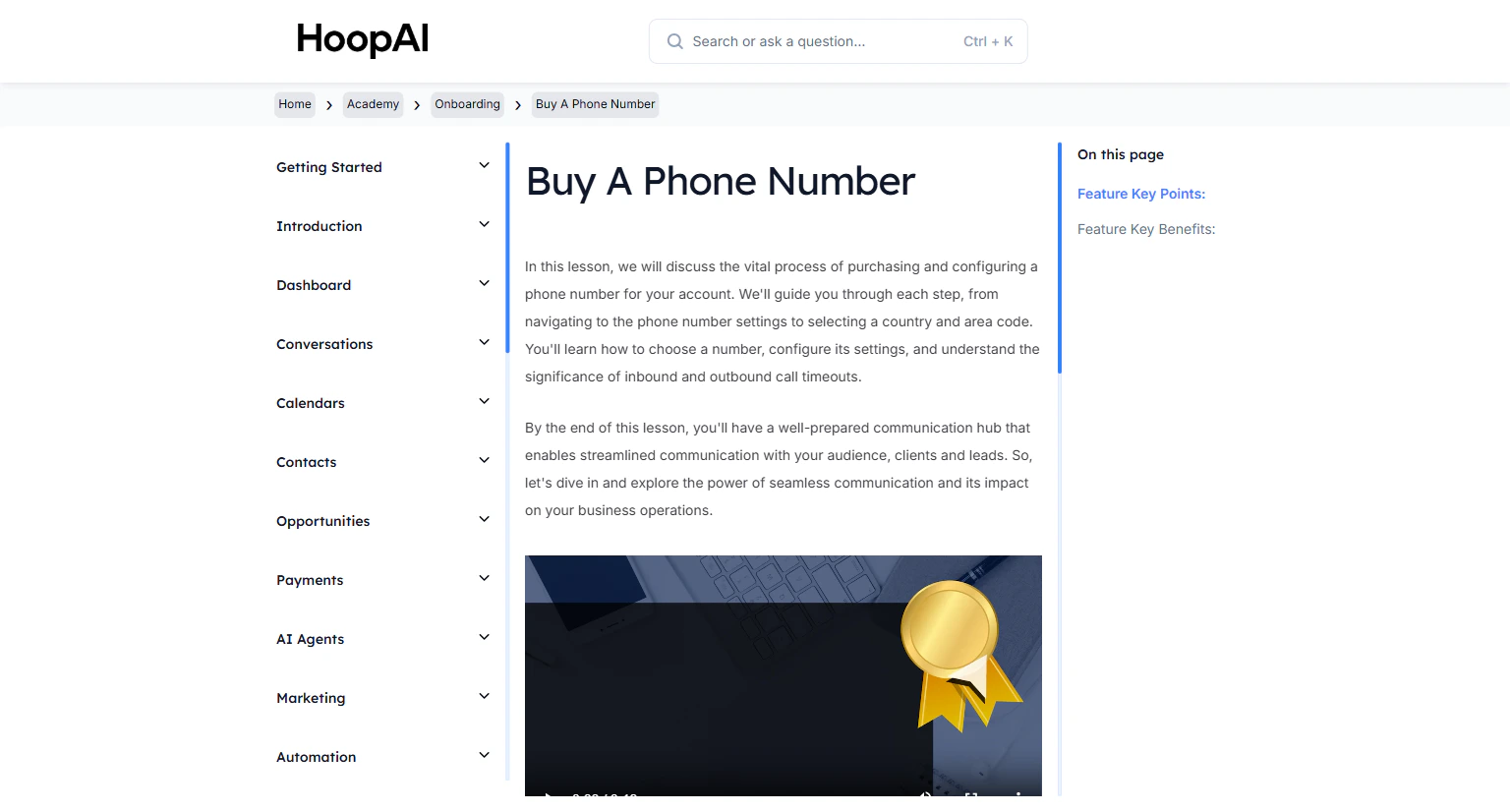
<Frame caption="The Call Tracking & Recording lesson in the HoopAI Academy">
  <img src="https://mintlify.s3.us-west-1.amazonaws.com/hoopai-84ec0cdc/images/academy-sms-call-tracking.png" alt="Call tracking and recording article" />
</Frame>

## Why this matters

64% of inbound calls to small businesses go unanswered daily. Call tracking tells you exactly how many calls you are missing, who is answering them, and how long conversations last. With recording enabled, you get a library of real conversations for training, quality control, and continuous improvement.

## How to set up call tracking and recording

<Steps>
  <Step title="Navigate to Phone Number settings">
    Go to **Settings** > **Phone Numbers** and click on the phone number you want to configure.

    <Frame caption="Accessing phone number settings to enable call recording">
      <img src="https://mintlify.s3.us-west-1.amazonaws.com/hoopai-84ec0cdc/images/academy-sms-call-tracking.png" alt="Phone number settings" />
    </Frame>
  </Step>

  <Step title="Enable call recording">
    In the phone number settings, toggle **Call Recording** to on. All inbound and outbound calls made through this number will be recorded automatically going forward.

    <Warning>
      Recording laws vary by state and country. Some jurisdictions require all parties be notified before a call is recorded. Review the applicable laws in your location before enabling this feature.
    </Warning>
  </Step>

  <Step title="Enable whisper messages (optional)">
    A whisper message plays to you before connecting an incoming forwarded call — the caller cannot hear it. It tells you the source of the call so you can answer with the right context.

    Toggle **Whisper Message** on and enter the message text you want to hear before each call connects.

    <Frame caption="Configuring whisper messages to identify call source before connecting">
      <img src="https://mintcdn.com/hoopai-84ec0cdc/gyU98wGhFXcTdqFf/images/academy-onboarding-buy-phone-number.png?fit=max&auto=format&n=gyU98wGhFXcTdqFf&q=85&s=ef2b18bc4019dd33e411f28c4cf5e1c5" alt="Whisper message configuration" width="1536" height="826" data-path="images/academy-onboarding-buy-phone-number.png" />
    </Frame>
  </Step>

  <Step title="View call reporting">
    Go to **Reporting** > **Call Reporting** to view a full log of all calls:

    * Total calls answered, missed, and sent to voicemail
    * Average call duration
    * Which team member handled each call
    * The phone number used for each call

    <Frame caption="The Call Reporting dashboard in the HoopAI Platform">
      <img src="https://mintlify.s3.us-west-1.amazonaws.com/hoopai-84ec0cdc/images/academy-sms-call-tracking.png" alt="Call reporting dashboard" />
    </Frame>
  </Step>

  <Step title="Review call recordings">
    In the **Conversations** area or the **Call Log**, click on any logged call to access its recording. Listen back to review the conversation for quality assurance or team training.
  </Step>

  <Step title="Follow up on missed calls">
    Enable the **Missed Call Text Back** feature under **Settings** > **Business Info** to automatically send a text message when a call goes unanswered. This ensures no lead is ever lost due to a missed call.

    <Tip>
      Pair the missed call text back with a workflow that collects additional information or books an appointment automatically.
    </Tip>
  </Step>
</Steps>

## Key points

<AccordionGroup>
  <Accordion title="What call tracking measures">
    Call tracking logs all incoming and outgoing calls with details including the contact, phone number used, assigned team member, call duration, and outcome (answered, missed, or voicemail).
  </Accordion>

  <Accordion title="Using whisper messages">
    Whisper messages play only to you before a forwarded call connects — the caller never hears them. Use them to identify which campaign or number the caller came from so you can greet them appropriately.
  </Accordion>

  <Accordion title="Call recording compliance">
    Recording laws vary by state and country. Some jurisdictions require that all parties be notified before a call is recorded. Review the applicable laws for your location before enabling this feature.
  </Accordion>

  <Accordion title="Using recordings for team training">
    Call recordings are an excellent resource for coaching your sales team. Identify winning techniques from top performers and use real recorded examples in onboarding materials for new hires.
  </Accordion>
</AccordionGroup>

## Key benefits

<AccordionGroup>
  <Accordion title="Sales training">
    Real-time call tracking and recordings help coach your team and improve closing rates.
  </Accordion>

  <Accordion title="Automatic call logging">
    Every call is logged without manual effort, saving time and keeping records accurate.
  </Accordion>

  <Accordion title="Quality assurance">
    Record calls to review customer interactions and ensure team members meet your standards.
  </Accordion>

  <Accordion title="Missed call follow-up">
    The missed call text back ensures every unanswered call results in an automatic follow-up message.
  </Accordion>

  <Accordion title="Detailed call logs">
    Access a complete record of all call activity — caller, number, duration, and outcome.
  </Accordion>
</AccordionGroup>