> ## Documentation Index
> Fetch the complete documentation index at: https://help.hoopai.com/llms.txt
> Use this file to discover all available pages before exploring further.

# Reviews & reputation management

> Request, manage, and respond to Google and Facebook reviews from one place — and build a stronger online reputation with the HoopAI Platform.

export const CourseTracker = ({courseId, lessonId, videoId}) => {
  const [progress, setProgress] = useState({});
  const [expanded, setExpanded] = useState(false);
  useEffect(() => {
    setProgress(loadProgress());
    document.body.setAttribute("data-academy", "true");
    return () => document.body.removeAttribute("data-academy");
  }, []);
  const course = COURSES[courseId];
  if (!course) return null;
  const lessons = course.lessons;
  const currentIndex = lessons.findIndex(l => l.id === lessonId);
  const completedCount = lessons.filter(l => !!progress[courseId + "/" + l.id]).length;
  const percent = lessons.length > 0 ? Math.round(completedCount / lessons.length * 100) : 0;
  const isCurrentDone = !!progress[courseId + "/" + lessonId];
  const prev = currentIndex > 0 ? lessons[currentIndex - 1] : null;
  const next = currentIndex < lessons.length - 1 ? lessons[currentIndex + 1] : null;
  const totalDuration = formatTotalDuration(lessons);
  const handleToggle = () => {
    const key = courseId + "/" + lessonId;
    const updated = {
      ...progress
    };
    if (updated[key]) {
      delete updated[key];
    } else {
      updated[key] = Date.now();
    }
    setProgress(updated);
    persistProgress(updated);
  };
  const lessonPath = lesson => "/academy/" + course.dir + "/" + lesson.id;
  const videoEmbed = videoId ? <div style={{
    position: "relative",
    width: "100%",
    paddingBottom: "56.25%",
    borderRadius: "var(--ds-radius-lg)",
    overflow: "hidden",
    marginBottom: "24px",
    background: "#000"
  }}>
      <iframe src={"https://www.youtube-nocookie.com/embed/" + videoId + "?rel=0"} title="Lesson video" allow="accelerometer; autoplay; clipboard-write; encrypted-media; gyroscope; picture-in-picture" allowFullScreen style={{
    position: "absolute",
    top: 0,
    left: 0,
    width: "100%",
    height: "100%",
    border: "none"
  }} />
    </div> : null;
  const lessonList = lessons.map(lesson => {
    const isActive = lesson.id === lessonId;
    const isDone = !!progress[courseId + "/" + lesson.id];
    const itemStyle = {
      display: "flex",
      alignItems: "center",
      gap: "8px",
      padding: "10px 16px",
      borderTop: "1px solid var(--academy-border-subtle, #f3f4f6)",
      background: isActive ? "var(--academy-active-bg, #f9fafb)" : "transparent",
      textDecoration: "none",
      cursor: isActive ? "default" : "pointer",
      color: "inherit",
      transition: "background 0.15s"
    };
    const titleStyle = {
      flex: 1,
      fontSize: "13px",
      fontWeight: isActive ? 600 : 400,
      color: isActive ? "var(--academy-text, #111827)" : "var(--academy-text-secondary, #6b7280)",
      overflow: "hidden",
      textOverflow: "ellipsis",
      whiteSpace: "nowrap",
      lineHeight: "1.4"
    };
    const durationStyle = {
      fontSize: "12px",
      color: "var(--academy-text-muted, #9ca3af)",
      whiteSpace: "nowrap"
    };
    const inner = <>
        {isDone ? <CheckCircle /> : <VideoIcon />}
        <span style={titleStyle}>{lesson.title}</span>
        <span style={durationStyle}>{lesson.duration}</span>
      </>;
    if (isActive) {
      return <div key={lesson.id} style={itemStyle}>
          {inner}
        </div>;
    }
    return <a key={lesson.id} href={lessonPath(lesson)} style={itemStyle}>
        {inner}
      </a>;
  });
  return <div className="not-prose" id="academy-course-tracker">
      {videoEmbed}
      <div className="academy-tracker" style={{
    fontFamily: "Inter, -apple-system, BlinkMacSystemFont, sans-serif",
    borderRadius: "var(--ds-radius-lg)",
    border: "1px solid var(--academy-border, #e5e7eb)",
    background: "var(--academy-bg, #ffffff)",
    overflow: "hidden",
    marginBottom: "24px"
  }}>
        {}
        <div style={{
    padding: "16px 16px 0"
  }}>
          <h3 style={{
    margin: 0,
    fontSize: "16px",
    fontWeight: 600,
    lineHeight: "1.4",
    color: "var(--academy-text, #111827)"
  }}>
            {course.title}
          </h3>
          <div style={{
    display: "flex",
    gap: "12px",
    marginTop: "8px"
  }}>
            <span style={{
    display: "flex",
    alignItems: "center",
    gap: "5px",
    fontSize: "12px",
    color: "var(--academy-text-secondary, #6b7280)",
    padding: "3px 8px 3px 6px",
    borderRadius: "var(--ds-radius-sm)",
    border: "1px solid var(--academy-border, #e5e7eb)"
  }}>
              <BookIcon /> {lessons.length} lessons
            </span>
            <span style={{
    display: "flex",
    alignItems: "center",
    gap: "5px",
    fontSize: "12px",
    color: "var(--academy-text-secondary, #6b7280)",
    padding: "3px 8px 3px 6px",
    borderRadius: "var(--ds-radius-sm)",
    border: "1px solid var(--academy-border, #e5e7eb)"
  }}>
              <ClockIcon /> Approx. {totalDuration}
            </span>
          </div>
        </div>

        {}
        <div style={{
    padding: "14px 16px 16px"
  }}>
          <div style={{
    display: "flex",
    justifyContent: "space-between",
    fontSize: "12px",
    color: "var(--academy-text-secondary, #6b7280)"
  }}>
            <span>Your progress</span>
            <span style={{
    fontWeight: 500,
    color: "var(--academy-text, #111827)"
  }}>
              {percent}%
            </span>
          </div>
          <div style={{
    height: "6px",
    borderRadius: "var(--ds-radius-full)",
    background: "var(--academy-track, #f3f4f6)",
    marginTop: "8px",
    overflow: "hidden"
  }}>
            <div style={{
    height: "100%",
    borderRadius: "var(--ds-radius-full)",
    background: "var(--academy-progress, #3b82f6)",
    transition: "width 0.5s cubic-bezier(0.4, 0, 0.2, 1)",
    width: percent + "%"
  }} />
          </div>
        </div>

        {}
        <div className="academy-lessons-desktop">{lessonList}</div>

        {}
        <div className="academy-lessons-mobile">
          <button onClick={() => setExpanded(!expanded)} aria-expanded={expanded} style={{
    display: "flex",
    alignItems: "center",
    justifyContent: "space-between",
    padding: "12px 16px",
    cursor: "pointer",
    borderTop: "1px solid var(--academy-border-subtle, #f3f4f6)",
    background: "transparent",
    border: "none",
    borderTopStyle: "solid",
    borderTopWidth: "1px",
    borderTopColor: "var(--academy-border-subtle, #f3f4f6)",
    width: "100%",
    textAlign: "left",
    color: "var(--academy-text-secondary, #6b7280)",
    fontSize: "13px",
    fontWeight: 500,
    fontFamily: "inherit"
  }}>
            <span>
              {expanded ? "Hide lessons" : "Show all " + lessons.length + " lessons"}
            </span>
            <ChevronDown open={expanded} />
          </button>
          {expanded && lessonList}
        </div>

        {}
        <div style={{
    display: "flex",
    alignItems: "center",
    justifyContent: "space-between",
    borderTop: "1px solid var(--academy-border, #e5e7eb)",
    padding: "10px 16px"
  }}>
          {prev ? <a href={lessonPath(prev)} style={{
    fontSize: "13px",
    color: "var(--academy-text-secondary, #6b7280)",
    textDecoration: "none",
    display: "flex",
    alignItems: "center",
    gap: "4px"
  }}>
              ‹ Previous
            </a> : <div />}
          <button onClick={handleToggle} style={{
    fontSize: "13px",
    fontWeight: 500,
    cursor: "pointer",
    padding: "6px 14px",
    borderRadius: "var(--ds-radius-md)",
    border: isCurrentDone ? "1px solid var(--academy-border, #e5e7eb)" : "none",
    background: isCurrentDone ? "var(--academy-bg, #ffffff)" : "var(--academy-btn-bg, #111827)",
    color: isCurrentDone ? "var(--academy-complete, #10b981)" : "var(--academy-btn-text, #ffffff)",
    display: "flex",
    alignItems: "center",
    gap: "6px",
    transition: "all 0.2s",
    lineHeight: "1.4",
    fontFamily: "inherit"
  }}>
            {isCurrentDone ? <>
                <CheckCircle /> Completed
              </> : "Mark as completed"}
          </button>
          {next ? <a href={lessonPath(next)} style={{
    fontSize: "13px",
    color: "var(--academy-text-secondary, #6b7280)",
    textDecoration: "none",
    display: "flex",
    alignItems: "center",
    gap: "4px"
  }}>
              Next ›
            </a> : <div />}
        </div>
      </div>
    </div>;
};

<CourseTracker courseId="quick-start" lessonId="reviews-reputation-management" />

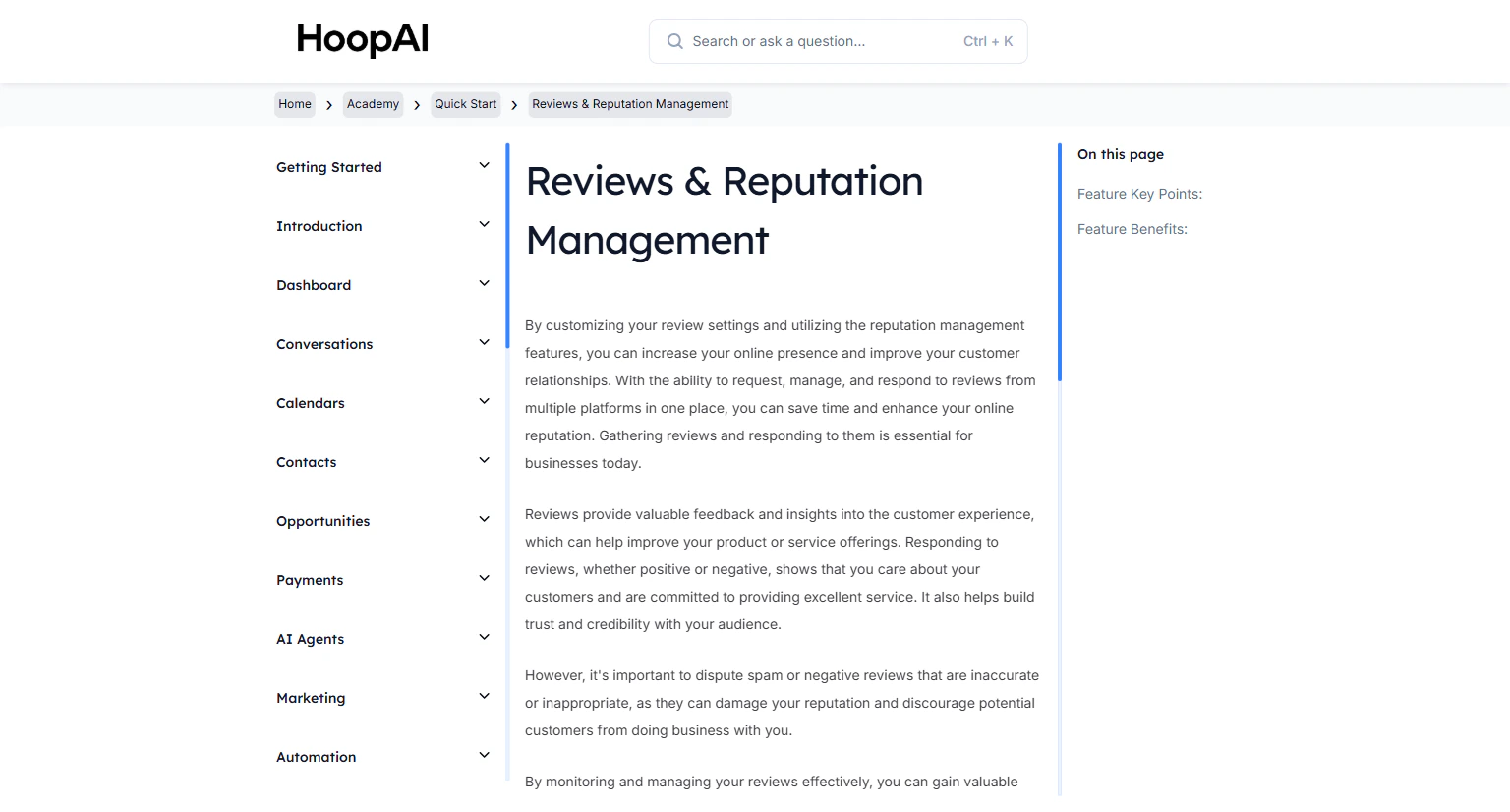
Your online reviews are one of the most powerful factors in whether a potential customer chooses your business. Positive reviews can increase the likelihood of customers using your business by 94%, and 89% of consumers are more likely to choose a business that responds to reviews. The HoopAI Platform lets you manage your entire review presence from a single dashboard.

<Frame caption="The Reviews and Reputation Management lesson in the HoopAI Academy Quick Start">
  <img src="https://mintcdn.com/hoopai-84ec0cdc/gyU98wGhFXcTdqFf/images/academy-quick-start-reviews.png?fit=max&auto=format&n=gyU98wGhFXcTdqFf&q=85&s=af720660cd3860a70fb0f71927bc7c94" alt="Reviews and reputation management article" width="1536" height="826" data-path="images/academy-quick-start-reviews.png" />
</Frame>

## Why this matters

Most businesses have more happy customers than reviews. The gap between how good a business actually is and how it appears online is a reputation gap — and it costs you new customers every day. Proactively requesting reviews from satisfied clients closes that gap systematically, and responding to every review signals that you are engaged and trustworthy.

## How to set up and use reputation management

<Steps>
  <Step title="Connect your Google and Facebook profiles">
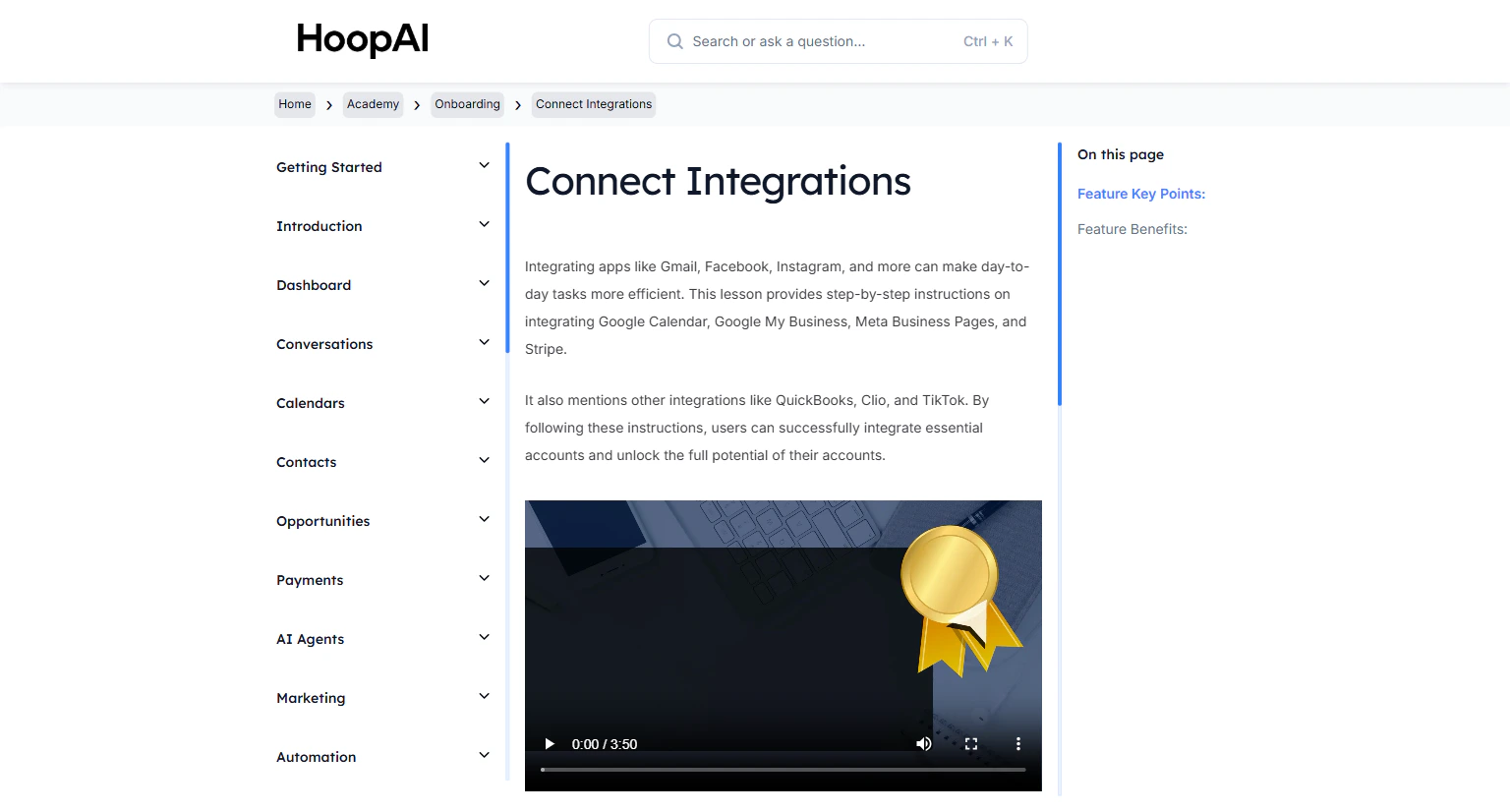
    Go to **Settings** > **Integrations** and connect your **Google Business Profile** and **Facebook Business Page**. Once connected, the platform automatically pulls in your existing reviews from both platforms.

    <Frame caption="Connecting Google and Facebook profiles in Integrations settings">
      <img src="https://mintcdn.com/hoopai-84ec0cdc/gyU98wGhFXcTdqFf/images/academy-onboarding-connect-integrations.png?fit=max&auto=format&n=gyU98wGhFXcTdqFf&q=85&s=438d94999ada2e8819af2eb0ee159b50" alt="Connect Google and Facebook integrations" width="1536" height="826" data-path="images/academy-onboarding-connect-integrations.png" />
    </Frame>
  </Step>

  <Step title="Configure your review settings">
    Go to **Reputation** in the left sidebar, then open **Settings**. Configure:

    * **Review request link:** Customize the direct link sent to contacts when requesting a review
    * **Automated review request messages:** Set up the email and SMS templates used for review requests
    * **Review widget:** Configure the website widget that displays your reviews as social proof
  </Step>

  <Step title="Send review requests">
    Request reviews from individual contacts or in bulk:

    * **Individual:** From any contact profile or active conversation, click **Request Review**
    * **Bulk:** From the Contacts section, select a list or smart list and use the Bulk Action to send review requests to all selected contacts at once

    <Frame caption="Sending review requests from the Reputation section of the HoopAI Platform">
      <img src="https://mintcdn.com/hoopai-84ec0cdc/gyU98wGhFXcTdqFf/images/academy-quick-start-reviews.png?fit=max&auto=format&n=gyU98wGhFXcTdqFf&q=85&s=af720660cd3860a70fb0f71927bc7c94" alt="Review request interface" width="1536" height="826" data-path="images/academy-quick-start-reviews.png" />
    </Frame>

    <Tip>
      Timing matters. Send the review request within 24 hours of a completed service or positive interaction while the experience is still fresh in the customer's mind. Automated workflow-triggered requests are the most effective approach.
    </Tip>
  </Step>

  <Step title="View and manage reviews">
    In the **Reputation** tab, view all your Google and Facebook reviews in one place. See the review text, star rating, date, platform, and response status at a glance.
  </Step>

  <Step title="Respond to reviews">
    Click any review to open a response editor. Write your reply and submit — your response is published directly to Google or Facebook without leaving the HoopAI Platform.

    <Frame caption="Responding to a Google or Facebook review from within the HoopAI Platform">
      <img src="https://mintcdn.com/hoopai-84ec0cdc/gyU98wGhFXcTdqFf/images/academy-quick-start-reviews.png?fit=max&auto=format&n=gyU98wGhFXcTdqFf&q=85&s=af720660cd3860a70fb0f71927bc7c94" alt="Review response editor" width="1536" height="826" data-path="images/academy-quick-start-reviews.png" />
    </Frame>

    Responding to both positive and negative reviews shows responsiveness, builds trust with potential customers, and encourages more customers to leave reviews of their own.
  </Step>

  <Step title="Dispute negative or spam reviews">
    For reviews that are inaccurate, inappropriate, or spam, use the **Dispute** option within the review details. This flags the review for removal consideration by Google or Facebook.
  </Step>
</Steps>

## Key points

<AccordionGroup>
  <Accordion title="Why responding to every review matters">
    Responding to reviews — both positive and negative — signals to potential customers that you are engaged and care about their experience. It also signals to Google's algorithm that your listing is active, which can improve your local search ranking over time.
  </Accordion>

  <Accordion title="Setting up automated review requests">
    You can trigger automatic review requests through workflows. After a client completes an appointment, or a job is marked as done, a workflow can automatically send them a review request — capturing feedback while the experience is fresh.
  </Accordion>

  <Accordion title="The review widget">
    The review widget can be embedded on your website to display your Google and Facebook reviews automatically. This builds social proof for new visitors without any ongoing manual work required.
  </Accordion>

  <Accordion title="Bulk review requests">
    If you have an existing customer list, consider sending a one-time bulk review request campaign. Even a modest response rate from a large list can significantly increase your review count and average rating.
  </Accordion>
</AccordionGroup>

## Key benefits

<AccordionGroup>
  <Accordion title="94% conversion boost">
    Positive reviews increase the likelihood of customers choosing your business.
  </Accordion>

  <Accordion title="89% preference for responsive businesses">
    Businesses that respond to reviews win significantly more new customers.
  </Accordion>

  <Accordion title="Centralized management">
    View, respond to, and track reviews from Google and Facebook in one place.
  </Accordion>

  <Accordion title="Automated requests">
    Send review requests automatically through workflows after key customer milestones.
  </Accordion>

  <Accordion title="Dispute protection">
    Flag and dispute spam or inaccurate negative reviews directly from the platform.
  </Accordion>
</AccordionGroup>